In this guide, we cover everything you need to know about updating your Apple HomeView to the latest software version.
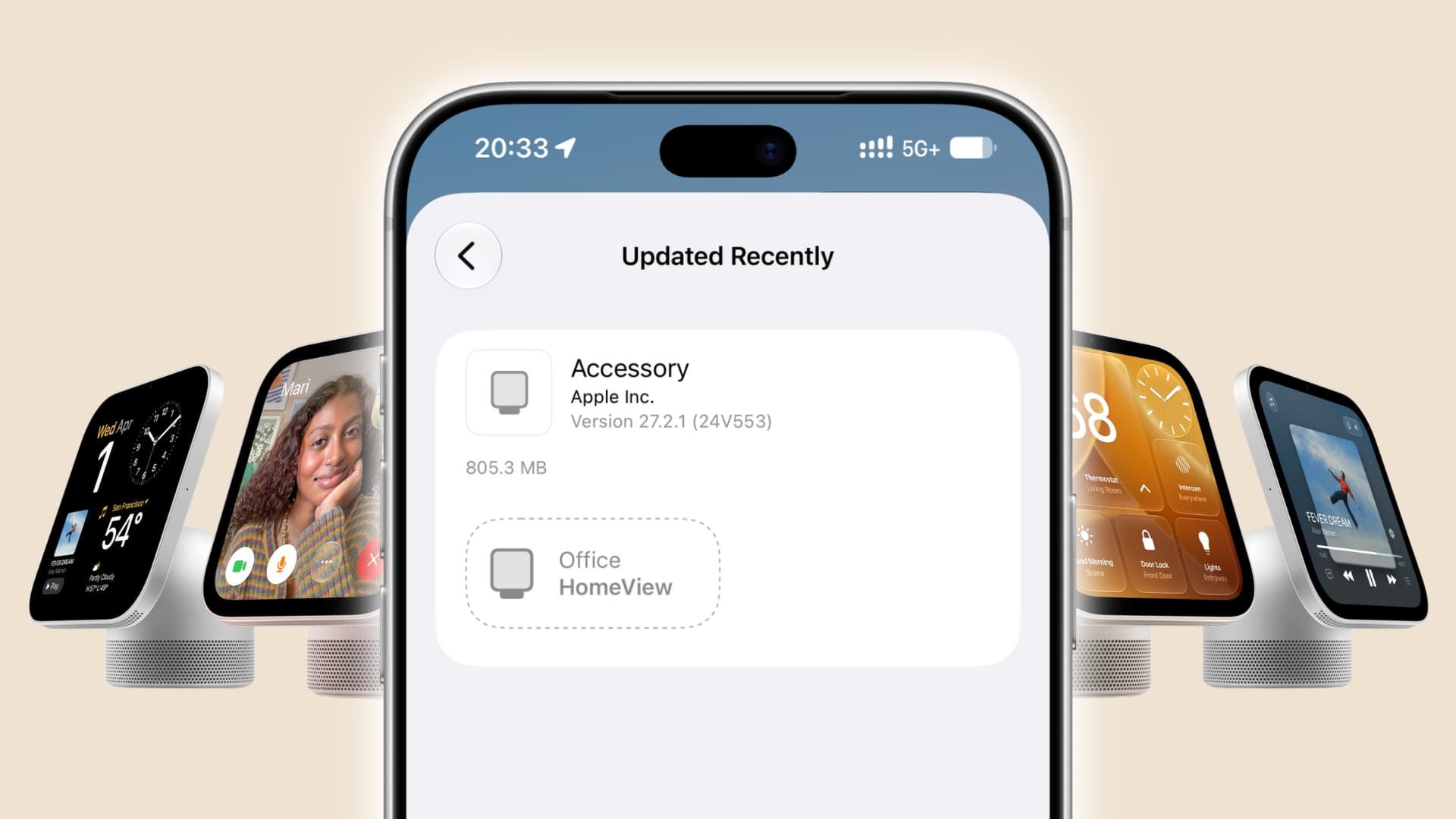
Just like iPhone (iOS), iPad (iPadOS), Mac (macOS), Vision Pro (visionOS), Apple Watch (watchOS), and Apple TV (tvOS), HomeView also gets periodic updates. However, like HomePod, its software doesn’t have a special name, and Apple simply calls it HomeView Software Version [number]. For HomePod, it’s HomePod Software Version [number].
Like other platforms, HomeView updates are meant to fix Siri issues (which are plenty), add new features, improve reliability with iPhone, and address other known problems.
Many early users, including me, have had several problems, like Siri even failing to set a timer or alarm on HomeView. Apple swiftly fixed these and other issues with the HomeView Software Version 27.2.1.
Update during setup
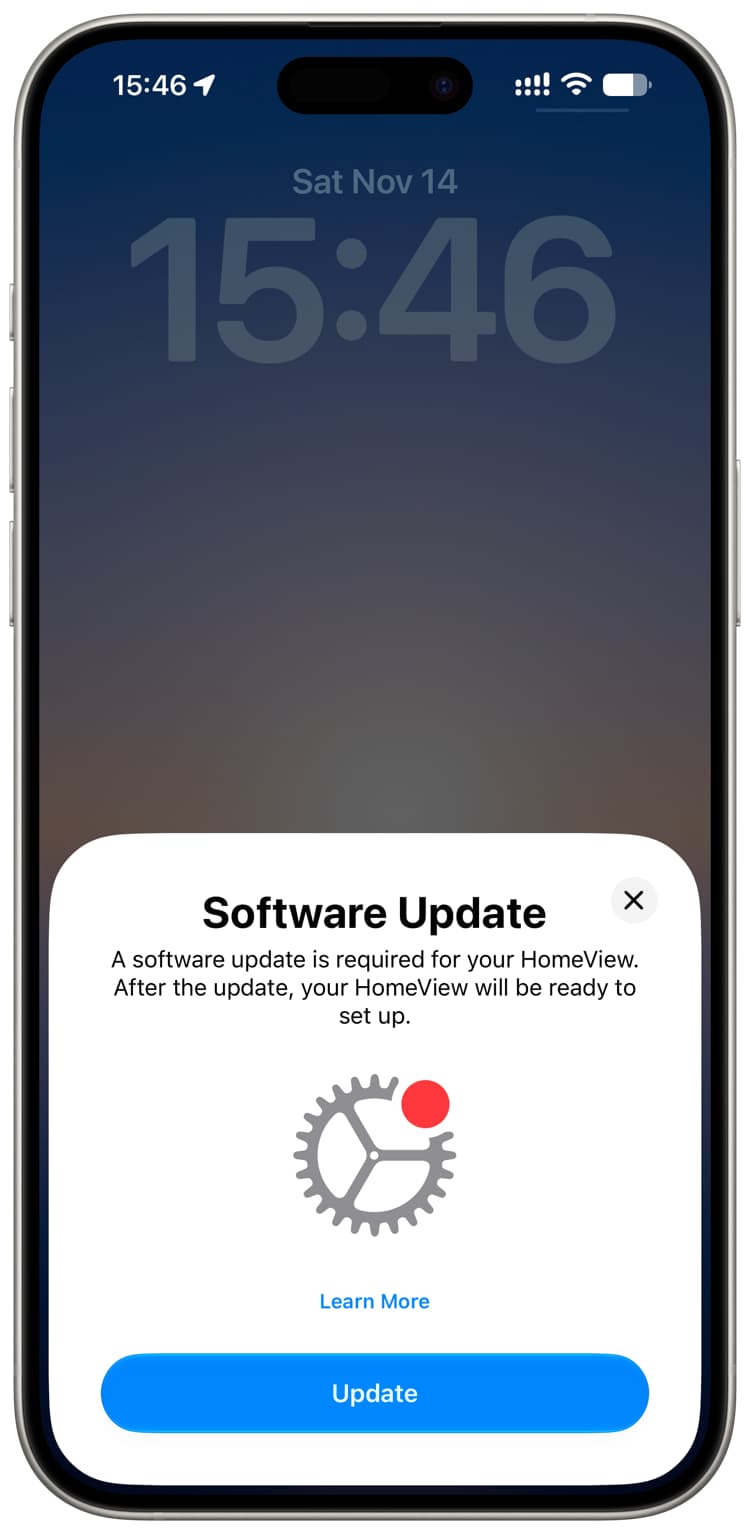
When you set up your HomeView, Apple may nudge you to update it if it’s running older software. Just tap Update and wait for it to finish.
Check what software version is running on your HomeView
You can see this information on your HomeView or in the Apple Home app.
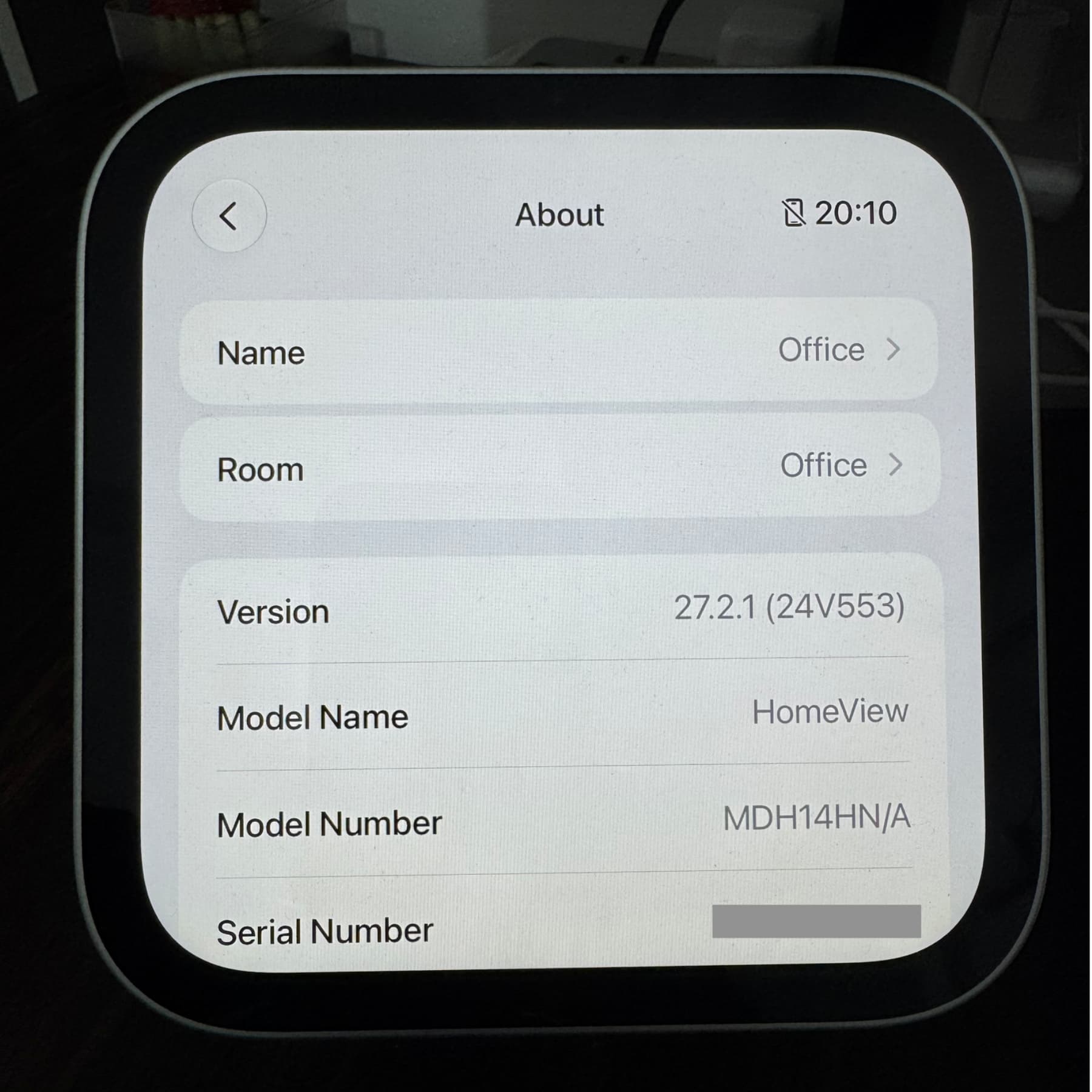
- Open the Settings app on your HomeView.
- Tap General.
- Tap About.
- Check the Version number.
In the Home app, touch and hold your HomeView tile, select Accessory Settings, then scroll to the bottom to see its Version number.
Update HomeView software
The process is simple, but keep a couple of things in mind.
Unlike iPhone and MacBook, HomeView doesn’t have a battery. So, connect it to a reliable power source that won’t shut off during software installation. Losing power in the middle of a software update may brick the device, and you may then have to restore it using your Mac. I have backup power for my house, but switching from mains to backup takes about 1 second, which often causes devices to restart. So, when updating my HomeView or HomePod, I plug them into the UPS I use for my Mac mini.
Secondly, Apple also asks you not to turn off your Wi-Fi when the update is being installed.
With the basics out of the way, here’s how to download and install the latest version of HomeView software.
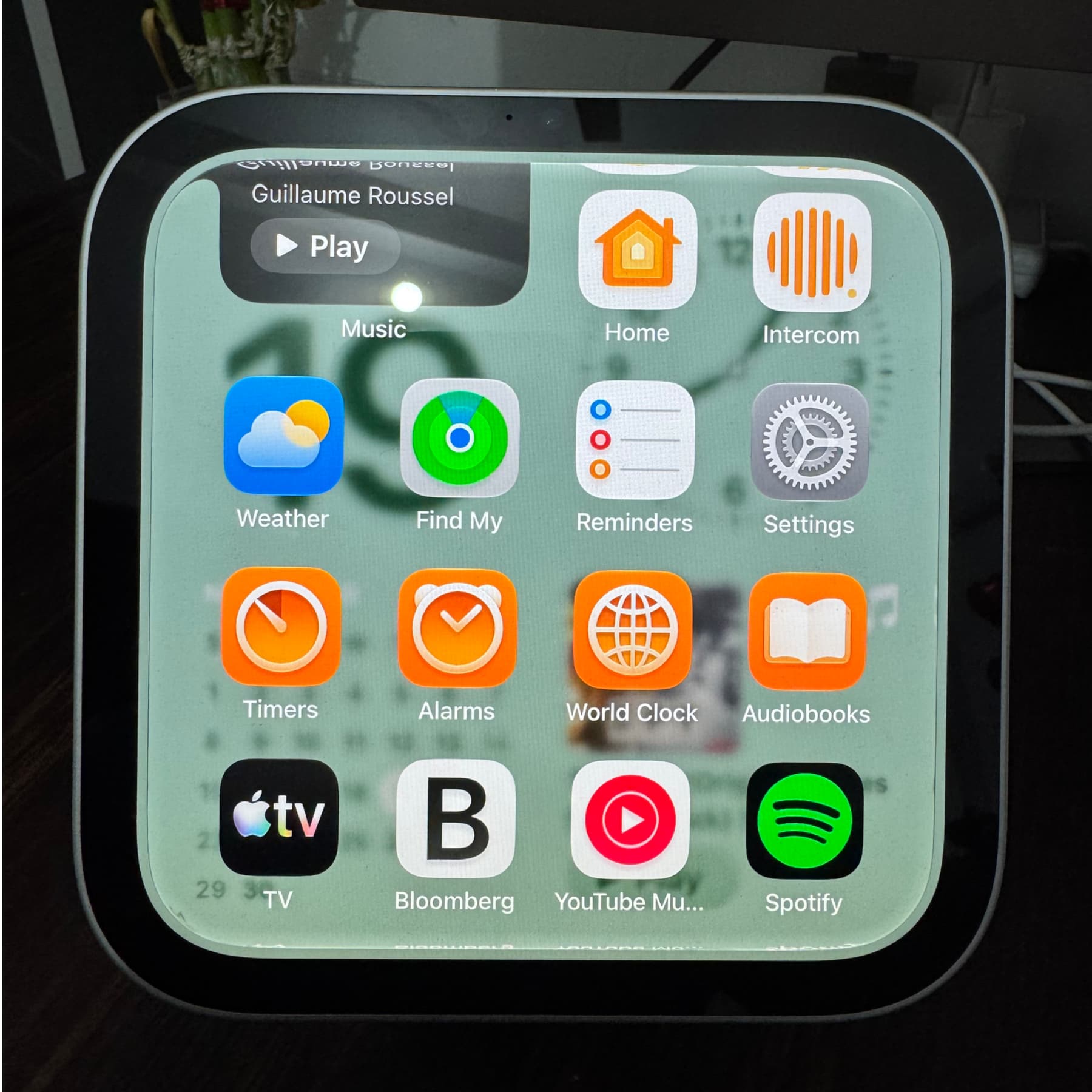
1) Swipe up on the clock face to see the app drawer and open the Settings app.
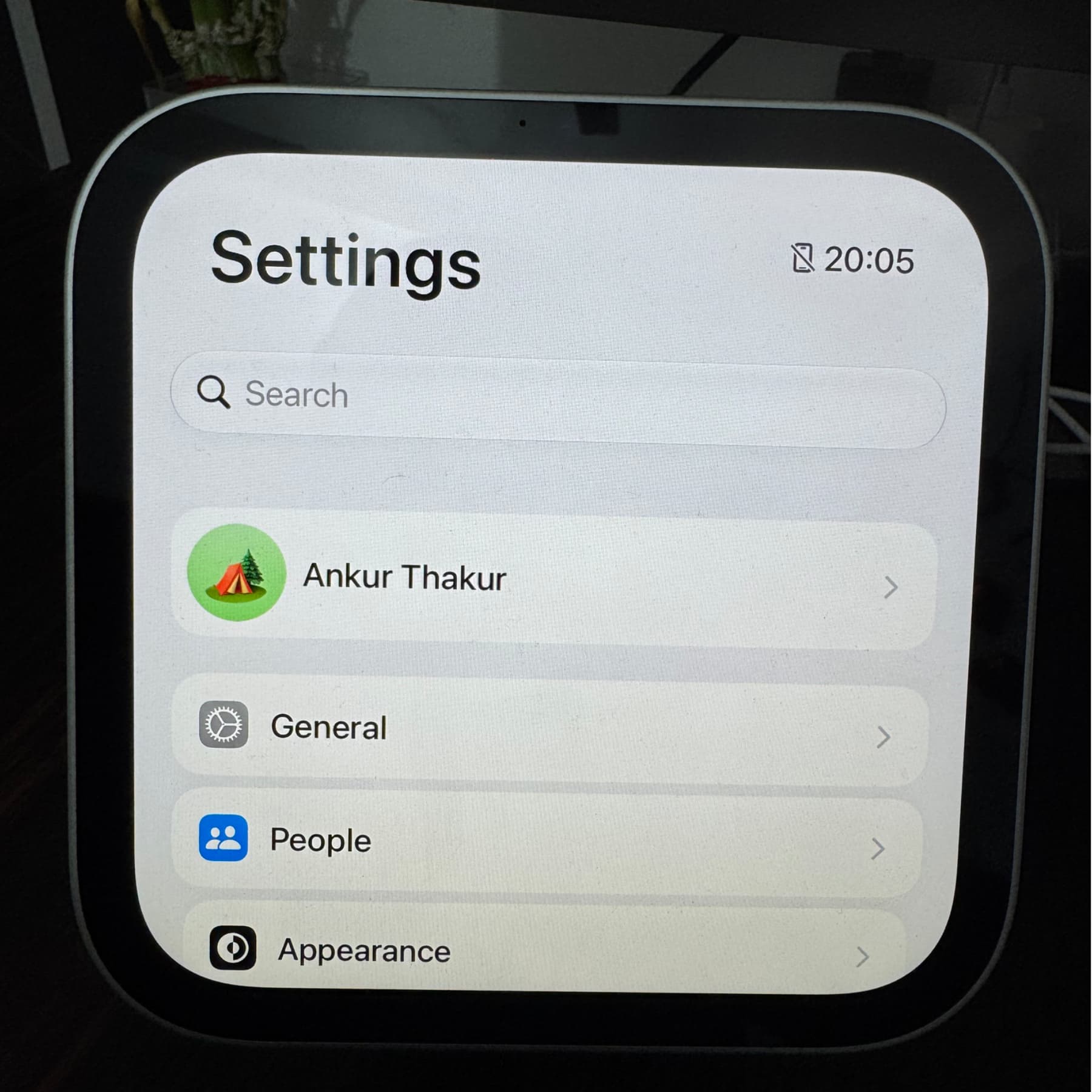
2) Tap General.
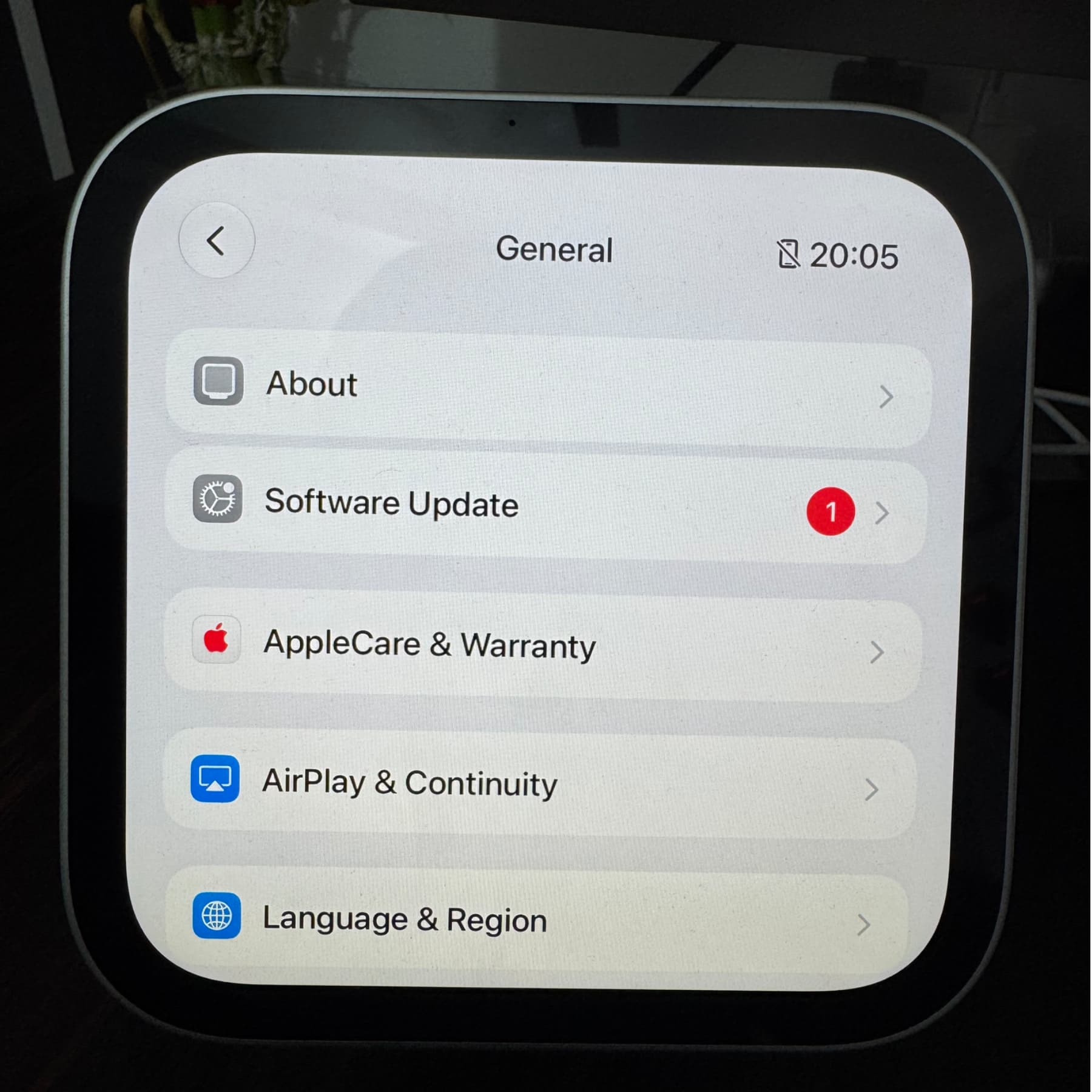
3) Tap Software Update.
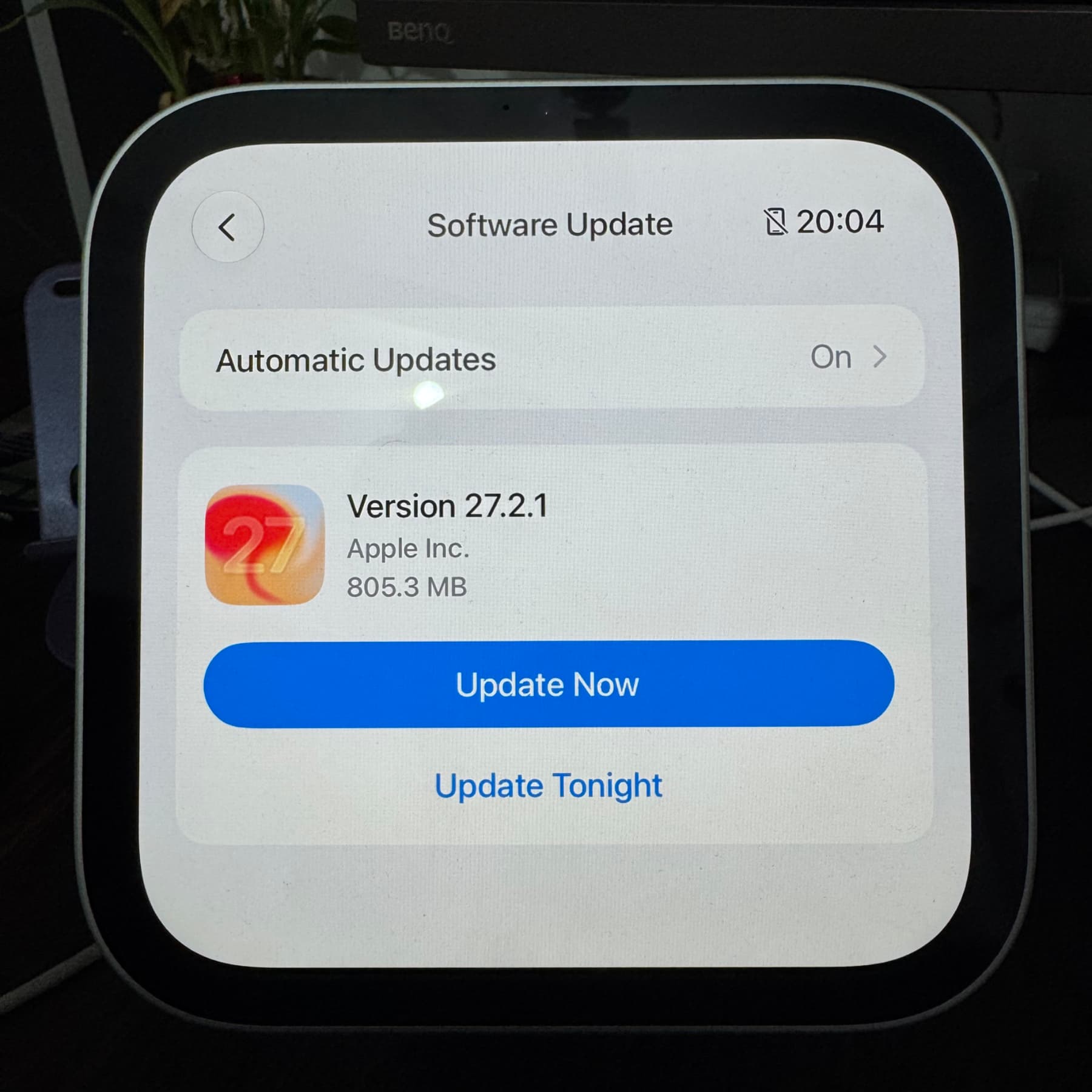
4) Wait on this screen until you see a new version, and tap Update Now (or Update Tonight). If no new update is available, it will say ‘HomeView is up to date.’
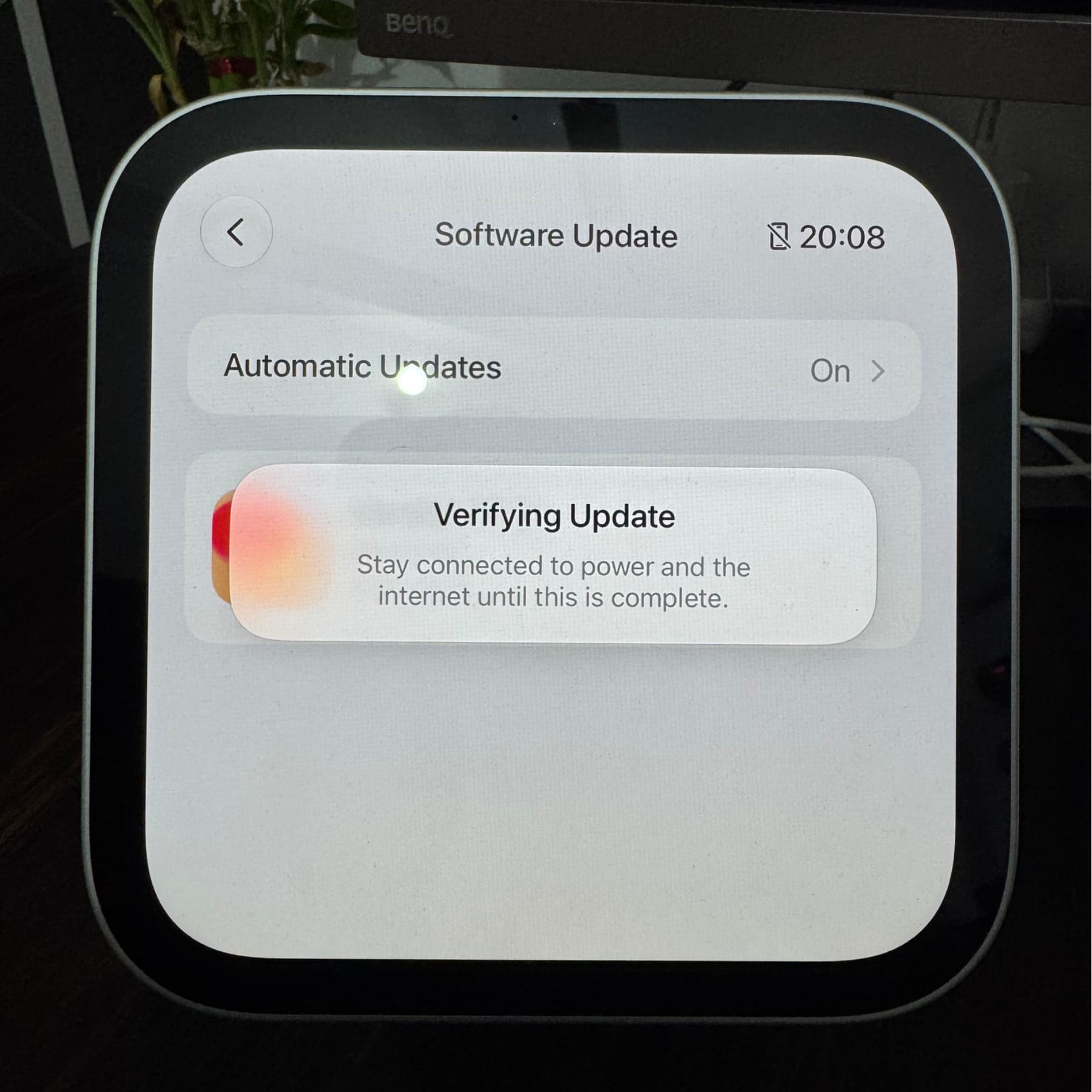
5) Wait for your HomeView to download and prepare the update.
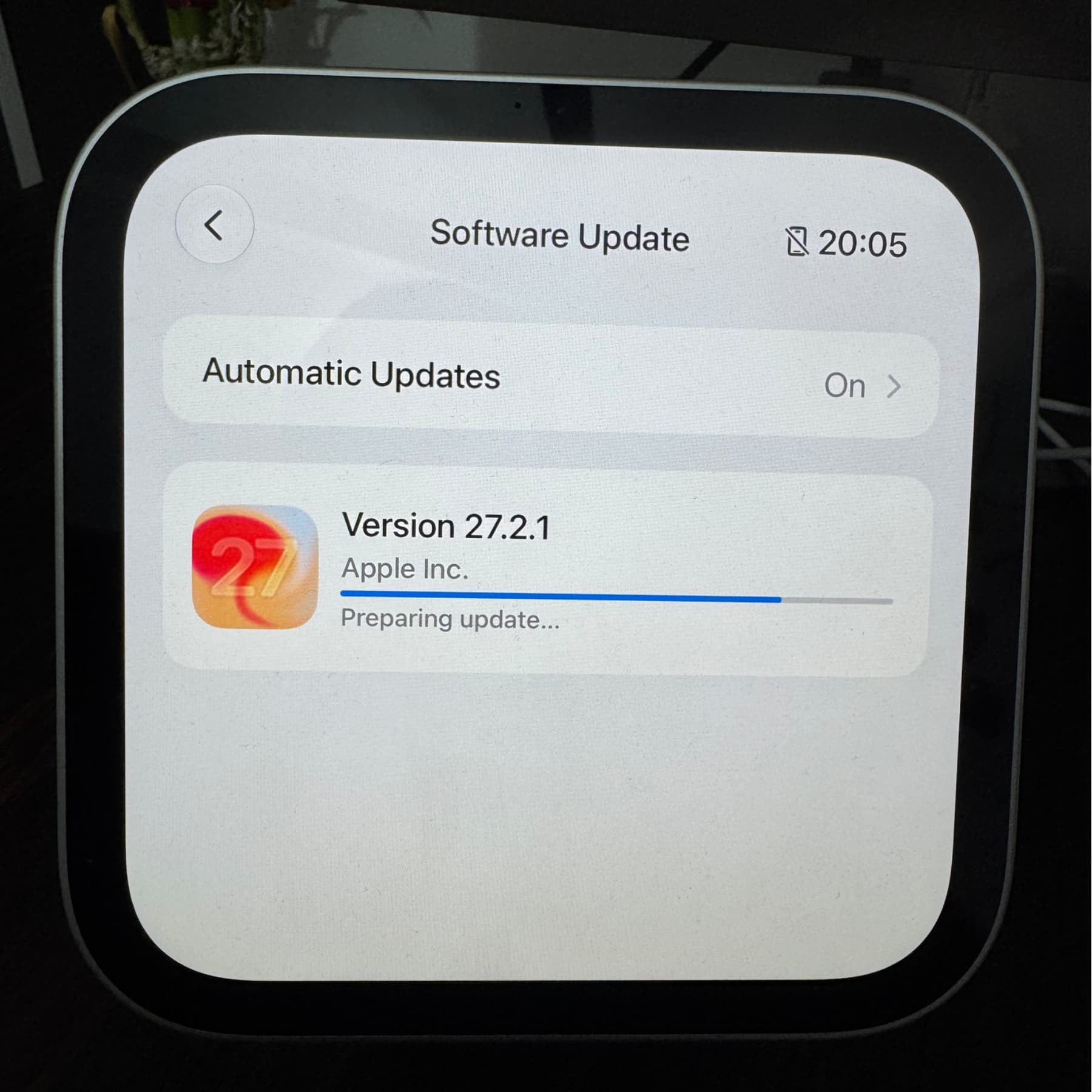
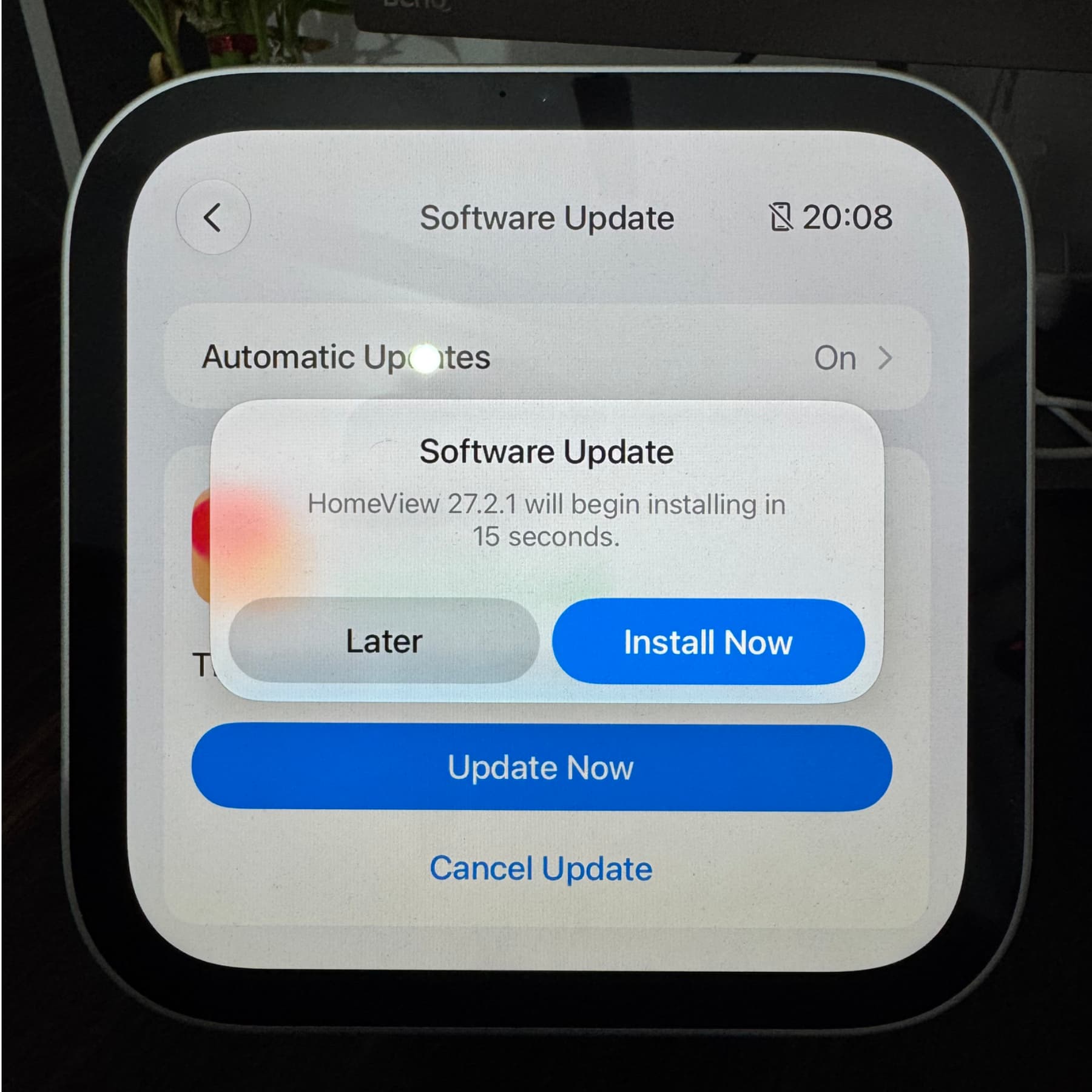
Once that’s done, HomeView will automatically begin installing the new update unless you tap Later and schedule it for the night.
After the update is complete, HomeView will boot up automatically, and you’ll see its clock face.
Schedule updates for night
Like other platforms, HomeView usually updates automatically at night, when you’re not using the device.
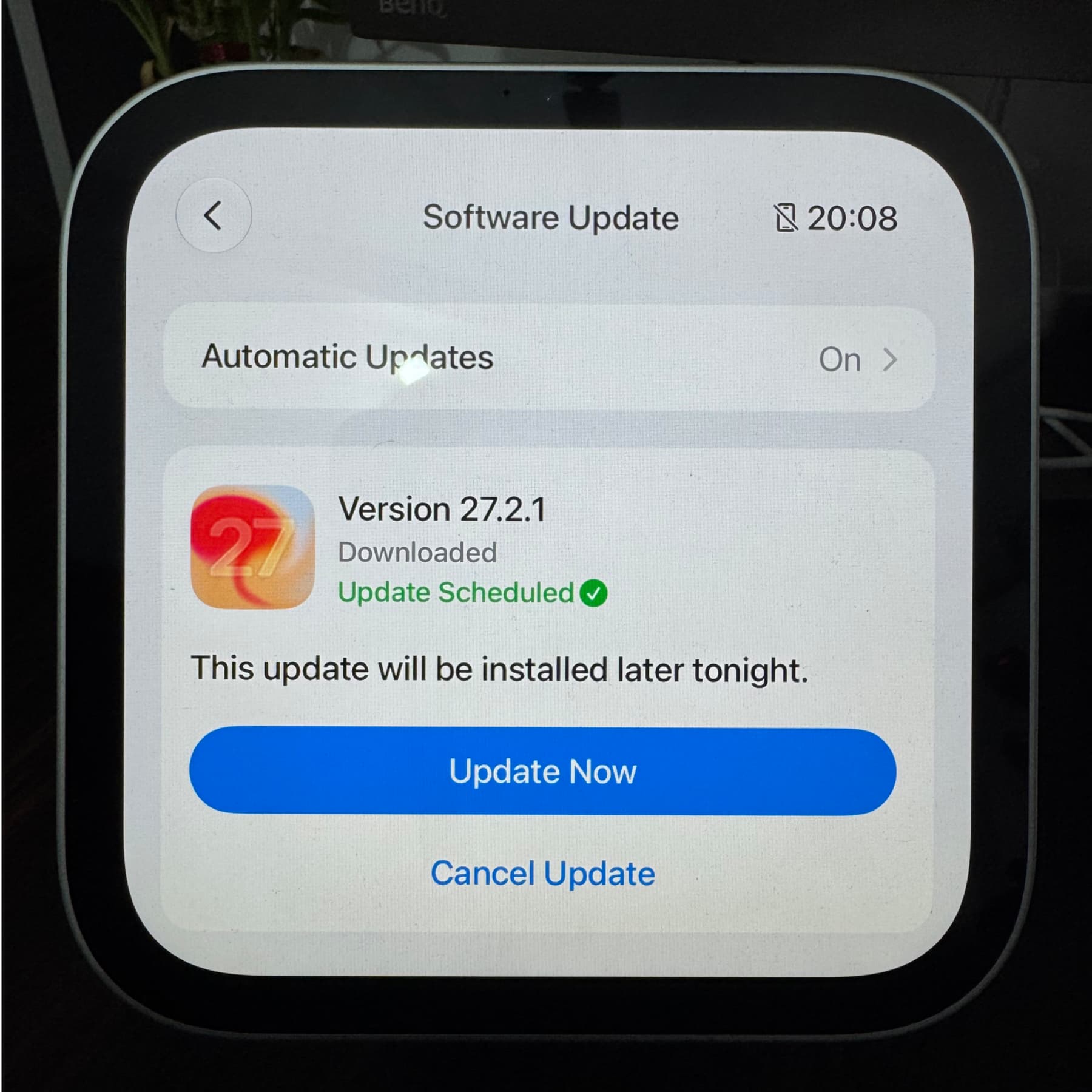
If you downloaded the update manually, tap the Later button on the popup to schedule the installation for later that night. You can tap Update Now to install it immediately without waiting for night, or tap Cancel Update to abort.
Turn off Automatic Updates
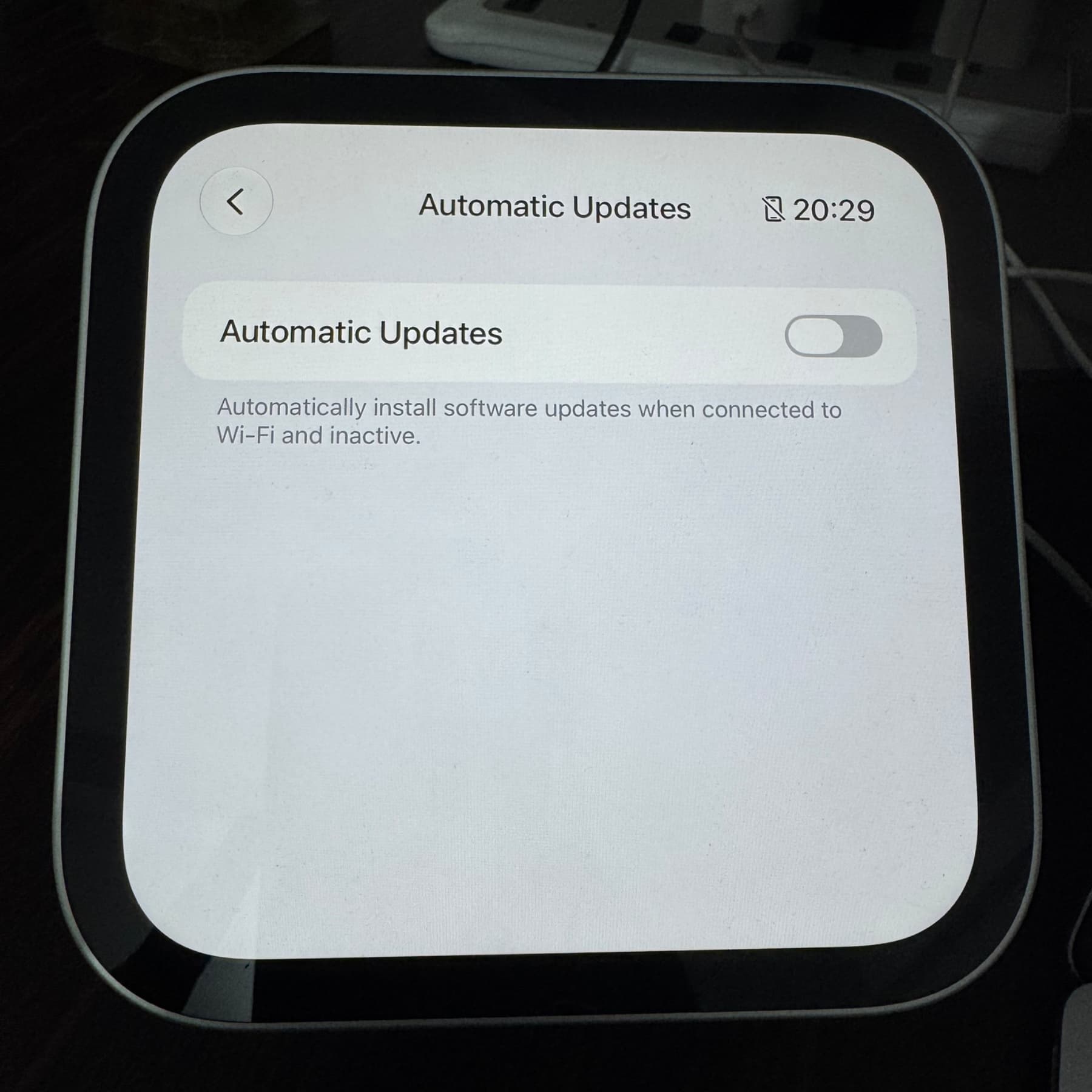
Automatic updates are enabled by default on HomeView and happen when the device is connected to Wi-Fi and inactive (i.e., not in use, which usually means nighttime). But if you’d rather have manual control, you can turn off automatic updates by following these steps:
- Open the Settings app.
- Tap General.
- Tap Software Update.
- Tap Automatic Updates.
- Turn off Automatic Updates.
Check recently installed HomeView updates
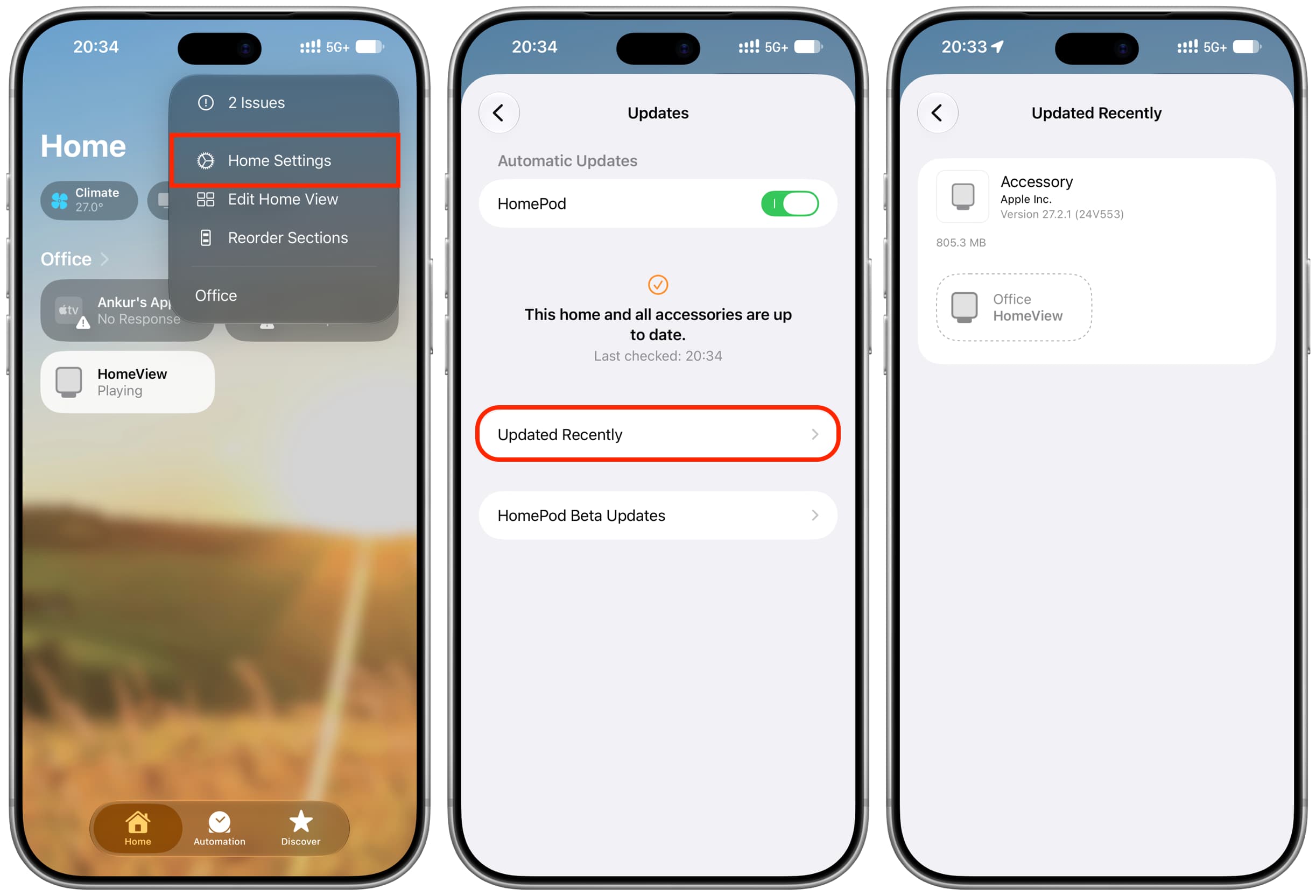
You can see which HomeView update was recently installed by following these steps:
- Open the Home app on your iPhone or iPad.
- Tap the three-dot icon and select Home Settings.
- Tap Software Update.
- Tap Updated Recently. If your HomeView (or HomePod) was updated recently, its name and version number will show here.
Can you update HomeView from the Home app?
Yes, just like HomePod, you can update HomeView from the Home app by going to the Software Update screen (steps above). If no new update is available, you’ll see “This home and all accessories are up to date.”
How to install HomeView beta updates?
Apple allows installing beta software on most of its devices, including Apple Watch, Apple TV, HomePod, and even AirPods! But for now, HomeView beta updates aren’t a thing. But I’m sure they will be in the near future.
See all new changes added by HomeView updates
Apple has a handy support page that lists the changelog for new HomeView updates. You can see it here.
More on HomeView: