In this step-by-step tutorial, we’ll show you how to set your iPhone or iPad to never stay in Low Power Mode and explain why you might want to do so
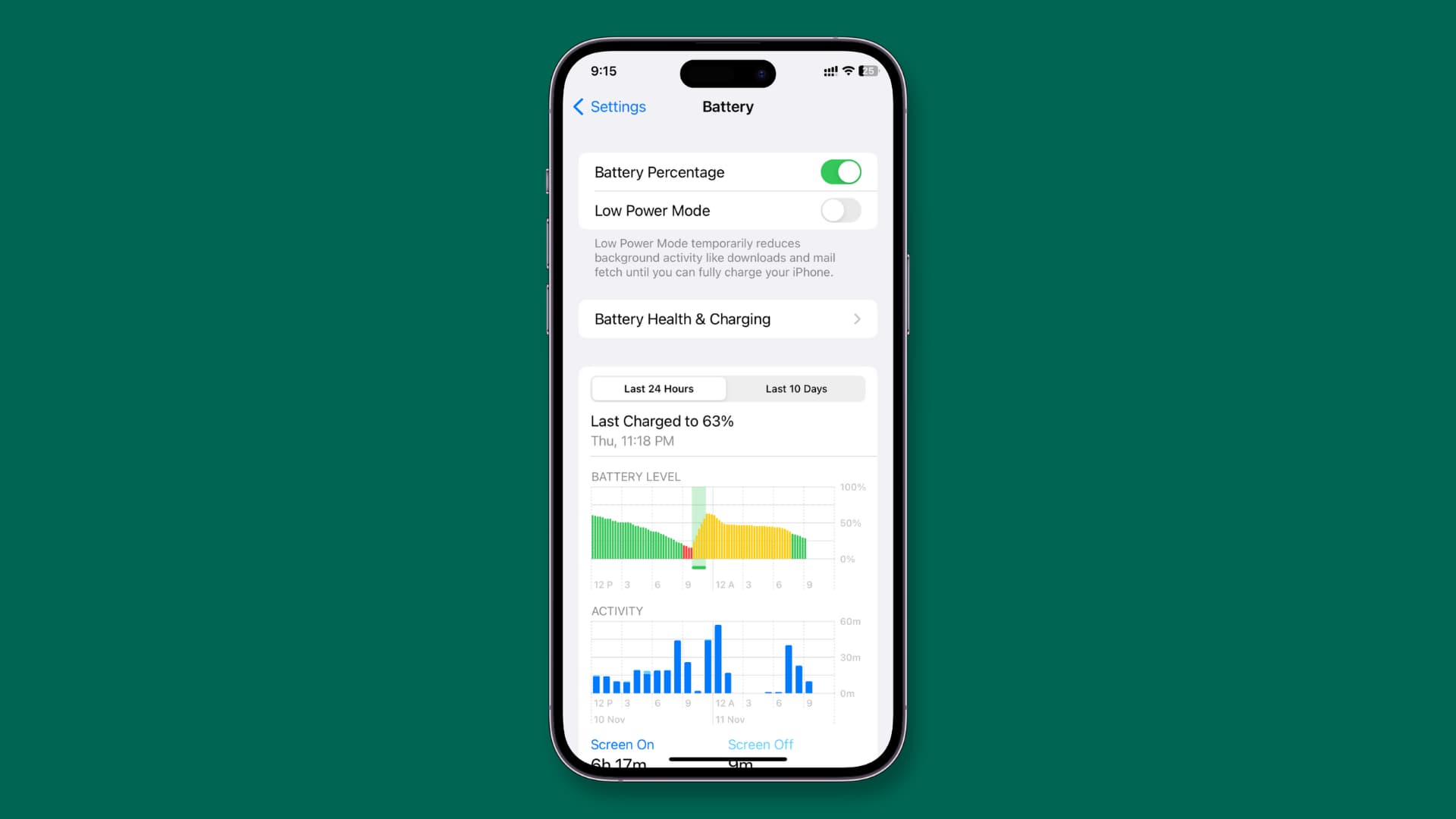
Just like you can force your iPhone to always stay in Low Power Mode, you can also set it to never enter Low Power Mode.
Why set your iPhone to never enter Low Power Mode
Low Power Mode is a single battery-saving toggle that helps you get extra use time on a single charge. However, when your iPhone or iPad is in Low Power Mode, the ProMotion display rate drops from 120Hz to 60Hz, leading to an inferior display experience.
Furthermore, Low Power Mode can also reduce 5G speeds for many tasks, force the screen auto-lock to just 30 seconds, reduce screen brightness, and significantly throttle the CPU. Beyond this, several other adjustments occur, which you can explore in our full guide on using Low Power Mode for iPhone.
So, for the love of a smooth 120Hz screen, optimal 5G speeds, and the other reasons mentioned above, you may want to prevent your iPhone or iPad from entering Low Power Mode.
Set your iPhone or iPad to keep Low Power Mode always off
You can use a simple iOS automation to trick your iPhone into ensuring Low Power Mode is always turned off. Even if you enable it manually, it will automatically turn off again.
1) Open Apple’s Shortcuts app that’s pre-installed on all iPhones and iPads, and tap the plus button at the top of the Shortcuts tab.
2) Type Set Low Power Mode in the search box and add this action to the shortcut.
3) Tap the “On” placeholder text to change it to “Off” and tap Done.

4) Now, go to the Automation tab of the Shortcuts app and tap New Automation. If you already have automations, tap the plus button instead.
5) Scroll through the list of conditions and select Low Power Mode.

6) Make sure “Is Turned On” is checked, and then tap Run Immediately, followed by Next.
7) Find the My Shortcuts section and select the “Set Low Power Mode” shortcut you built in Steps 1 to 3.

You’ve now successfully programmed your iPhone to turn off Low Power Mode whenever Low Power Mode is turned on.
To test this Automation, go to Control Center or the Battery section of the Settings app and turn on Low Power Mode. You’ll notice that it automatically turns off. Additionally, the battery icon will turn yellow and then fall back to black/green/red on its own.
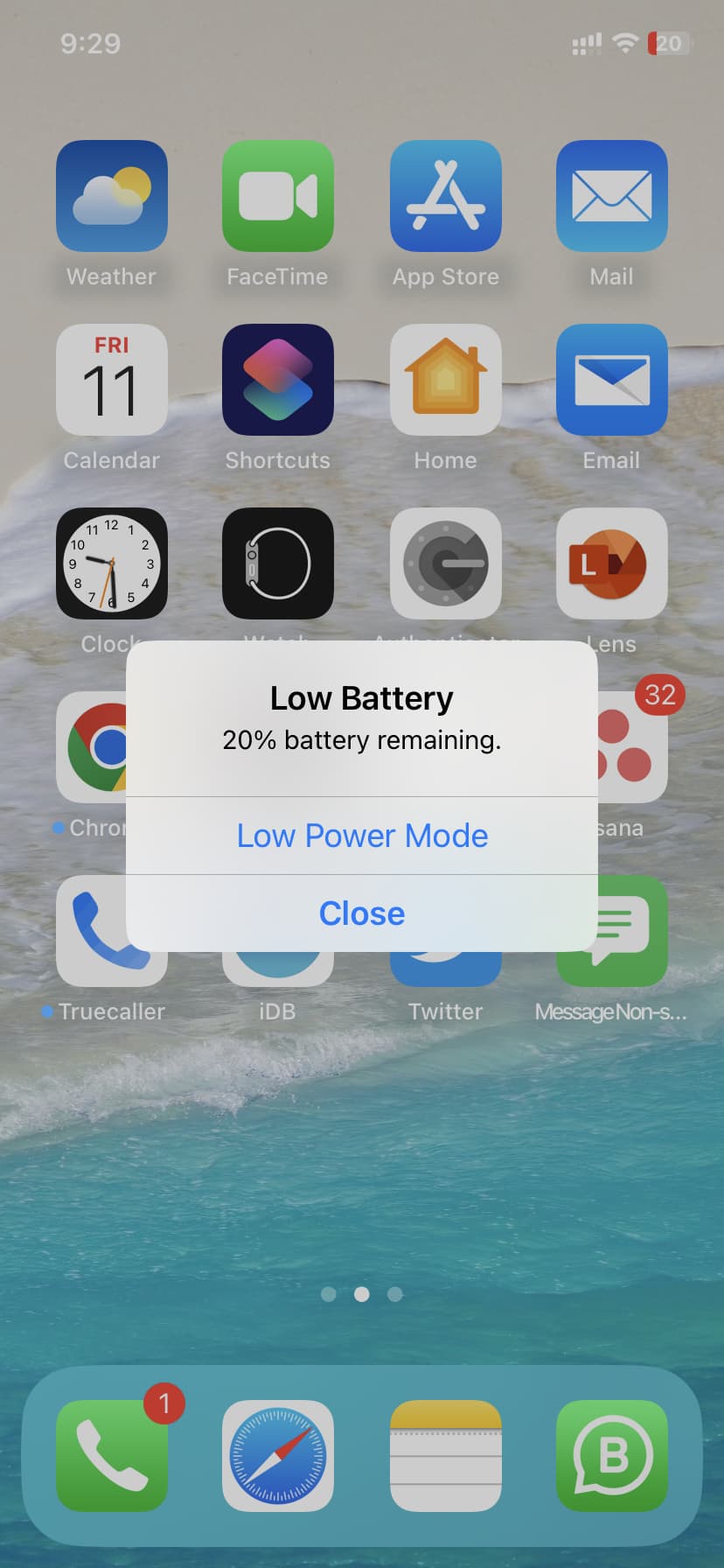
This simple test ensures that your iPhone will never enter Low Power Mode as long as the Automation is active. Even when you see the Low Battery pop-up with 20% battery remaining and tap Low Power Mode, it will automatically switch back to normal mode.
Disable or delete this Automation
If you want things to return to normal and have your iPhone enter Low Power Mode when you choose, go to the Automation section of the Shortcuts app and do one of the following:
- To disable the automation, tap it and set Automation to Don’t Run.
- To delete the automation, swipe left on its name and tap Delete.

Related articles: