Check out these solutions if the keyboard on your iPhone or iPad stops working, lags, freezes, or fails to enter keystrokes.
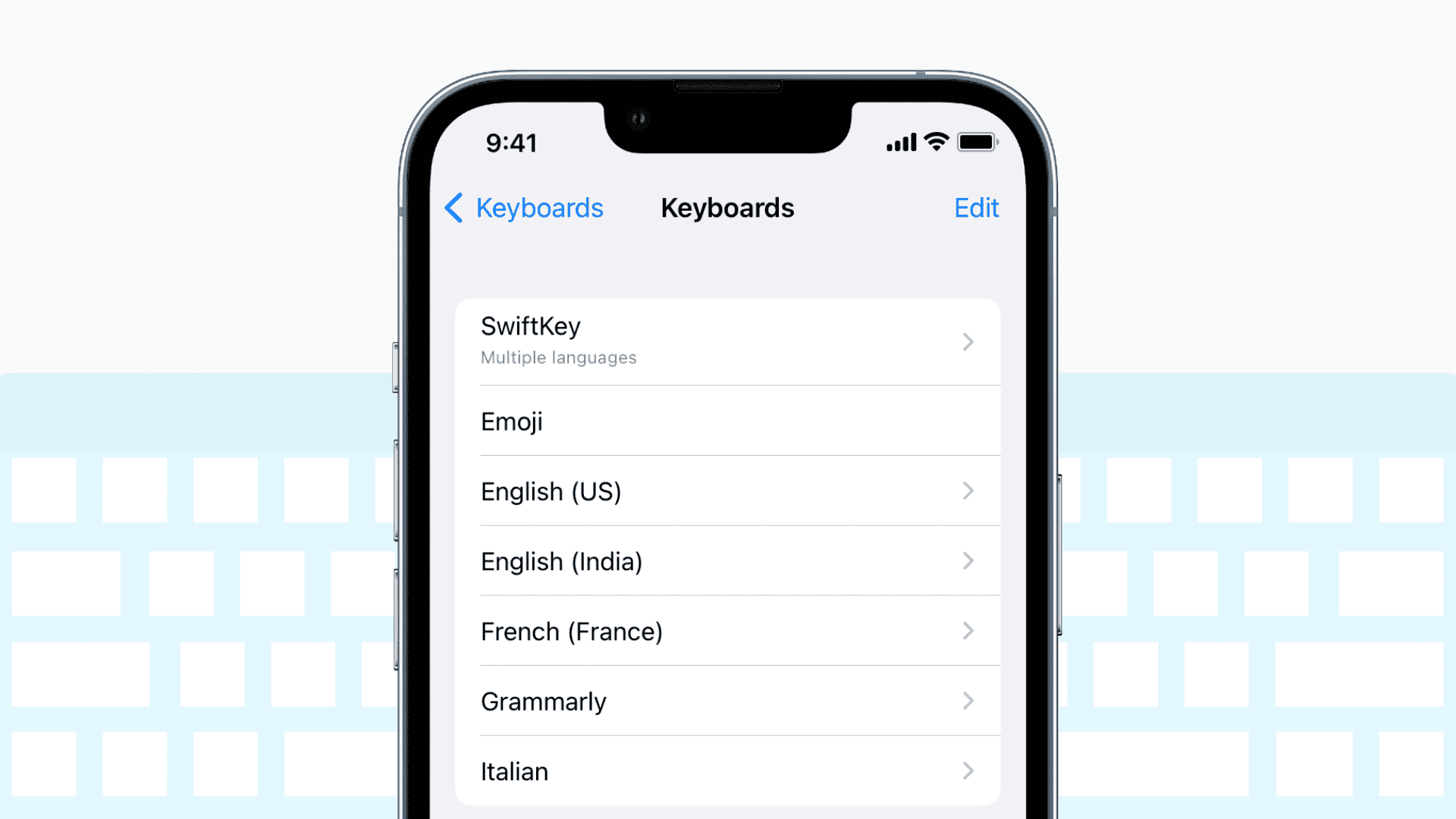
Minor glitches, the addition of too many third-party keyboards, bugs in the third-party keyboard, problems in the specific app, a wet screen, an internally broken screen, and so forth can cause your keyboard to not work properly. The same reasons can also cause the keypad or number pad inside the Phone app or on the Lock Screen to fail.
Here are the solutions and tips to take care of a non-working iPhone or iPad keyboard.
Start by wiping the screen
All modern iPhone models are water-resistant (not waterproof), but that doesn’t mean you can use the keyboard underwater or even when it’s slightly wet. Often, on a hot day, if you have been talking on the phone for a long time, sweat and body oils transfer from your cheeks to the iPhone screen. As a result, the keyboard and the touch screen may not respond or work at all.
Use a soft, dry cloth and carefully wipe the entire screen. After this, the iPhone keyboard should work like before.
Read: 9 things you should do after accidentally dropping your iPhone in water
Remove your iPhone from charging
The iOS keyboard may not respond correctly to keystrokes if you’re charging your iPhone in unusual places, or on a train or plane, or using power banks or cheap chargers. Try removing your device from charging, and then everything should work fine.
Quit all open apps
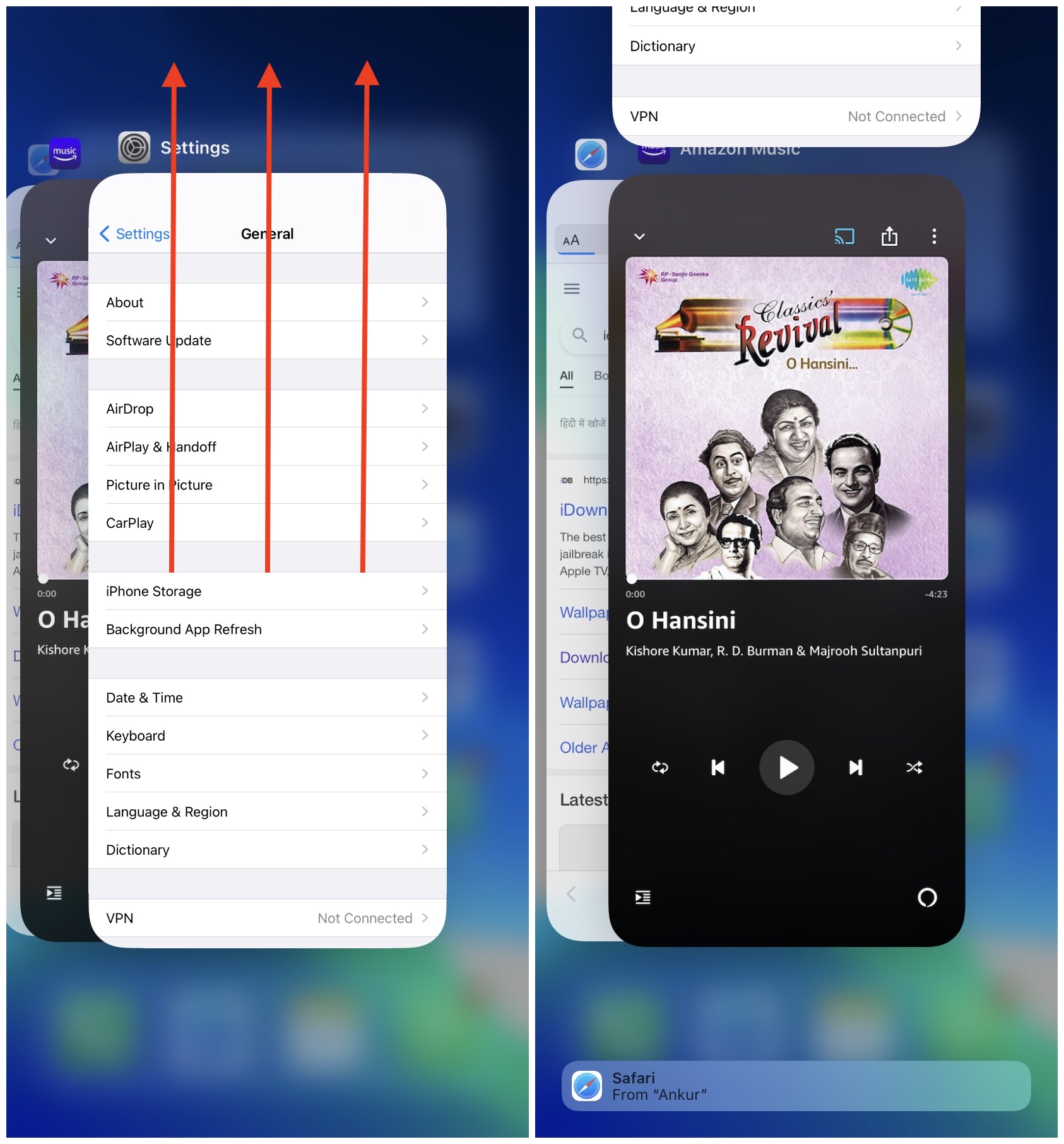
Swipe up from the bottom of the screen or double-press the Home button and drag all open app cards up to close them. Once that’s done, open the Notes app and see if the keyboard is working well or not.
Reboot your iPhone
In most cases, turning your iPhone off and back on fixes keyboard issues. Make sure you follow this solution before going to the remaining ones.
Remove unnecessary keyboards
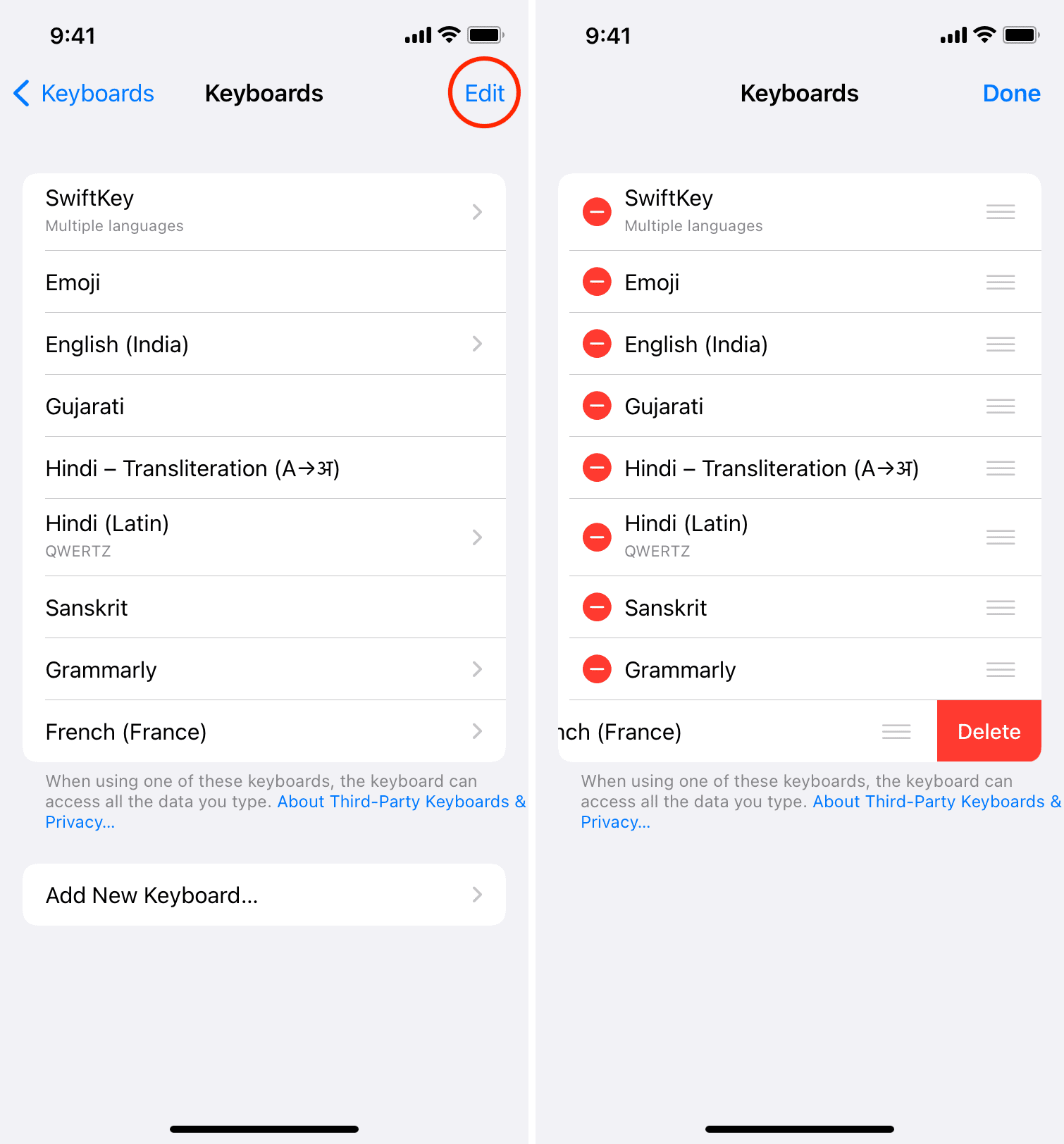
Have you added several keyboard languages to your iPhone? Remove the ones you don’t need and see if this solves the keyboard issues.
- Open iPhone or iPad Settings and tap General > Keyboard > Keyboards.
- Tap Edit.
- Hit the red minus button and tap Delete next to all unnecessary keyboards.
Turn off one handed mode
Tap One-Handed Keyboard on the keyboard settings screen (Settings app > General > Keyboard) and instead of choosing Left or Right, choose Off.
Turn off the keyboard click sound
Go to iPhone Settings > Sounds & Haptics > Keyboard Feedback and turn off the Sound switch.
Disconnect the hardware keyboard and other peripherals
If you’re using an external keyboard with your iPhone or iPad, disconnect it. You can also turn off the iPhone Bluetooth to disconnect other keyboards. Once that’s done, the on-screen virtual keyboard should work.
Update the software
We listed many solutions above. Now, assume your ongoing problems are solved for now after turning off the keyboard sounds or disabling the one-handed keyboard. But these are not permanent solutions. What if you like keyboard clicks and want to keep it on? Same with other compromises we made above!
To take care of all these, make sure you update your iPhone or iPad from Settings > General > Software Update. This will ensure the bugs causing issues with the keyboard’s working are fixed.
Deactivate dictation
The keyboard issues should be solved by now. But if not, follow the remaining solutions that have worked for a few people.
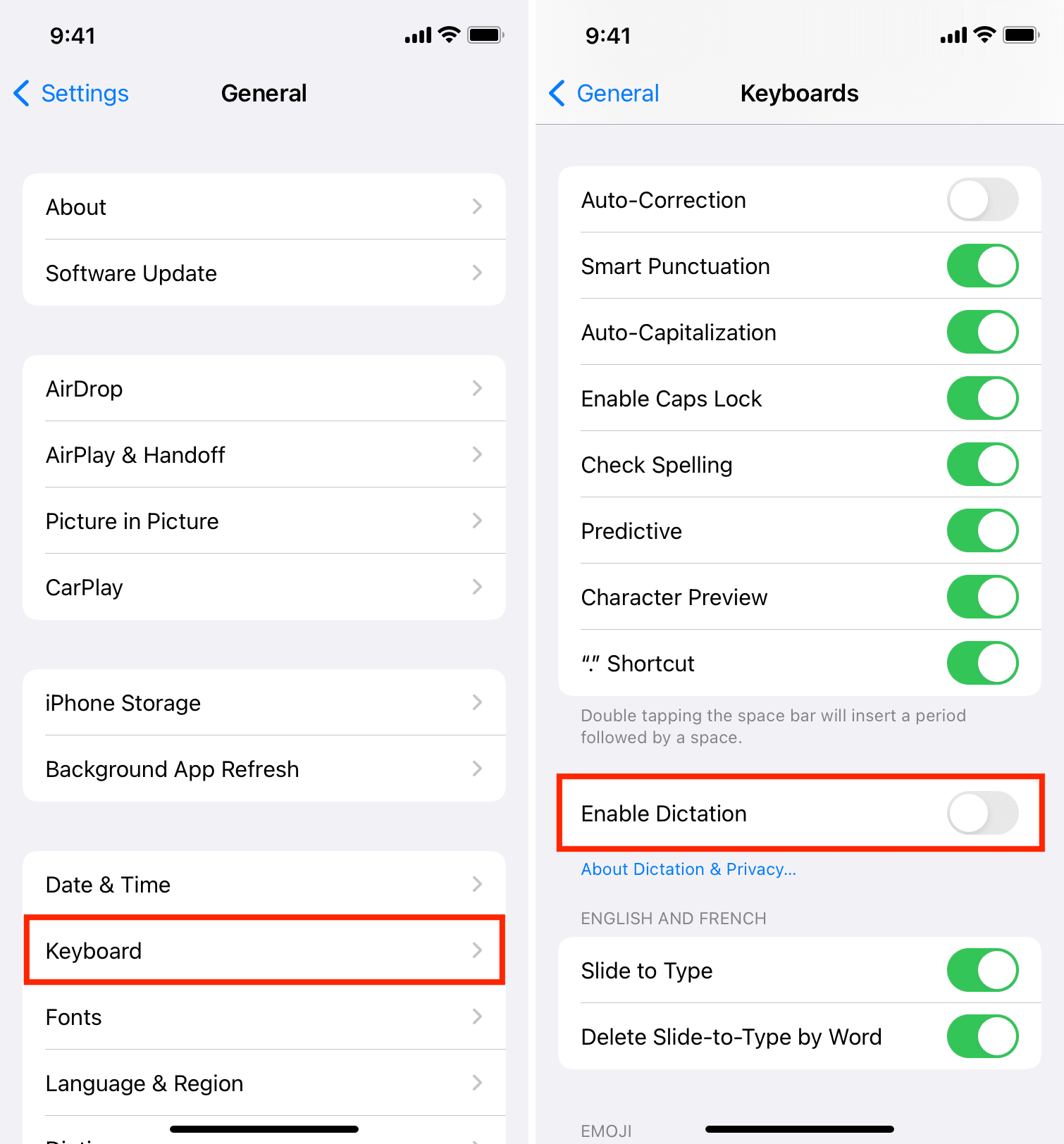
Start by going to Settings > General > Keyboard, and turn off Enable Dictation. See if the keyboard works now!
Turn off Reachability
Go to iPhone Settings > Accessibility > Touch and turn off Reachability. This means you can no longer bring the entire screen down by a small down swipe at the bottom of the screen or double-tap on the Touch ID button. But if this solves the keyboard issues, you can keep it off until a software update fixes the bug.
Turn off zoom on your iPhone
The iPhone keyboard may behave erratically if you use the zoom accessibility feature. To fix this, unzoom your iPhone screen and turn off this feature.
Reinstall the problematic app
Are you noticing that the iPhone keyboard works fine in all apps except one (or a few)? This is usually the case with writing apps like Google Docs, Word, Evernote, and so forth. If you’re in a similar situation, update that app, and this should fix the keyboard issues. If that doesn’t help, delete and reinstall the app.
Reset all iPhone settings
In case the above solutions fail, go ahead and reset your iPhone settings. This should most certainly fix the keyboard issues.
Remove the screen protector
If some letters on the iPhone keyboard are not working, it may be due to the screen protector. Peel off the screen protector. And while you’re at it, remove the case if it clings tightly to the edges and presses the iPhone screen.
Contact Apple Support for hardware issues
Finally, if nothing helps, chances are your iPhone has suffered visible or internal hardware damage, particularly inside the screen, because of which the keyboard isn’t working. You can get this fixed by visiting an Apple Store. But before doing that, you can try restoring your iPhone as new to see if it helps.
Fix word predictions not appearing on top of the iPhone keyboard
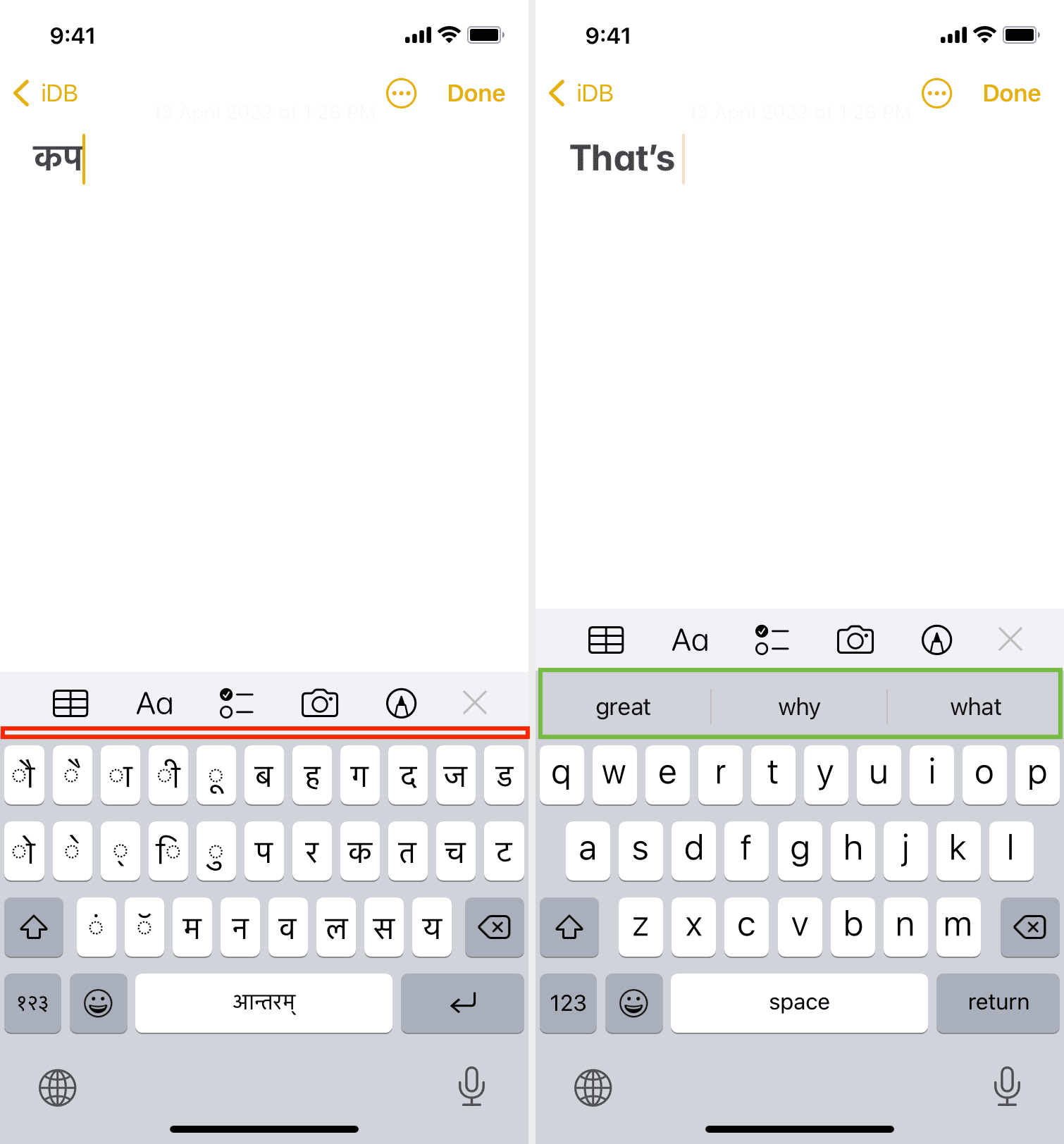
You see predictions at the top when you type on your iPhone keyboard. These are the words you’re likely to type next. If you don’t get the predictions on your iPhone keyboard, make sure you follow the above basic fixes.
In most cases, you don’t get predictions because your keyboard language isn’t supported. According to the official Apple Support page, Predictive Typing is available in only about 56 languages and styles.
Fix the cursor not working on the iPhone keyboard
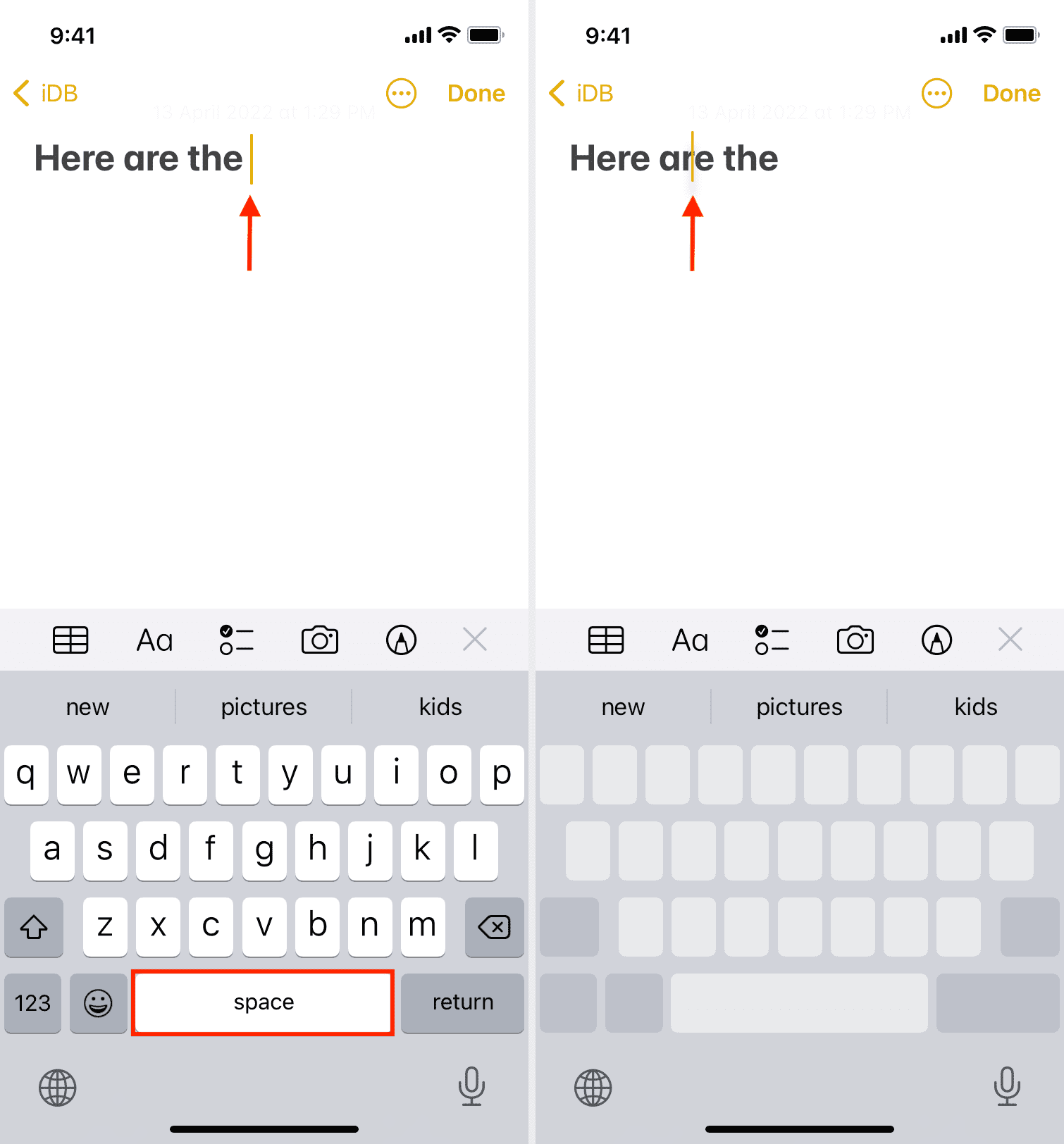
If you want to place the typing cursor at a specific point, make sure you touch and hold the space bar, then drag the cursor. Back in the day, you could press anywhere on the keyboard to use it as a touchpad to position the cursor. But now, it’s limited only to the space bar.
More on iPhone keyboard: