Find out what to do if your Mac isn’t connecting to your iPhone’s Hotspot or keeps disconnecting after every few minutes.
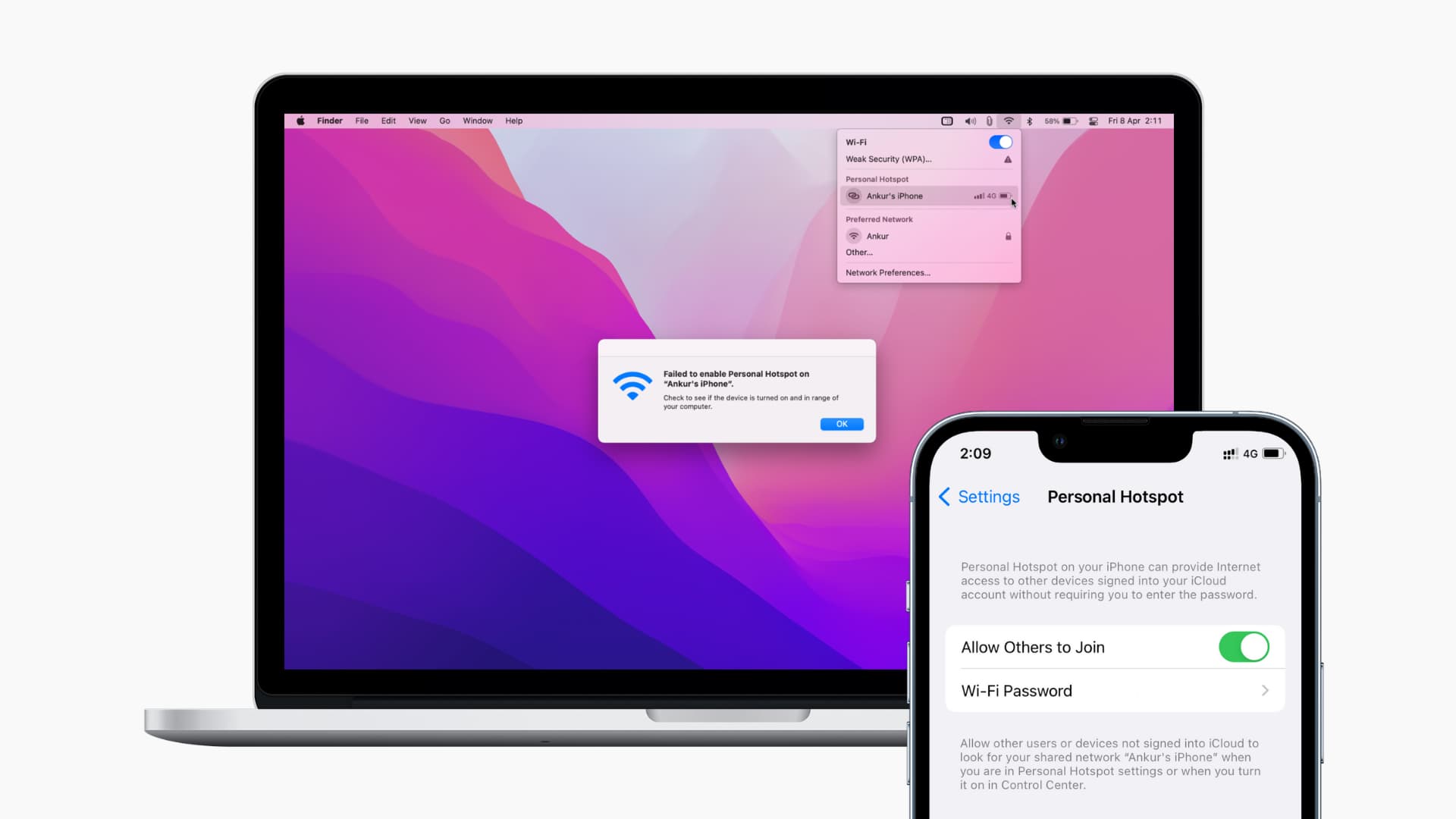
Your iPhone’s Personal Hotspot is readily available on your Mac. However, it can be frustrating when it stops working, disconnects frequently, or doesn’t even show as an option. Here’s how to fix this.
Keep devices in range without obstructions
iPhone’s Hotspot isn’t as powerful as a Wi-Fi router. So, keep your iPhone and your Mac nearby, such as on the same table or in the same room.
Disconnect extra devices from Personal Hotspot
If too many devices are connected to your iPhone’s Hotspot, it may not accept a new connection, fail when you try to connect, or offer abysmal speeds.
Some carriers may even limit the number of devices you can connect to your Personal Hotspot at once. The general rule of thumb is you should try not to go over five devices at once. In my opinion, more than two at once is probably even pushing it.
You can see how many devices are connected to your iPhone’s Hotspot by looking at its icon in iOS Control Center. If the number is more than two or three, I recommend you disconnect some devices or turn off Personal Hotspot and turn it back on, which will disconnect the connected devices.

Allow others to join iPhone Personal Hotspot
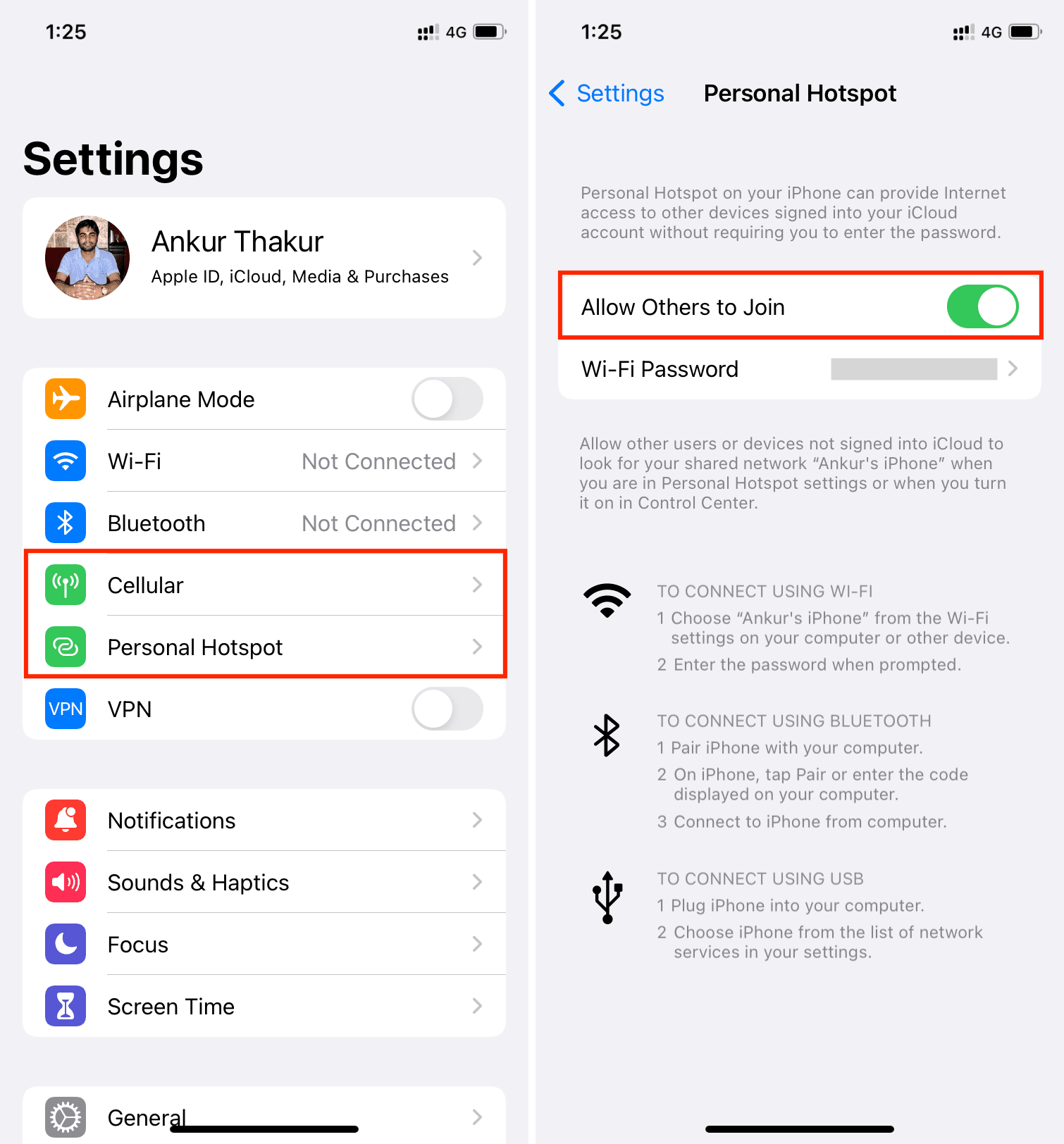
- Go to iPhone Settings and tap Cellular. In some regions like Europe and India, it’s called Mobile Service or Mobile Data.
- Tap Personal Hotspot.
- Make sure Allow Others to Join is enabled.
Stay longer on the iPhone Personal Hotspot settings screen
Do the following if your iPhone Personal Hotspot isn’t showing on the Wi-Fi screen of your Mac when you’re trying to connect:
- Open iPhone Settings and tap Personal Hotspot. If you don’t see it, tap Cellular > Personal Hotspot.
- Just stay on this screen for a while. In a few seconds, you should see your iPhone’s Personal Hotspot appear as a potential source of internet on the Wi-Fi screen of your Mac or other devices.
Disable and enable Personal Hotspot
If the problem continues, toggling Hotspot off and back on should help.
- Go to iPhone Settings > Cellular > Personal Hotspot.
- Turn off Allow Others to Join.
- Wait for about 15 seconds.
- Turn on Allow Others to Join.
- Now, try connecting to the iPhone’s Personal Hotspot, and it should be successful.
Enable and disable iPhone’s Airplane Mode
Open Control Center and tap the airplane icon. After about 15 seconds, tap the same airplane icon to disable this mode. Now, your Mac or other devices should no longer have problems connecting to your iPhone’s Personal Hotspot.
Turn off Wi-Fi and Bluetooth and enable both in one tap
The following steps help me in over 80% of situations when Personal Hotspot isn’t working on my iPhone. Make sure you remember this trick to solve your future hotspot issues.
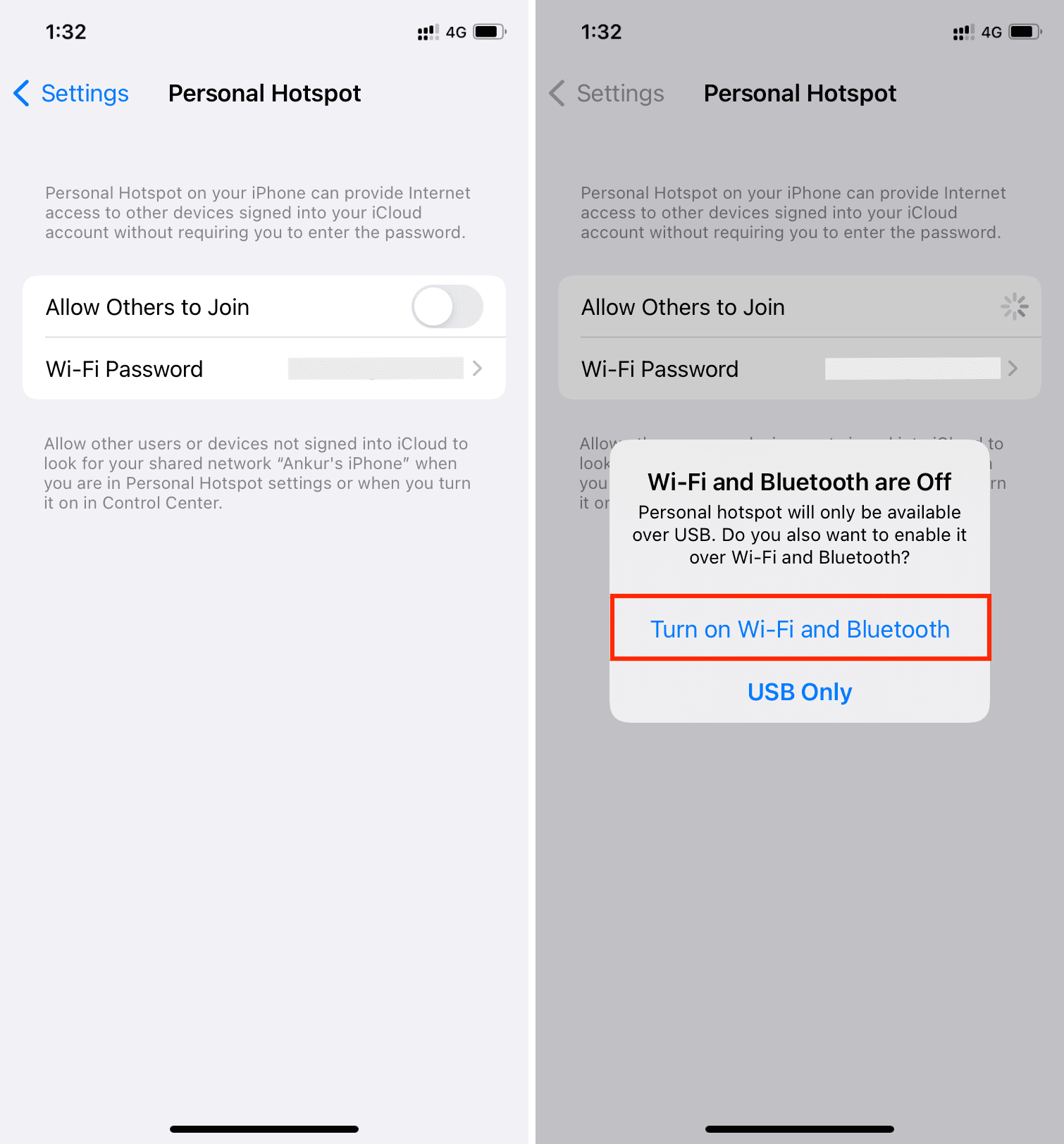
- Go to iPhone Settings and turn off Wi-Fi and Bluetooth. Don’t use Control Center for this.
- In the Settings app, go to Cellular > Personal Hotspot and turn off Allow Others to Join.
- Now, turn Allow Others to Join back on. And from the popup, tap Turn on Wi-Fi and Bluetooth. Your iPhone’s Personal Hotspot should now show on other devices, ready to connect without trouble.
Disable and enable cellular connection
Open iPhone Control Center and tap the green cellular button. After about 15 seconds, tap it again. You can also do this from iPhone Settings > Cellular > Cellular Data.
Turn Mac’s Wi-Fi off and back on
Turn off the Wi-Fi on your Mac or the device you’re trying to connect to the iPhone’s Personal Hotspot. After a few seconds, turn it back on, and you should now see your iPhone’s Personal Hotspot in the list of network connections (given you have followed the recommendations mentioned above).
Restart your iPhone and Mac
This golden solution should bring luck if the above fixes don’t. Turn off your iPhone and turn it back on, which should repair its Personal Hotspot issues. In case the problem continues, restart your Mac or the other device where you’re trying to use the Hotspot.
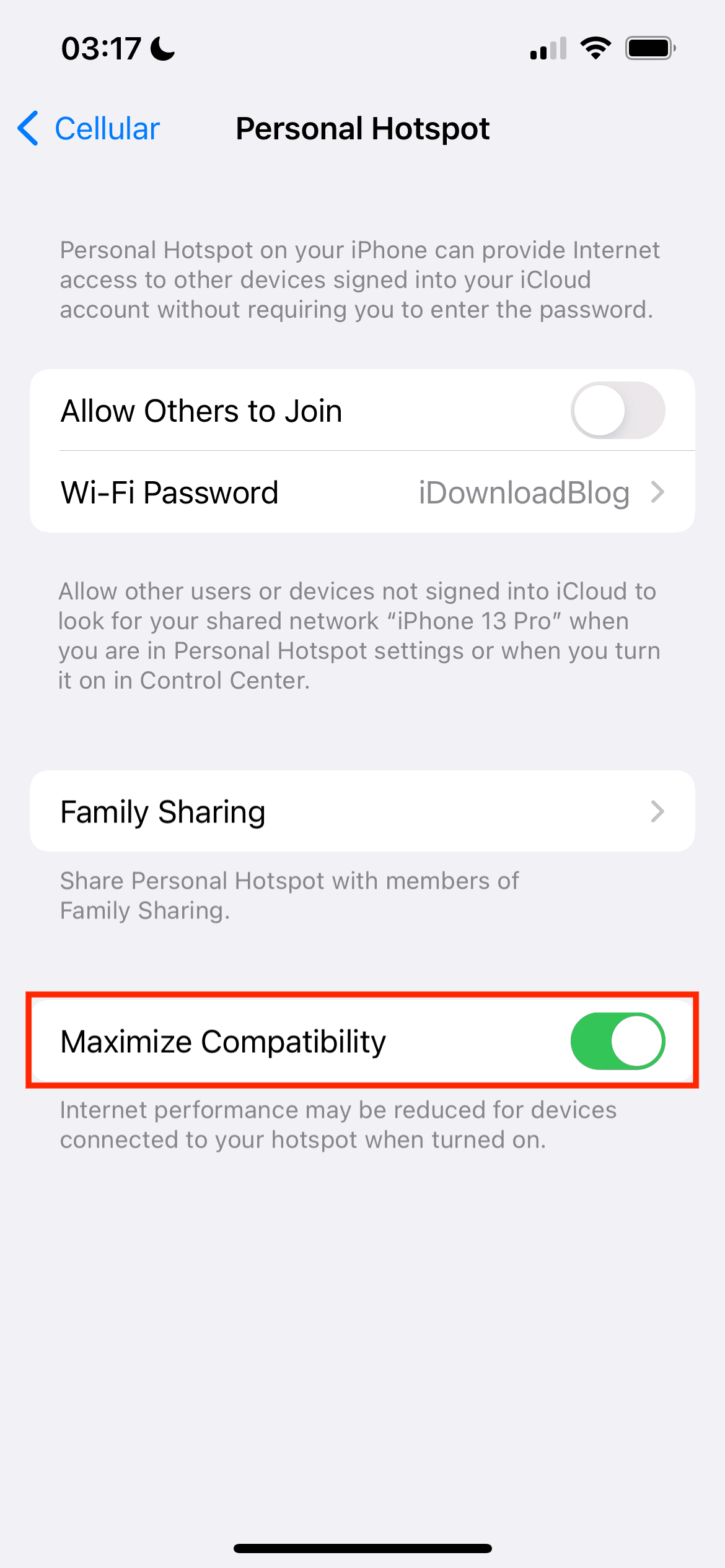
Turn on Maximize Compatibility
If your old Mac or other devices cannot connect to Personal Hotspot on iPhone 12 or later, go to the Settings app > Cellular > Personal Hotspot and turn on Maximize Compatibility.
Check your cellular connection
Open Safari on your iPhone and visit a webpage to check if cellular data is working here or not.
Secondly, did you recently switch carriers? Are you using a new SIM card, or did you port your old SIM to a new carrier? In these situations, make sure your new carrier allows Personal Hotspot. Most carriers do, but some particular carriers or one of their cheaper data plans may not allow Personal Hotspot. As a result, you’ll see that the Personal Hotspot toggle is grayed out. In this case, contact your carrier and ask for an explanation.
Finally, open your carrier’s app or dial the applicable code to ensure you don’t have any pending bills and have sufficient data allowance.
Check for a carrier settings update
From time to time, your carrier issues updates, and if these are outdated, you might have a bunch of issues with Personal Hotspot, calls, SMS texts, MMS, and so forth. Follow this tutorial to ensure you have the latest carrier update on your iPhone.
Update your iPhone and Mac
Go to Settings/System Settings > General > Software Update and get the latest version of iOS or macOS for your iPhone and Mac.
Forget and reconnect to Personal Hotspot
- Open System Settings and click Wi-Fi.
- Click the three dots icon next to your iPhone Hotspot and click Forget This Network > Remove.
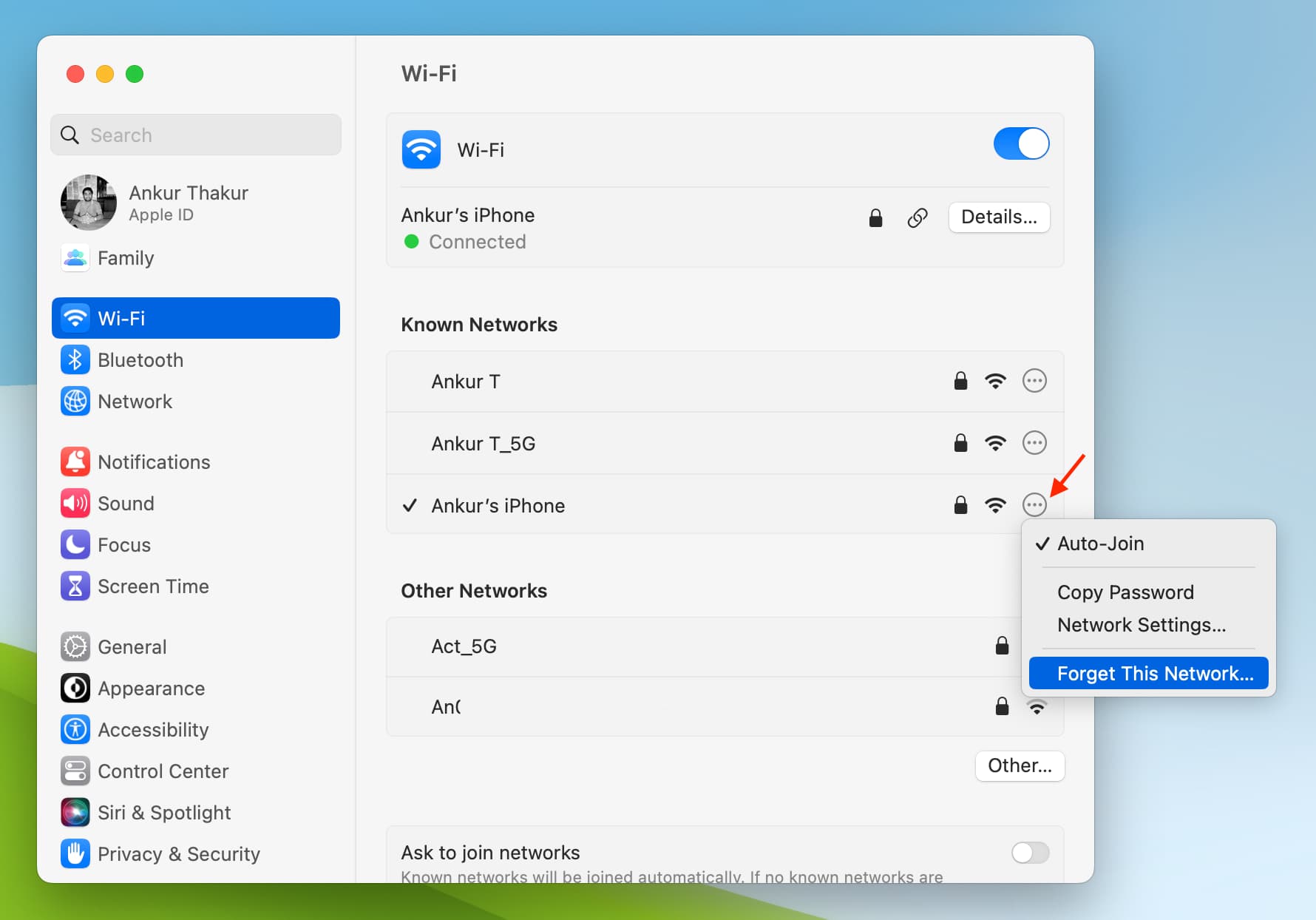
After forgetting the Hotspot, restart both your iPhone and Mac.
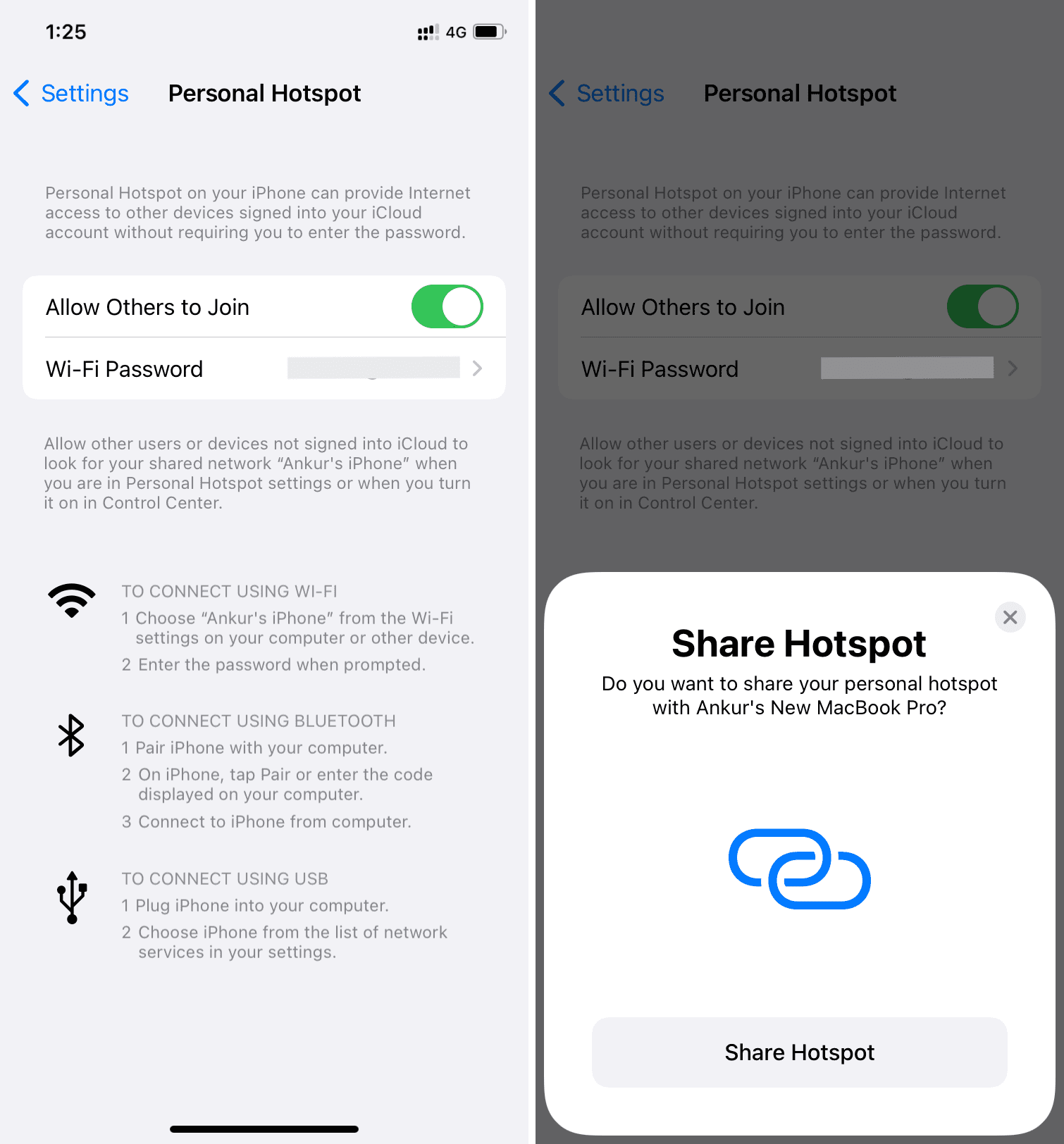
Once that’s done, go to iPhone Settings > Cellular > Personal Hotspot and stay on this screen. Make sure Allow Others to Join is enabled.
Next, click the Wi-Fi icon on your Mac and then click your iPhone’s name. Enter the iPhone’s Personal Hotspot password or tap Share Hotspot if that card appears on your iPhone.
Reset iPhone Network Settings
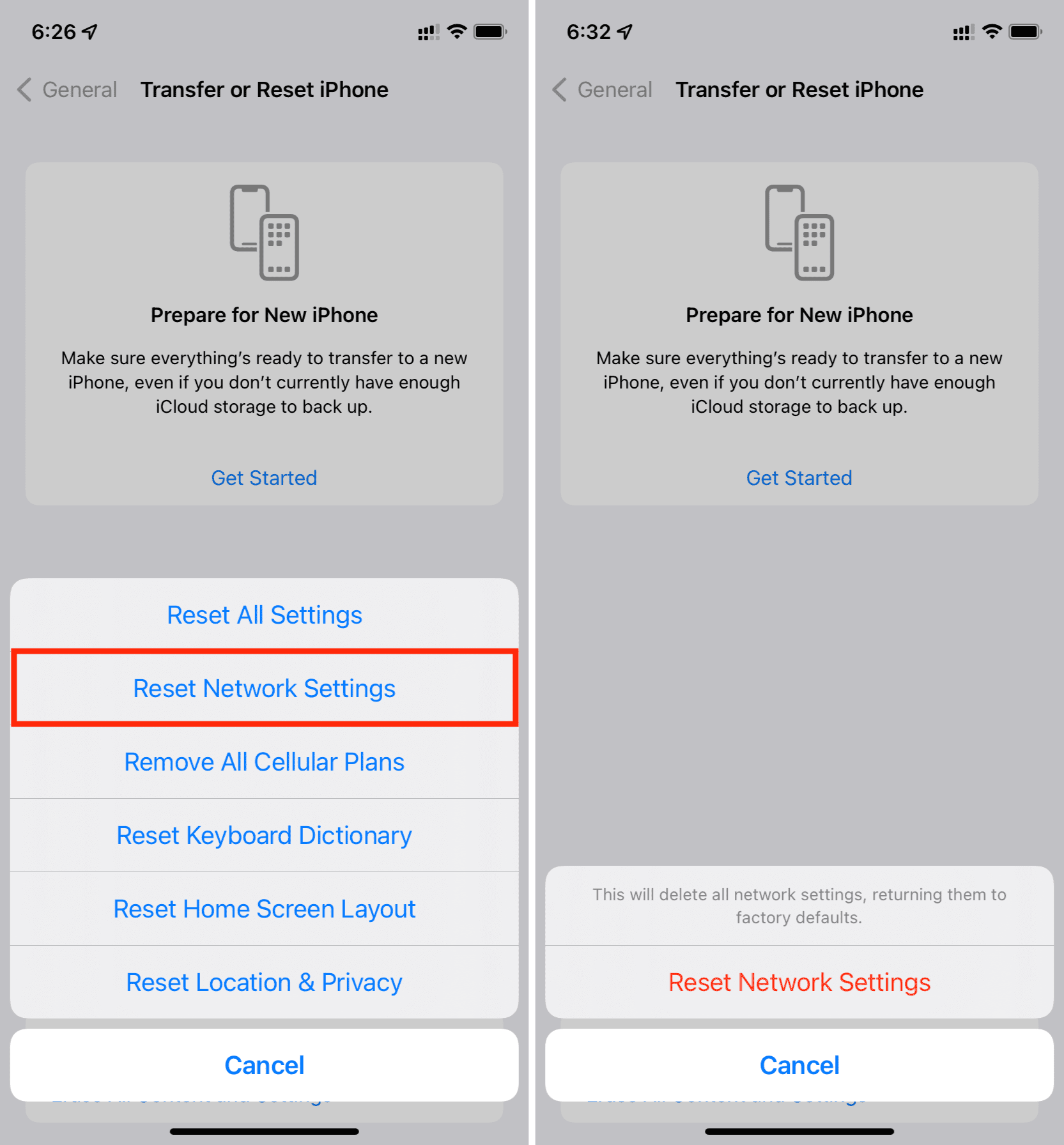
This is one of the sure-shot ways to fix Personal Hotspot issues on your iPhone. You can learn all about network resetting here. To recap, go to iPhone Settings > General > Transfer or Reset iPhone > Reset > Reset Network Settings. Once it completes, troubles with your iPhone’s Personal Hotspot should no longer exist!
Stop your Mac from disconnecting from your iPhone’s Hotspot
Here are some useful tips to keep your Mac connected to your phone’s Personal Hotspot.
Turn off Low Data Mode on Mac and iPhone
Low Data Mode forces your device to use less data, and one way to do that is by disconnecting the Hotspot when it’s not in use. So, here’s how to turn off Low Data Mode to stop that from happening.
On Mac:
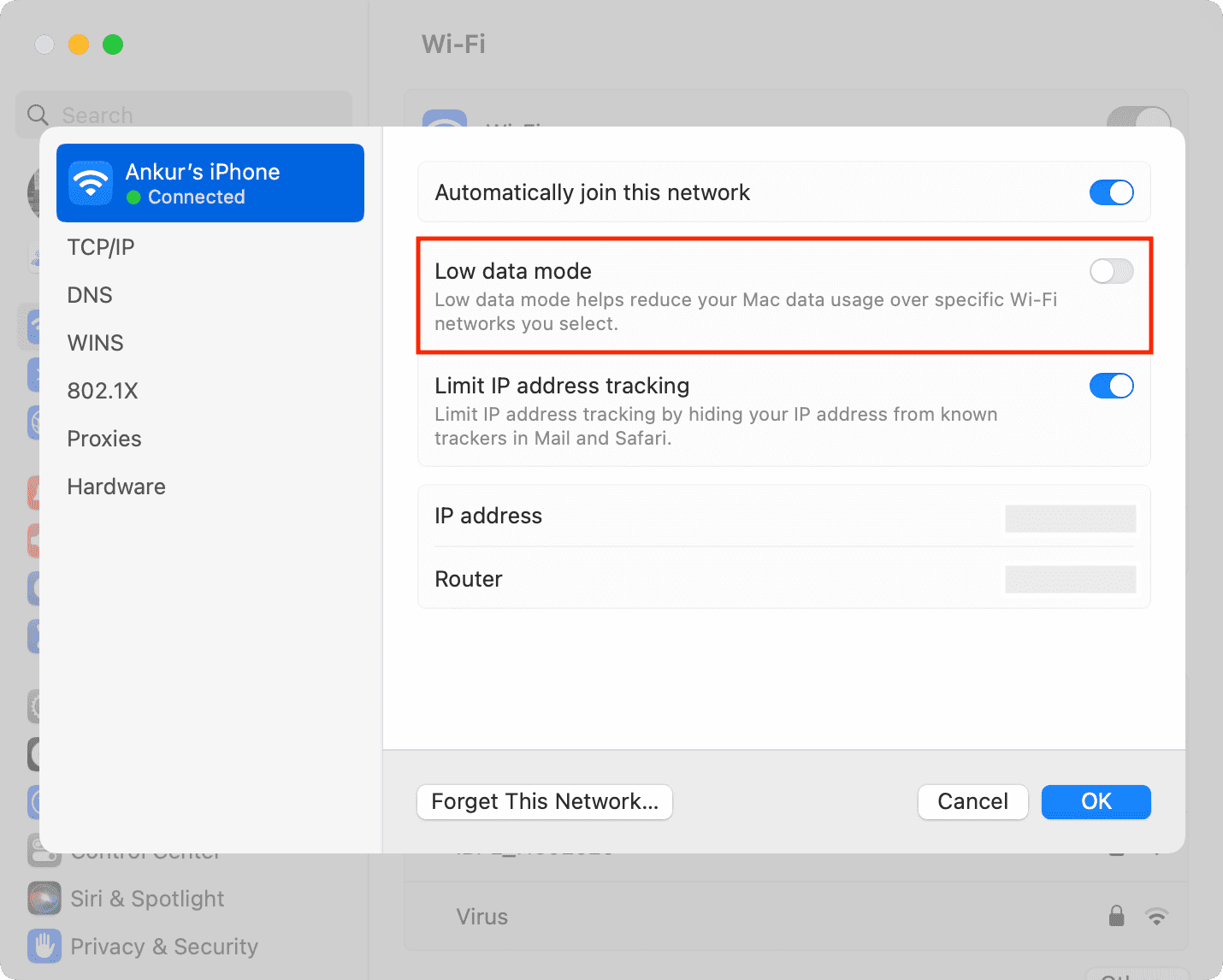
- Open System Settings and select Wi-Fi.
- Click the three dots icon next to the connected Personal Hotspot and choose Network Settings or click the Details button next to the connected Hotspot.
- Turn off Low data mode and click Ok.
On iPhone:
- Open the Settings app and tap Cellular.
- Tap Cellular Data Options. If you use 5G, tap Cellular Data Options > Data Mode, and if you use dual SIM, simply pick a SIM card, followed by Data Mode.
- Turn off Low Data Mode.
Turn off Low Power Mode
Low Power Mode will disconnect Personal Hotspot when not in use to save battery on your iPhone. Turn off Low Power Mode to make sure the connection doesn’t drop.
Most important: Keep the Mac screen awake
The moment your Mac sleeps, it may disconnect from iPhone’s Personal Hotspot. To stop that, don’t lock your Mac or prevent it from sleeping by changing its auto-sleep time. If you must turn off the screen when you’re away, you can set the brightness to zero, which will save battery.
Prevent your iPhone from locking
Personal Hotspot may disconnect because your iPhone is auto-locked. You can prevent this by stopping your iPhone from locking its screen. If you do this, make sure the phone is plugged into a charger.
Bonus: Use wired Hotspot instead of wireless
At last, if nothing mentioned above worked for you, you can always use wired Personal Hotspot instead of the wireless solution.
1) Go to the iPhone Settings app (not Control Center) and turn off Wi-Fi and Bluetooth.
2) Next, turn off Personal Hotspot from Settings app > Personal Hotspot. You’ll also see it in Cellular > Personal Hotspot.
3) Now, connect your iPhone to your Mac via a USB cable.
4) Make sure to Trust the computer if an alert appears.
5) Go to iPhone Settings app > Personal Hotspot. Enable the switch for Allow Others to Join and choose USB Only.
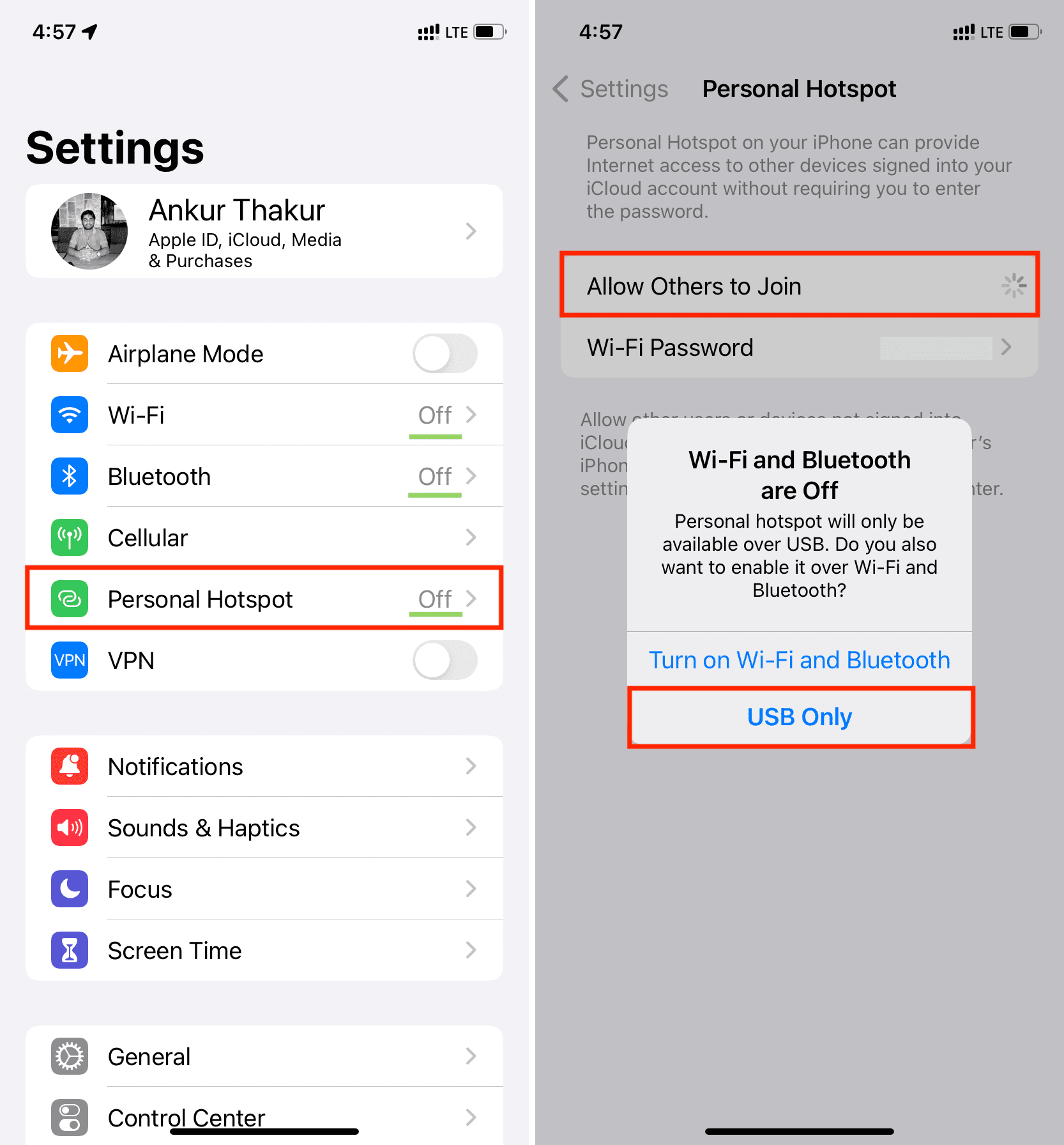
6) Since you’re looking to use Hotspot, your Mac is probably not connected to Wi-Fi. But, if it is, click the Wi-Fi icon and then click the connected Wi-Fi network to disconnect it. You can also simply turn off Wi-Fi.
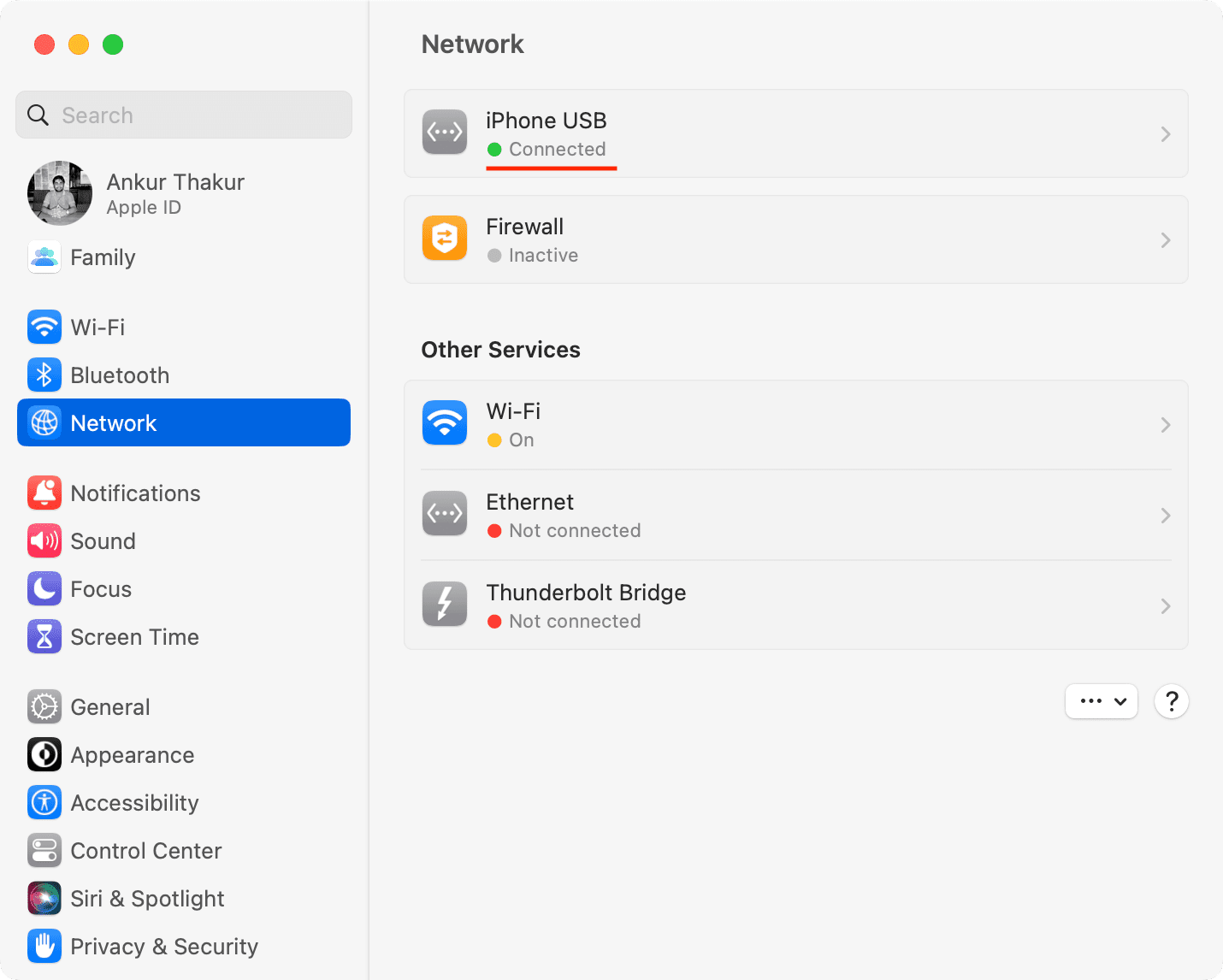
7) Now, open System Settings on Mac and click Network. Here, you should see a green dot and the word Connected below iPhone USB. You’re all set. Open a browser, and you can use your iPhone’s wired Hotspot.
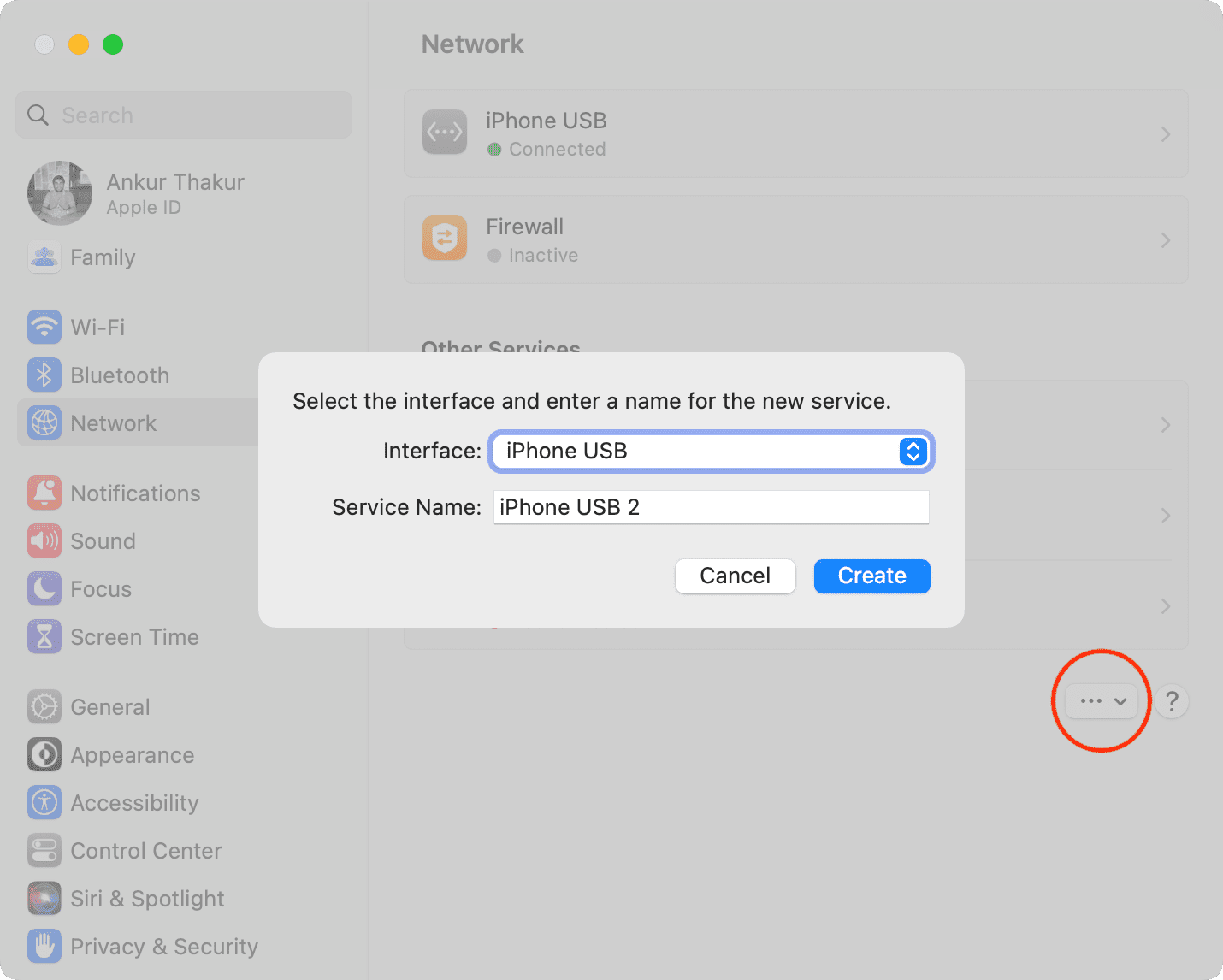
8) If you don’t see iPhone USB in Network settings, click the three dots icon > Add Service > choose iPhone USB interface and click Create.
Get an Android phone
If you regularly have to rely on mobile hotspot, I advise getting an Android phone (even a cheap one will do), and use it instead of iPhone. This setup will require you to pay for two SIM lines, but your Mac will not disconnect from Android phone’s hotspot as it does with iPhone. Secondly, you’ll save battery on your iPhone.
Check out next: How to stop iPhone, iPad, and Mac from joining personal hotspots when Wi-Fi is unavailable