Did you know that tapping the Wi-Fi and Bluetooth icons in iOS Control Center does not turn off these features entirely? In this tutorial, we’ll share why this happens and show you how to properly switch off these wireless features on your iPhone, iPad, or iPod touch.

Why iOS Control Center toggles don’t fully disable Bluetooth and Wi-Fi
Starting with iOS 11, when you tap the blue Wi-Fi or Bluetooth icons in Control Center, these wireless features aren’t disabled entirely. Your iPhone or iPad just disconnects from the currently connected Wi-Fi network or Bluetooth device, but leaves both radios running to be available for things like:
- Maintaining a connection with your Apple Watch and Apple Pencil.
- Using AirDrop, though, after Apple changed the ‘Everyone’ visibility option to ‘Everyone for 10 minutes,’ AirDrop works properly only when the Wi-Fi and Bluetooth icons are blue.
- AirPlay: you can tap the AirPlay icon in Control Center or inside media apps and choose HomePod, AirPods, or other such devices.
- Continuity features, like Universal Clipboard, Handoff, and Instant Hotspot
- Location Services
- Unlocking your iPhone with your Apple Watch
When Wi-Fi and Bluetooth will automatically turn back on
After you tap the Wi-Fi and Bluetooth icons in Control Center, your iPhone or iPad disconnects from the connected Wi-Fi network or Bluetooth device and stays that way until:
- It’s 5 AM. At 5 AM, your device will automatically make these toggles blue and connect to a known Wi-Fi or Bluetooth device.
- You restart your iPhone or iPad.
- You walk or drive to a new location with a known Wi-Fi network, in which case your iPhone or iPad will auto-join that network.
- You manually connect to a Wi-Fi network or Bluetooth device from the Settings app.
- You tap the Wi-Fi and Bluetooth icons again in Control Center.
Here’s what to do if you don’t like this behavior of temporarily disabling Wi-Fi or Bluetooth and would rather disable these wireless networking features entirely.
Completely switch off the Wi-Fi radio
- Open the Settings app on your iPhone, iPad, or iPod touch.
- Tap Wi-Fi, which says Not Connected next to it.
- Slide the Wi-Fi toggle to the off position.
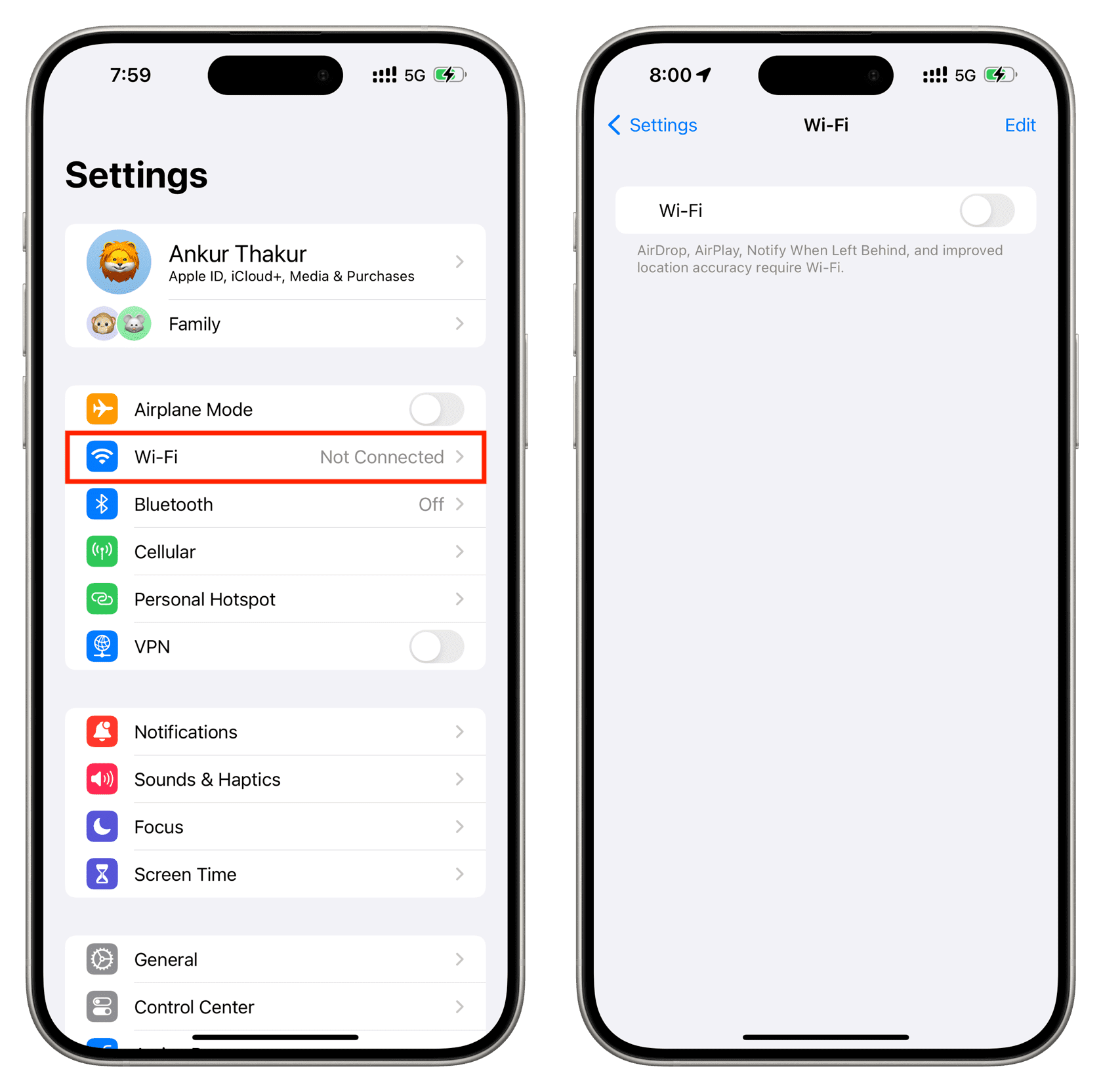
This will completely disable the Wi-Fi radio on your device. You’ll no longer be able to connect to any Wi-Fi networks unless you toggle Wi-Fi back on through Settings or Control Center. Toggling Wi-Fi on also re-enables the Auto-Join feature for any nearby Wi-Fi networks.
Completely turn off Bluetooth
- Go to the iPhone, iPad, or iPod touch Settings app.
- Touch Bluetooth in the list.
- Slide the Bluetooth toggle to the off position.
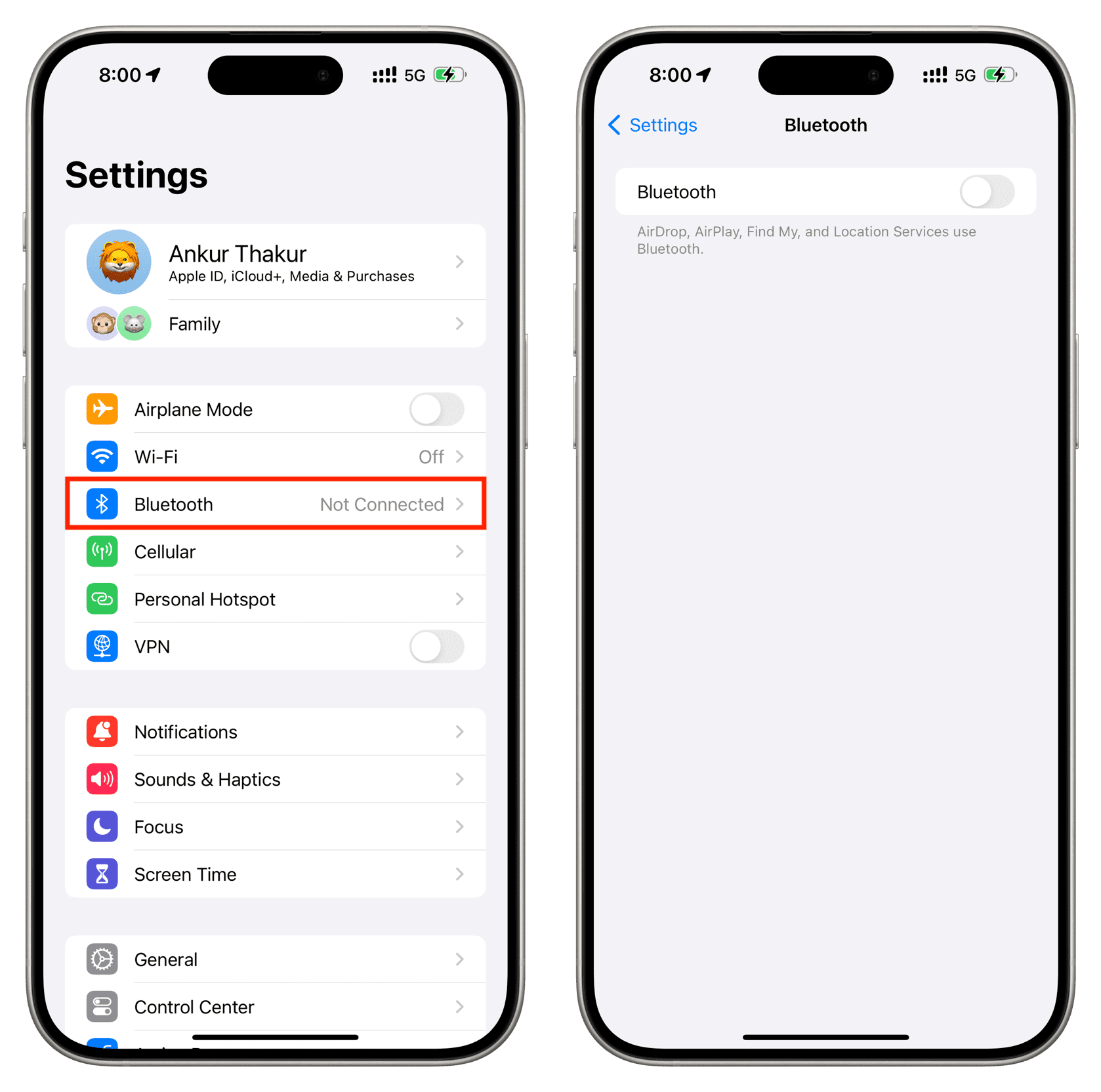
This will completely disable the Bluetooth radio on your device. You’ll no longer be able to connect to your Apple Watch, AirPods, or other Bluetooth accessories unless you toggle Bluetooth back on through Settings or in Control Center. Enabling Bluetooth reconnects your device to previously connected accessories, such as your Apple Watch.
Check out next: