Learn how to unlock your iPhone with your Apple Watch for times when you’re wearing a face mask, sunglasses, or ski goggles and can’t use Face ID.

Face ID fails to work if your face is partially covered by a mask or sunglasses (normal glasses work fine). To help in these situations and for processing personal Siri requests, Apple lets you unlock your iPhone with your Apple Watch (and also your Mac).
Note that when your iPhone is unlocked with your Apple Watch, Face ID is not used to authenticate you. Despite the much lower facial recognition accuracy when wearing a mask, this feature operates securely because your nearby Apple Watch is already authenticated and on your wrist.
Secondly, you can only use the Apple Watch to unlock your iPhone, not to authenticate other things like entering locked apps, making App Store purchases, accessing passwords in iCloud Keychain or the Passwords app, using Apple Pay, and so on.
Tip: You can also set up Face ID to work when you’re wearing a face mask. This can be used in addition to unlocking with Apple Watch.
Requirements
You must fulfill all these conditions to set up and use Unlock with Apple Watch:
- iPhone X or later with Face ID. Make sure it’s updated to the most recent version of supported iOS.
- Apple Watch Series 3 or later with watchOS 7.4 or later.
- You must have set up a passcode on your Apple Watch.
- Apple Watch Wrist Detection must be turned on in the iPhone Watch app > Passcode.
- You must be wearing your Apple Watch, and it needs to be unlocked. In other words, simply put your watch on your wrist and enter its passcode.
- Wi-Fi and Bluetooth must be enabled on both your iPhone and Apple Watch. Note that it isn’t necessary for your devices to be connected to a Wi-Fi network. Just enabling Wi-Fi is fine.
- Finally, this works only when your mouth and nose are covered with a face mask, or your eyes are covered with something like sunglasses or ski goggles.
Set up Apple Watch unlock for your iPhone
- Make sure you’re wearing your watch and that you fulfill all the above conditions.
- Open the Settings app on your iPhone.
- Tap Face ID & Passcode and enter your passcode to go in.
- Scroll down and turn on the switch next to your Apple Watch under the Unlock With Apple Watch section. Tap Turn On to confirm if prompted.

How to unlock your iPhone with Apple Watch
- Make sure you’re wearing a face mask, sunglasses, ski goggles, or something similar.
- Wake up your iPhone by raising it, tapping the screen, or pressing the side button.
- The Apple Watch on your wrist should automatically unlock your iPhone, and you’ll feel haptic feedback on your wrist, confirming the watch has unlocked the phone. You can now swipe up on the iPhone Lock Screen to go inside.
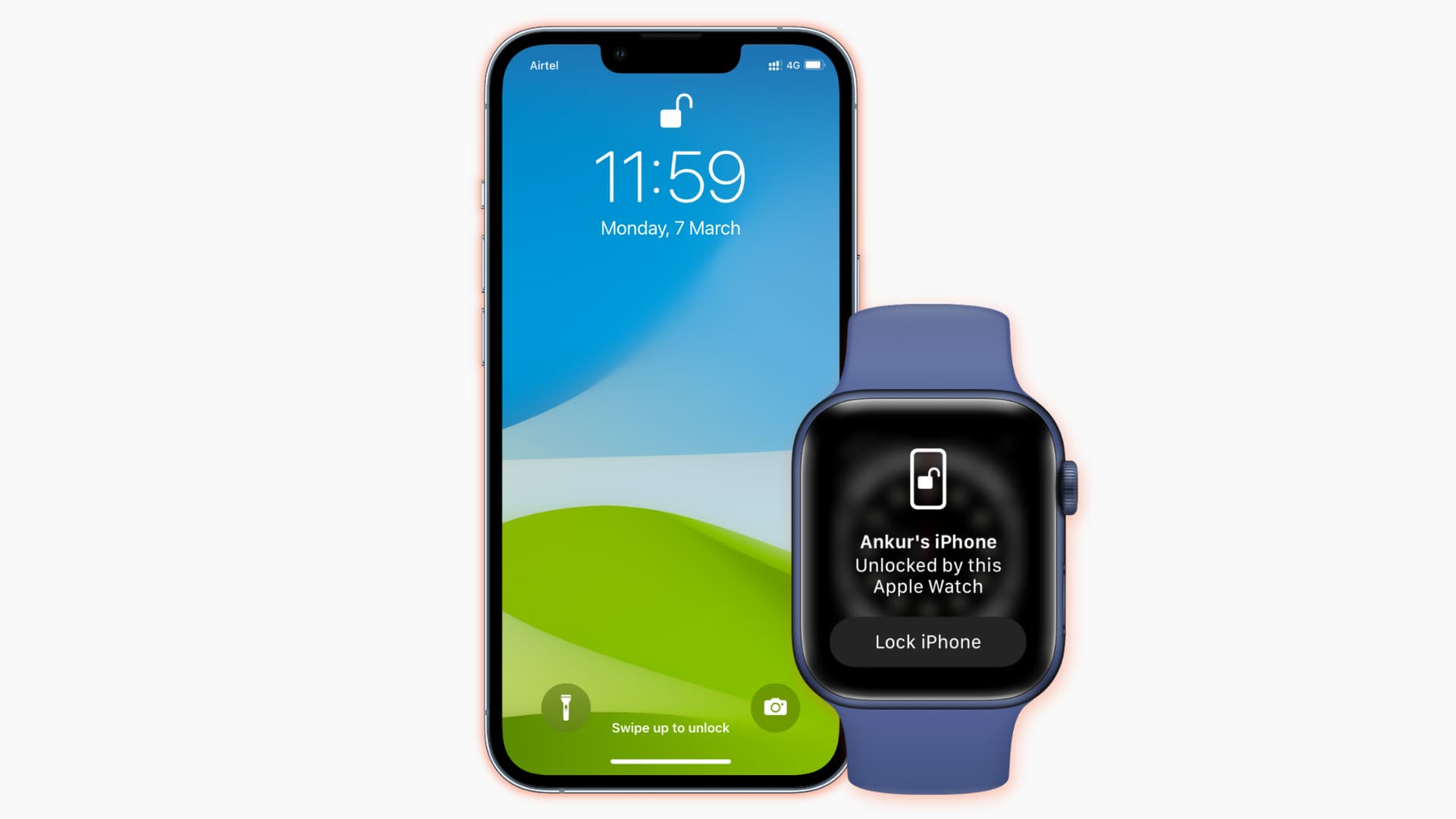
Note: For security purposes, you’ll be asked to manually enter your passcode the first time you do that. After that, you’ll be able to unlock the handset with Face ID like you normally would, even if wearing a mask.
The operating system will require your password again to re-enable this feature after the iPhone has restarted or the watch has been removed from your wrist.
On a related note: Unlock with Apple Watch not working? 15 solutions to fix it