Learn how to stop your iPhone, iPad, or Mac from automatically joining nearby Personal Hotspots from your iPhone and cellular iPad when no known Wi-Fi networks are available.
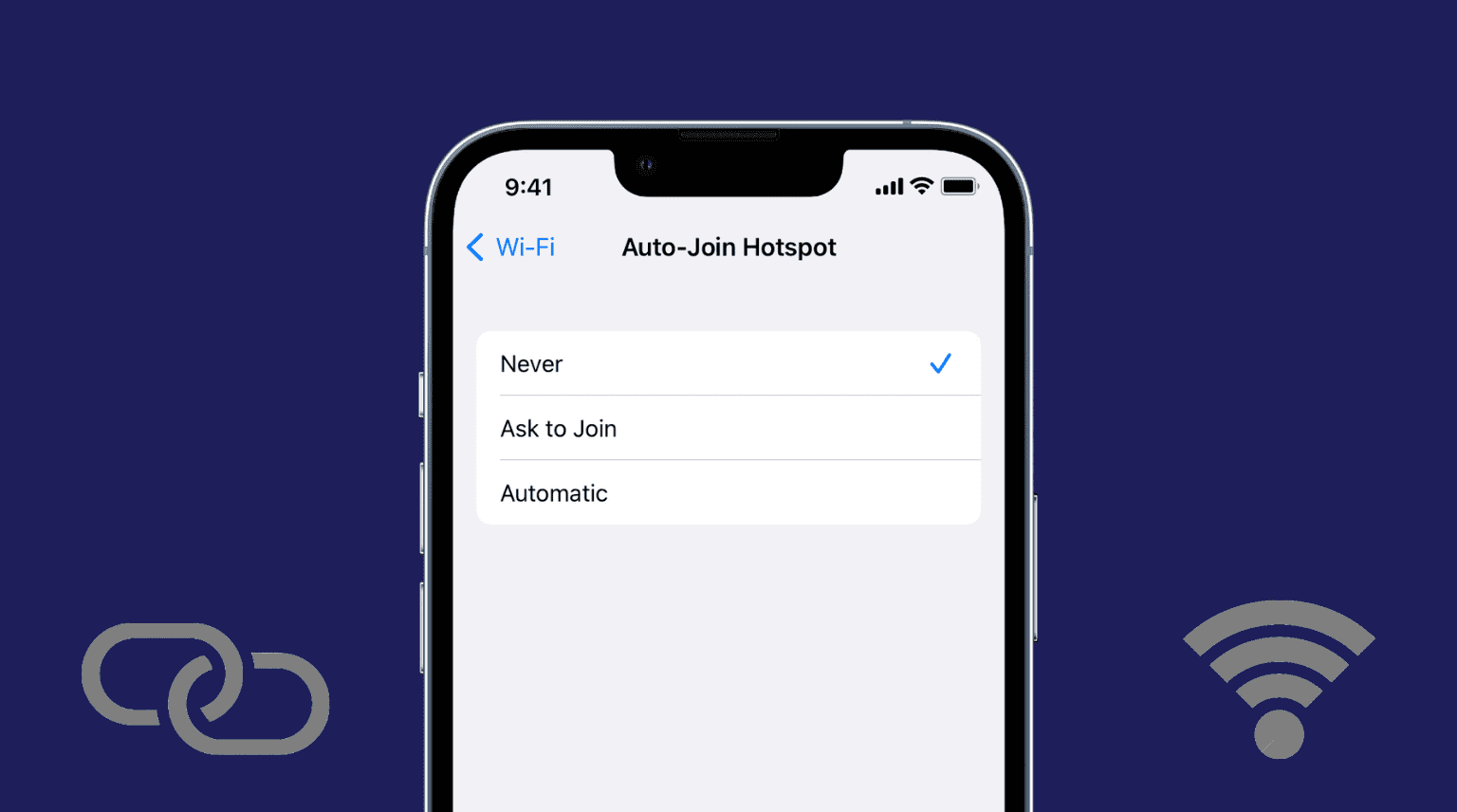
With no known Wi-Fi networks nearby, your iPhone, iPad, or Mac will automatically join the Personal Hotspot on a nearby iPhone or cellular iPad without putting up any password prompt. This feature is called Auto-Join Hotspot, and it’s on by default.
Why you should disable Auto-Join Hotspot
If you’re on a metered cellular data plan, you may want to stop your Apple devices from automatically joining nearby Personal Hotspots without permission. I can’t tell you the number of times I forgot that my iPad was downloading huge updates while connected to the Personal Hotspot set up on my iPhone!
A host device may see a personal hotspot as a regular Wi-Fi connection, unless Low Data Mode is enabled. As a result, things like iCloud Photos sync and software updates will download over a personal hotspot. To prevent unwanted charges and other annoyances, disable Auto-Join by following the instructions below.
Toggle the Auto-Join Hotspot setting
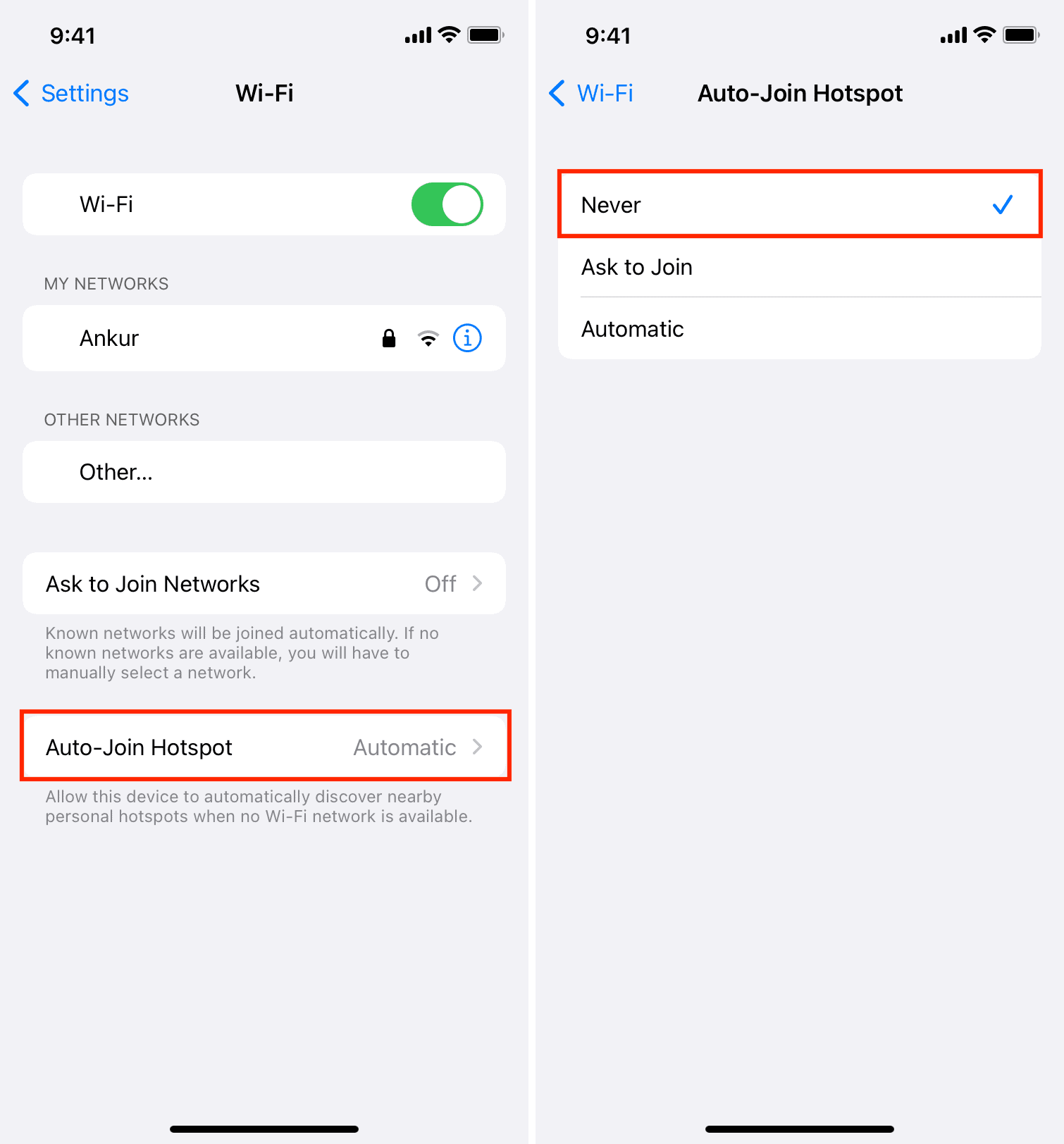
1) Open the Settings app on iPhone or iPad or System Settings on Mac.
2) Select Wi-Fi from the main list.
3) Select Auto-Join Hotspot, then set it to Never:
- Never: The device will no longer scan for, discover, and join nearby Personal Hotspots if no Wi-Fi network is available.
- Ask to Join: The device will discover nearby Personal Hotspots when Wi-Fi is unavailable. You’ll be asked before joining a hotspot.
- Automatic: The device will automatically discover and connect to a nearby Personal Hotspot without user action required.
Here’s how it looks on Mac running macOS 27:

On older versions of macOS, just turn off “Ask to join hotspots.”

You can also click the Advanced button, then the three-dotted menu next to the hotspot name, then untick the “Auto Join” option.

More on Wi-Fi: