Learn how to increase text size in the Messages app on your iPhone, iPad, and Mac to stop squinting your eyes if you struggle to read small words.
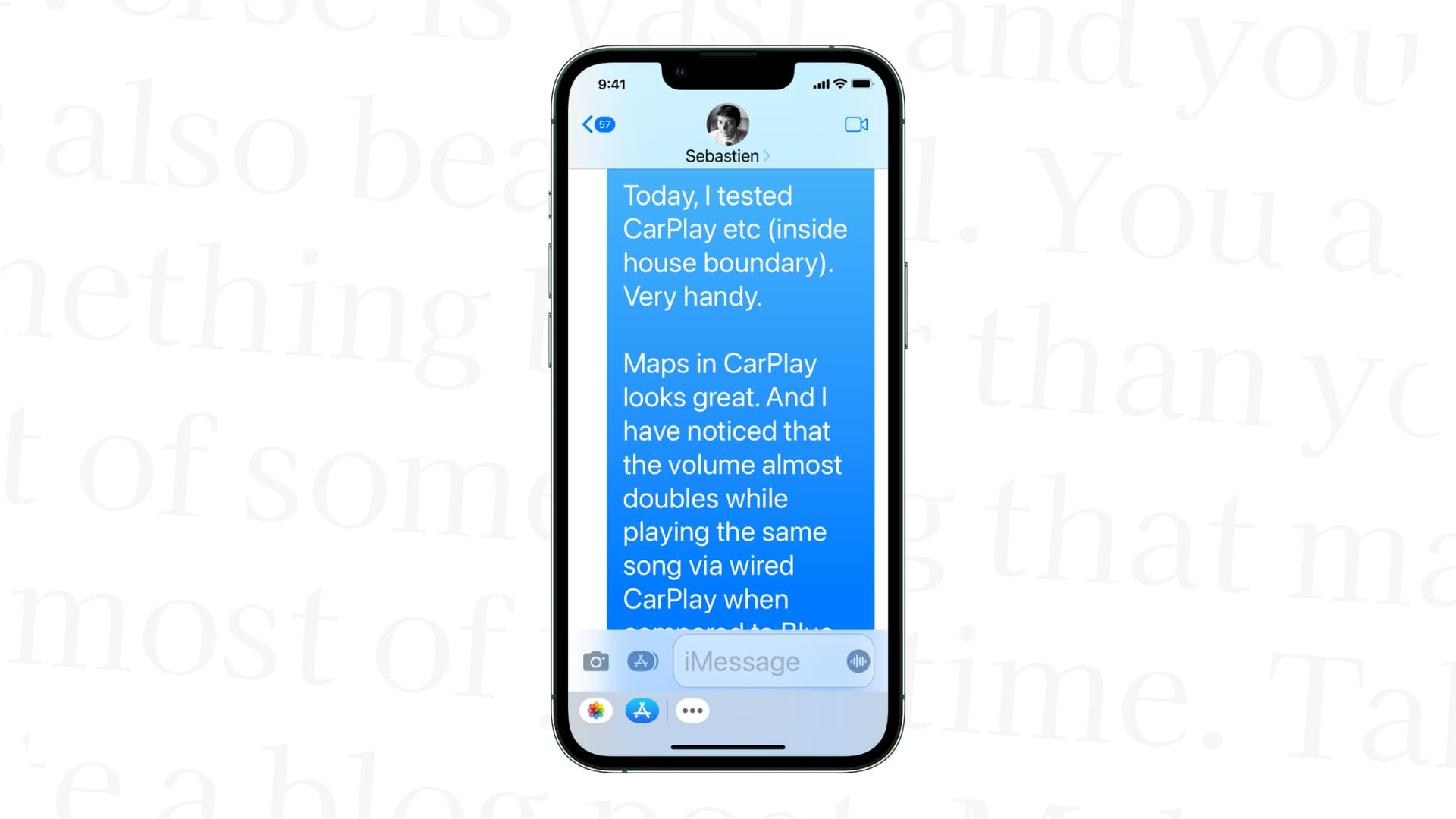
Does the small font size in the blue and green Messages bubbles strain your eyes?
You can make it bigger without affecting the rest of the interface!
Apple provides controls in Settings > Appearance (formerly Display & Brightness) to increase text size systemwide. But in this tutorial, we’ll use the adjust text size per app feature, so it affects only the Messages app and nothing else.
iPhone and iPad
You can adjust an app’s text size with the per-app settings or Text Size button in Control Center.
Per-app settings
1) Go to Settings > Accessibility > Per-App Settings.
2) Tap the Add App button, select Messages from the list of applications, and tap Messages again.

3) Select Larger Text and adjust the “A—A” slider, using live preview at the top to see the changes. You can also set Messages to use bold text.

Control Center
1) Customize Control Center to add a Text Size widget from the gallery.

2) Open the Messages app and invoke Control Center by swiping down from the top-right corner.
3) Touch and hold the Text Size slider to expand it.
4) Next, tap “Messages Only” to restrict our text adjustment to the Messages app and then drag the slider up to increase text size.
5) Exit Control Center and you’ll see bigger type in chat bubbles, making it easier to read SMS and iMessages. You may need to close and reopen the Messages app or restart your iPhone if the changes don’t take effect.

Mac
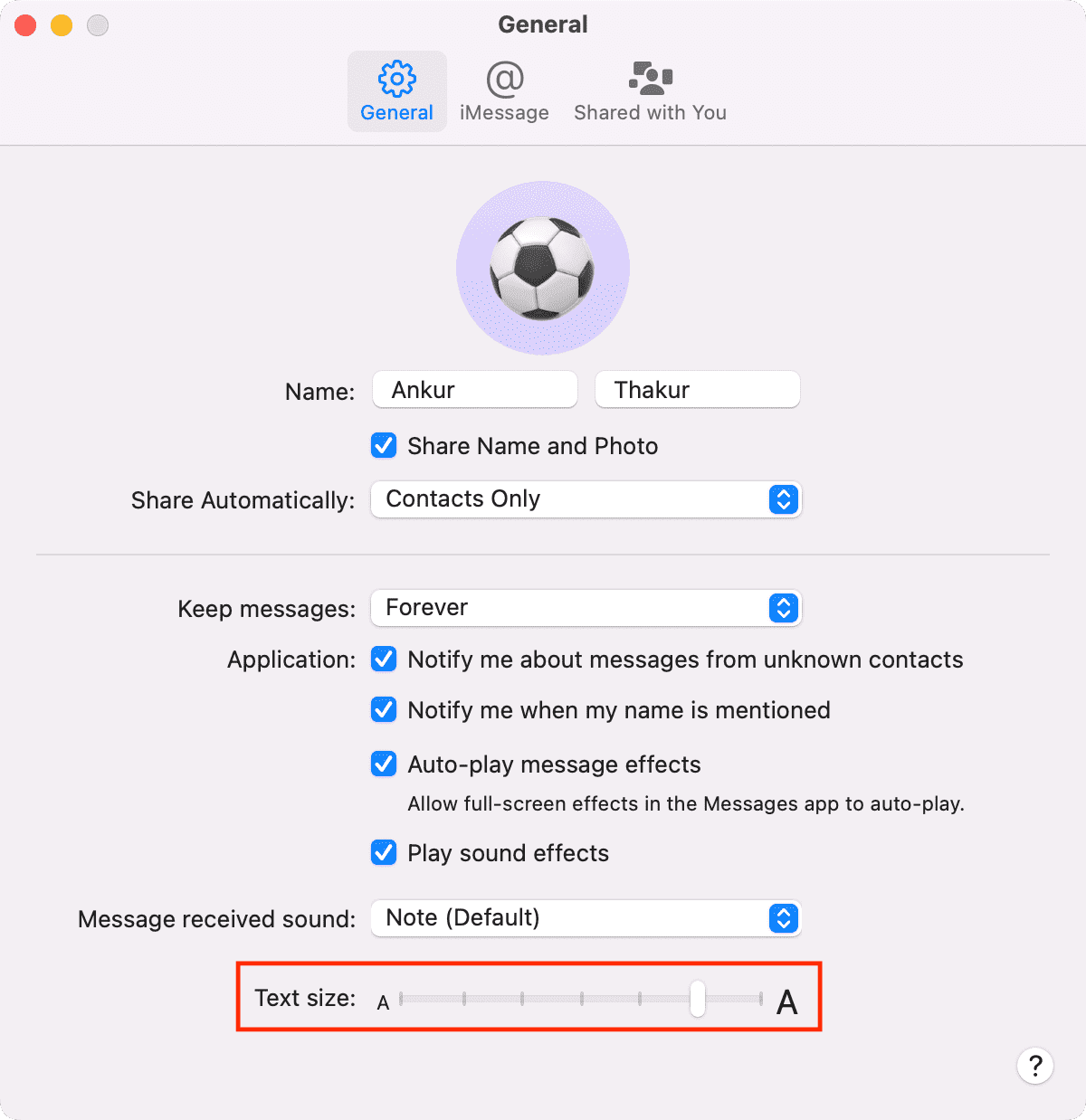
To increase font size in Messages for Mac without affecting other apps:
1) Open the Messages app.
2) Click Messages > Settings in the top menu bar.
3) Make sure you’re in the General tab.
4) Drag the Text size slider to the right to enlarge text in chat bubbles. The changes are immediately reflected in the Messages window.
Alternatively, go to System Settings > Accessibility > Display > Text Size, click Messages, and choose a different font size from the menu. This affects only the Messages app, not anything else.

A minor adjustment like increasing font size goes a long way toward alleviating vision issues like astigmatism.
If you’re struggling to discern small text, it only takes a few seconds to adjust font size in your favorite apps without blowing up the whole interface.
Do you find this setting helpful? Let us know in the comments below.
On a related note: