Are you trying to figure out how to access iCloud on your or someone else’s iOS device? This tutorial shows you how to log in to iCloud.com in a web browser on an iPhone or iPad and customize its appearance and functionality.

Log in to iCloud in an iPhone or iPad browser
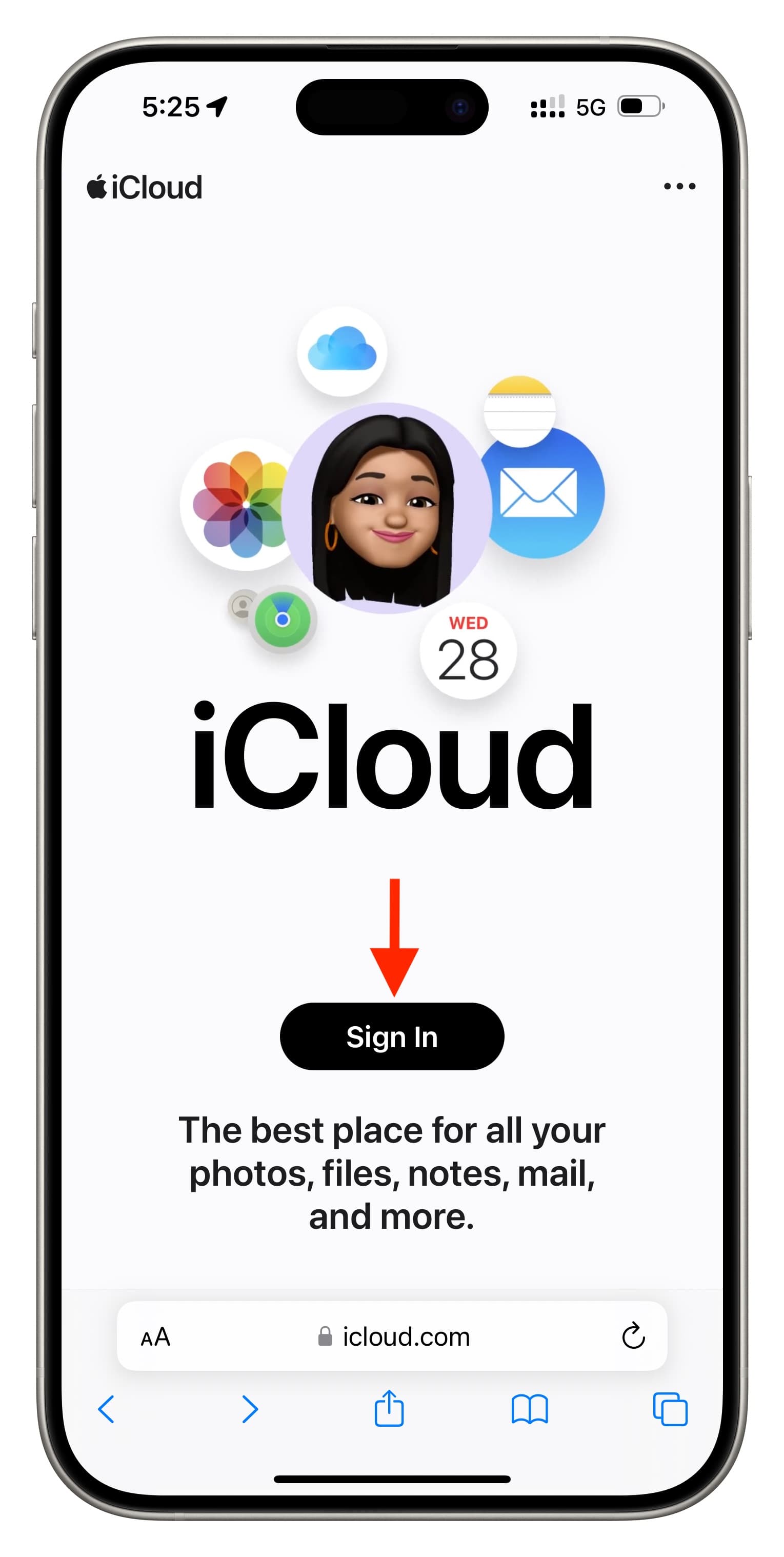
1) Open Safari on the iOS device and head to iCloud.com.
2) Tap the Sign In button.
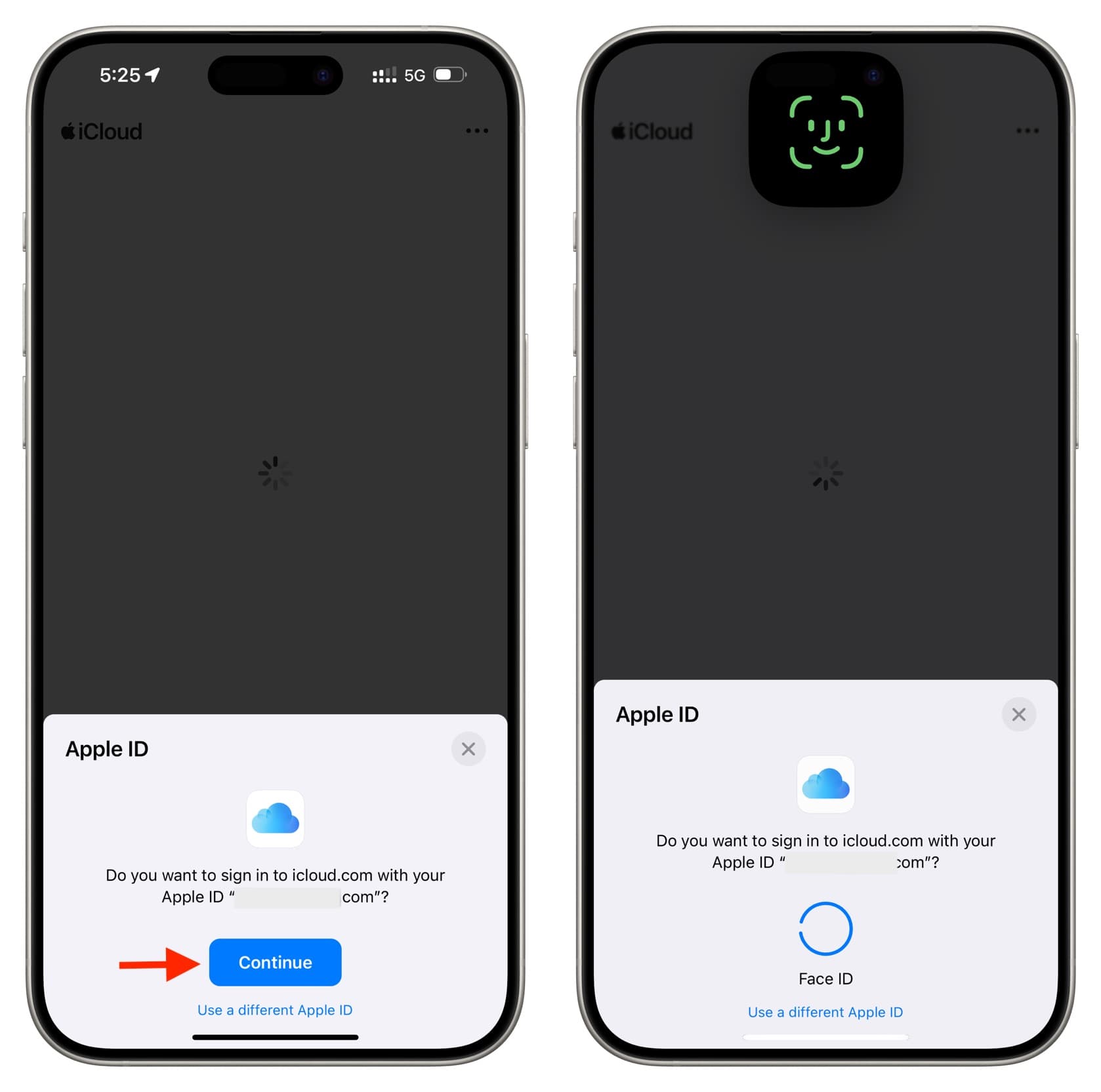
3) Now:
- Tap Continue and authenticate using your face or fingerprint to log in automatically to your iCloud account that’s set up on this device.
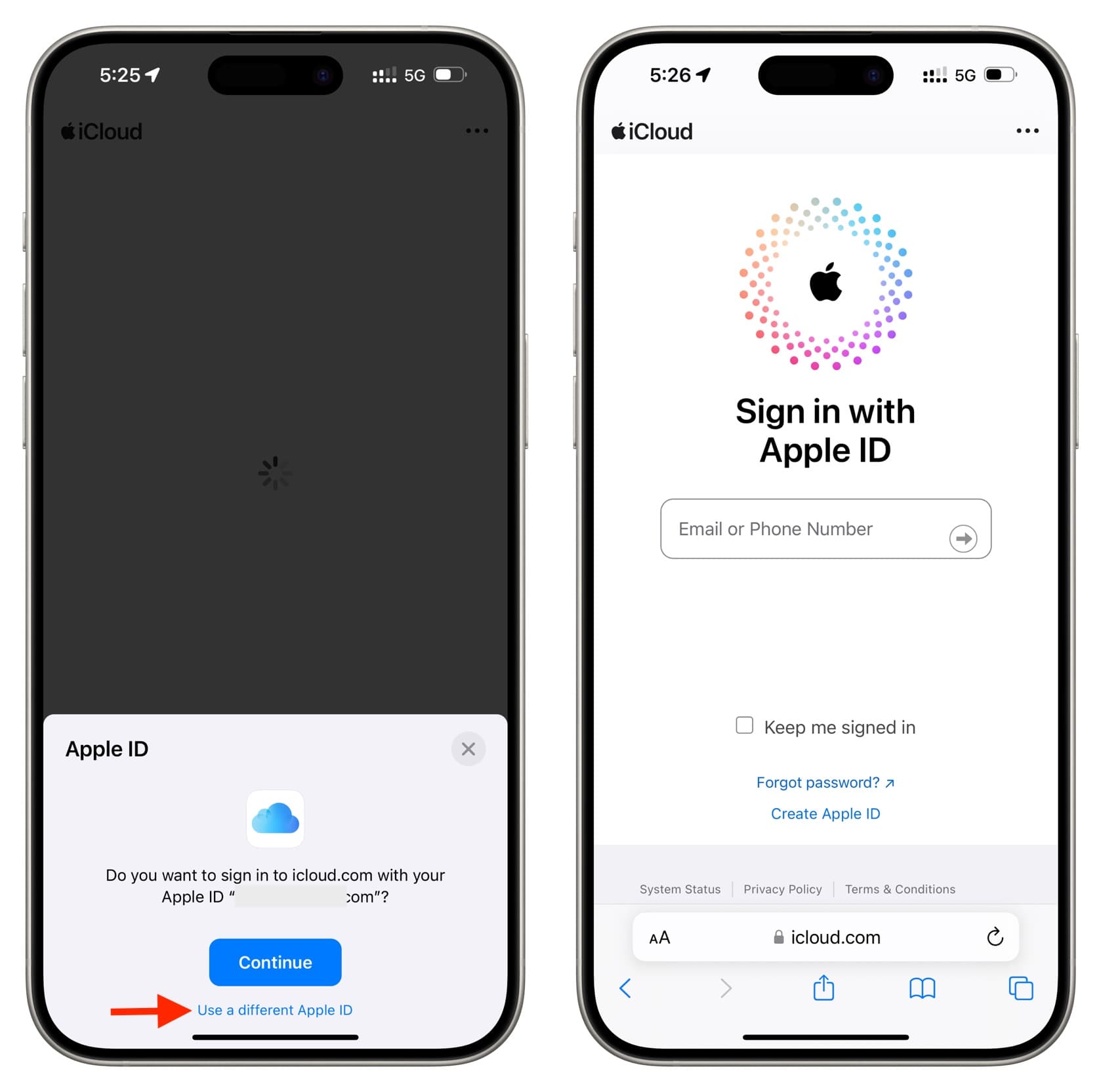
- However, if you need to log in to a different account, tap Use a different Apple Account. Then, sign in as you normally would with your Apple ID email address and password. If this is the first time you’re logging in this way from your device, you’ll have to follow the prompts to enter the verification code sent to your trusted device or trusted phone number.
Are some options missing?
After you follow the steps above, you’ll end up on iCloud.com and see the same screen you’d see in a Mac or Windows PC browser. However, if you’re on an iPhone, you’ll notice that some options, like Contacts, are missing. But you won’t have this issue if you’re signing in to Safari on your iPad.
Customize your iCloud web view
Once you have logged in, scroll down and tap Customize. Note that you may not see this button if you have Advanced Data Protection enabled for your Apple Account.
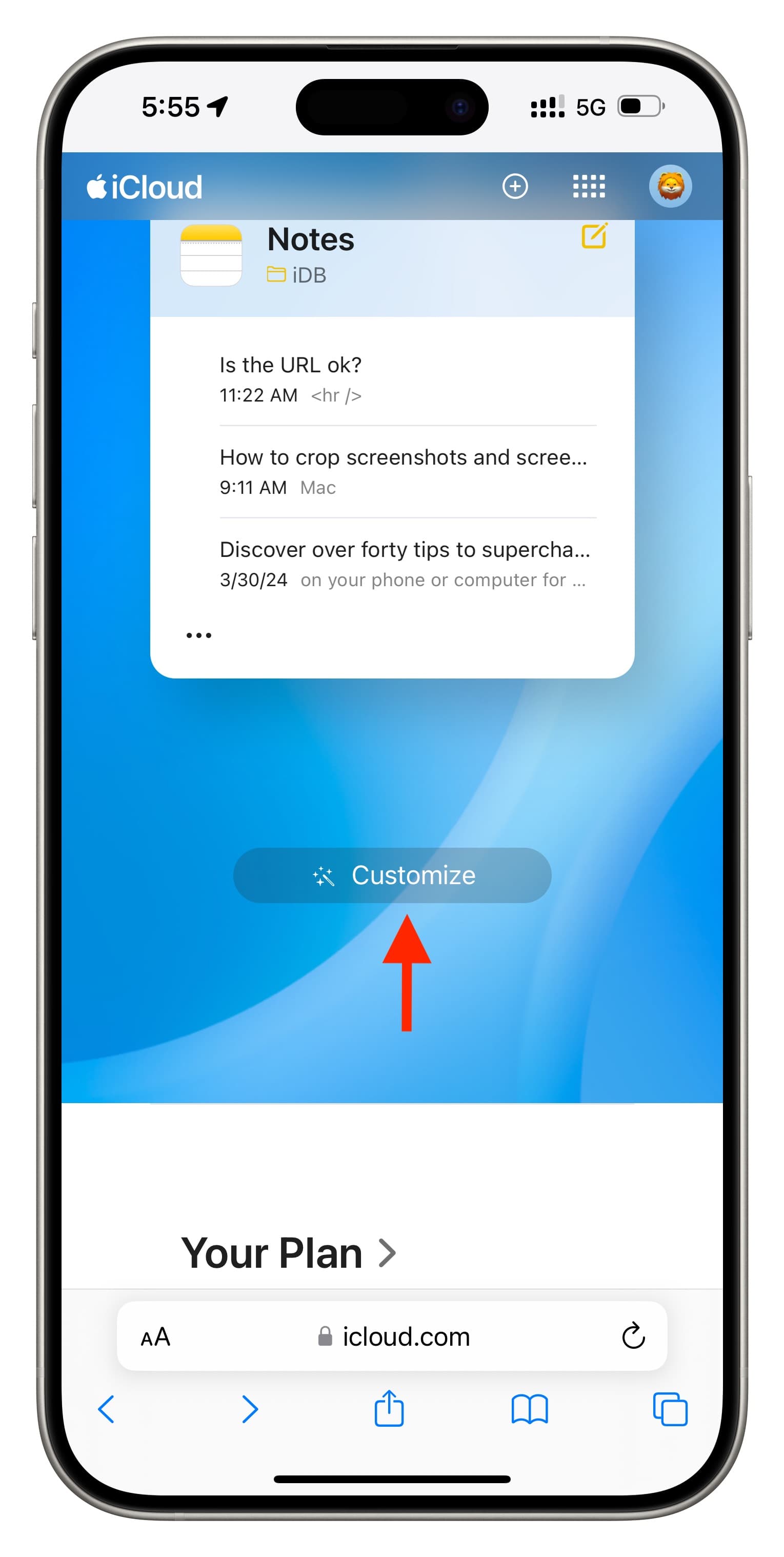
Now, you can do the following:
- Change the background color: Tap the blue dot at the top and select another color.

- Add new tiles: Tap the plus button, then choose the web app you want to add.

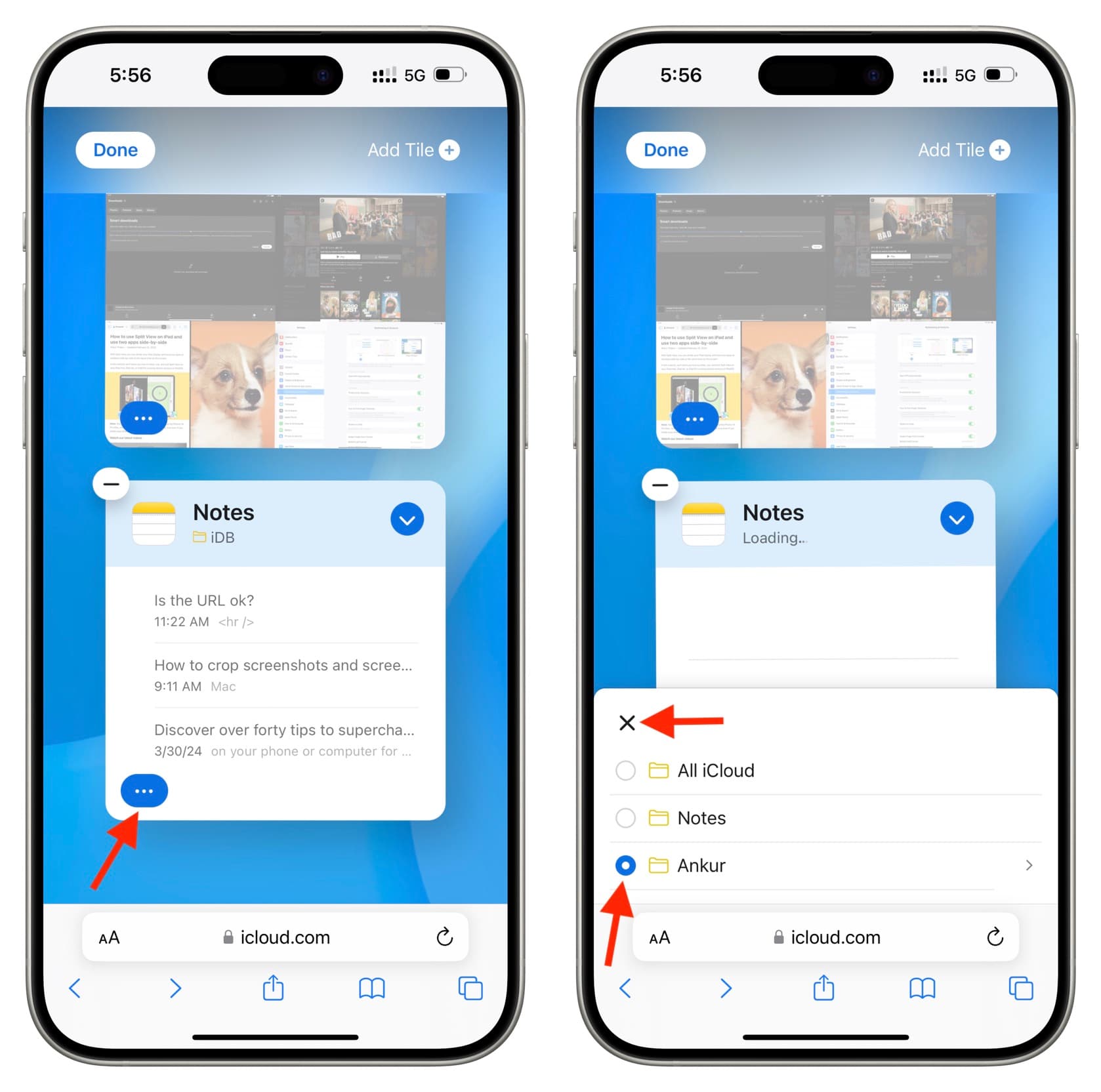
- Customize the app tile: Some app tiles, such as Mail, Notes, Drive, and Photos, can be personalized to display the information you want. For instance, you can set the Notes app tile to show notes from a particular folder. To do that, tap the three dots icon, select an option, and hit the X icon, followed by Done.
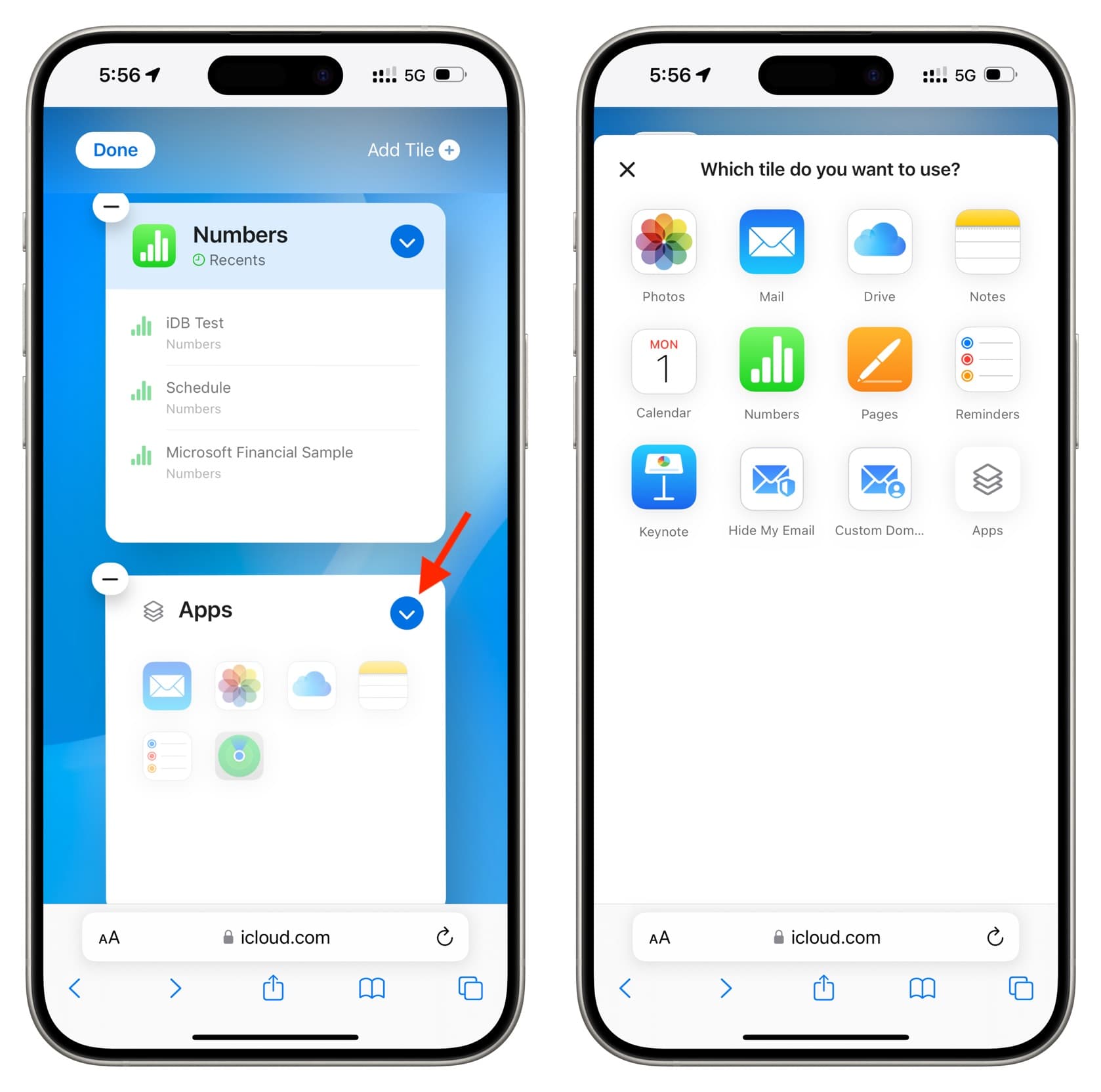
- Replace a tile: Tap the blue arrow icon in the corner of an existing app tile and pick another app.
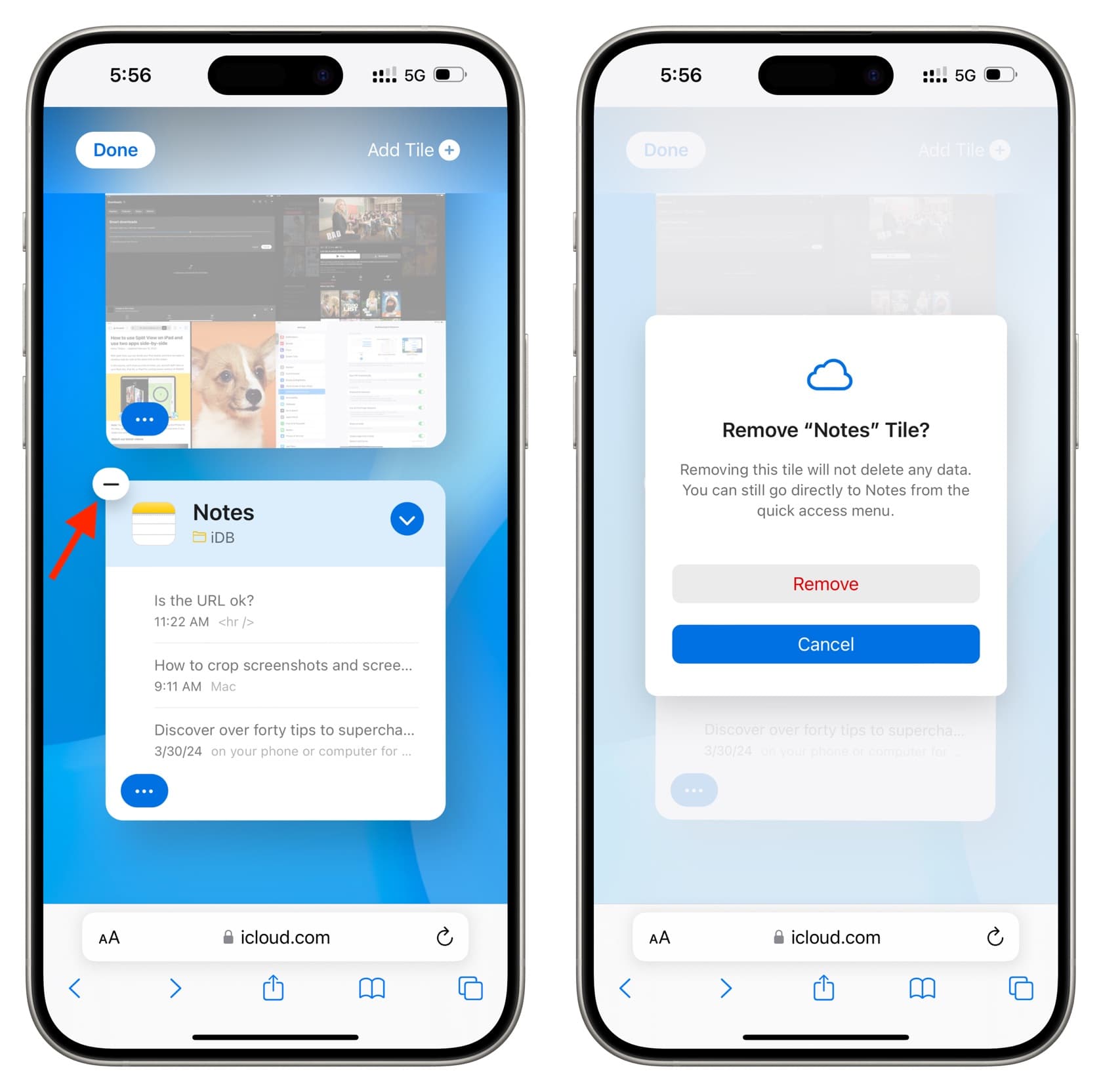
- Remove a tile: Tap the minus icon (-) to remove an existing tile and hit Remove.
Lastly, tap Done to save the changes. This new change will reflect across iCloud web on all your devices.
What to do if you cannot log in to iCloud on the web
Here are some things to check if you’re unable to log in to your iCloud account on a phone or computer browser:
- Make sure you enter the correct Apple ID email address/phone number and the password.
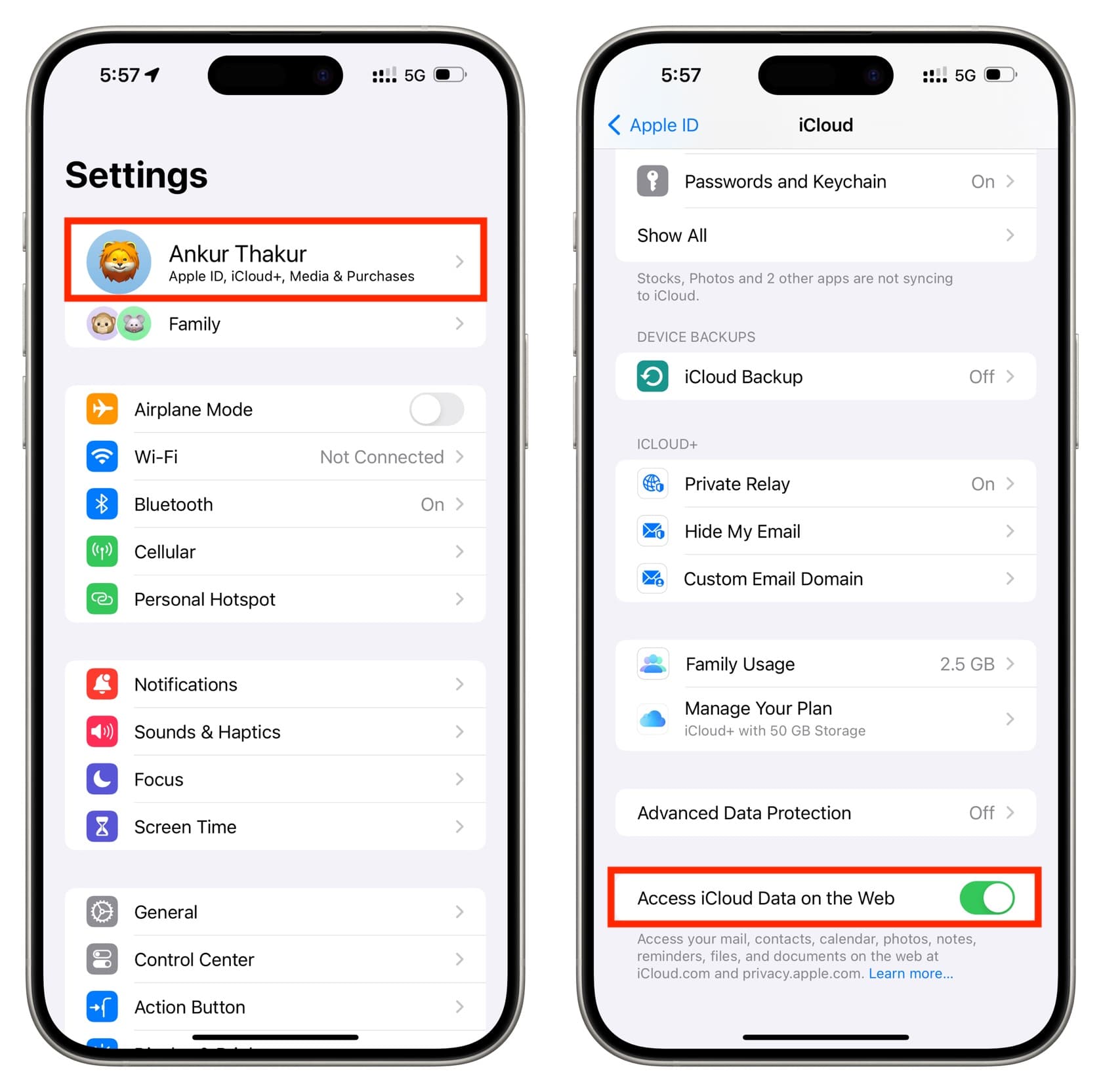
- Go to your iPhone Settings app and tap your Apple ID name at the top. Then, tap iCloud, scroll down to the bottom of the screen, and make sure Access iCloud Data on the Web is turned on.
- Turn off the VPN if you are using one.
- Restart your device and retry.
- Clear your browser history and try once again.
- If all fails, check Apple’s System Status and retry after a while.
Check out next: