Follow these quick tips if you want to send photos and videos via Messages, but the photo picker doesn’t show up on your iPhone or iPad.

For starters, you can send images and videos via iMessage, MMS, and RCS without leaving the Messages app. All you need to do is tap the plus button to see a list of iMessage apps and then select Photos. A small selector appears at the bottom of the screen, showing your most recent items from your photo library. You can then tap to select one or more items and send them.
Alternatively, you can just touch and hold the plus button to bring up the photo picker directly. And if you receive a “Send photos” message, just tap the underlined ‘photos’ text to directly open the photo picker (see the screenshots below).
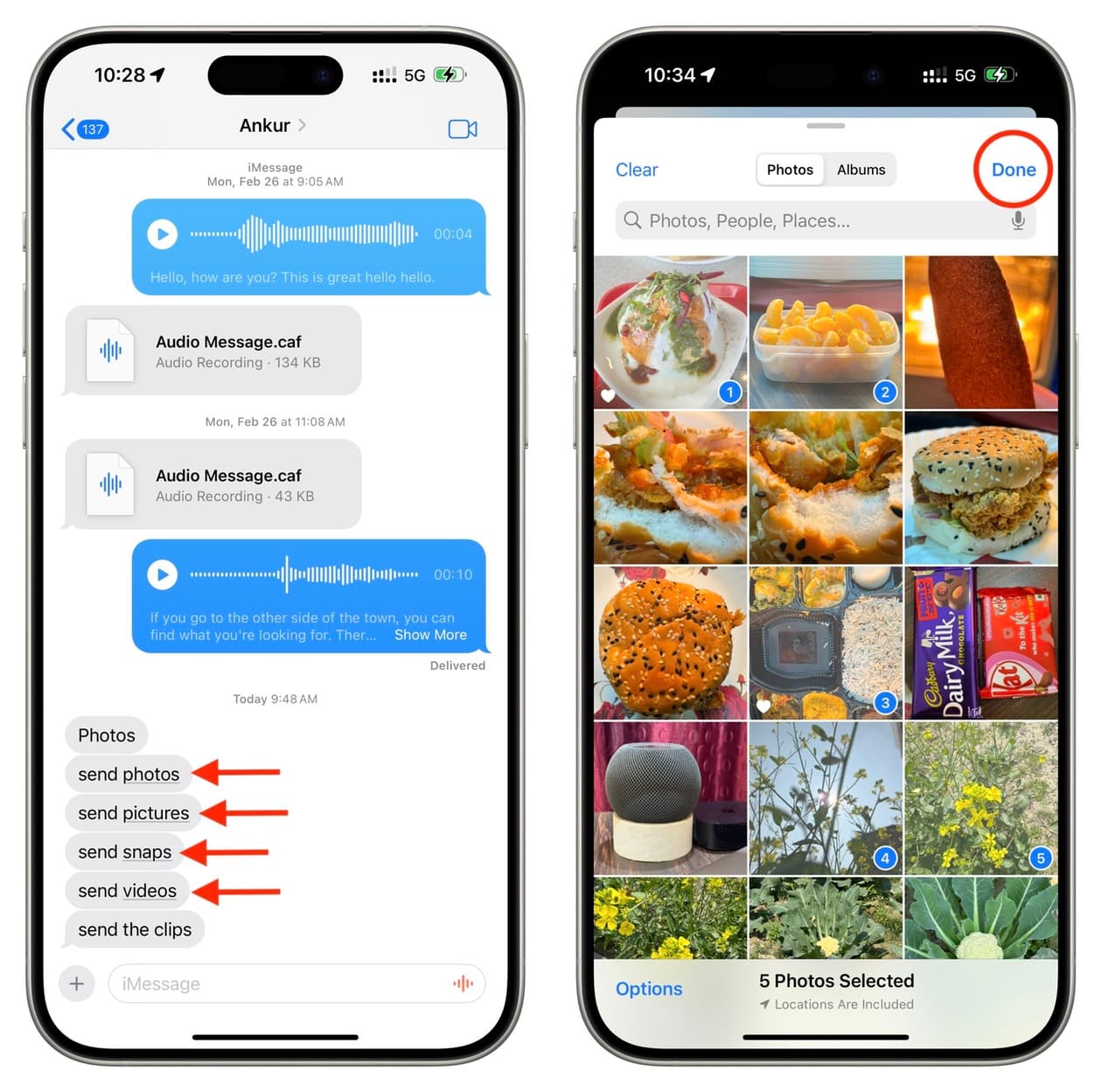
However, if the above methods don’t work, you’ll have to leave the Messages app and use the iOS Share Sheet in the Photos app to send a picture or video. While doable, this is a lengthy process and requires navigating apps.
We’ll share the quick steps to fix this inconvenience caused by temporary system glitches or software bugs. You may also face this issue after ending an iPhone Mirroring or screen mirroring session.
Force quit and reopen Messages and Photos
Swipe up from the bottom of the screen and hold until you see a stack of app cards. Now, swipe up the Messages and Photos (if visible there) cards to force close them. Then, reopen the Messages app and try accessing the photo picker. It should work.

Lock and unlock your iPhone
Press the side power button to lock the phone. Then, unlock it after a few seconds, return to the Messages app, and check whether your photos are showing there.
Restart your iPhone
Usually, the problems like the one you’re facing are due to minor operational glitches. Just turn your iPhone off and back on, and it should be fixed.
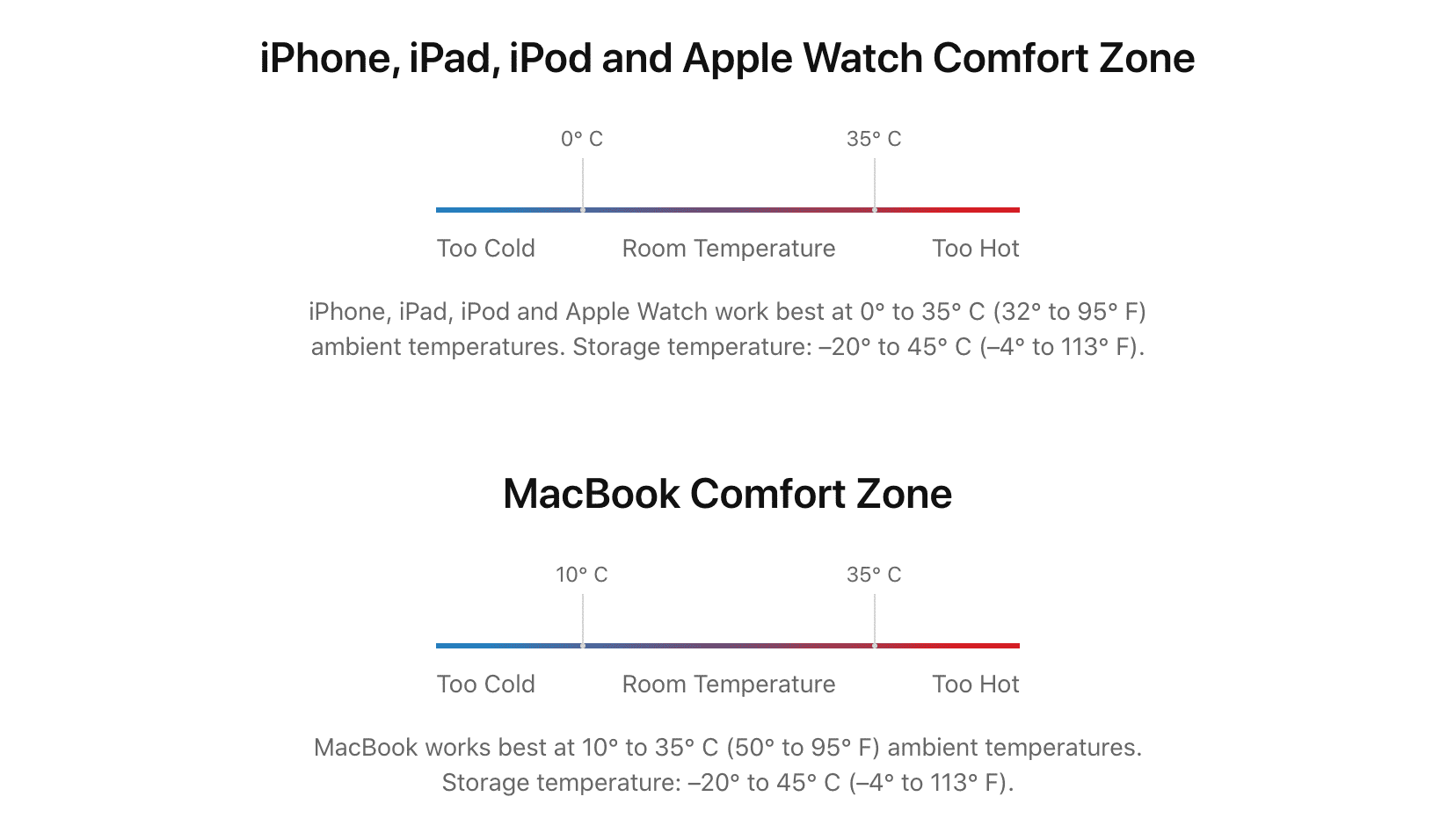
Make sure your iPhone isn’t too hot
Touch your iPhone, and if it feels too hot, shut it down and wait for it to cool down. Then retry sending photos or videos from inside the Messages app.
Update the software
In case your iPhone is running an older version of iOS and a new update is available, go to Settings > General > Software Update to download and install it.
Reset all settings
If none of the above solutions work for you, consider resetting all iOS settings. This won’t delete apps, photos, videos, and other personal data from your iPhone, but it will reset all settings to their default state. You can learn more about it in our dedicated tutorial.

In case nothing helps…
It won’t come to this, but if the problem persists, wait for a new iOS update, and until then, share the photos and videos directly from the Photos app. This is easier than completely erasing your iPhone and setting it up again from scratch (which should certainly address this problem).
Also, check out: How to fix photos & videos not being sent via iMessage on iPhone