The Messages app isn’t just for sending texts; you can enhance your conversations with iMessage apps and extensions. For example, use the Giphy app to quickly add animated GIFs to your messages or the Shazam iMessage app to share a great song you recently discovered with a friend.
In this tutorial, we’ve covered iMessage extensions for iPhone and iPad in detail, with a brief mention of their use on Mac and Apple Watch. Unlike iOS, the options on macOS and watchOS are more limited.
Use existing iMessage apps
18 Apple apps (mentioned below) appear automatically in Messages on your iOS device. In addition to these, the iMessage version of installed iOS apps also appears automatically.
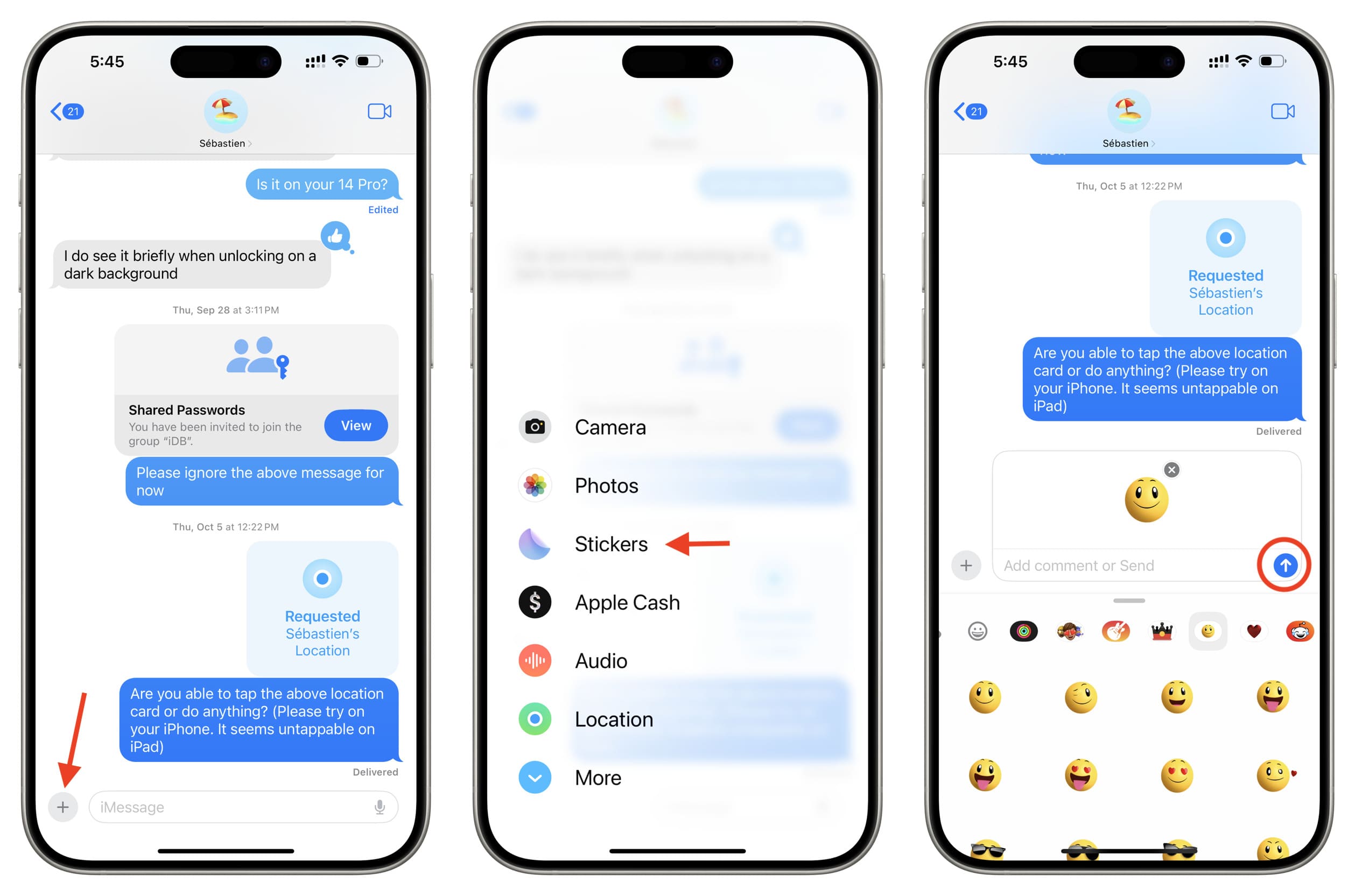
- Open the Messages app on your iPhone or iPad and open a conversation.
- Tap the plus button to open the app drawer.
- Select an Apple or third-party app you see here, use it accordingly, and hit the blue send button.
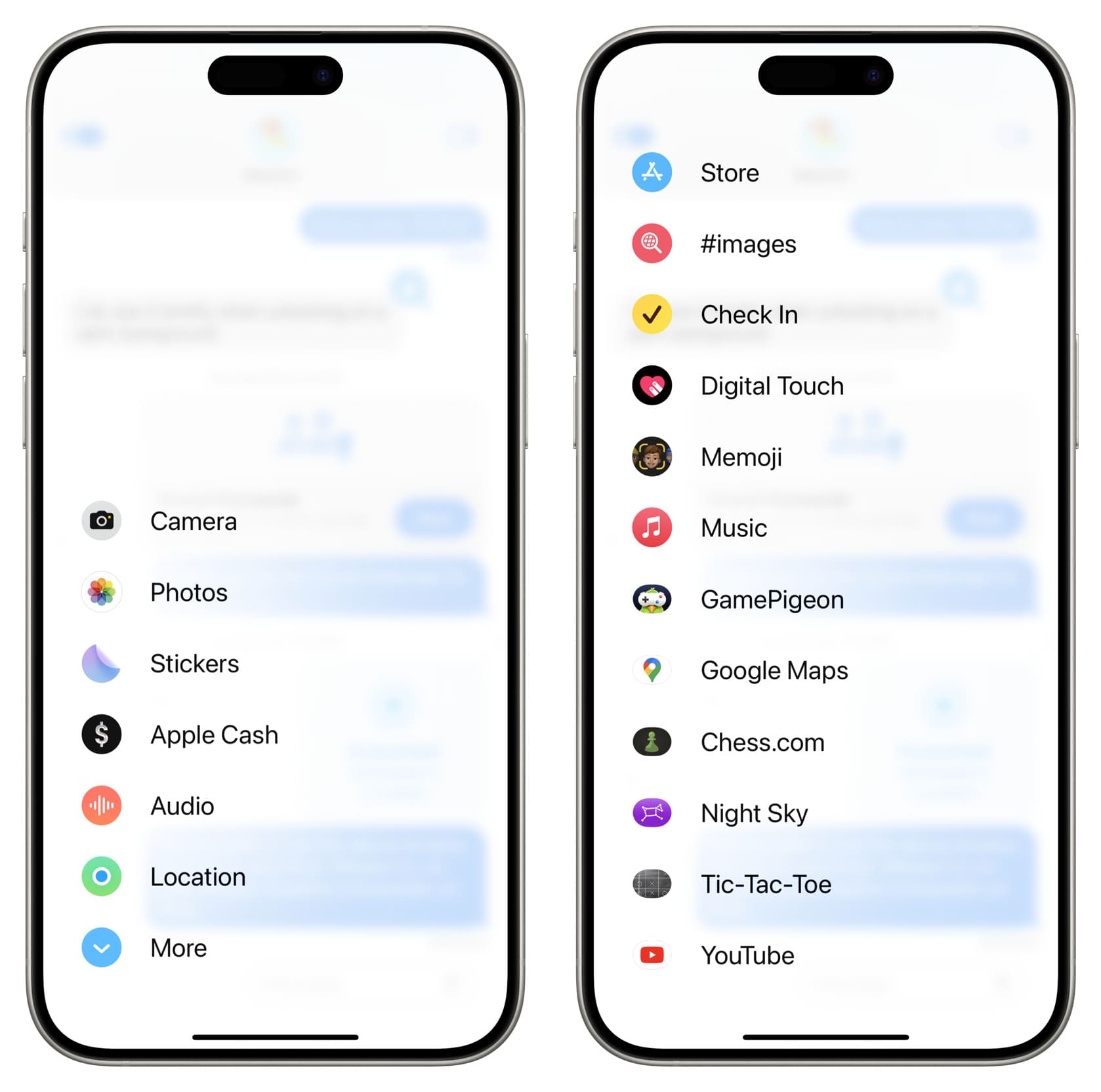
Here’s what the 18 built-in Apple apps do:
- Camera: It lets you take a picture, add effects, edit or Markup the image, and then send it.
- Photos: Allows you to pick an existing image or video from your Photos app. Tip: You can touch and hold the plus button (step 2 above) to open the Photos app directly.
- Stickers: Send a sticker. You can tap Edit on the Stickers screen to manage existing Sticker apps or get new ones from the App Store.
- Apple Cash: Use it to send money from your Apple Cash account.
- Audio: Tap it to record and send voice messages.
- Send Later: Use it to schedule messages for the future.
- Genmoji: Use it to create custom AI-emojis based on quick prompts.
- Image Playground: It’s an image generation tool by Apple that allows you to create pictures based on another person’s face, image, text description, etc.
- Store: Use it to download or purchase new iMessage apps. More on it later.
- Invites: Use it to send invitations quickly if you have created an event in the Apple Invites app.
- Drawing: This is a new addition in iOS 27 that lets you draw and send a sketch.
- Location: Use this to share your live location for an hour, until the end of the day, or indefinitely.
- Polls: To create polls in personal and group chats.
- #images: It lets you find GIFs and send them in messages.
- Check In: Use this to send a location or timer-based Check-In to your family member or friend to keep them informed.
- Digital Touch: Draw something and send it. Or, take a photo or video, draw over it, and send it.
- Memoji: Create or send your existing Memojis.
- Music: Share a recently played Apple Music track with your friend.
Alongside Apple apps, you’ll find iMessage versions of iOS apps already installed on your iPhone or iPad, provided they support it. For example, if you have Shazam or Zoom on your iPhone, their iMessage apps will show up automatically.
Download new iMessage apps
There are two kinds of iMessage apps:
- those that are only available in the Messages app,
- those that are included with regular iPhone or iPad apps.
Here are two ways to download them.
Use the iMessage App Store
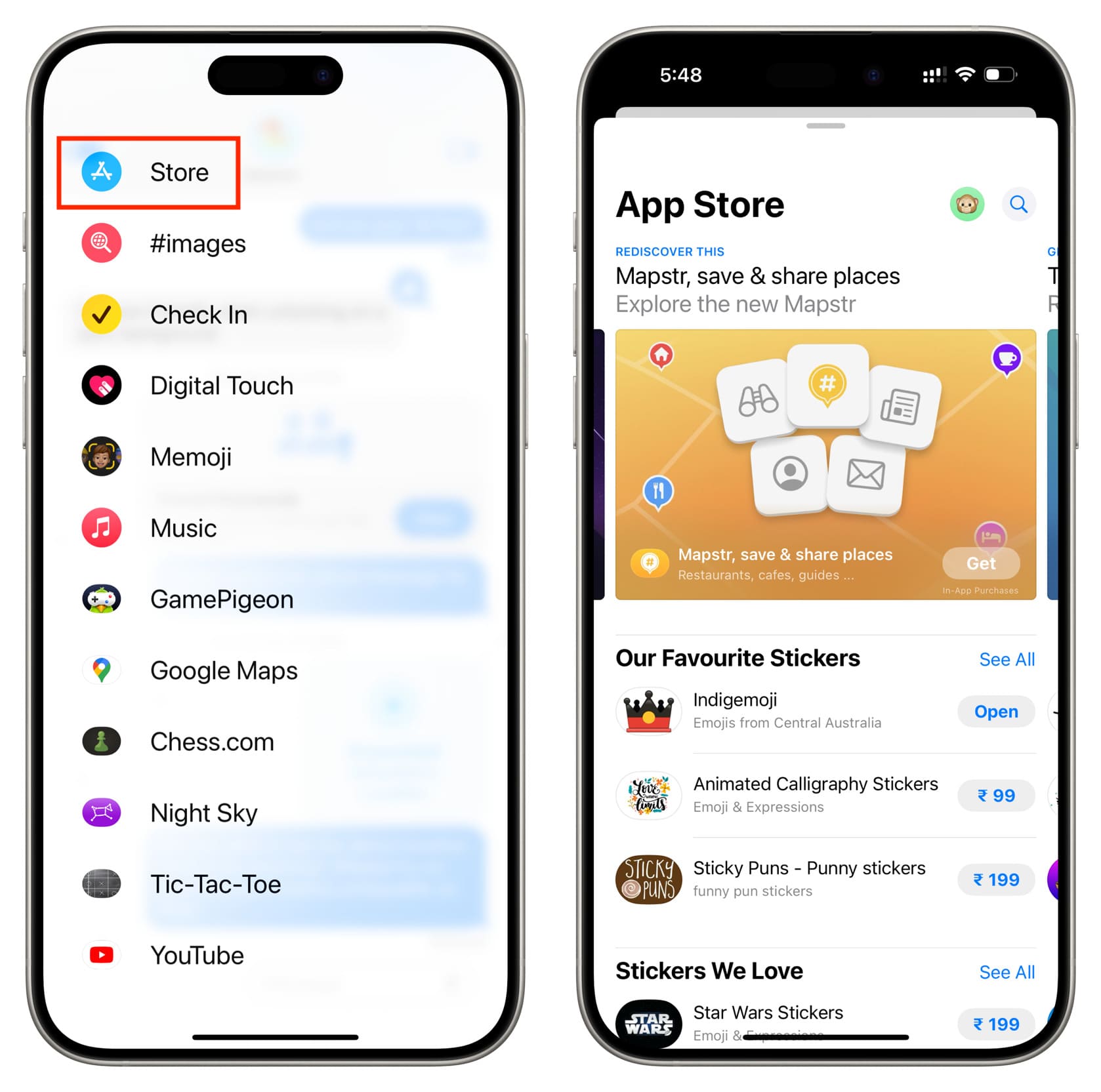
- Go into a conversation in the Messages app and tap the plus button.
- Swipe up and tap Store to open the iMessage App Store.
- Tap Get, item price, or the re-download arrow icon to download, purchase, and install that iMessage sticker, game, or app.
Note: If an app (like GIPHY, 8 Ball Pool, or Google Maps) has both a regular and an iMessage version, the full-fledged iOS app will also download and appear on your iPhone or iPad Home Screen.
Download an app that has an iMessage version
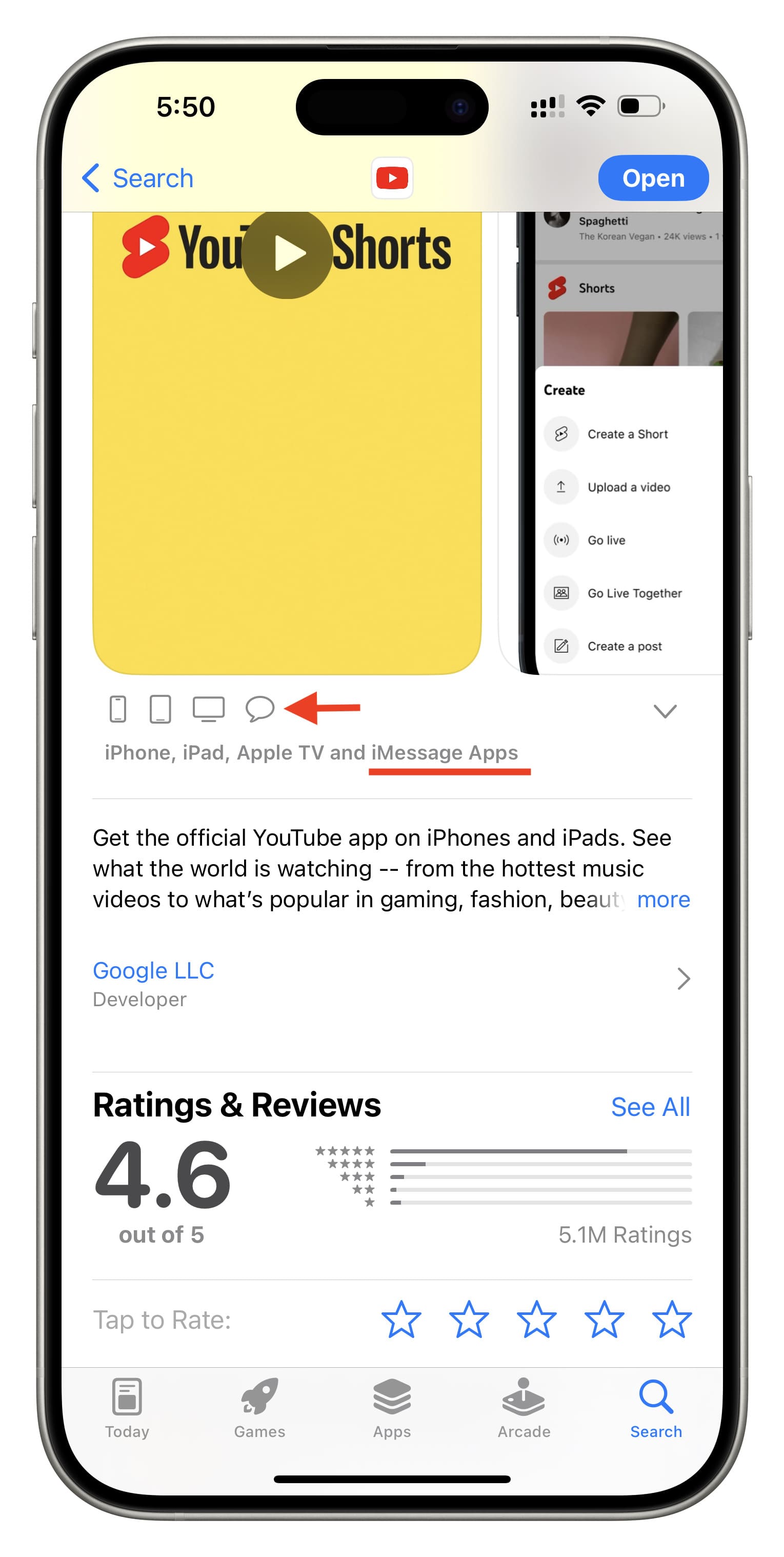
If you see the words “iMessage Apps” and a chat bubble icon on the app’s App Store page, that means this app comes with an included iMessage version. Simply install it, and its iMessage version will automatically show up in the Messages app drawer.
Rearrange your iMessage apps
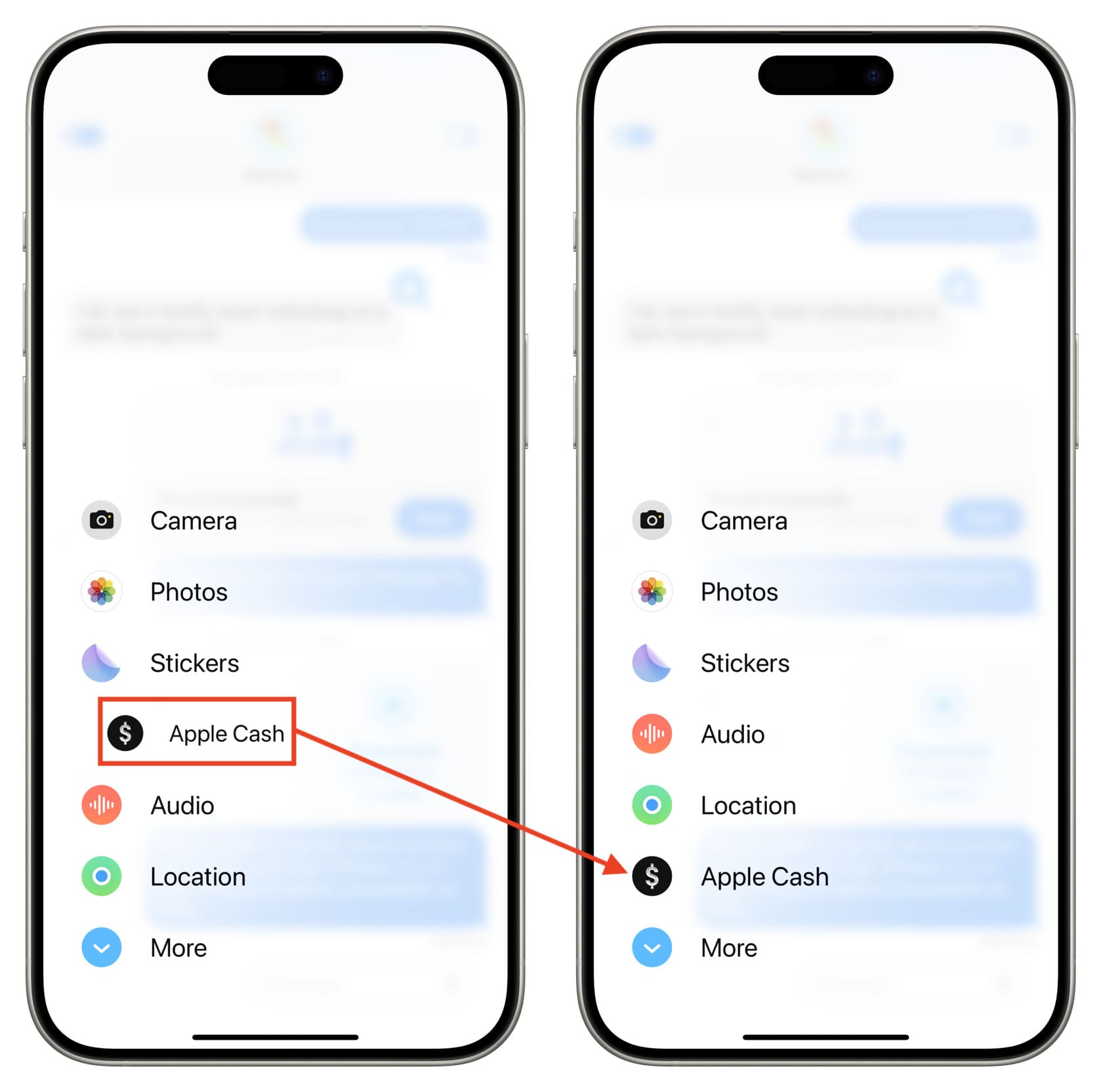
You can move the apps you use more often to the top and bury the rest underneath.
Here’s how to reorder iMessage apps on iPhone:
- Tap the plus button in a message conversation to see your iMessage apps.
- Touch and hold the app icon, drag it up or down, and drop it in its new spot. You can also drag it all the way down to put it at the bottom.
Delete iMessage apps
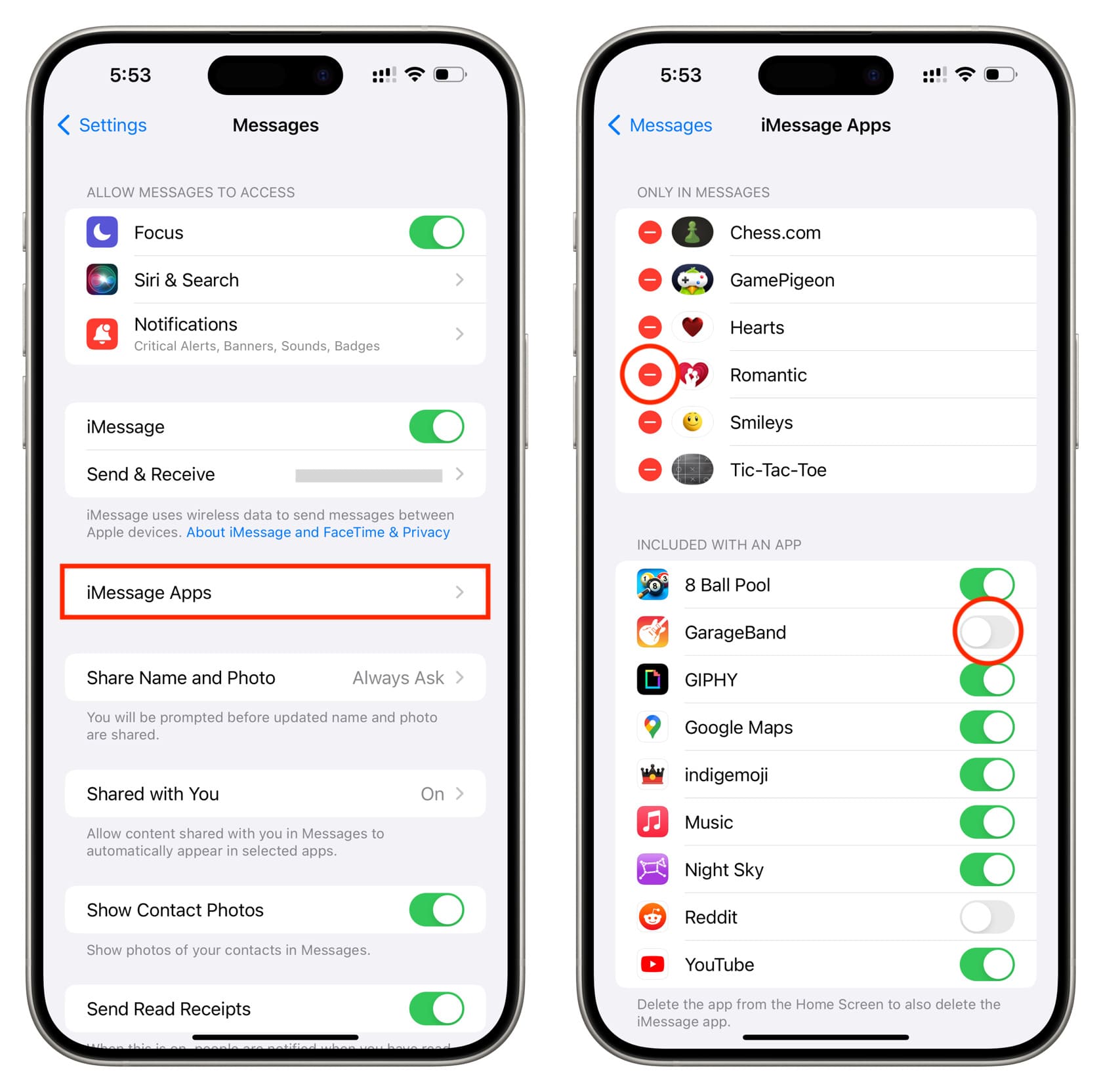
If you no longer need an app to show in your iPhone or iPad Messages app, follow these steps to remove it.
- Open iOS Settings, tap Apps at the bottom, and select Messages from the list of applications.
- Tap iMessage Apps.
- To remove an iMessage-exclusive app, tap the red minus button next to its name and hit Delete.
- To stop a regular iOS app from showing its iMessage version in the Messages app and populating that screen, turn off the toggle next to its name.
Using iMessage apps on Mac
Click the plus button inside a conversation in the macOS Messages app and select one of the apps visible there. Unlike iOS and iPadOS, the options here are limited.

Using iMessage apps on Apple Watch
Open the Messages app on your Watch and go inside a conversation. Then, tap the plus button and select an iMessage app to use it. The basics are similar to using these apps on your iPhone, but there are some visual differences due to the small watch screen.

Do more in Messages: