Find out which songs you played recently on Apple Music on iPhone, iPad, or Mac, to listen to them again or delete them from your history.
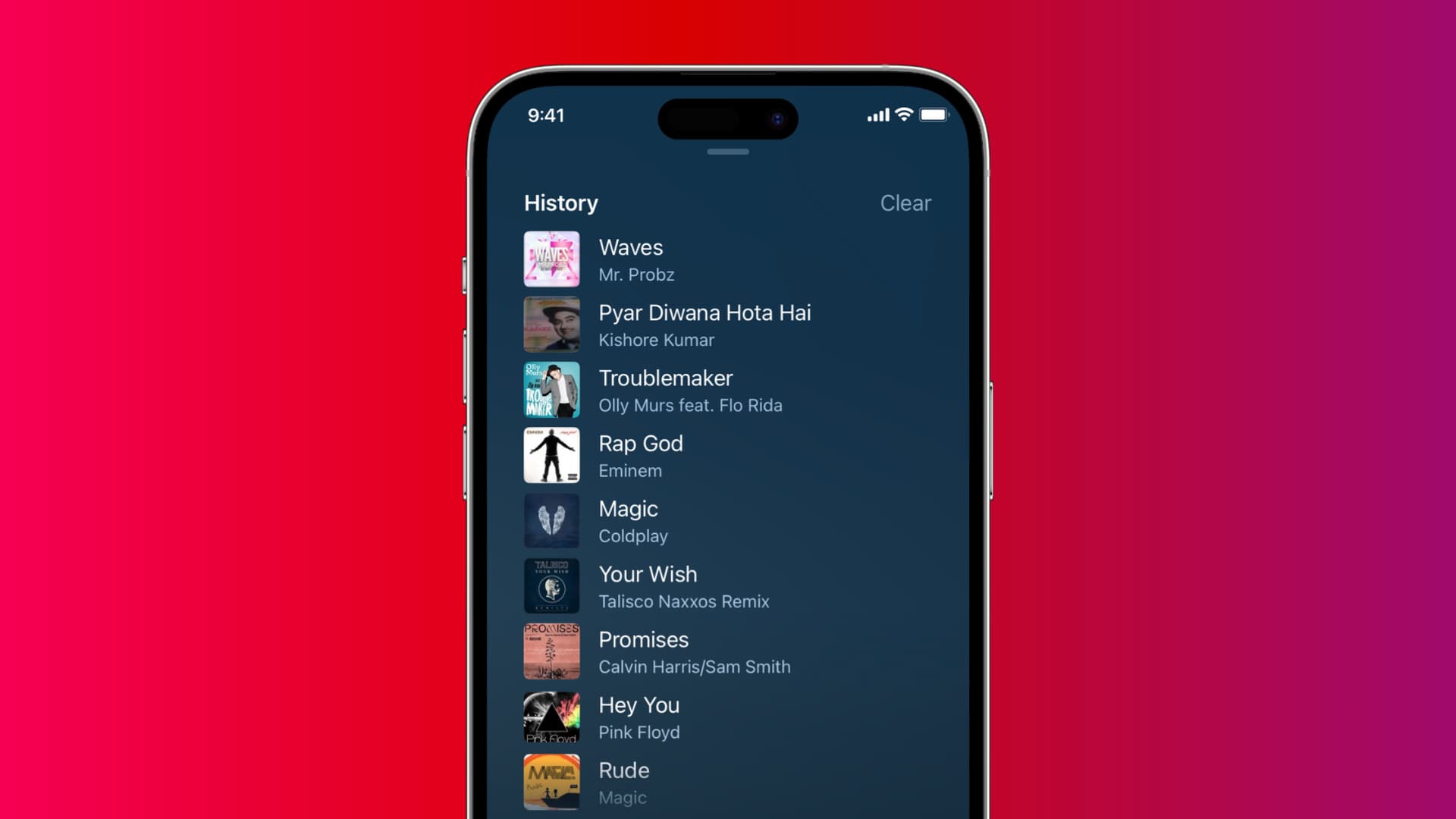
Unlike YouTube, Apple Music doesn’t show you the full history. However, it keeps some of the songs you recently listened to on that particular device, and you can see that easily.
See your Apple Music listening history
1) Open the Music app on your iPhone, iPad, or Mac.
2) Tap the Up Next bullet list icon on the Now Playing screen.
3) Swipe down until you get to the History heading. You can now view all of the songs you recently played on your device.

4) To remove a song from your listening history, swipe right to left and tap the red minus icon. Alternatively, tap Clear to delete your whole Apple Music listening history from this device at any time.

Here’s how this looks on Mac. To remove individual songs from your listening history, just click the three dots icon and choose Remove from History. Click Clear to wipe your listening history clean on this device.

Recently Played vs. History
You can visit the Recently Played section from the Listen Now section of the Music app on your iPhone, iPad, Mac, or Apple TV and scroll through covers for your recently played albums, radio stations, or playlists. However, that’s hardly useful because you’ll see covers regardless of whether you’ve listened to the whole album/playlist or a single song from it.
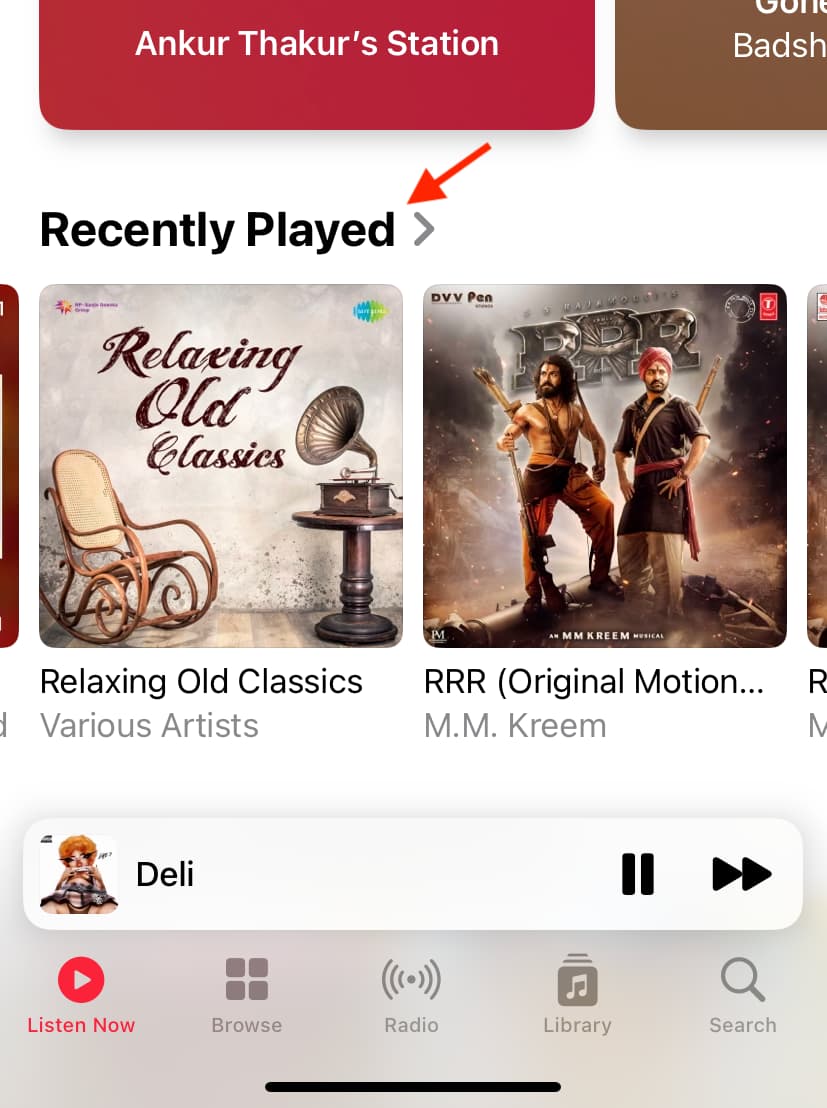
Moreover, the Recently Played list only holds 40 entries and overwrites the newest entries once you’ve played 40 entries. But perhaps most importantly, that list is visible to people who follow you on Apple Music via the “Friends Are Listening To” section in the For You tab.
By contrast, History is visible to you and only to you.
Even though you can stop sharing what you’ve played with your followers by disabling the option Use Listening History in the Music app settings, be advised that doing so may also disable personalized content recommendations that you get on the For You screen.
And finally, there’s no way to delete individual entries in Recently Played without replacing them with new entries, which can only be accomplished by listening to other songs or playlists. Contrast that with the History section, which lets you remove individual entries from the list or clear out the whole Apple Music listening history from your device in one fell swoop.
Make sense?
Also, check out: