These are some of my favorite iPhone features that I use every day to get work done quickly and comfortably. I’m sure you know about some of them, while a few may be new to you.

Text replacements
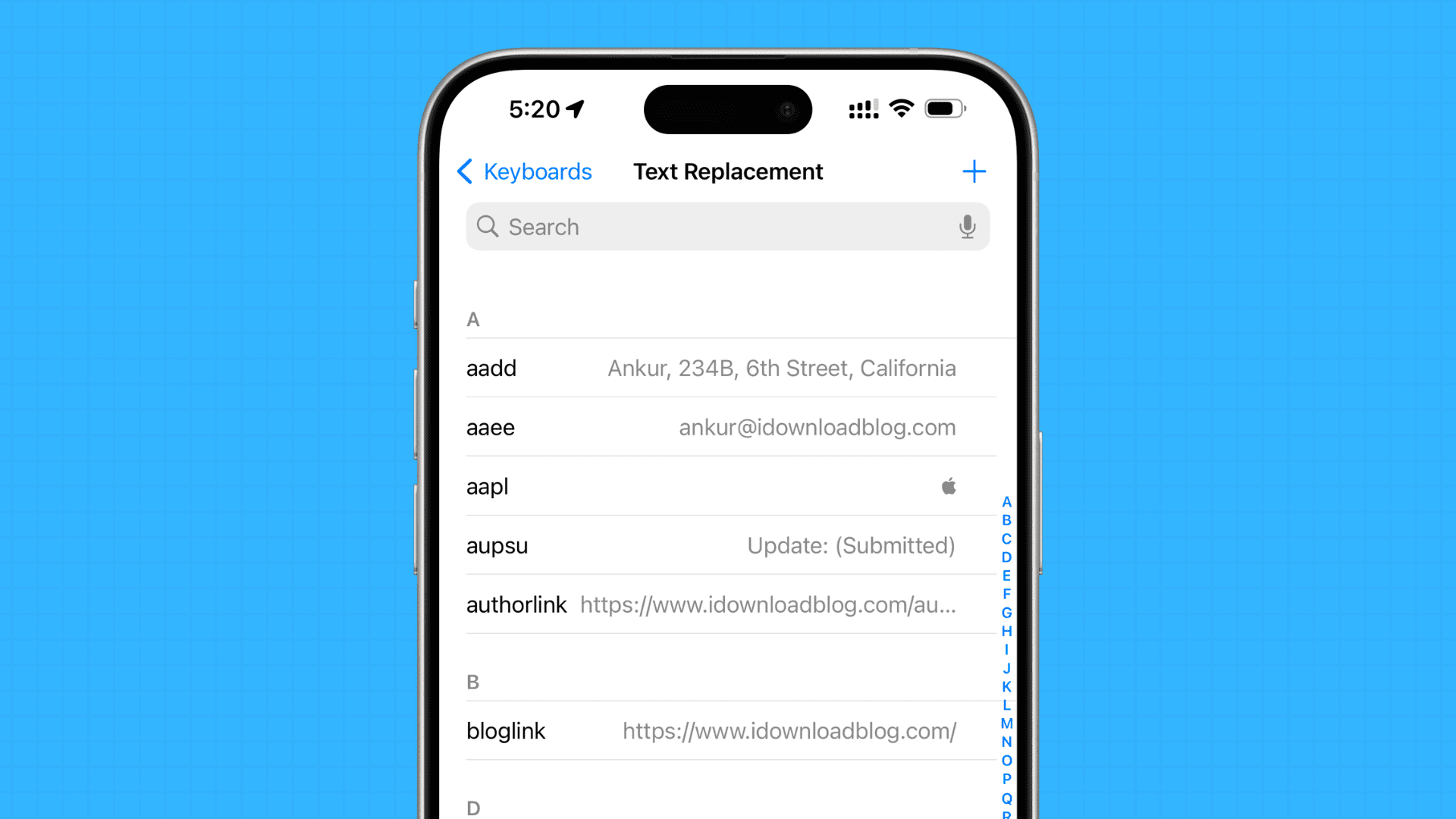
This is one of my all-time favorite iOS features.
My work involves typing my email address, the iDB iOS app link, social media links, and more every day. I have set up text replacement shortcuts that insert my email address, links, symbols, etc., with just a few letters.
For instance, whenever I type “idbapp” on my iPhone, iPad, or Mac (yes, text replacements sync via iCloud and are available on all Apple devices linked to my account), it automatically changes to our app link “https://apps.apple.com/app/idb-app/id1086682264.”
One-handed keyboard
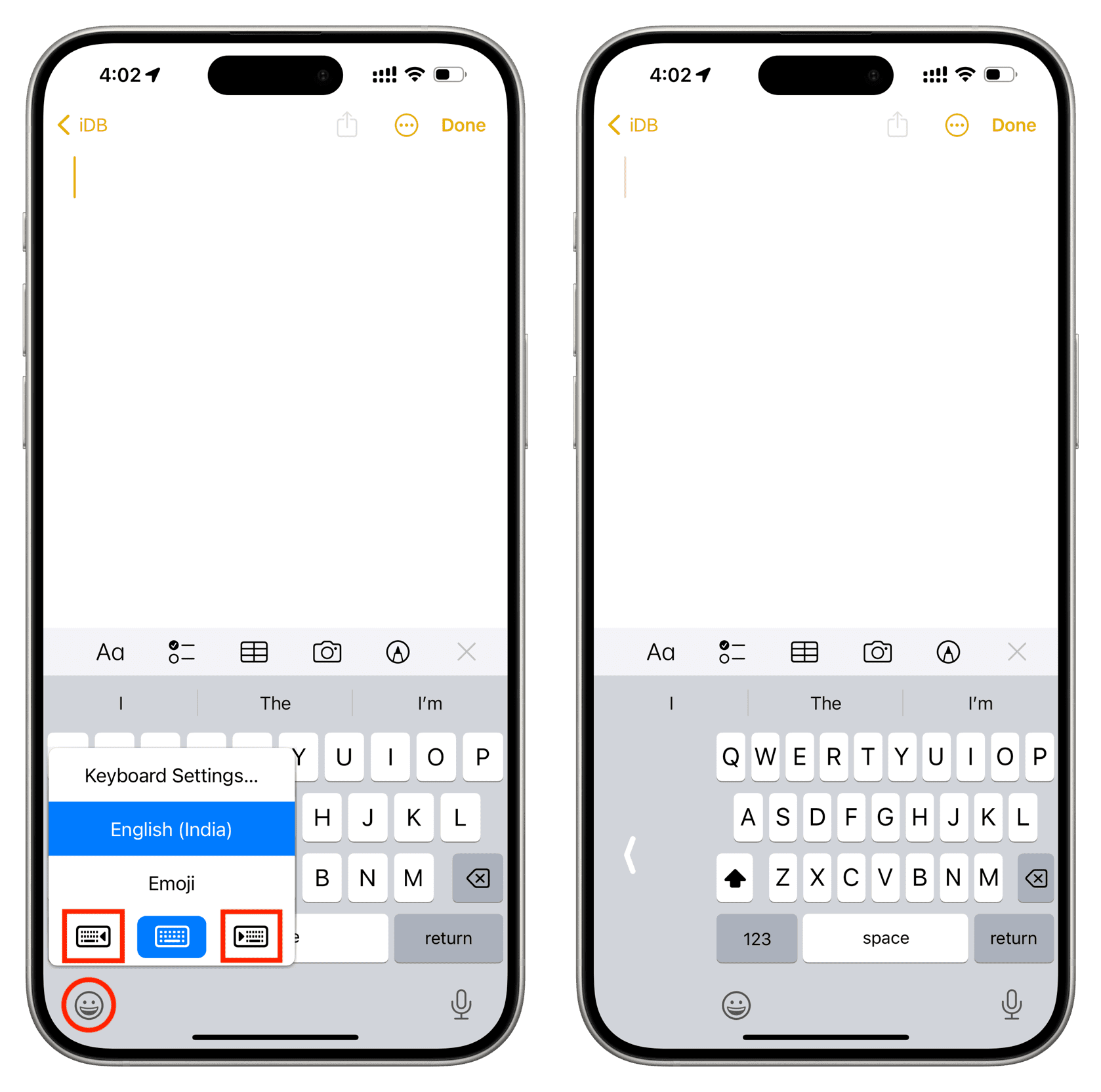
I have relatively small hands, but a Pro Max iPhone (mainly to get the most use time on a single charge). So, typing with one hand gets very uncomfortable, and then there is a risk of dropping my phone. To take care of this, I just hold the emoji or globe icon in the bottom-left corner of the keyboard, then make the keyboard smaller and stick it to the left or right side for easier typing.
Clear all notifications in one go
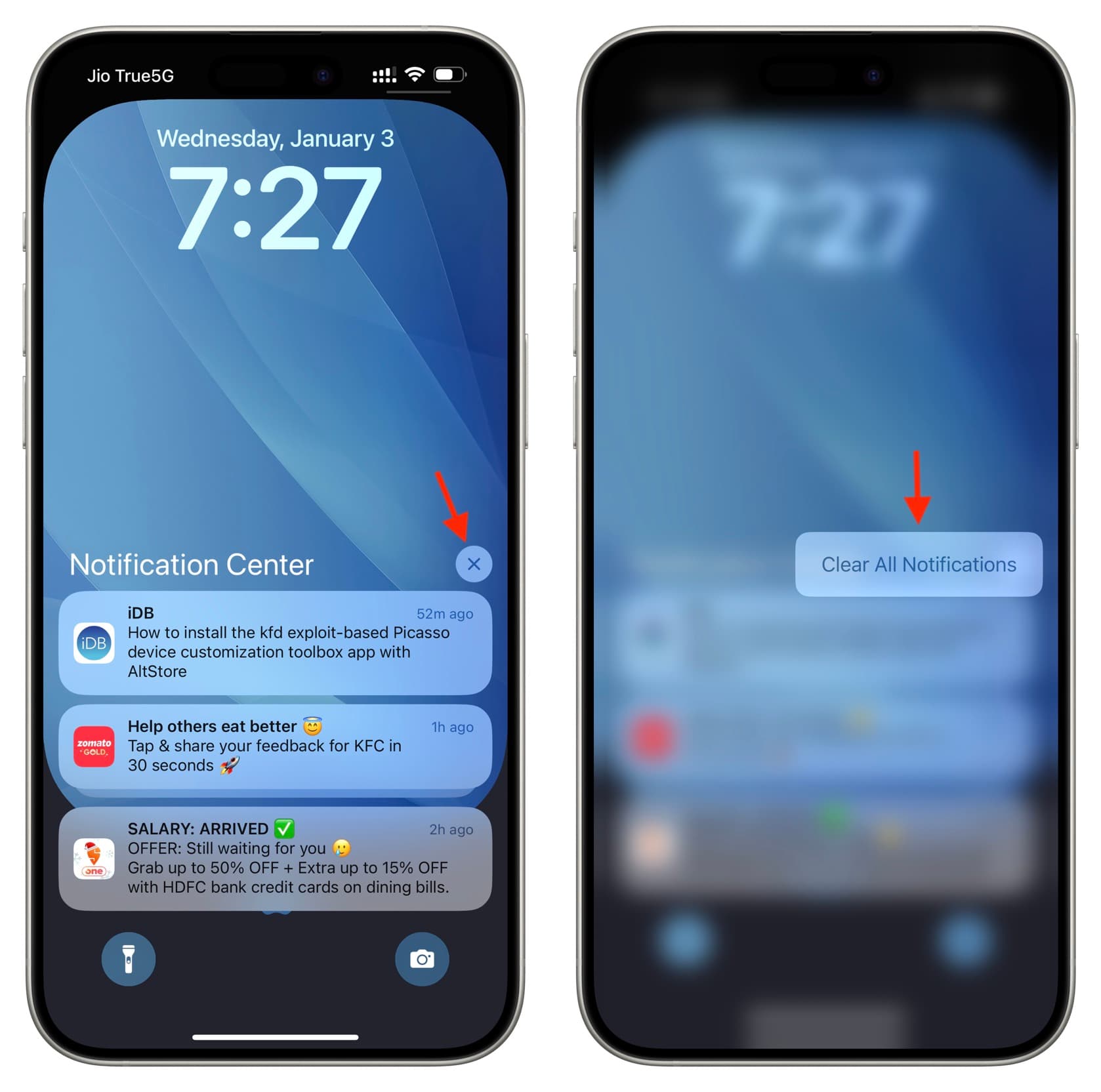
I have set many apps (like Bloomberg and Instagram) to deliver their notifications quietly without making a sound. These app notifications stack in the Notification Center, and most of the time I glance at them and then touch and hold the X icon to clear them all in one go.
Automatically stop music or video playback before going to sleep

Most nights, I play a YouTube video, music playlist, or my favorite historical podcast in bed. To ensure the playback stops automatically after 40 minutes, I use the hidden ‘Stop Playing’ timer feature built into the iOS Clock app.
Universal Clipboard to copy and paste between my Apple devices
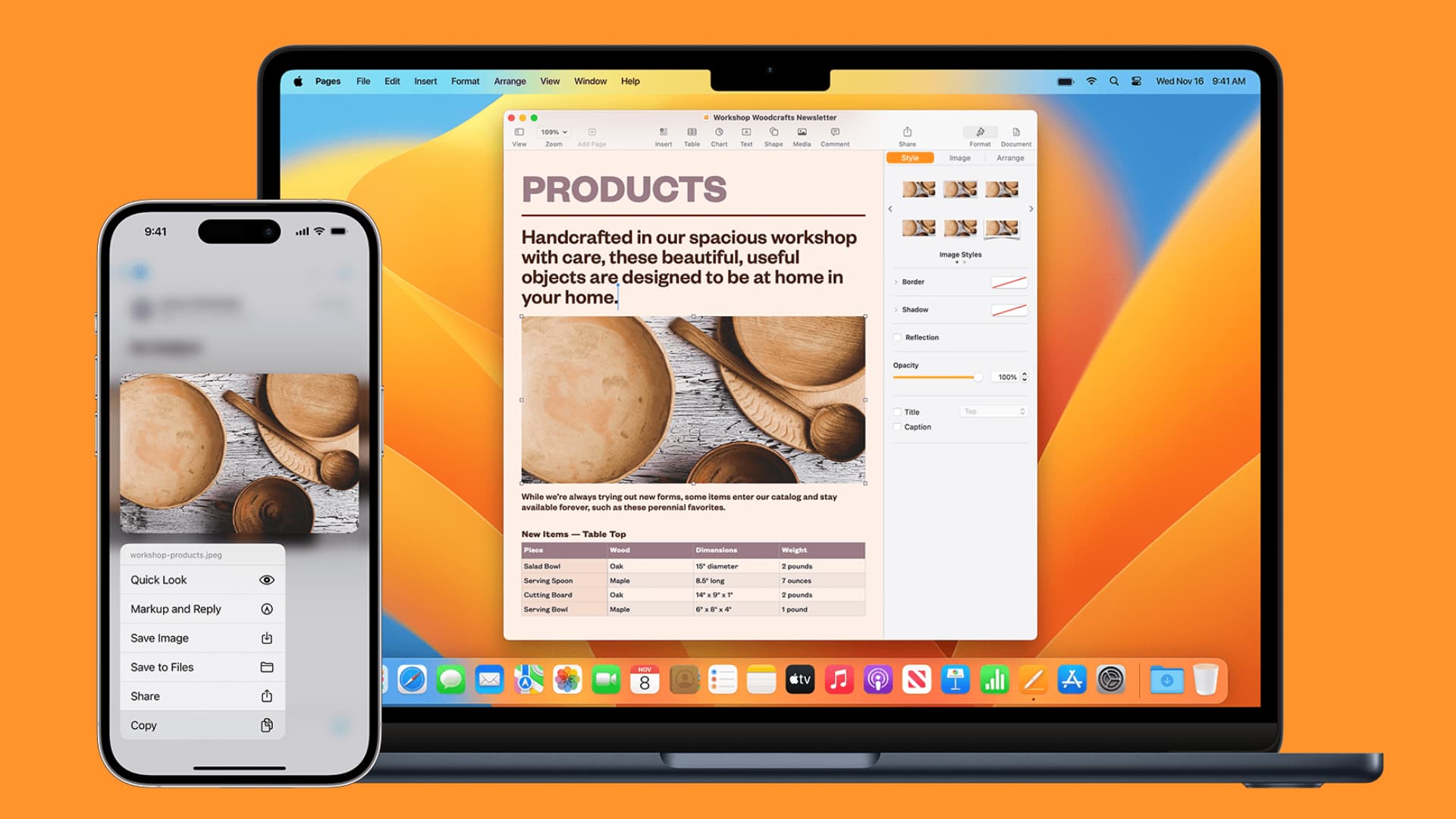
Apple’s Universal Clipboard Continuity feature lets me copy and paste between my iPhone, iPad, and Mac. It involves no extra steps, aside from ensuring Wi-Fi and Bluetooth are fully enabled on all devices.
Copy Mac screenshot to the clipboard and paste on iPhone
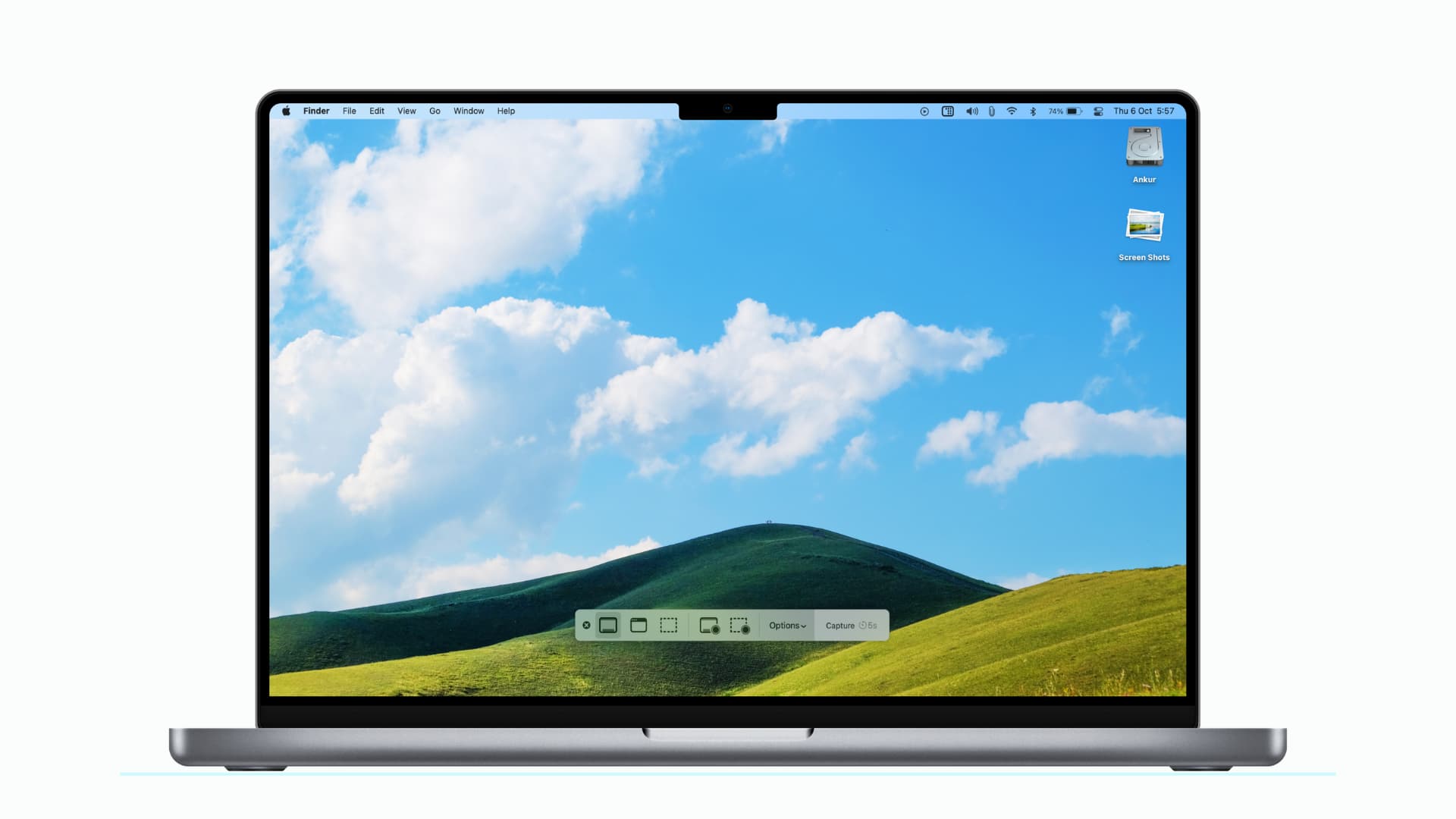
This one is related to the above tip.
Using the Control key lets me copy a Mac screenshot directly to the clipboard (without saving it to the Finder). And then, I can paste it in WhatsApp or other apps on my iPhone to send it. I love this feature, but in case it doesn’t work, I use the next two tips mentioned below.
Camera QR code scanner

While Universal Clipboard is a terrific feature, I regularly find that it stops working abruptly, and the fixes to solve this are time-consuming.
Now, when I have to copy and paste a link from my Mac to iPhone and Universal Clipboard doesn’t work, I simply Control-click the webpage in Chrome (my default browser on macOS) to create a QR code for that page. Then I scan it with my iPhone’s camera to copy the link, or open it in a browser and copy it there. Of course, the iPhone camera can also scan other QR codes.
iPhone Mirroring on Mac

I mainly use iPhone Mirroring to access WhatsApp on my Mac (I haven’t set up WhatsApp web or the app on my computer). Other times, I use it to drag and drop files between my Mac and iPhone when AirDrop fails.
Secondly, I use the in-box 1-meter charging cable, and the power outlet is on the other side of my bed. So, when my phone is charging, I just use iPhone Mirroring on my MacBook, without bothering to reach across the bed to my phone.
Live Text to copy text from images
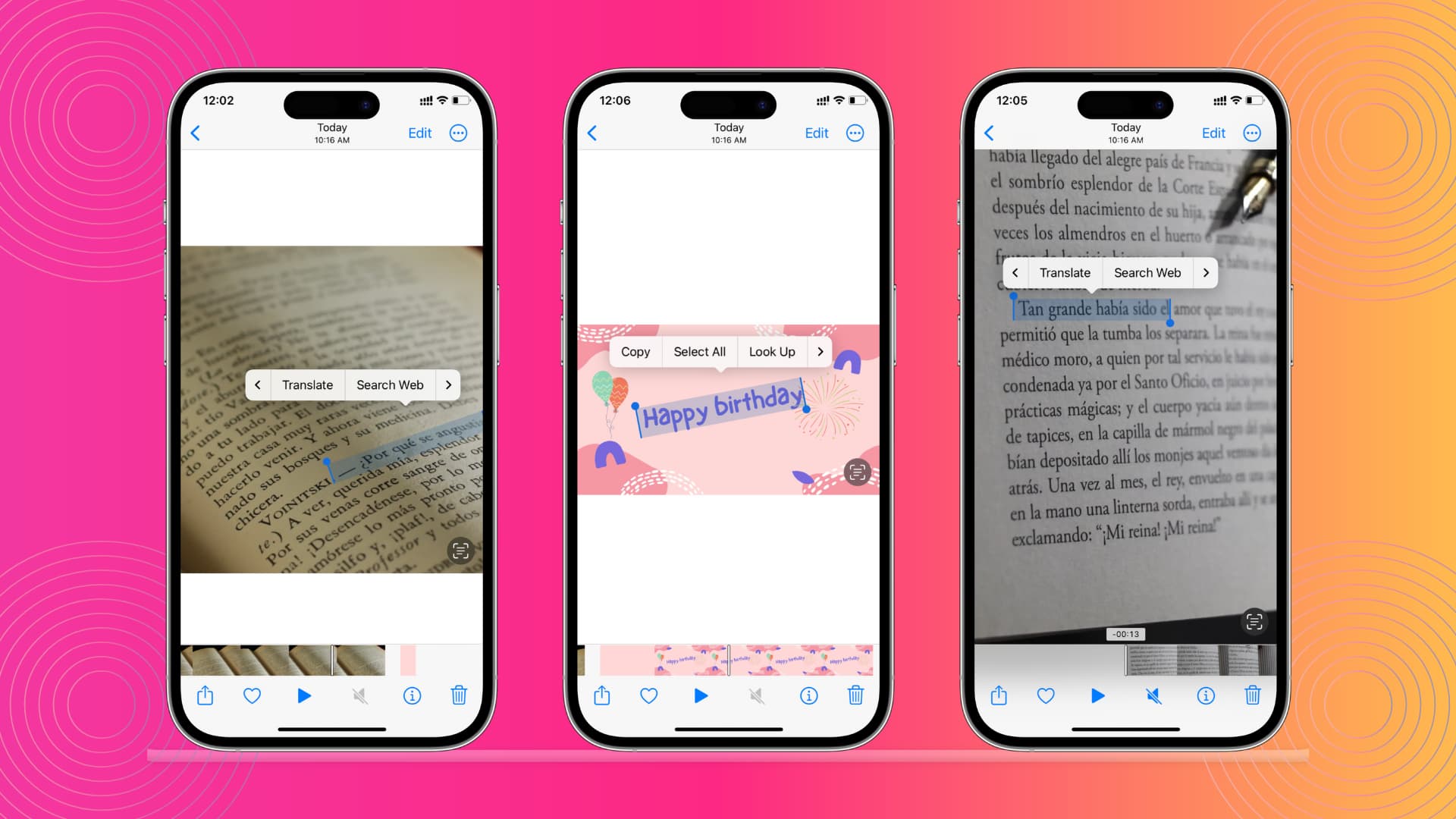
Though not every day, I regularly use the Live Text feature to extract text from an image in the Photos app, in Safari, or even when in Camera viewfinder.
Voice recording from the Lock Screen

I have set up my iPhone to quickly start a voice recording all from the iOS Lock Screen. This ensures I don’t have to fiddle around to record something of importance, usually for proof-keeping purposes.
Screenshot with AssistiveTouch

I don’t keep AssistiveTouch enabled all the time, as I don’t like having a button floating around the screen. However, I often have to take several screenshots in quick succession, and this is when I use AssistiveTouch to capture the screen. I have, of course, customized AssistiveTouch to take the screenshot by tapping the floating button just once.
Secondly, when you try to take screenshots of some screens using the physical buttons (like the purchase confirmation screen in the App Store), the main content disappears from the screen. The only easy way to grab screenshots of these screens is to use AssistiveTouch.
Daily app limits for X (Twitter)

I’m kind of addicted to X; you may be to Instagram, Facebook, Netflix, gaming apps, or something similar that’s unproductive. To make me feel guilty of using X for a long time, I have set a daily App Limit of 2 hours. When the time is up, my iPhone blocks the app, which I can, of course, bypass, but having the app limit reminder does make me aware that I should probably touch grass now.
Use Reachability to bring down the screen
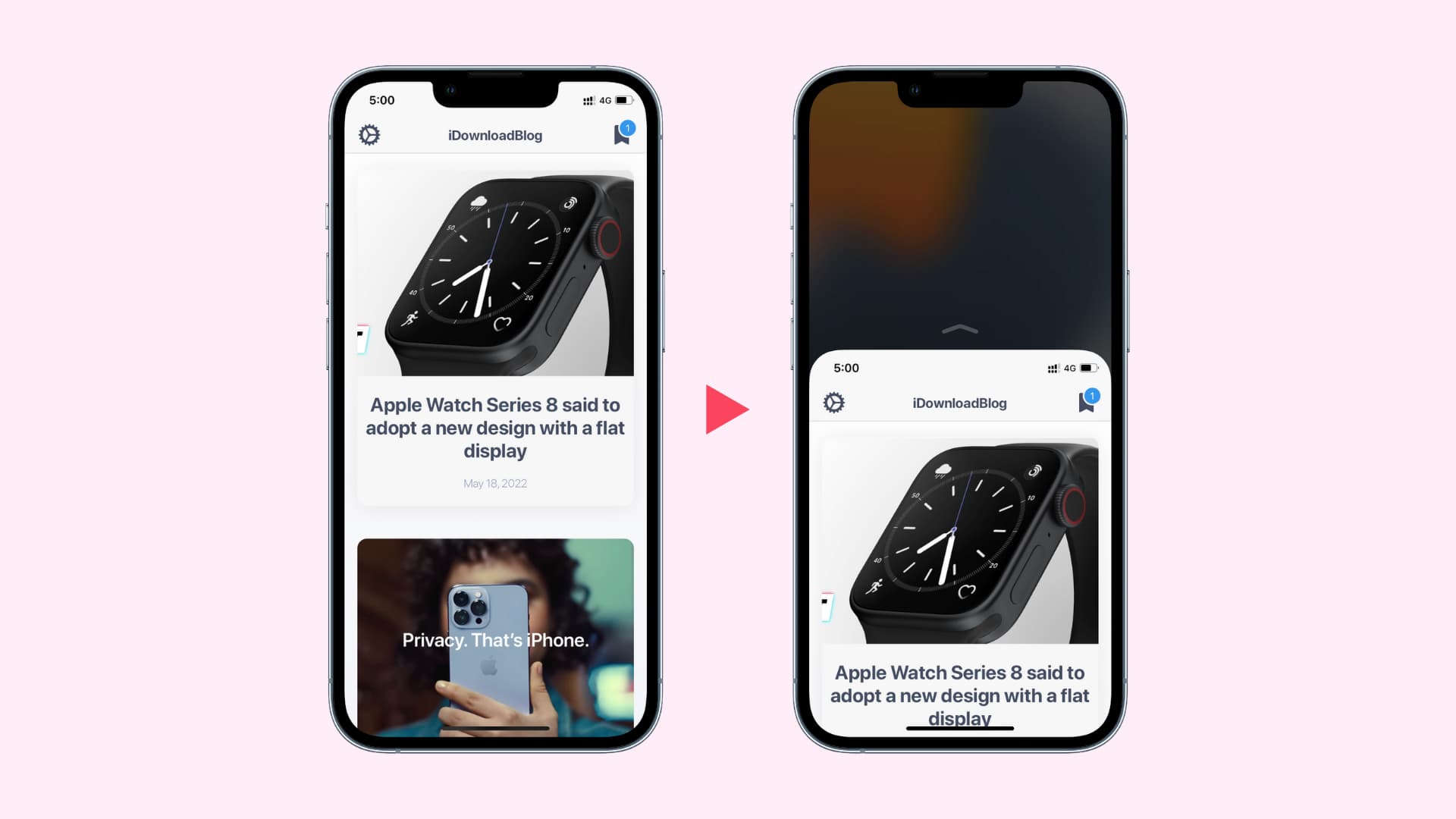
I regularly make a small swipe down gesture at the bottom of my big iPhone screen to bring the entire screen down. This makes it easy to reach buttons at the top of the screen or to open Control Center and Notification Center.
Have my iPhone automatically put all calls on speaker
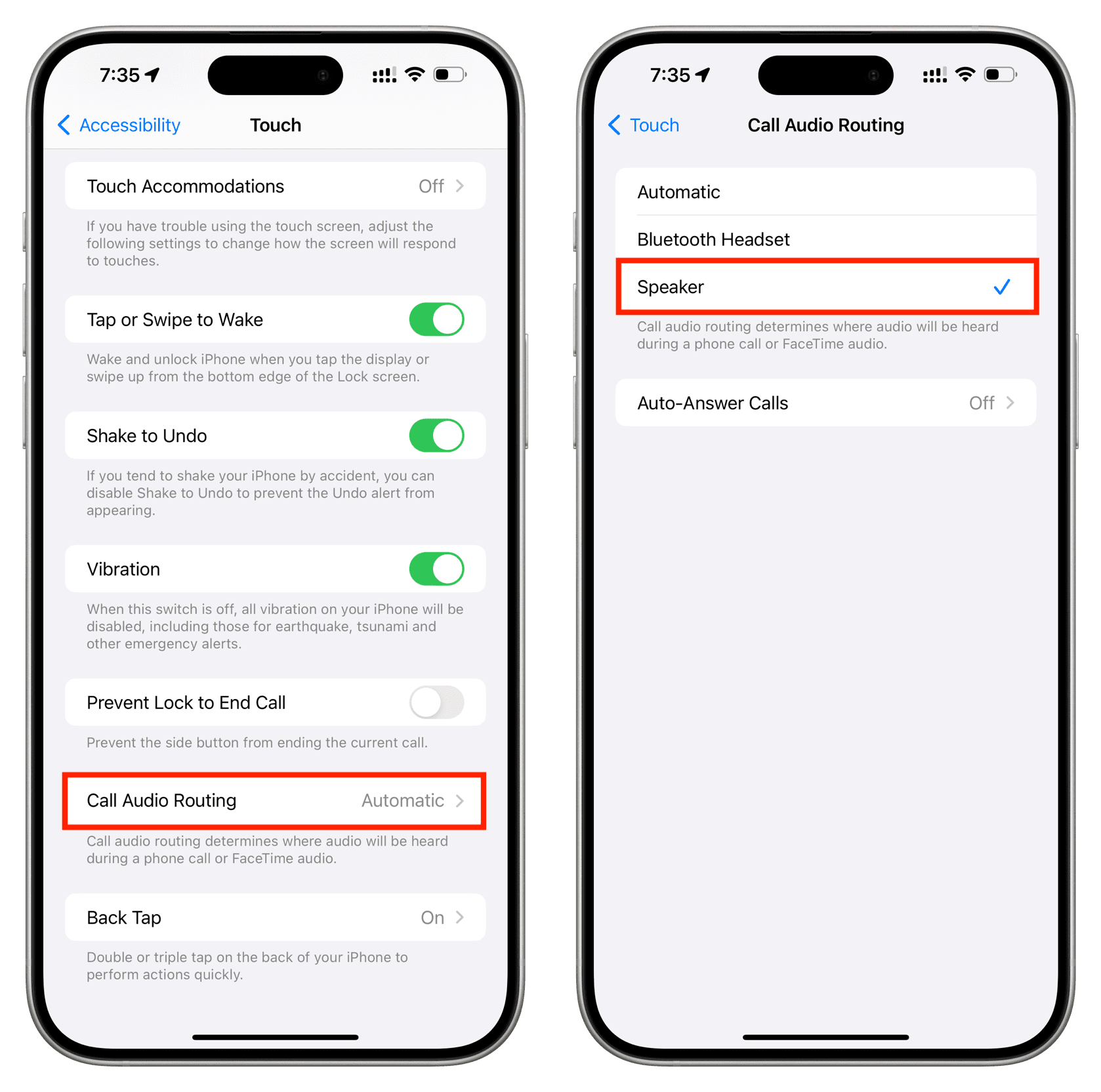
I usually keep my iPhone on a stand on my desk, and when I get an incoming call, I nearly always answer it on speaker (I work from home). So, to make things quicker and easier, I have set my iPhone to always route the calls to the speaker after I pick it up (Settings > Accessibility > Audio & Visual > Call Audio Routing > Speaker). Of course, I can manually switch to the earpiece or AirPods if I want.
Which lesser-known iPhone features do you use every day?