Discover all the different ways to identify which song is playing around you or in a YouTube clip, Instagram Reel, TikTok video, or elsewhere using Shazam on your iPhone, iPad, Android phone, Apple Watch, HomePod, Mac, Windows PC, and even the web!
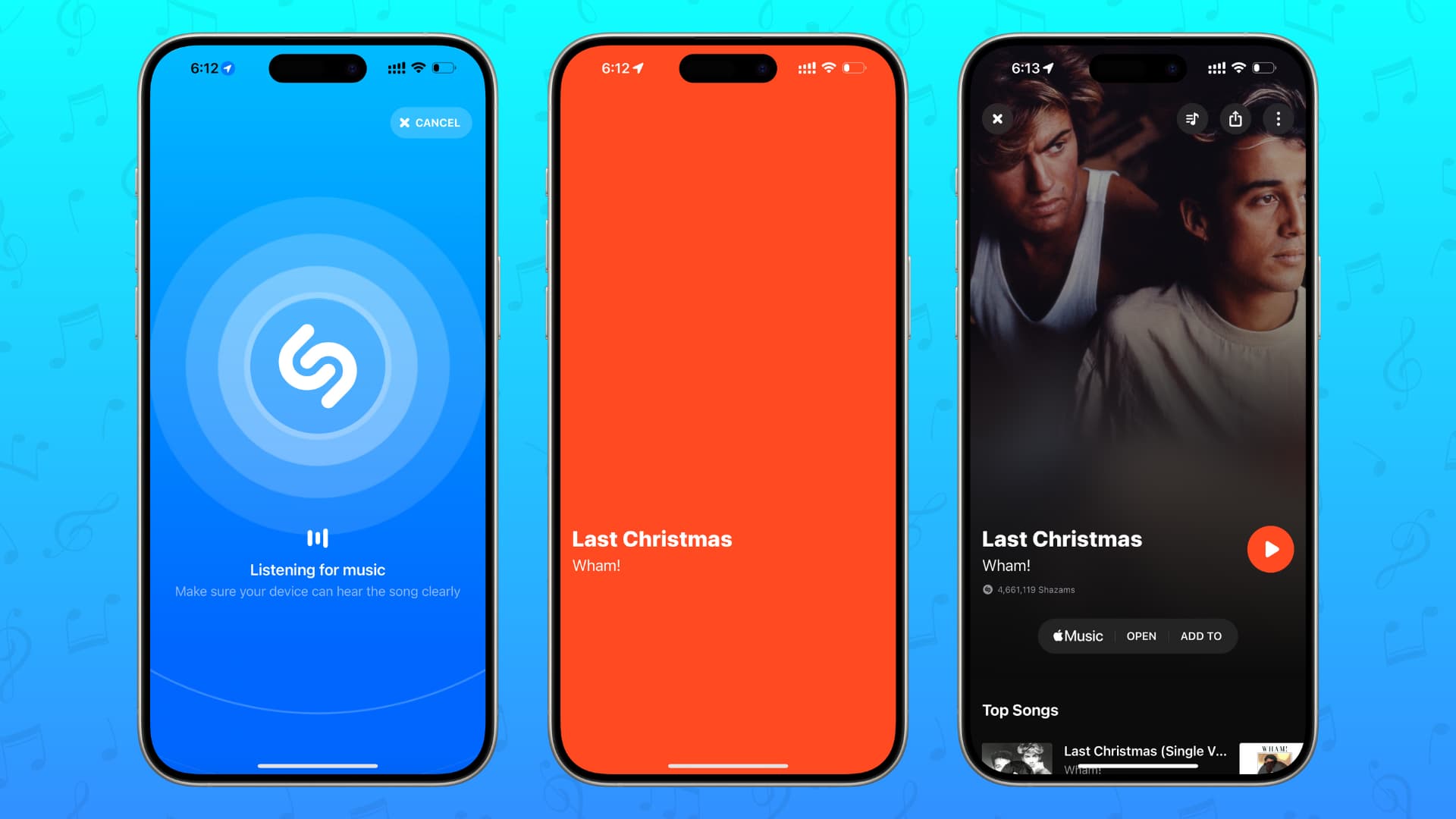
Apple’s Shazam is one of the best free services out there for song recognition.
- It lets you find out which song is playing around you (like on the TV or in a restaurant) or on the device (like in an Instagram video).
- Then, you can listen to that full song on Apple Music, Spotify, YouTube, or other supported apps.
- It can also sync your found tracks to a playlist on Apple Music.
- Shazam can keep listening in the background to identify all the songs playing around you, and you can see them all in one place inside the app.
- It can match your Shazamed songs to your location, thus helping you know where you found this song.
- Shazam also gives you concert information for the found song.
- It shows you real-time lyrics and lets you sing along.
1. Use the Shazam app
- Make sure you’ve the Shazam app on your device: iPhone, iPad | Apple Watch | Mac | Android phone
- Open the app and tap the screen to Shazam. If this is the first time, you’ll be prompted to allow microphone access. Make sure you do that.
- The app will listen to the playing song for a few seconds and then show its name on the screen.

Extra info: The Shazam interface will show a headphone icon when you have AirPods, Bluetooth headphones, or wired earphones plugged in. It will still work the same way and help you identify the music playing in an Instagram Reel, TikTok clip, YouTube video, Twitter, and elsewhere.
2. Use Shazam from Control Center
In addition to identifying what’s playing around you, this method is especially useful for finding songs playing on Instagram, Netflix, YouTube, TikTok, or other videos. It also works when you’re listening to music with wired or wireless earphones.
iPhone or iPad
- Add the Recognize Music button to Control Center. Since this feature is built into iOS and iPadOS, it works even if you don’t have the Shazam app.
- When you’re watching a video, open Control Center and tap the Shazam Recognize Music button to identify the song playing. If the video pauses when you open Control Center, you can go back to it after tapping the Shazam button. Once the app identifies the song, it will show you a notification.

Mac
macOS Sonoma 14.2 has integrated Shazam support on Mac, just like on iPhone and iPad. As a result, you can use Shazam for music identification even if you don’t have the Shazam app installed on your Mac.
- Add the Recognize Music button to macOS Tahoe Control Center. On older versions of macOS, you’ll have to do this by going to System Settings > Control Center.
- Now, open your Mac’s Control Center to use Shazam Music Recognition.

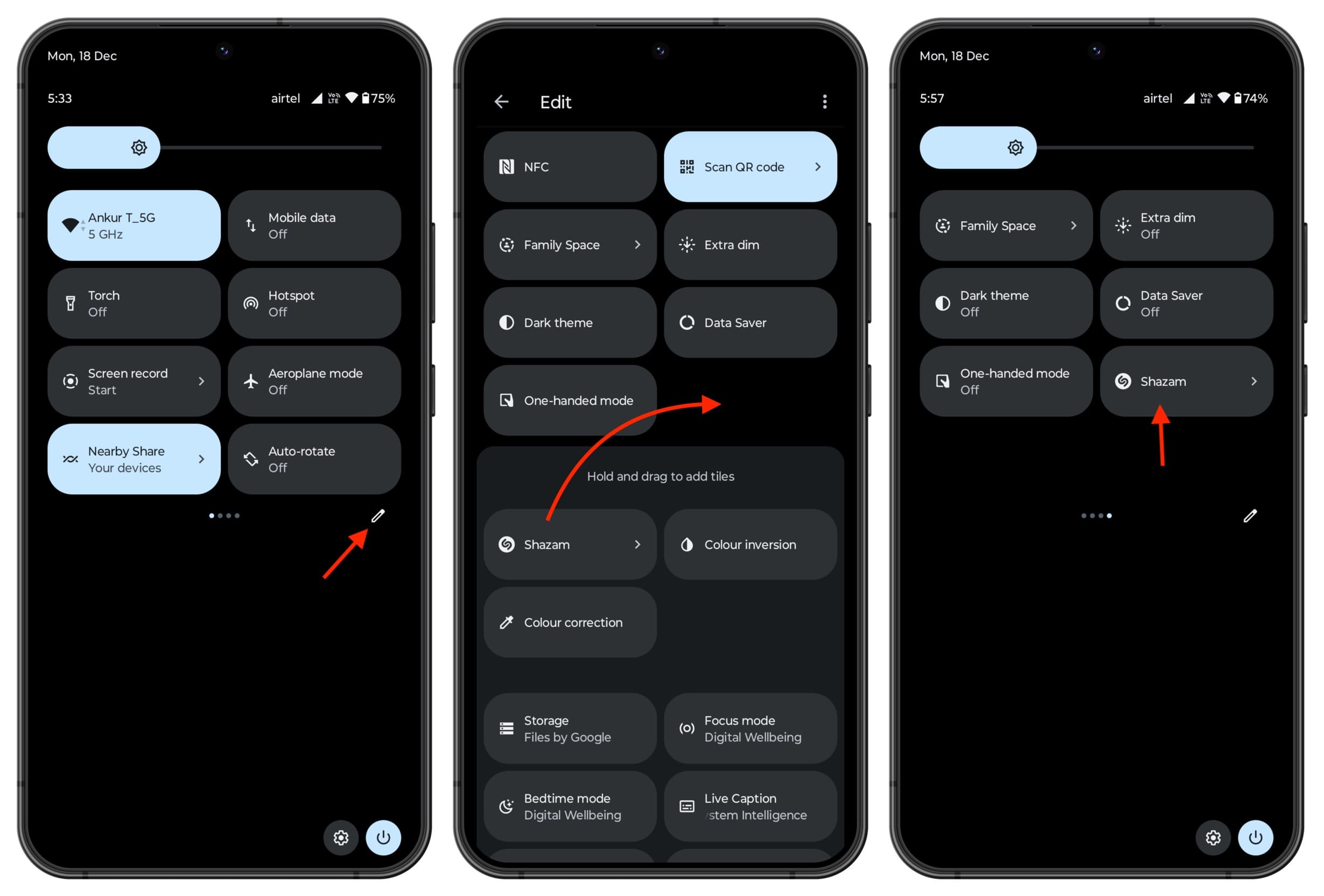
Android phone
- Make sure you’ve set up the Shazam app on your phone.
- Open the Notification Center and swipe down to expand quick controls. From here, tap the edit button.
- Hold the Shazam icon and drag it to add it to your quick controls.
- From now on, you can tap this Shazam icon and get notified when it identifies the song.
If you have an iPhone 15 Pro or later, you can configure the Action button to recognize music.
- Go to iOS Settings, tap Action button, and swipe to Recognize Music.
- From now on, simply press and hold the Action button to immediately start Shazaming.

If your Mac is on macOS Tahoe or later, add the Recognize Music button to the menu bar when you’re editing Control Center. Then, click the Shazam icon in the menu bar and select Recognize Music.

On macOS Sonoma 14.2 or later, go to System Settings and toggle on the switch for ‘Show in Menu Bar’ under Music Recognition. After this, you can identify songs from the menu bar without the Shazam app.
If you get the Shazam app on your Mac, open it to see its icon in the menu bar. You can click it and then click once again to identify the song. You can also right-click on the Shazam app icon in menu bar, select Preferences, and turn on One click Shazaming to ensure one less click.
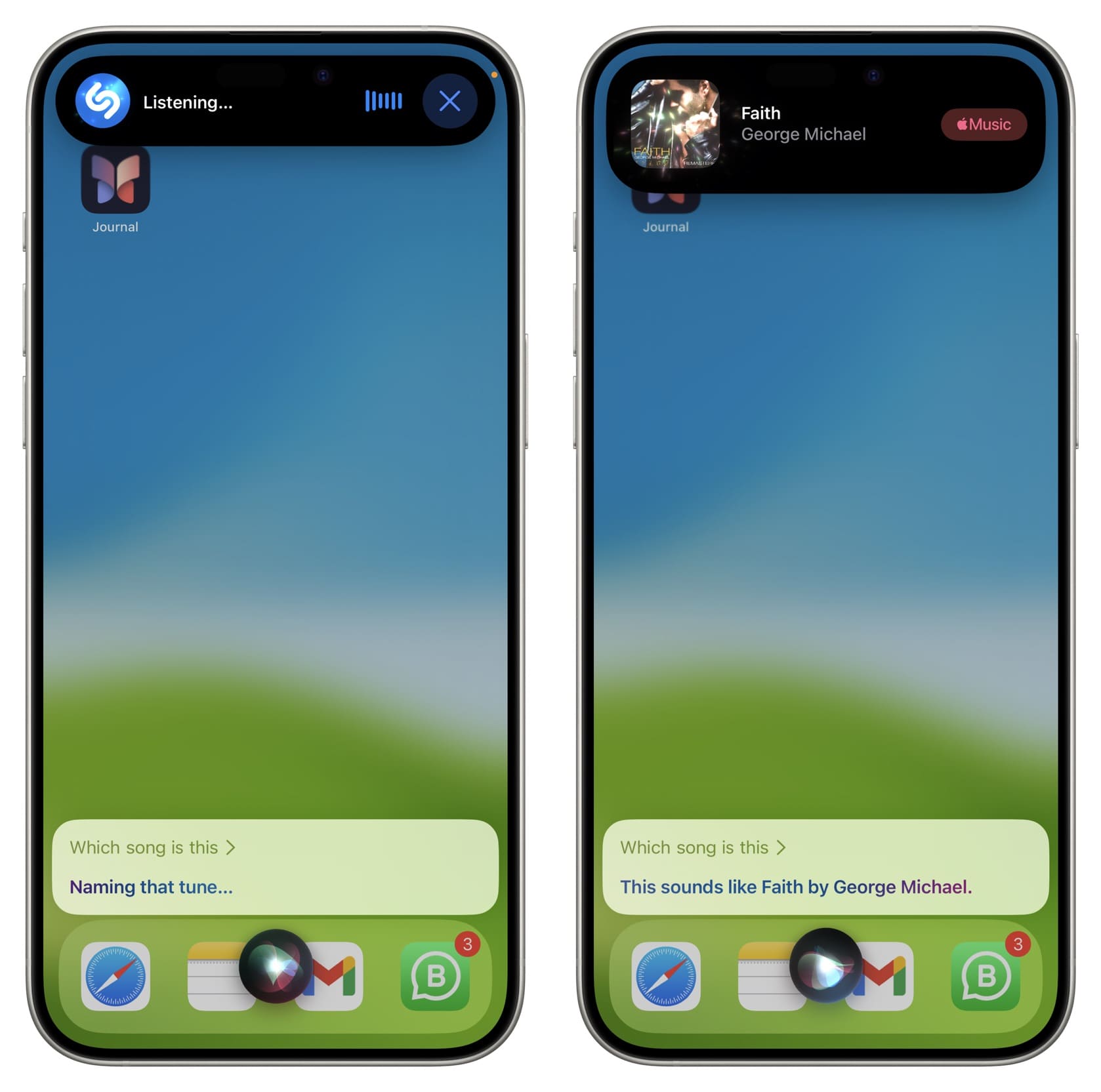
5. Ask Siri
Siri is integrated with Shazam. So you can invoke Siri on your iPhone, iPad, Mac, Apple Watch, or HomePod and ask it something like ‘What song is playing’ or ‘What song is this.’
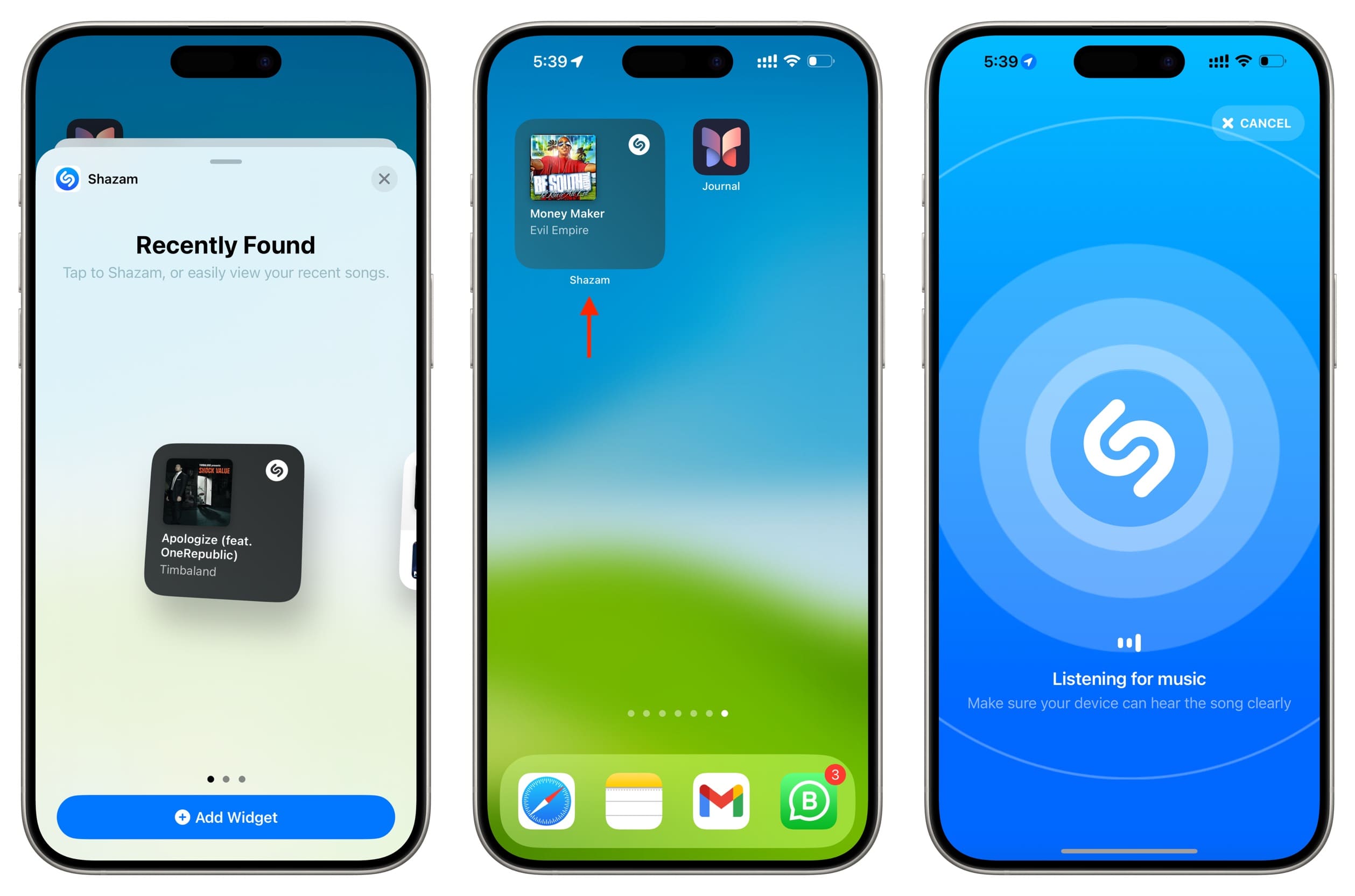
6. Use Shazam from the iOS Home Screen
- Download the Shazam app and then add its widget to your iPhone or iPad Home Screen.
- Tap the Shazam widget to identify what song is playing.
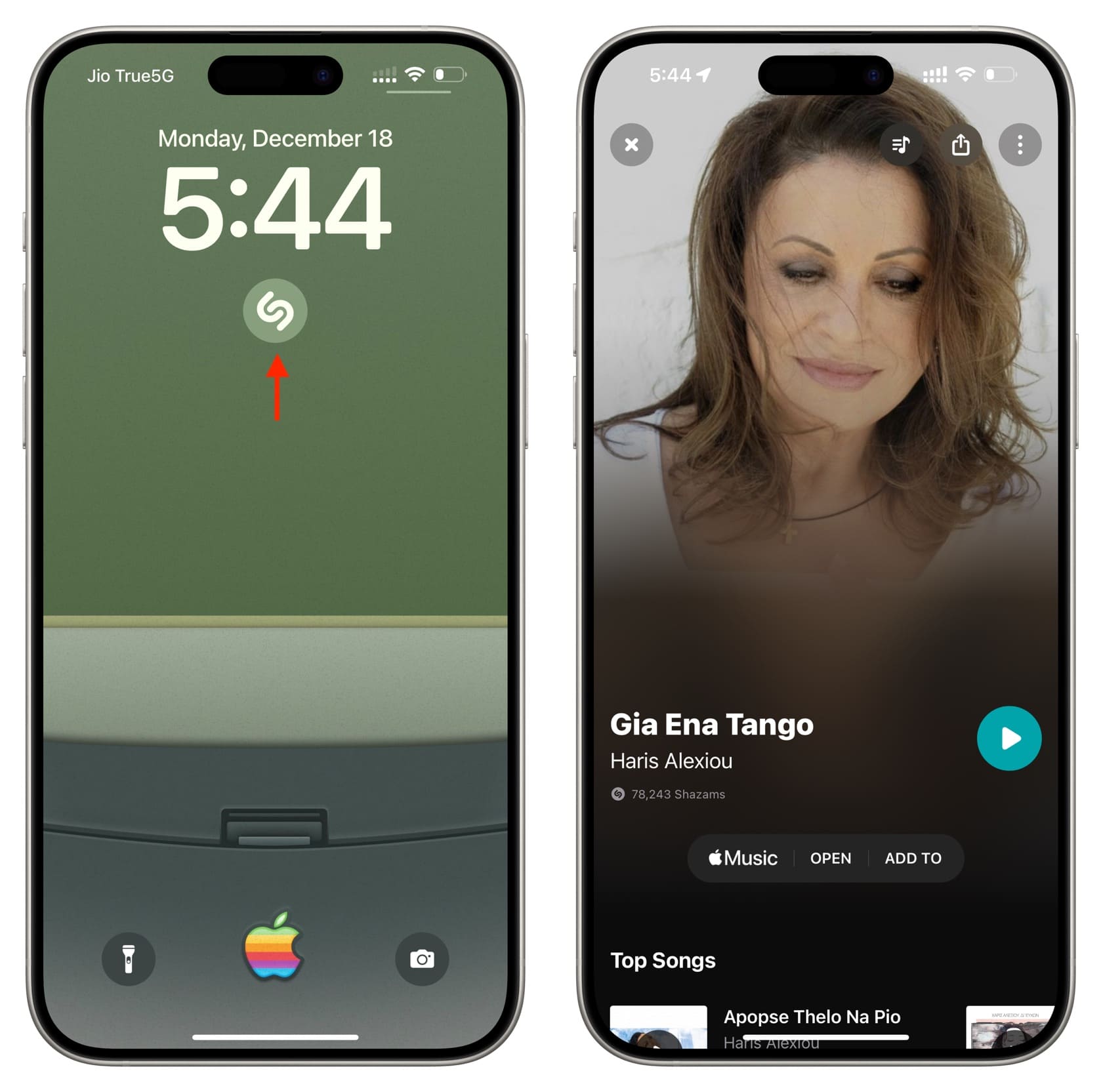
7. Use Shazam on the Lock Screen
- Get the Shazam app on your iPhone or iPad.
- Now, add its small widget to your iPhone or iPad Lock Screen or the Today View.
- Tap the widget to identify the song playing around you or the one you’re listening to in an app on the device.
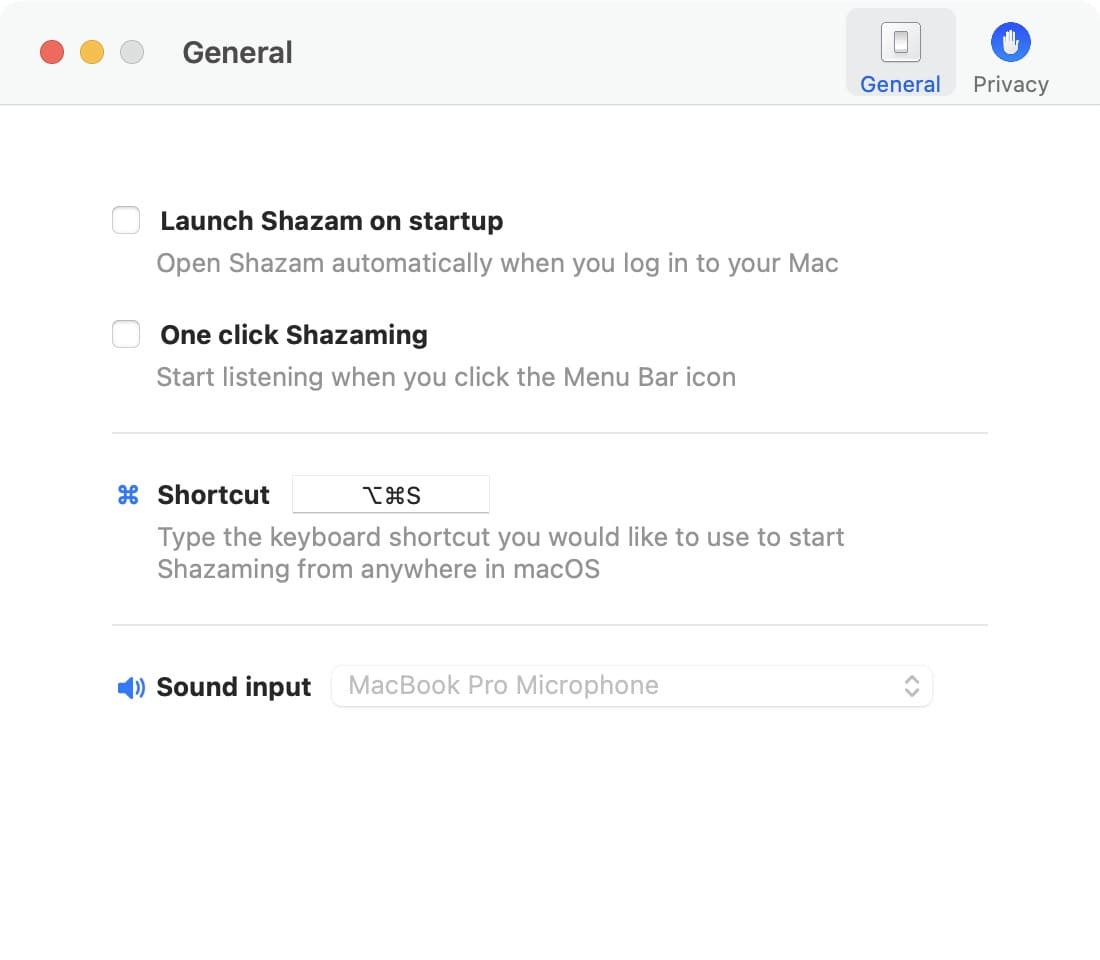
8. Use a keyboard shortcut
Once you have the Shazam app installed on your Mac, press Option + Command + S to start Shazaming from anywhere. You can also go to the Shazam app settings if you want to change this keyboard shortcut combination.
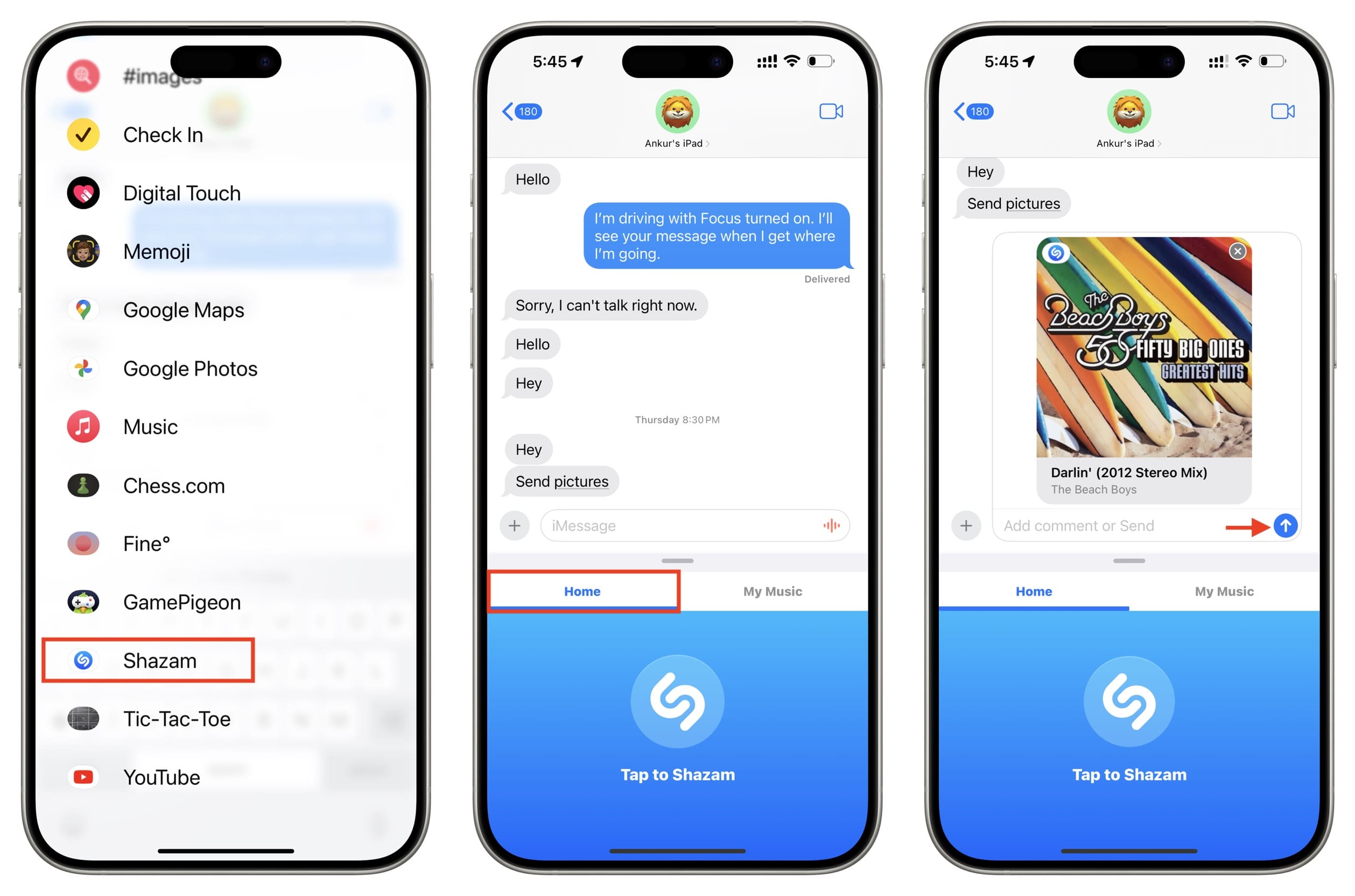
9. Shazam in the Messages app
You’re texting your loved one, and a romantic song starts playing on TV! You can use the built-in Shazam iMessage app to identify the song and share it via Messages!
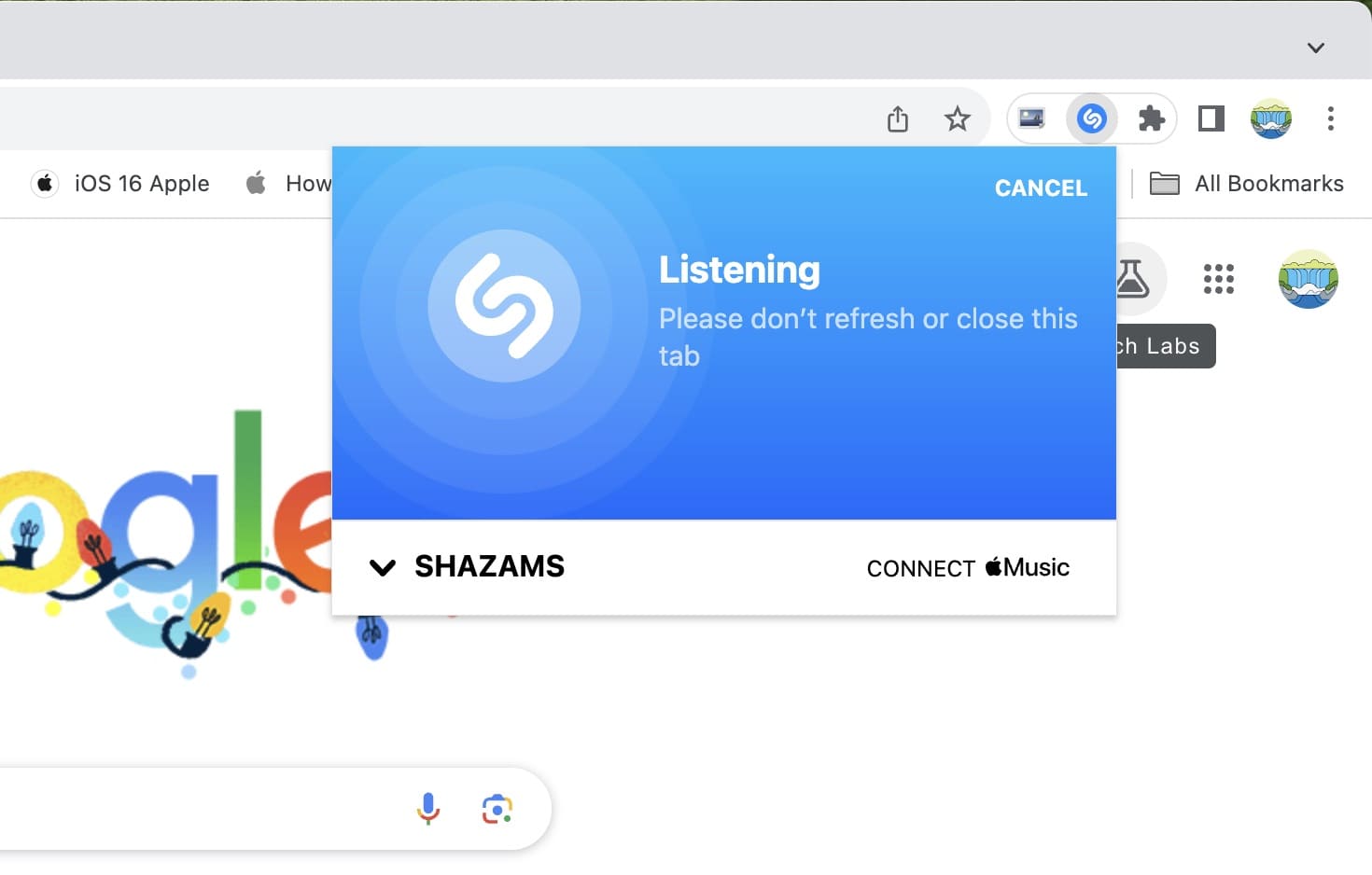
10. Shazam using its browser extension
If you use a Chromium-based computer browser like Google Chrome, Microsoft Edge, Brave, or Opera, you can install the Shazam extension and then click the Shazam extension icon to identify what’s playing in that tab.
11. Use Shazam in a web browser
Simply visit Shazam.com on your Mac or Windows PC and click its button to identify the unknown song.

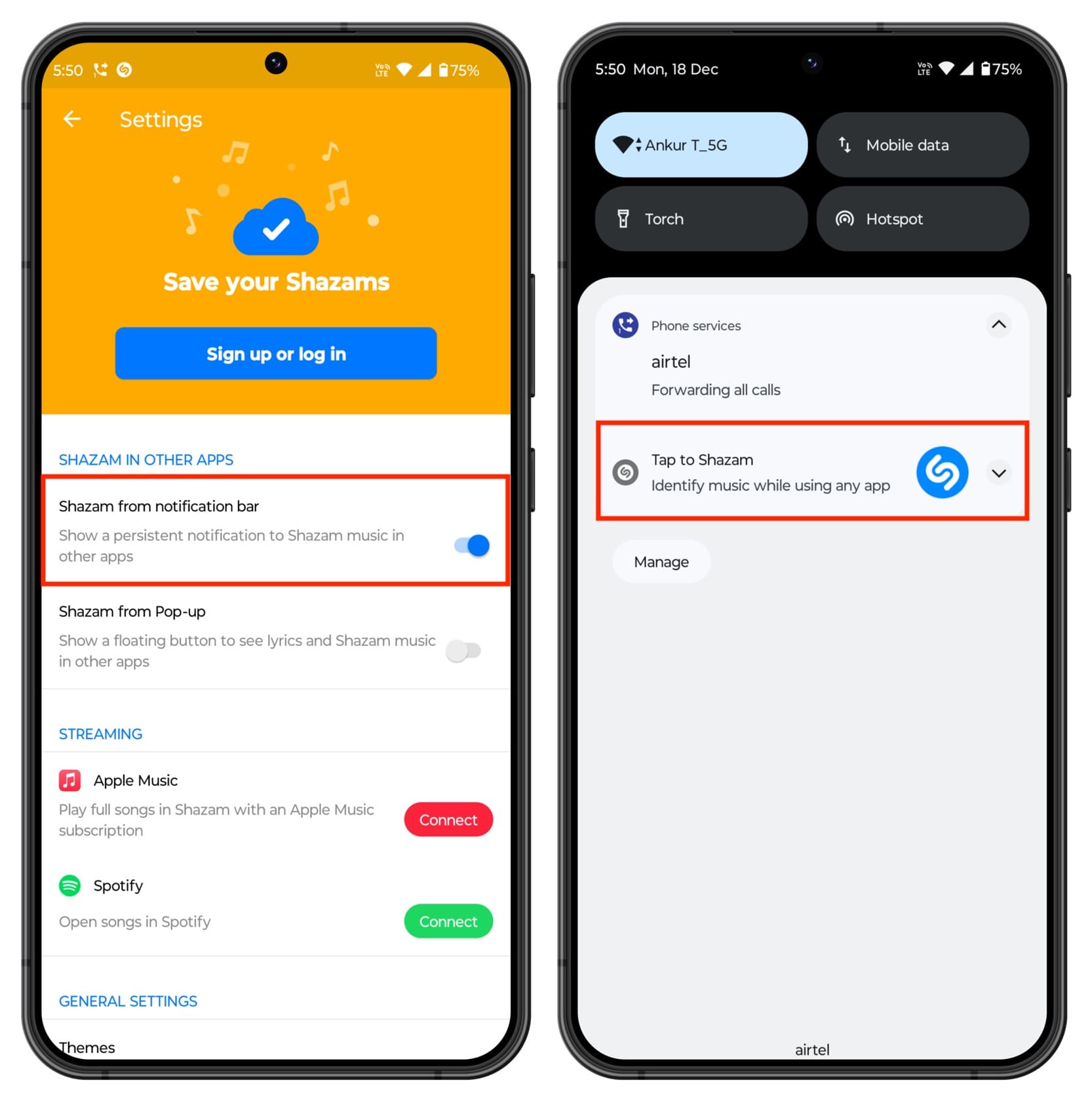
12. Shazam from Android notifications
- Open the Shazam app on your Android phone and swipe right, followed by tapping the settings icon from the top left. Now, turn on Shazam from notification bar.
- Open the Notification Center on your phone and tap to Shazam the song.
13. Use Pop-up Shazam
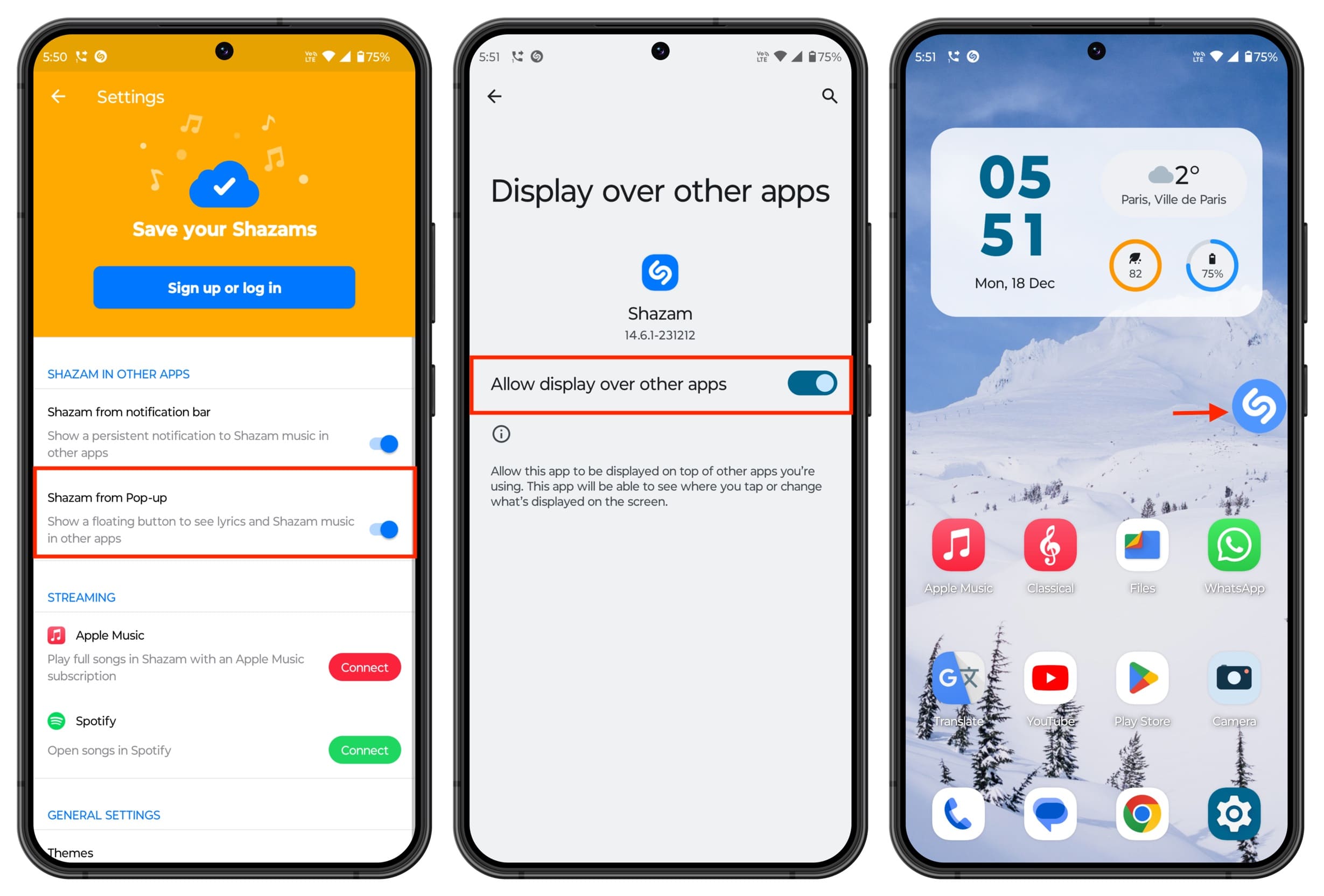
Android has a feature that allows a small app bubble to keep floating on the edge of the screen. It’s particularly helpful to find songs in a social media video or when you’re using earphones.
- Go to Shazam settings and turn on Shazam from Pop-up. This will take you to Android phone settings, where you have to allow the Shazam app to display over other apps.
- Next, you can tap the small Shazam floating button to identify songs. You can also drag this button to the bottom of the screen to hide it.
14. Use Auto Shazam
Auto Shazam automatically identifies the music playing around you, and it works in the background even if you’re in another app or when the device is locked.
So, if you’re in a nightclub, for instance, you can turn on this feature, and Shazam will identify the songs playing there. Later, you can see them all inside the app.
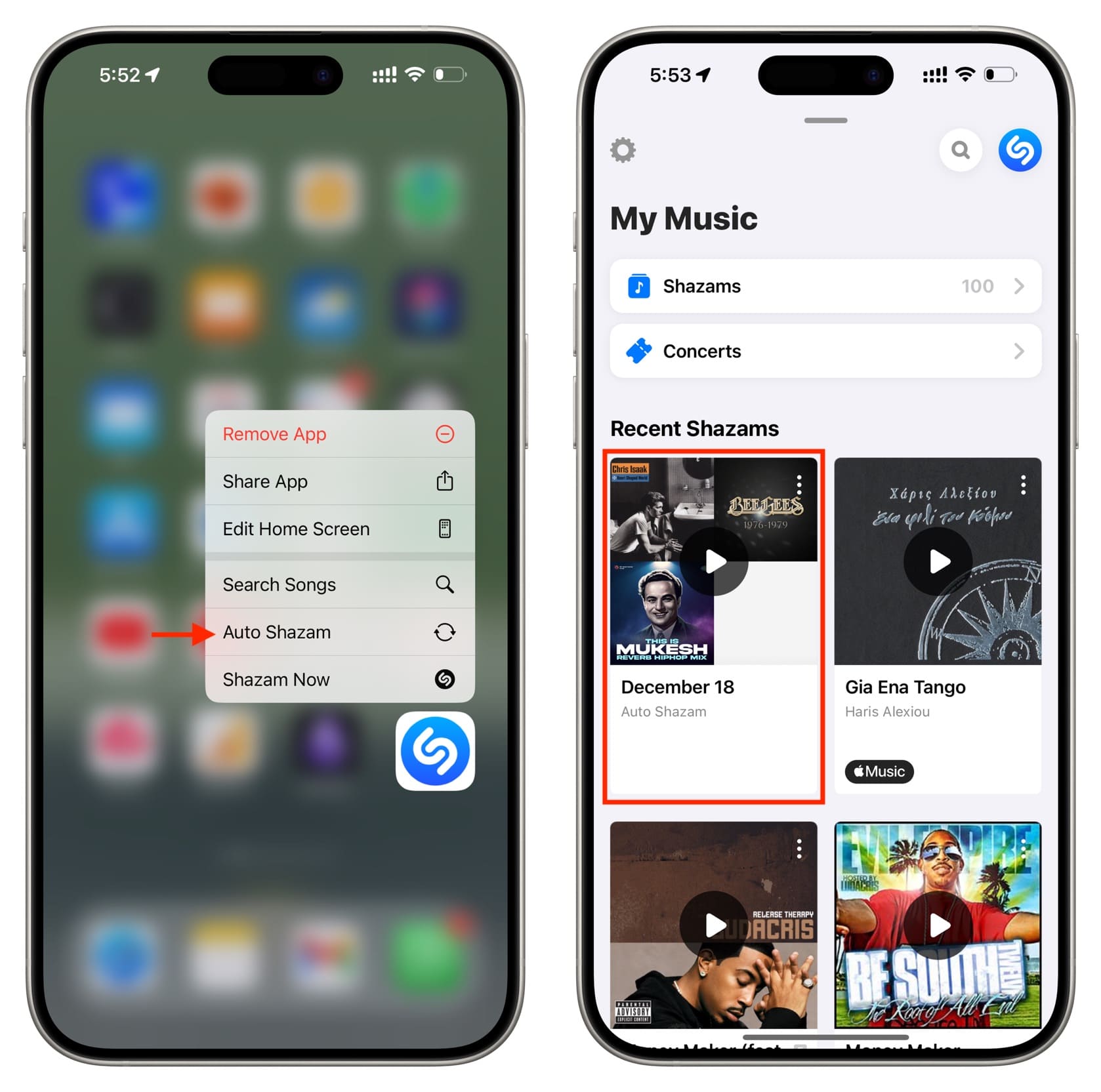
- Touch and hold the Shazam app icon on iPhone, iPad, or Android phone and tap Auto Shazam. On Mac, click the Shazam menu bar icon and then double-click on the Shazam screen to activate Auto Shazam.
- You can now go out of the Shazam app or lock your device. Shazam will keep working in the background. Once you finish, open the Shazam app or click its menu bar icon and tap/click to stop auto-Shazam.
- You’ll find an Auto Shazam folder of the said date under Recent Shazams, showing all the identified songs.
Check out next: How to see your full Shazam song history