Shazamed a song earlier and now want to know what track it is? Check out how to see your Shazam or Siri Shazam history on iPhone, iPad, and Apple Watch.
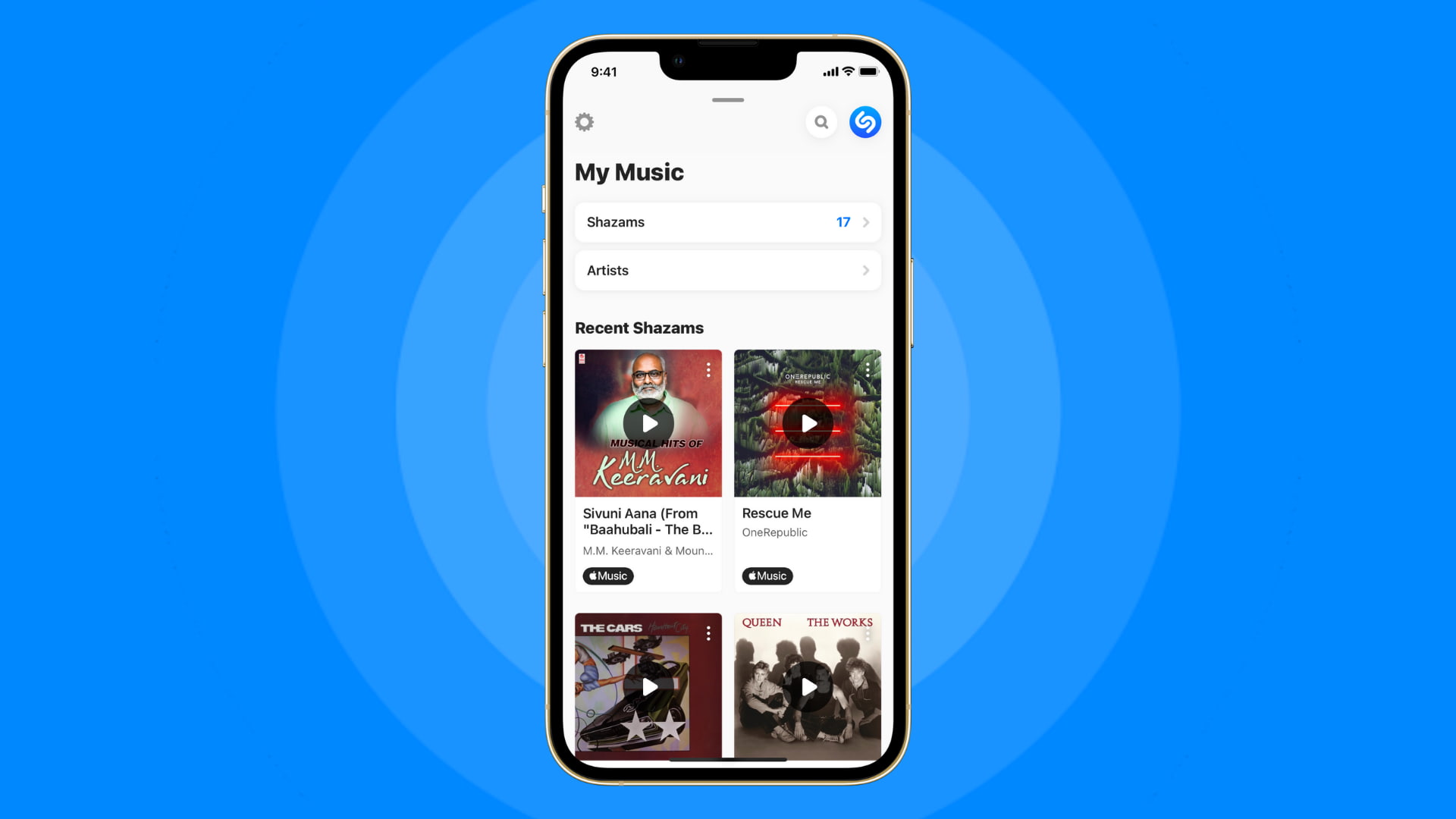
You can use Shazam by asking Siri What song is playing or What song is this?
You can also use the Shazam app, widget, or Control Center button.
In some instances, all Shazamed tracks may not appear in one place (even when logged in and on the same device). So, learn about these five different ways to see the songs you have identified using Shazam via various methods.
1. Use the Shazam app
The official app is the best way to view the songs you have recognized using it. After the latest update, songs you identify using Siri, Control Center, and the app all appear in one convenient spot.
Open the Shazam app, and go to the Library tab to see all your identified tracks.
You can also touch and hold the Shazam button in iPhone Control Center and select History to see the tracks you have recognized using this service.

Furthermore, you have the option to use iCloud to keep your Shazams up to date across devices.
2. Check the iTunes Store app
You can ask Siri to identify a song, and it will use Shazam even if you don’t have the Shazam app installed on your iPhone.
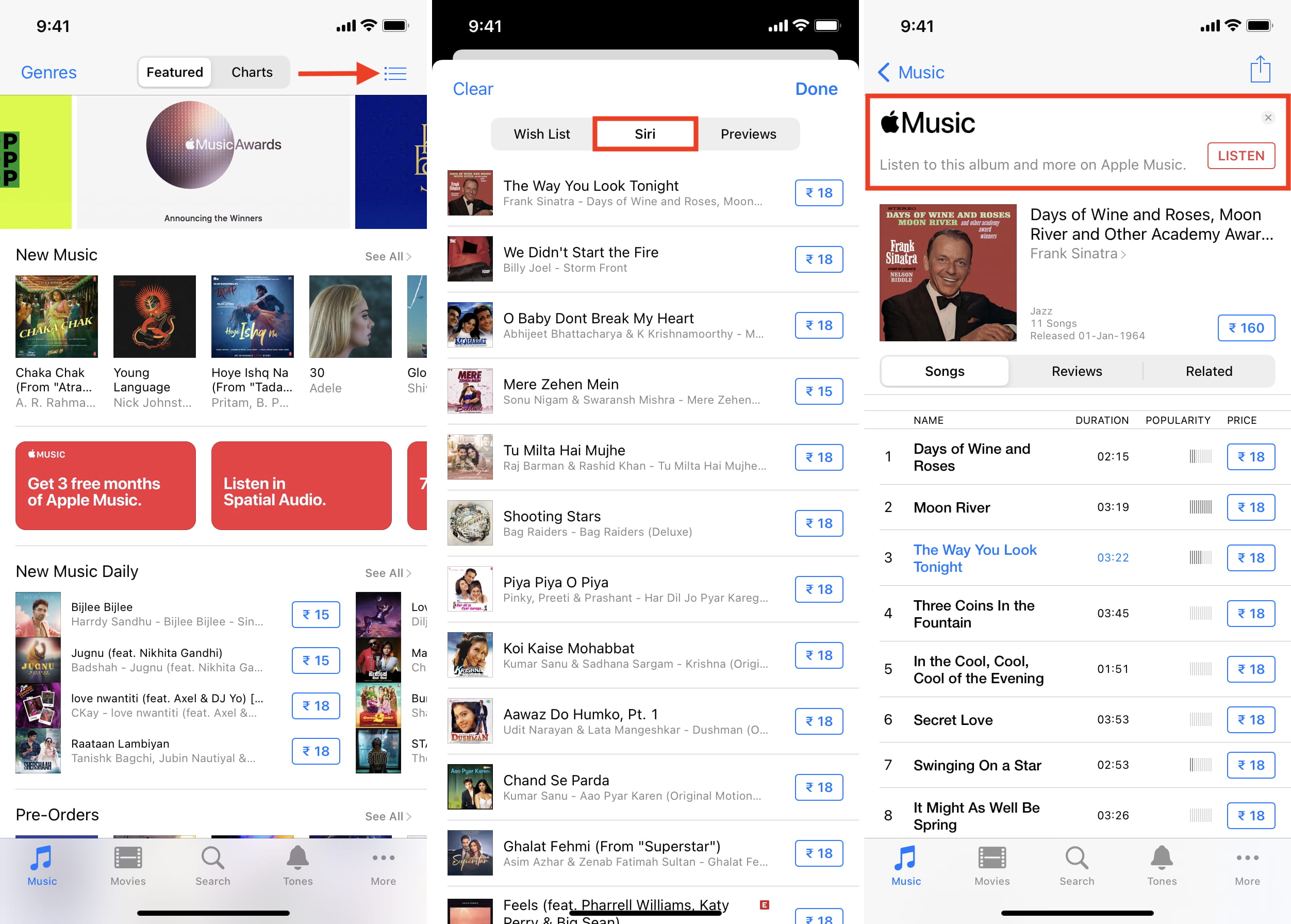
In newer versions of iOS, songs you identify with Siri should appear in the Shazam app, but if they don’t or if you’re on an older version of iOS, you can view song history in the iTunes Store.
- Open the built-in iTunes Store app and tap the bullet list icon in the top right.
- Tap Siri to see all the songs you have identified by asking Siri.
- You can purchase the song by tapping its price. Alternatively, tap its name > Listen to hear it for free if you have an Apple Music subscription.
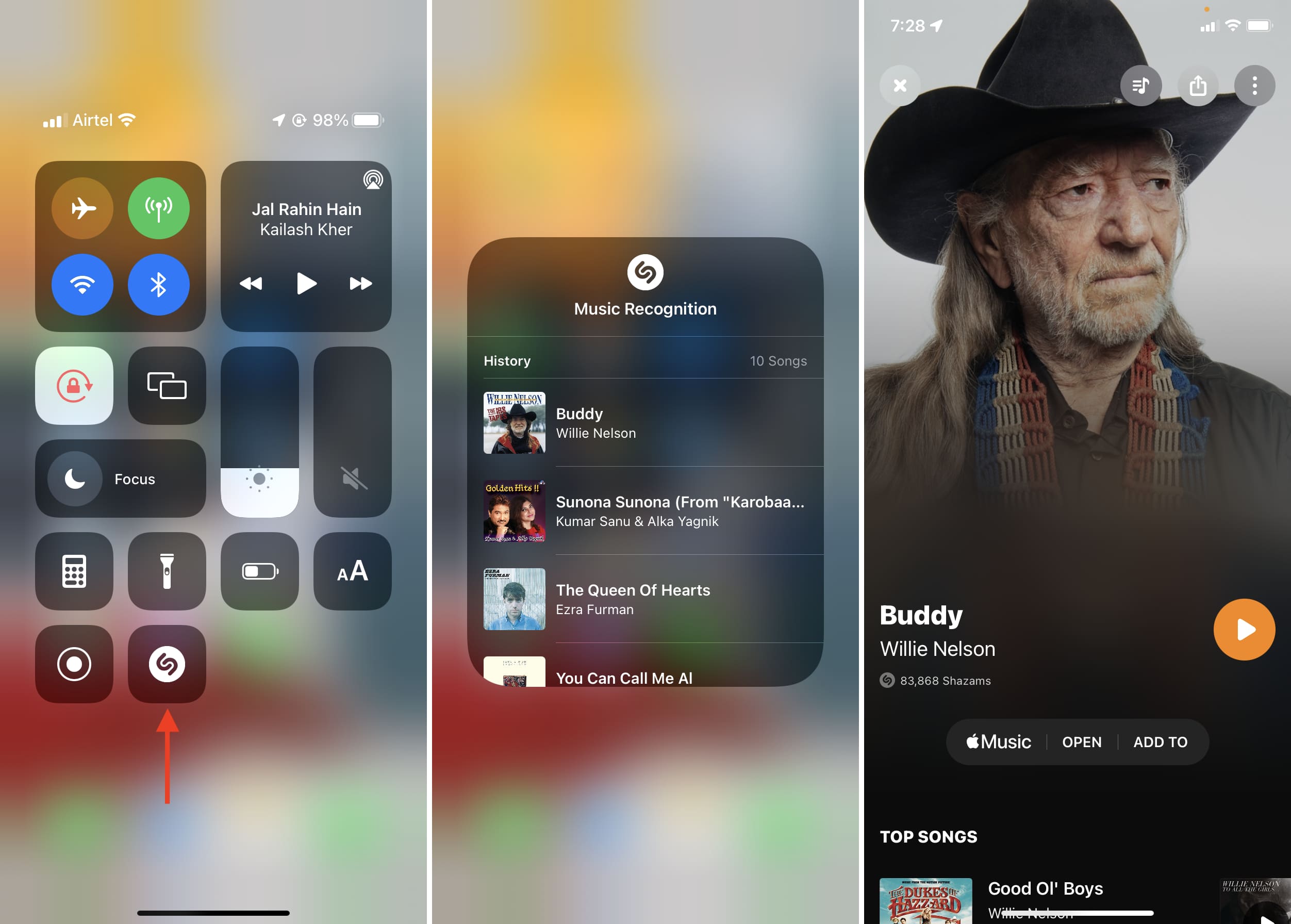
3. See songs identified using Shazam in Control Center
This method works on older versions of iOS. If you’ve updated to iOS 18 or later, touching and holding the Shazam icon shows you the option to see the history in the Shazam app.
- Open Control Center on your iPhone.
- Touch and hold the Shazam app icon to see the songs identified using this method. If you tap the song’s name, it will open in the Shazam app.
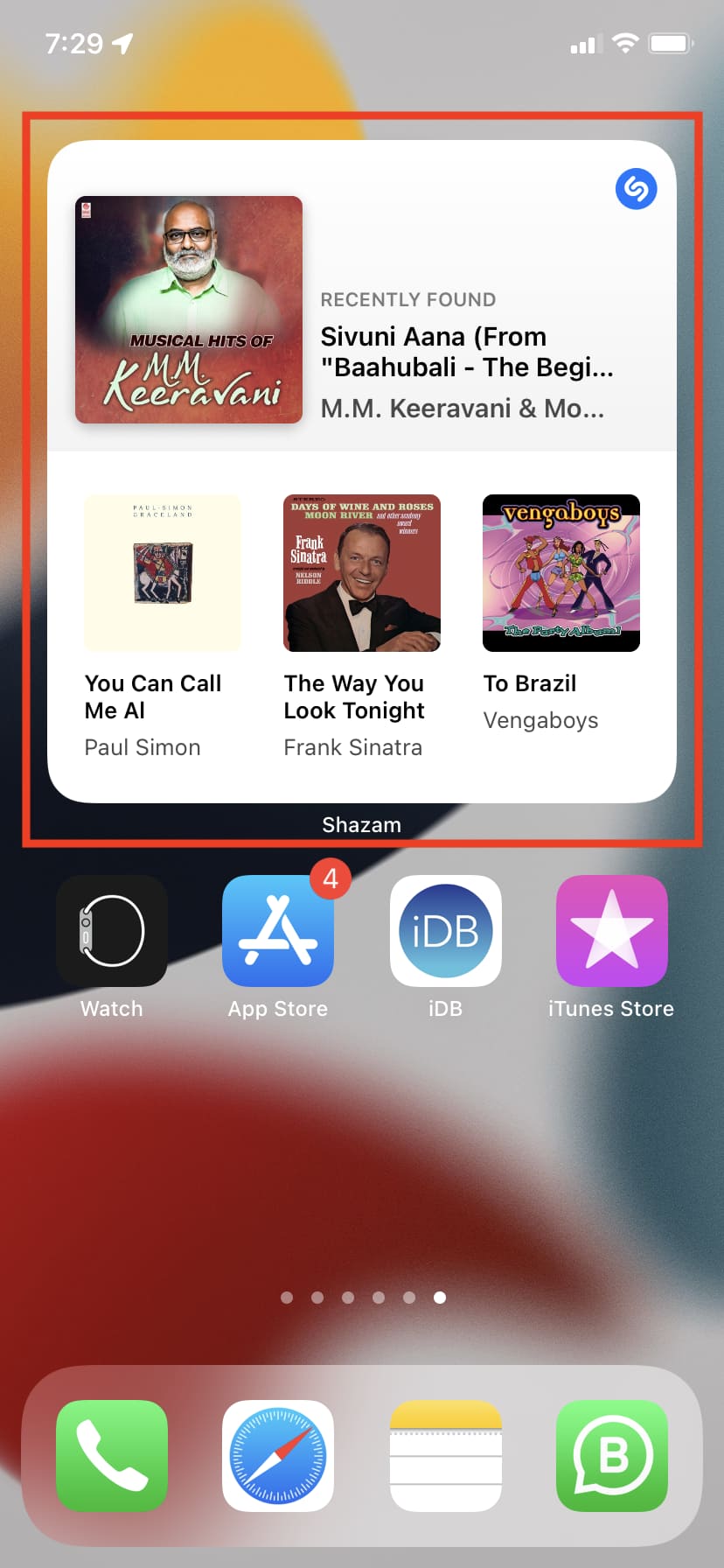
4. Use the Shazam widget
You can use the Shazam widget on the Home Screen, and depending on the widget’s size, it will display one, three, or four recently found tracks. You can always use the other methods to see the longer list.
5. Go through the Shazam playlist on Apple Music or Spotify
Lastly, you can sync your Shazams to Apple Music or Spotify, and then every song you identify using Shazam will be added automatically to a playlist called “My Shazam Tracks.” Open this playlist to see the songs you Shazamed.
Related: How to fix My Shazam Tracks playlist not updating automatically
See your Shazam history on Apple Watch
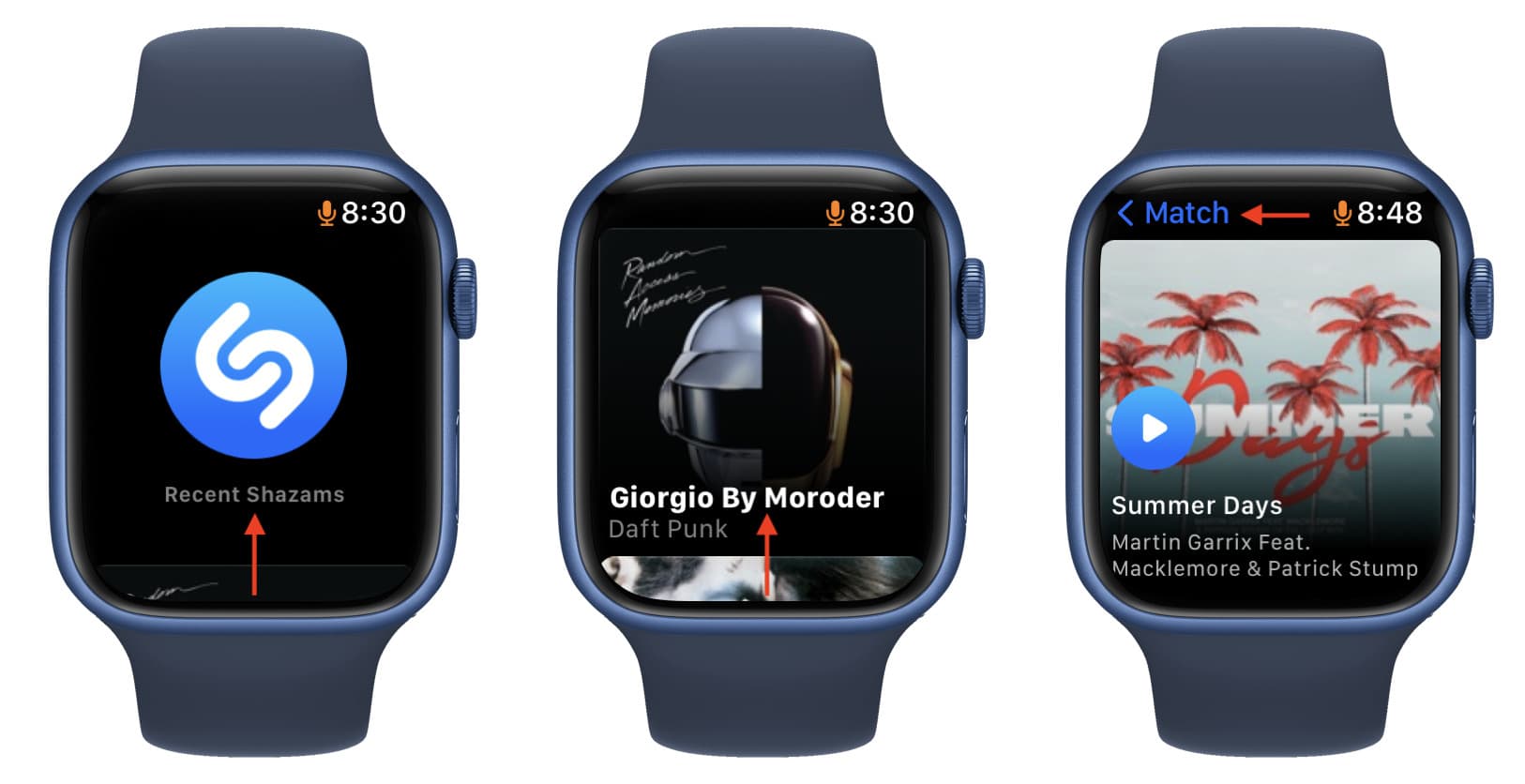
The songs you identify using Shazam on your Apple Watch sync and show in your iPhone Shazam app. But you can also see them straight on your wrist.
- Open the Shazam app on your Apple Watch.
- It will show the last Shazamed song. Swipe up on the Recent Shazams screen to see more songs you have identified. If you aren’t on the Recent Shazams screen, tap <Match to go to this screen.
Now you know how to see the song titles identified using Shazam, irrespective of the method used. If you want to learn more about this handy app, here are some helpful related posts: