Learn how to add a shadow effect or reflection to a photo, text box, or shape in a Pages, Numbers, or Keynote document on your iPhone, iPad, or Mac.
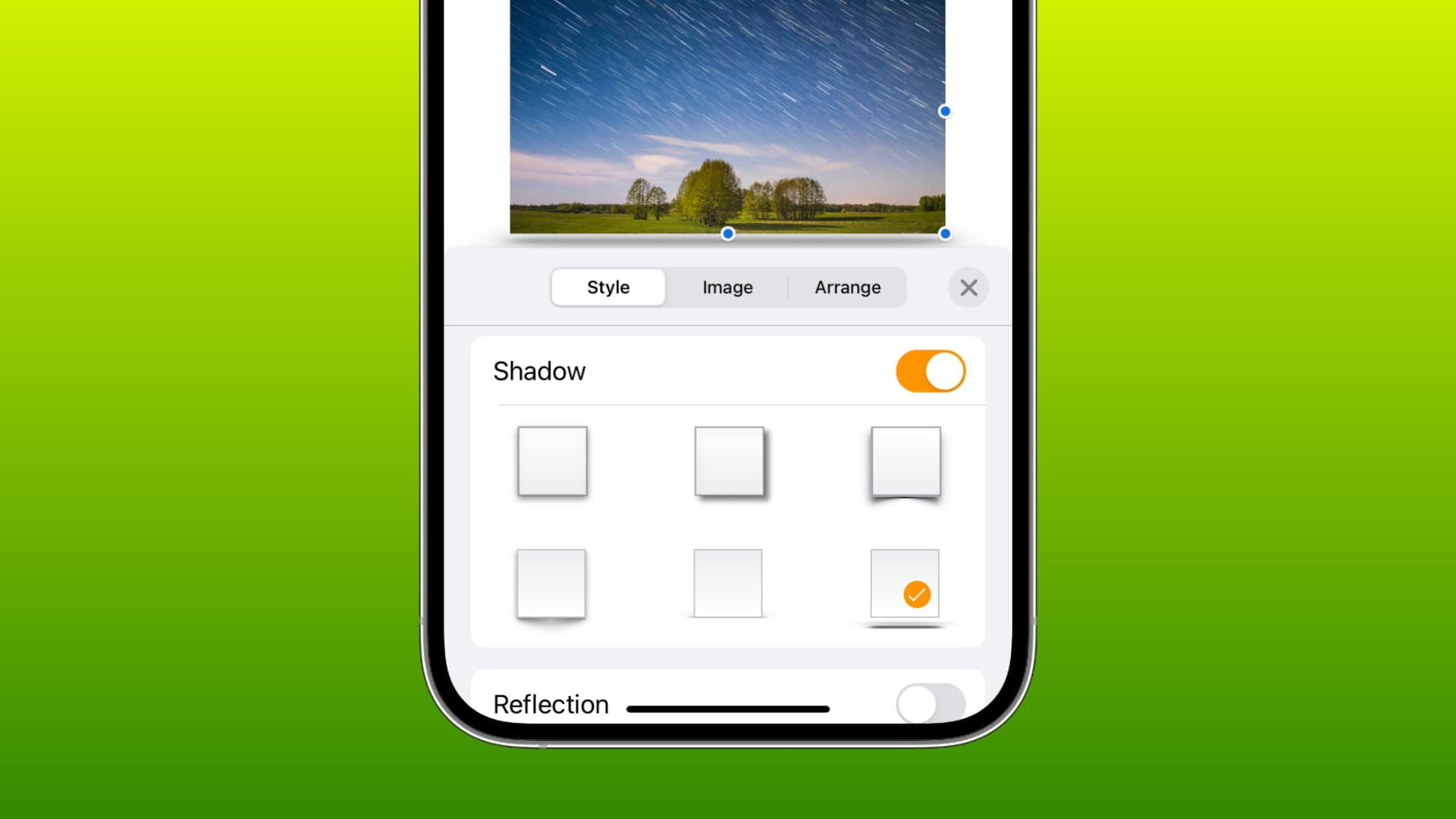
You can enhance the appearance of images, text boxes, or shapes by adding a shadow effect for depth or applying a reflection to give the object a mirrored look.
The steps to add a shadow or reflection are the same across all three Apple iWork apps on iOS and macOS.
On iPhone and iPad
1) Open Pages, Numbers, or Keynote and go to the document containing the object you want to work with.
2) Tap to select the object and then tap the Style button (brush icon) at the top.
3) Make sure you’re in the “Style” tab, turn on the toggle for Shadow, and select one of the desired styles. You can also turn the toggle for Reflection and use the slider to adjust the percentage.

You should then see your object with the shadow or reflection.
On Mac
1) Open your document, spreadsheet, or slideshow in Pages, Numbers, or Keynote.
2) Click to select the object and then click the paint brush button at the top.
3) Select the Style tab in the sidebar on the right.
4) To add shadow, click the box next to that option and pick from the various styles.
You can also click the arrow next to Shadow, and in the drop-down box, select Drop Shadow, Contact Shadow, or Curved Shadow from the options. With these, you can adjust things like blur, offset, opacity, angle, perspective, softness of a shadow, etc., depending on the style you choose.

5) To add Reflection, simply check that box and use the slider or arrows to adjust the percentage.
With each adjustment you make to a shadow or reflection, the changes appear instantly. This allows you to continue fine-tuning the object’s appearance until it looks exactly as you want.
If you want to enhance your objects in Pages, Numbers, or Keynote, consider using the shadow and reflection features. They can add a subtle but effective touch that can help spruce up dull documents.
You’ll also love: