Learn how to change the folder where Google Chrome and Firefox download and save files from the internet.
The Downloads folder in macOS is obviously the ideal place for saving web files, but you aren’t stuck using it.
We already showed you how to change where Safari saves downloaded files. But if you primarily use Chrome or Firefox, this tutorial will teach you how to change the location where these browsers save downloads.
Change the downloads folder for Chrome
- Open Google Chrome on your Mac and click Chrome > Settings in the menu bar at the top. You can also click the three dots icon in the top right corner and select Settings. Or, just press the Command + , (comma) keys to access the same settings.
- Select Downloads in the left-hand column.
- Click the Change button under Location in the Downloads section on the right, then navigate to a folder on your Mac and click the Select button. Going forward, Chrome will save all web downloads inside this designated location.
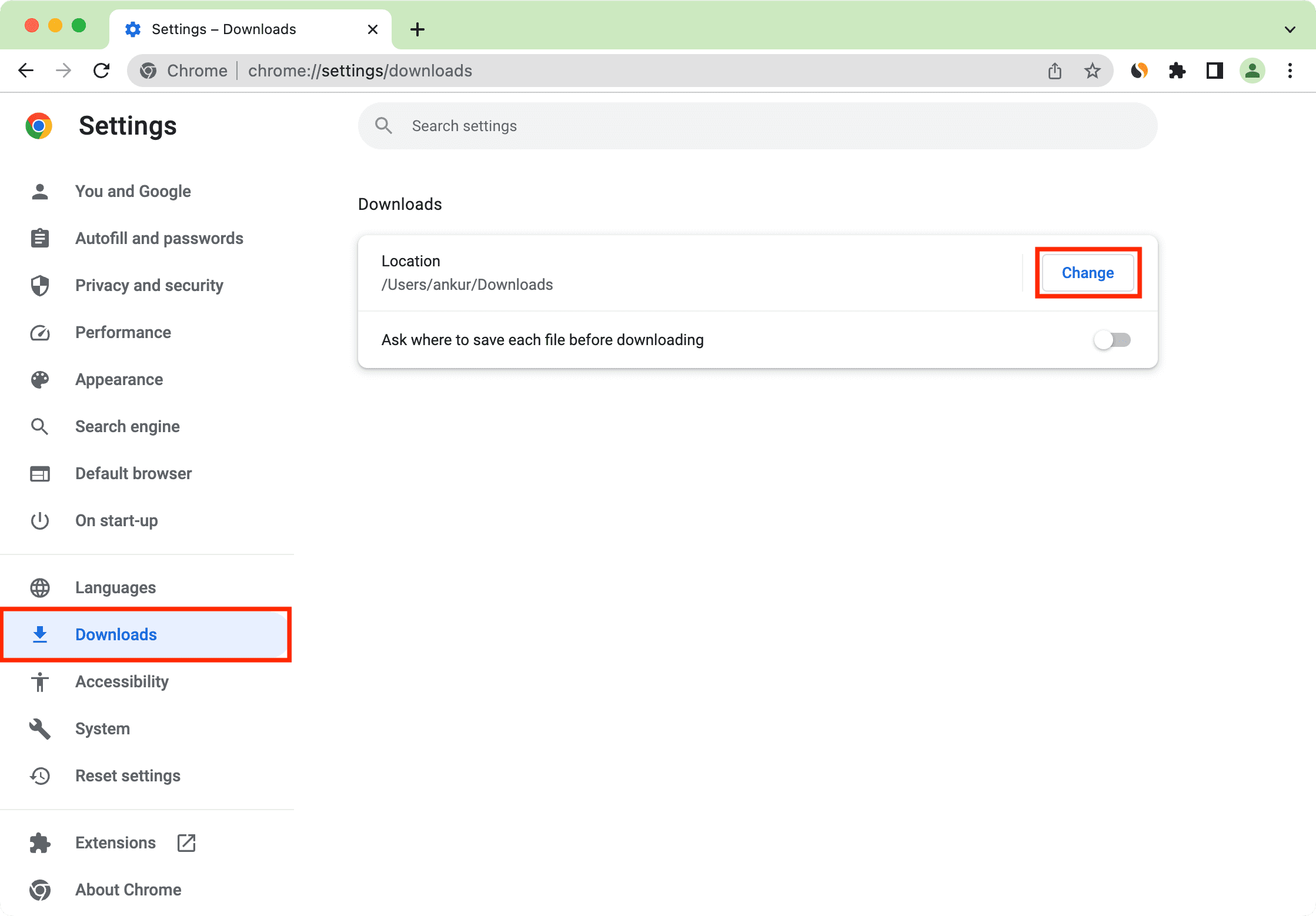
You can also turn on the switch next to Ask where to save each file before downloading to have Chrome ask where to save the files every time.
Change the Firefox downloads folder
- Open Firefox on your Mac and click Firefox > Settings or Preferences in the menu bar at the top, or click the hamburger menu in the top-right and choose Settings.
- Select Downloads in the left-hand column.
- Click the Choose button next to Save files to, select a folder on your Mac, and click the Open button. Firefox will save all new downloads into this location.

To prompt Firefox to ask for the save location every time you download something, tick the box labeled “Ask where to save files before downloading” in the popup. You can also configure Firefox to handle specific file types differently in the settings.
Check out next: