Learn how to change where Safari saves downloaded files on your iPhone, iPad, or Mac.
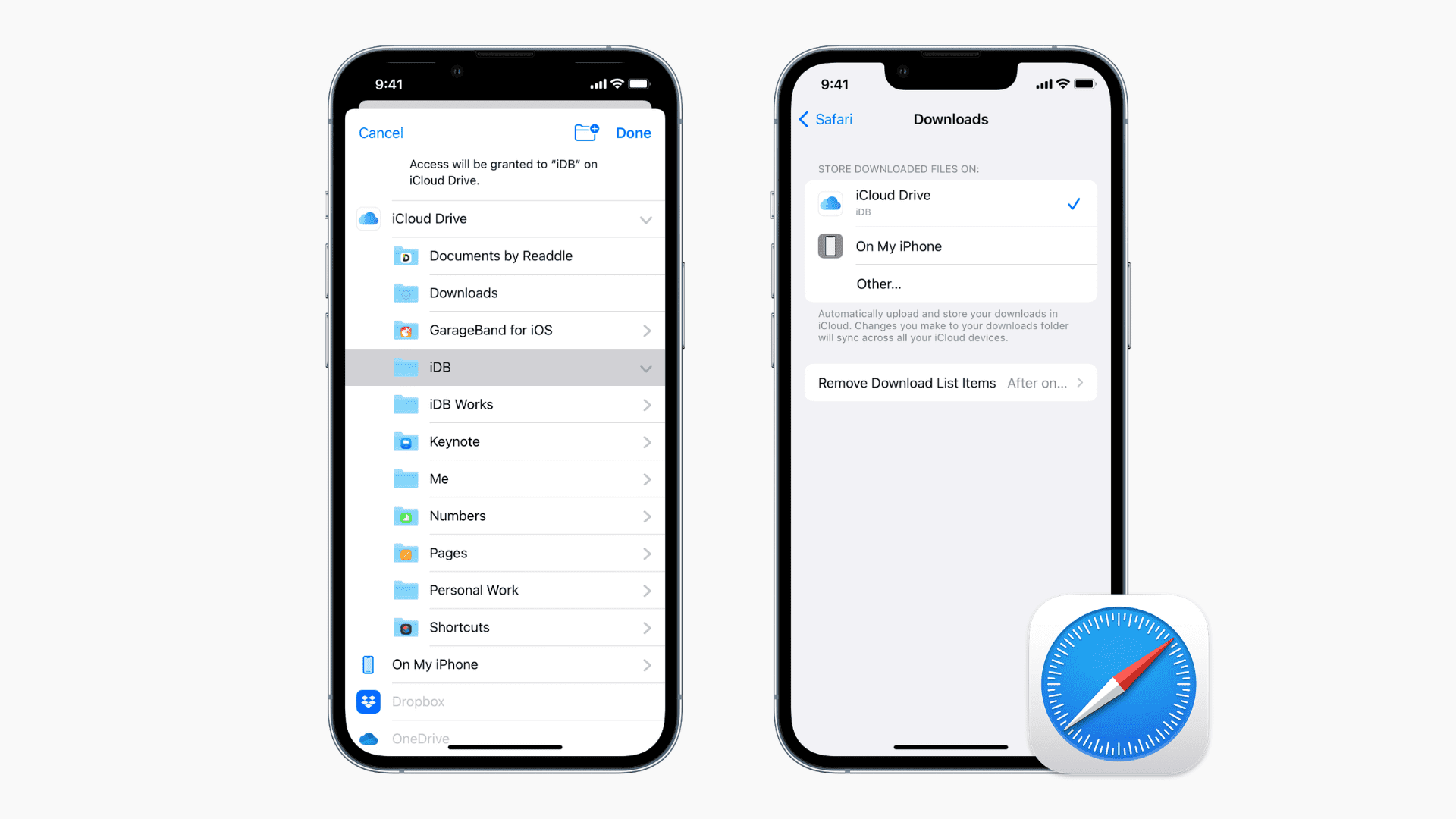
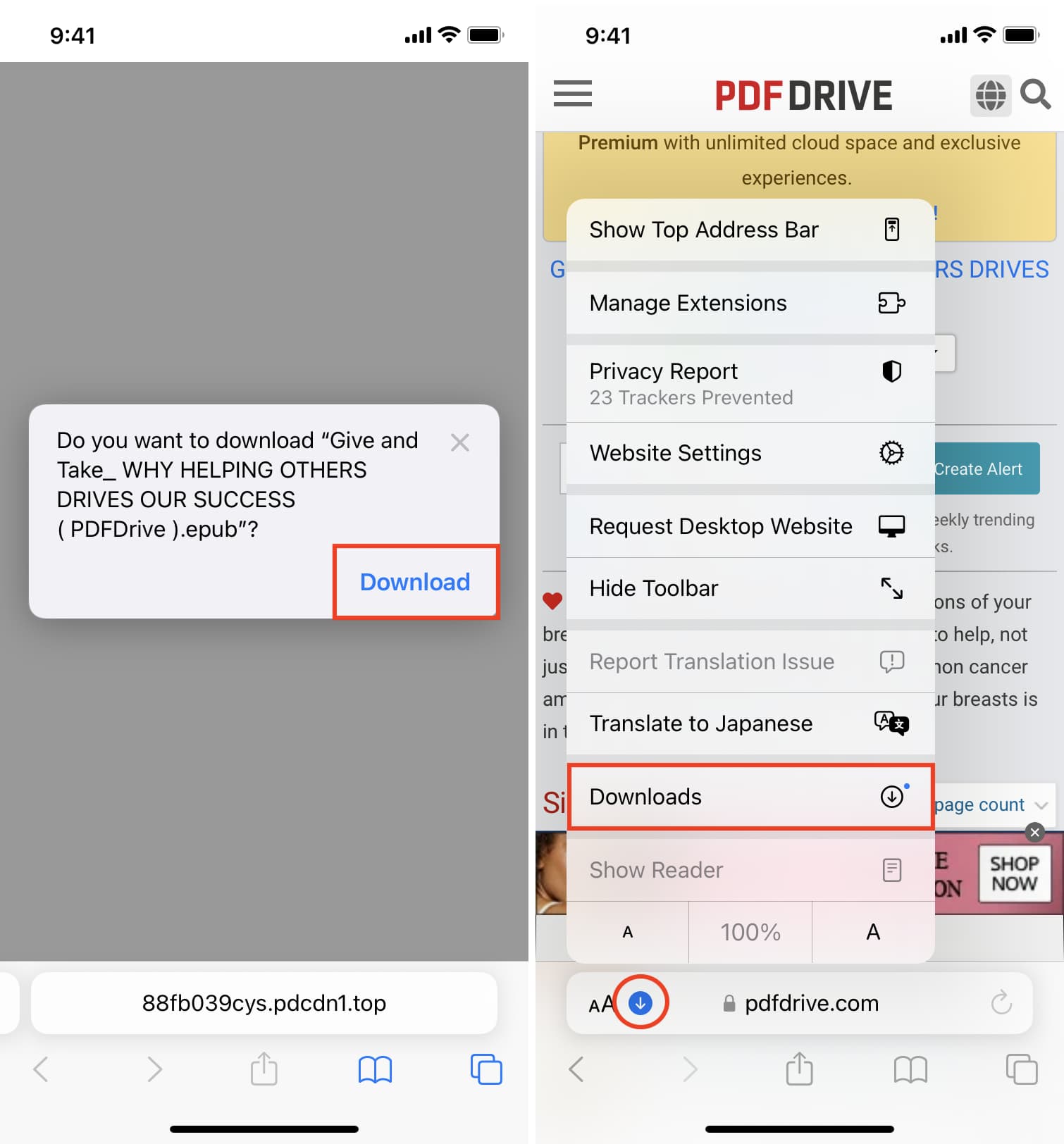
Safari’s download manager lets you view web files you’ve downloaded from the internet, like PDF documents, ZIP archives, and other items.
By default, Safari for Mac saves downloads in the Downloads folder, located within your macOS account’s home folder.
In contrast, Safari for iPhone and iPad stores downloaded items in the Downloads folder in iCloud Drive, so they’re available across all your devices using the same Apple account.
You can easily change the save location to another folder on your device or in the cloud, and we show you how.
iPhone and iPad
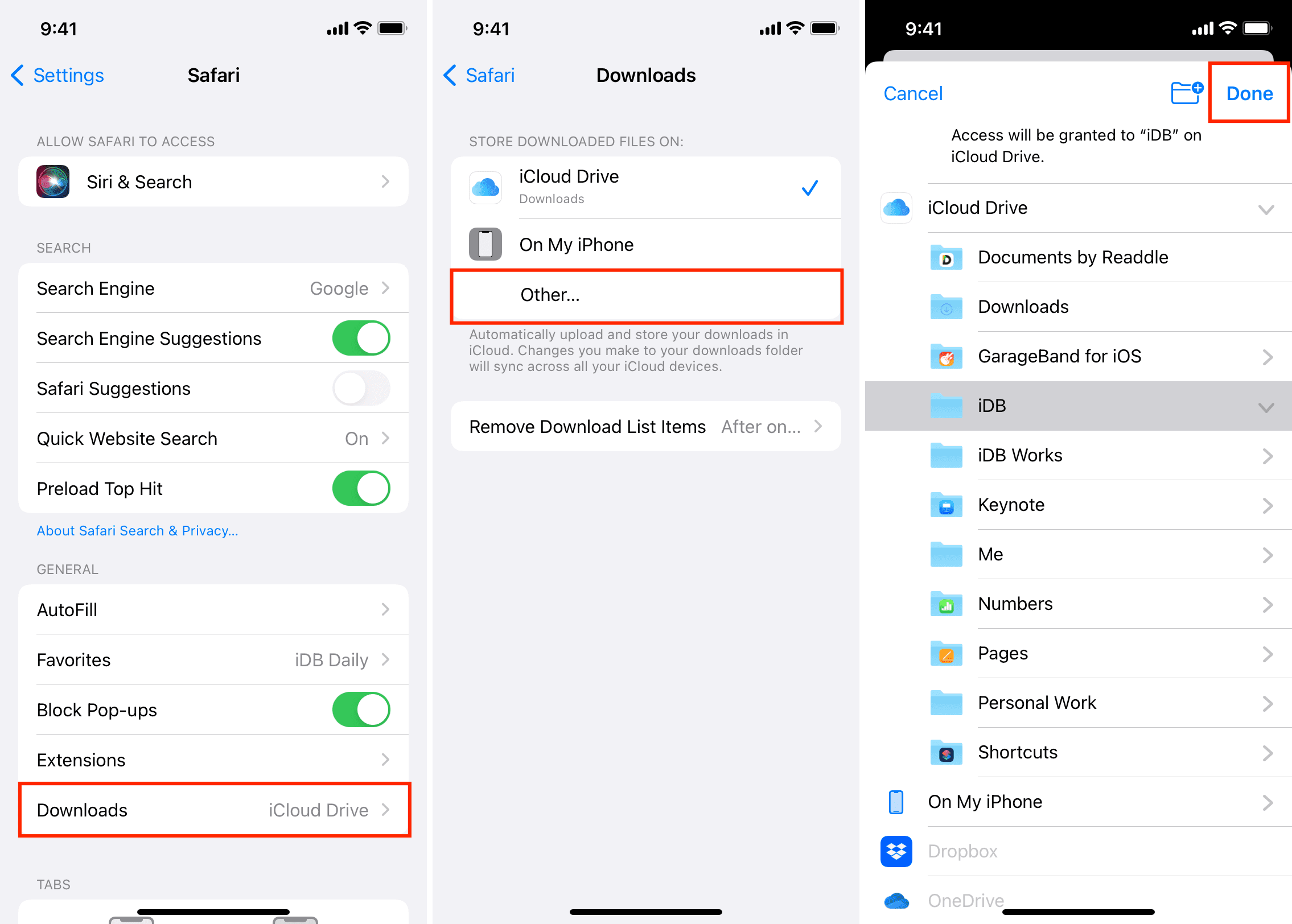
To change the location where Safari for iPhone and iPad saves downloaded files:
- Open the Settings app.
- Tap Apps at the bottom of the screen.
- Select Safari in the list of applications.
- Tap Downloads in the General section.
- Tap Other to bring up a Files picker.
- Select another folder inside iCloud Drive, On My iPhone, or a compatible cloud storage service like Dropbox.
- Finally, tap the checkmark icon or Done to save your changes. You can access your Safari downloads inside that folder.
Setting the default downloads folder to iCloud Drive will make those downloads available on all your devices using the same Apple account. As web downloads can quickly fill up your 5 GB of free iCloud storage, you may need to free up some iCloud space or upgrade to a paid iCloud+ plan.
On a Mac, ticking the “Ask for each download” box in the Safari download prompt lets you choose the save location for every download. Safari for iPhone and iPad lacks this setting. For certain files/websites, you can tap the share icon and choose Save to Files > choose a folder > Save/Done.
Mac
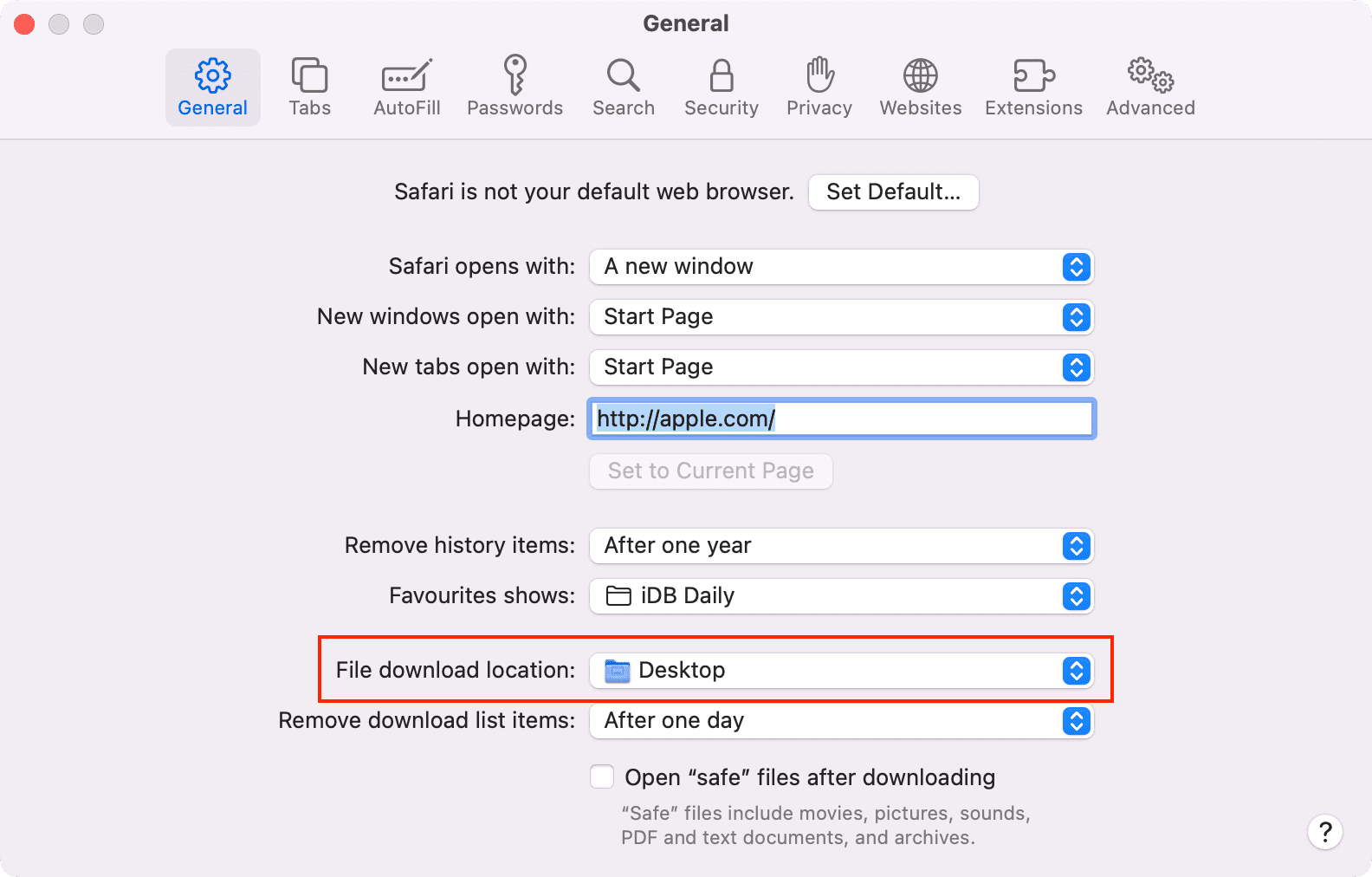
To change the location where Safari for Mac saves downloaded files:
- Open Safari.
- Click Safari > Settings or Preferences in the top menu bar.
- Make sure you’re in the General tab.
- Click the drop-down menu next to File download location, then choose Other (if you have no preference for Safari’s downloads folder, select ‘Ask for each download’ to choose a save folder every time).
- Navigate to another folder and click Select to set it as Safari’s new download location. To choose an iCloud location instead, click iCloud Drive in the Finder’s sidebar.
You won’t see the iCloud Drive option in the Finder sidebar if iCloud is turned off. To check, go to System Settings > Apple Account > iCloud > Drive, and turn on iCloud Drive.

On a related note: