Learn how to change the default app for opening specific file types on Mac to customize it to your liking.
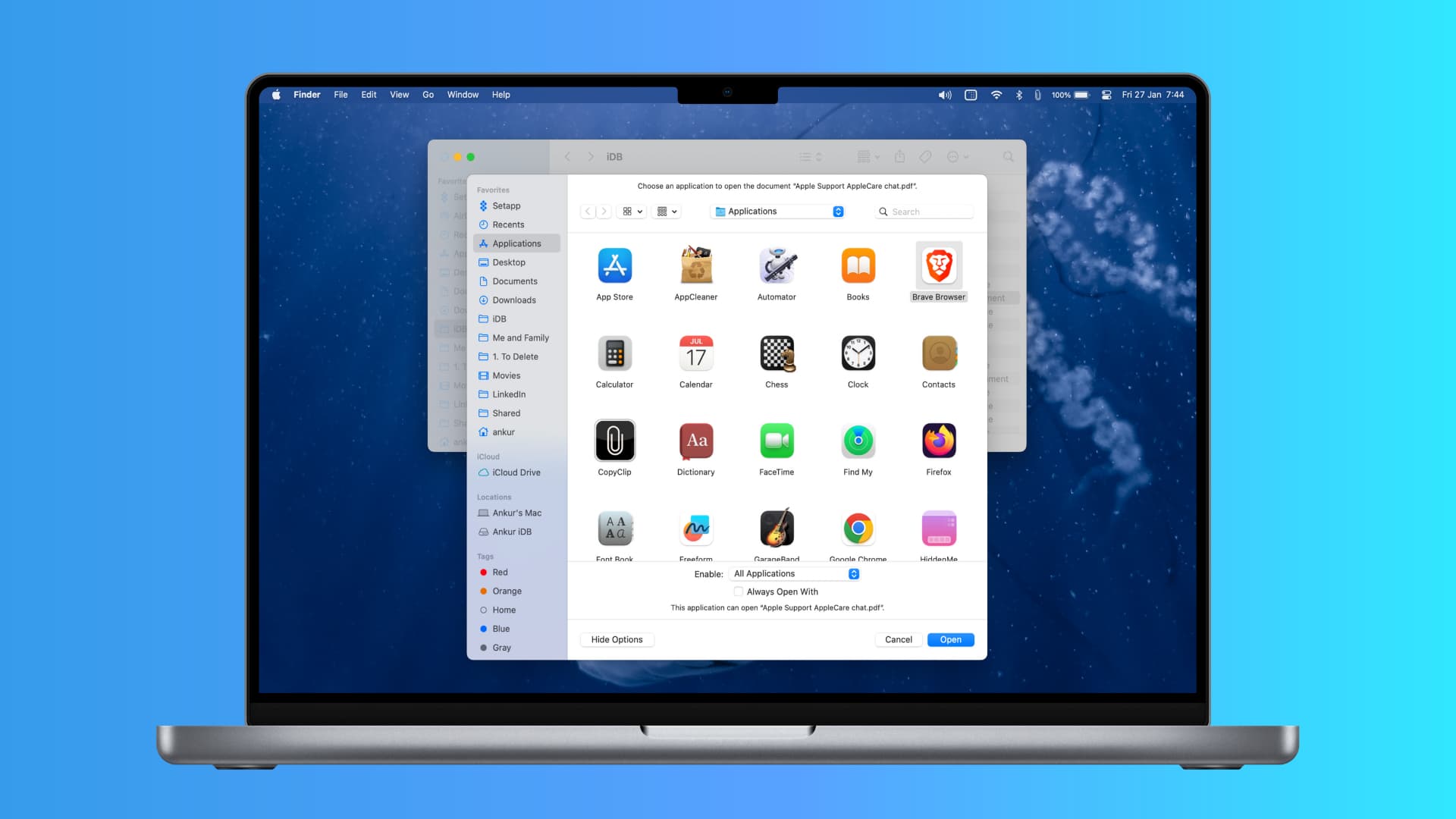
Your Mac is pretty smart when it comes to opening files like documents and images. So when you double-click to open something, it will open that item in what it believes to be the correct and preferred app. But there could be times when you want your items to open in a different app each time.
You may want your images to open in a specific photo editing app rather than Preview or have spreadsheets open in Microsoft Excel instead of Apple Numbers. These are just a couple of examples, and there are plenty more situations like these.
Changing the default application for opening documents, images, videos, or any other type of file is easy on your Mac. But if you are not sure how to make it happen, here are two ways to do that.
Change the default app for opening files on Mac
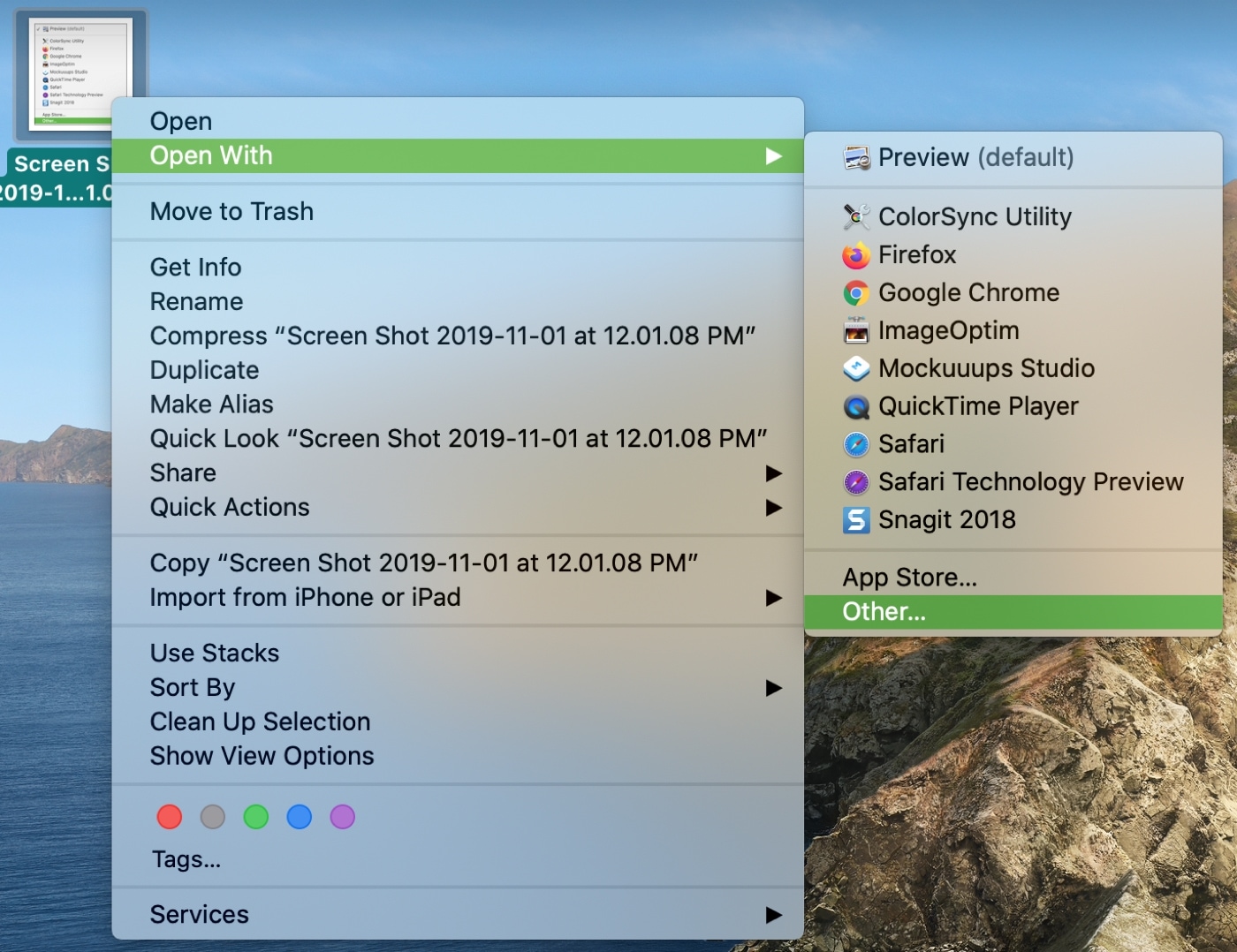
1) Right-click or hold the Control key and click the file in Finder or Desktop.
2) Select Open With and then pick Other.
3) You’ll see a drop-down box for Enable, which defaults to Recommended Applications. If the app you want is grayed out at the top, choose All Applications in this ‘Enable’ box. Then, click to select the application of your choice.
4) Mark the checkbox for “Always Open With” and click Done.
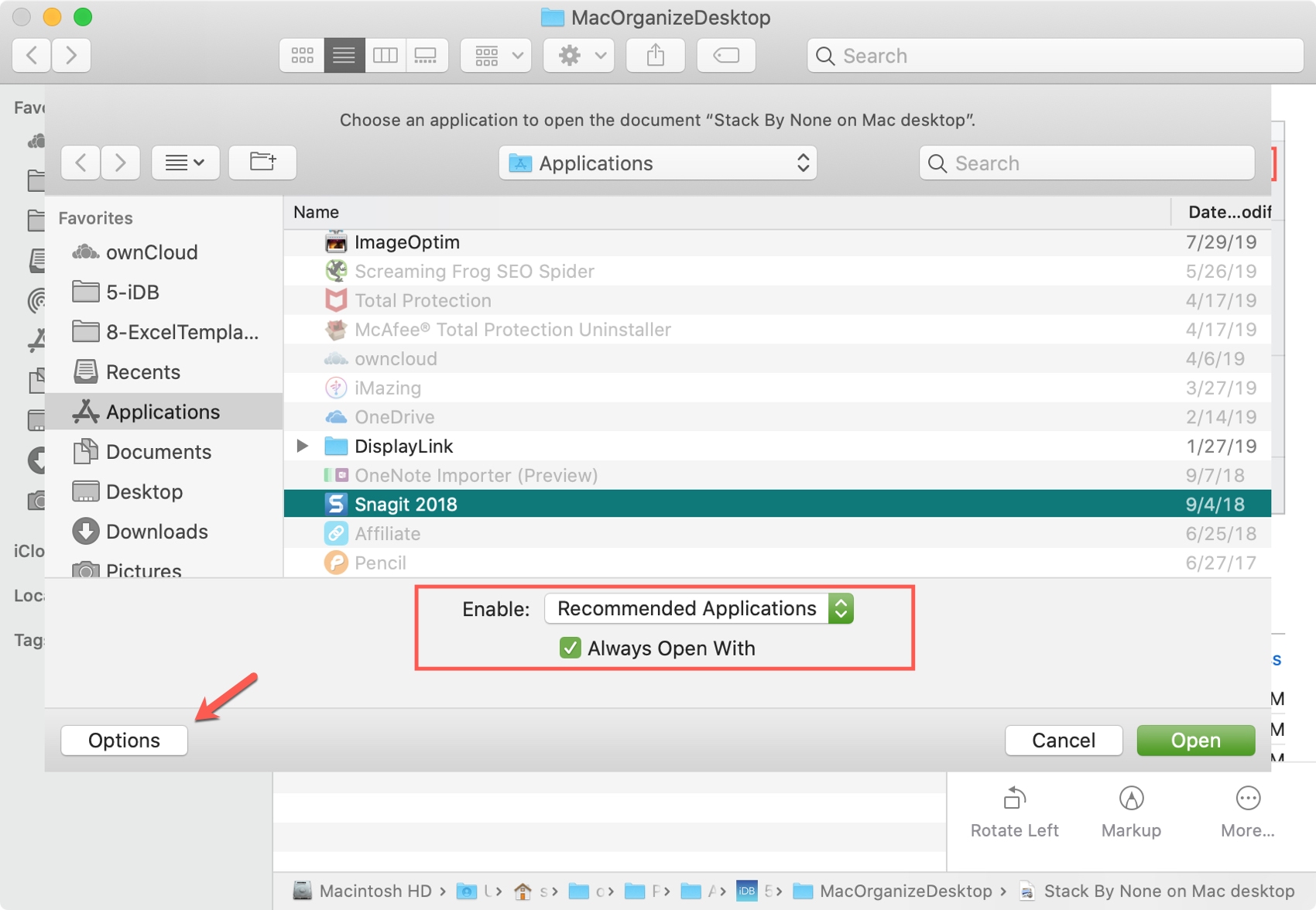
Note: If you don’t see the Enable or Always Open With box, click the Options or Show Options button in the bottom left corner.
Use Get Info to change the default app for a file type
1) Right-click or hold Control-click the file in Finder or Desktop.
2) Select Get Info from the menu.
3) Go down to Open with, click the drop-down box, and pick your application. If you don’t see it, click Other.
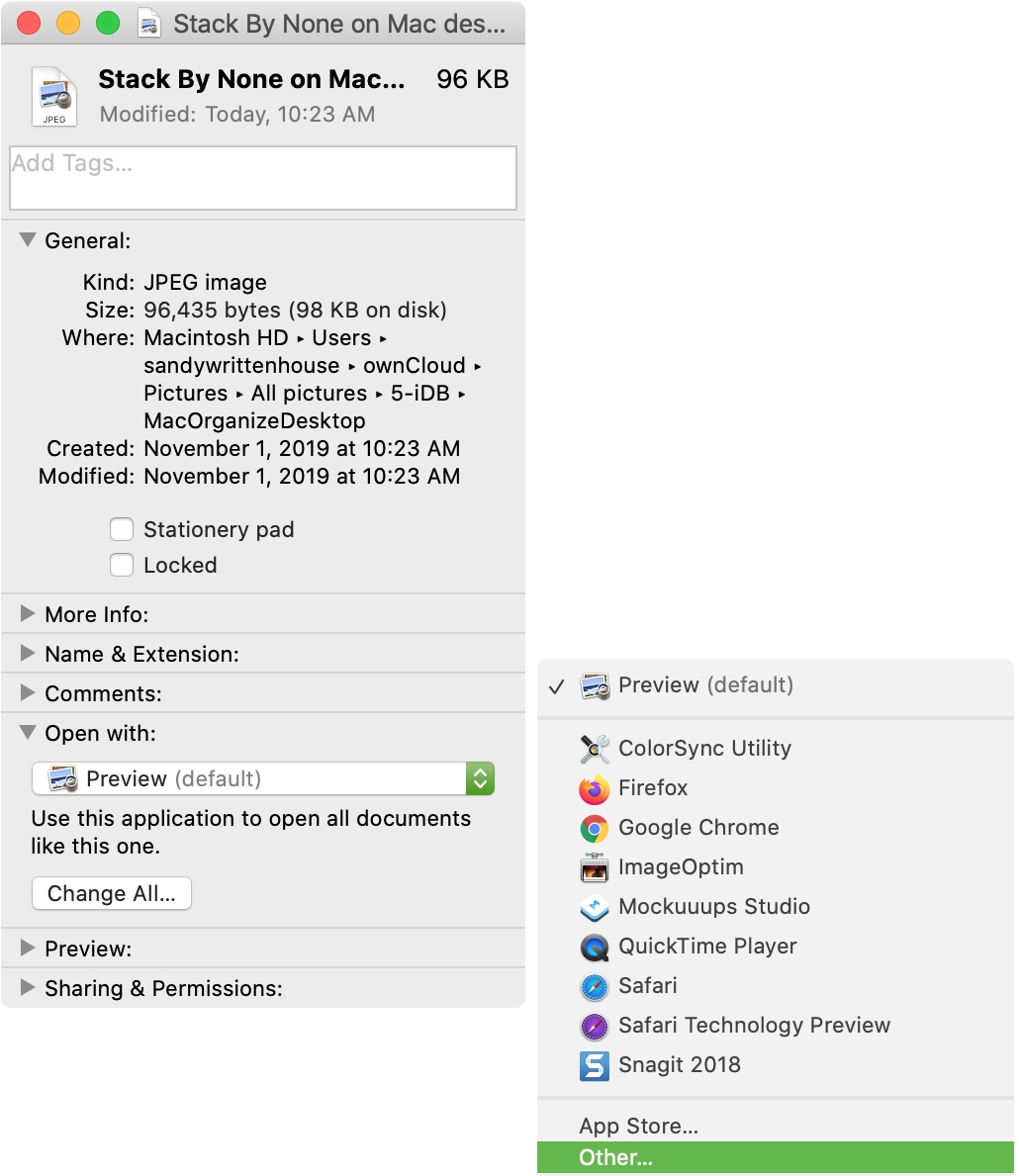
If you choose Other, you’ll see a list of your applications set to Recommended Applications by default. Again, if the app you want is grayed out, choose All Applications. Then, select your application and click Add.
4) Back in the Get Info window, click the Change All button.
5) You’ll see a pop-up message letting you know that the change will apply to all documents with that extension. If you’re sure, click Continue.
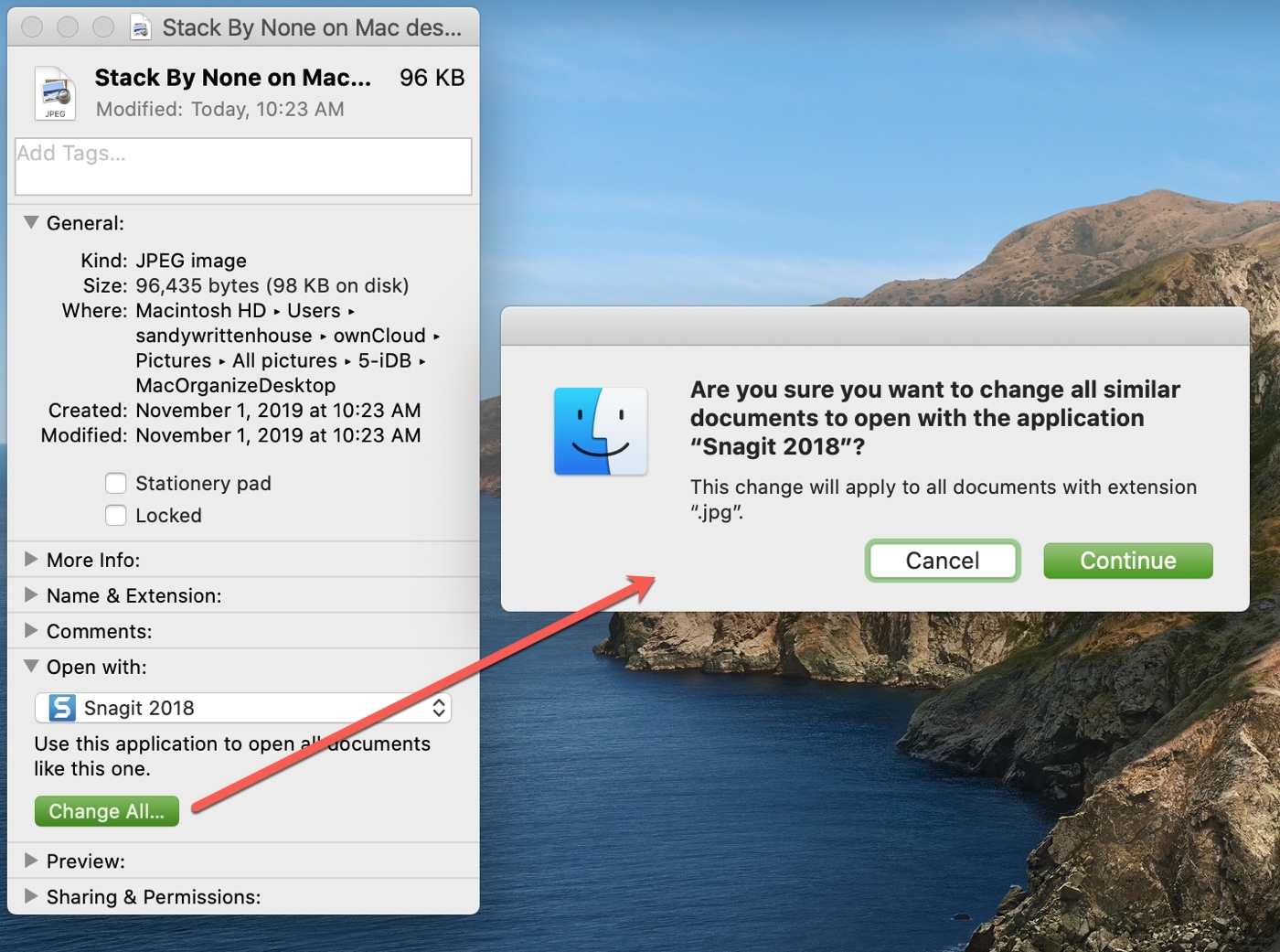
You can then close the Get Info window.
Check out next: