Learn what to do if your Text Replacement phrases and shortcuts are not syncing across all your iPhone, iPad, and Mac.
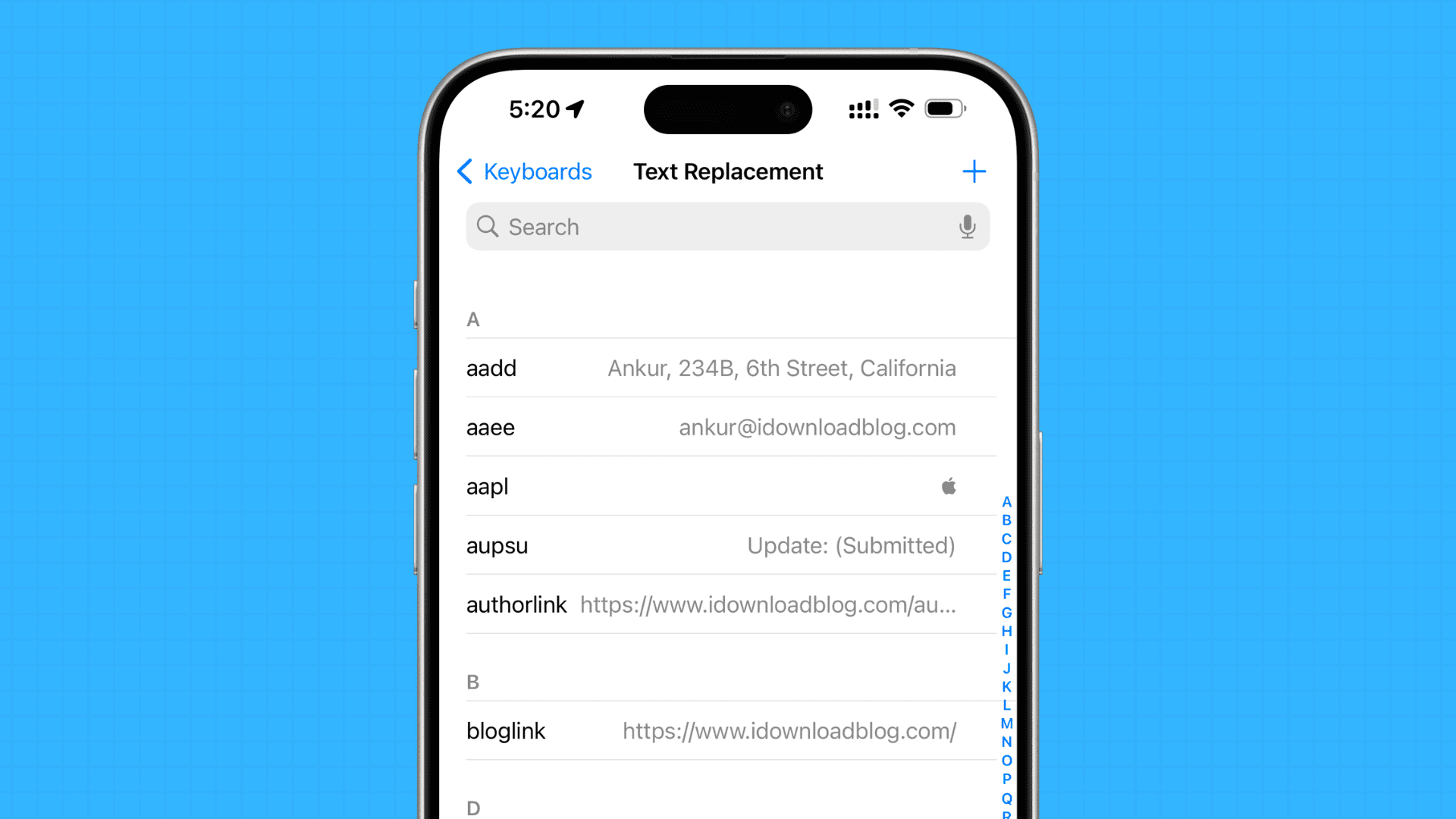
To get all our readers up to speed, iOS and macOS provide a useful feature called Text Replacements, which allows you to define custom text snippets that are automatically turned into longer phrases or whole sentences as you’re typing.
For example, one of my frequently used text snippets automatically replaces “iDB” with “iDownloadBlog.” I also use these text replacements to quickly input commonly used email addresses, type the Apple symbol () with the iOS keyboard, and more.
Apple designed Text Replacements to sync across iPhone, iPad, iPod touch, and Mac devices that are logged in using the same Apple account. But sometimes, the snippets will not sync properly or will sync intermittently.
Other times, the device will sync back the old snippets that you deleted a long time ago. And on some occasions, your snippets would sync in one direction but not the other, or wouldn’t sync at all. As an example, my snippets frequently disappear and reappear on a whim.
If you’re experiencing these nagging issues, here’s how to address them.
Ensure proper internet connectivity
New Text Replacement phrases and shortcuts you set up require an internet connection to sync across all your devices via iCloud. So, make sure your iPhone, iPad, and Mac have an active Wi-Fi, cellular data, or Ethernet connection.
Force Quit and reopen Settings
Another thing you should do is force quit the iOS Settings app or macOS System Settings to nudge the system into resyncing everything, in case it has paused for one reason or another.
Restart your devices
This is an important solution that you should follow to fix the Text Replacement issues. Turning off your iPhone, iPad, and Mac and turning them back on will refresh your system. This will also ensure that things are not hindered by temporary glitches.
Check if iCloud is down
In rare cases, it can happen that there are issues with Apple’s servers. Check their System Status page to see if everything looks fine on their end.
Add a new Text Replacement and delete it
If the above tips have not worked for you, go to Text Replacement settings on your iPhone and add a new phrase and shortcut. After you add a new Text Replacement option, check if it appears on your other devices. Whether it appears or not, swipe the snippet you just created to the left and hit the Delete button. This should help fix the ongoing issue for good.
Update your devices
If the problem continues, make sure your devices are running the latest version of iOS, iPadOS, and macOS.
Reset network settings
Lastly, if nothing helps, you can reset the network settings on your Apple devices, and this should do the trick.
Which of the solutions worked for you?