Learn how to configure the Instagram app on your iPhone or Android phone to use less cellular data if you’re on a capped mobile plan or roaming internationally.
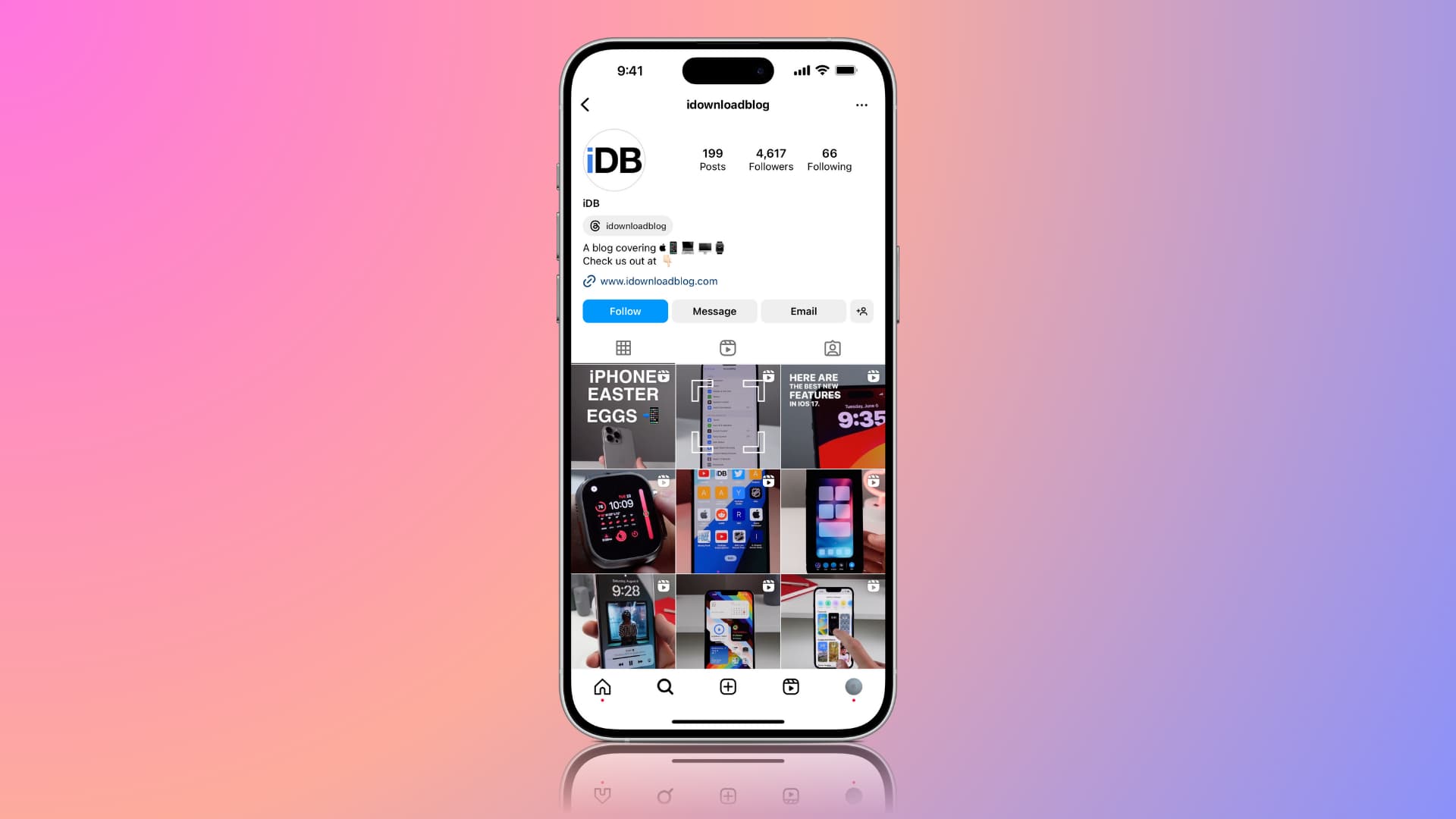
If you’re an Instagram user, then you probably understand how all the photos and videos you view in the app can be a serious cellular data hog whenever you’re not connected to a Wi-Fi network.
For the most part, the nature of the app is to load a feed of photos and videos, so there’s nothing data-friendly about it. Still, there is a way to mitigate data usage in Instagram, so you stay within your plan’s limits. After that, don’t forget to check these 19 tips to use less cellular data on your iPhone.
Save data when you’re using Instagram
- Launch the Instagram app, then tap your profile picture at the bottom right to go to your profile screen.
- Tap the hamburger menu icon at the top to access app settings.
- Scroll down and tap Media quality. On Android, it’s called Data usage and media quality.
- Turn on the switch for Use less cellular data. On Android, turn on Data Saver.
- Next, turn off Upload at highest quality and turn on Disable HDR Video Playback.

Now, Instagram has been optimized for data efficiency, so you can be a little more confident using the app on cellular networks.
What does this setting do?
Admittedly, the setting isn’t very descriptive, and it leaves you wondering what it actually does to save your cellular data. So what does it actually do?
According to Instagram, enabling this setting prevents videos in your feed from preloading when you’re connected to a cellular network, which means videos in your feed will load more slowly than they would with the setting turned off.
By default, Instagram preloads videos so they start faster whenever possible. If you want to reduce the amount of cellular data the Instagram app uses, you can choose not to have Instagram preload videos over cellular connections. If you choose to use less data, videos may take longer to load over a cellular connection.
Choosing to use less data won’t affect the way Instagram works when you’re using Wi-Fi.
Preloading essentially means the app downloads the whole video before you even get to it, which helps make it ready to begin playing as soon as you scroll down to it.
This setting will not disable auto-play, so unfortunately, videos will still play on their own when you get to them, but they’re not going to load in full until you scroll down to them, which means with a little self-control, you could use this setting to your advantage and save data by not scrolling down to any videos in your feed.
When you connect to a Wi-Fi network, on the other hand, the Instagram app will behave as it regularly does and automatically preload all videos in your feed before you get to them.
If you don’t want to use Instagram at all when on mobile data, go to iPhone Settings > Cellular or Mobile Service and turn off the switch next to Instagram.
On the same note: