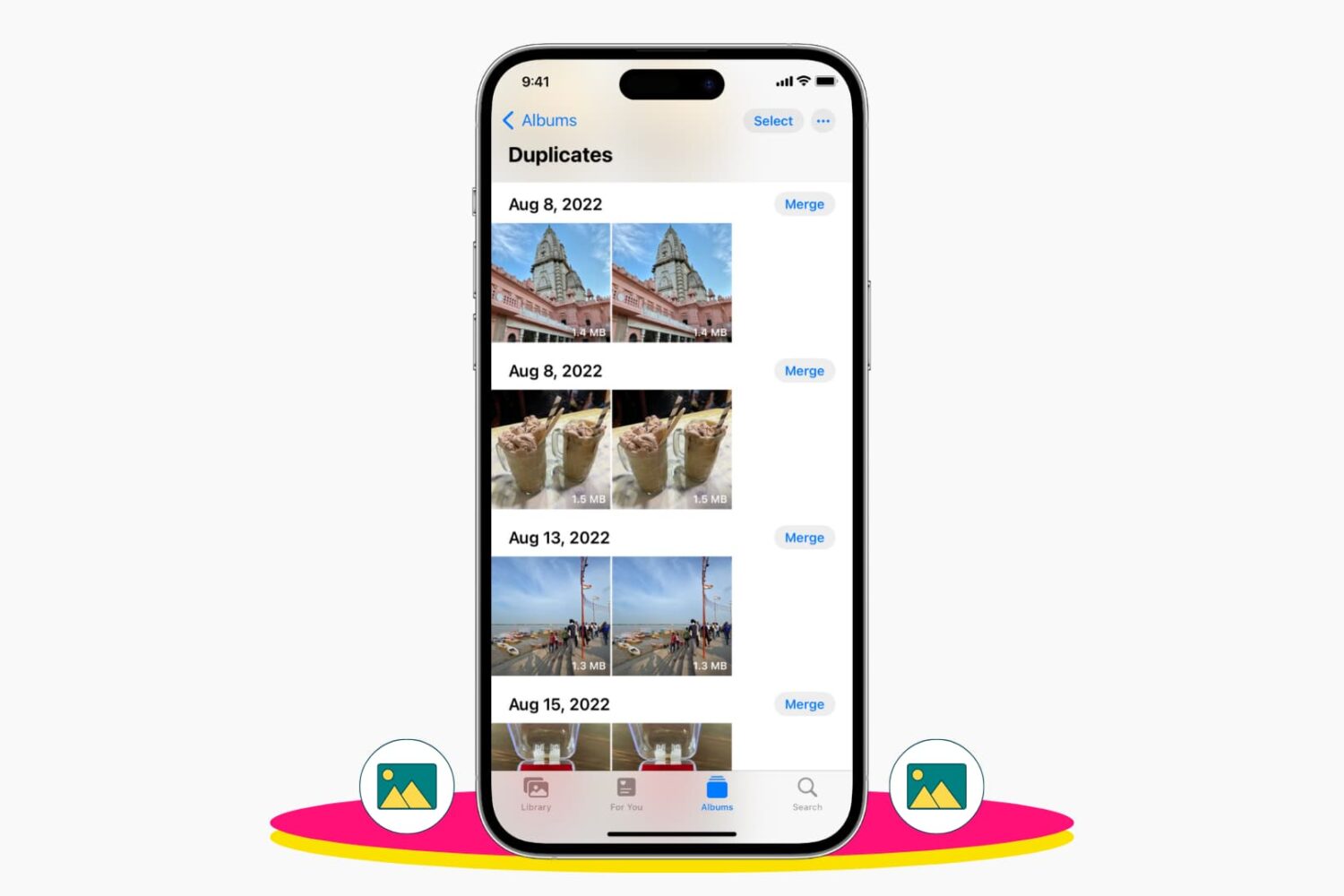
Check out 3 easy ways to delete duplicate photos and videos from your iPhone library to remove clutter and save space.
How to merge and delete duplicate photos on iPhone and iPad
Learn how to master your Apple devices with our comprehensive tutorials. From iPhone and iPad to Mac, Apple Watch, AirPods, and more, our expert guides will help you unlock the full potential of your Apple products. Discover new features, tips, and tricks each day to enhance your user experience.
Check out 3 easy ways to delete duplicate photos and videos from your iPhone library to remove clutter and save space.
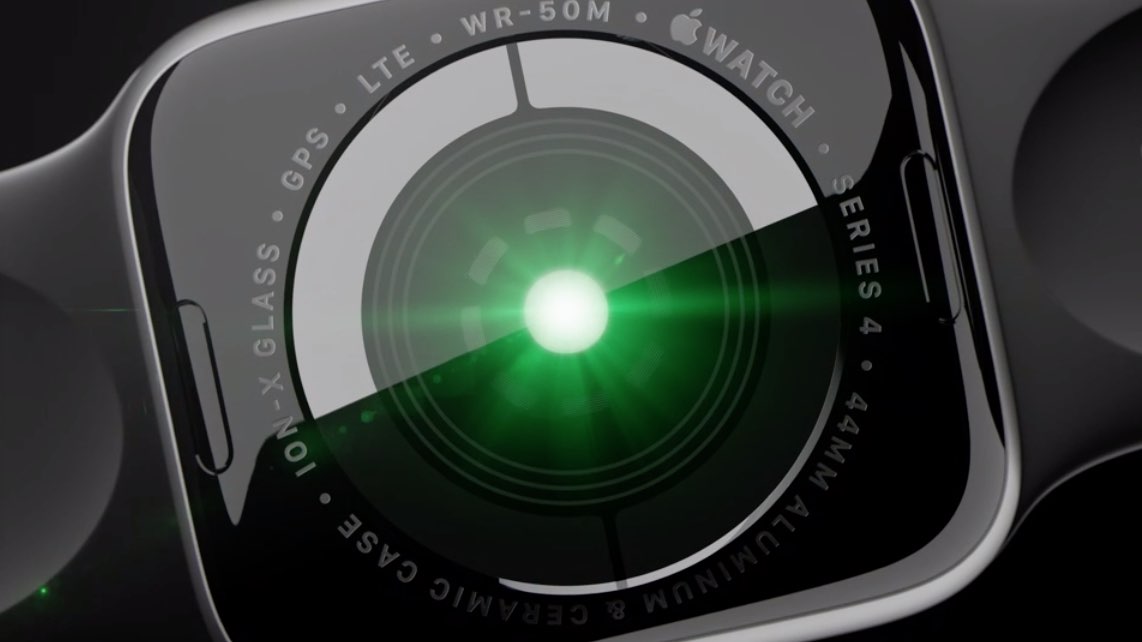
In this step-by-step tutorial, we’ll show you how to enable high- and low-heart-rate notifications on your Apple Watch for life-saving alerts in critical moments.

Learn how to split the onscreen keyboard on your iPad, as well as undock it to move it up or make it smaller so it floats and can be placed anywhere on the screen.

Learn how to mute someone's Instagram Posts or Stories from your feed without unfollowing their account or them knowing.
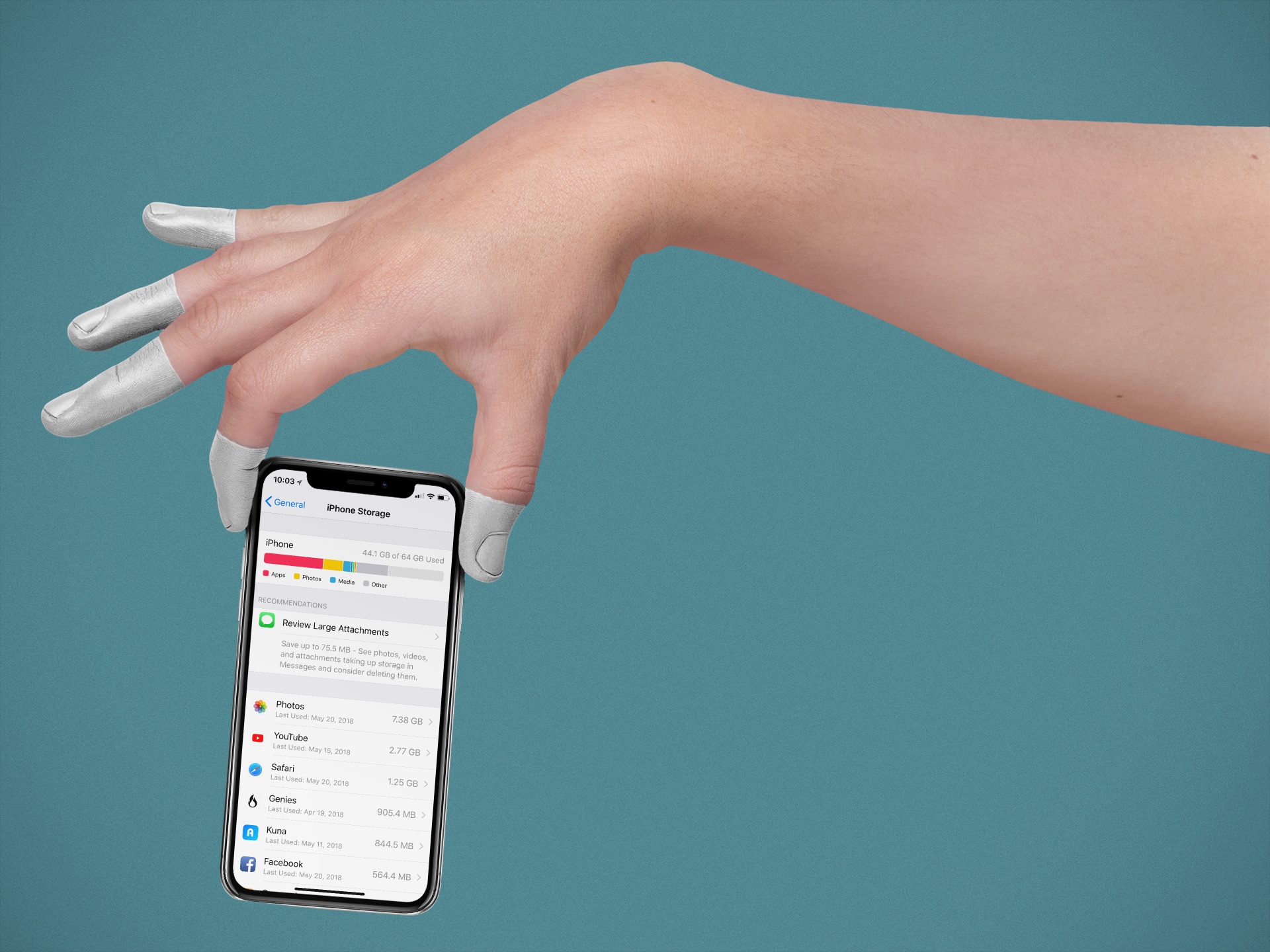
Apple makes it simple to find and delete unused apps. You know those apps; the ones you just had to have when they were first released, but are now collecting digital dust. Here are the steps.
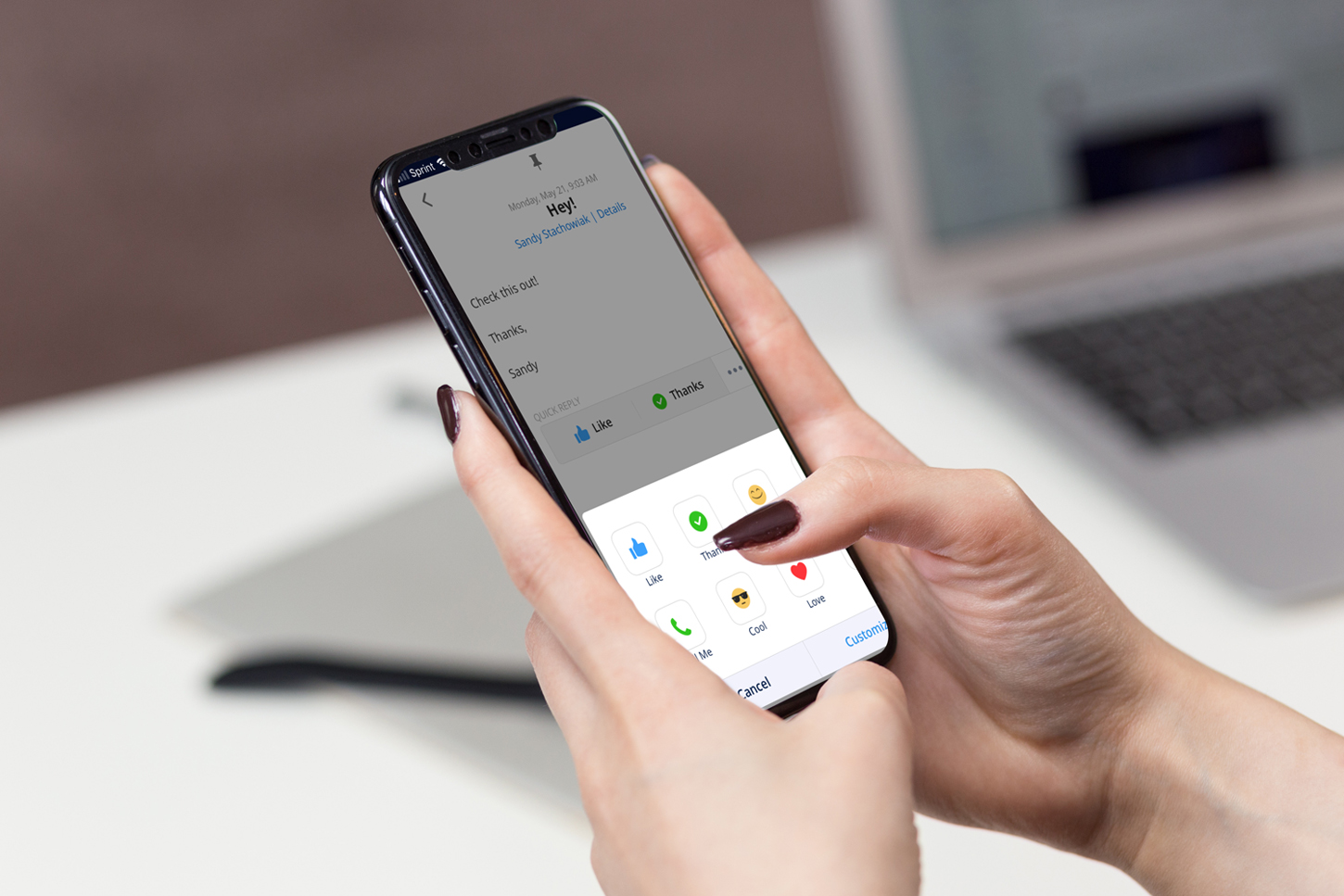
If you are considering switching to a third-party app for email, a terrific app to try is Spark. The application is available for iOS and macOS with Apple Watch support, so you can use it on all your devices. Along with that, Spark offers features such as labels and folder management, custom swipes for notifications, and Touch ID inbox protection.
Three additional features of Spark that are real time savers include Quick Replies, Email Scheduling, and Snoozes. Here are how these features work.
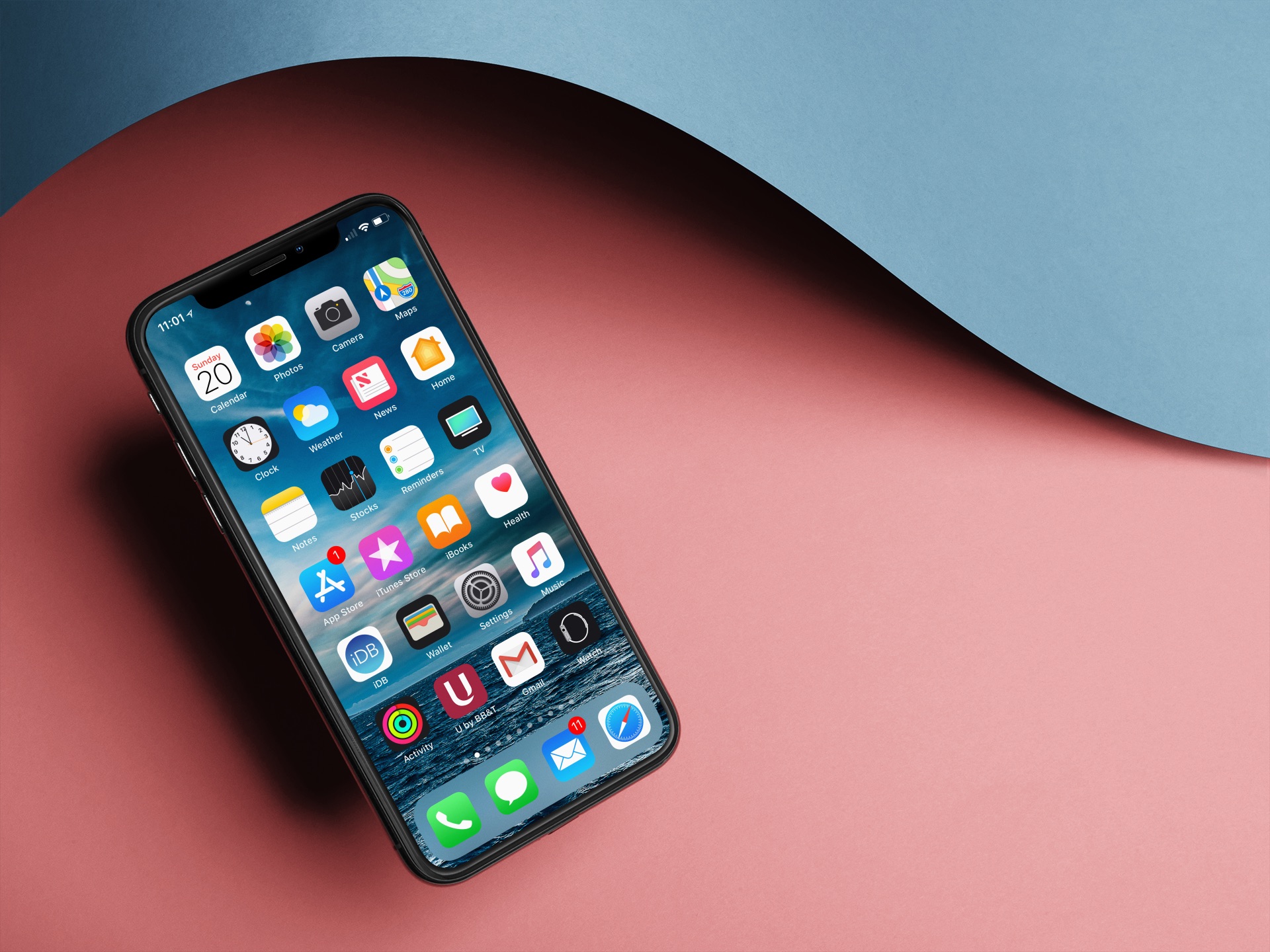
Learn how to see the last time you've used an app on your iPhone or iPad, so you can remove those you haven't opened in a long time.
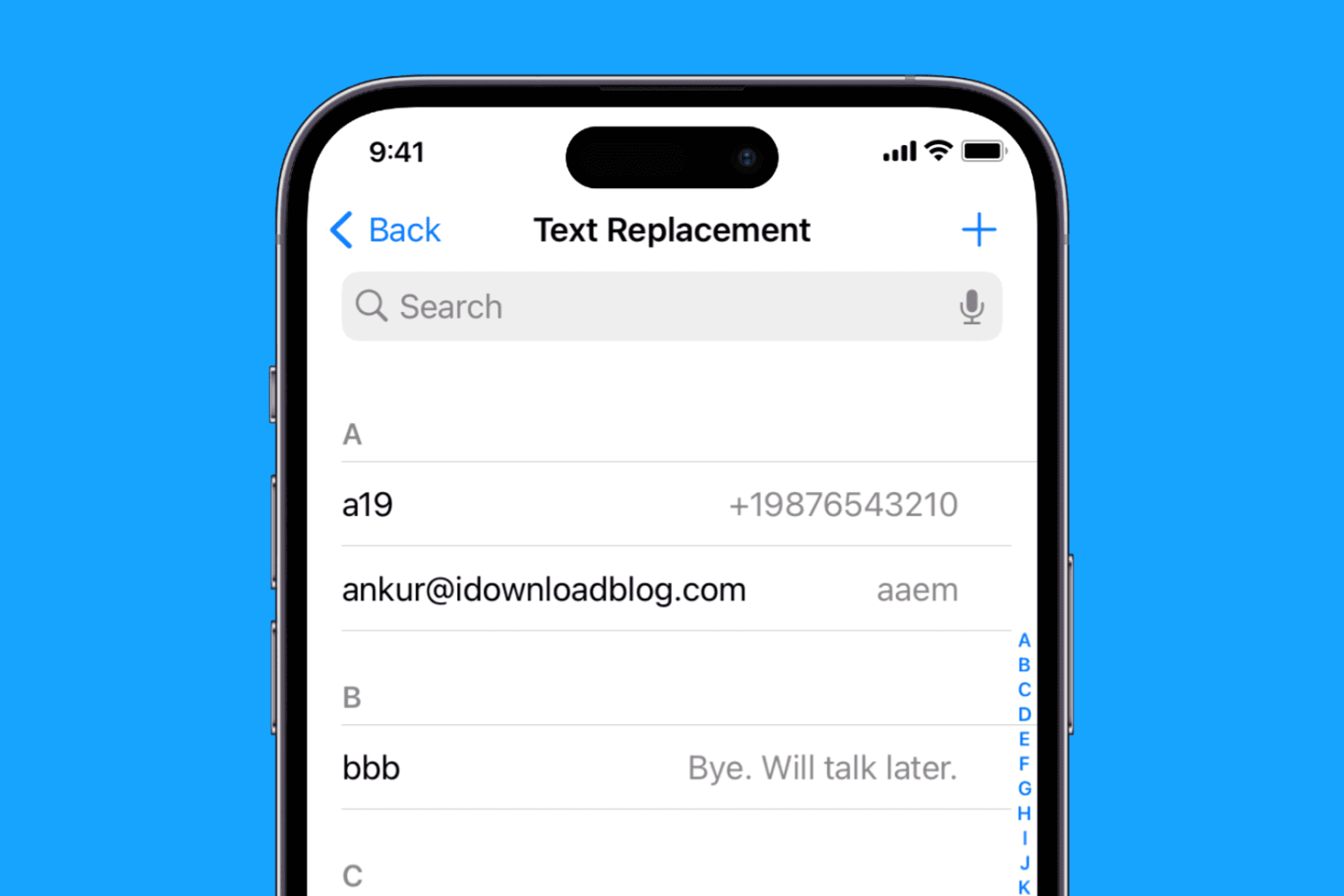
Learn how to create text replacement shortcuts on your iPhone, iPad, and Mac to speed up typing and save time while reducing typos.
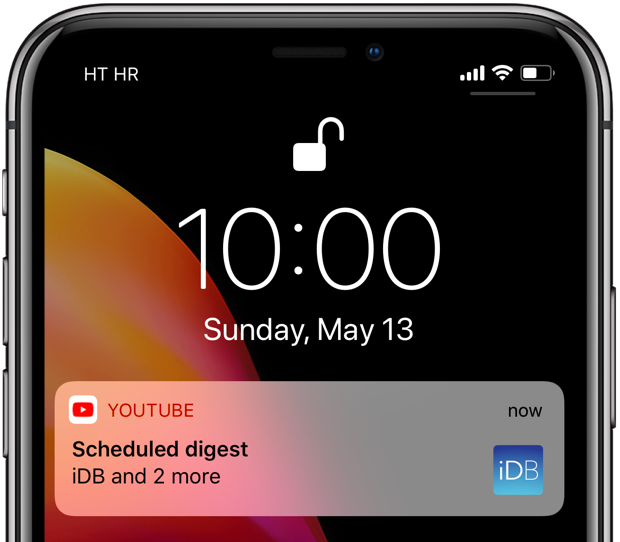
YouTube scheduled digest is a cool feature that will reduce your notification overload.
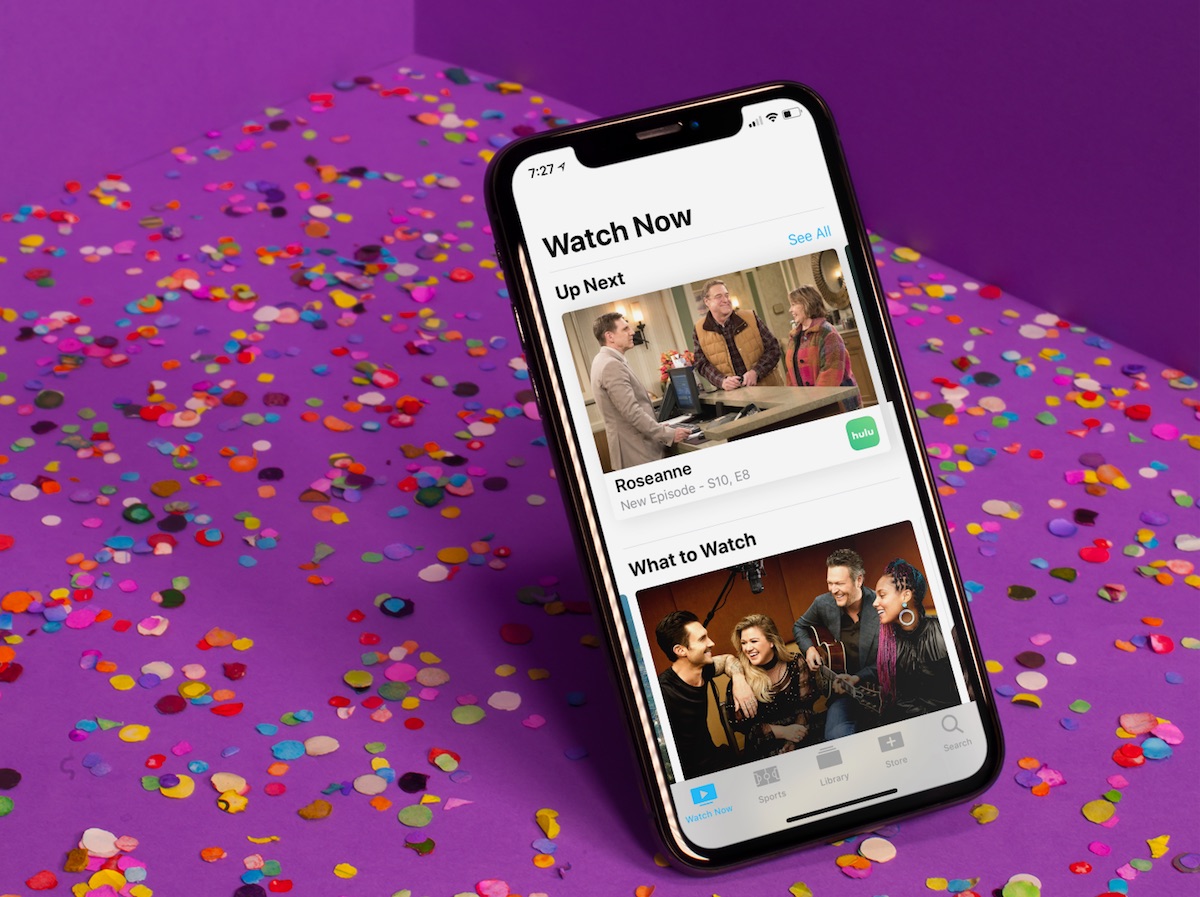
Since it first arrived, the TV app has slowly gained features, making it one of Apple’s most useful and under-appreciated native apps on the two platforms. In this article, you’ll learn how to use the TV app so it can benefit and enhance your television viewing experience.
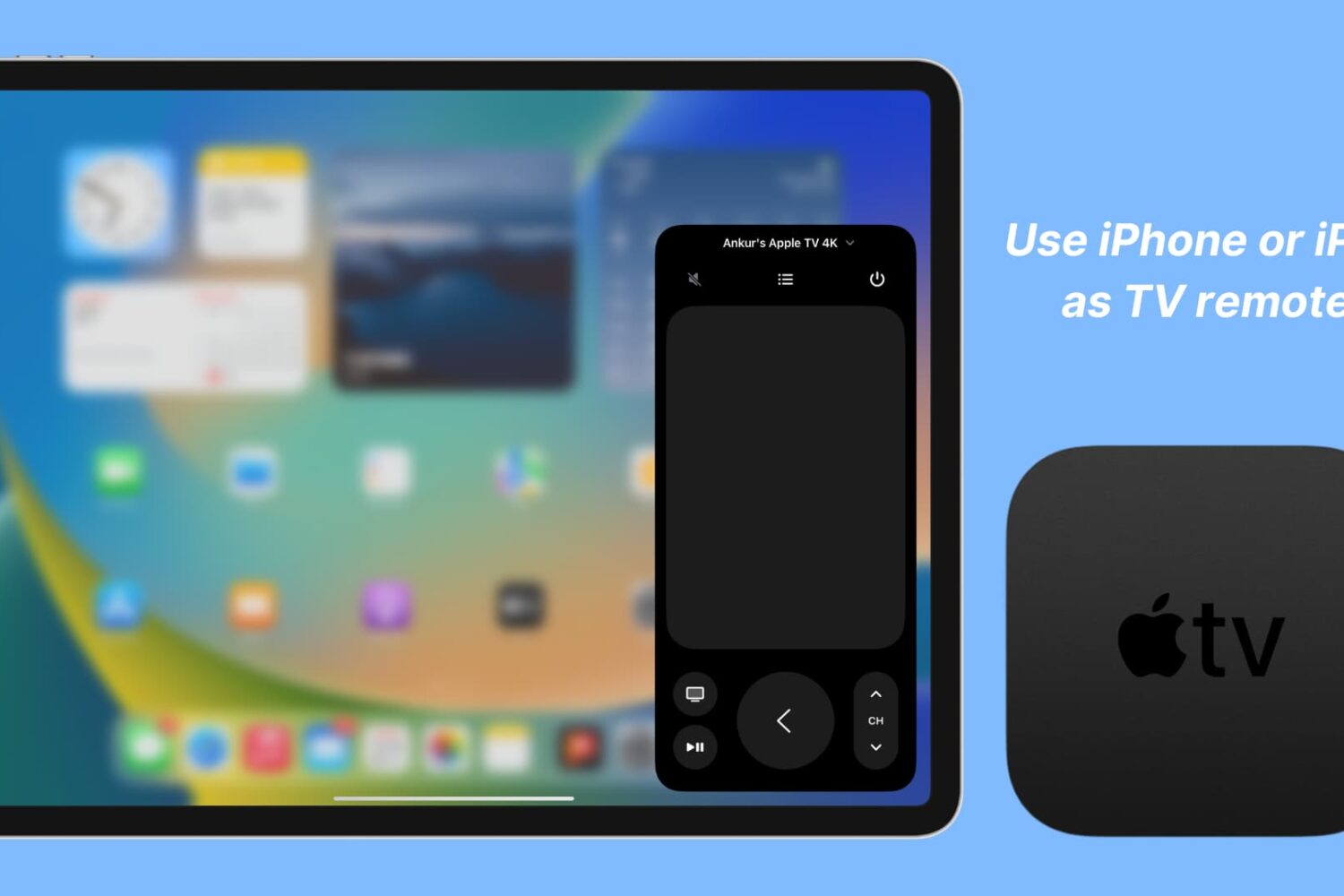
Learn how to set up and use your iPhone or iPad as your Apple TV remote, whether as a backup remote or simply for convenience.
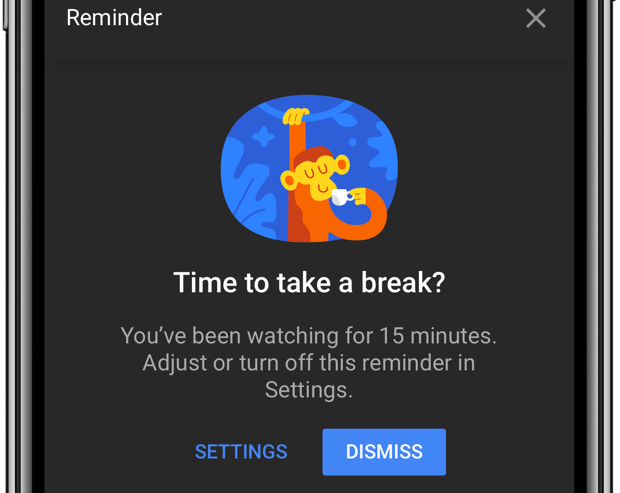
Do you lack self-control? Then you're not surprised that YouTube is a major time-suck.
It's perfectly fine to go down YouTube's rabbit hole every now and then. The world's most-trafficked video site, once a clearinghouse for kitten videos, has become both a cultural phenomenon and a go-to platform for the next-generation of truly innovative video creators.
And with its ever-improving recommendation engine, it’s all too easy to waste precious time on related videos that you didn’t really mean to watch but deemed too interesting to pass on. YouTube's app features custom reminders for when you'd like to take a break from watching.