Learn how to set up and use your iPhone or iPad as your Apple TV remote, whether as a backup remote or simply for convenience.
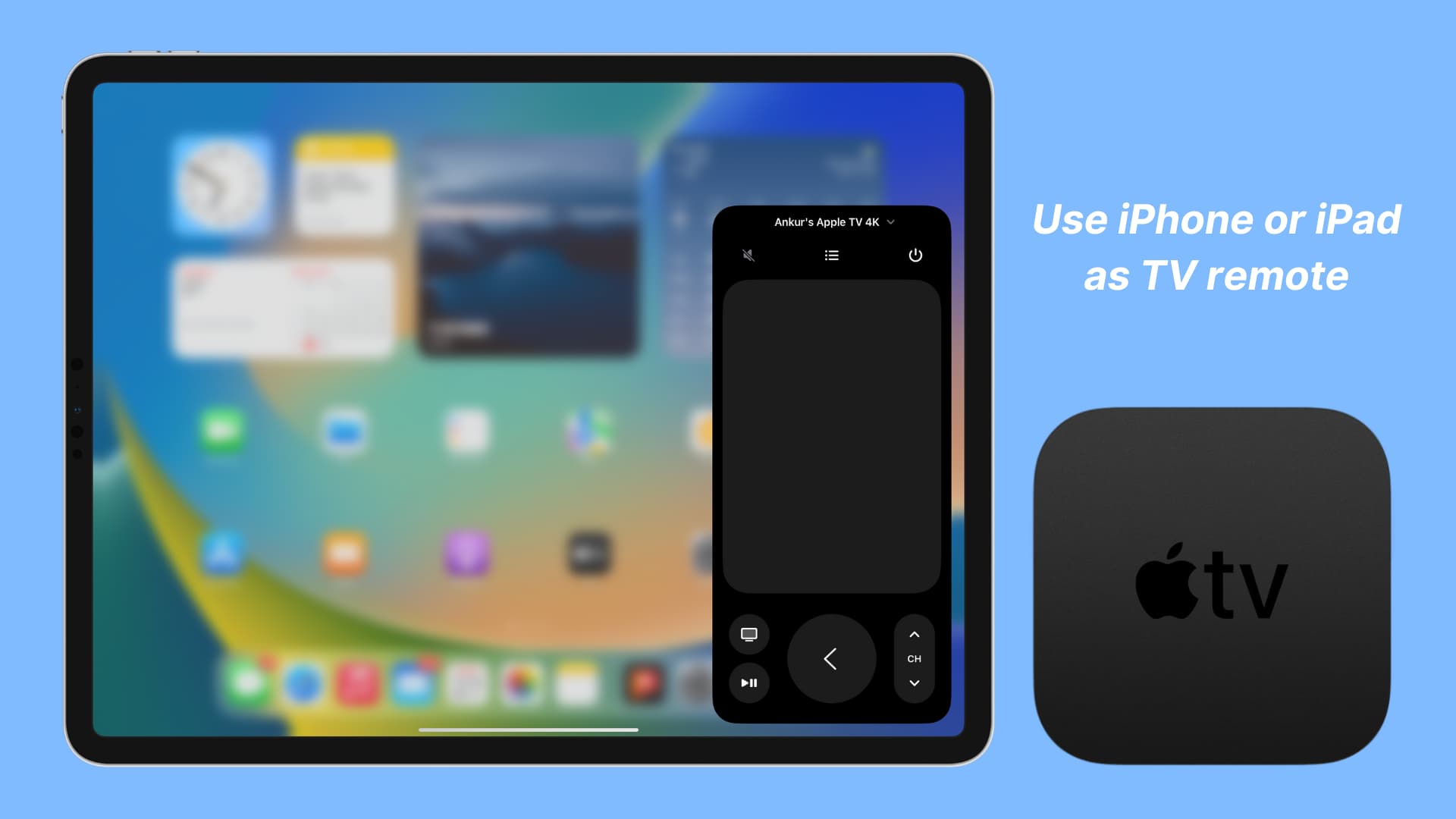
Apple TV owners know the frustration of losing or misplacing their remote. The good news is that with a few simple steps, you can set up your iOS device as an Apple TV remote replacement, so you can easily navigate and control your Apple TV without the physical remote.
Add Apple TV Remote to your iPhone or iPad
If your iPhone or iPad is updated to iOS 27 or iPadOS 27, you’ll find the Remote app in Spotlight Search and App Library. You can drag it from those places and add it to the Home Screen.

Additionally, after you set up your new or erased Apple TV, the Apple TV Remote control is automatically added to your iPhone or iPad Control Center if you used your iOS device during setup to transfer settings, confirm a feature like iCloud Photos sync, or used your iPhone’s virtual keyboard to enter text on your TV.
However, if you or someone with access to your device has removed it from Control Center, you can easily add it back.

Use your iPhone or iPad as Apple TV remote
1) Enable both Wi-Fi and Bluetooth on your iPhone or iPad (but you don’t need to be connected to a Wi-Fi network). However, older TV and iOS versions require your iPhone or iPad to be connected to the same Wi-Fi network as your Apple TV.
2) Open the Remote app or tap the Remote icon in your iPhone or iPad Control Center.

3) You’ll have a big virtual trackpad where you can swipe your finger horizontally or vertically to swipe left or right or up and down. You can also tap to register a click.
Aside from that, you have the most-used buttons like mute, power, menu, back, change channels, play/pause, and more.
And when you’re in the Remote app, pressing your iPhone’s physical volume buttons will change the volume on your Apple TV if some media is playing there. Similarly, pressing and holding the side button should activate Siri on your Apple TV.

Here’s an old illustration from Apple that explains all the controls on the virtual iPhone or iPad Apple TV Remote. But note that the interface is slightly different now, as shown in the screenshot above.
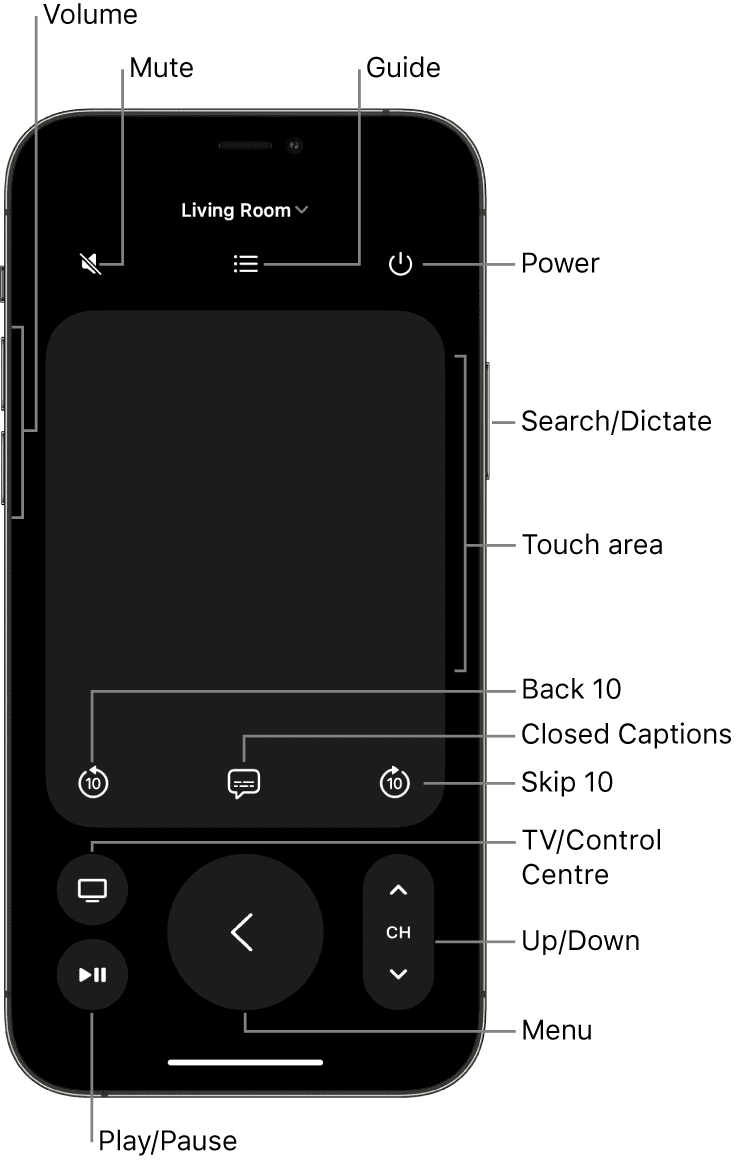
Note: If you have more than one Apple TV, tap the ‘Choose a TV’ or the currently selected TV name at the top of the Remote app interface and pick another TV.
A word about old Apple TV Remote apps
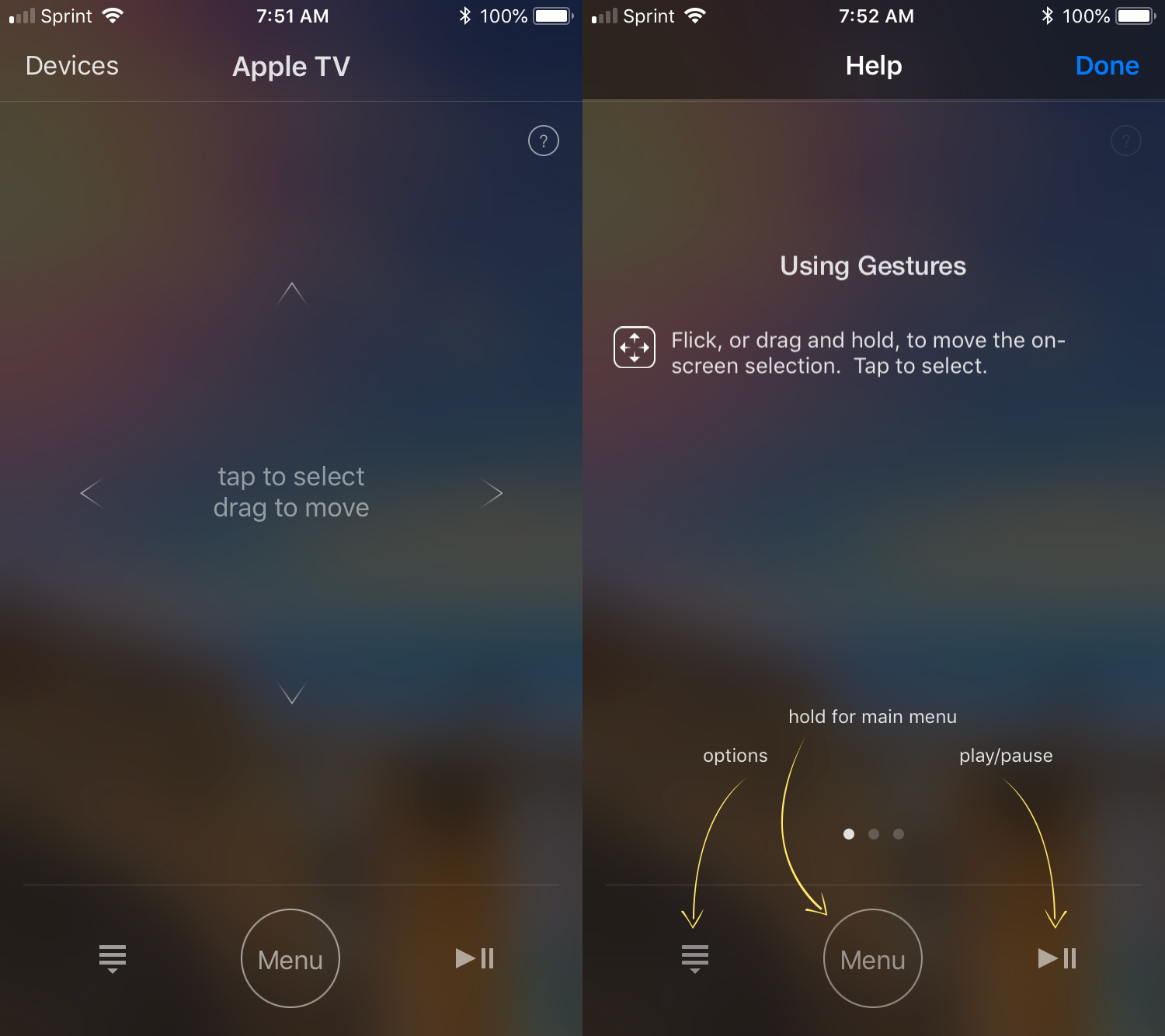
Back in the day, you could download the Apple TV Remote app on your iPhone or iPad and use it to control your Apple TV. This app is no longer available because the features are built directly into iOS and iPadOS. Plus, iOS 27 now ships with the Remote app built in.
Aside from that, back in the day, you could also use the iTunes Remote app as a remote for your Apple TV. Now, though that app is still available, it doesn’t support controlling the Apple TV. You can, however, use it to control Music, TV, and iTunes playback on your Mac.
More on Apple TV: