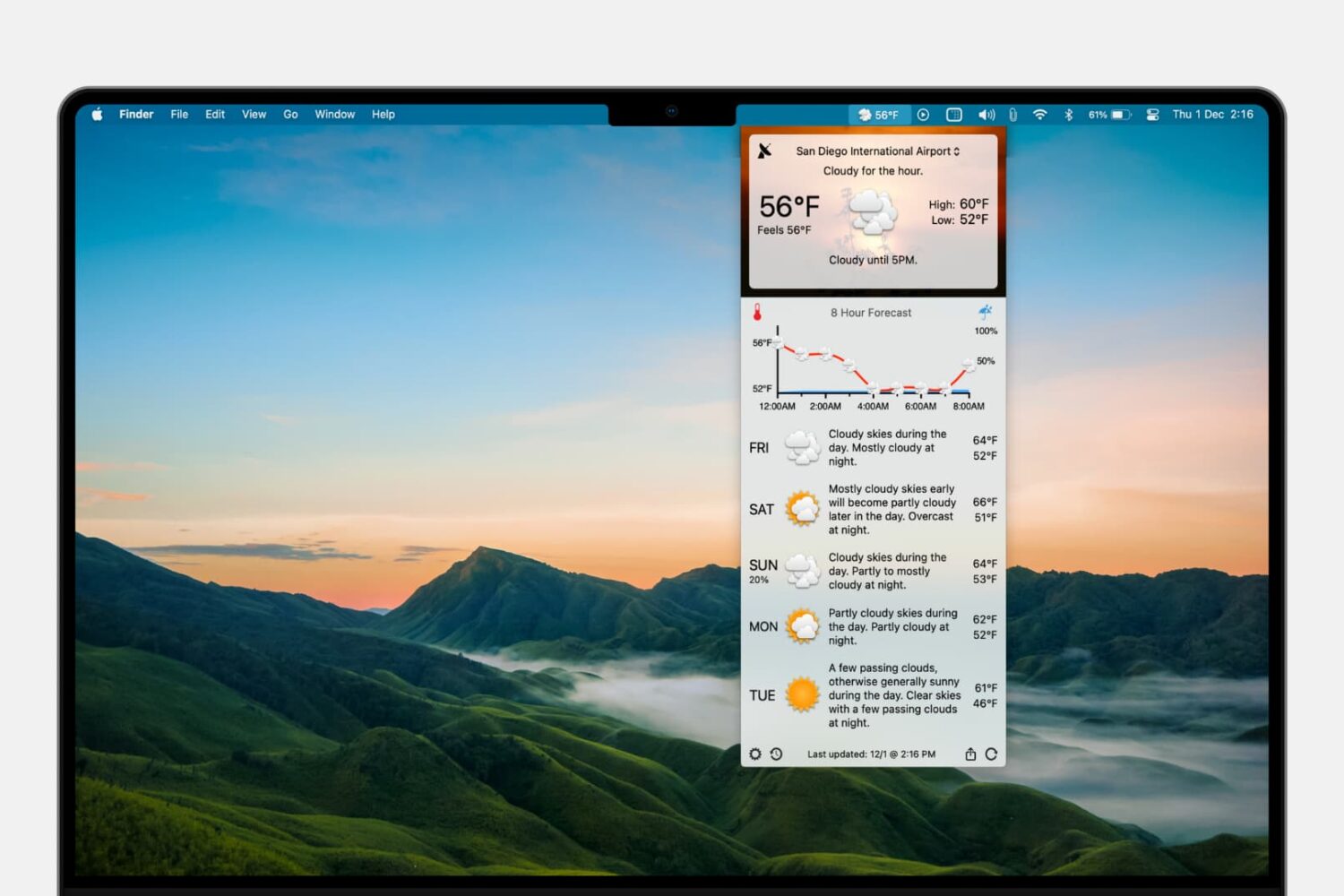
Learn how to put the forecast and current conditions in your Mac menu bar to view them at a glance and save yourself from opening a separate app each time you want to check the weather.
How to add the weather forecast to your Mac menu bar
Learn how to master your Apple devices with our comprehensive tutorials. From iPhone and iPad to Mac, Apple Watch, AirPods, and more, our expert guides will help you unlock the full potential of your Apple products. Discover new features, tips, and tricks each day to enhance your user experience.
Learn how to put the forecast and current conditions in your Mac menu bar to view them at a glance and save yourself from opening a separate app each time you want to check the weather.
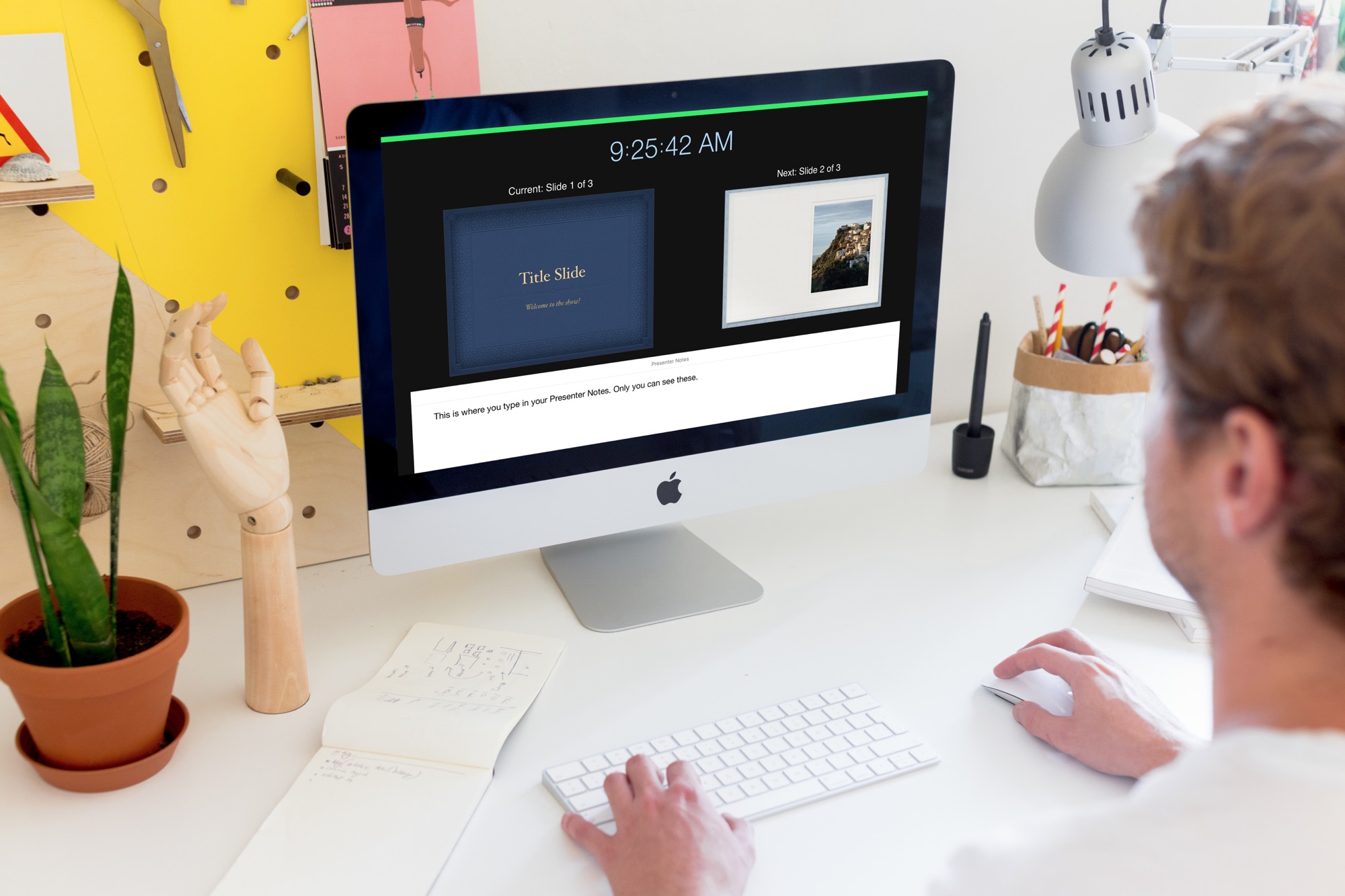
Learn how to create and use Presenter Notes in the Apple Keynote app on Mac, iPad, and iPhone to help you remember what you need to say or emphasize important points during your presentation.

In this tutorial, we’ll go over three easy ways to record your iPhone or iPad screen, with either just the internal audio or both internal and external sounds captured by the microphone.
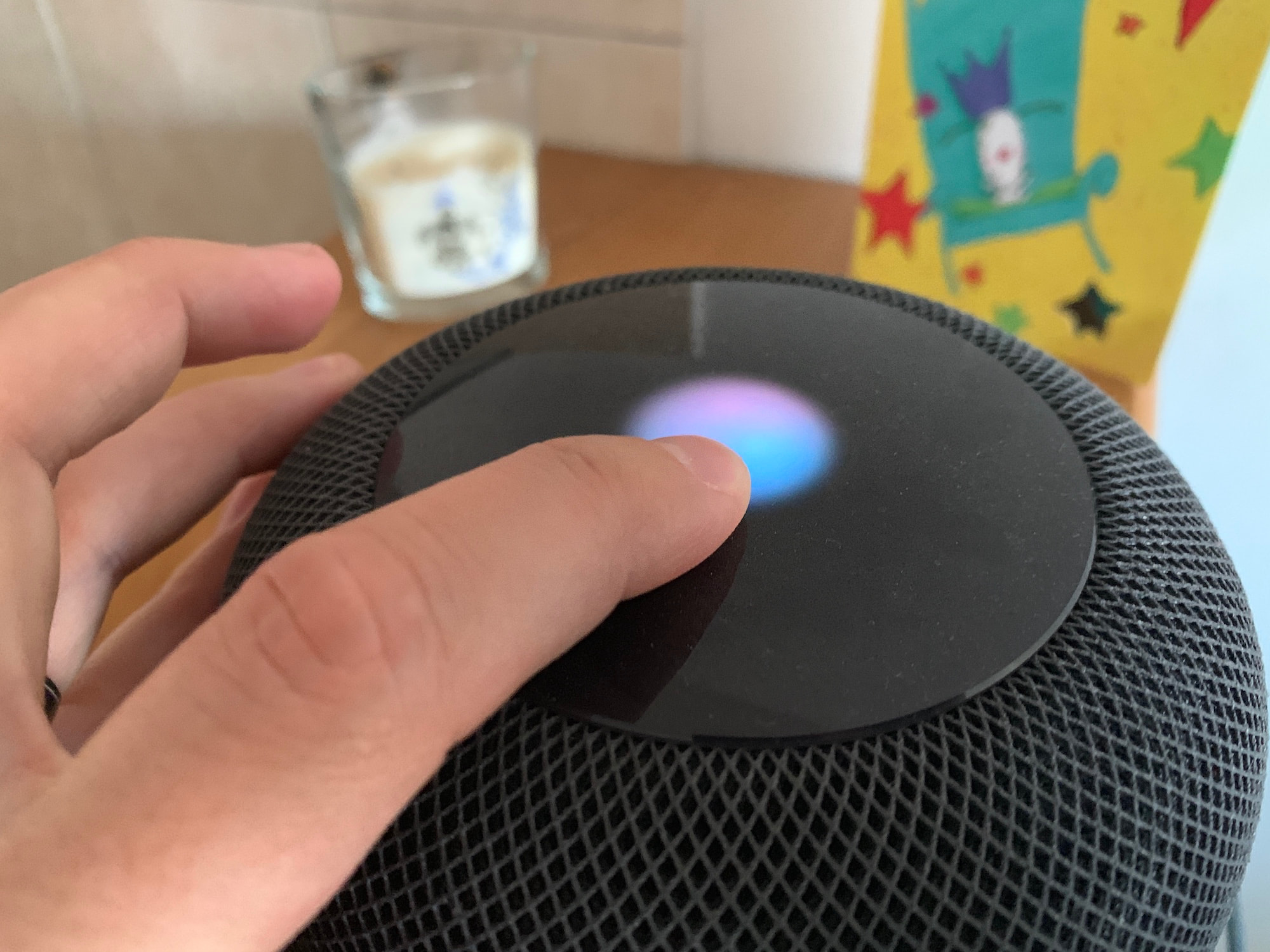
If you have two HomePods that are paired to create a stereo setup, only one of these HomePods will be used to listen to your voice queries. When saying a command such as "Hey Siri, what time is it in London?", only that HomePod will be listening to you although the other HomePod might be physically closer to you.
As far as I can tell, there is no way to manually select what HomePod is the dominant one during the initial pairing process, but there is a way to swap which one will actively listen to you once the stereo pair has been created.
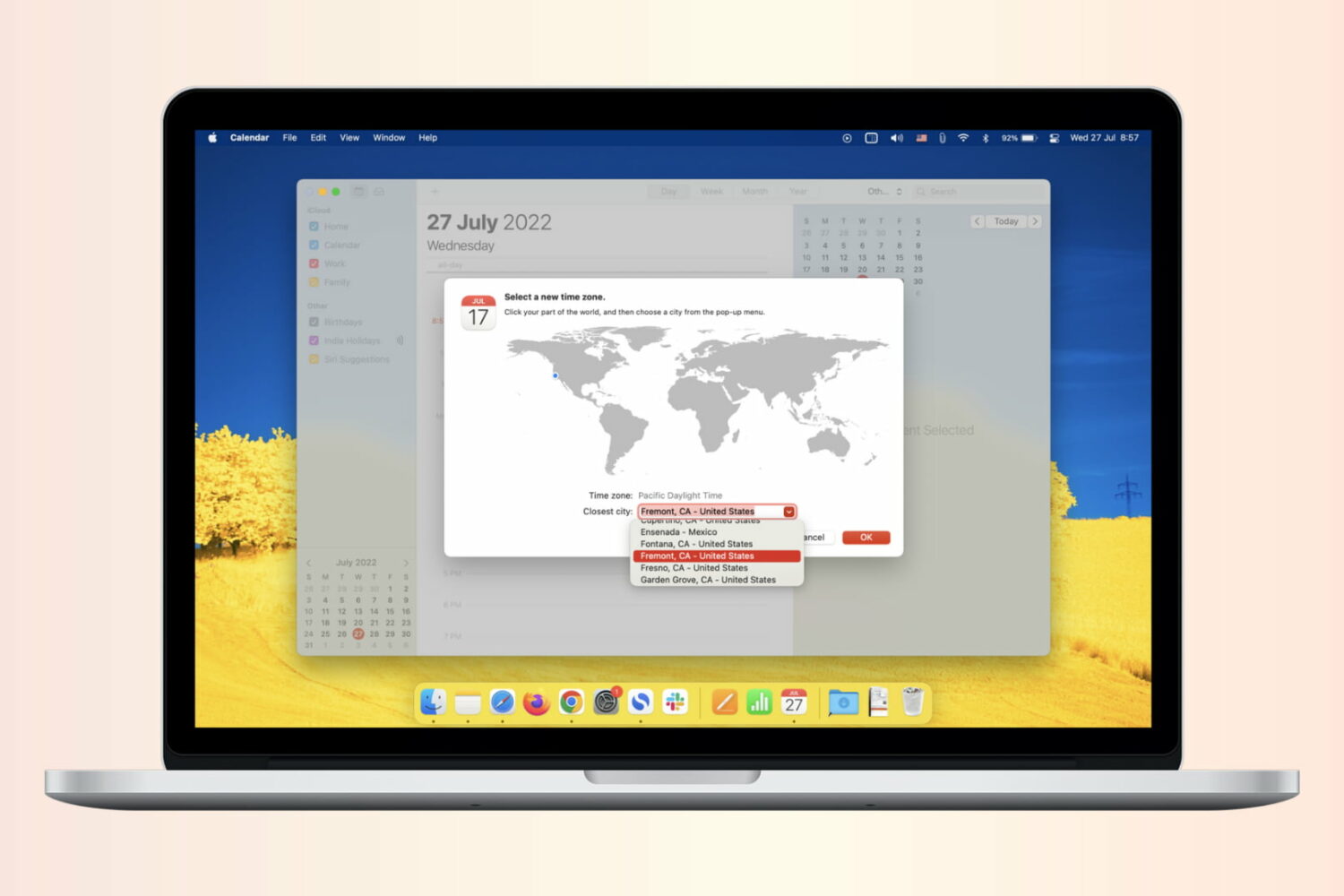
If you work with people in different time zones, scheduling remote meetings can get difficult. You may be in the eastern time zone, with others in the Pacific, European, or Asian time zones. To make this a bit easier, the Calendar app gives you a way to plan for various locations. Here’s how to add and use time zone support for Calendar events.
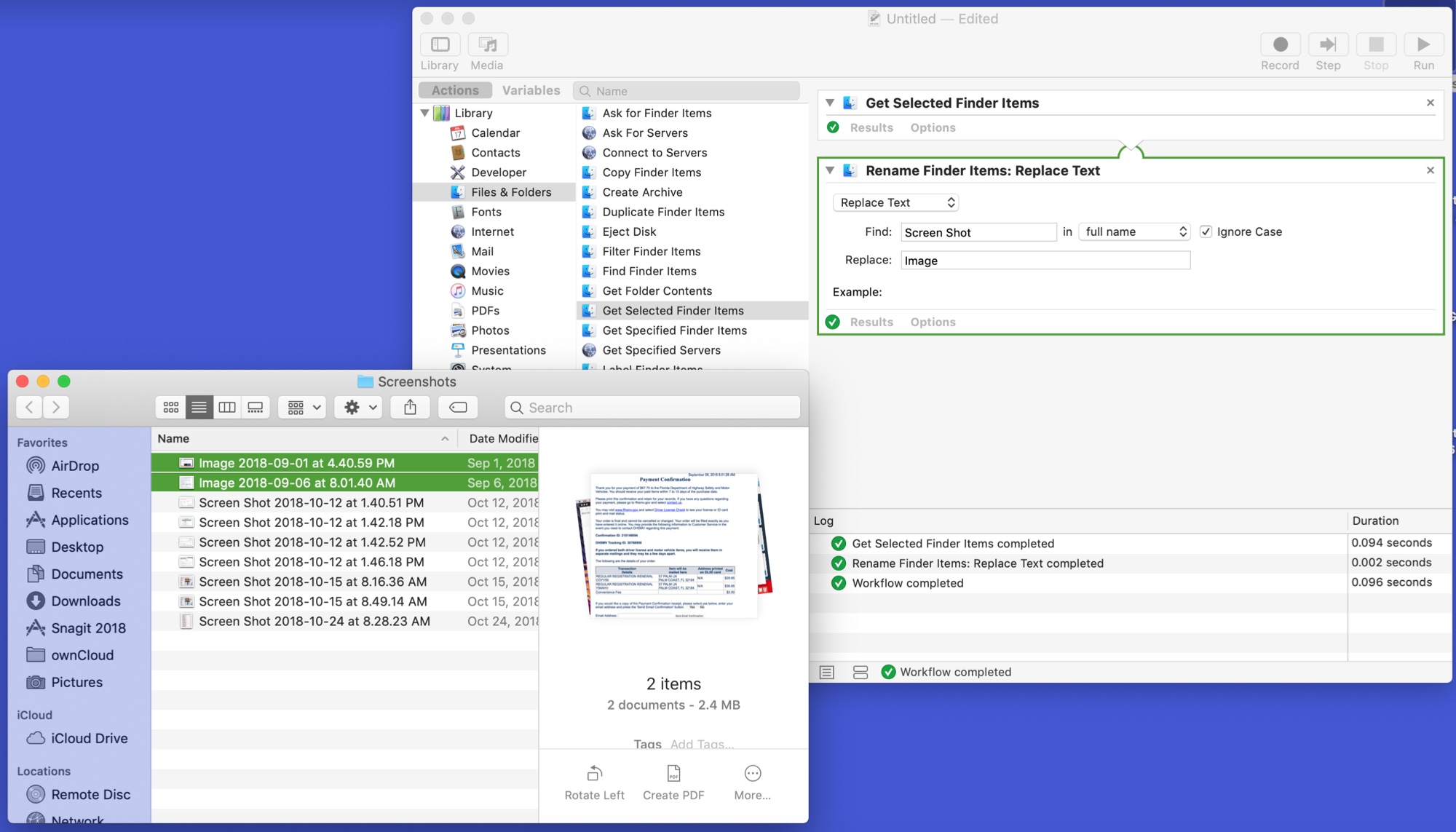
The Automator tool on Mac might be intimidating to some users, but it can be a very handy app. You can create automated workflows, actions, or applications that help you perform tedious tasks. Along with that, there are some tasks you can do with it that are just plain neat.
Here are 10 cool things you can do with Mac Automator.

Some Mac models include the second-generation Apple T2 Security Chip, and in this tutorial, we'll show you how to check if your Mac has this or not.
In this tutorial, we’ll show you how to locate your iPhone’s UDID number to streamline app testing, device registration, troubleshooting, and more.
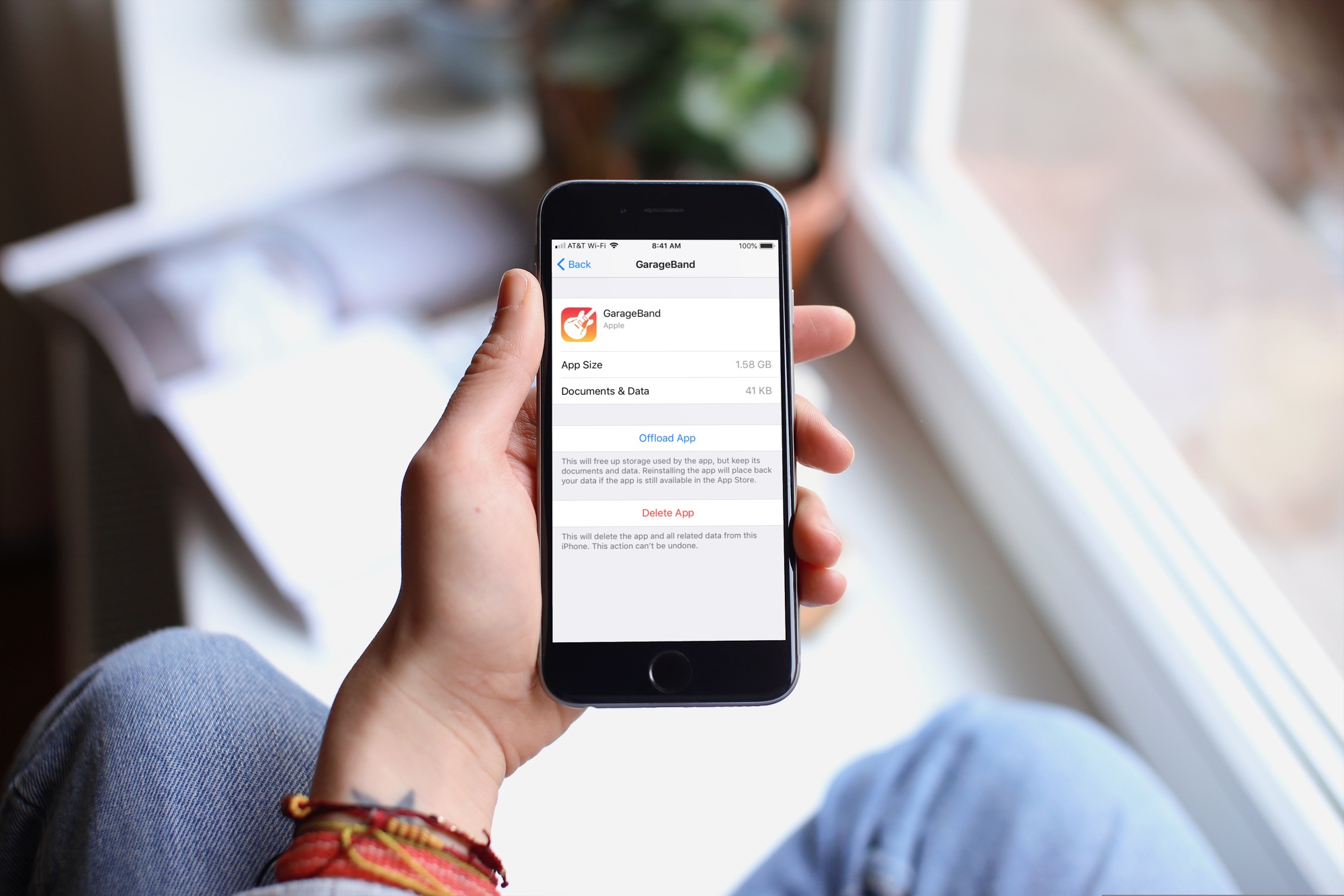
When you get that shiny new iPhone or iPad, you’re going to spend some time getting it just how you want it. One place you’ll likely begin is with the App Store. Whether it’s games or apps that tickle your fancy the most, you’re going to grab them. What comes with downloading the games and apps you want is enough space for them all.
So, why waste space on apps that you will never, ever use when you need it for those you want to use every day? Here’s how to quickly save over 2 GB of storage space on your new iPhone or iPad.

Learn how to merge all windows in Safari for Mac if you'd like to use tabbed browsing in a single window instead and instantly declutter your desktop.
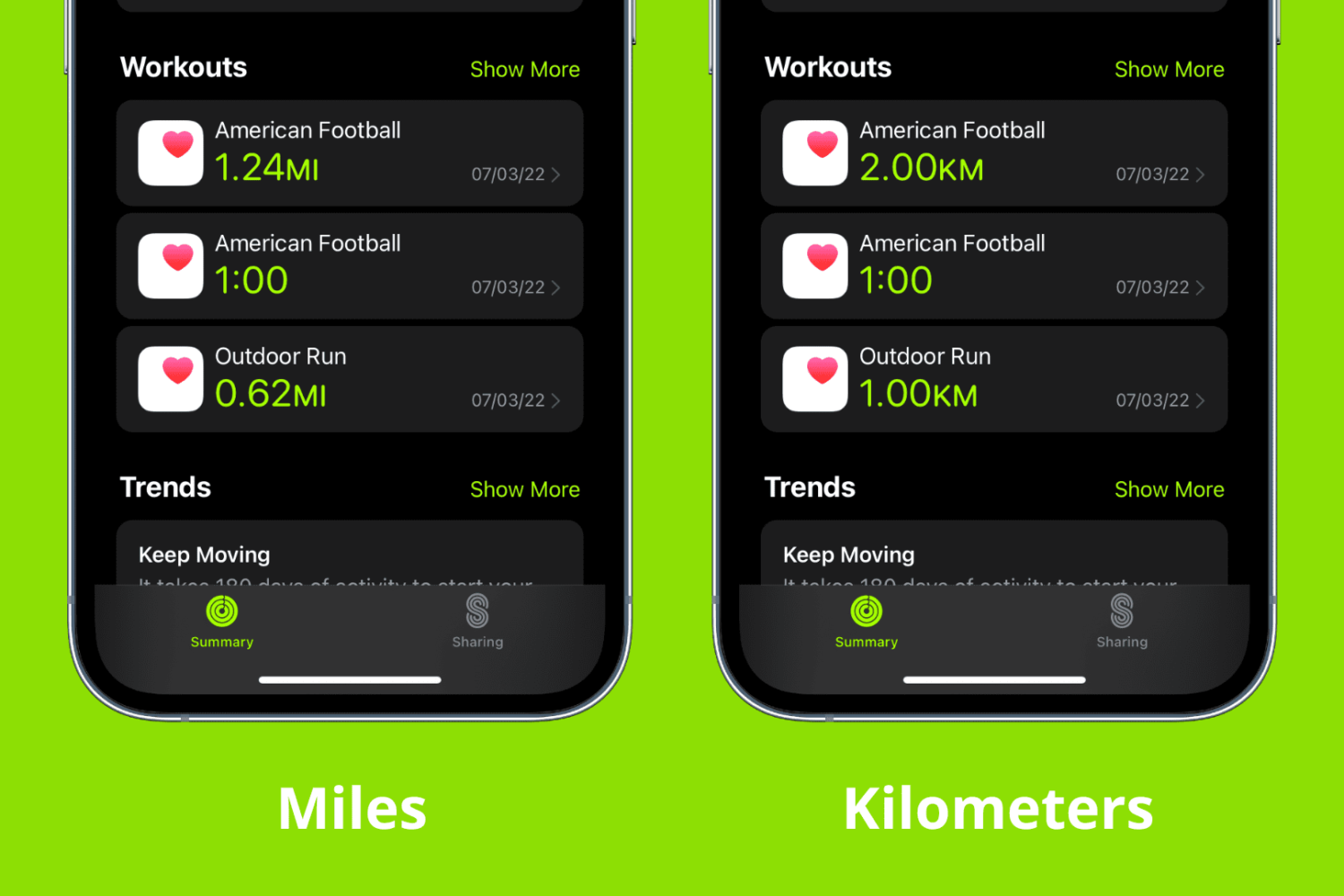
Some simple settings in the Health app can help you better keep track of your activity. For instance, if you prefer to use kilometers instead of miles for tracking your running and walking, you can make this change in just a few taps on your iPhone. The same reflects on your Apple Watch.
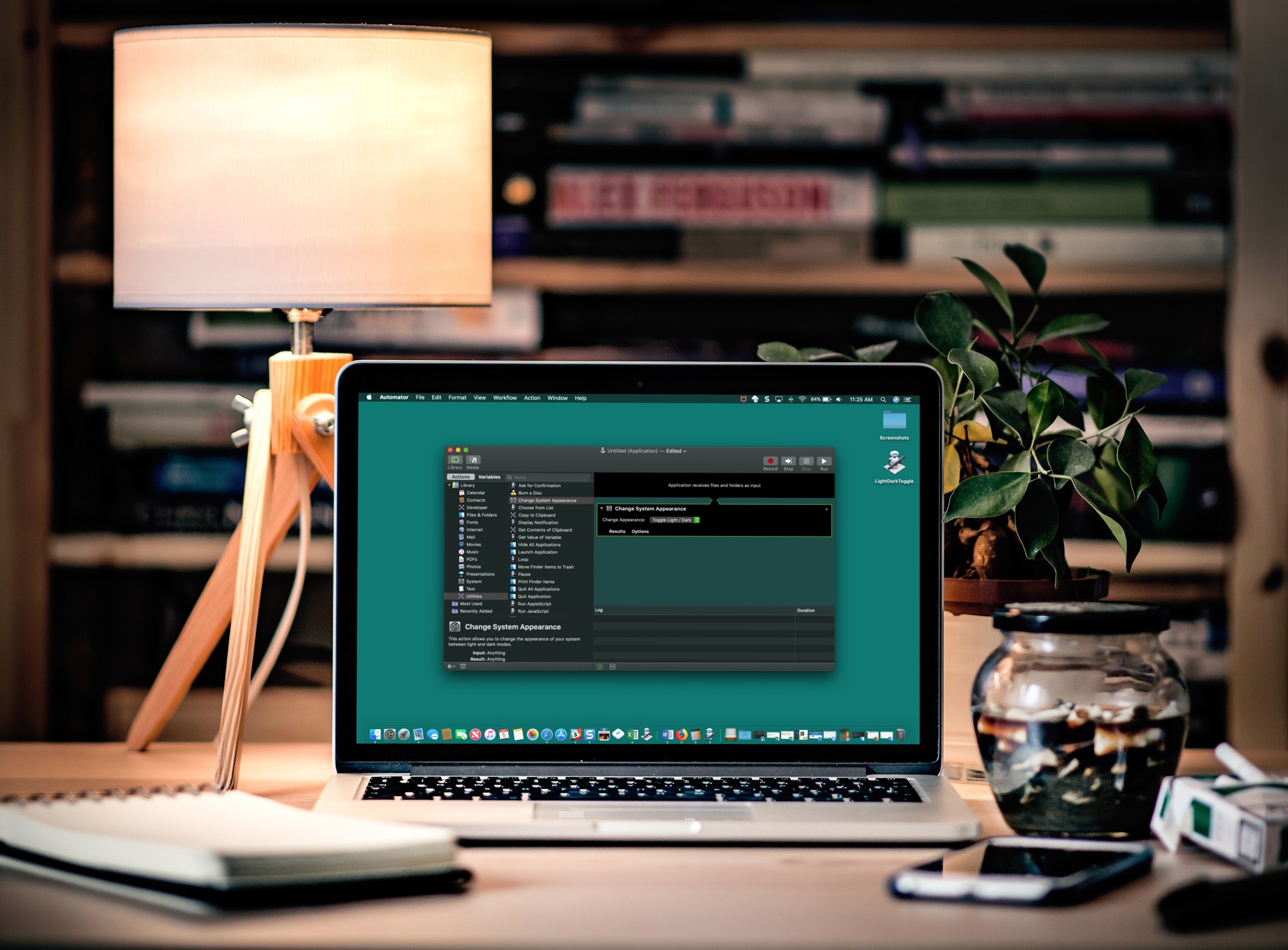
If you like switching back and forth between Light Mode and Dark Mode on your Mac but get tired of going through the process to do so, there’s an easier way.
In just a few minutes, you can create and add a Light/Dark Mode switch to your Mac Dock. It’s super simple, and here’s how.