iPhone

Stay up-to-date on the latest iPhone news and learn new tips and tricks with our comprehensive tutorials. From software updates to new features, we’ve got you covered.

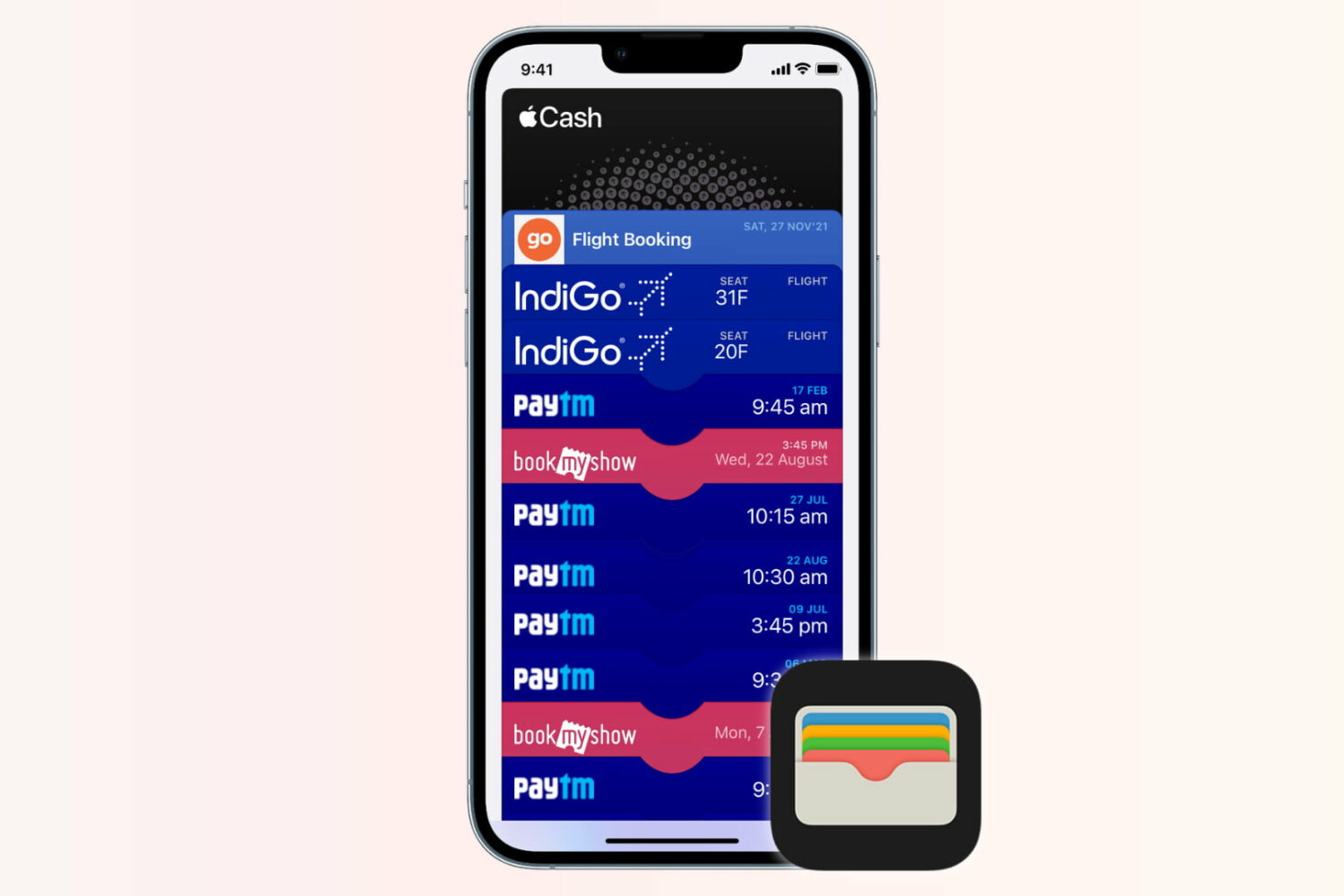
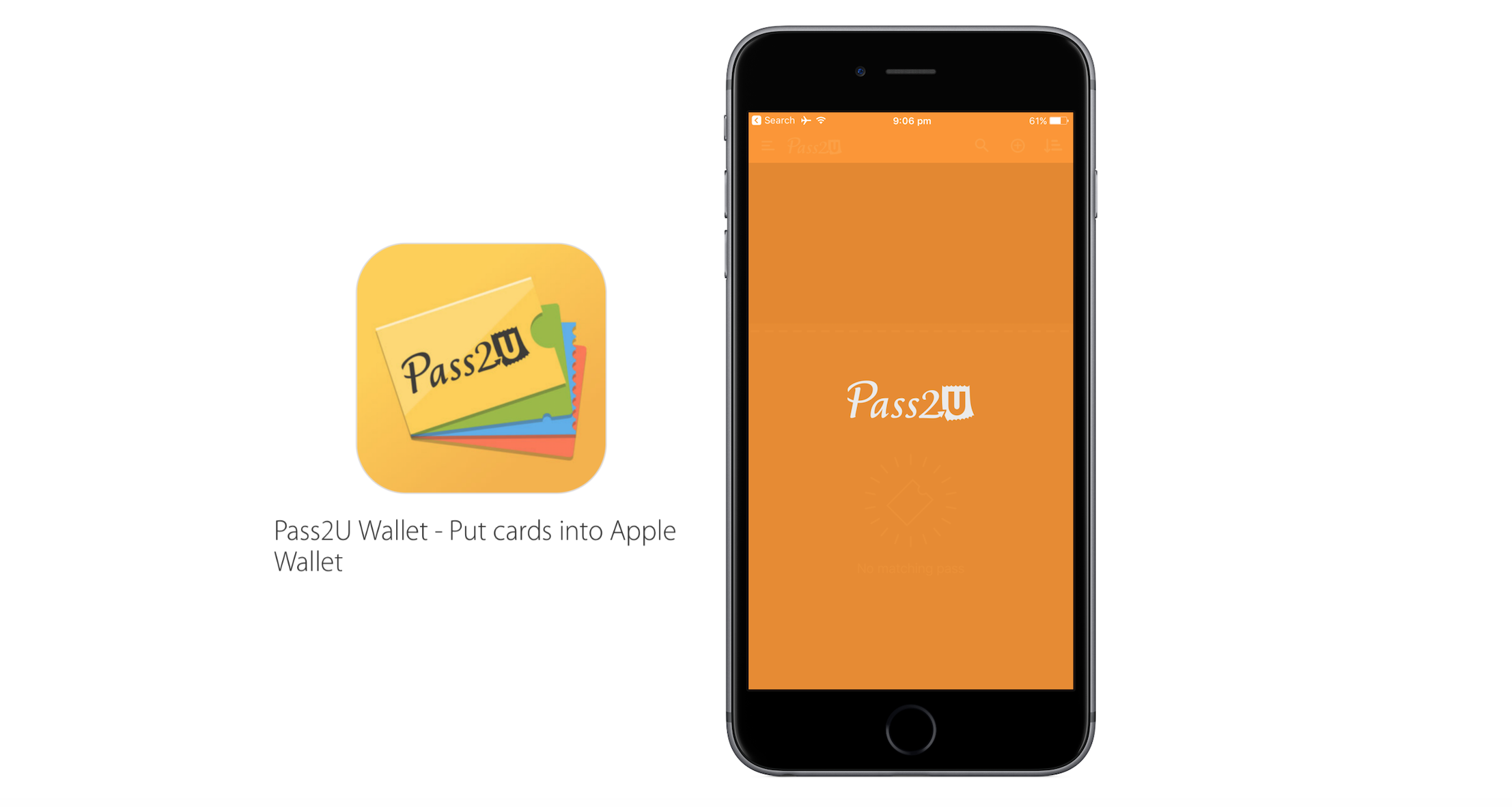
How to convert any barcode into a pass for your Wallet with Pass2U Wallet

Based on the continuous growth of Wallet for ticketing services and Apple Pay, Apple’s bid to render cards and printouts a memory of the past has come a long way. Wallet makes handling and storing any type of ticket considerably simpler, which is why it is easy to get irritated today when presented with no other delivery option but an old-school paper pass. Thankfully Apple and other retailers are increasingly swinging towards the digital platform, but there are still countless cases where you just cannot add a ticket or voucher to your Wallet - even though it would make life so much easier.

Pass2U Wallet, a free app for iOS, taps into that need and conveniently bridges the gap. Just like Wallet itself it offers to scan hard copy barcodes in order to convert them to Wallet passes, however contrary to Apple’s Wallet it will practically work with any piece of paper imaginable. As such, Pass2U Wallet complements and enriches the stock Wallet app nicely, making sure you will be able to add anything you like to your iPhone’s Wallet. Find out more about the app in our review below.


How to read and write messages in landscape orientation on iOS 10

Apple's much improved, expressive Messages app is one of the hallmark new features of iOS 10. We've noticed that some people have been wondering if Apple has removed the message compose in landscape mode from Messages on iOS 10.

In iOS 9 and earlier, turning the device upside down allowed you to read and write messages in widescreen mode. On iOS 10, Messages defaults to showing a dedicated interface for handwritten messages in landscape orientation.

Thankfully, iOS 10 still supports reading and composing messages in landscape orientation with a tap of a special button, let us show you how.

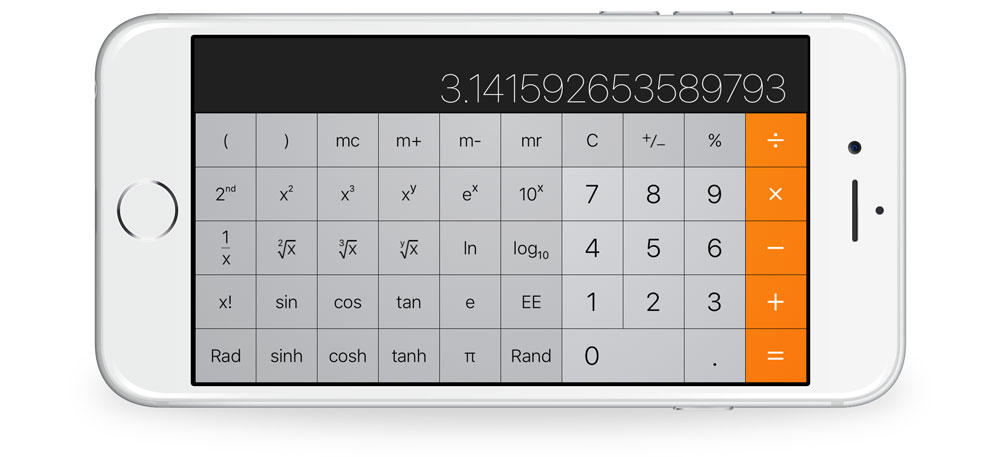
Know the Calculator app in iOS 10

Apple’s Calculator app is one of those stock offerings largely flying under the radar for its soberness. It is somewhat overlooked, but then again can be a lifesaver at times. For those who need to crunch numbers on a more regular basis it is presumably nothing but an emergency fill-in, when for the rest of us it definitely more than cuts the mustard for everyday computations.

On the back of such a broad user base with varying skill sets, it goes without saying that there is a large discrepancy in expertise and knowledge about the calculator app itself.

The fact you can still elicit the occasional gasp from an unknowing iPhone user, just by rotating the interface to landscape mode says a lot about the relevance of calculator to many. Yes, it is mostly a plain calculator representation, but Apple did implement more knacks than first meet the eye. Novice or professional, if you are keen to boost your productivity in calculator, continue reading to find out if you are up to speed on the following tricks:

How to share Wallet passes

You volunteered to book event tickets on behalf of a group, and just when your finger is hovering over the eTicket delivery method, you notice you don't have everyone's digits to send the tickets out to their iPhones. Or you do, but a group member has no local number since they're visiting from overseas?

Fret not, because neither of those two scenarios is going to keep you from handing out the passes to your friends' devices. All you need to know for it to come off is a little trick that helps share them conveniently from your own Wallet app.

How to fine-tune the skip and replay intervals for audiobooks in Books

If you consider yourself a fan of the spoken word and bank on Apple’s own Books service to listen to your favorite books, you might have been frustrated by some of the app’s design choices before. Especially when it comes to manipulating the play time of your audiobook on the fly, be it on your Lock screen, in Control Center or on Apple Watch, the experience can be inconsistent and altogether suboptimal at times.

What all those interfaces have in common however is a nimble skip forward and skip back button, both of which are pegged at a pretty arbitrary plus and minus 15 seconds per touch.

This brief tutorial is going to remind you of a trick to customise those buttons and better fit them to your skipping habits by shortening or prolonging the time jumps. After all, what’s the use of 15 second skip intervals in the middle of a J. R. R. Tolkien marathon?