When you set up your device for the first time, you’re asked to register one fingerprint with Touch ID. But you can add more at any time, and in this tutorial, we will show you how to do that.
Having multiple fingers assigned to Touch ID can be helpful in a number of scenarios, including when you have one hand dirty and want to use the other, or when you’re holding your device a certain way and need to use one of your fingers instead of your thumb.
Personally, I like to assign both thumbs and both index fingers so that I can ambidextrously use my iPhone in any situation I might be in, but you can use any combination of fingers or thumbprints you’d like to use, depending on your own situation.
You can have a total of five fingerprints on an iPhone or iPad. On Mac, it’s limited to three.
Here are the steps to add additional fingers to Touch ID.
On Mac
- Open System Settings on your MacBook Air or MacBook Pro. If you’re on a Mac desktop, make sure you’ve paired Apple’s Magic Keyboard with Touch ID.
- Click Touch ID & Password.
- Click Add Fingerprint.
- Type your Mac’s password and click Unlock.
- Place your finger repeatedly on the Touch ID fingerprint sensor until the visualizer fills, and click Done.

On iPad or iPhone
- Open the Settings app, tap Touch ID & Passcode, and enter your iPhone passcode to go inside.
- Tap the Add a Fingerprint button.
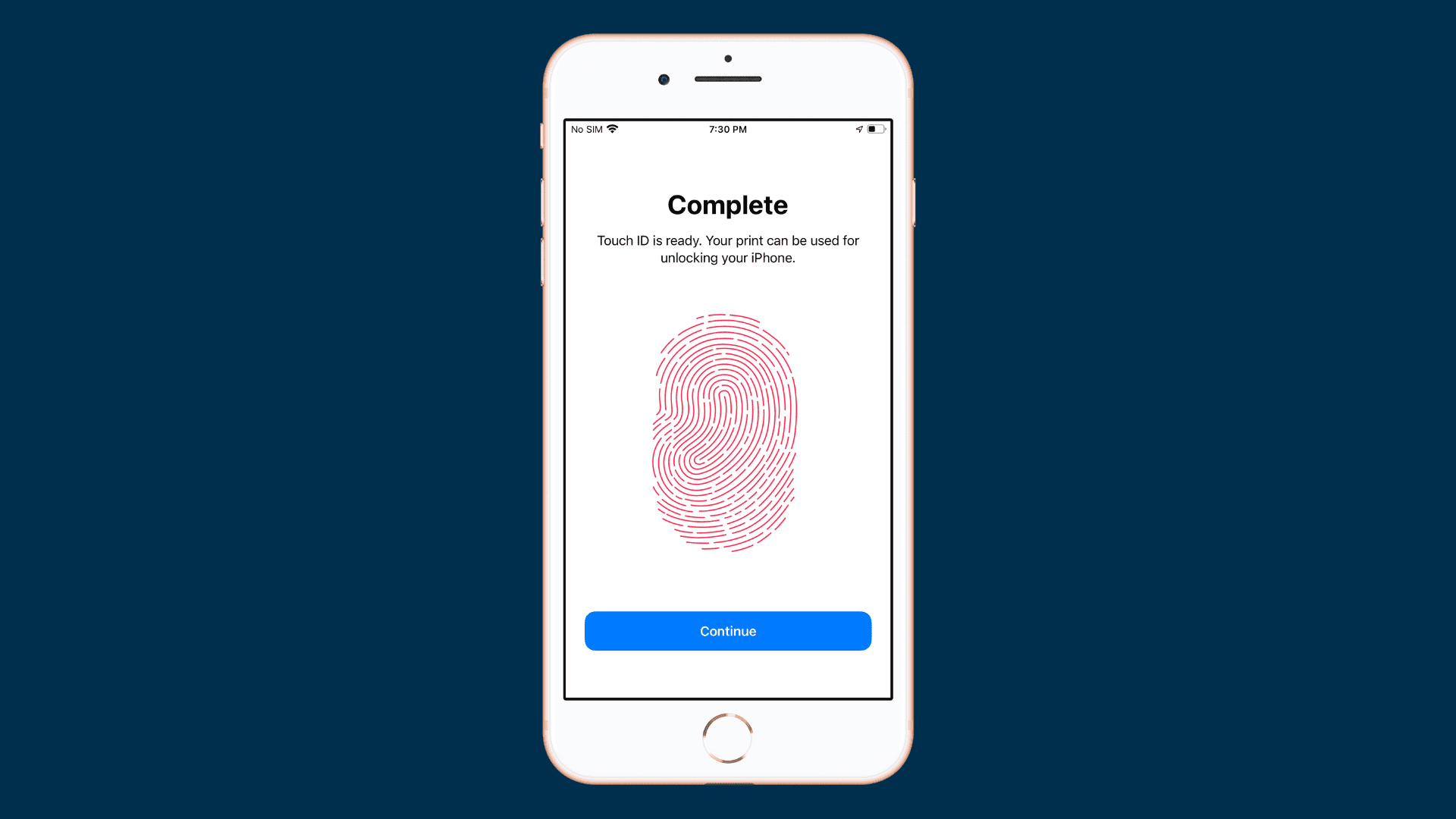
- When your device asks you to, place the finger you want to authenticate with on the Touch ID sensor. Place it on the sensor and lift it up repeatedly until the fingerprint on the screen fills red entirely. Once your iPhone asks you to adjust your grip, tap the Continue button.
- When prompted, place the edge of your finger on the Touch ID sensor. Get all of the edges of your finger read by the Touch ID sensor by placing it and lifting it up repeatedly until the fingerprint on your screen fills red completely. After your device says it’s complete, tap the blue Continue button.
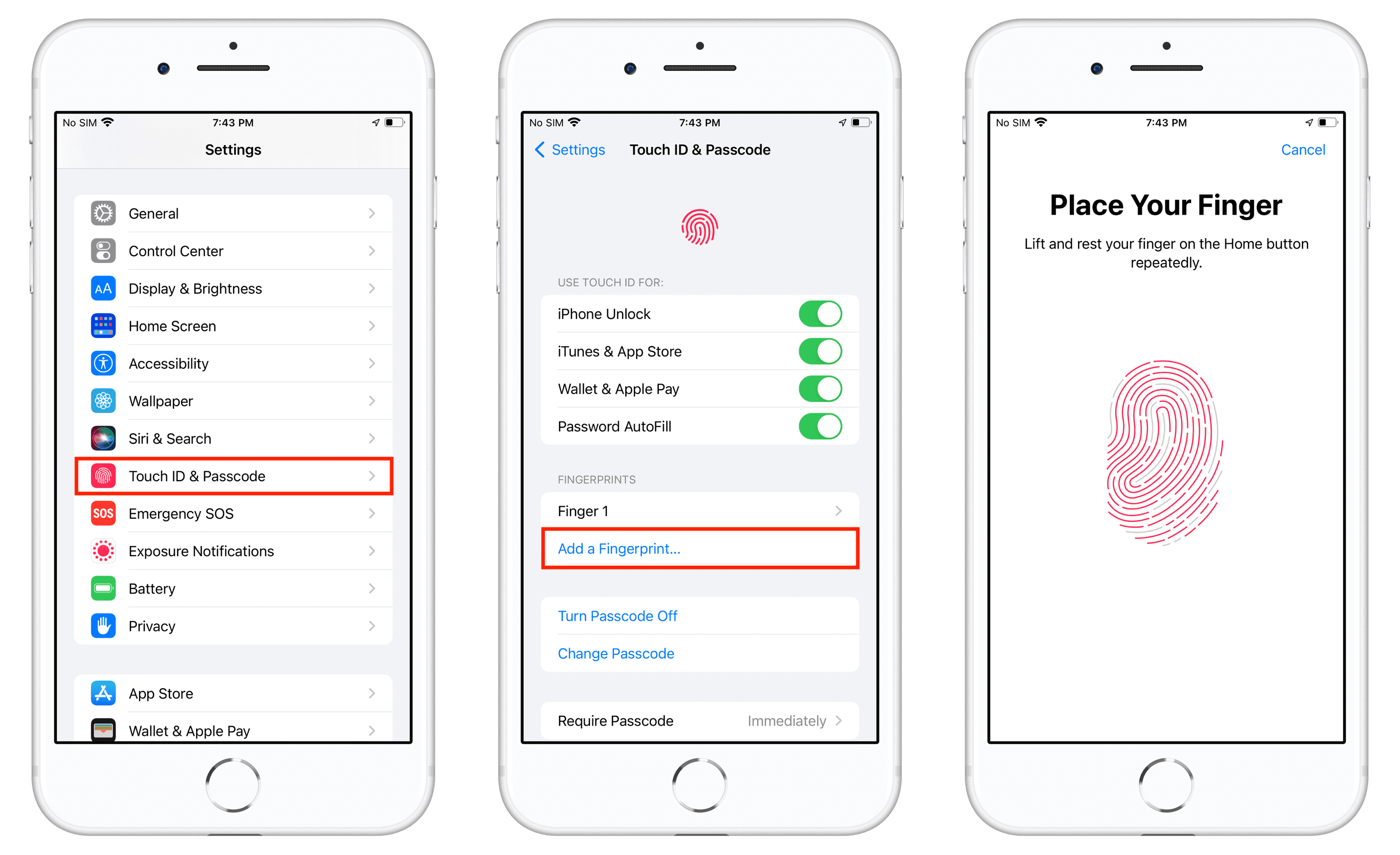
Congratulations, you’ve just added a new finger to Touch ID! To add more fingers to your device’s Touch ID fingerprint database, repeat the above steps with another finger.
On a related note: