Learn how to minimize unwanted noises like wind or rain in your videos by using the “Reduce Background Noise” feature in iMovie to enhance the audio quality of your video projects.
How to reduce background noise in iMovie
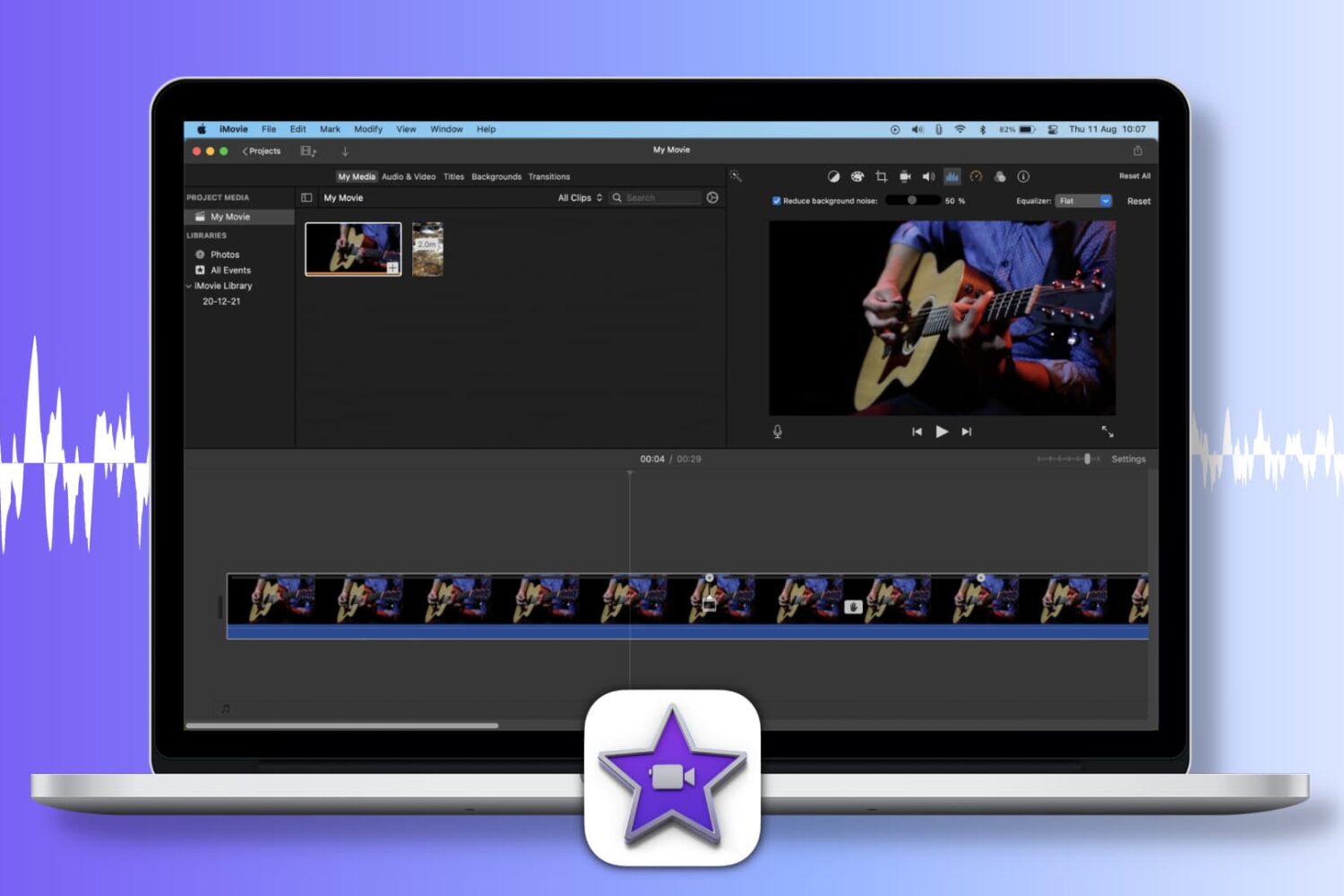
Learn how to minimize unwanted noises like wind or rain in your videos by using the “Reduce Background Noise” feature in iMovie to enhance the audio quality of your video projects.
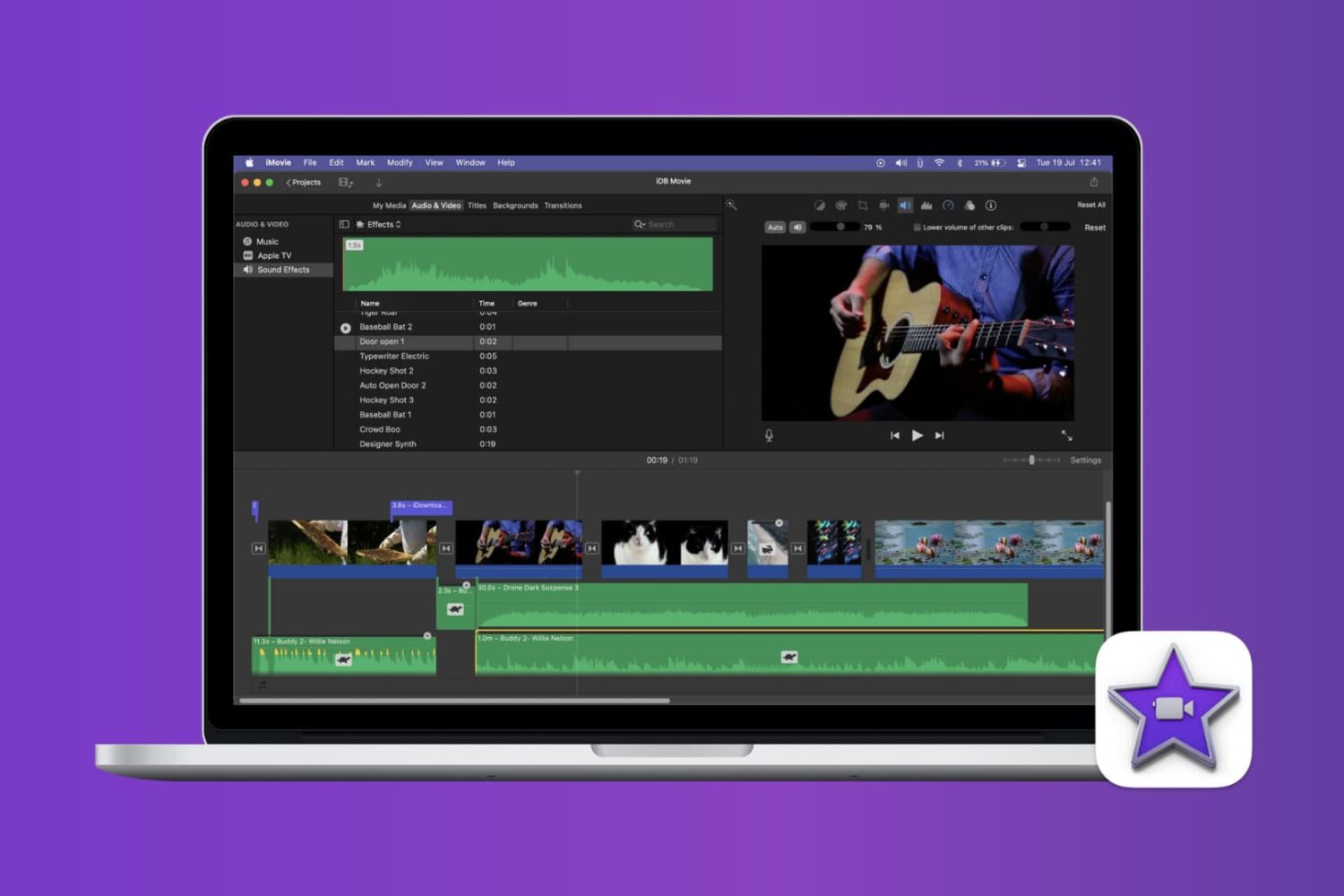
Find out how to mute or bleep explicit words in your iMovie videos on Mac to keep your content clean and professional.
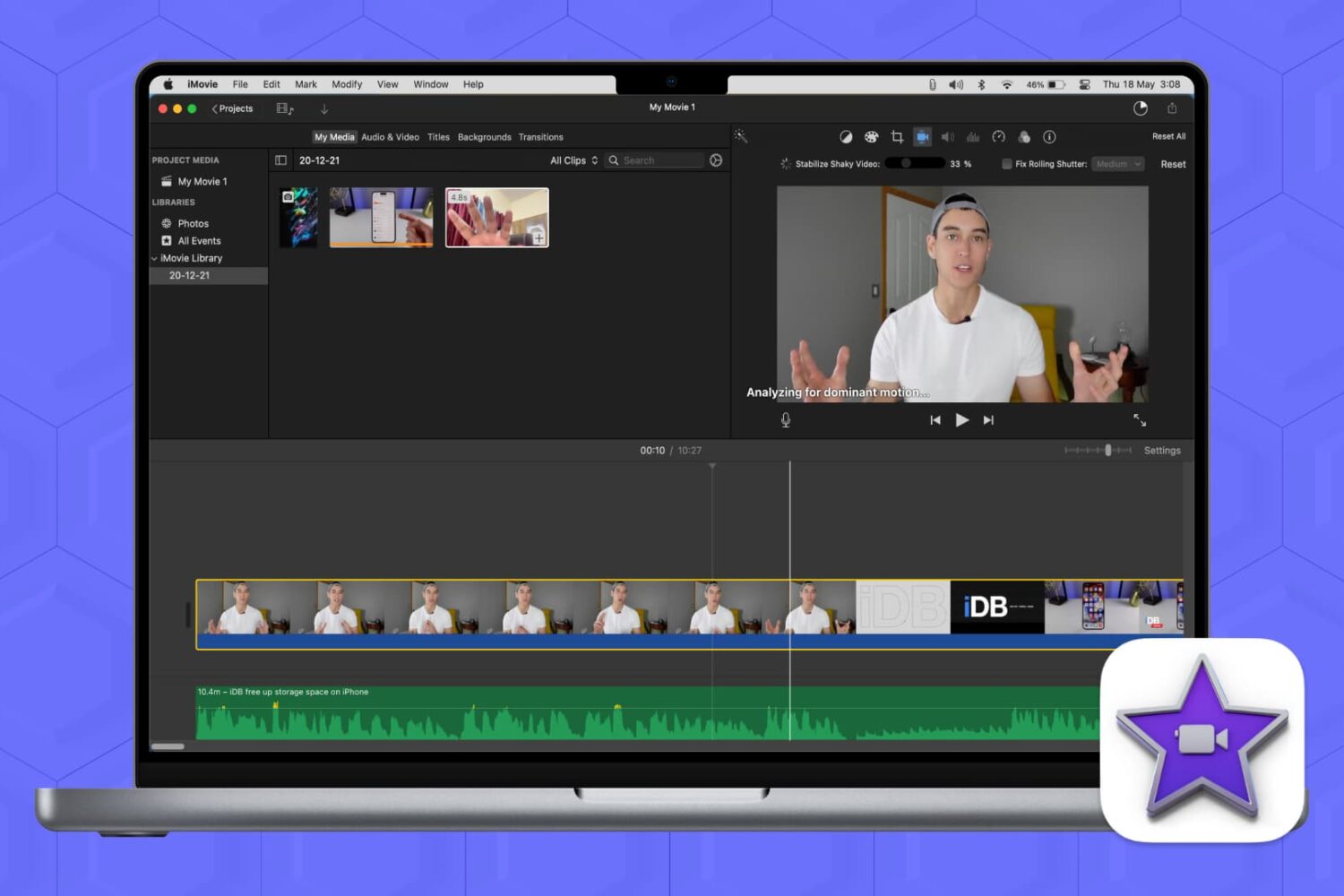
Shaky footage or rolling shutter effects can ruin an otherwise great video. But don’t fret, because we’ll show you how to fix shaky video and correct rolling shutter issues in iMovie on Mac so you can transform that jittery footage into a smooth and professional-looking video in no time.
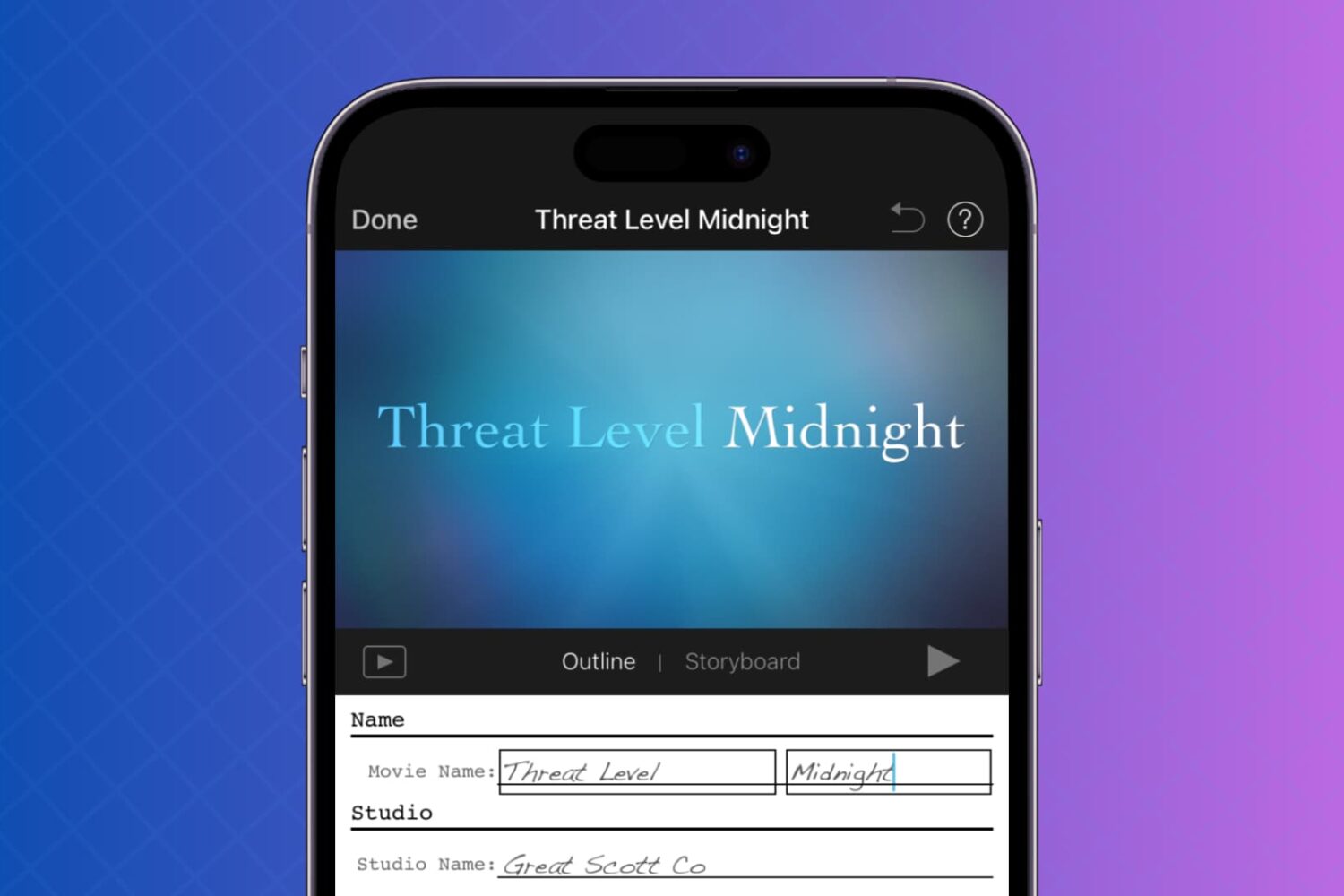
This tutorial will show you how to use your photos and videos to make trailers in iMovie on Mac, iPad, and iPhone.

One cool movie idea that you can create in iMovie is for your travels. You can include photos or videos from a vacation, honeymoon, or road trip adventure. And to go along with this nifty project, iMovie offers animated map backgrounds.
With these backgrounds, you can show the moving route for your trip on a map in your movie. This can add something a little extra to your already memorable trip and movie.
Here’s how to add and adjust the animated travel map backgrounds in iMovie on Mac.
Find out how to record a video or take a photo directly in iMovie, streamlining your video-creating process on iPhone, iPad, and Mac for easier and quicker results.
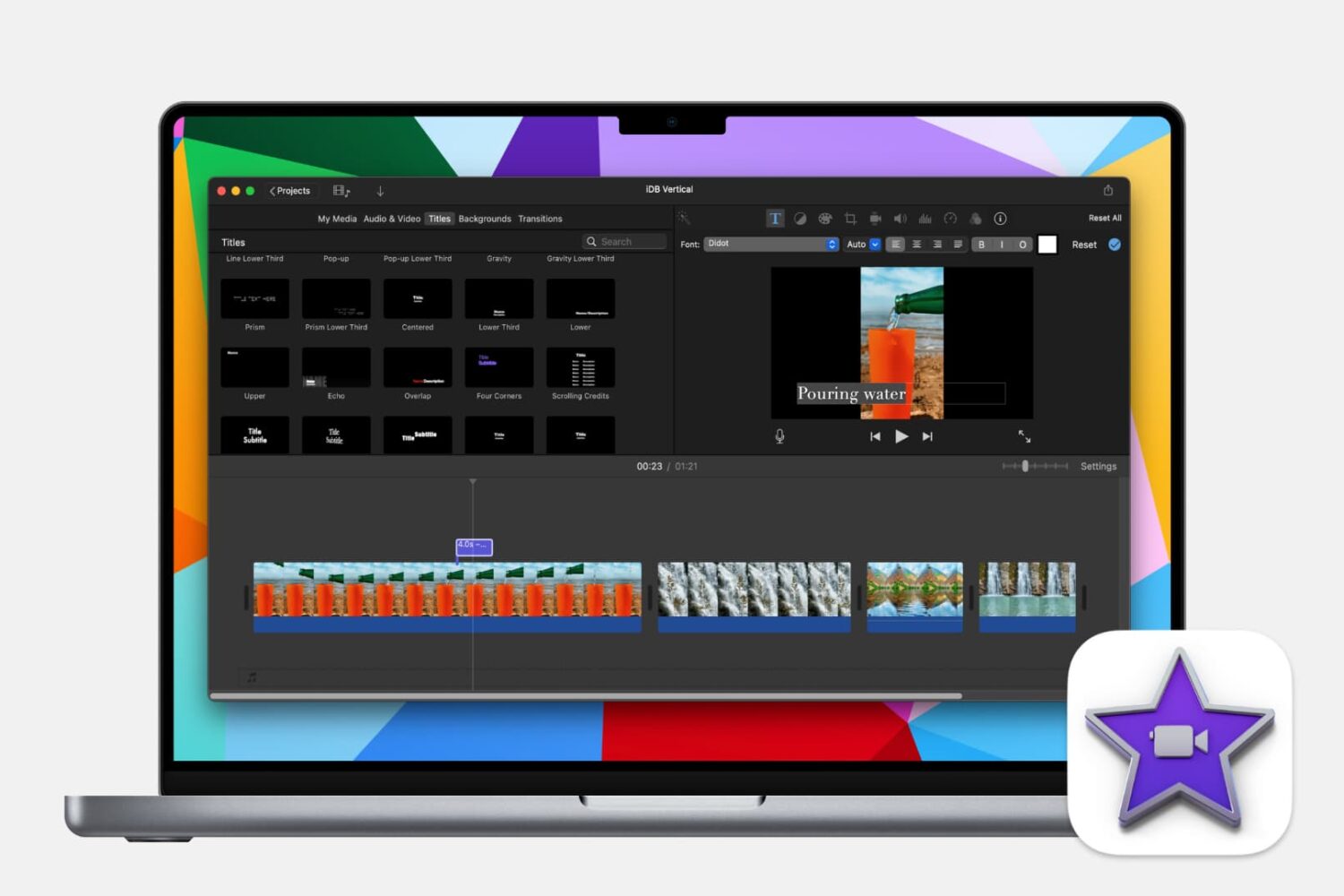
Learn how to make your iMovie creations more accessible by adding subtitles or captions to your videos with this step-by-step guide.
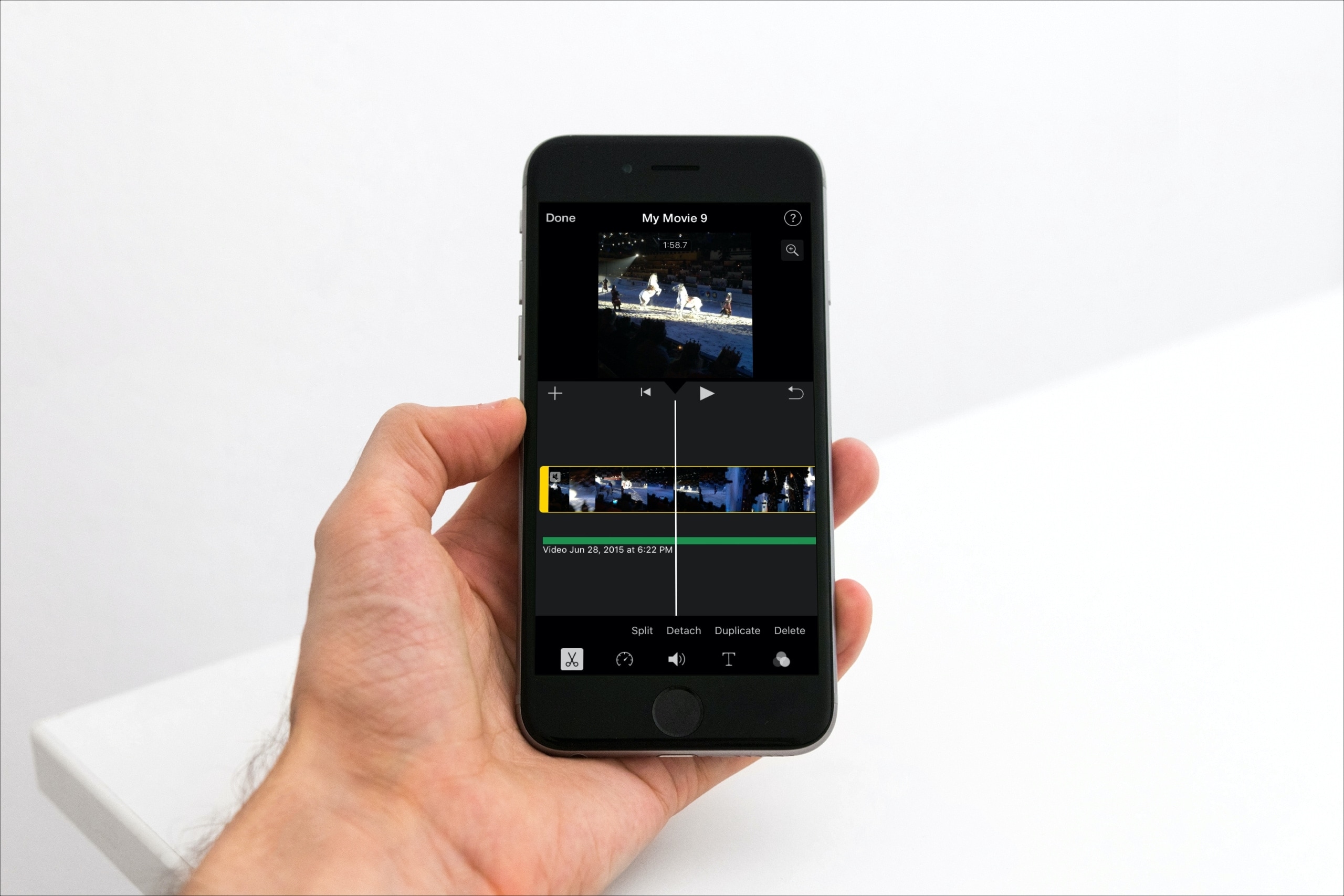
Learn how to detach the audio from your footage in iMovie if you want to remove the visuals but keep the sound, music, and voices in your project.
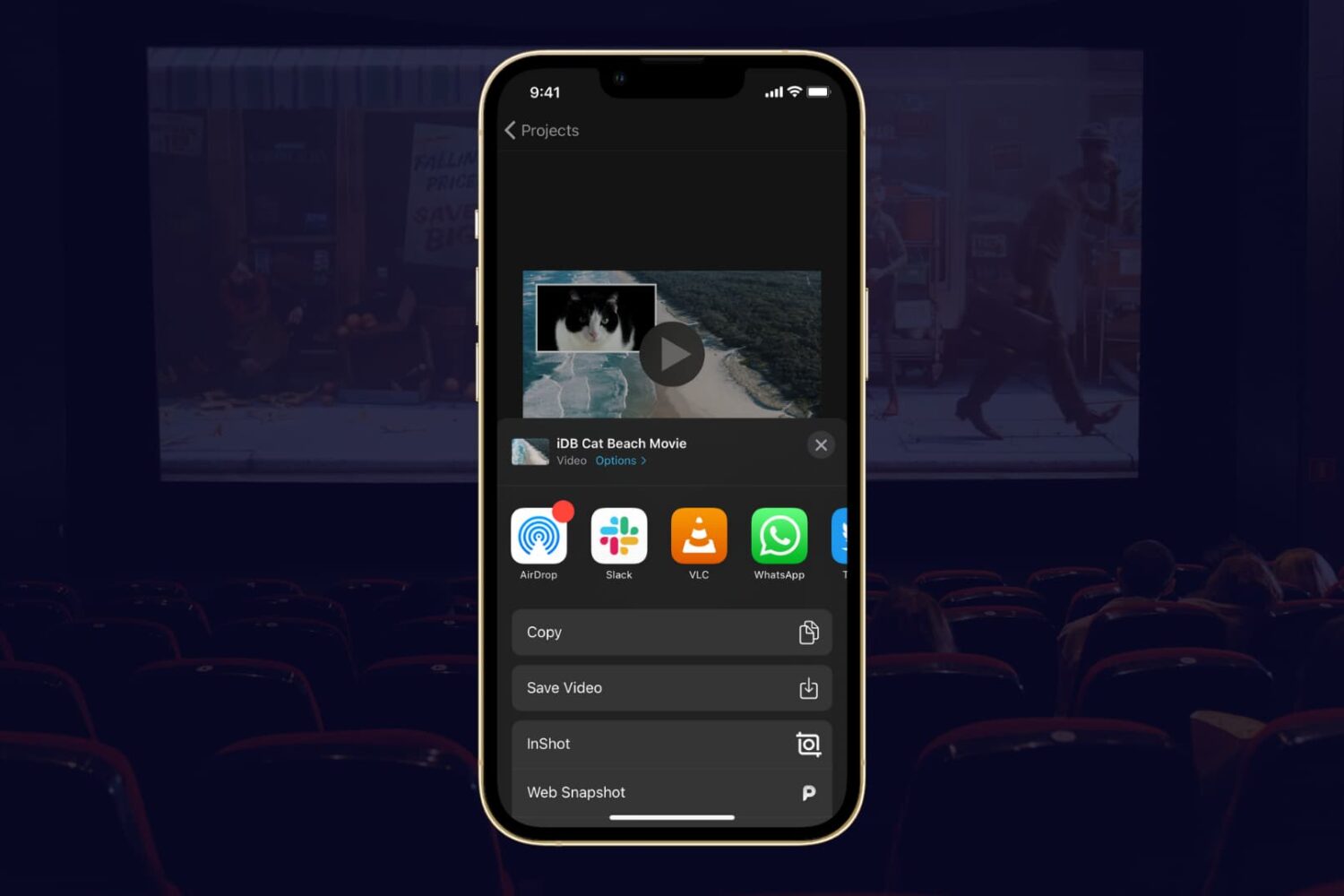
If you completed your movie magic in iMovie and want to share your creation, the app makes it easy. You have a few different options to export a movie directly or save it as a file to do with what you wish.
If you have a finished project that you’re ready to share, here’s how to export a movie in iMovie on Mac, iPad, and iPhone.
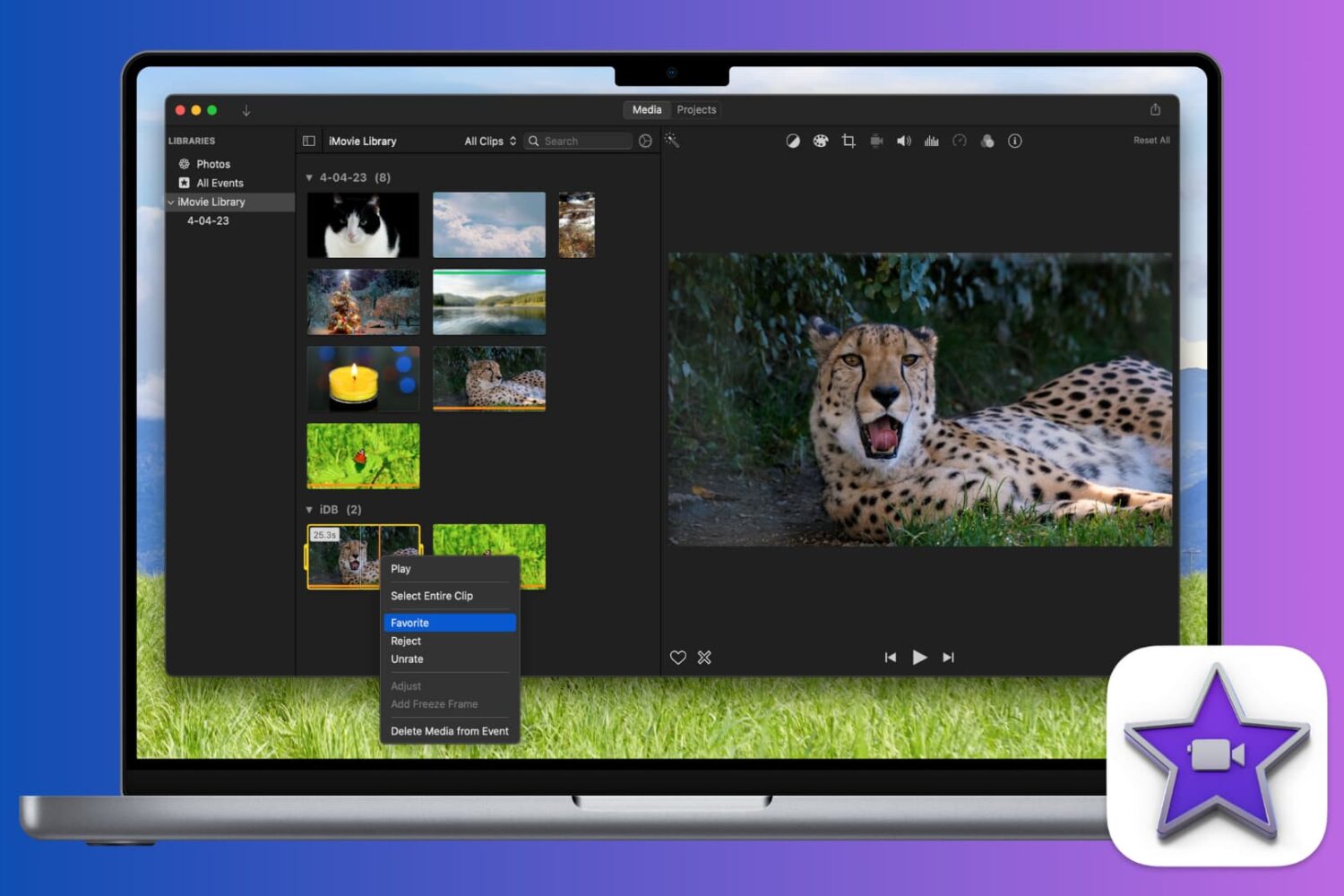
Learn how to mark a video as a favorite or reject it in iMovie when you’re reviewing your clips. This makes keeping and removing clips easy, so you can use the best ones.
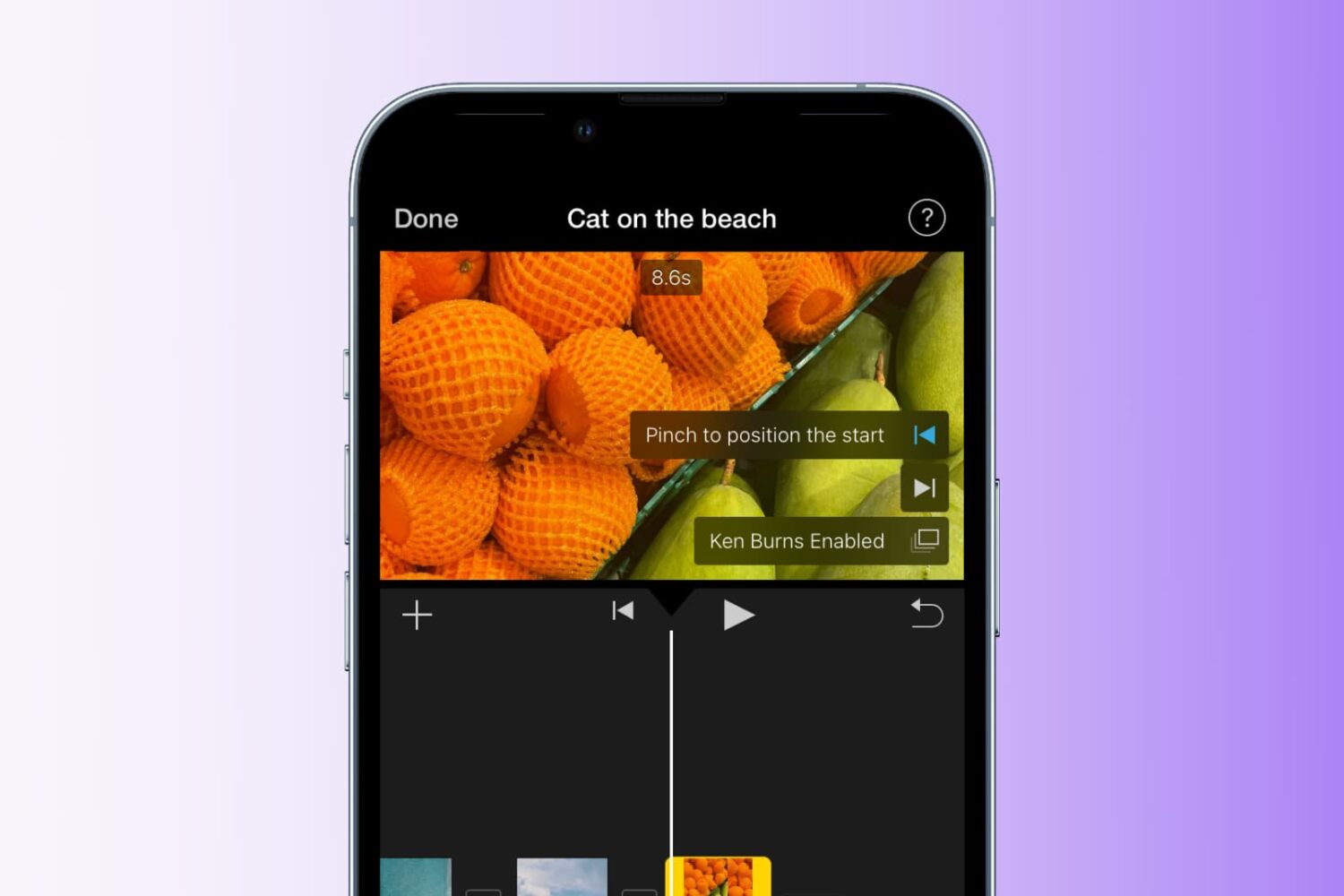
Learn how to add the Ken Burns effect to your images and video clips in iMovie to make them appear as though the camera is moving or zooming in and out, creating a beautiful cinematic effect.
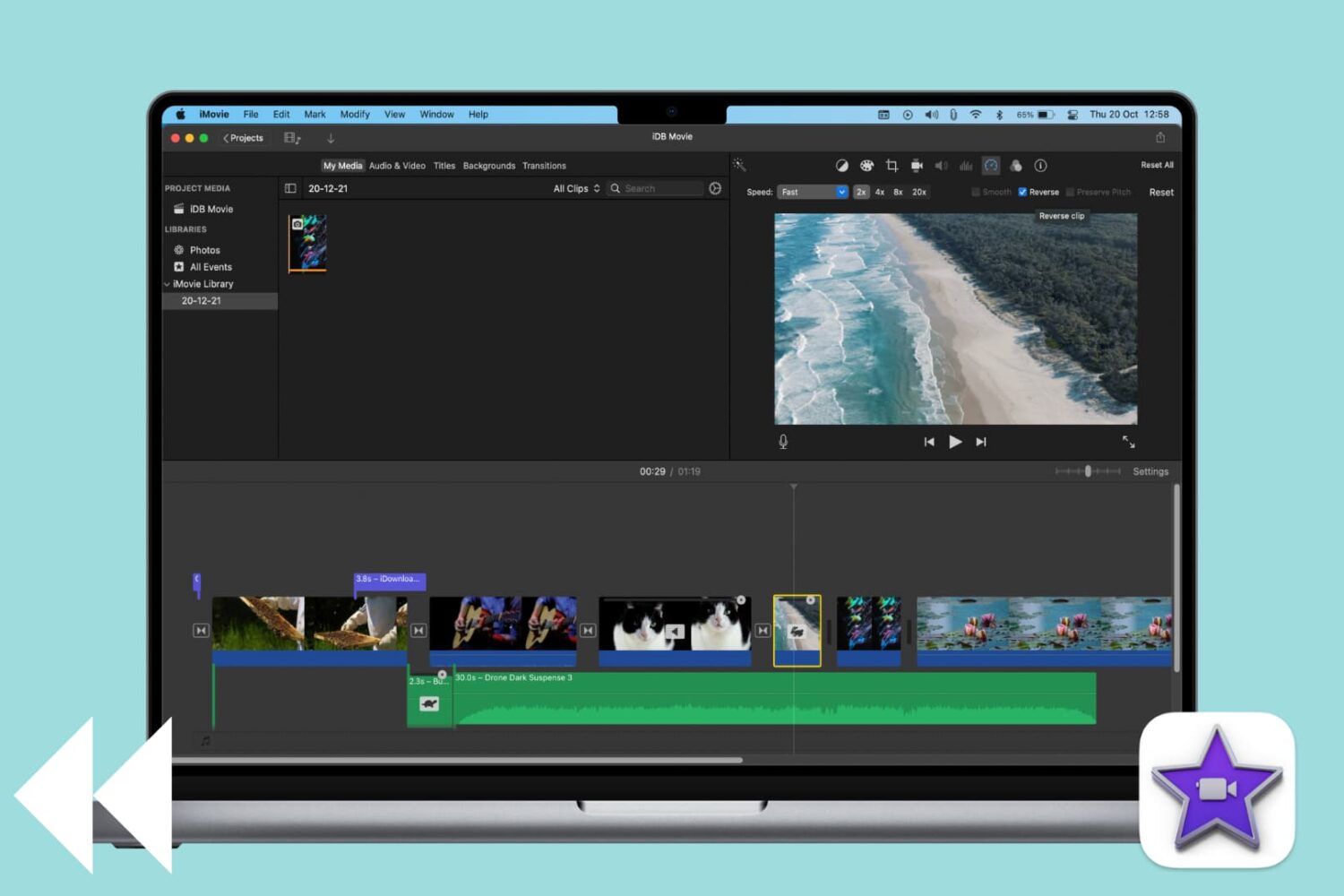
Learn how to reverse a video clip in iMovie on Mac to play it backward and add a cinematic effect to your project.