Learn how to delete albums you no longer need in Apple Photos on an iPhone, iPad, or Mac to clean up and organize your image library.
How to delete photo albums on iPhone, iPad, Mac

Learn how to delete albums you no longer need in Apple Photos on an iPhone, iPad, or Mac to clean up and organize your image library.

Learn how to make Apple's iCloud Photos feature optimize its storage consumption in order to free up significant chunks of local space on your iPhone, iPad, or Mac.
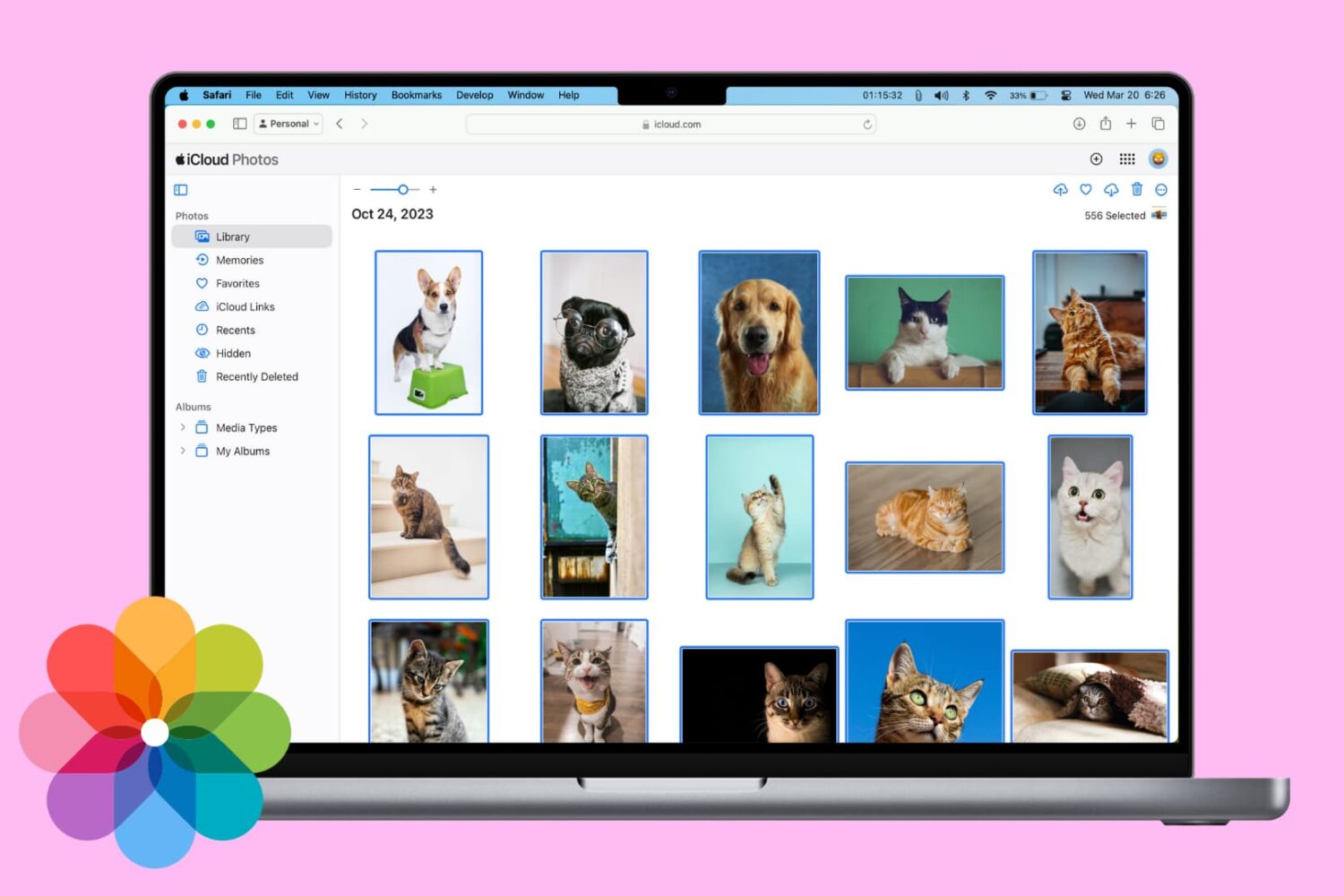
In this tutorial, we will show you three ways to download the photos and videos you have in iCloud to your Mac or Windows PC.
Once you have the photos saved locally, you can back them up elsewhere, edit them with software, or work with them as you please.
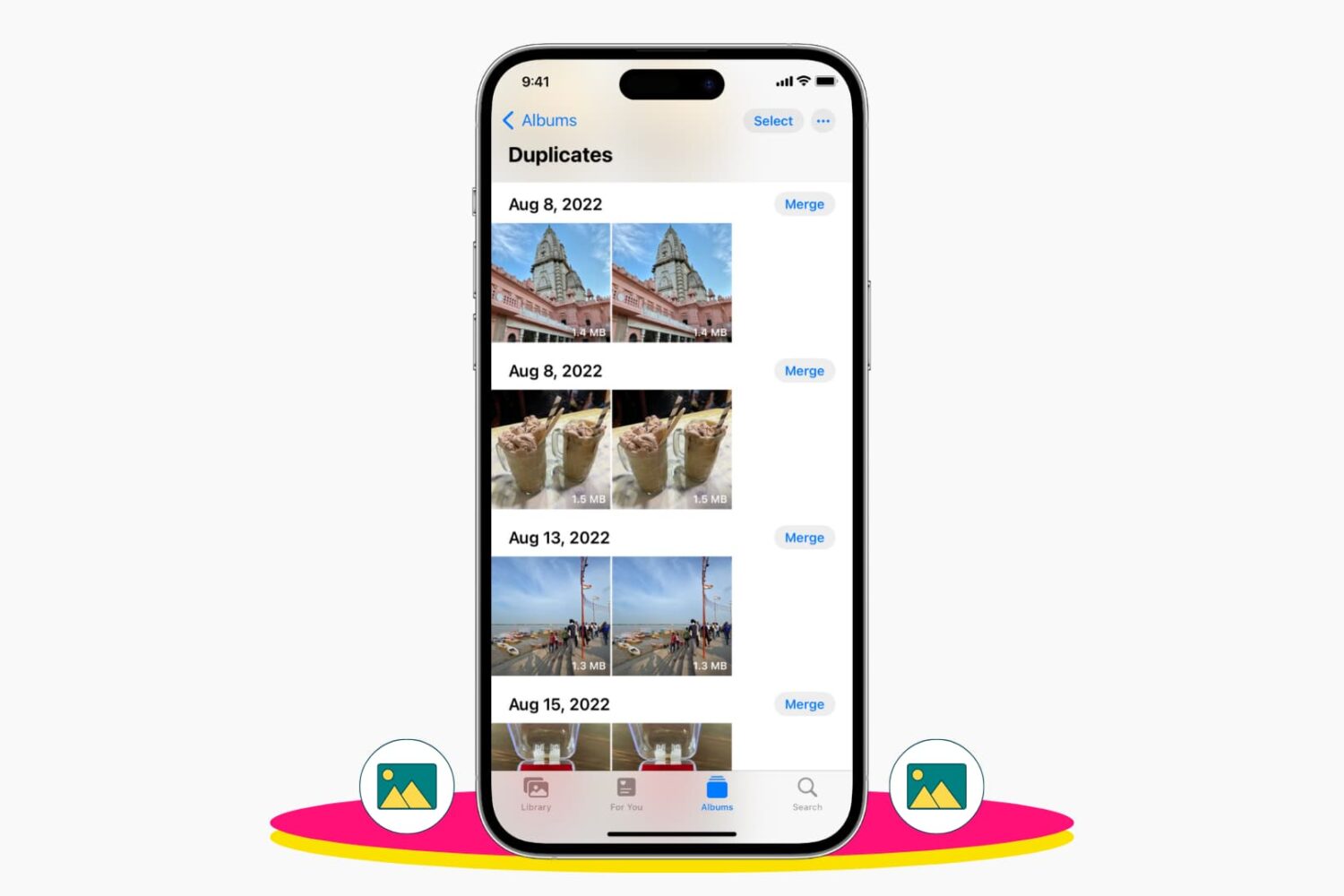
Check out 3 easy ways to delete duplicate photos and videos from your iPhone library to remove clutter and save space.
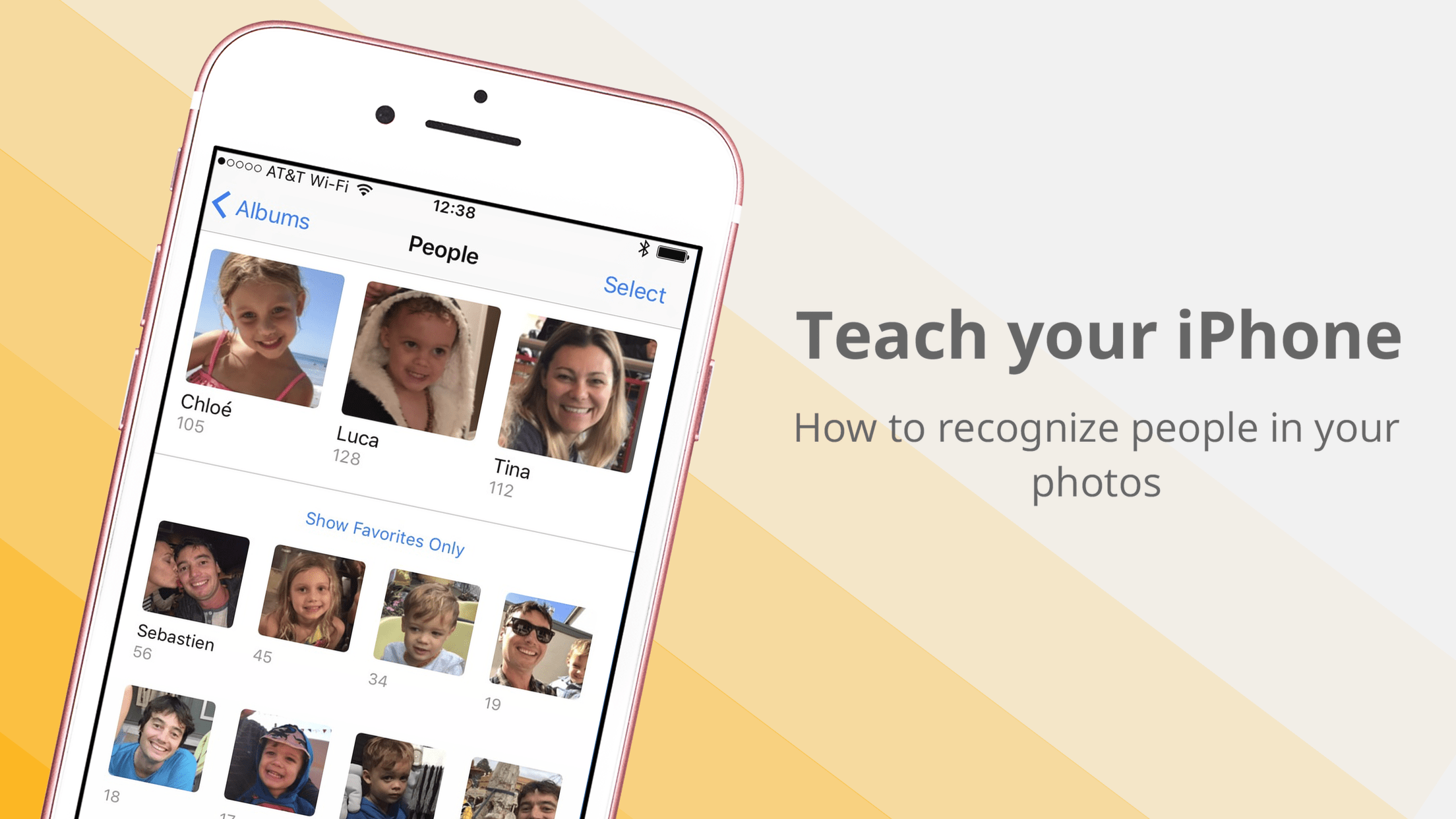
Organizing one’s photos by date or occasion is by far the most common methodology in photography, and of course why wouldn’t it be? The simple fact of the matter is that a chronological structure of photos satisfies most search requests because you pretty much know immediately where to look for a certain snapshot. With that said, more unconventional efforts such as accumulating every single photo taken by the beach or all shots of your family ever snapped, quickly render the chronologic album structure rigid and dated.

Apple today launched a redesigned Photos web app at iCloud.com/#photos following a period of testing when the software was available to beta testers via beta.icloud.com. The app runs in a web browser and sports several improvements to make it behave more like its desktop counterpart, such as a brand new sidebar on the left and a handy thumbnail scrubber when viewing an image.
As first noted by Brazilian outlet MacMagazine.br, Apple is readying some notable updates for its Photos app on the web at iCloud.com/#photos. In addition to a slightly overhauled appearance, the web app is gaining a pair of new features found on the desktop Photos app for the Mac: a sidebar and a thumbnail scrubber. The web app is currently being beta-tested at beta.icloud.com.
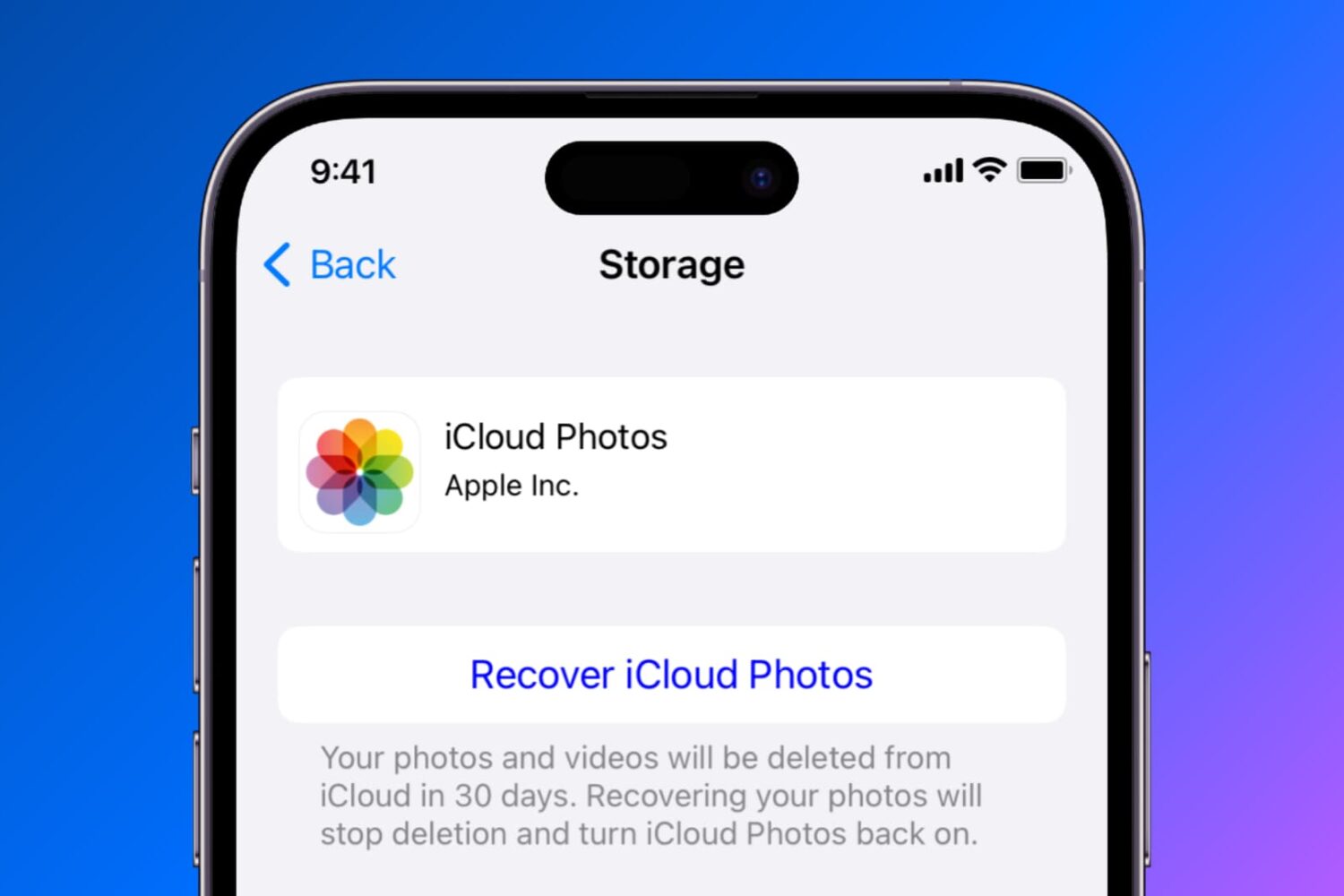
Find out how to temporarily disable or permanently delete iCloud Photos on your iPhone, iPad, Mac, Apple TV, and Windows PC if you no longer want to back up your pictures and videos to Apple’s cloud storage.
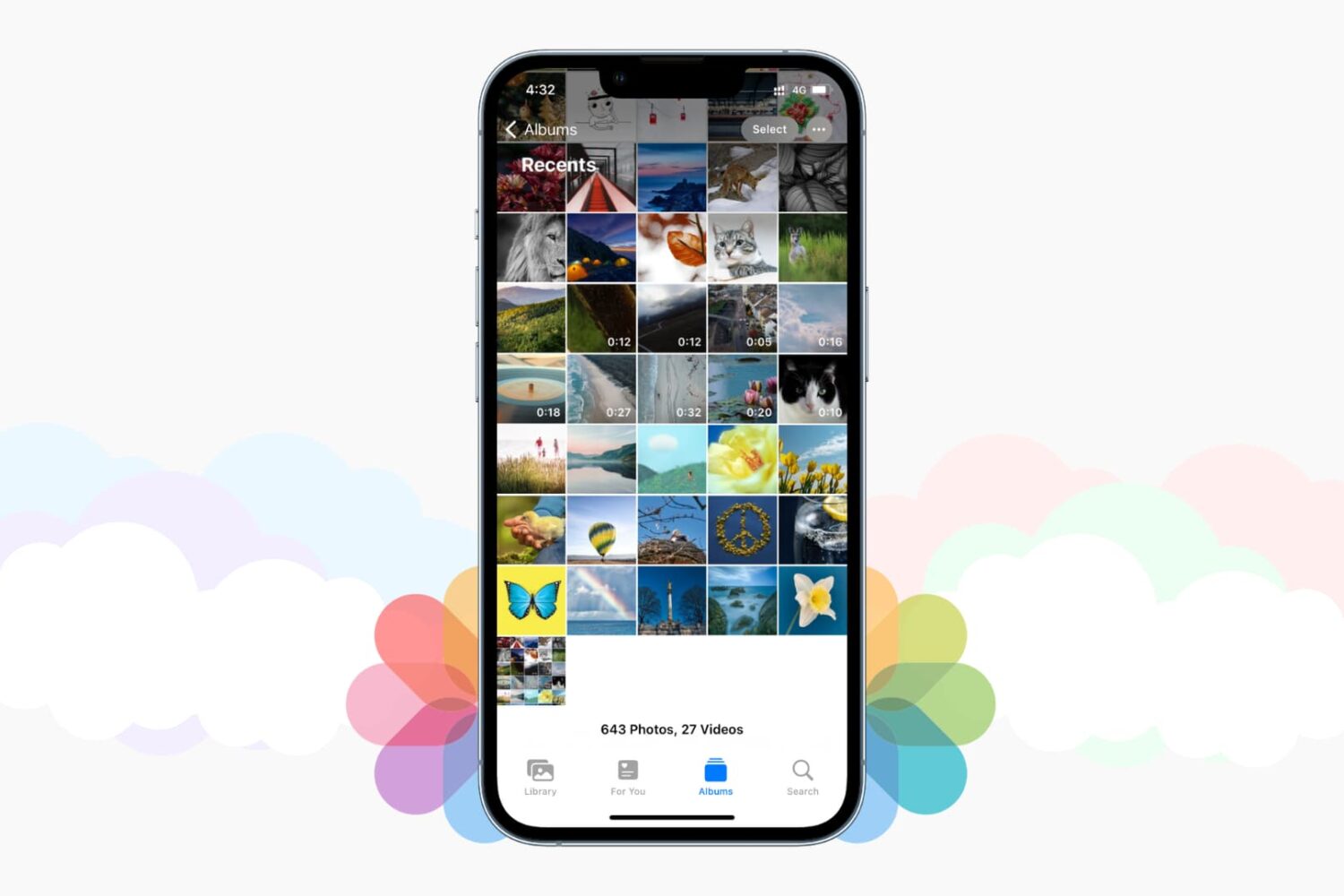
Those high-quality snaps and videos you take on your iPhone, iPod touch or iPad can pretty quickly eat up all of the available storage space on your device.
There are a number of techniques to increase your free storage, like deleting apps you no longer use, emptying system caches and so forth, but they all pale in comparison to the simplest of solutions—actually moving storage-hungry photos and videos off your device to safely store them in the cloud.
In this post, we'll tell you all you need to know about the most popular cloud storage solutions. We're going to detail backing up your media to each of them and discuss recommended strategies for freeing up as much storage space as possible without destroying your personal memories or changing your workflow much.
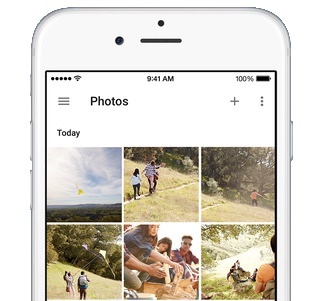
Among a flurry of yesterday's announcements at the Google I/O developer conference, the Internet giant launched Google Photos, its brand spanking new photography service available across iOS, Android and on the web. It offers unlimited storage (with a few caveats) and has many other compelling features that give Apple's iCloud Photo Library a fairly good run for its money.
To name but a few: world-class facial recognition that understands aging, sleek design, fast performance, unmatched search and machine intelligence, the ability to create a movie, collage or animated GIF in seconds and more.
The question is, will you be turning to Google Photos as a backup solution for the media you've amassed on your iOS device? Or, perhaps you'll be sticking with Apple's iCloud Photo Library even though it offers a meager five gigabytes of free cloud storage? Planning on using Google Photos alongside iCloud Photo Library, are we? Not a big fan of either service, you say?
Tell us in today's poll!

German enthusiast blog iFun.de has spotted a pair of useful additions concerning the Photos web app on iCloud.com.
Two new features, which were added over the weekend, let you zoom in on an image via a new slider in the toolbar and send photos as email attachments directly from the web UI.
Previously, sharing via email was a tedious multi-step process where you had to download a photo to your computer before attaching it to an email message using a third-party desktop email application or a webmail service.

Apple updated its iCloud.com Photos app today, enabling the ability to upload photos. The feature, which developers have been testing on the iCloud beta site for the past two weeks, allows users to upload images to iCloud Photo Library.
Previously, those with iCloud Photo Library enabled in iOS 8 could view, download and delete their photos on iCloud.com, but there was no way to upload them. Now users can upload images—including those not taken with an iOS device.