Discover some of the best features of the Reminders app on your iPhone and iPad to organize your to-do lists, and increase your productivity.
How to use the iPhone Reminders app like a pro
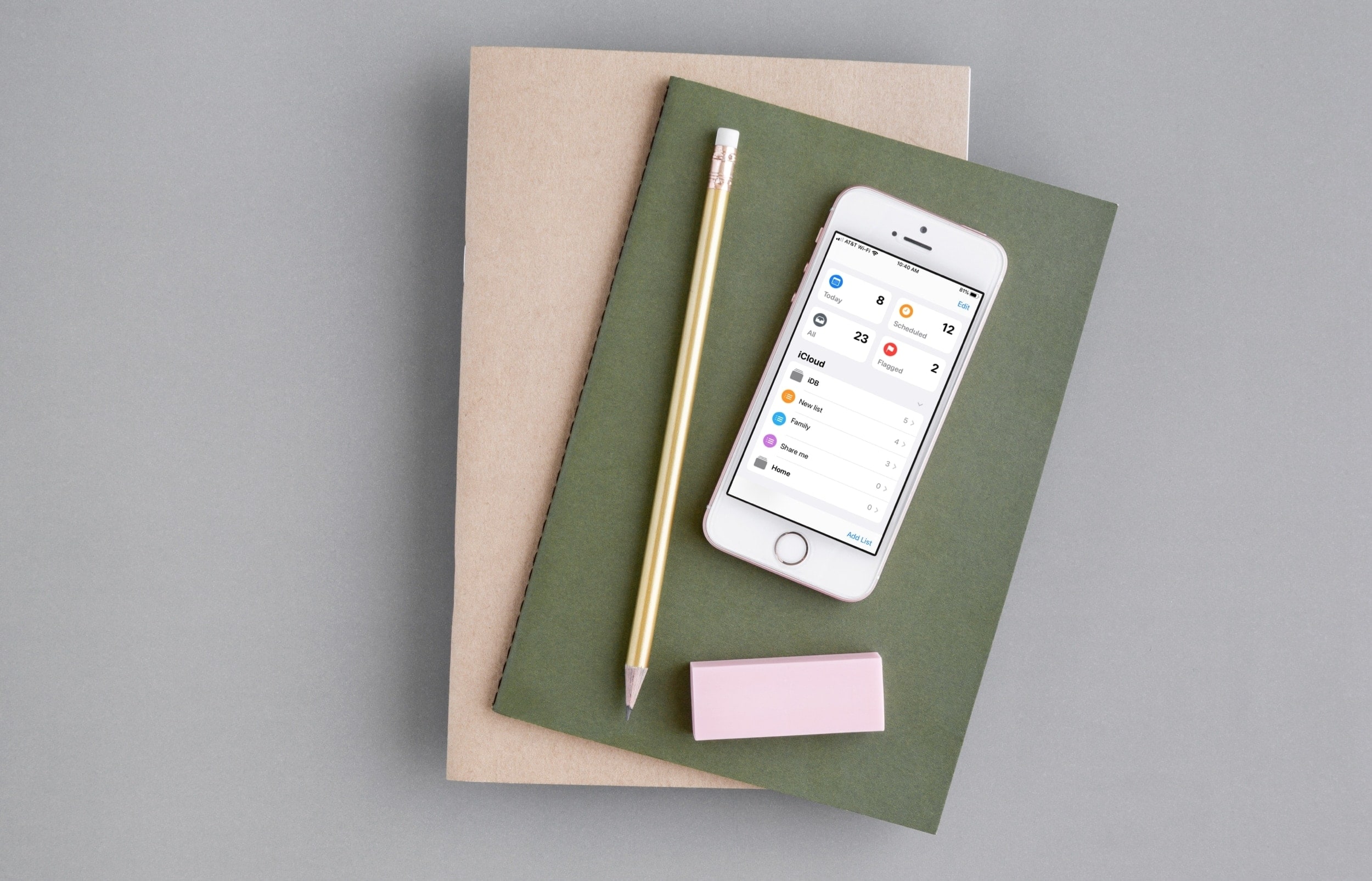
Discover some of the best features of the Reminders app on your iPhone and iPad to organize your to-do lists, and increase your productivity.
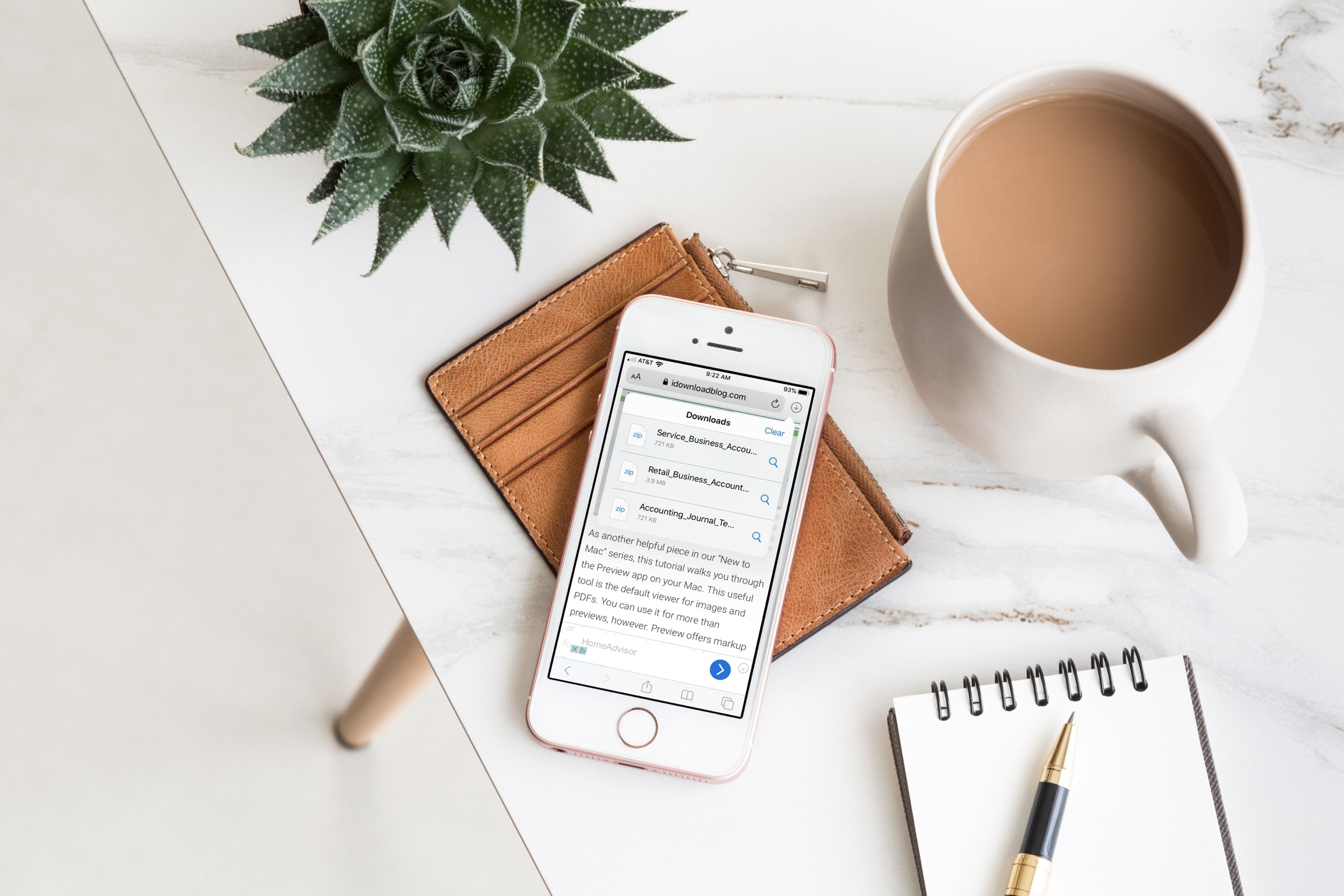
Safari Download Manager is a powerful tool for managing and organizing your downloads on the go. From documents to media files, we will show you how to harness its capabilities and take control of your downloads.
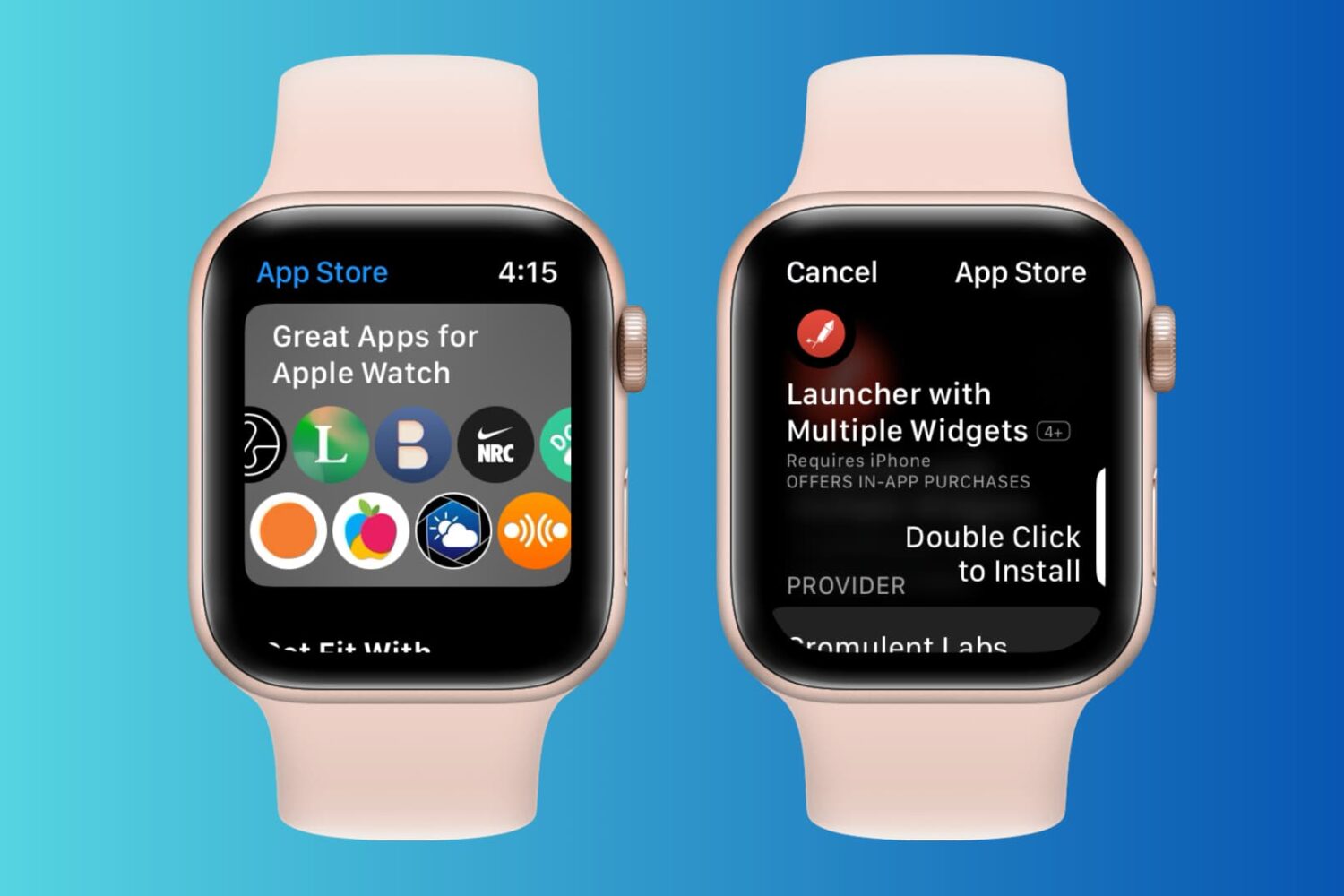
Learn how to browse, find, download, and purchase apps from the watchOS App Store to get apps on your Apple Watch without reaching for your iPhone.
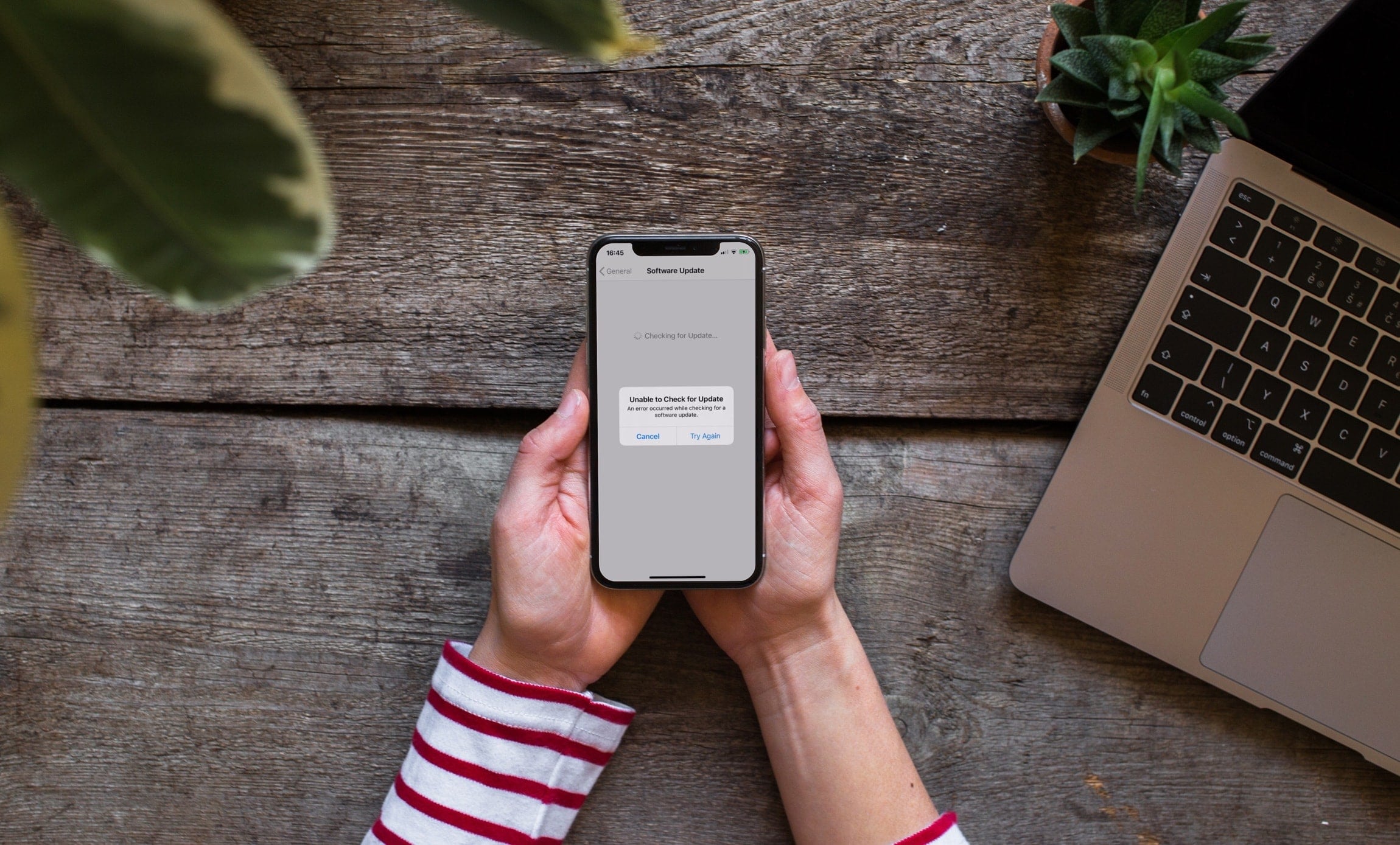
Check out these quick fixes if you see the “Unable to Check for Update” or “Unable to Verify Update” errors when trying to get the latest version of iOS or iPadOS on your iPhone or iPad.
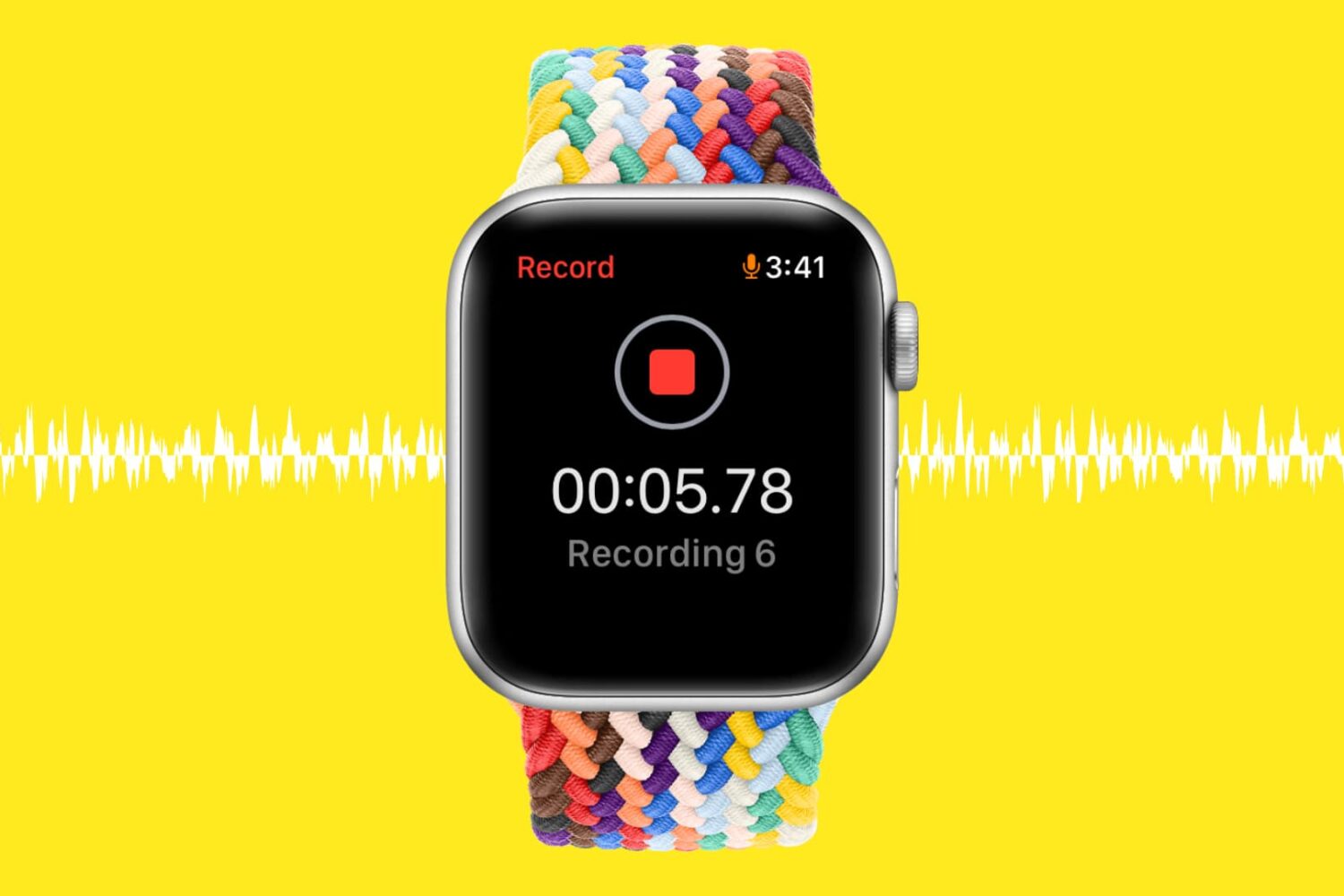
Learn how to record, listen to, or delete voice memos directly from your Apple Watch, so you never miss capturing important audio snippets or interviews, no matter where you are.

Learn how to see 360-degree panoramic views of specific streets, landmarks, locations, and cities within Apple Maps on your iPhone, enabling you to embark on virtual explorations of various destinations.
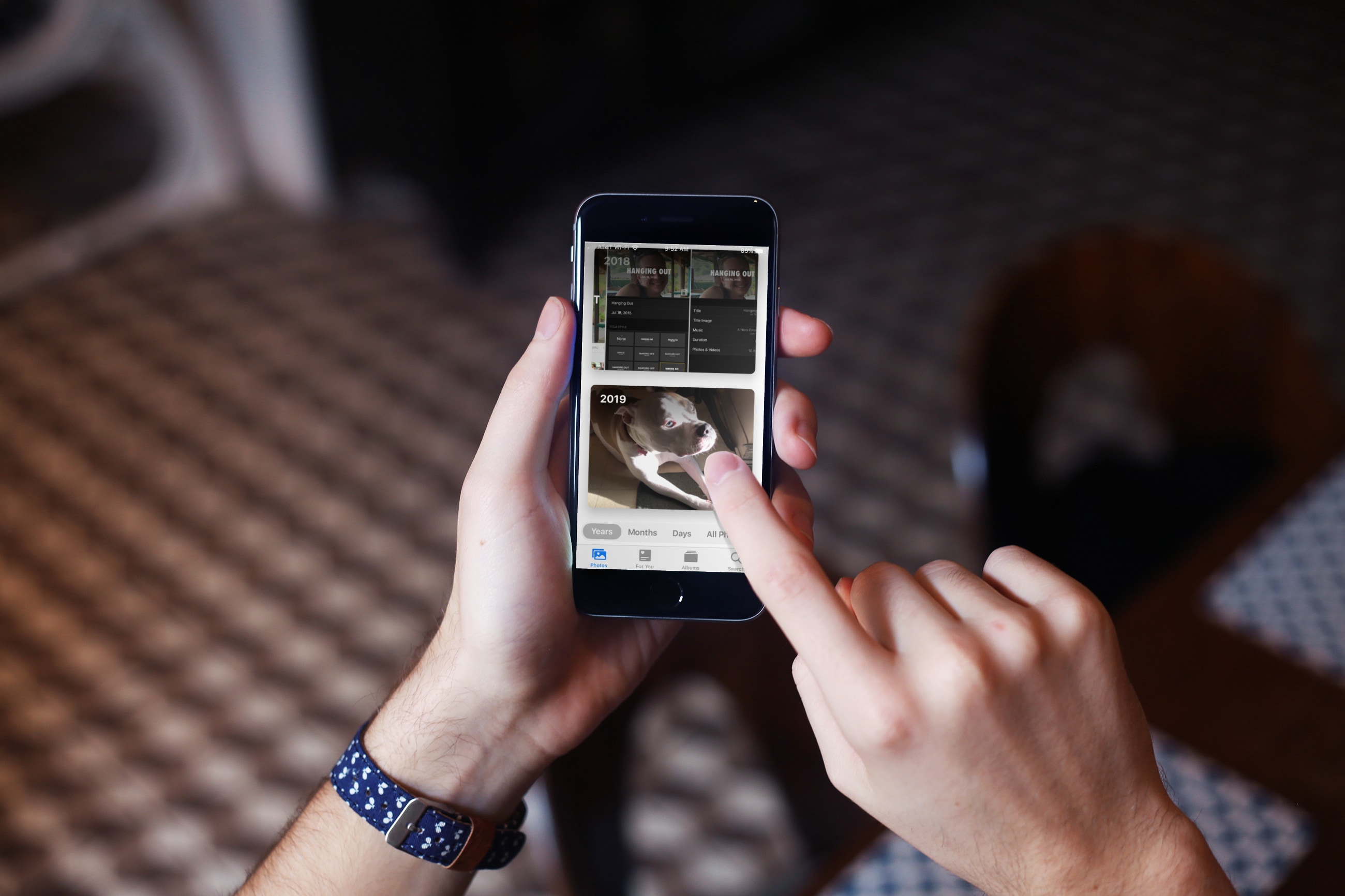
The Photos app provides thoughtful ways to browse your pictures and videos. This short walkthrough shows you what you can do to make it easier and more enjoyable to relive those great moments on your iPhone and iPad.
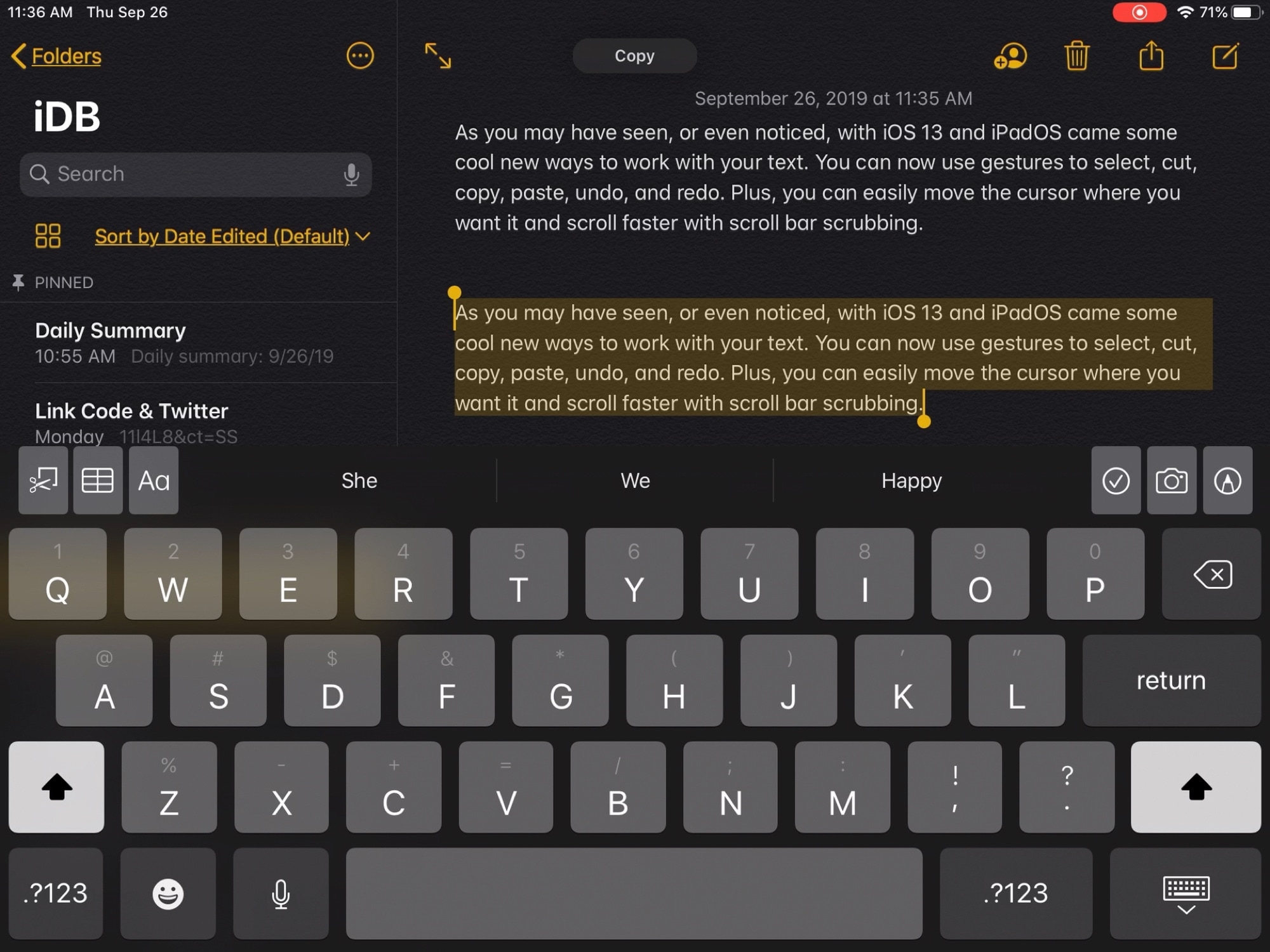
Learn about these important cut, copy, paste, and other text editing gestures on your iPhone or iPad so you can boost your productivity.
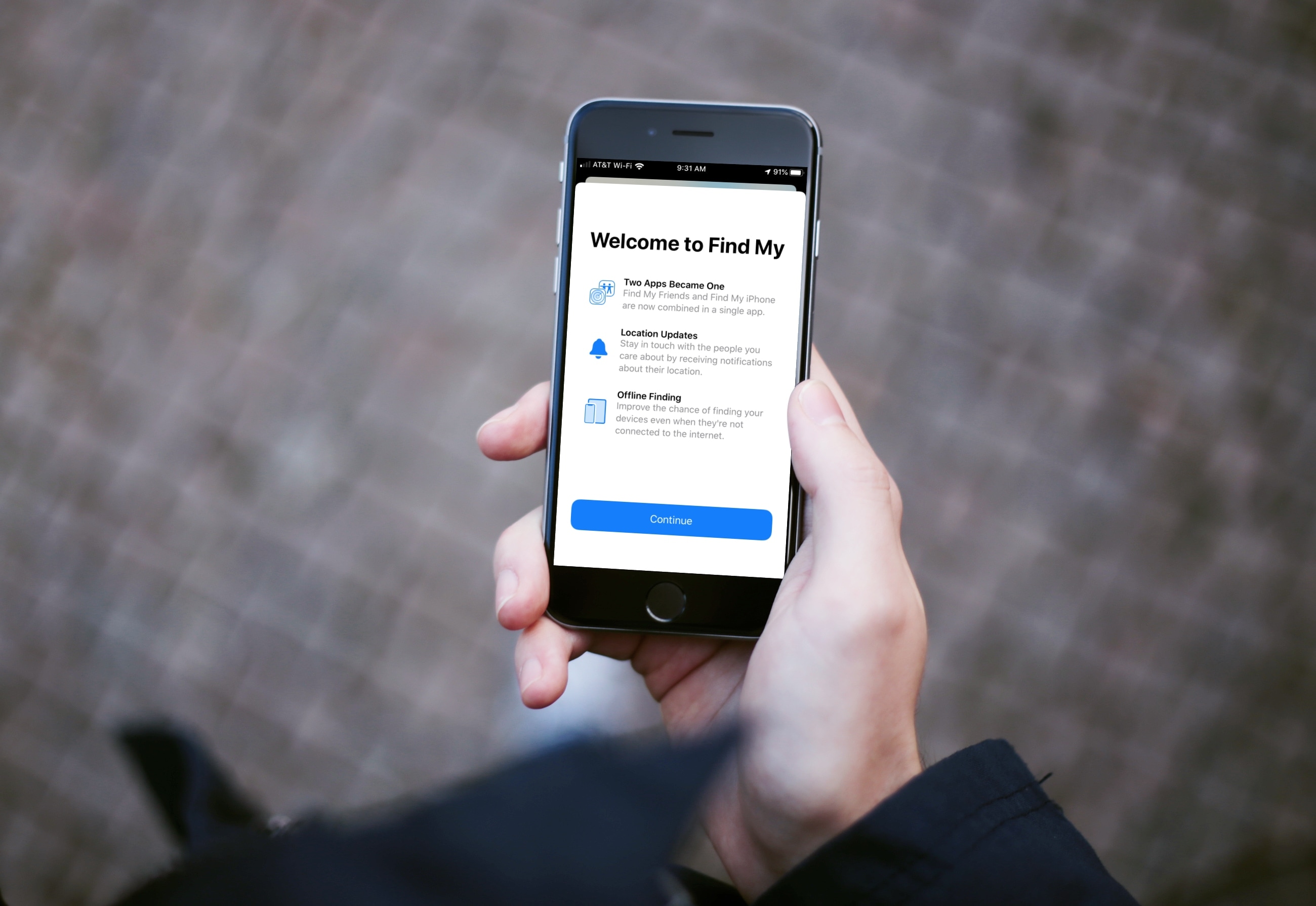
Learn how to use the Find My app on your iPhone, iPad, and Mac to find your devices, share your location, and see other people's location -- all in one convenient spot.
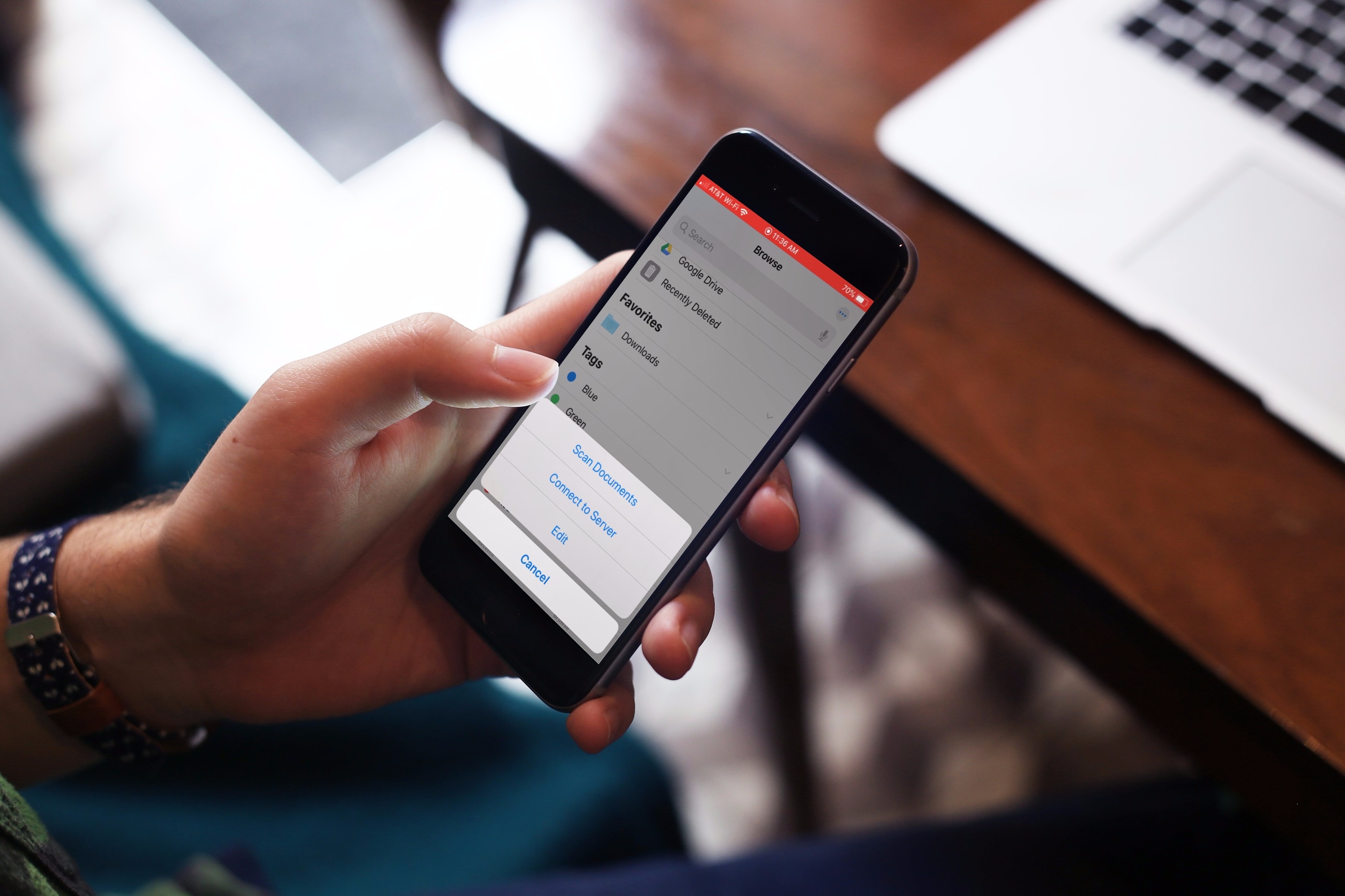
Learn how to scan physical documents, such as receipts, flyers, or business cards, directly from the Apple Files app on your iPhone or iPad, and save them in digital form or share them via Mail, Messages, WhatsApp, or Slack.
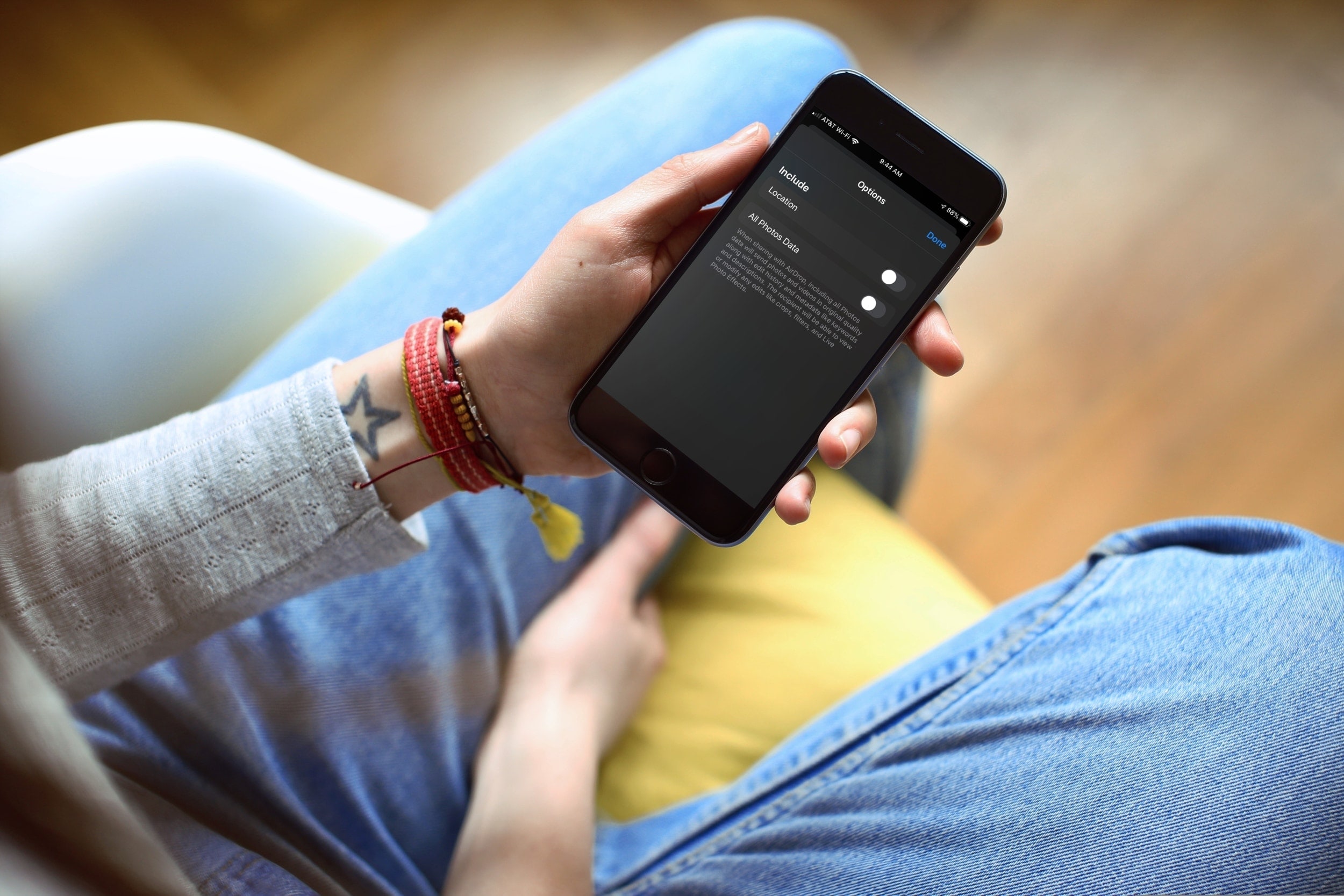
Just because you want to share photos doesn’t mean you want to show the location where they were taken. In this post, we show you two easy ways to send a photo without its geolocation data from your iPhone or iPad.
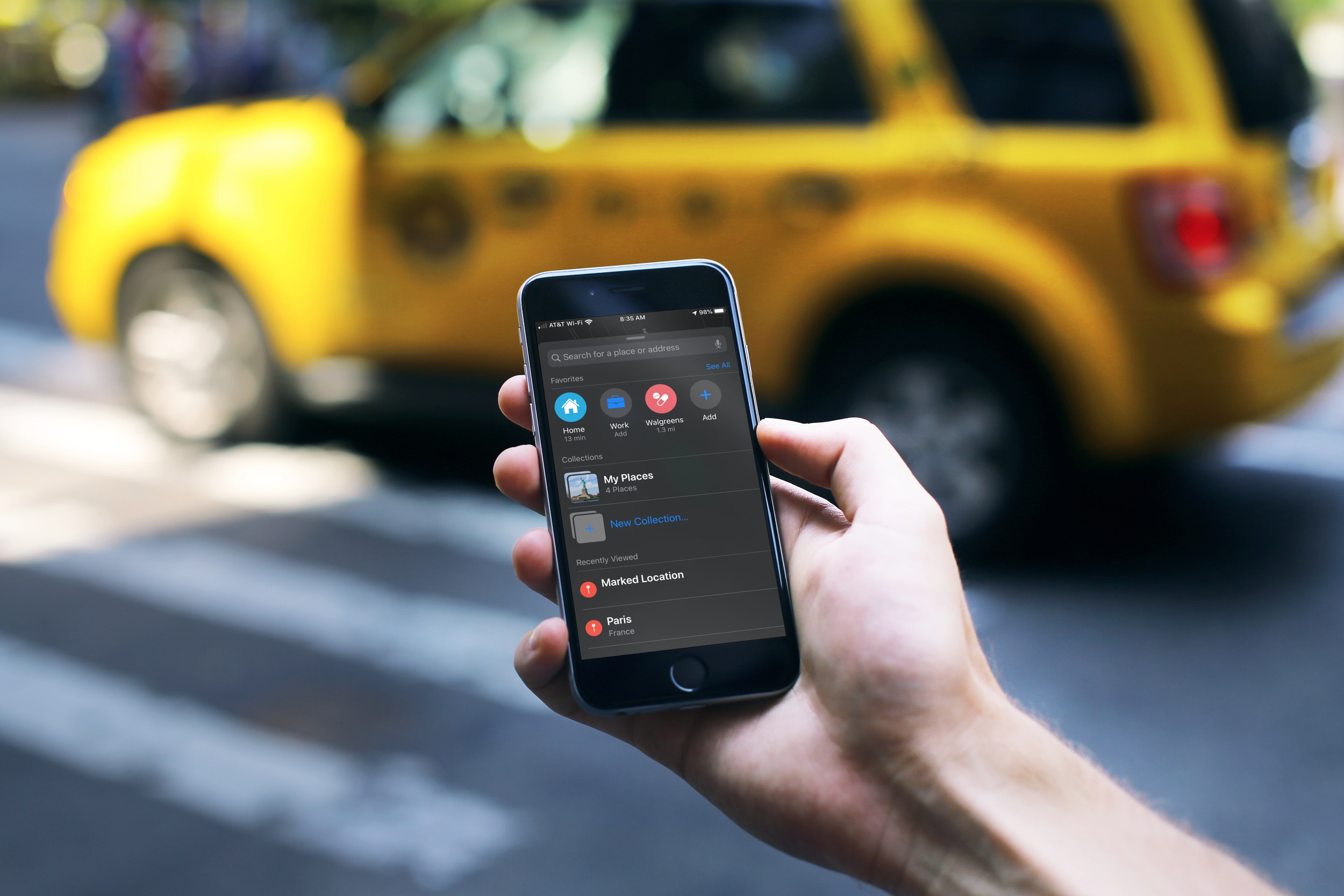
Learn how to save your home, work, and other favorite places in Apple Maps on iPhone so you can easily navigate and access your preferred destinations with a single tap.