Learn how to block specific email senders in the Apple Mail app on iPhone, iPad, and Mac to make sure you never see an email from that person or company again.
How to block people from emailing you on iPhone, iPad, and Mac

Learn how to block specific email senders in the Apple Mail app on iPhone, iPad, and Mac to make sure you never see an email from that person or company again.
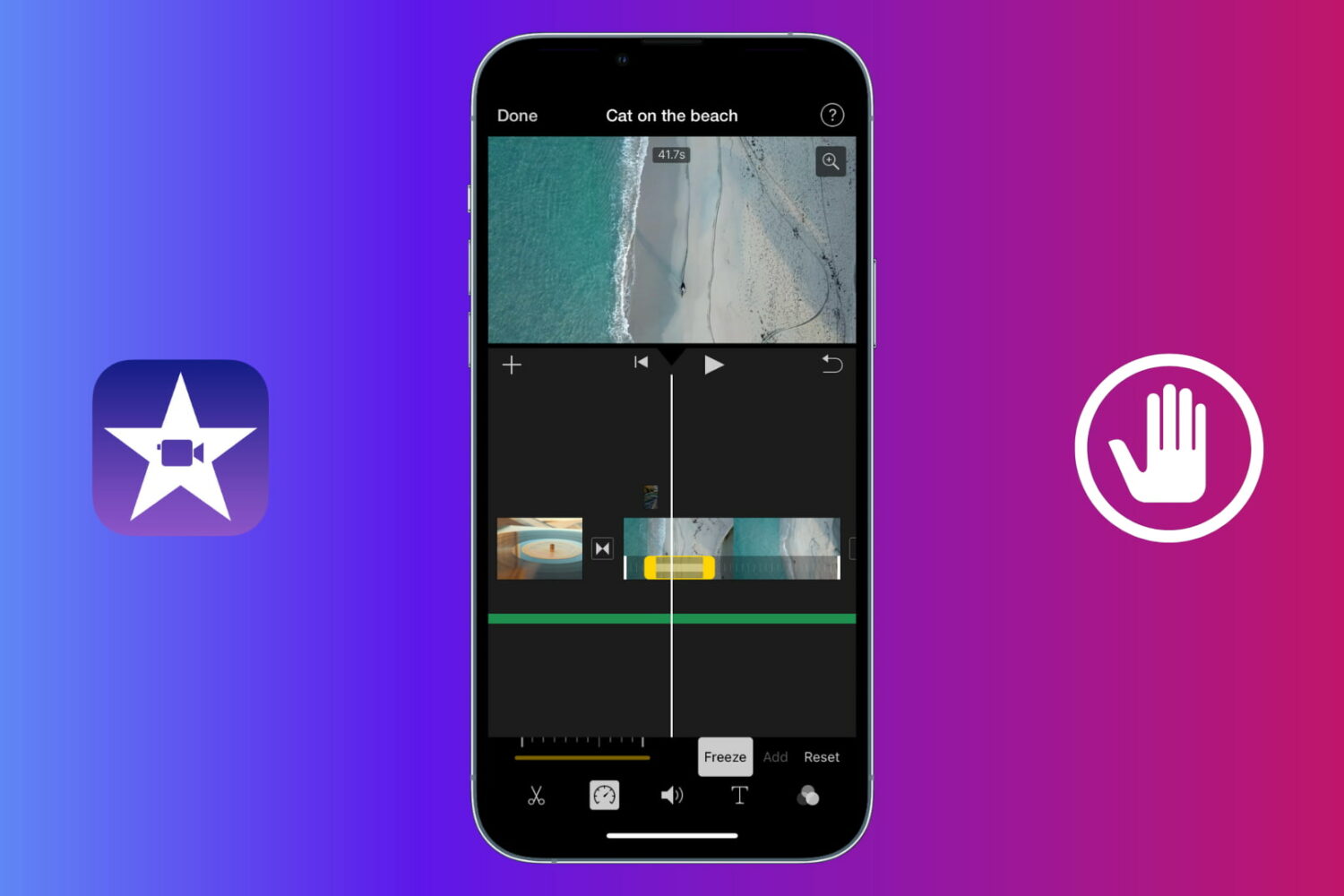
Learn how to use a freeze frame effect in iMovie to pause a scene briefly and direct the viewer's attention to something.
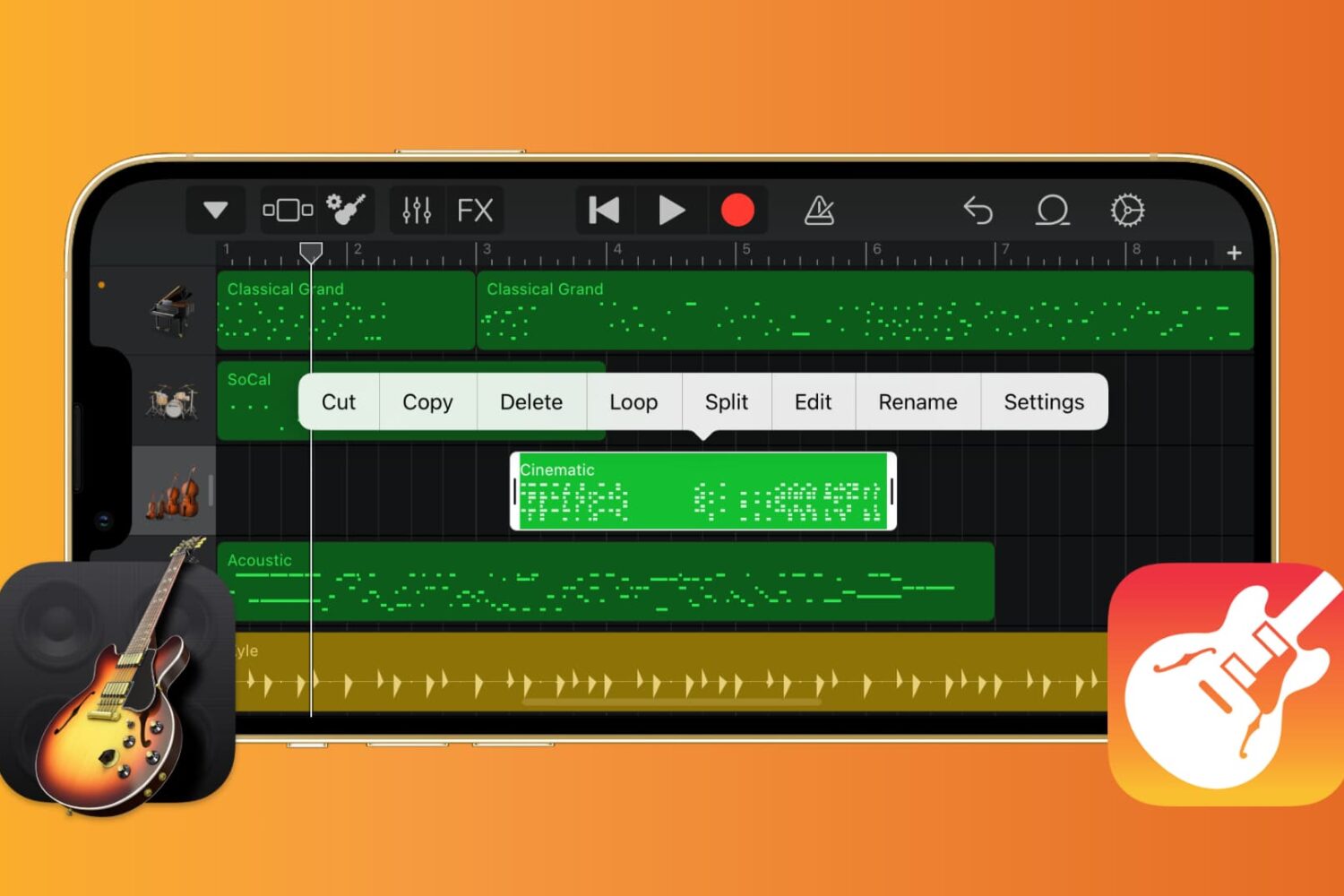
If you want to work with the musical notes in GarageBand for your song, you can show, add, and edit notes. In GarageBand on Mac, you can work with notes for MIDI regions, and on iOS, you can work with them for green touch instrument regions.
Here’s how to show, add, and edit musical notes in GarageBand on Mac, iPad, and iPhone.
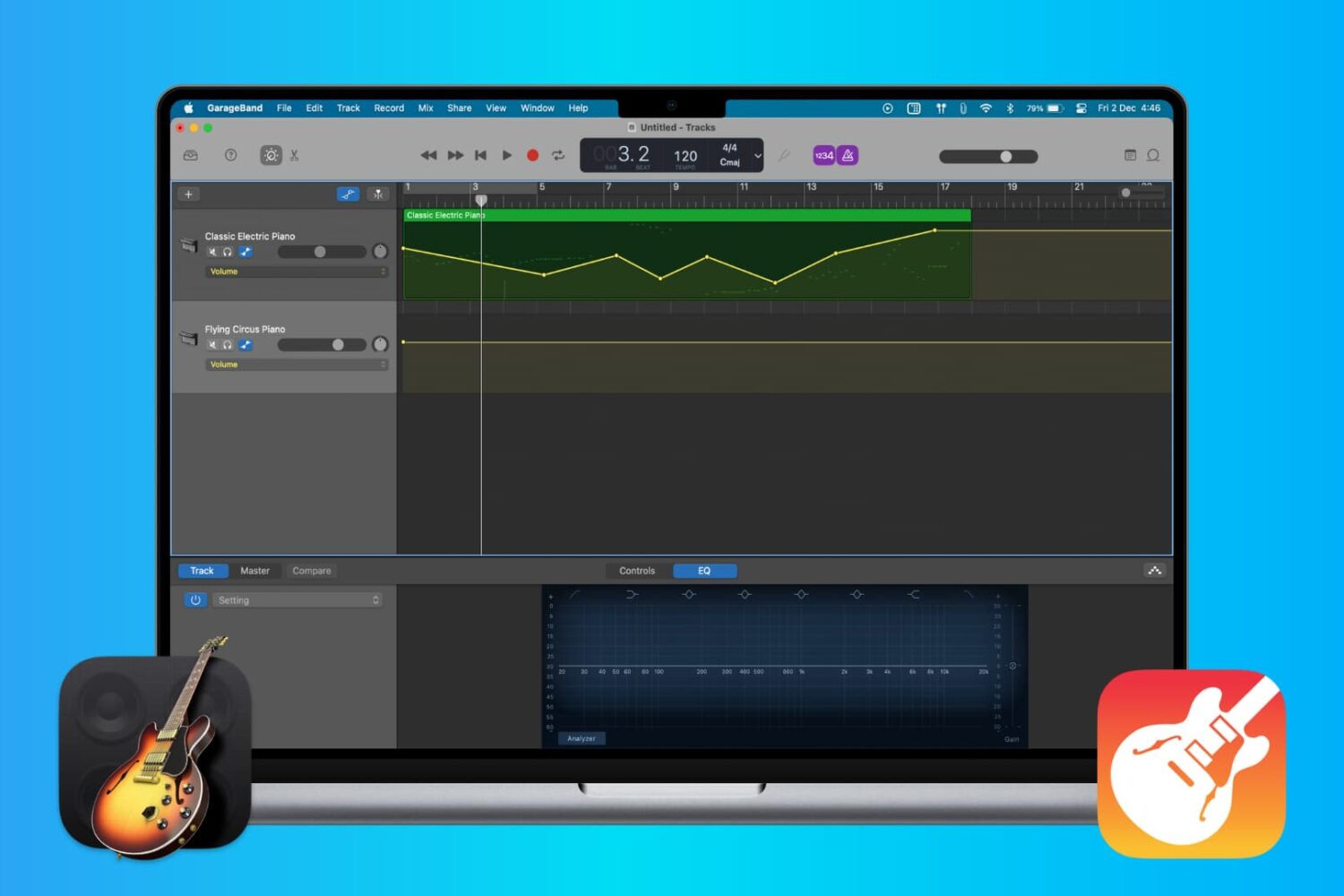
When you’re making music in GarageBand, you’re mixing regions and tracks to create your song. Whether you’re using vocals or instruments, not every track needs to have the same volume. You might want an instrument to play subtly in the background while emphasizing vocals, for example. Or you may want the volume of a track to increase and decrease at certain points.
Here’s how to adjust the track volume in GarageBand on Mac, iPhone, and iPad.

In this quick guide, we tell you how to get started with the incredibly useful Apple Preview app on your Mac and what you can do with it.
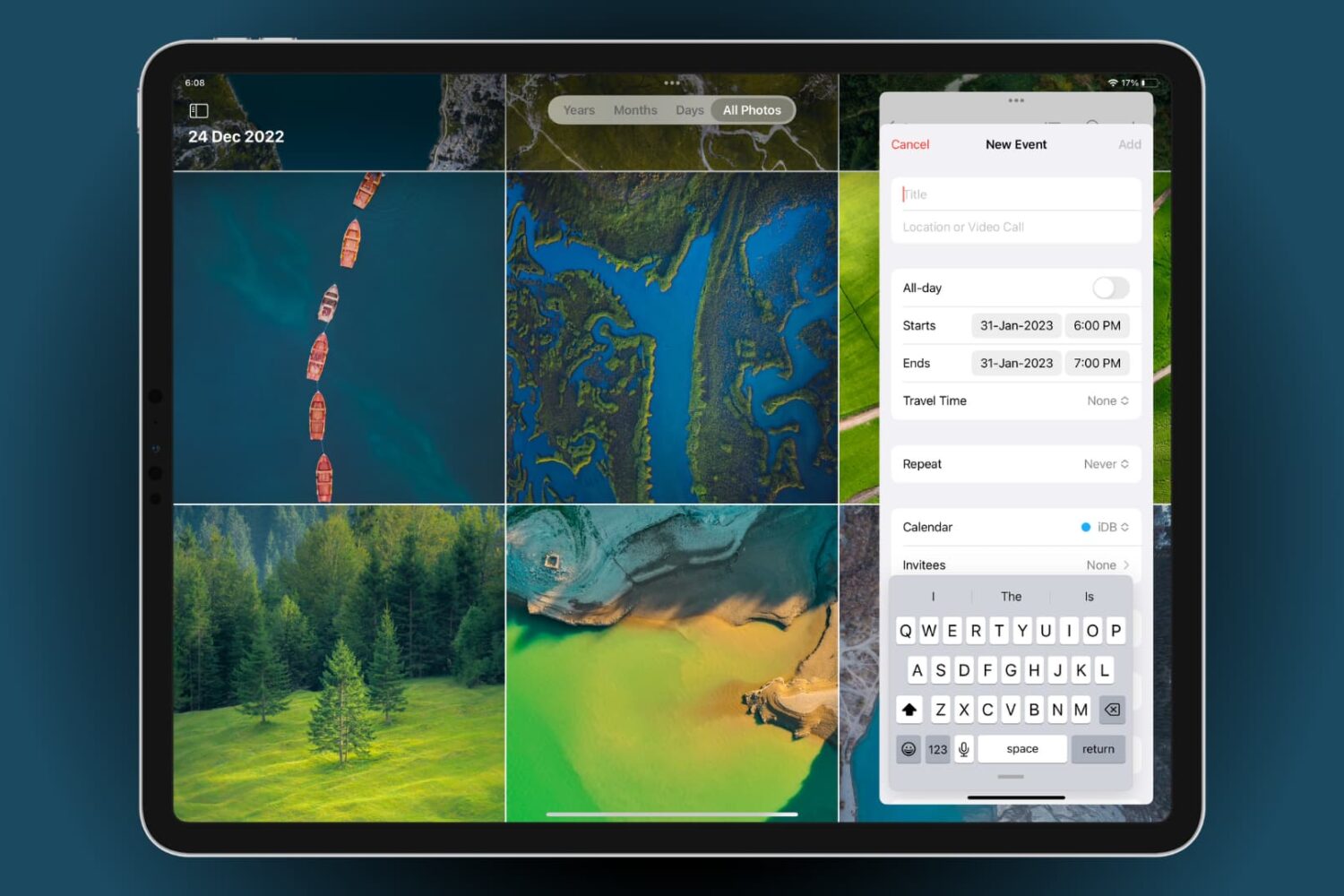
From Slide Over to Stage Manager, and everything in between, this guide will cover all the ways to multitask on your iPad and show you how to optimize your workflow and increase productivity.
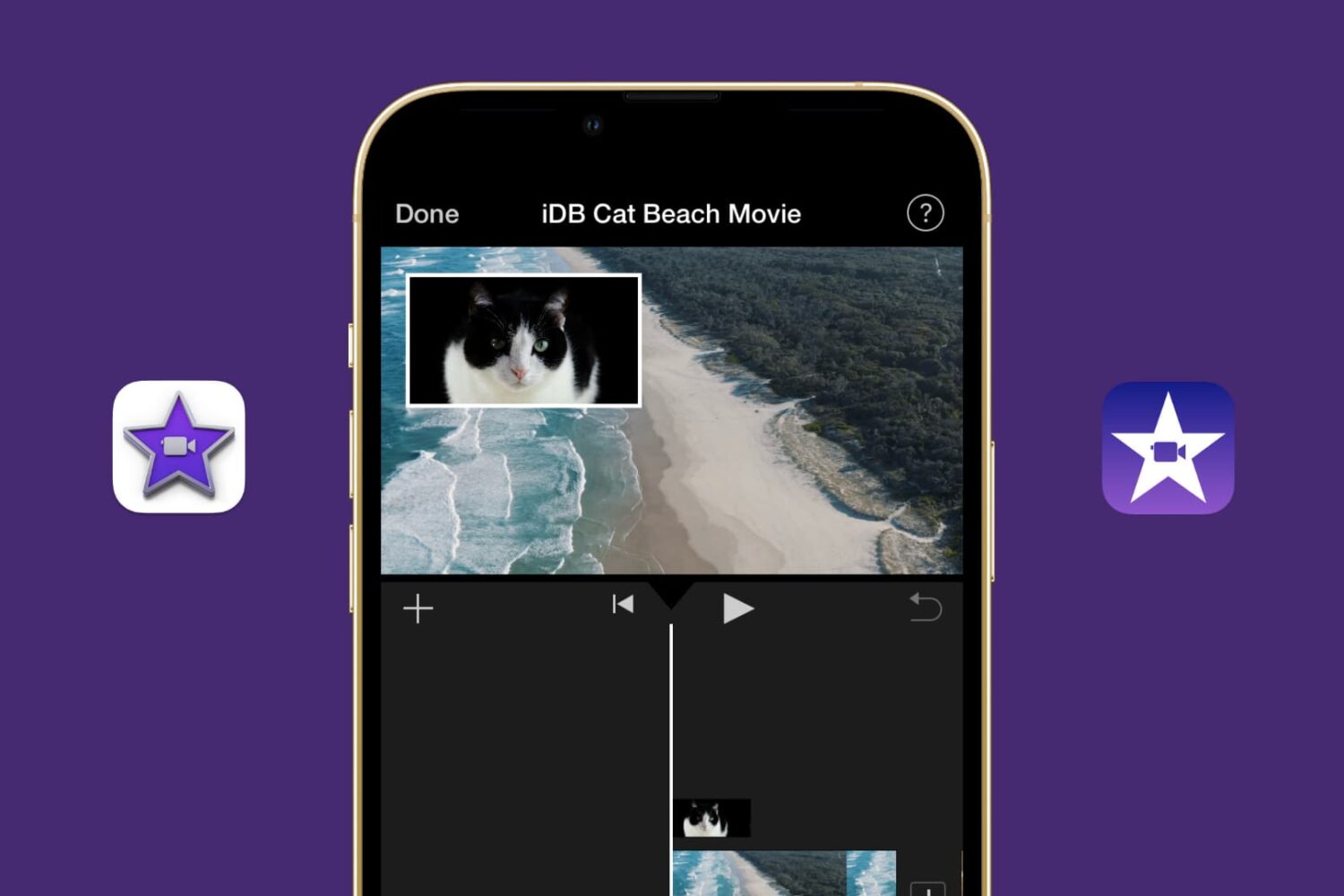
Learn how to showcase two clips simultaneously using the Picture in Picture effect in the iMovie video editor on your Mac, iPad, and iPhone.
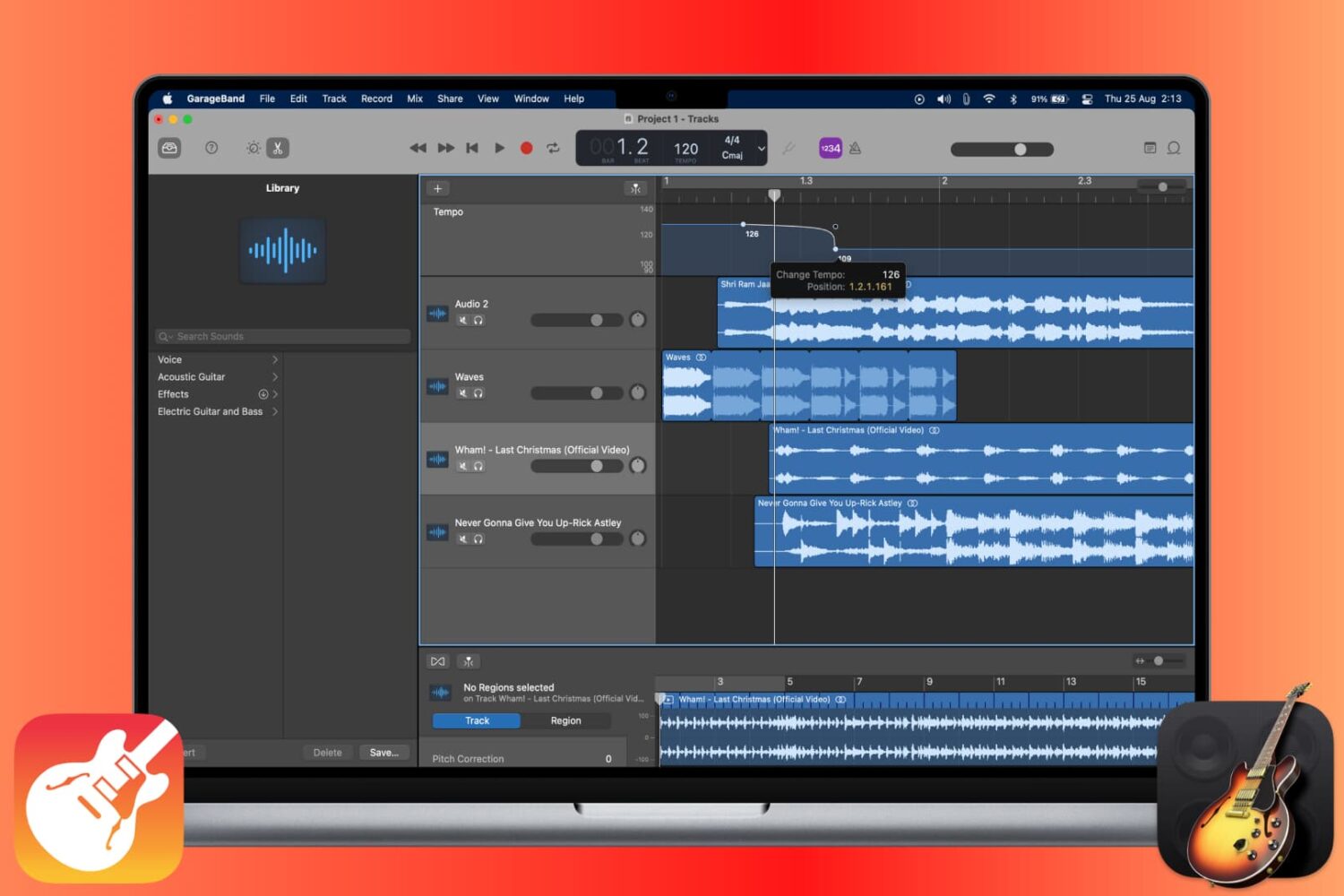
The tempo in GarageBand is expressed in beats per minute and is set to 120 by default. But you can change it to match the tempo you need for your song. On iOS, you can change the tempo for your song to a specific value. And on Mac, you also adjust it for the entire song or add tempo points to the Tempo Track so that the tempo changes throughout the song.
This tutorial shows you how to change the tempo for a song in GarageBand.
In this article, we'll explore the essential tips and tricks that every Mac user should know about using Finder. From customizing views to organizing files, we'll cover everything you need to know to streamline your workflow and get the most out of this essential tool.

In this tutorial, we explain how to use the Split Screen effect in the iMovie editor on Mac, iPad, and iPhone to display two videos at the same time.
Check out these handy tips for using the Search feature in Finder like a pro so you can save time and prevent frustration when looking for the right photos, videos, PDFs, and files on your Mac.
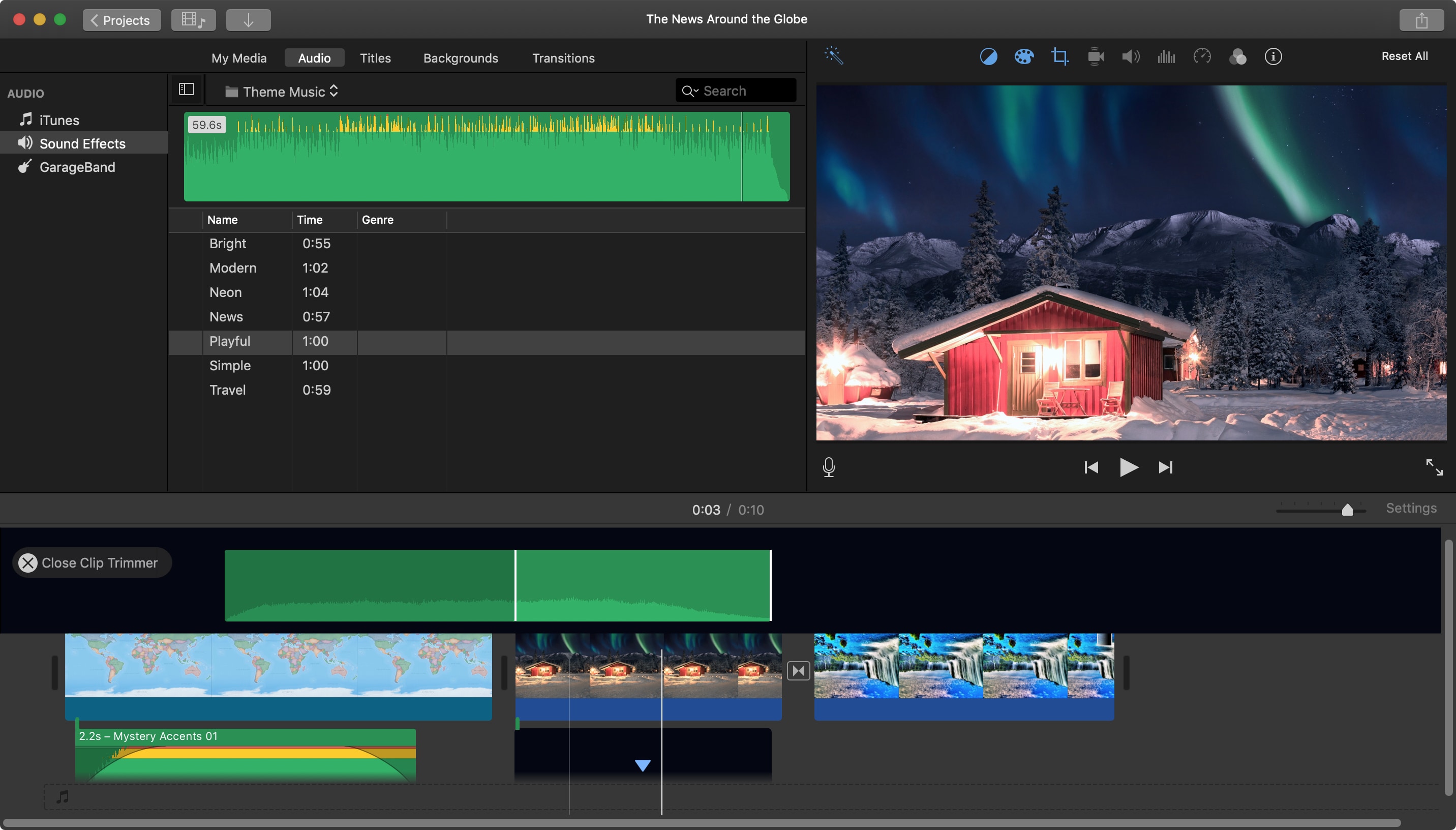
When you add an audio effect or background music to your movie in iMovie, you may want to make some adjustments. Luckily, iMovie provides features for editing your audio clips so that you can trim them, change the speed, and adjust the volume.
For iMovie on both Mac and iOS, this tutorial shows you the basics of how to edit, trim, and adjust your audio clips.