Learn how to harness the full potential of Siri on your Mac to control system settings for enhanced productivity and convenience.
How to use Siri to control System Settings on your Mac
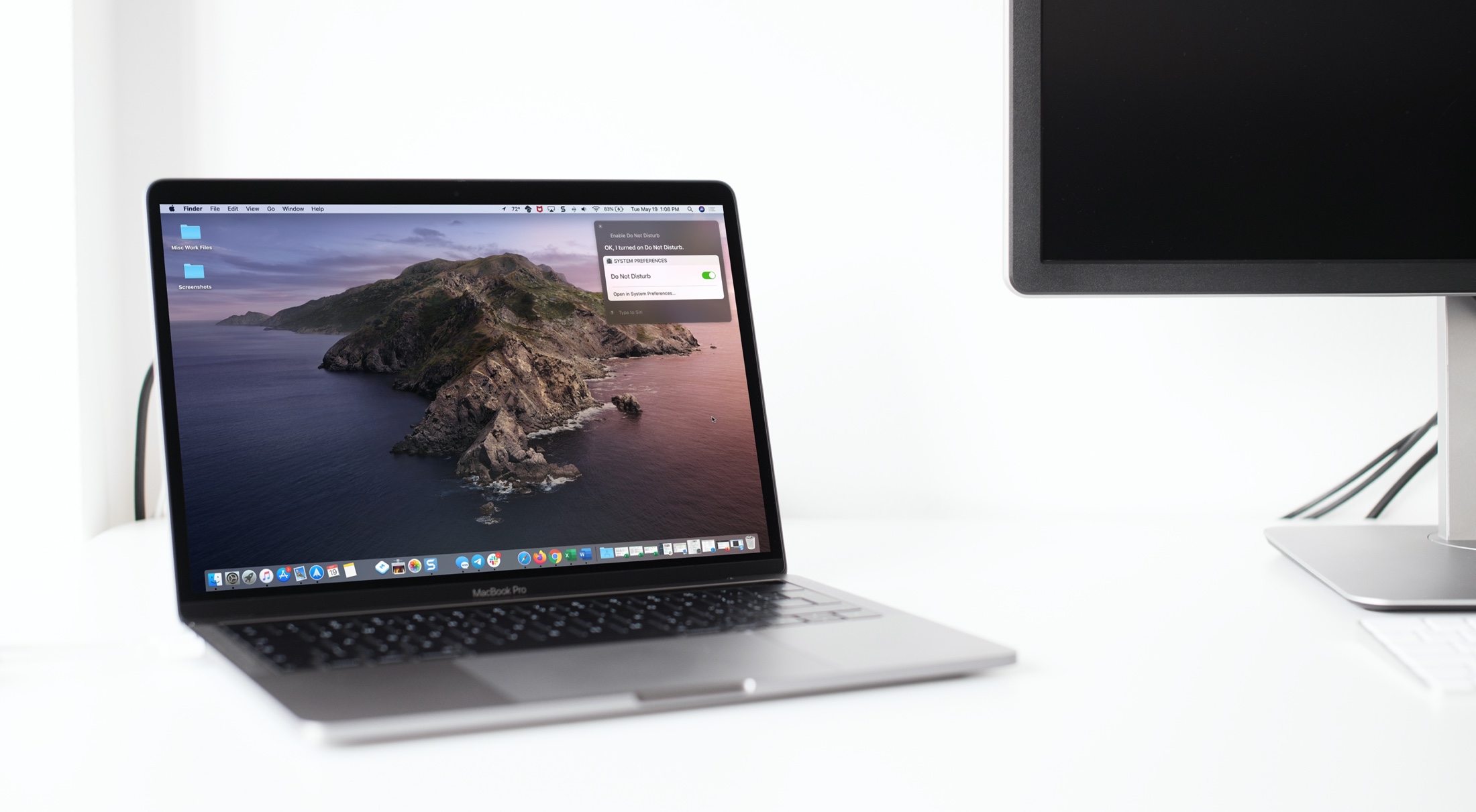
Learn how to harness the full potential of Siri on your Mac to control system settings for enhanced productivity and convenience.

Learn about some quick ways to customize the macOS login screen to make your Mac more personalized, functional, and welcoming when you power it on or wake it up from sleep.
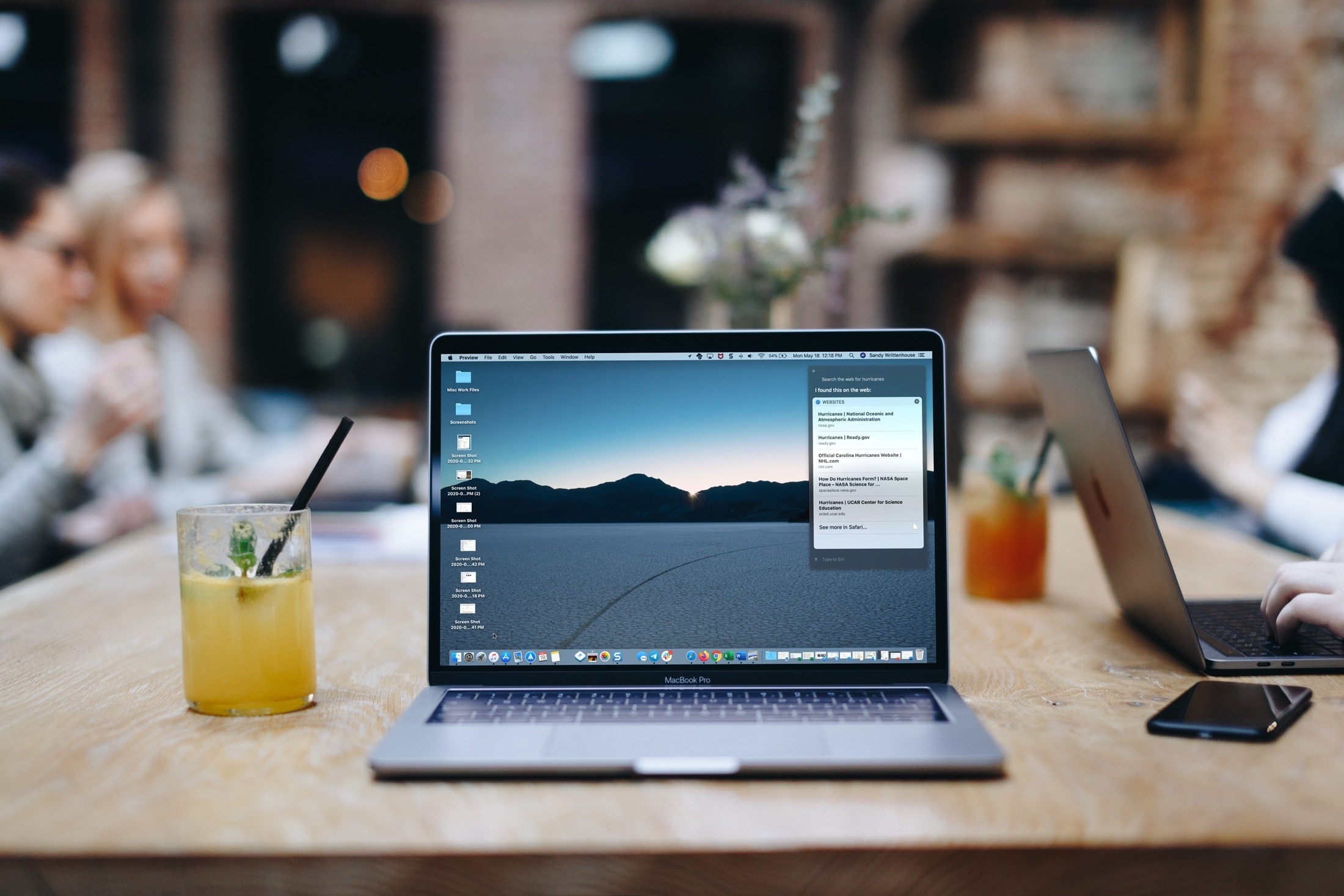
Learn how to use the Siri voice assistant on your Mac to search the web, find pictures, and more -- without leaving the app you are in.
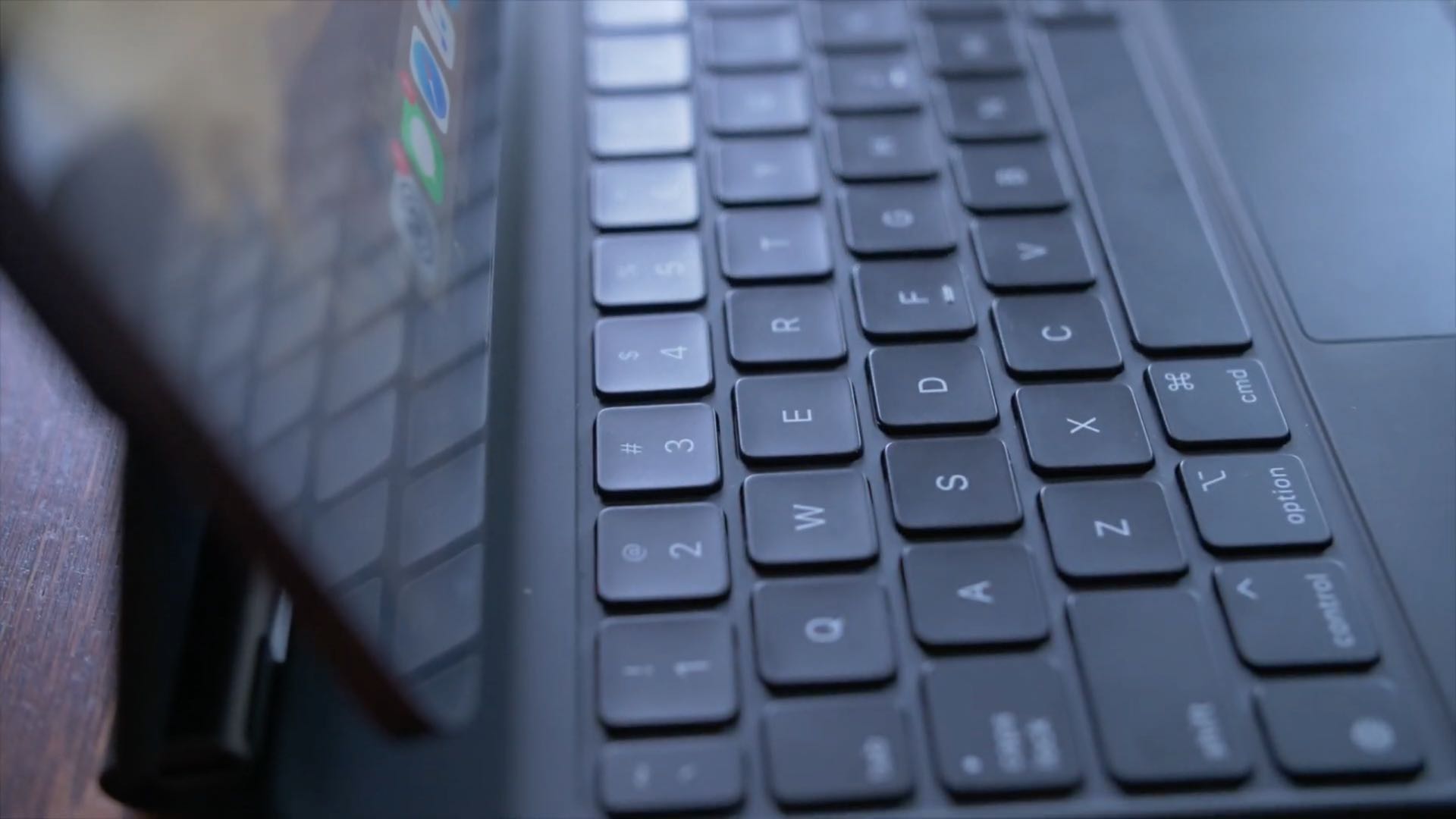
No physical Escape key on your iPad or Mac? No problem, as both iOS and macOS allow you to invoke Escape with a simple keyboard shortcut. Follow along with us to learn how to trigger the Escape command on iPad and Mac keyboards that lack a dedicated ESC key.

Learn how to view retweets with comments, also known as quote tweets, in the Twitter app and website to see what people are saying about it.
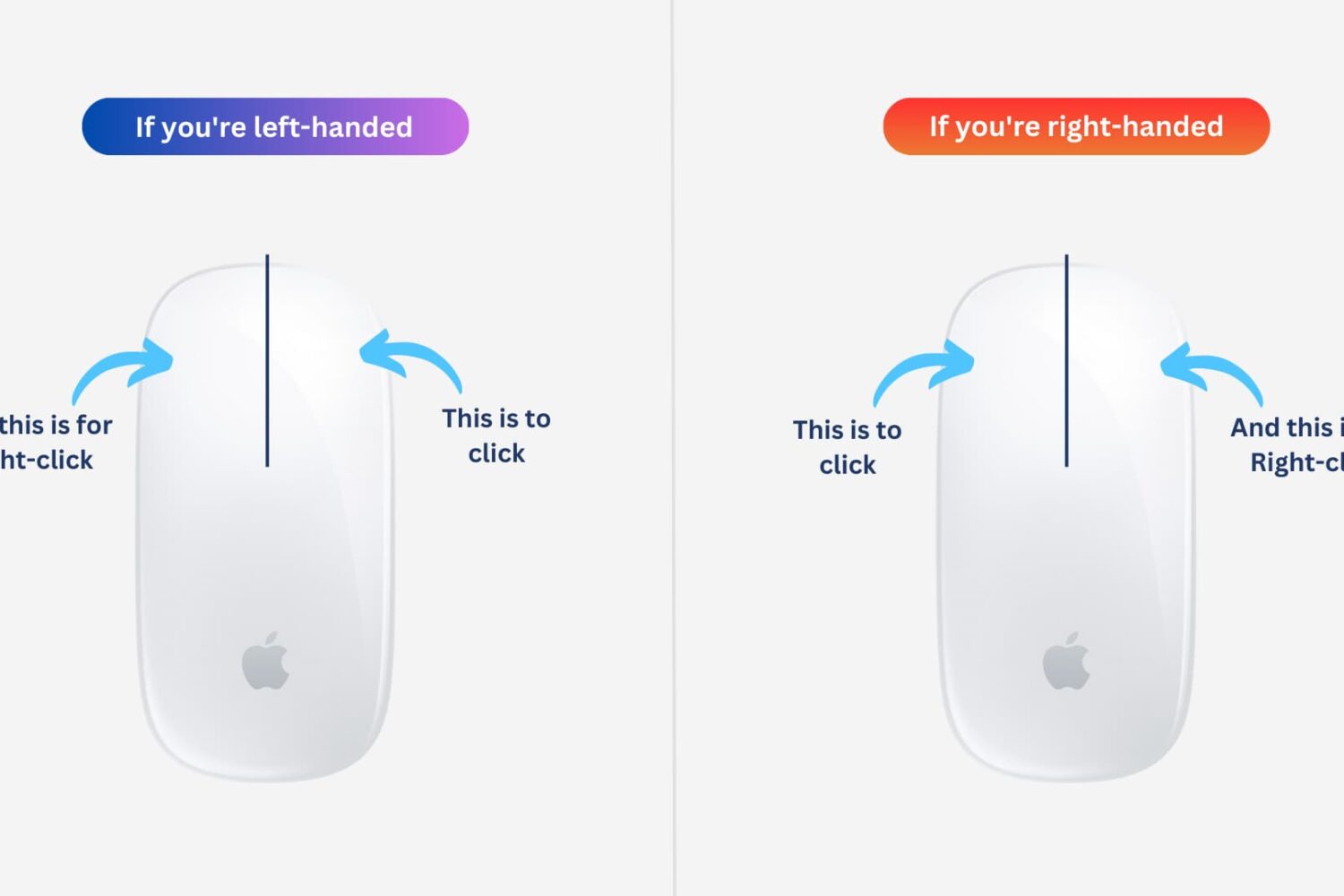
Learn how to easily customize and switch the mouse buttons on your Mac for enhanced control and ease of use. Whether you’re a left-handed user or simply prefer a different button configuration, you can optimize your experience to suit your needs.
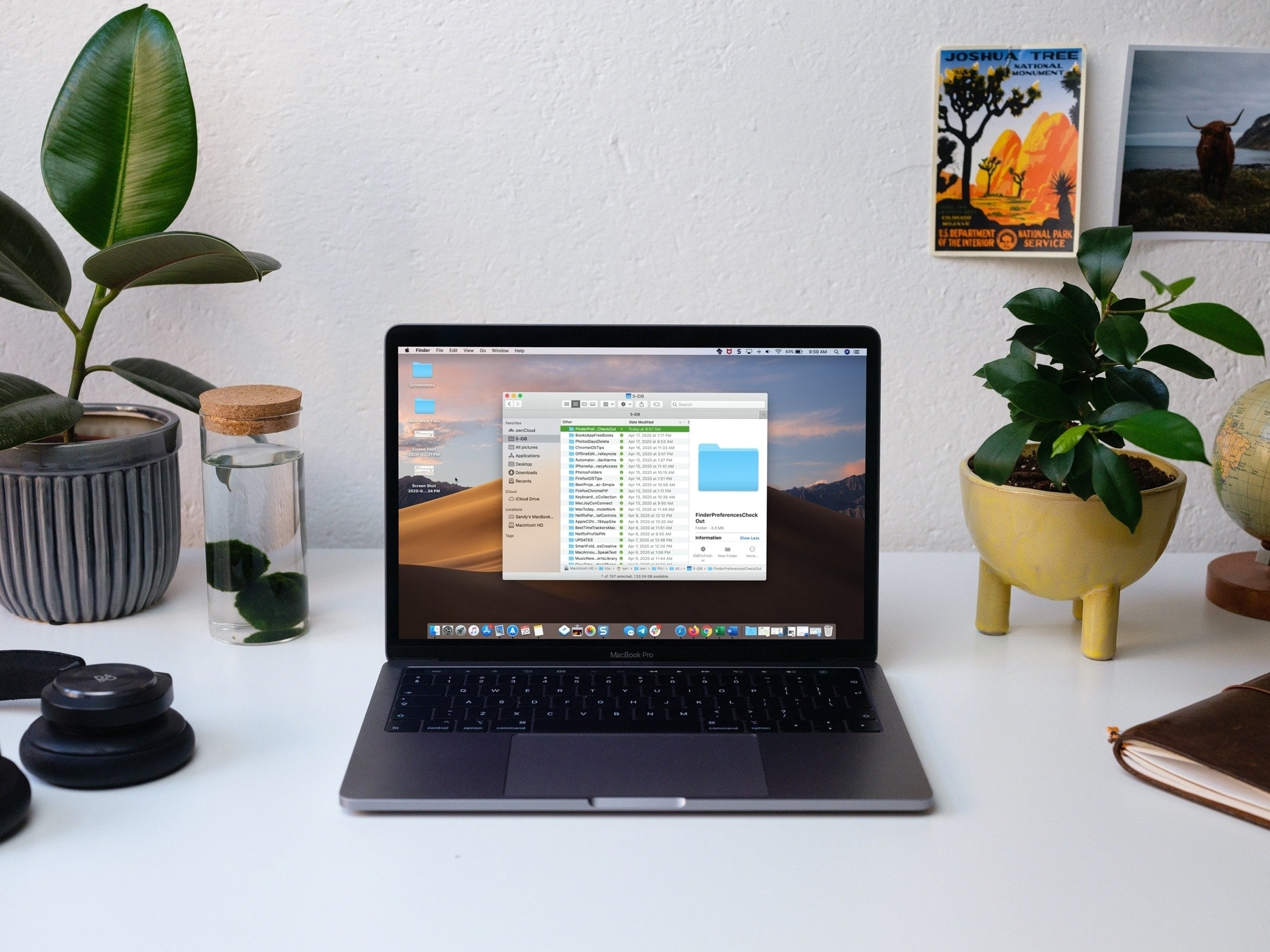
Save time and be more productive by taking a moment to customize these useful Mac Finder preferences and settings.

Discover how to protect your user account settings and privacy by setting your Mac to automatically log you out after a set period of inactivity.
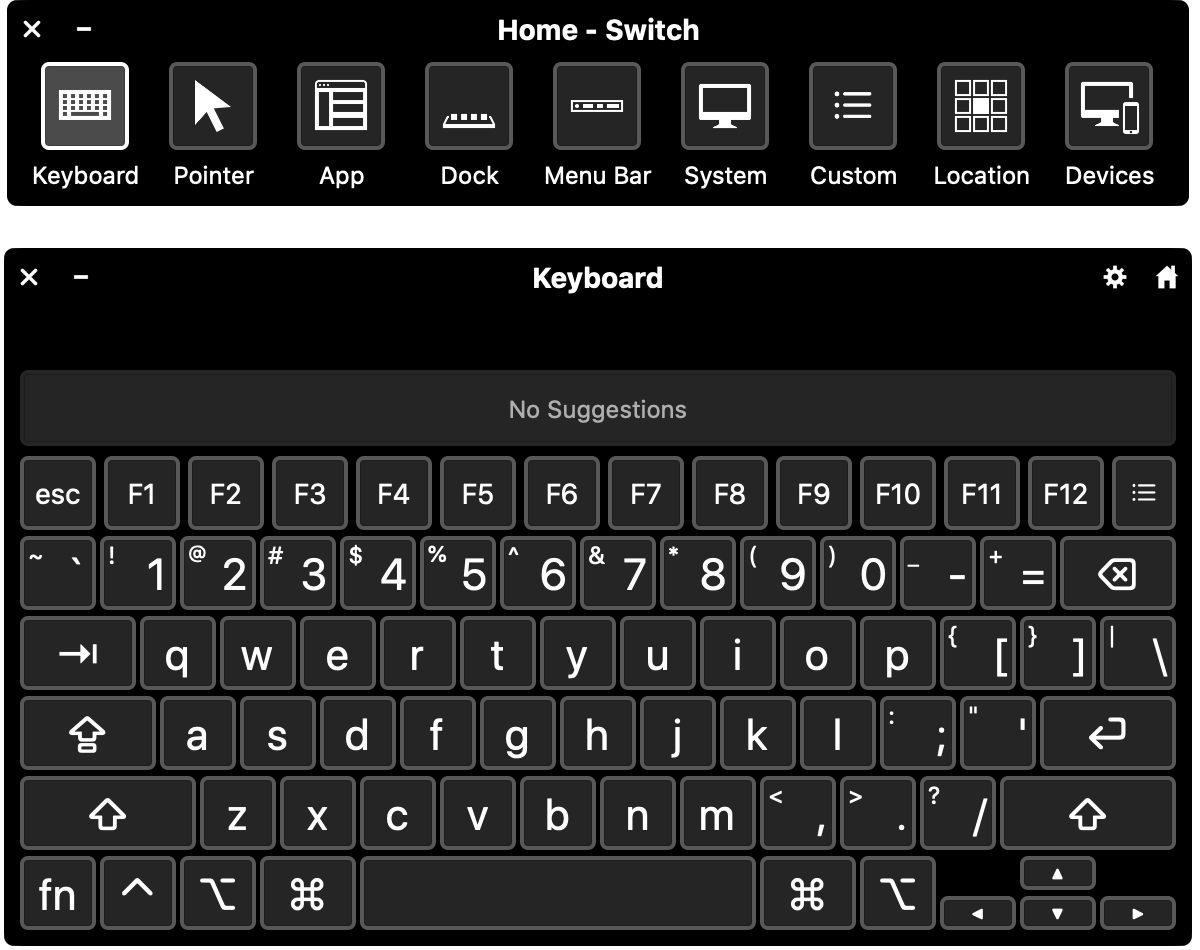
Switch Control is a helpful accessibility feature on Mac. It lets you connect an adaptive device and then interact by entering text, selecting items, and controlling your Mac.
If you want to use Switch Control for you or someone you share your computer with, this tutorial shows you how to enable and customize Switch Control on Mac.
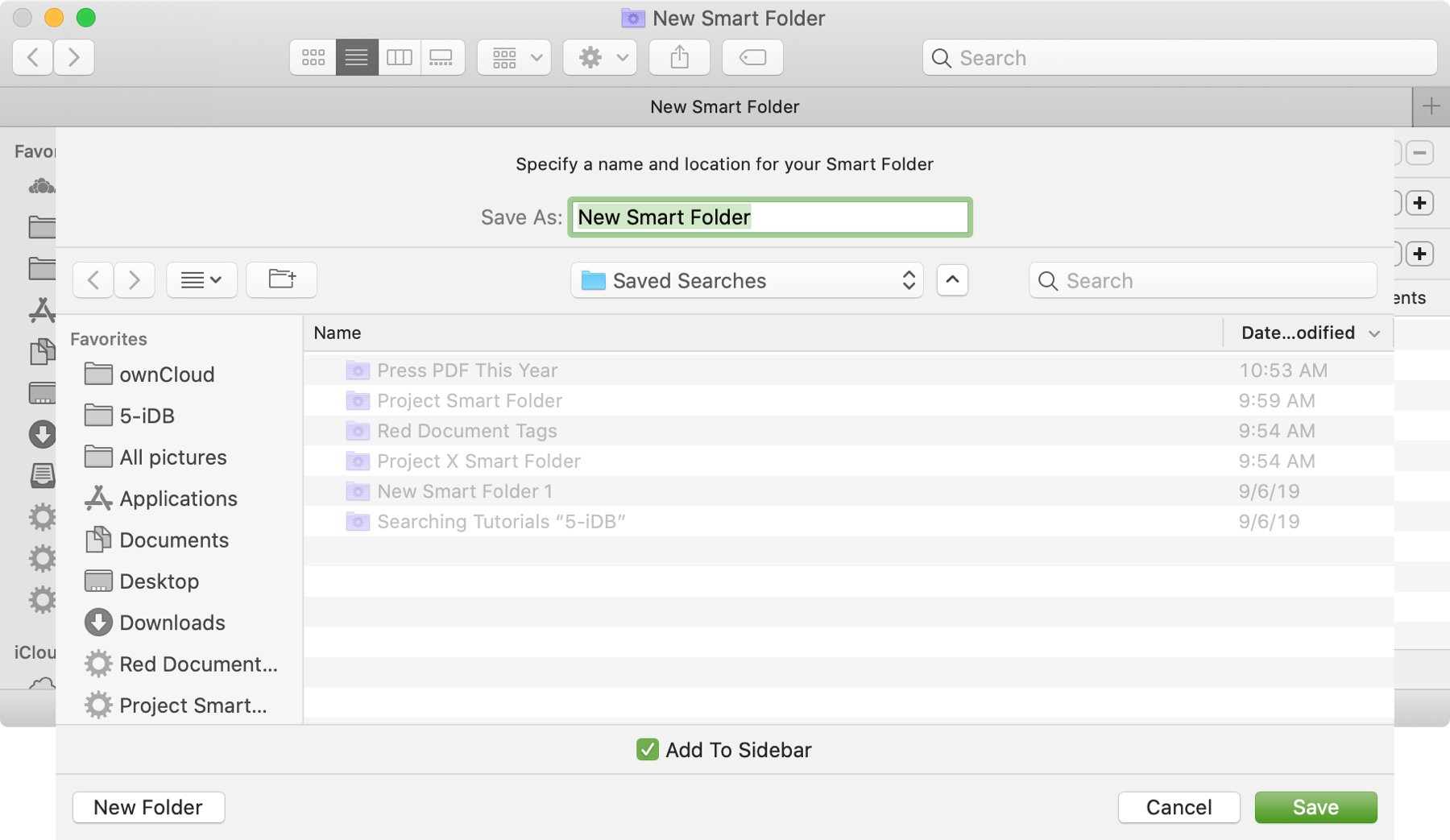
The Smart Folders feature on Mac gives you a great way to collect items that match specific criteria. You can use Smart Folders for business or pleasure and instead of searching for files, images, or documents.
We have a basic tutorial for how to use Smart Folders on Mac if you’re just getting started. But if you’ve used Smart Folders before, you might be interested in additional ways these handy folders can be even more useful.
To keep up with your work or school projects, here are several creative ways to use dates as conditions for Smart Folders on your Mac.
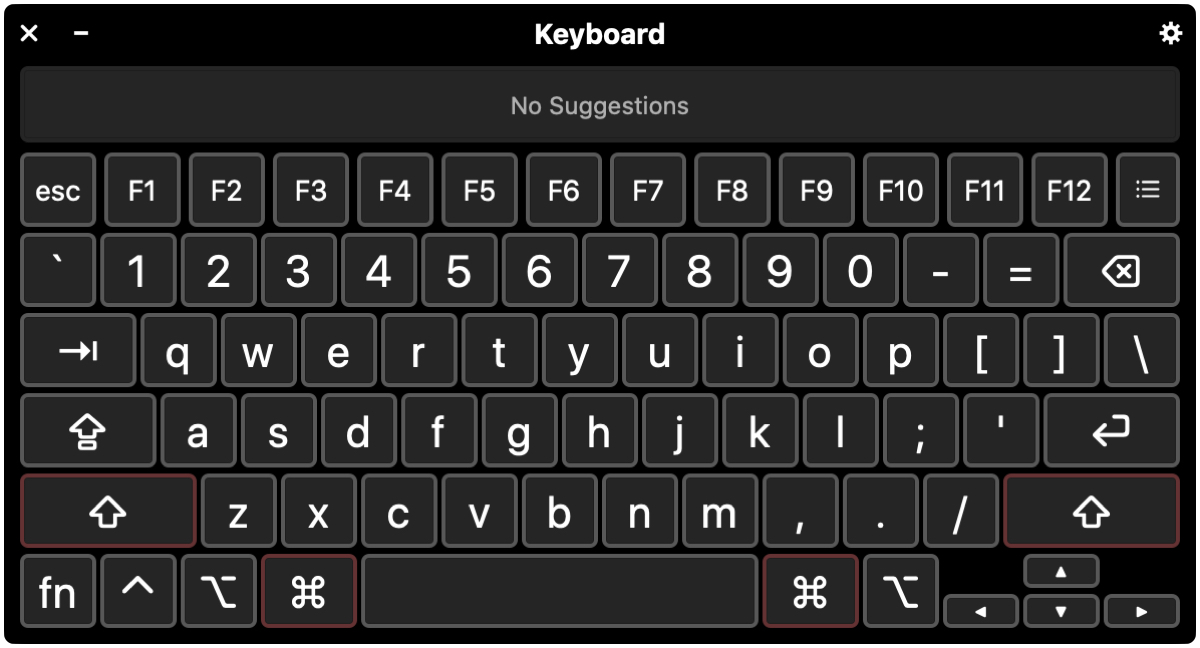
In this tutorial, we’ll walk you through four handy keyboard accessibility features to help you get the best typing experience if you have difficulty using the Mac’s keyboard in its standard configuration.

Learn how to enable accessibility options on your Mac login screen if you or another user needs these accessibility features while getting into the computer or user account.