Learn how to use Markup tools in Mac's Preview and Photos apps to annotate, highlight, add shapes, or draw on images without needing third-party apps.
How to mark up and annotate Photos on Mac
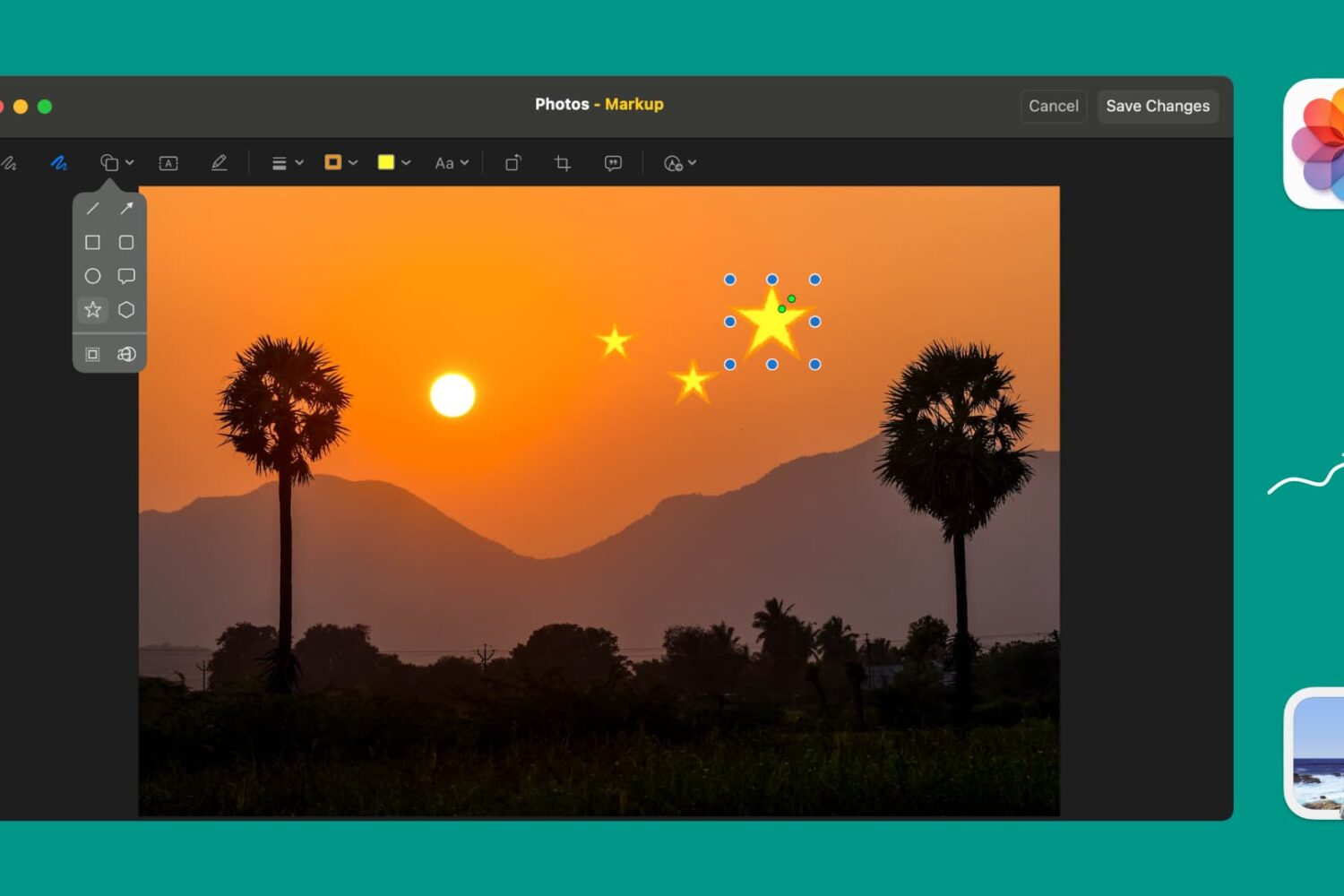
Learn how to use Markup tools in Mac's Preview and Photos apps to annotate, highlight, add shapes, or draw on images without needing third-party apps.
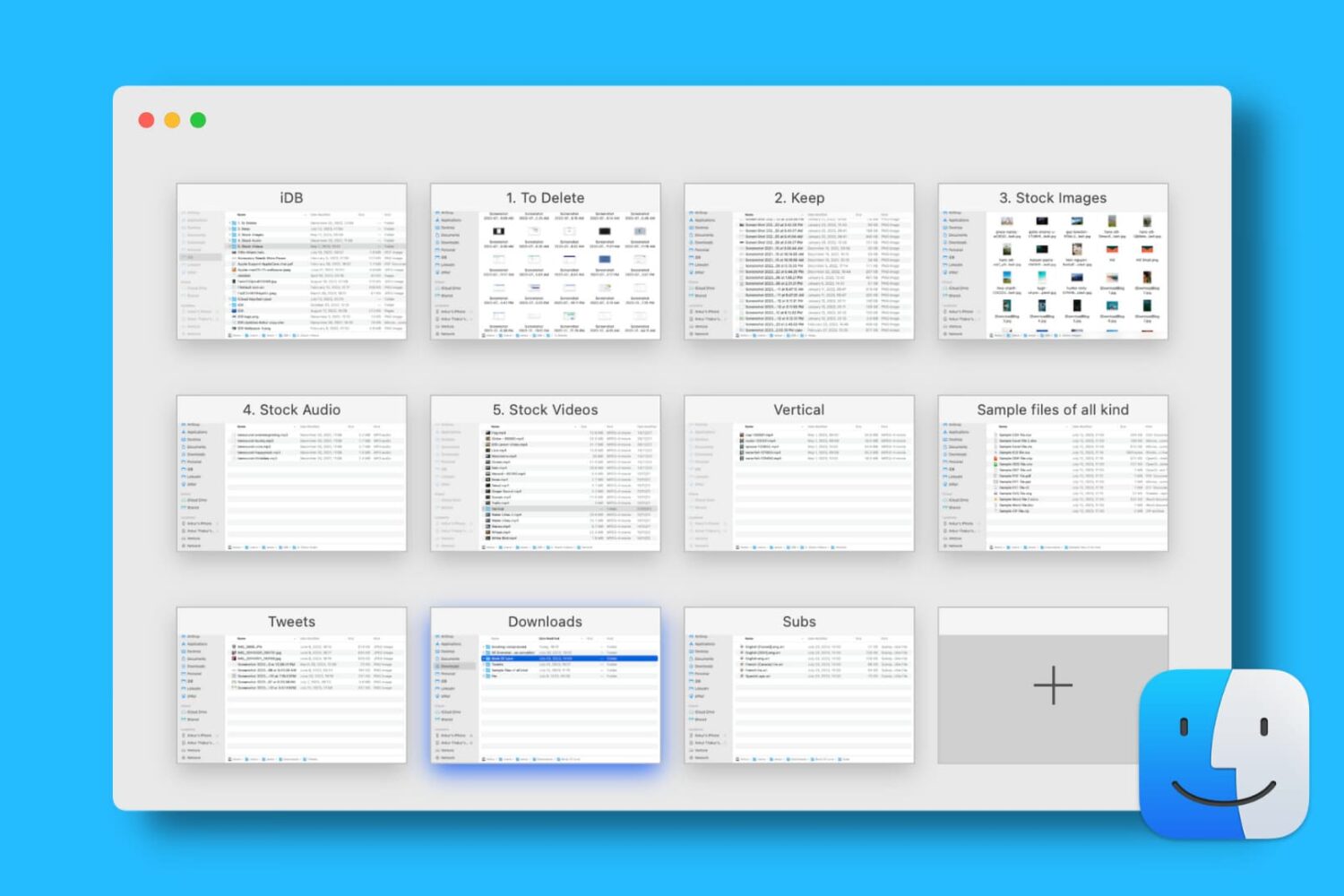
Find out how to open, use, navigate, rearrange, and close tabs in Finder on your Mac so you can work with multiple folders in just one window and keep your desktop uncluttered.
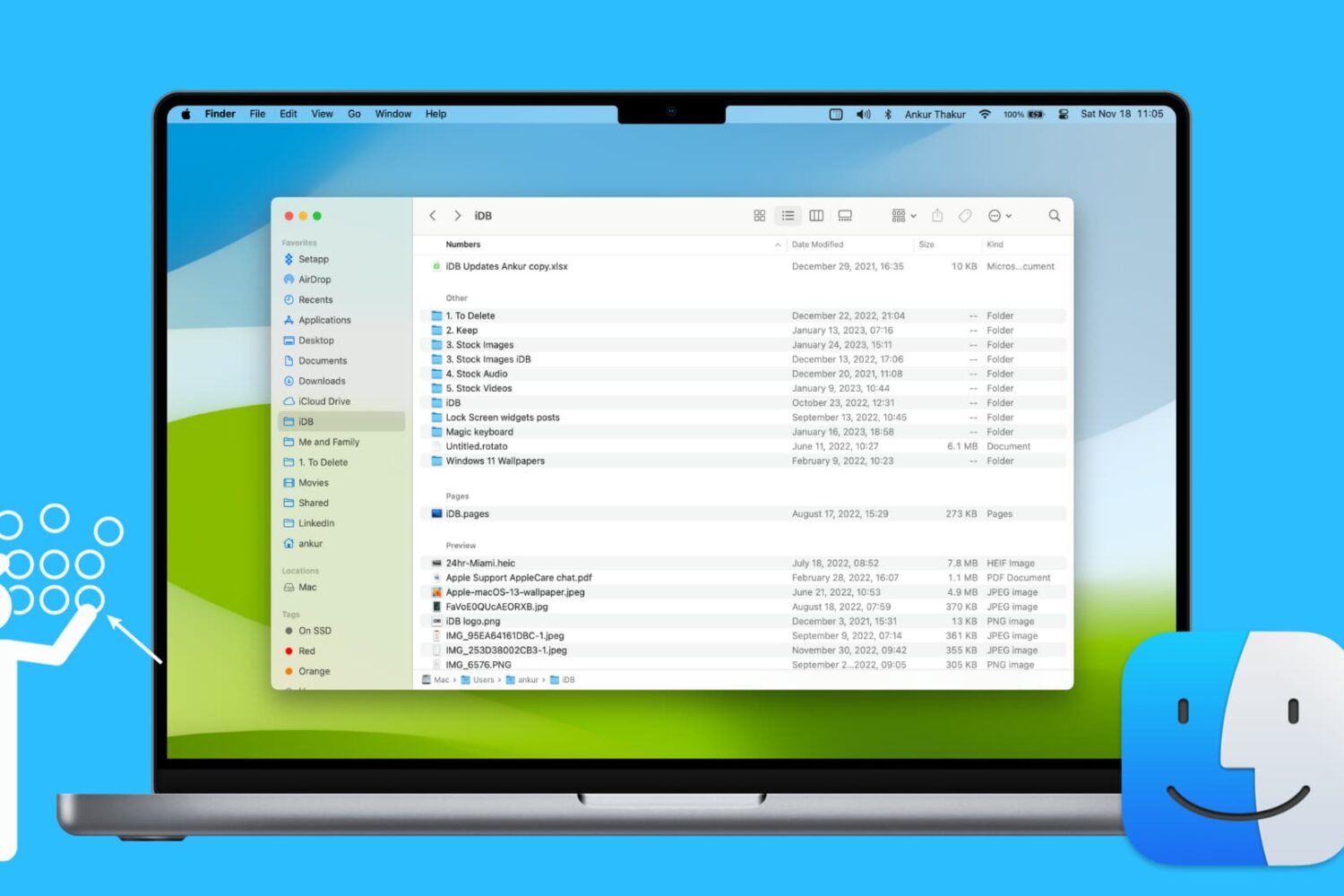
Learn how to use groups in Finder to easily sort and manage files for a more streamlined and efficient experience.
Learn how to use the hidden Secure Notes feature of the Keychain Access app on your Mac running an older version of macOS to store confidential notes, private text, PINs, credit card numbers, 2FA backup codes, cryptographic keys, etc.

Check out this list of fun Terminal commands for a quick and quirky way to entertain yourself when you are bored and want to tinker around on your Mac.
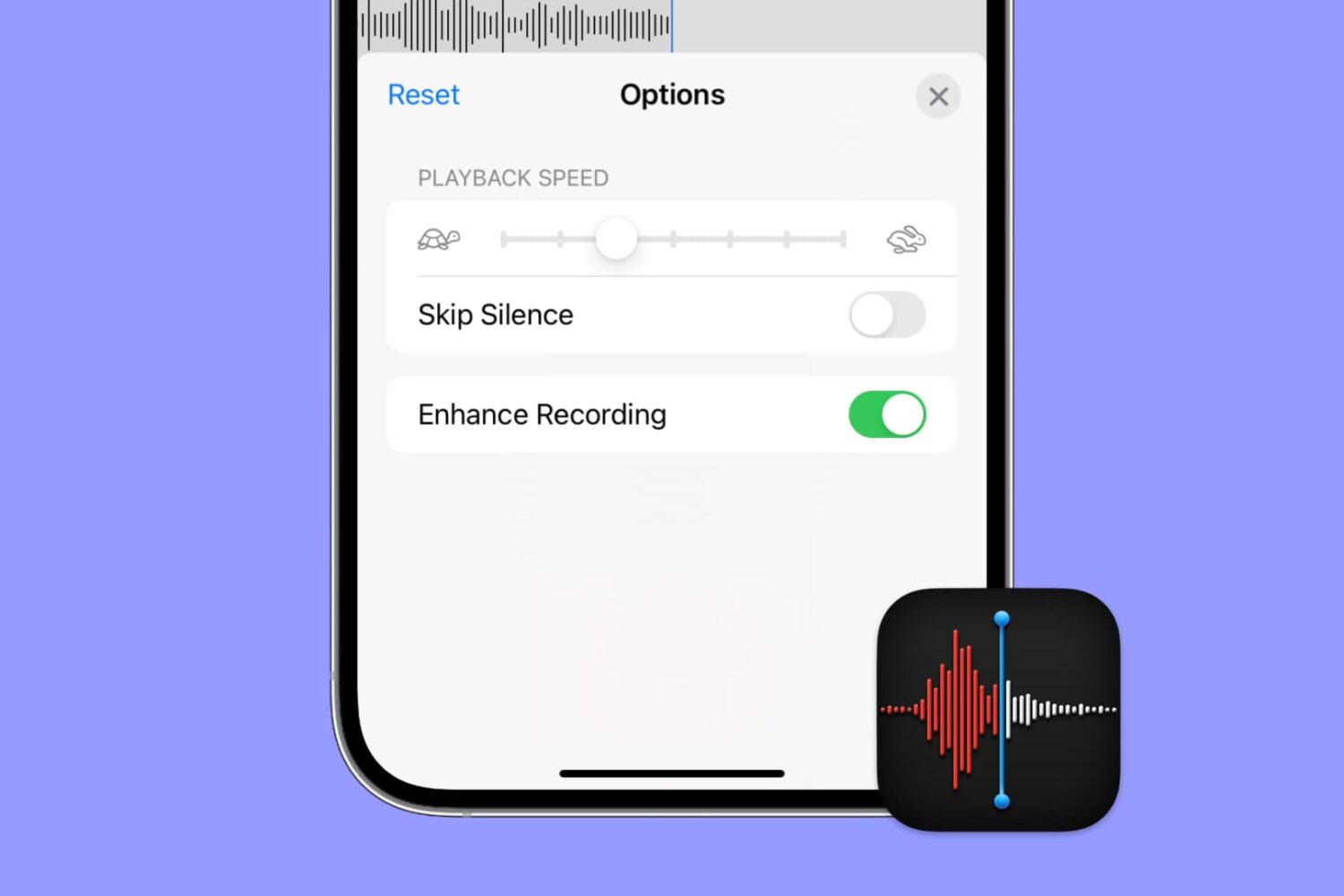
Apple's Voice Memos app has a feature designed to improve the sound quality of your recordings, including existing ones. Follow along with us as we show you how to use Voice Memos' Enhance Recording feature to reduce background noise and room reverberation of your voice notes.
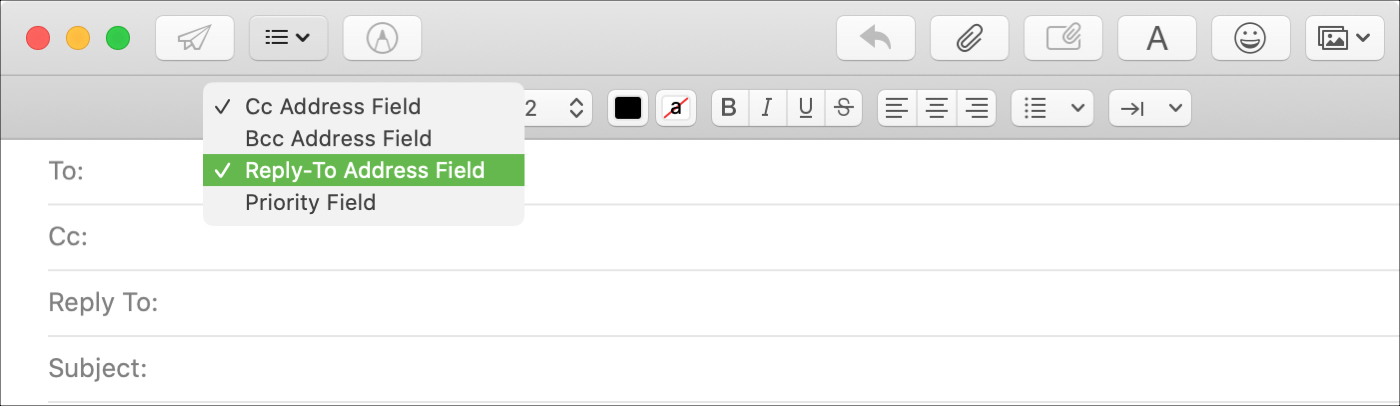
You may have seen this when emailing a business; a different Reply To address than the one you received the email from. Companies and organizations can use this when they want replies to go to a specific mailbox. And if your business uses the Mail app on Mac, you can do the same.
Although it doesn’t currently appear to be a feature in Mail on iOS, it is on macOS. So here’s how to use that Reply To field in Mail.
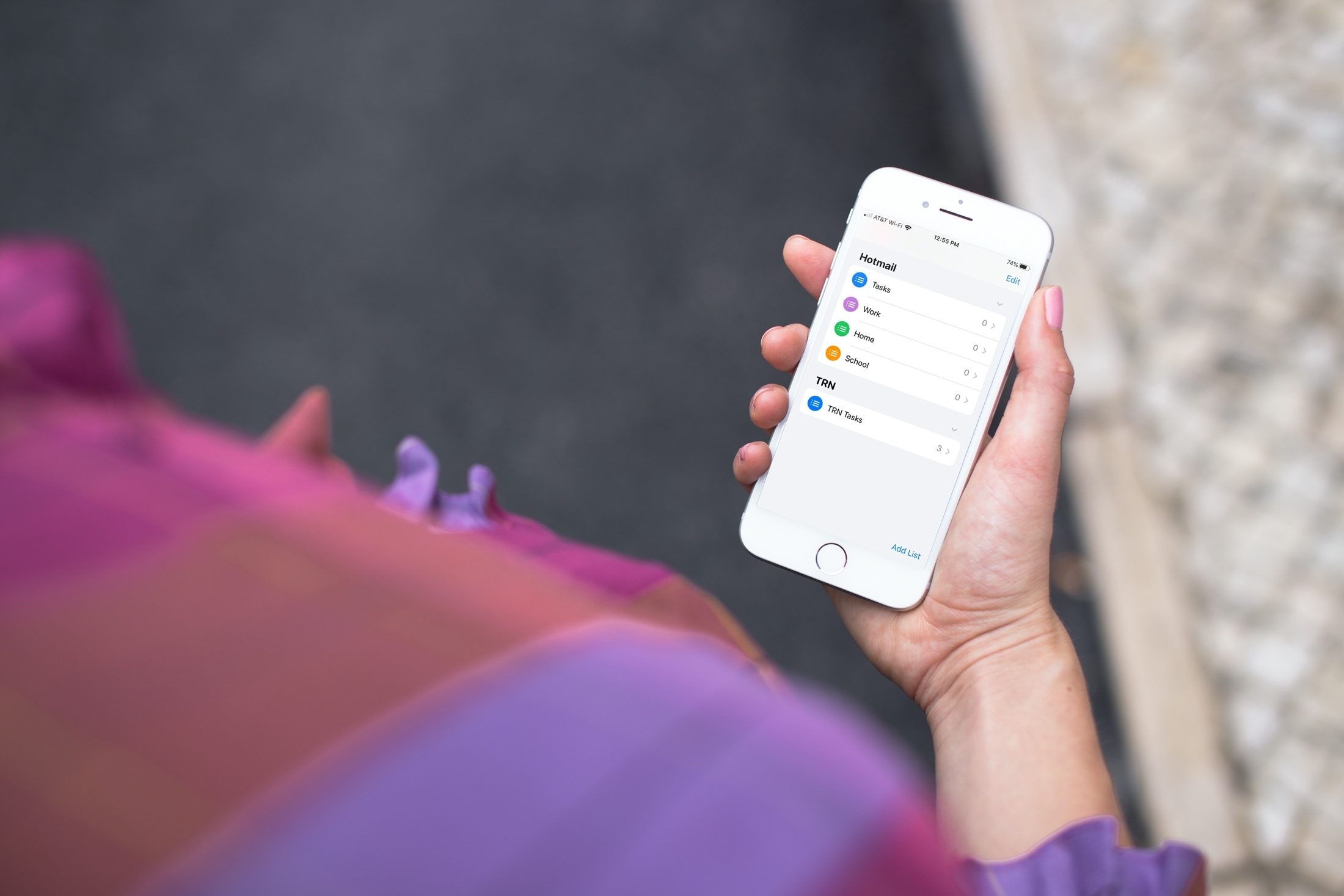
Learn how to add or remove accounts in Apple's Reminders app on an iPhone, iPad, and Mac to save your to-dos in your preferred online service.
Find out how to add a word to your Mac’s dictionary so it stops being tagged as misspelled and no longer shows a red dotted line underneath when you type it.
This tutorial explains how to use the Smart Address feature in the Mac Mail app to display only the recipient’s name instead of their full name and email address.

Here are some tips to customize your Mac's desktop, helping you create a personalized and productive workspace.
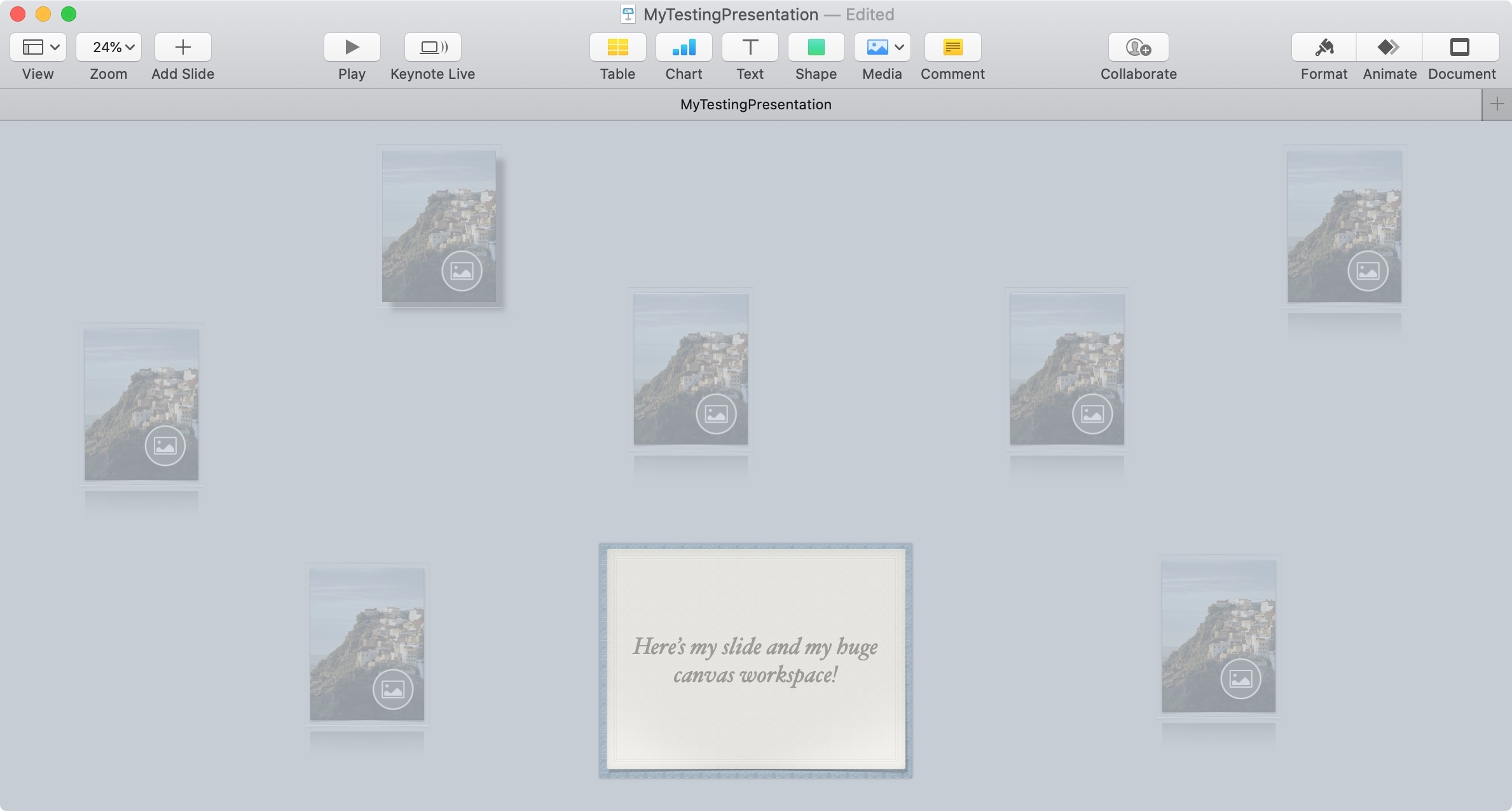
Do you have complex slides and need more room to work? In this tutorial, we’ll show you how to expand the workspace in Keynote around your slides.