Use the Sort By option in the Apple Mail app on your Mac to organize your emails based on two dozen parameters.

Use the menu bar to sort Mail on Mac
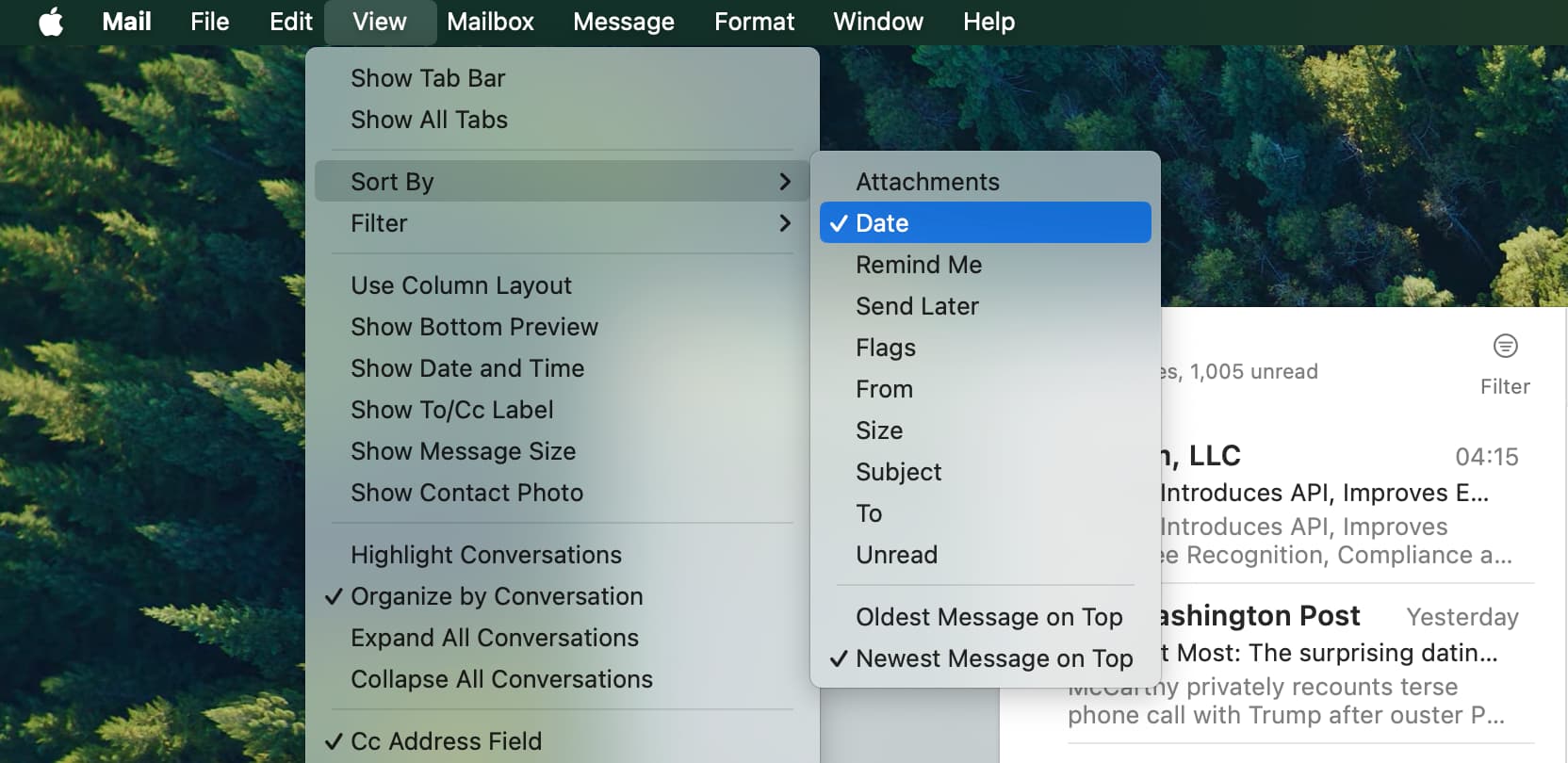
You can sort your emails by a number of items, including date, from, subject, and unread.
To do that, open the Mail app, and from the top menu bar, click View > Sort By. Now, select an option in the pop-out menu: Attachments, Date, Remind Me, Send Later, Flags, From, Size, Subject, To, Unread, Oldest Message on Top, and Newest Message on Top.
Use the columns to sort Mail
Open the Mail app and click View > Use Column Layout from the top menu bar. After that, click one of the top column headers to sort by that field alphabetically, chronologically, or as appropriate. You can also right-click anywhere in the column header row, and you’ll see Sort By in the menu.
After you right-click, you can also click other options here to add those columns to the Mail app. You have several options like: Attachments, Blocked, Date Received, Data Sent, Remind Me, Send Later, Flags, From, Mailbox, Follow Up, Muted, Priority, Size, To, and VIP.
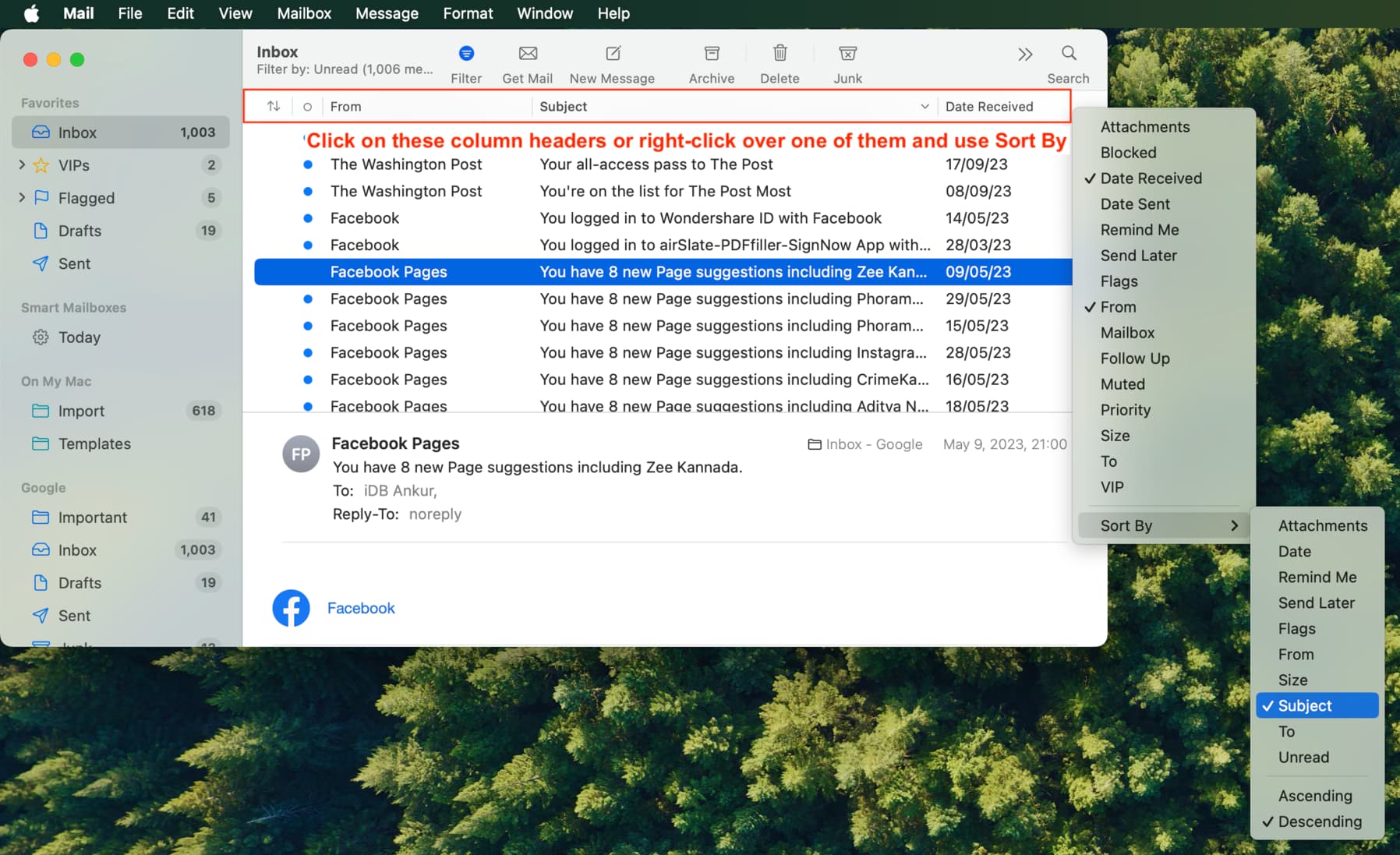
Note that the above sorting tips work in both Side Preview and Bottom Preview for your inbox. You can choose one of these inbox layouts by clicking View > Show Side Preview or Show Bottom Preview.
Just for context, the above things are applicable if your Mac is running macOS Big Sur or later. Before macOS Big Sur, you used to have a dedicated spot at the top left of your mailbox headers to pick how you wanted to sort.
And if your Mac has Apple Intelligence set up, you can even use the four categories at the top to sort your emails: Primary, Transactions, Updates, and Promotions.

Do more in Mail: 40+ tips for the Mail app on your iPhone, iPad, and Mac