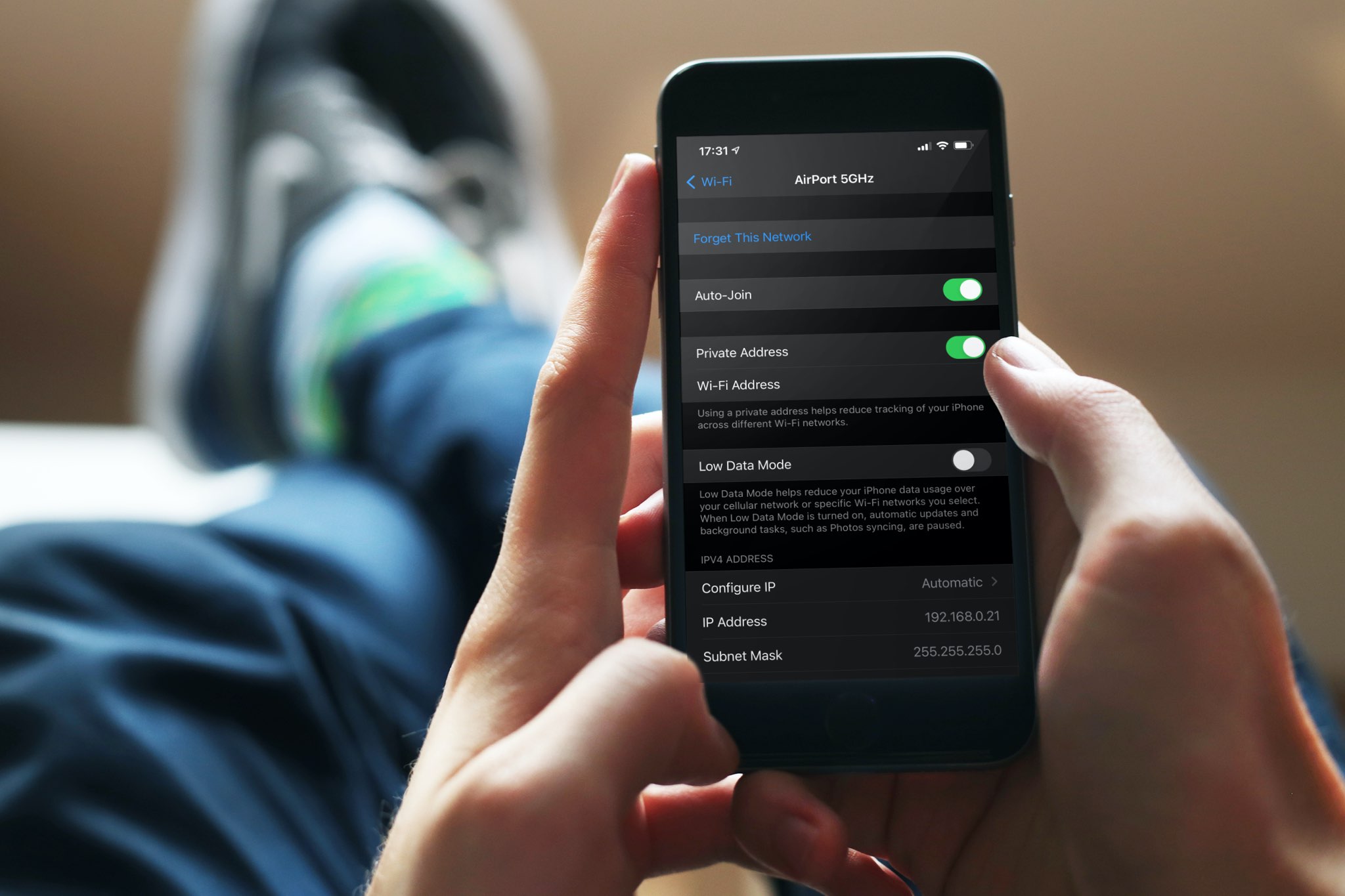
A private Wi-Fi address protects your privacy by reducing the tracking of your iPhone, iPad, Mac, and Apple Watch across different wireless networks. In this tutorial, you’ll learn how to enable a private Wi-Fi address on your Apple devices to enhance your privacy.
About Wi-Fi addresses
Apple writes:
To communicate with a Wi-Fi network, a device must identify itself to the network using a unique network address called a Media Access Control (MAC) address. If the device always uses the same Wi-Fi MAC address across all networks, network providers and other network observers can more easily relate that address to the device’s network activity and location over time. This allows a kind of user tracking or profiling that affects all devices on all Wi-Fi networks. The Private Wi-Fi Address feature is designed to address this concern.
Your iPhone, iPad, iPod touch, and Apple Watch can use a different MAC address for each wireless network. Doing so reduces the risk of tracking, boosting your online privacy. With the newfangled MAC addresses, the network cannot extract identifying information such as your device’s name, brand, type, and so forth.
Dave Mark, The Loop:
So if you always use your device’s actual MAC address at, say, your local Starbucks, it becomes easy to uniquely identify that device and track you. Since a randomized address is seen as a new network device, this might cause you to see a ‘new network device’ alert each time you get on your home network.
Thankfully, you can change your Wi-Fi settings to turn private addresses on or off. Turning it off because Wi-Fi isn’t working may help in a few cases, but before you do that and reduce your privacy, consider other measures such as restarting your device & router, updating the software, and more.
Use a private Wi-Fi address
Learn how to randomize your device’s MAC address with just a few quick steps. Keep in mind that this is a per-network setting that must be manually enabled for each and every wireless network you use.
iPhone and iPad
To switch your iOS device from using the actual MAC address to randomizing its MAC address, you’ll need to enable the “Private Wi-Fi Address” toggle in settings:
1) Open the Settings app on your iPhone, iPad, or iPod touch, and tap Wi-Fi.
2) Tap the info button ⓘ next to the connected network name. If you want to manage this setting for a previously-joined Wi-Fi network that’s not currently available near you, tap the Edit button first.
3) On newer versions of iOS, tap Private Wi-Fi Address and select Fixed or Rotating:
- Off: Your iPhone or iPad will use its hardware MAC address.
- Fixed: Your iPhone or iPad will use a private address, but this address will not rotate (i.e., change).
- Rotating: Your iPhone or iPad will use a private address that rotates to a different private address every two weeks.

On older versions of iOS, use the Private Wi-Fi Address switch to enable or disable the feature.

Apple Watch
- Open the watchOS Settings app and tap Wi-Fi.
- Tap the name of the network you have joined.
- Tap the option under the “Private Wi-Fi Address” heading and select Off, Fixed, or Rotating. On older versions of watchOS, enable or disable the Private Address switch to manage this setting.

Mac
- Open System Settings and select Wi-Fi.
- Click the three-dot menu icon next to the Wi-Fi name, then select Network Settings.
- Set Private Wi-Fi address to Off, Fixed, or Rotating.
- Click Ok to save the changes.

Issues with private Wi-Fi addresses?
Some routers can be configured to notify you if a new device (as determined by its unique MAC address) joins the network. For instance, your router may support this feature to let you know if a neighbor or a rogue actor is trying to connect to your network. In that case, you may see a notification when your own device with a private address first joins the network.
Apple advises leaving the setting on for all networks that support it. However, you may encounter issues with certain routers and network configurations, resulting in restricted or no Internet access when using a private address. If you see a message in your Wi-Fi settings stating that the network has no Internet access, try enabling Airplane Mode for a few seconds, then disable it. If that doesn’t fix it, stop using a private address with that network.
“If you erase all content and settings from your device or use the Reset Network Settings feature, your device will use a different private Wi-Fi address the next time it connects to the Wi-Fi network,” Apple clarifies.
More on Wi-Fi: