In this tutorial, we show you how to keep the top menu bar visible on your Mac even when you put an app in full-screen mode.
How to show Mac’s top menu bar even in full screen apps
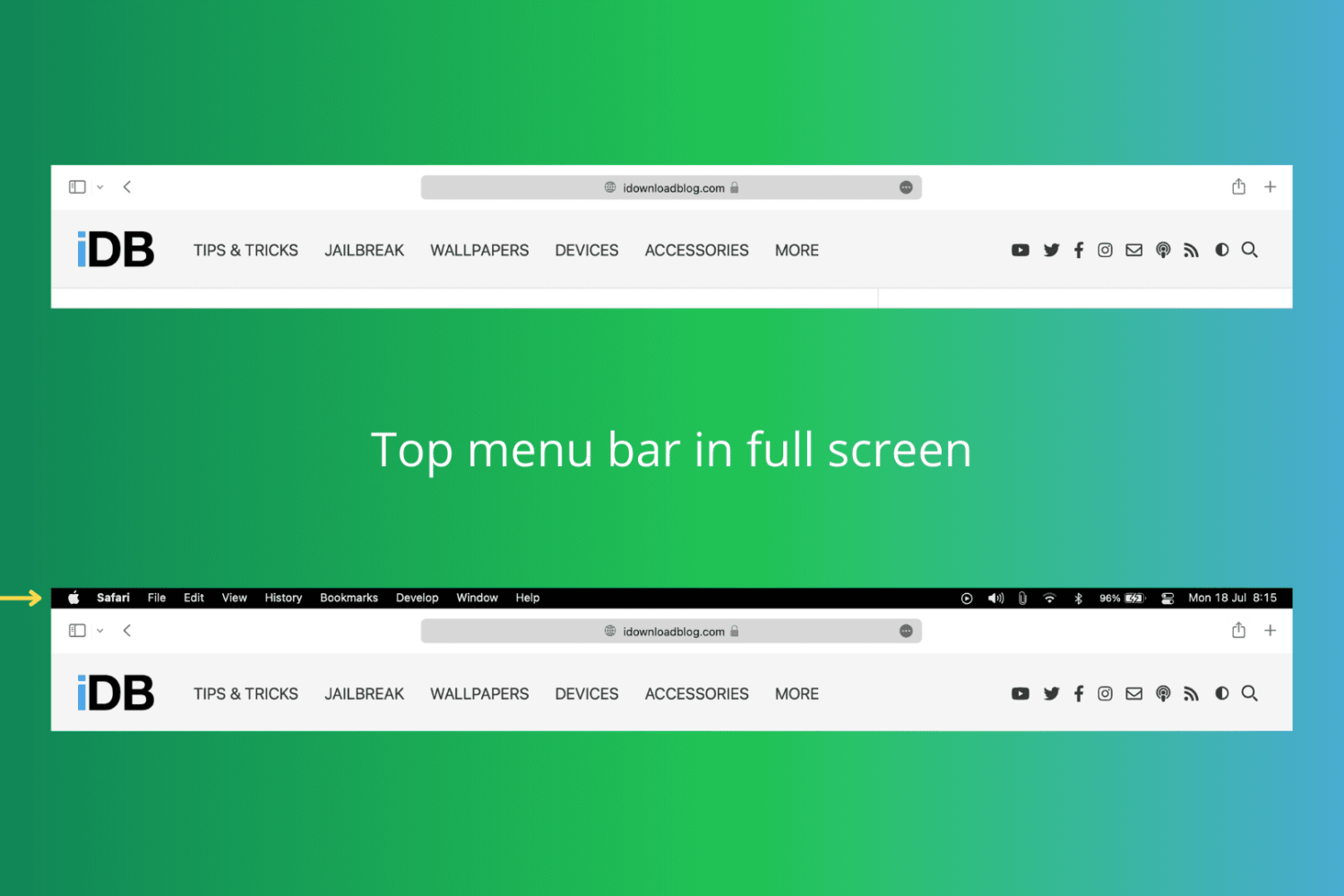
In this tutorial, we show you how to keep the top menu bar visible on your Mac even when you put an app in full-screen mode.
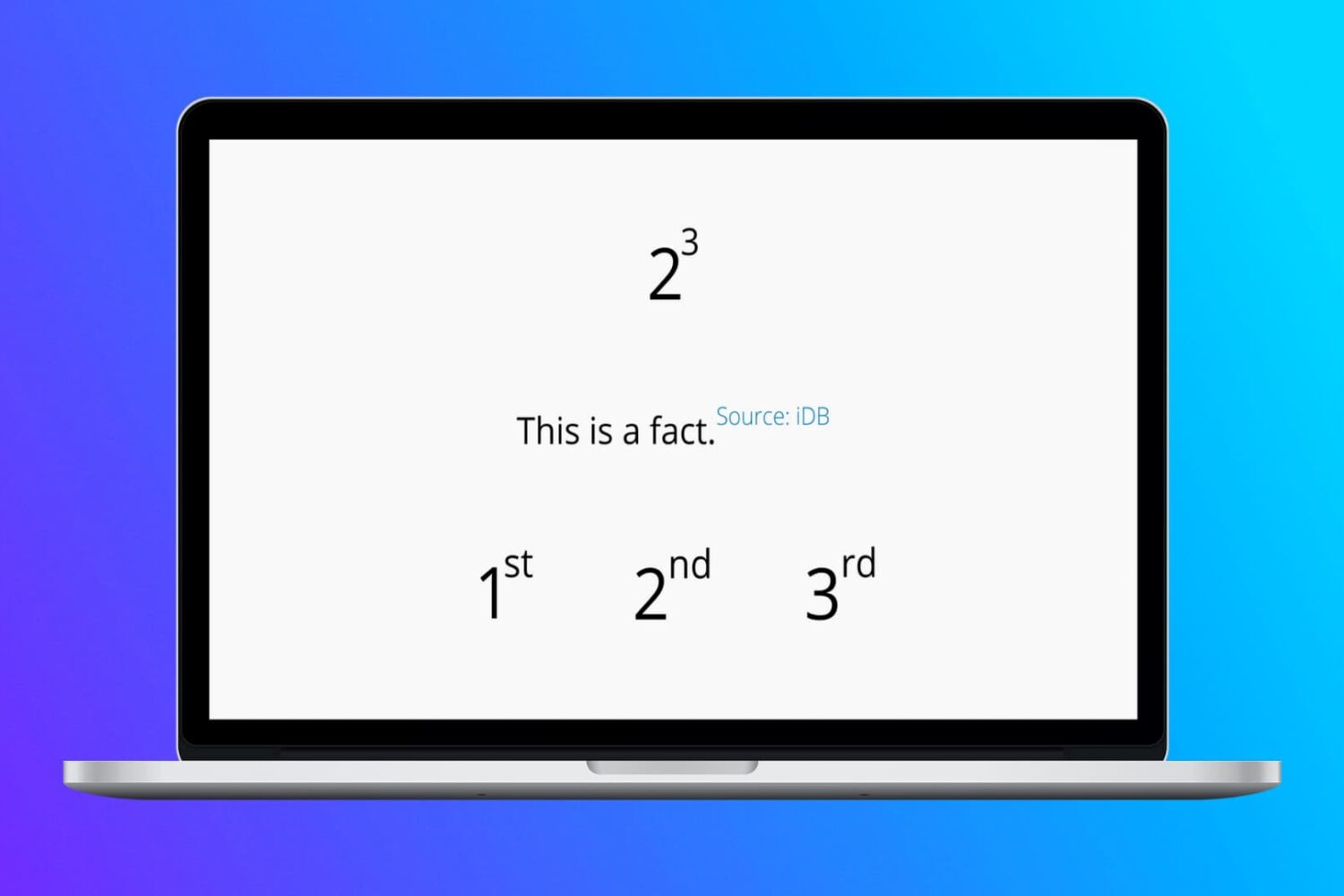
In this tutorial, we show you how to type raised or lowered characters on Mac.
Check out these quick tips and ways to open HEIC or HEIF images on your Mac, even if it’s running an old version of macOS.
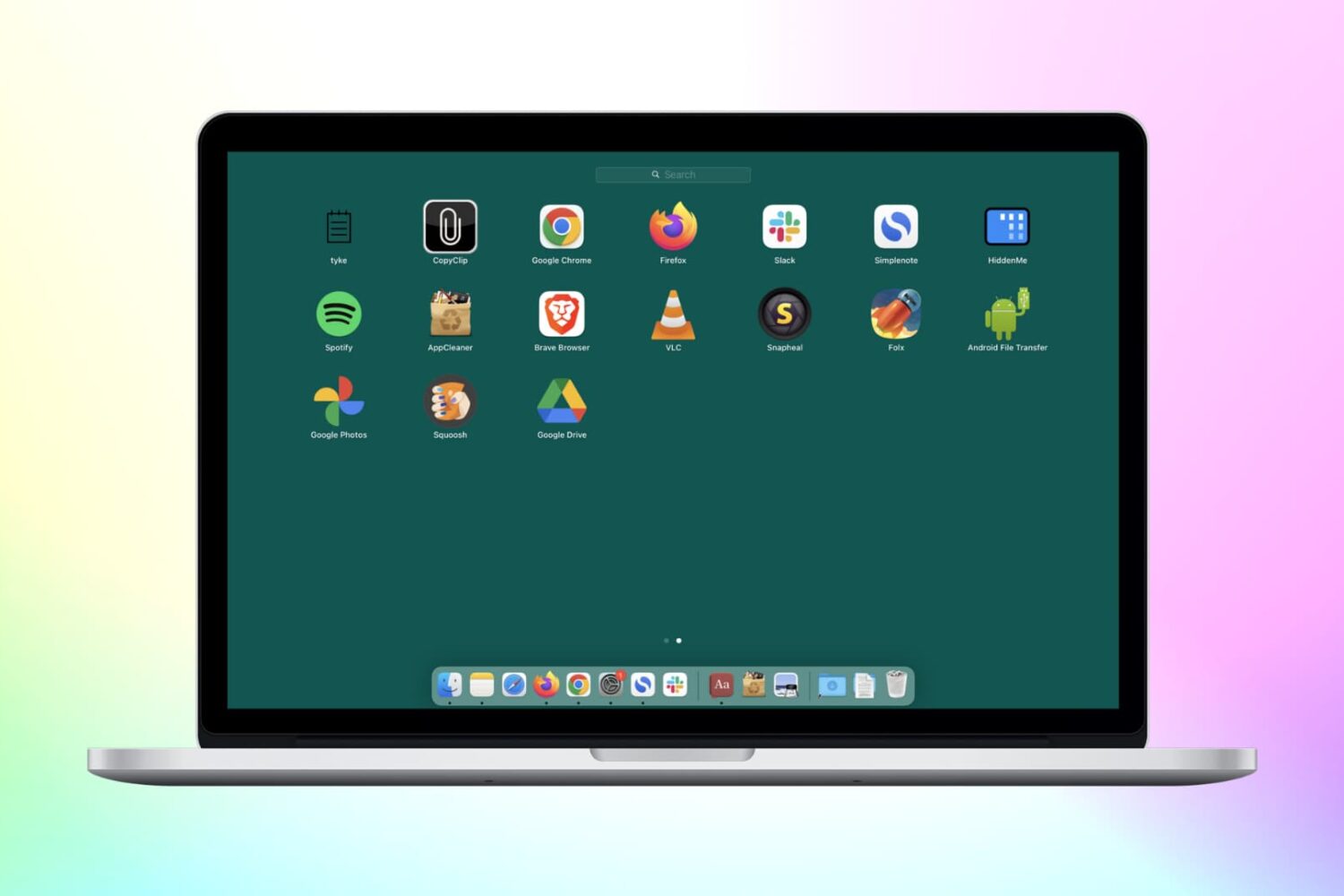
Check out these 3 simple methods to delete Chrome apps on your Mac, including from Finder, Launchpad, and Chrome’s built-in settings.
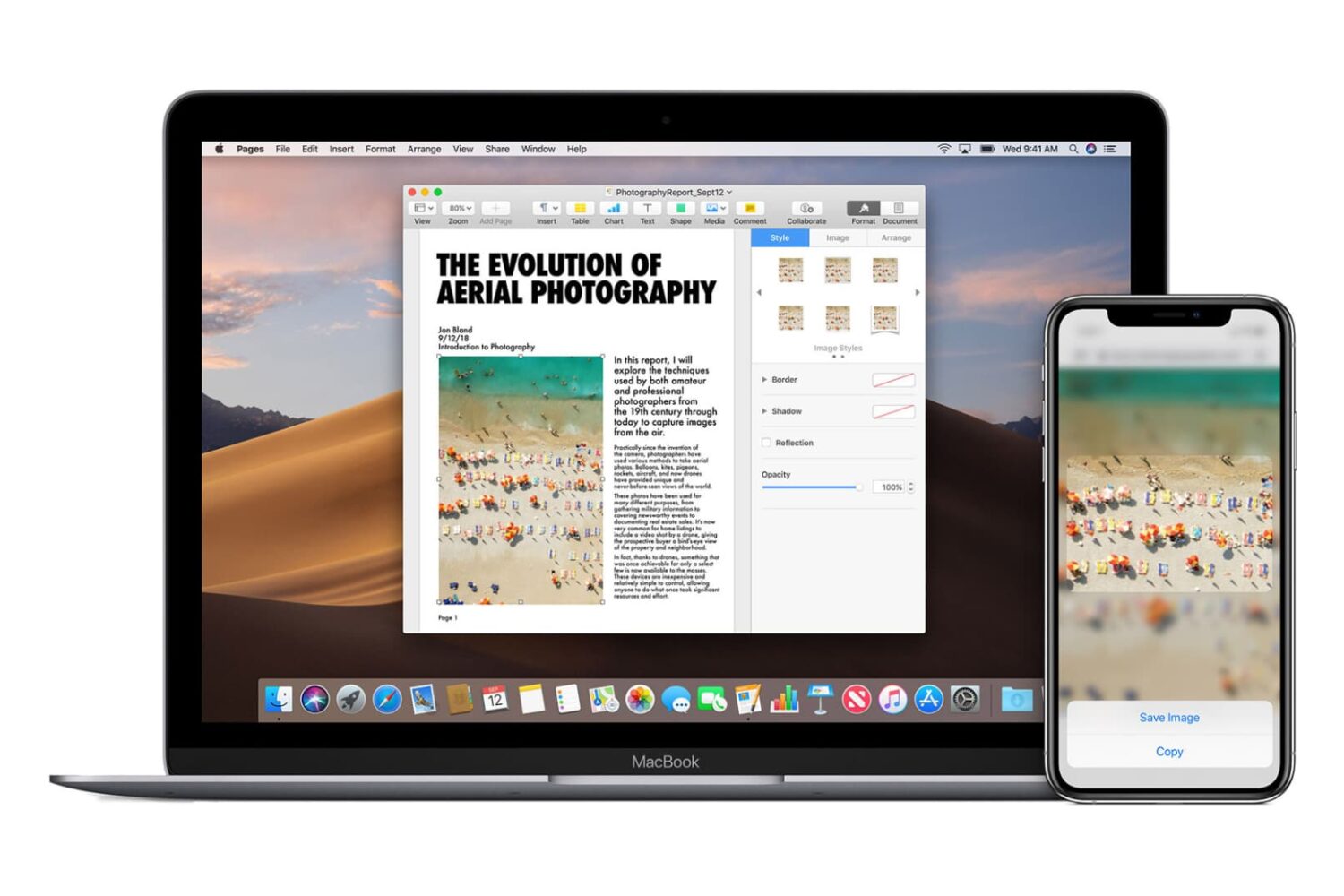
Go through these easy fixes if you cannot copy and paste text, photos, and videos between your iPhone, iPad, Mac, and Apple Vision Pro.
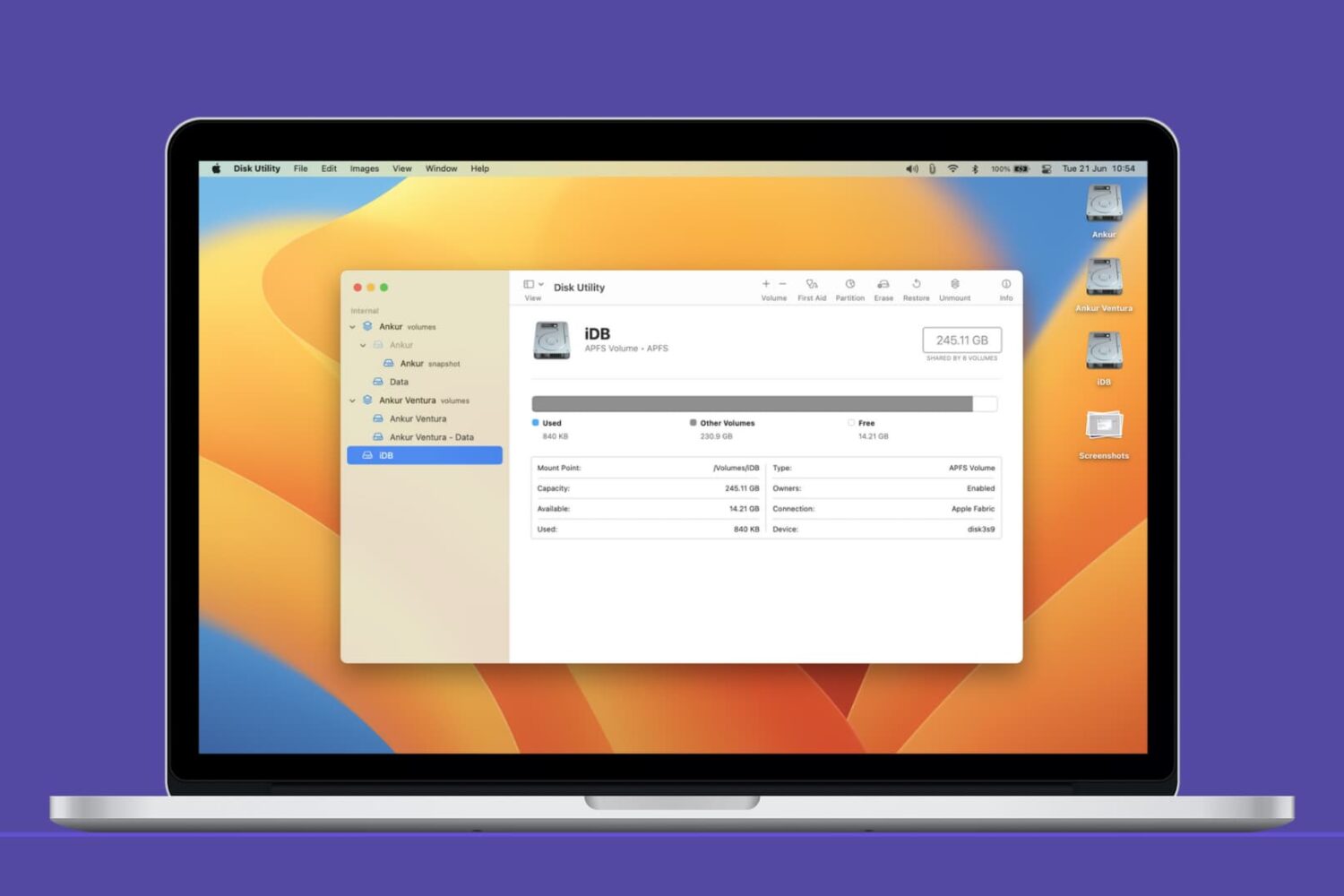
In this Mac tutorial, we show you how to create a new volume using Disk Utility and, if required, erase or delete it.
In this quick step-by-step tutorial, we show you how to copy iCloud contacts that are on your iPhone, iPad, or Mac to Google Contacts using several easy methods.

Learn how to perform a network speed test right from the Terminal window on your Mac.
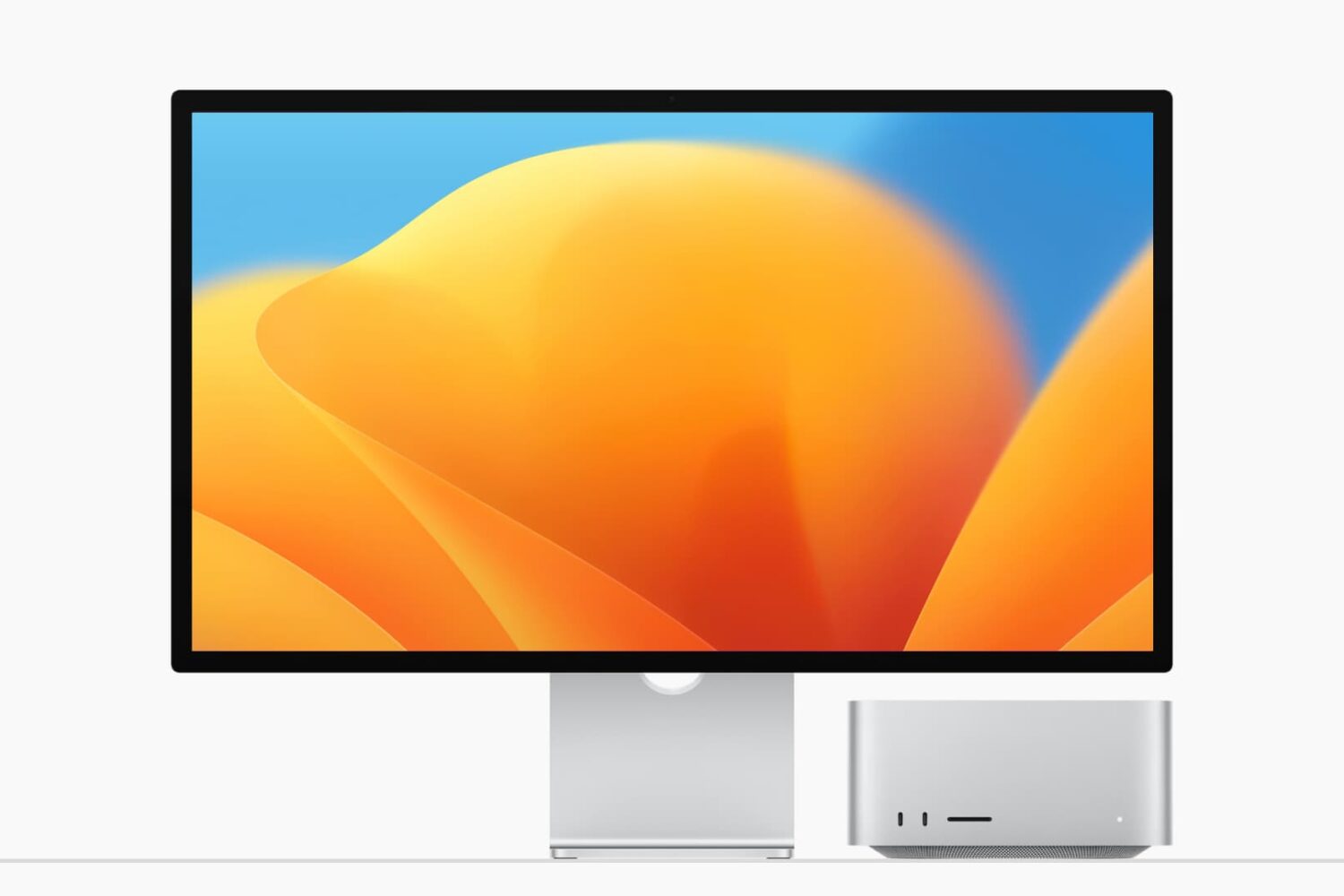
This tutorial shows you how to create a separate volume (partition) on your Mac’s internal drive to install macOS Ventura on it.
Using this method, you will have two macOS versions on the same Mac. The first volume will have the macOS you’re currently running (likely macOS Monterey), and the second volume will have macOS Ventura. You will be able to start up your Mac into either one.
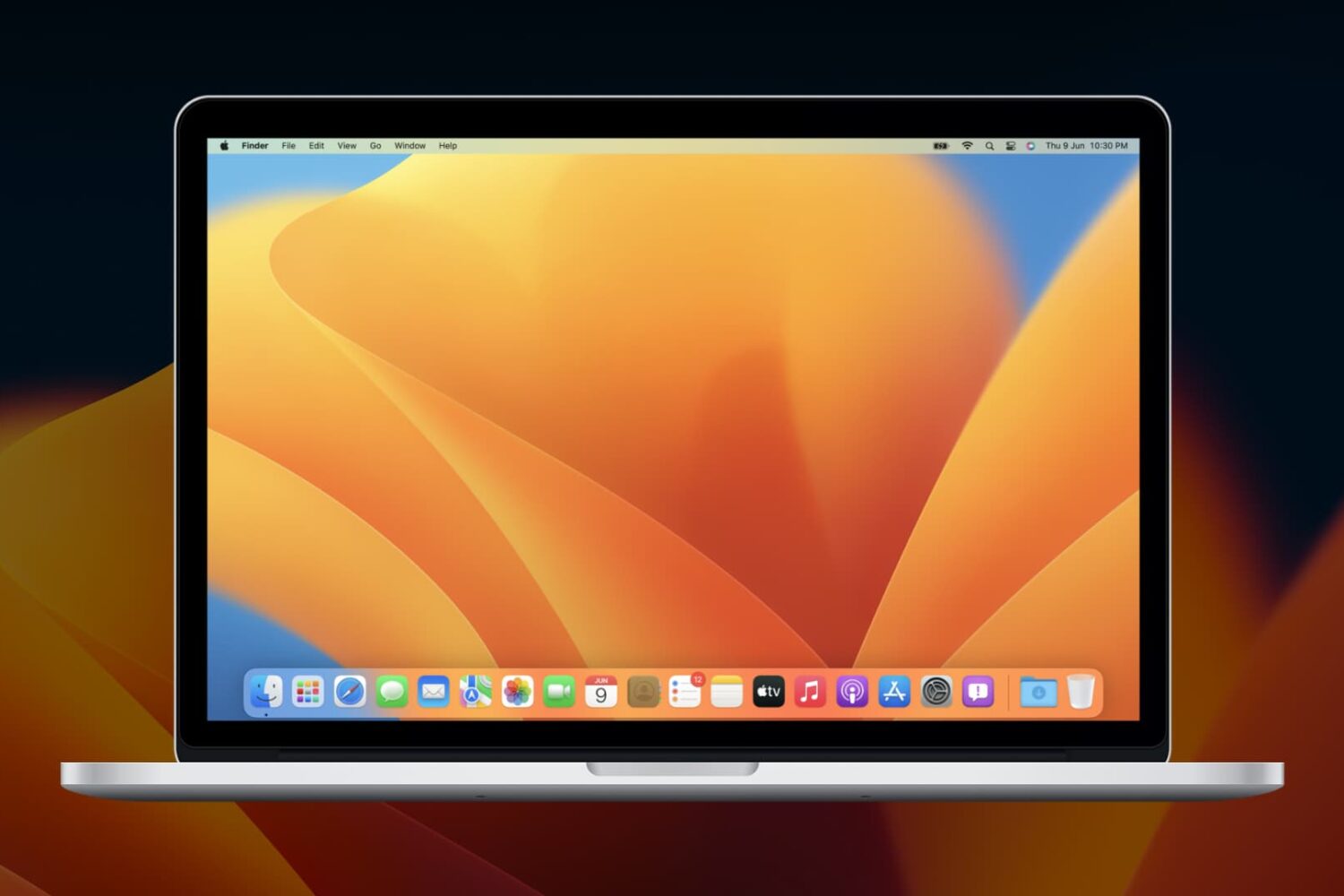
You can create a bootable installer for macOS Ventura on a USB flash drive or secondary volume. This is useful if you want to install macOS Ventura on multiple Macs and don't want to download the huge 12 GB file every time on each computer.
In this tutorial, we show you how to create a bootable installer for macOS Ventura on an external drive.
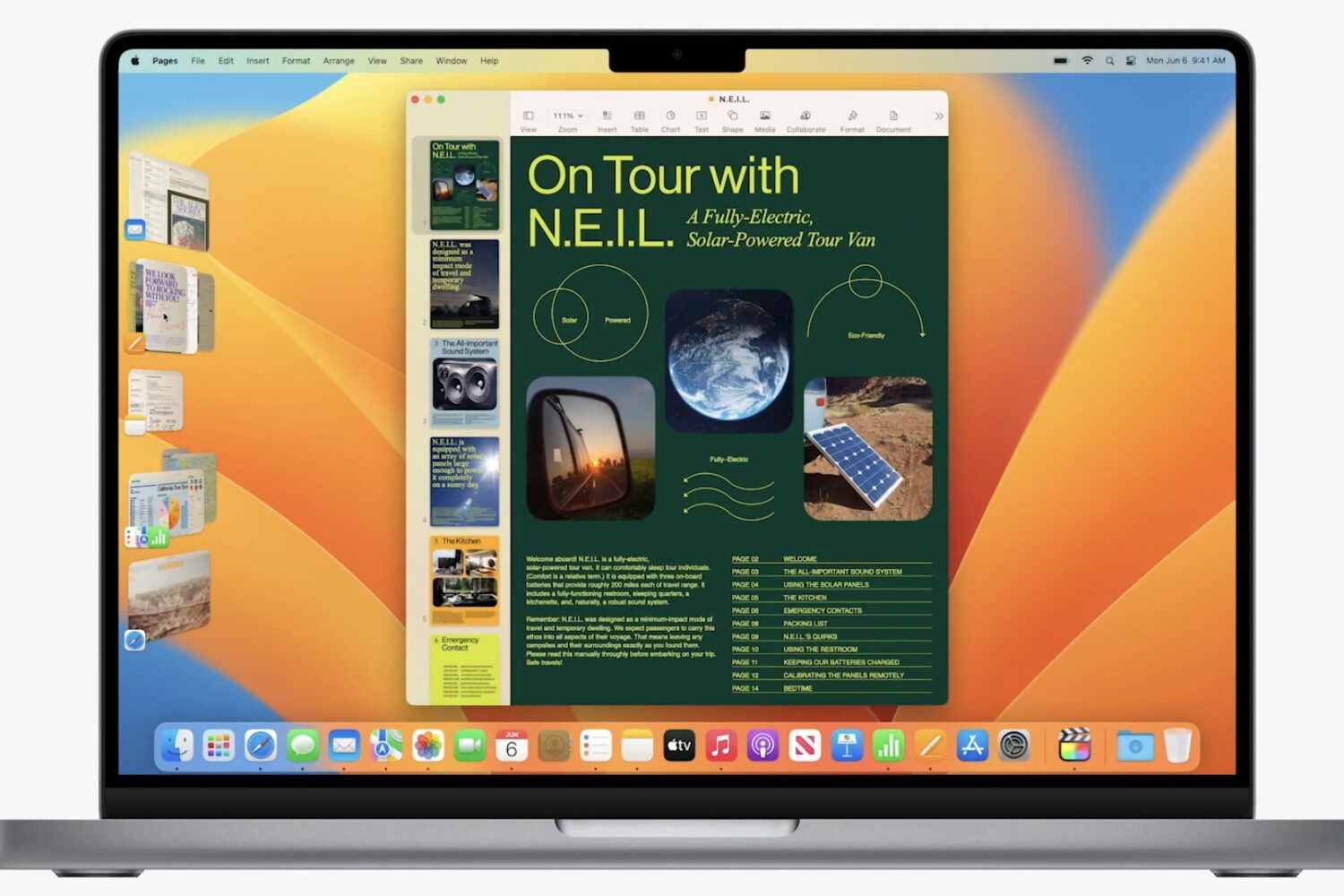
Read the official macOS Ventura system requirements to confirm that your current Mac has the required hardware to run this macOS 13 update when it drops in the fall.
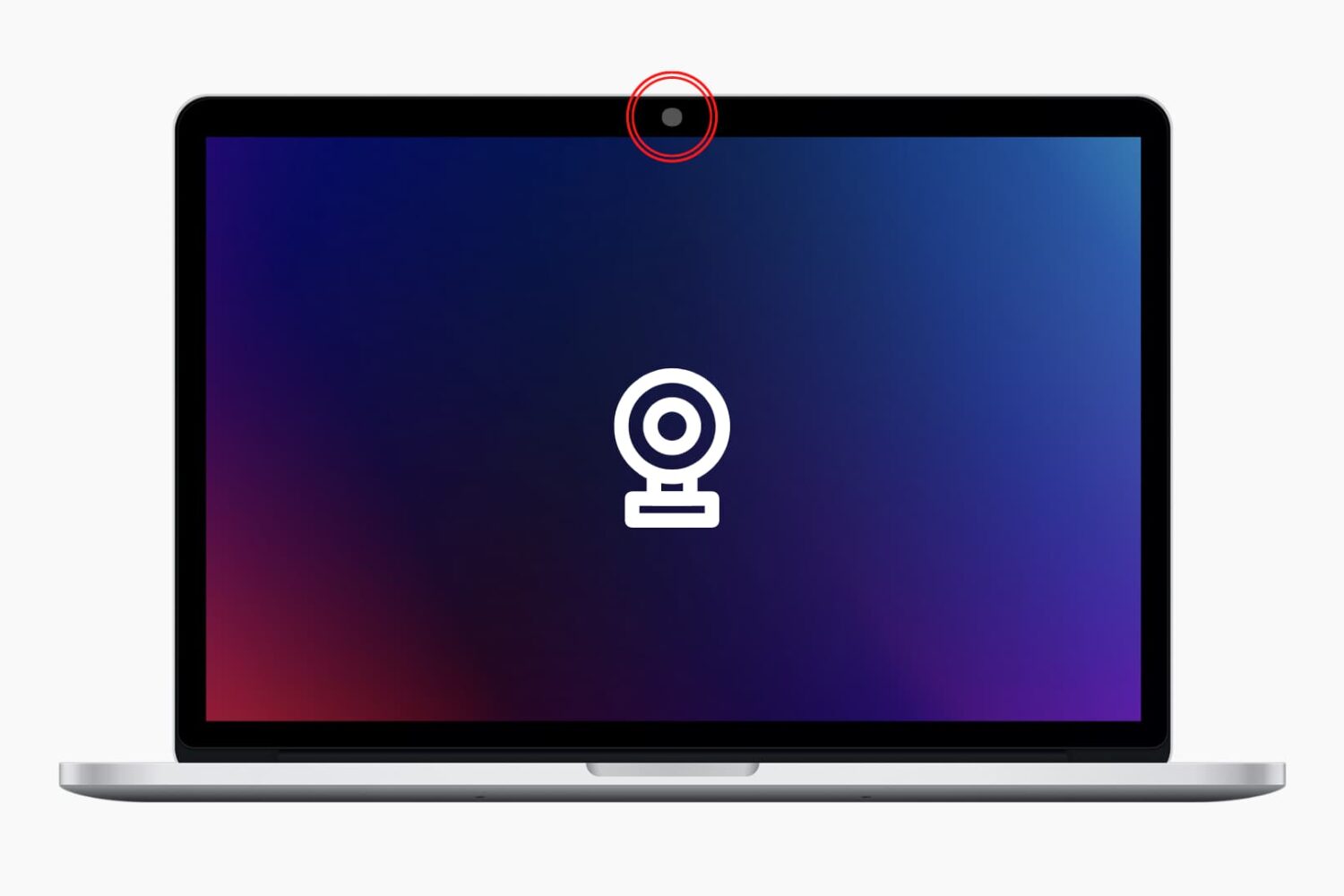
Follow along as we guide you through all the possible solutions to fix the built-in camera or externally connected webcam not working on your Mac.