Check out this free and easy way to turn your Android phone into a convenient wireless speaker or microphone for your Mac.
How to use your Android phone as a wireless speaker or microphone for your Mac
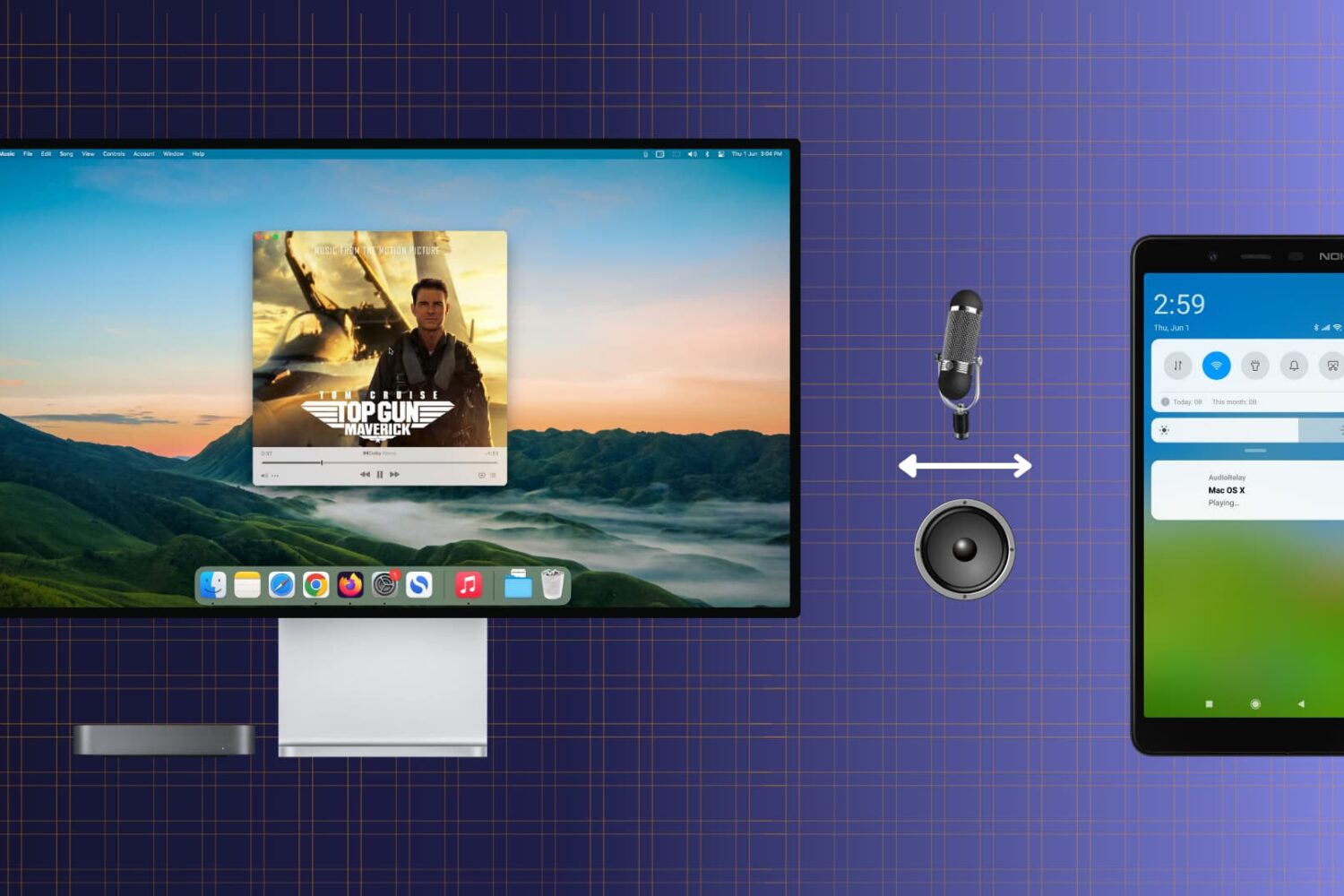
Check out this free and easy way to turn your Android phone into a convenient wireless speaker or microphone for your Mac.

Learn how to add text or text-based signatures to your photos on iPhone, iPad, and Mac with our comprehensive guide, helping your images stand out and effectively convey your message.

Learn how to get macOS Sequoia on a USB thumb drive and use it to install macOS 15 on multiple Macs without needing to download the large macOS file each time.

Whether you want to create backups, share multiple copies, or organize your media files, the Apple Photos app makes it easy to duplicate your photos and videos. In this tutorial, we will show you how to do that for one or multiple files at once, directly from your iPhone, iPad, or Mac.
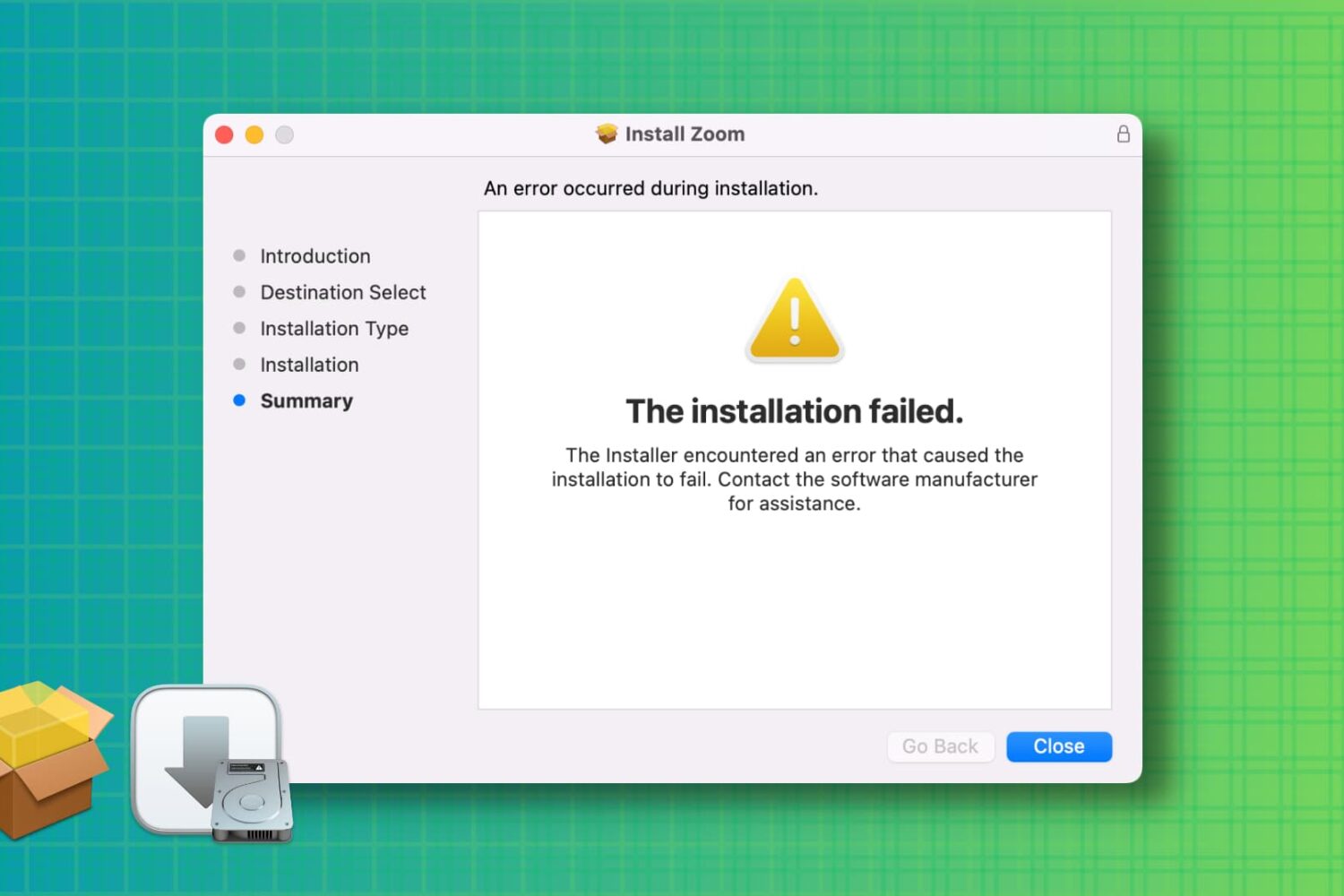
Learn how to troubleshoot and fix the “installation failed” error when installing a Mac app using a downloaded PKG, DMG, or ZIP file.
Learn how to set up a screensaver in macOS 27 Golden Gate or macOS 26 Tahoe to hide your desktop when you’re not using your computer by displaying photos, music album art, word of the day, and other custom visuals.
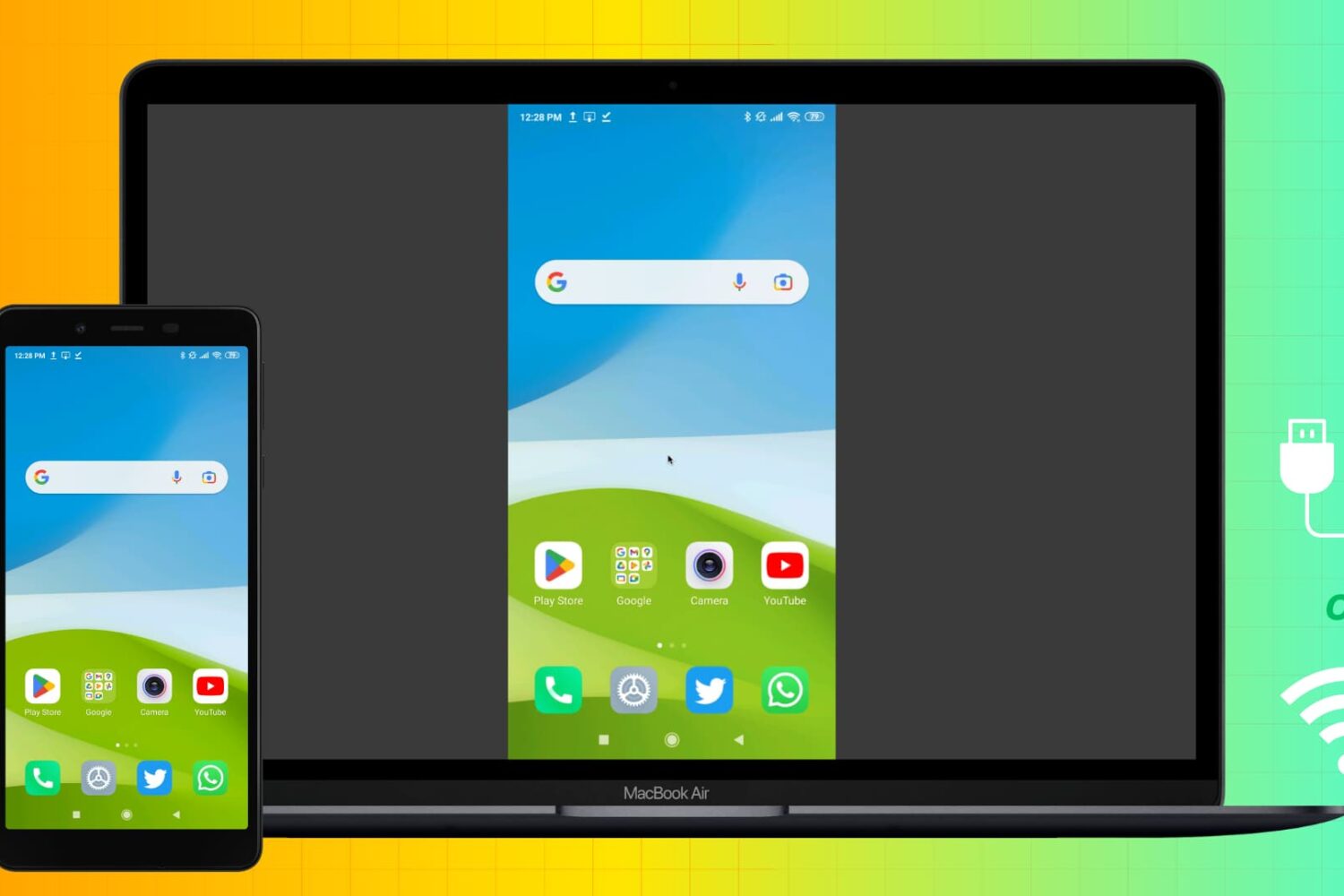
Learn how to mirror your Android phone screen to your Mac wirelessly or using a USB cable without rooting your device.
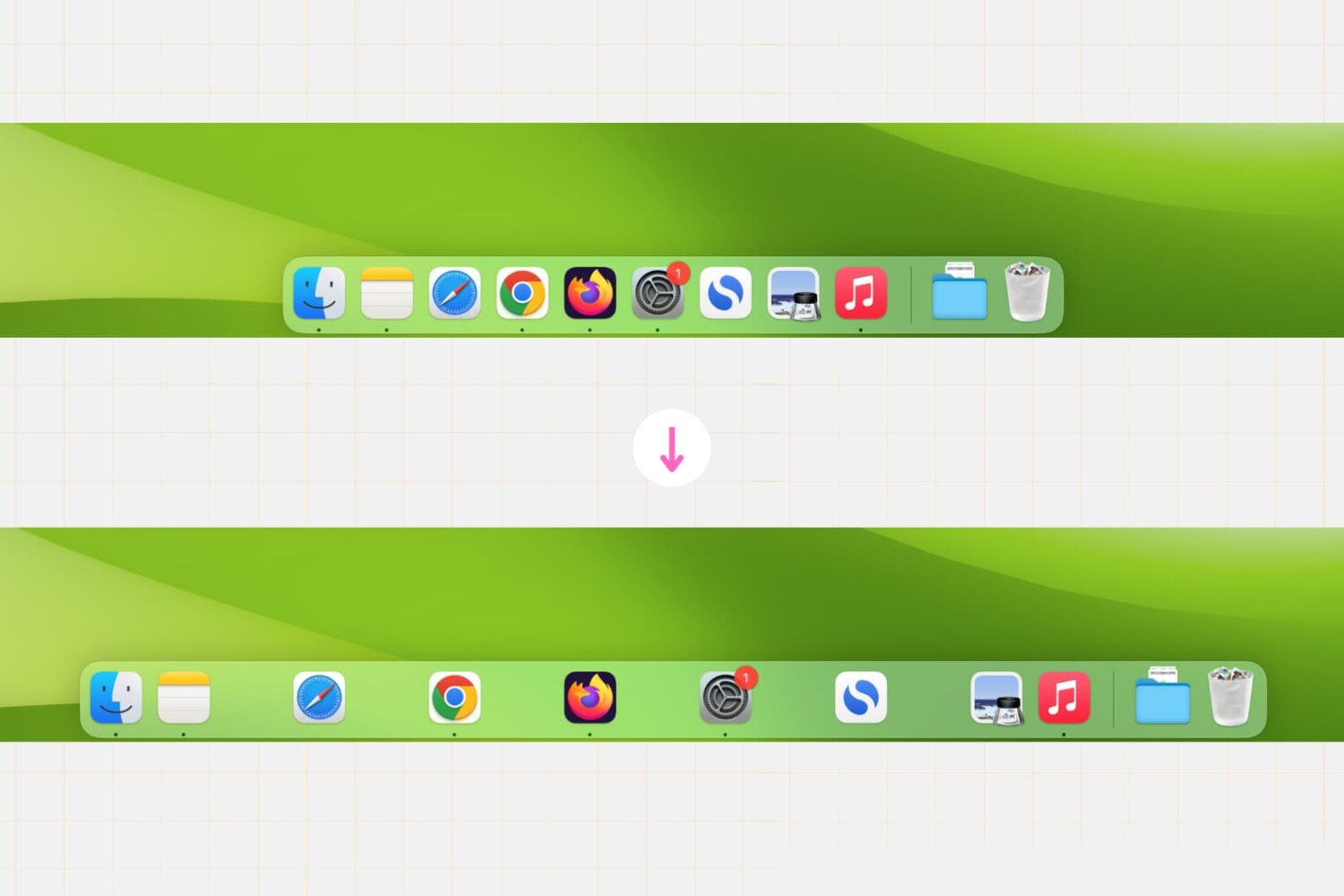
Whether you’re a productivity enthusiast or just want to customize your desktop, this simple Terminal command lets you create clear divisions between app icons, helping you achieve a cleaner and more organized Dock setup in no time.
Learn how to split tabs in the Finder on your Mac into separate windows, as well as merge multiple windows into a single window with multiple tabs.
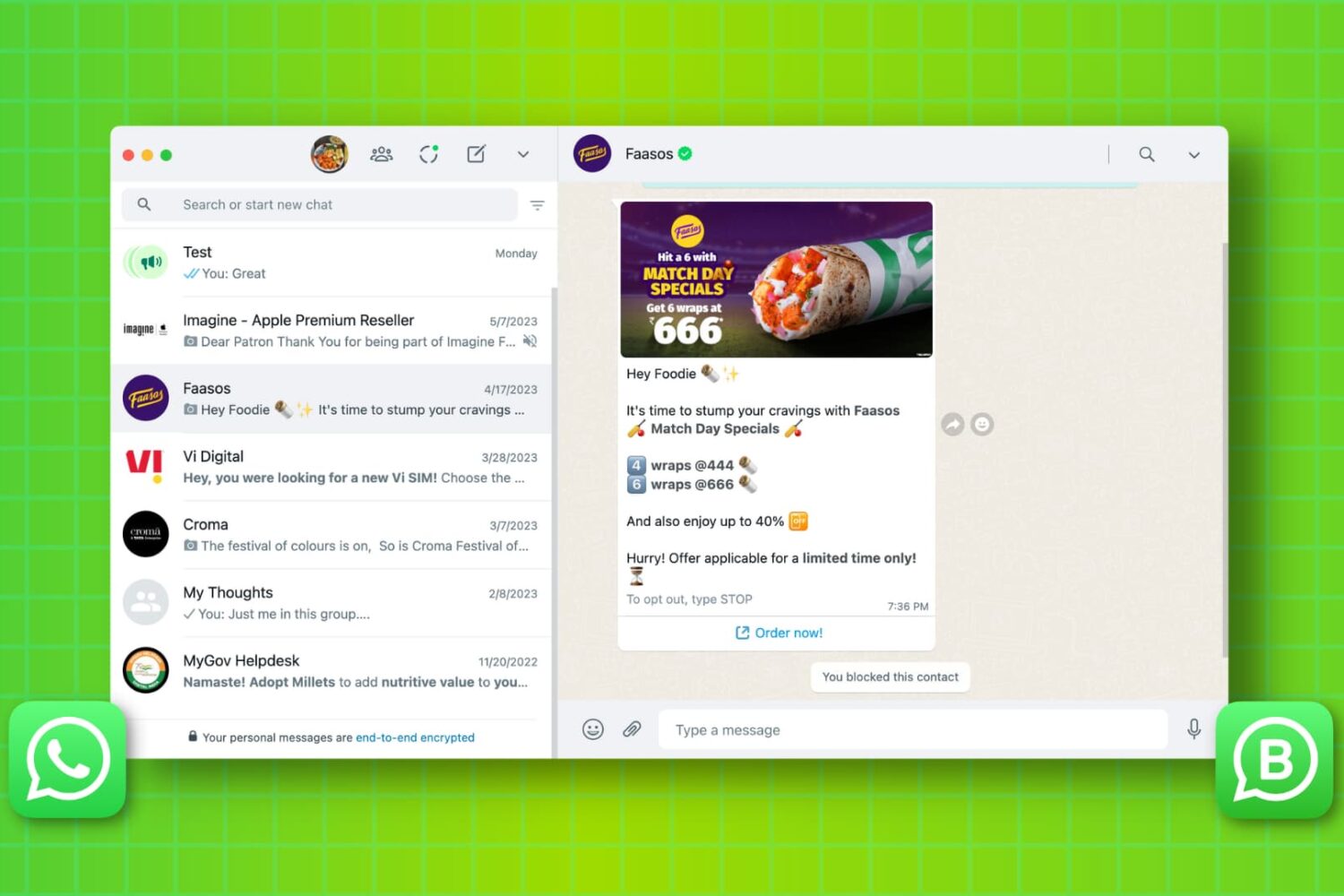
Learn how to set up and use WhatsApp on your Mac or Windows PC to stay connected, send messages, make calls, and share media directly from your desktop. We’ll also explain what to do if you can’t get WhatsApp working on your computer.
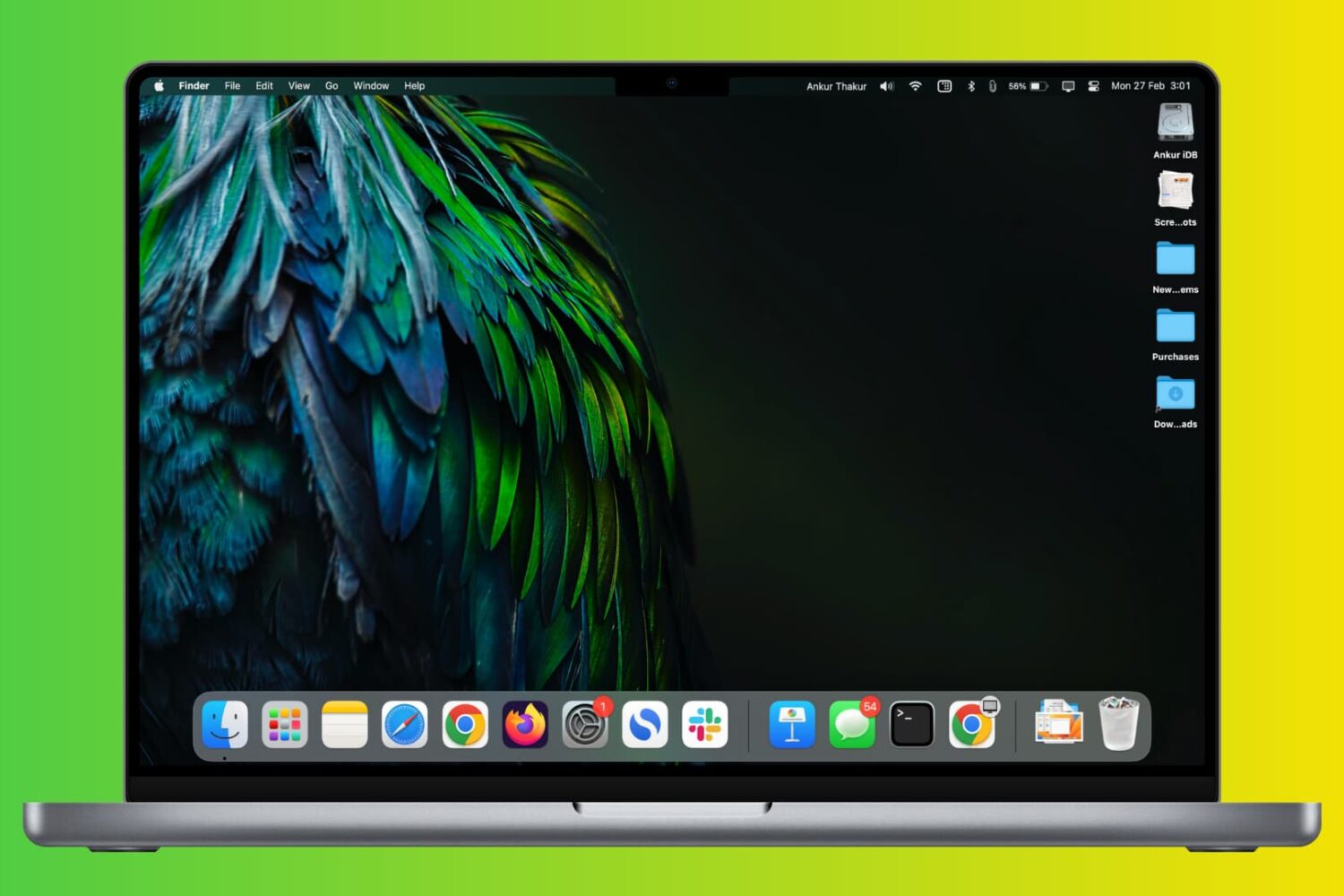
Check out these two simple ways to permanently keep currently open and recently used apps in your Mac’s Dock.
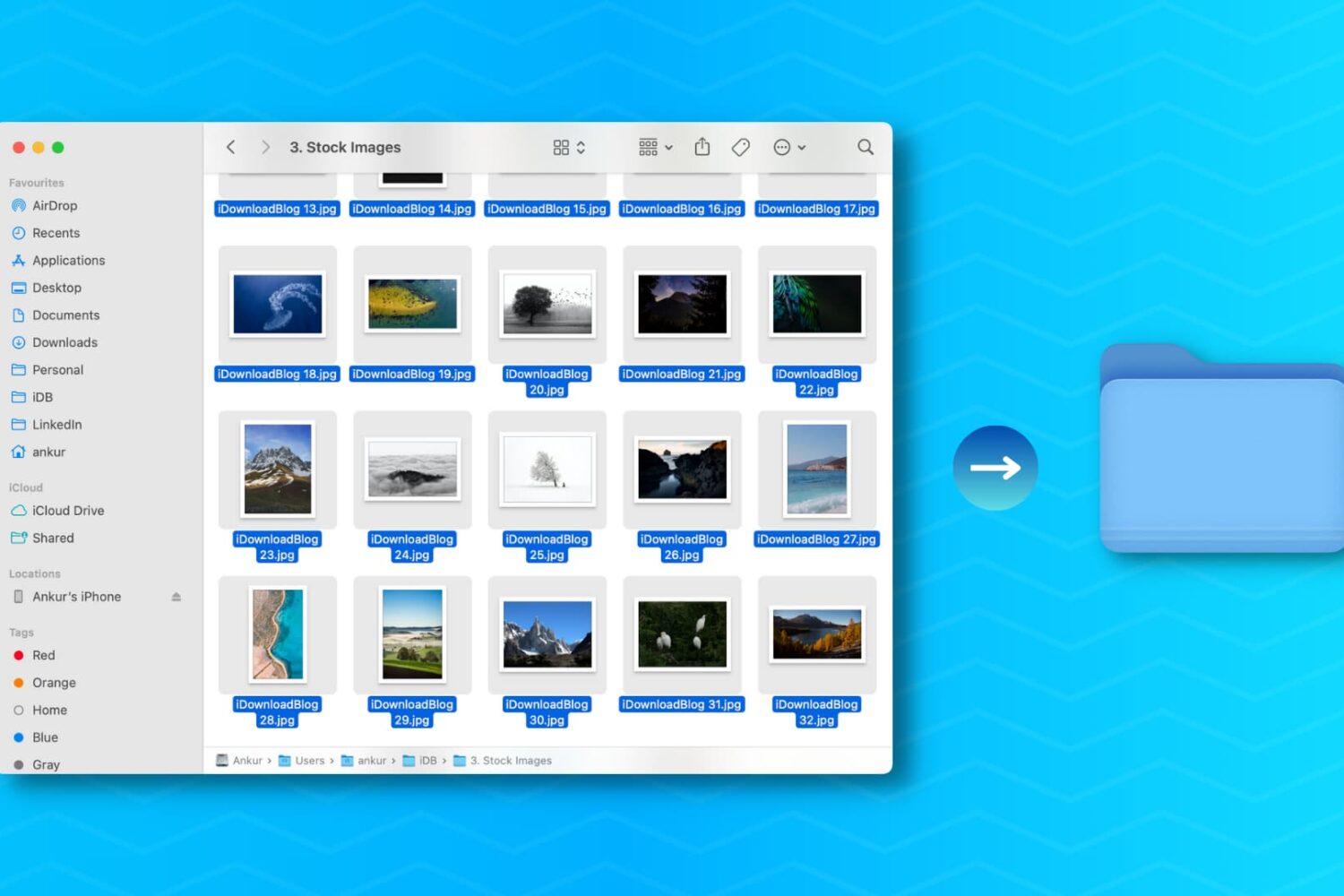
Learn how to create a new folder on your Mac containing a bunch of files you’ve selected in the Finder in one fell swoop, saving you time when organizing files.