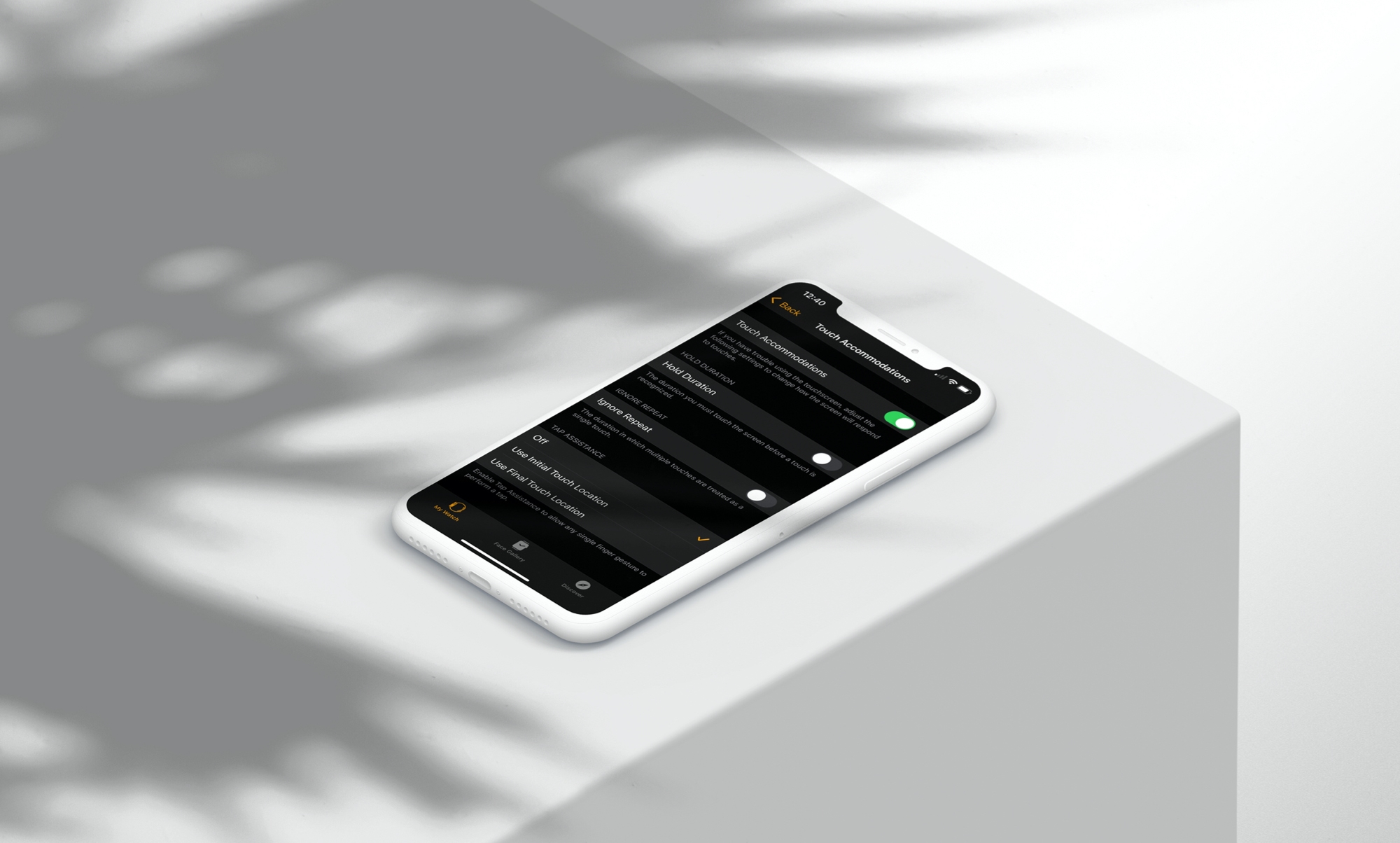
Learn how to tweak a few simple physical and motor skill accessibility settings on your Apple Watch so you can use your wearable comfortably to the fullest.
How to use physical and motor skill settings on your Apple Watch
Learn how to master your Apple devices with our comprehensive tutorials. From iPhone and iPad to Mac, Apple Watch, AirPods, and more, our expert guides will help you unlock the full potential of your Apple products. Discover new features, tips, and tricks each day to enhance your user experience.
Learn how to tweak a few simple physical and motor skill accessibility settings on your Apple Watch so you can use your wearable comfortably to the fullest.
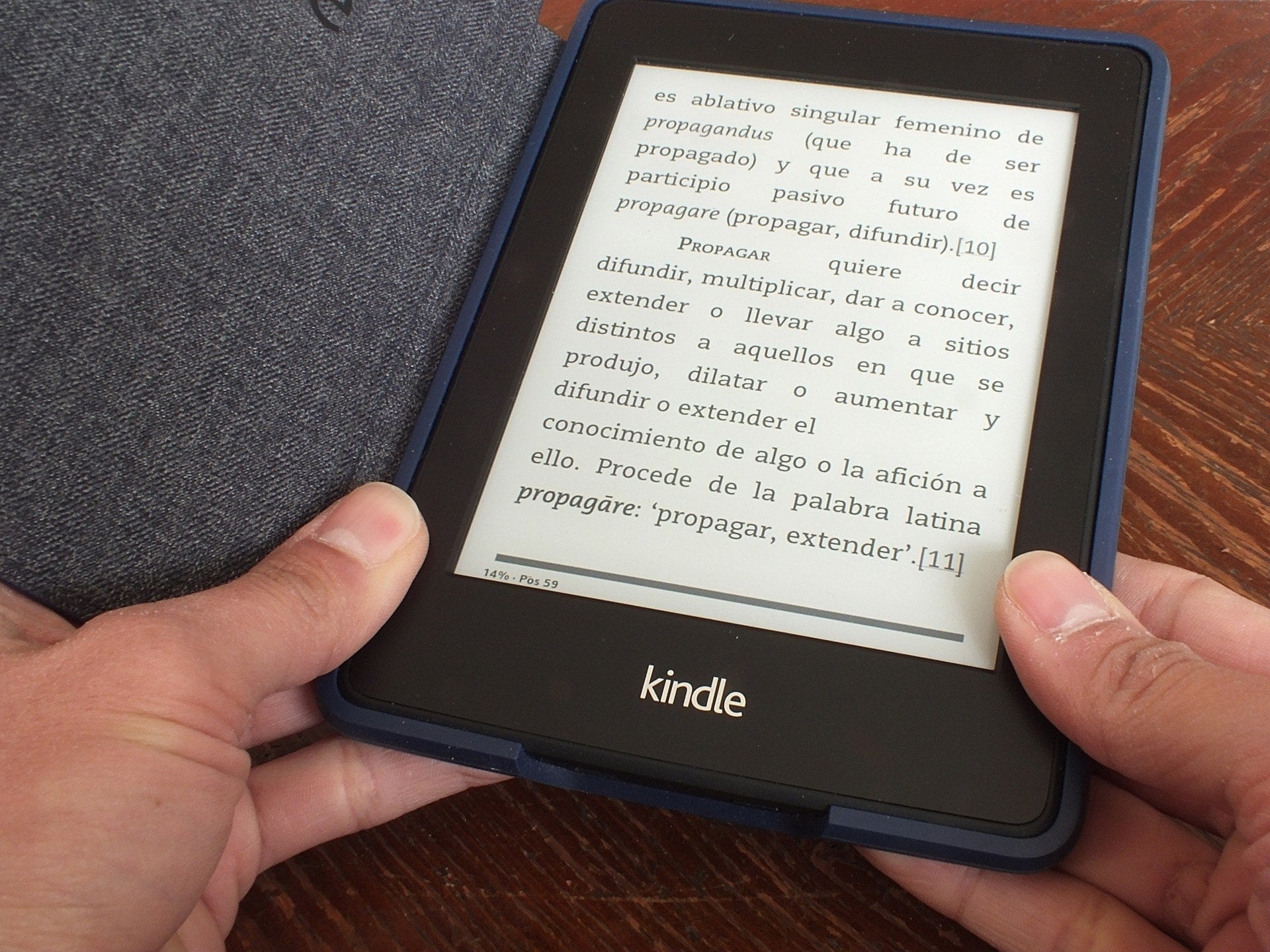
Your Kindle Paperwhite is equipped to handle multiple languages and keyboards. So if you’re bilingual or interested in testing your skills in another language, Kindle is a great way to do it.
Here, we’ll show you how to set the language you want, add and use keyboards in other languages, and even set a default dictionary for each language.
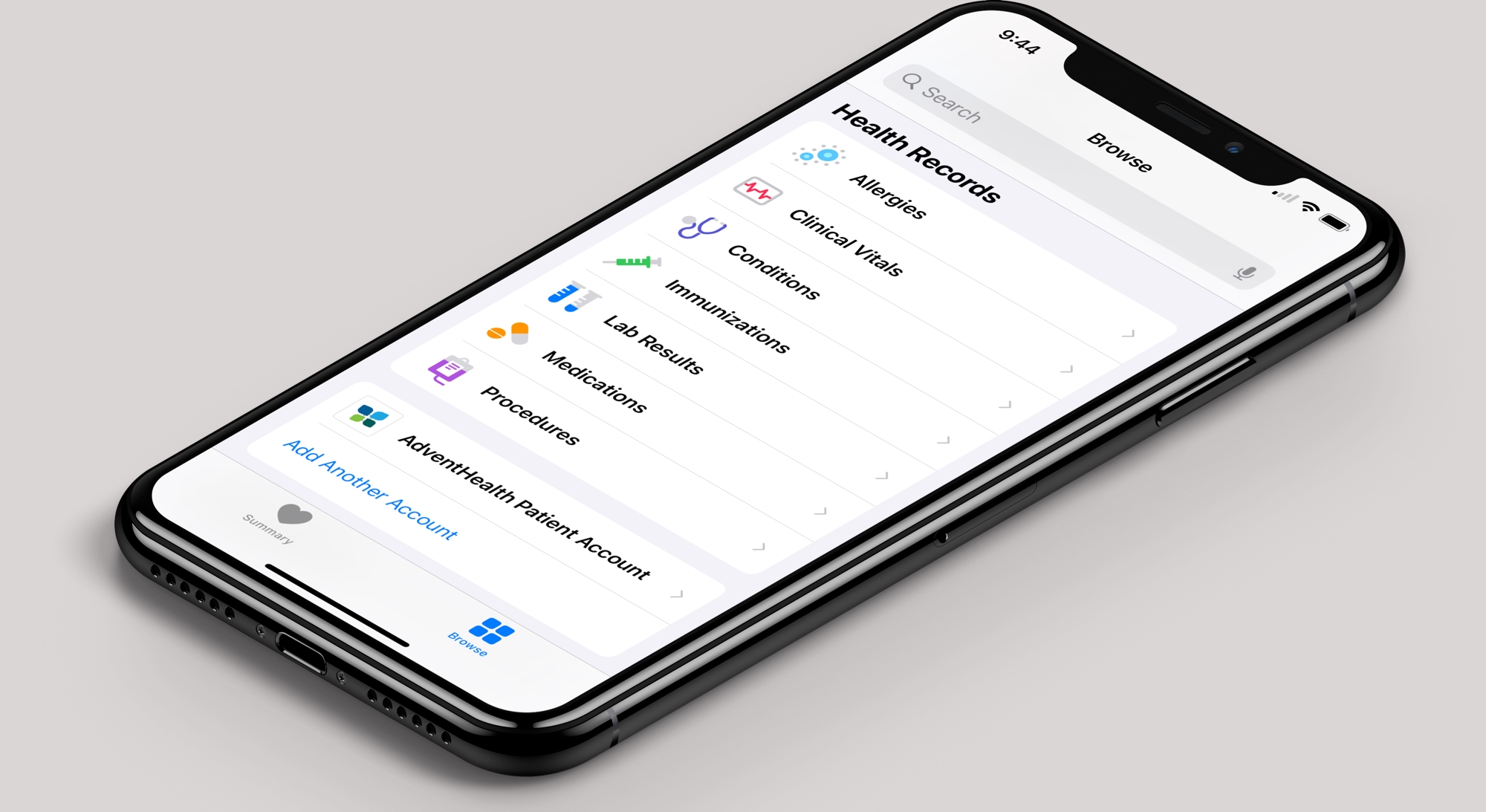
The Apple Health app can connect your health records from hospitals and health networks, letting you see everything from lab results to immunizations to procedures, all in one convenient spot on your iPhone or iPad.
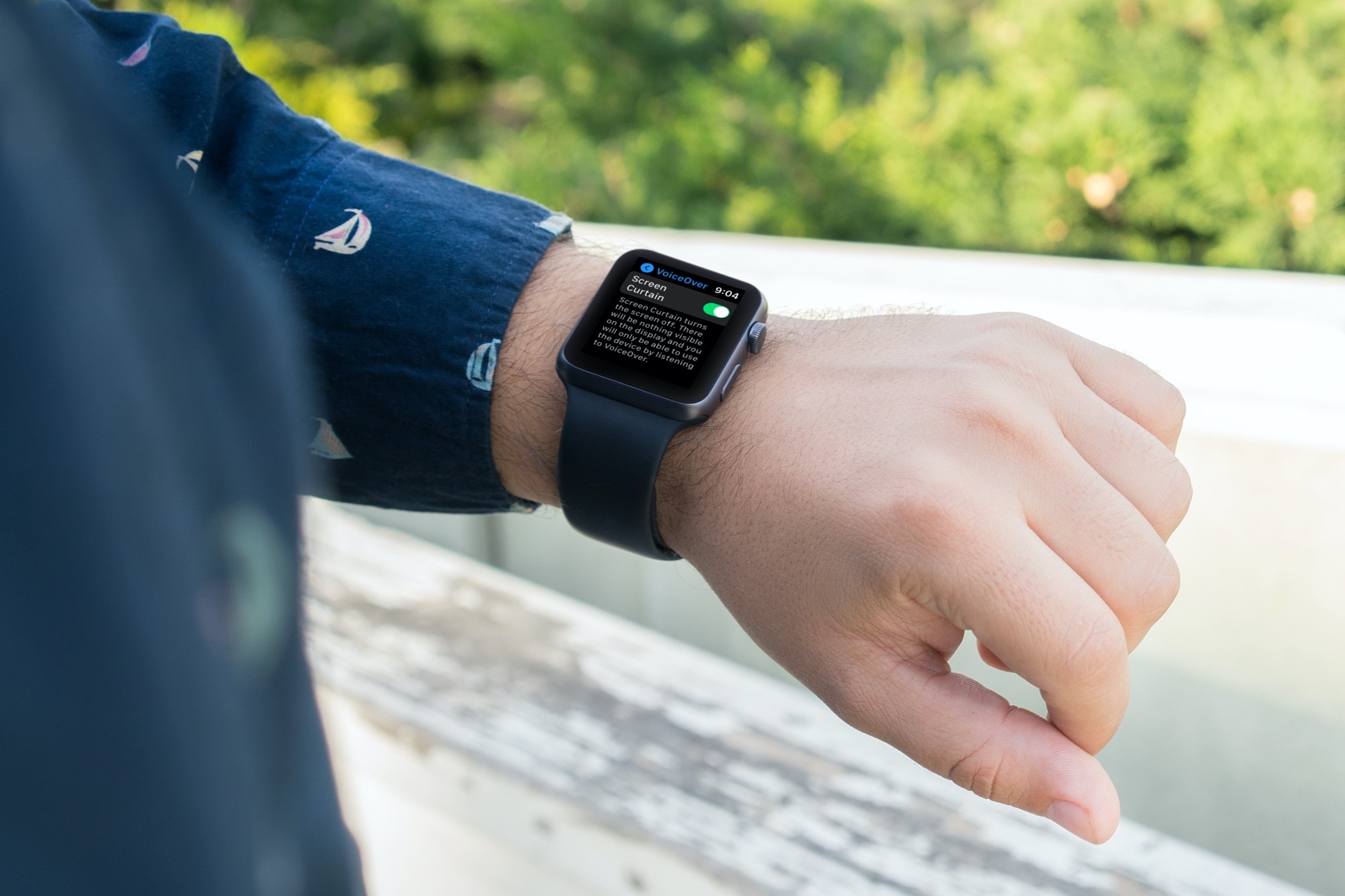
There’s a feature called Screen Curtain you can use along with VoiceOver for increased privacy. Screen Curtain turns off your display while keeping it active. So, you can still control it with VoiceOver, but keep what you’re viewing private. This is convenient when you’re in a public place and have personal information on your screen.
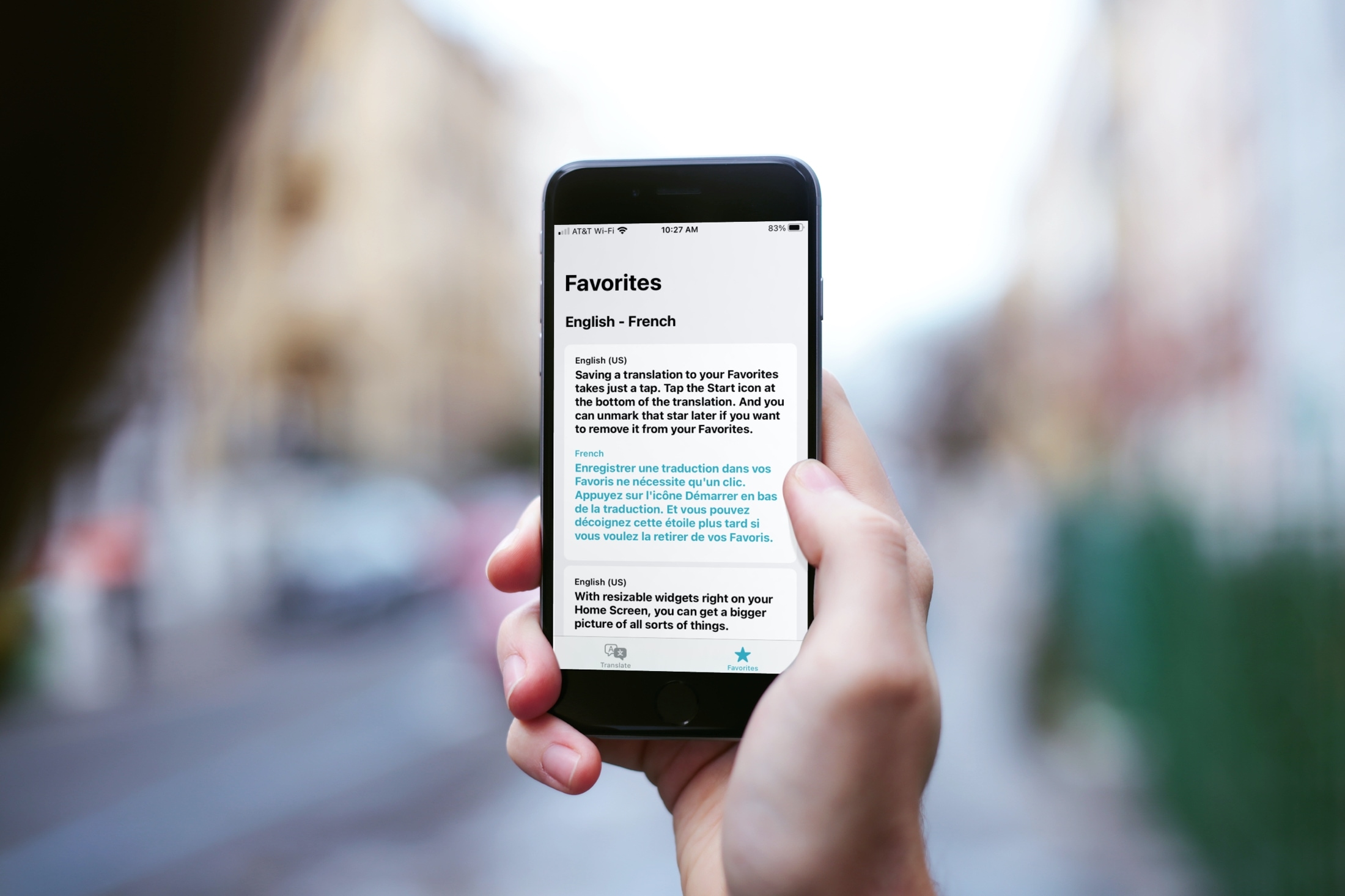
Learn how to save translations as favorites and browse your recent translations in the Apple Translate app on your iPhone so you can refer to them whenever needed on your international trips. And if the translations are not useful, you can also delete them from the history.
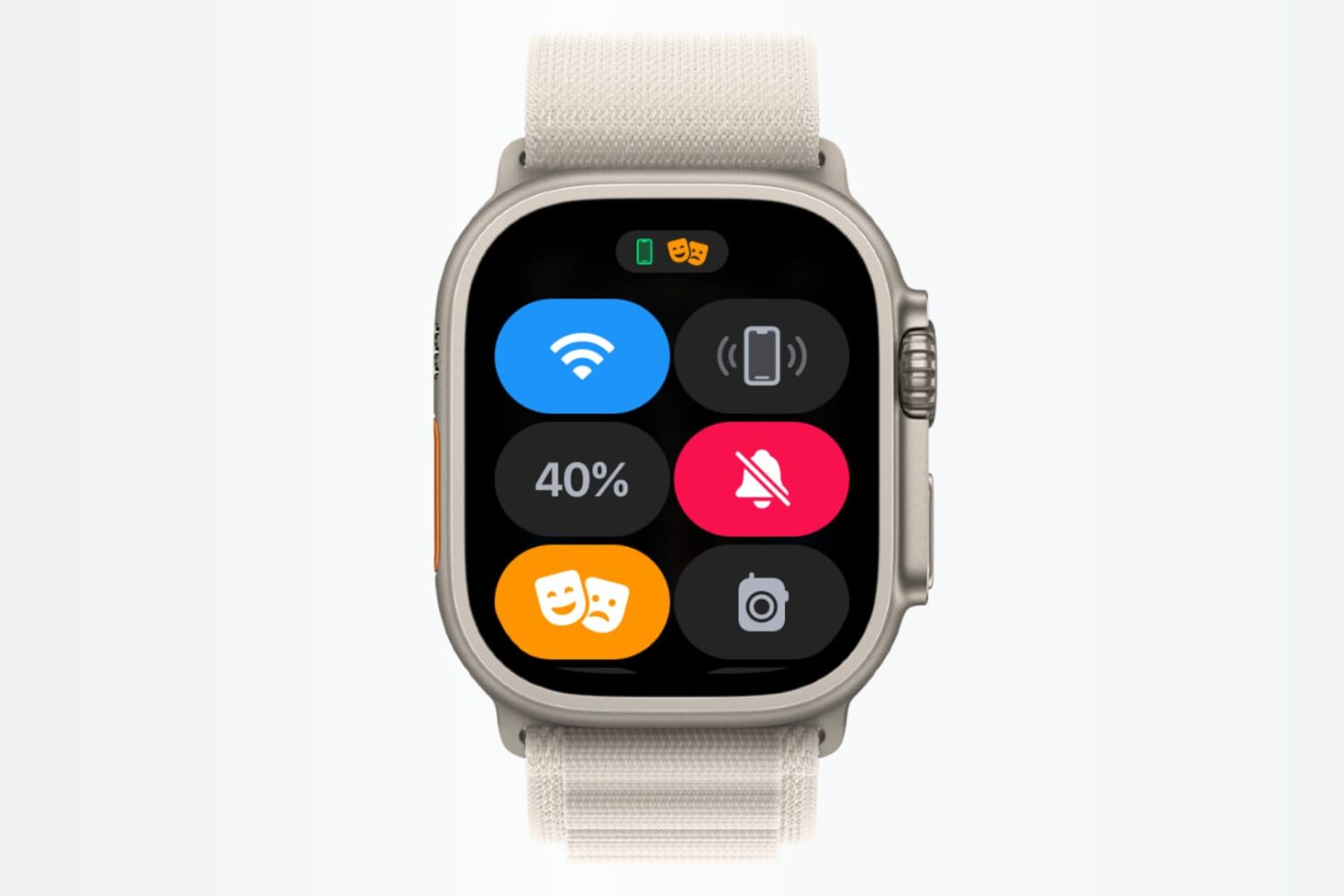
In this tutorial, we’ll show you how to use shortcuts and automations to silence your Apple Watch automatically based on where you are.

Learn how to ask Apple to resend you the purchase receipt for your app, movies, TV shows, or service subscriptions from iPhone, iPad, or Mac.
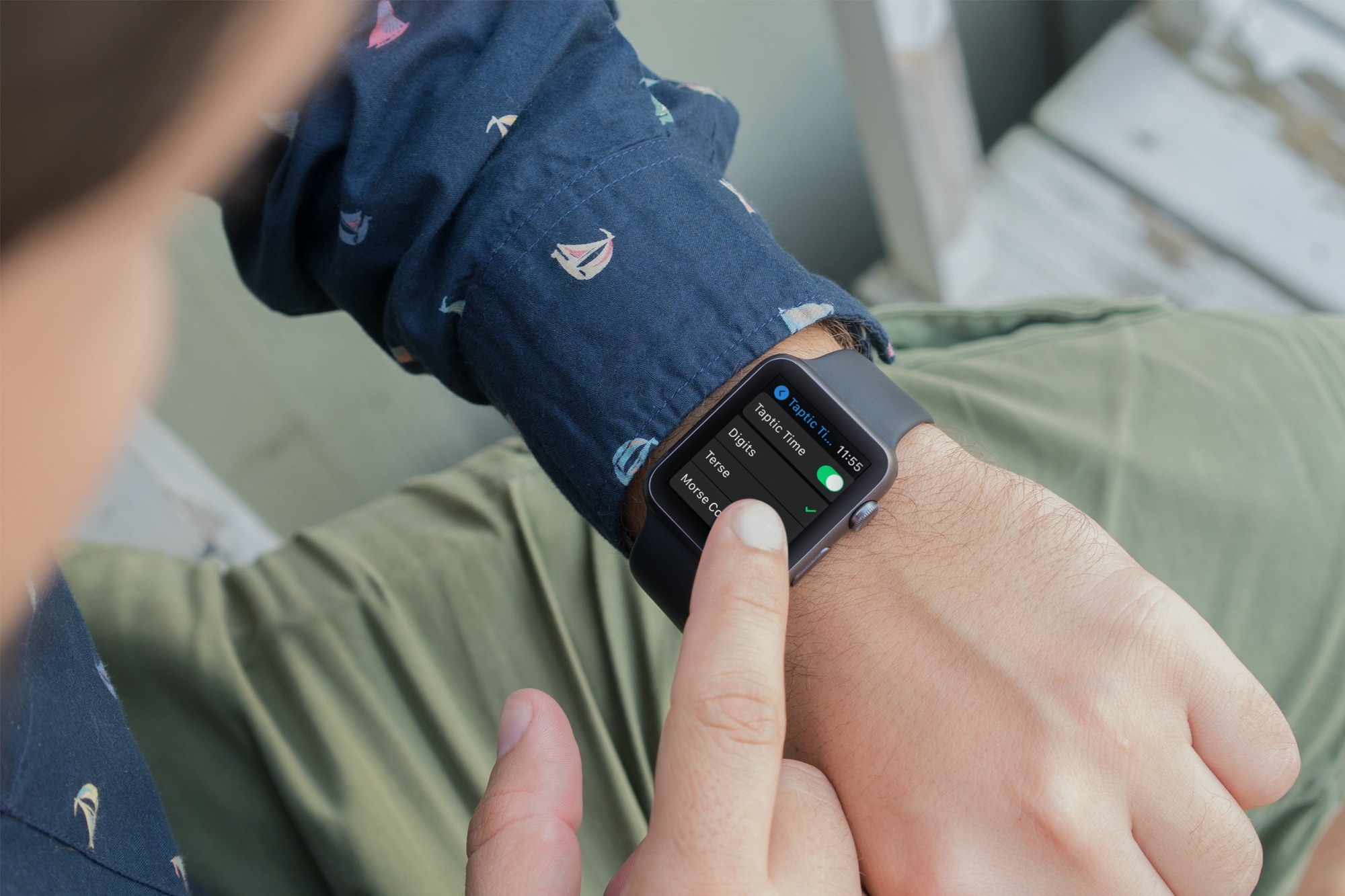
Learn about using important audio enhancements accessibility settings from Taptic Time to Haptic Alerts on your Apple Watch if you have difficulty hearing.
Learn what Apple can and cannot do to help your family take care of your Apple ID and iCloud account after your death.
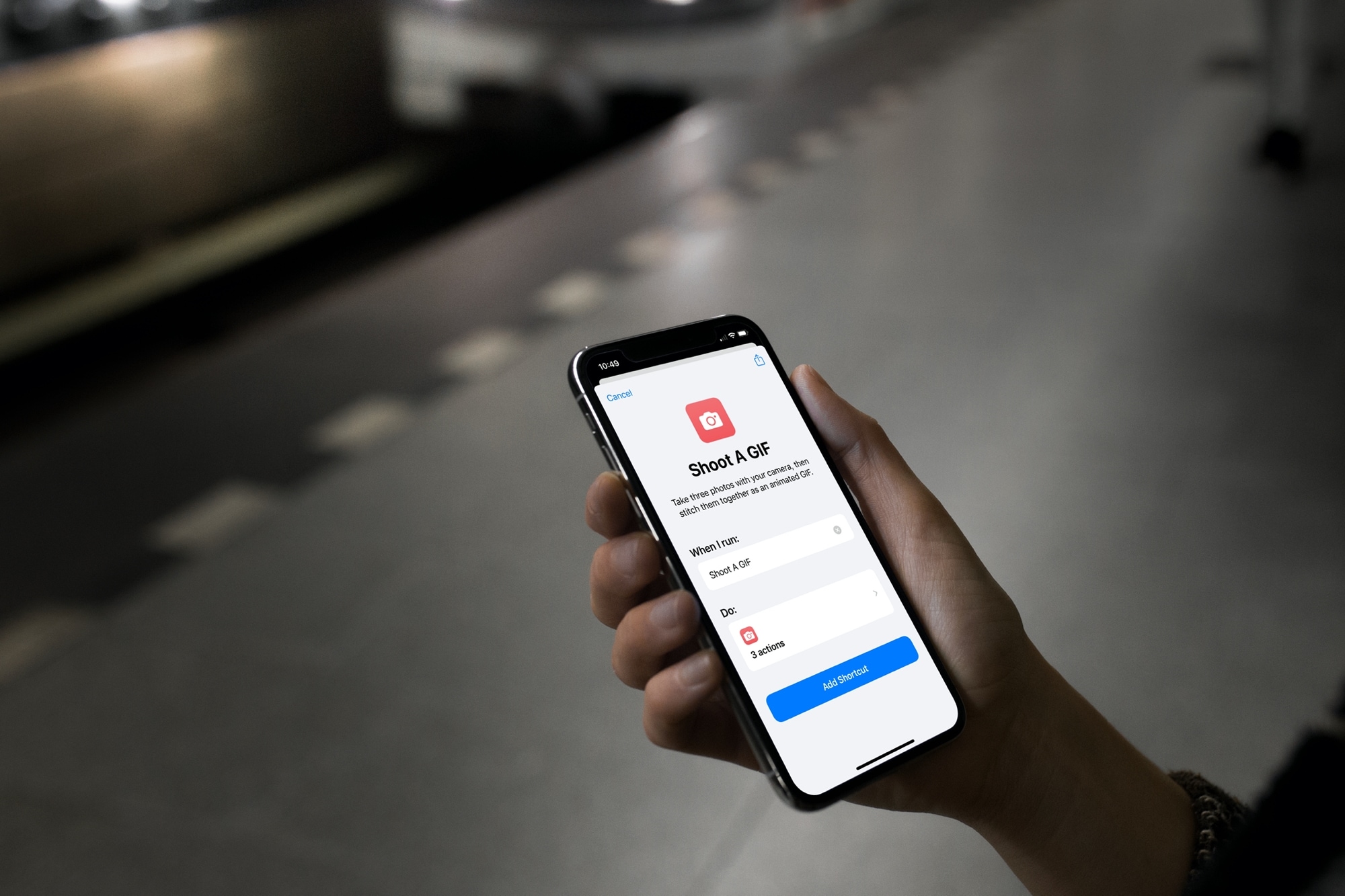
Check out this list of handy Shortcuts for creating GIFs, sharing your last photo, mapping a picture’s location, and more on your iPhone or iPad.

Learn what to do if you’re unable to uninstall apps from your iPhone or iPad, as the option to ‘Delete App’ is missing when you touch and hold an app icon and tap Remove App.
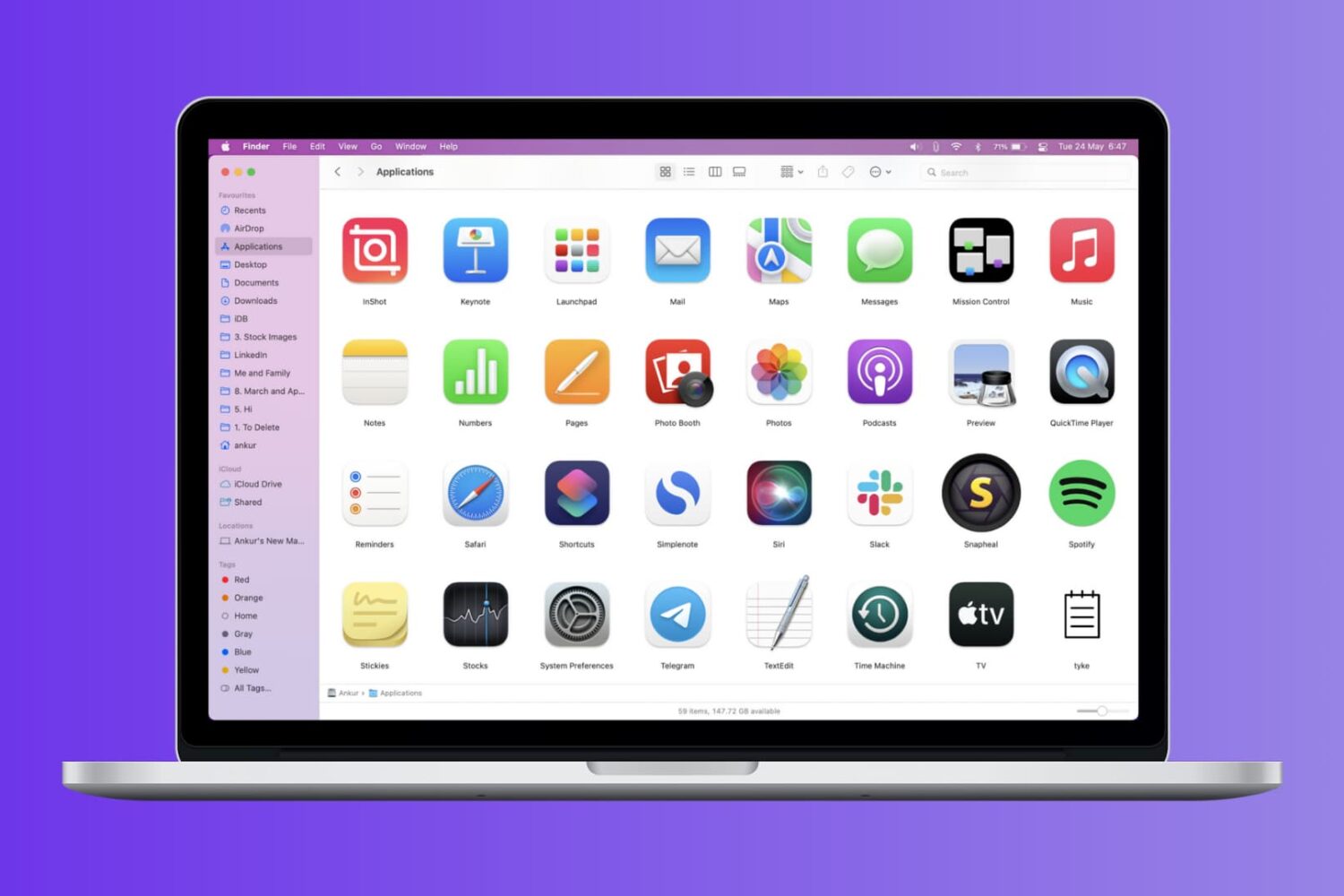
Check out these four easy ways to get a list of installed apps on your Mac and save or print that list.