In this full step-by-step tutorial, we show you how to transfer iCloud photos and videos to Google Photos, along with requirements, limitations, and more.

Apple has a little-known handy feature that allows you to transfer content from iCloud Photos to Google Photos. The service doesn’t remove any of your photos or videos from iCloud; it simply copies them over to Google Photos.
So, if you’re interested in a third-party backup of your items or are planning to make a switch away from iCloud, this could make it easy.
Before you begin, check these requirements to request the transfer of your items. You need:
- A valid Apple ID that uses two-factor authentication
- A valid Google account with enough storage space
Transfer photos and videos from iCloud to Google Photos
1) Go to Apple’s Data and Privacy page (privacy.apple.com) and sign in with your Apple ID and password.
2) Click Request to transfer a copy of your data under the ‘Transfer a copy of your data’ section.

3) Select iCloud photos and videos to Google Photos and click Next.

4) Select Google Photos, which is currently the only option, as the destination, and then check the box for Photos, Videos, or both, depending on what you want to transfer, and click Continue.

5) Go through the storage requirement and click Continue.

6) A new browser window will open, where you must sign in to your Google account or select an account that’s already signed in. Then, allow Apple Data and Privacy to access your Google account info about you.

7) You’ll then get to the ‘Select what Apple Data and Privacy can access’ screen. Check the box for ‘Add to your Google Photos library’ and click Continue.

8) Wait until you see the ‘Confirm your transfer’ screen and click the Confirm Transfer button.

9) You’ll now get a confirmation screen, saying your iCloud Photos will be copied to Google Photos in about 3 to 7 days. When it’s complete, you’ll receive another email notification letting you know.

Storage space for transferring to Google Photos
Depending on the number of photos and videos you want to transfer and their collective size, you must make sure you have sufficient storage space in your Google account.
As you can see in the screenshot below, my transfer requires 32 GB of storage space for Apple to transfer my items to Google Photos. Luckily, you’ll see this information before you begin the transfer process.
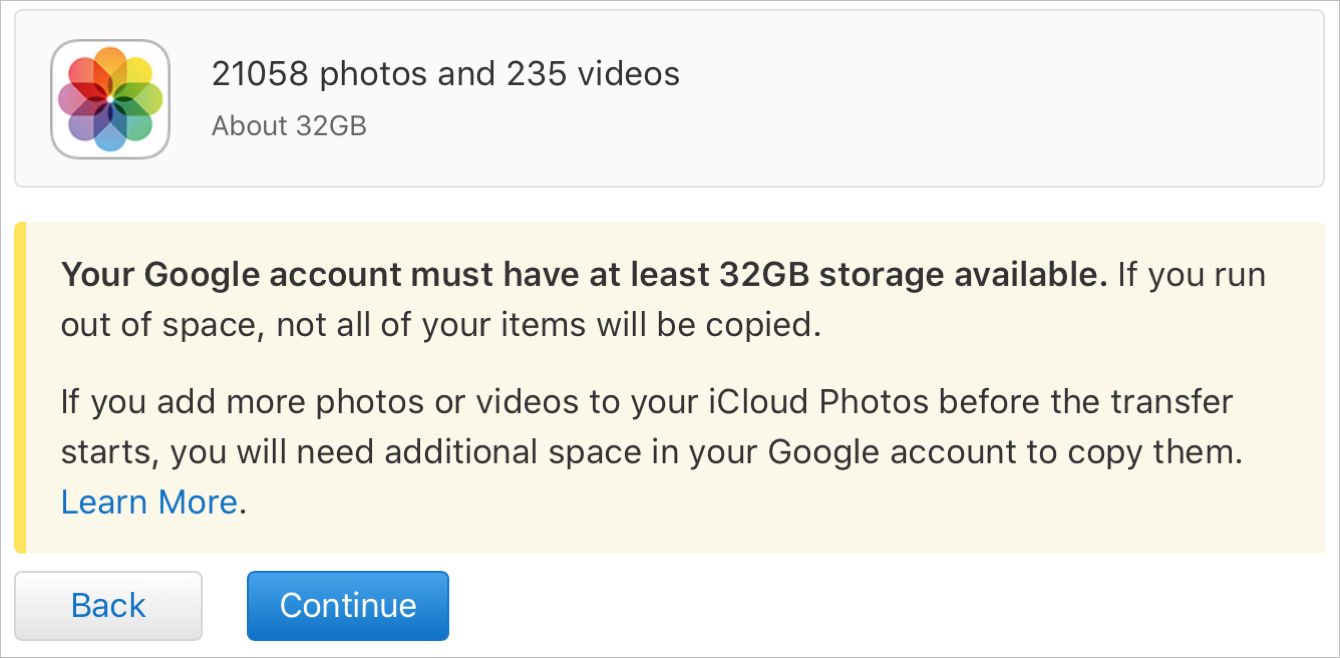
And you probably already know that free Google accounts only come with 15 GB of storage space. So, if you already pay for extra Google storage, this may not be an issue for you. But if you don’t, you may run out of space during the transfer.
Apple states:
If your Google account runs out of space during the transfer, not all of your items will be transferred.
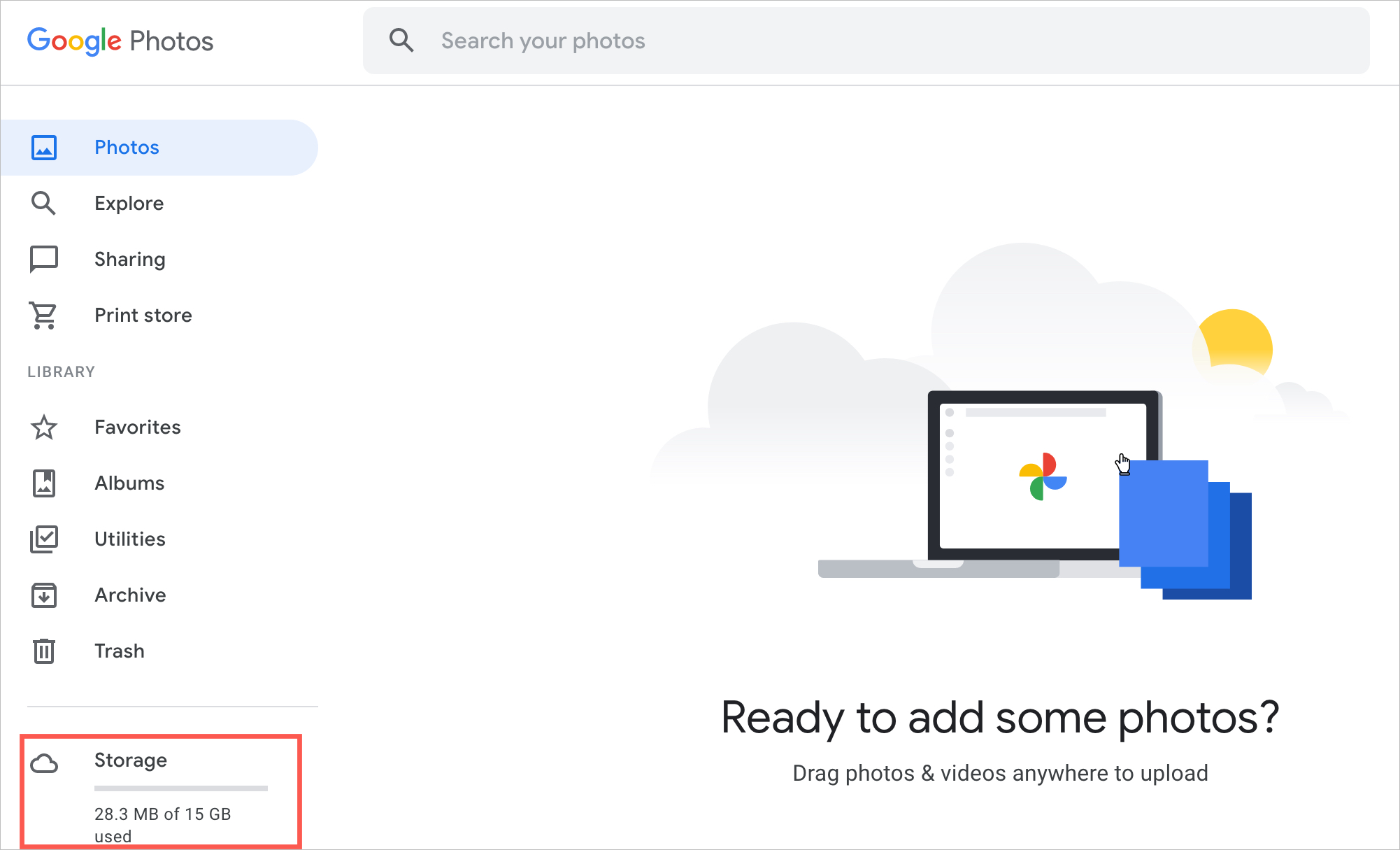
To see how much storage space you have available, sign in to your Google account or head straight to Google Photos and log in. You’ll see how much space you’ve used and your total limit on the bottom left. If you have a free plan and want to upgrade, click that Storage section to view the paid plans.
Other things to know about the transfer
These are some additional things to keep in mind when you transfer iCloud photos and videos to Google Photos.
- If you add, edit, or delete content after the transfer starts, these changes may not be included in the transfer.
- When possible, photos are transferred within their albums, and albums are limited to 20,000 photos. If you have more than 20,000 photos in an album, the photos will be transferred outside the album. Videos are transferred separately, not in albums.
- After the transfer, album and video file names will begin with “Copy of” in Google Photos.
- Some items cannot be transferred; this can include: Smart Albums, Photo Stream content, Shared Albums, and certain metadata.
- Photos and videos are transferred in their original formats or “industry-standard” formats.
For more details on the above, any other limitations, or the process as a whole, you can check out the Apple Support page for transferring your iCloud photos and videos to another service.
Over to you! Are you going to transfer your iCloud photos and videos to Google Photos? Why or why not?
On a related note: