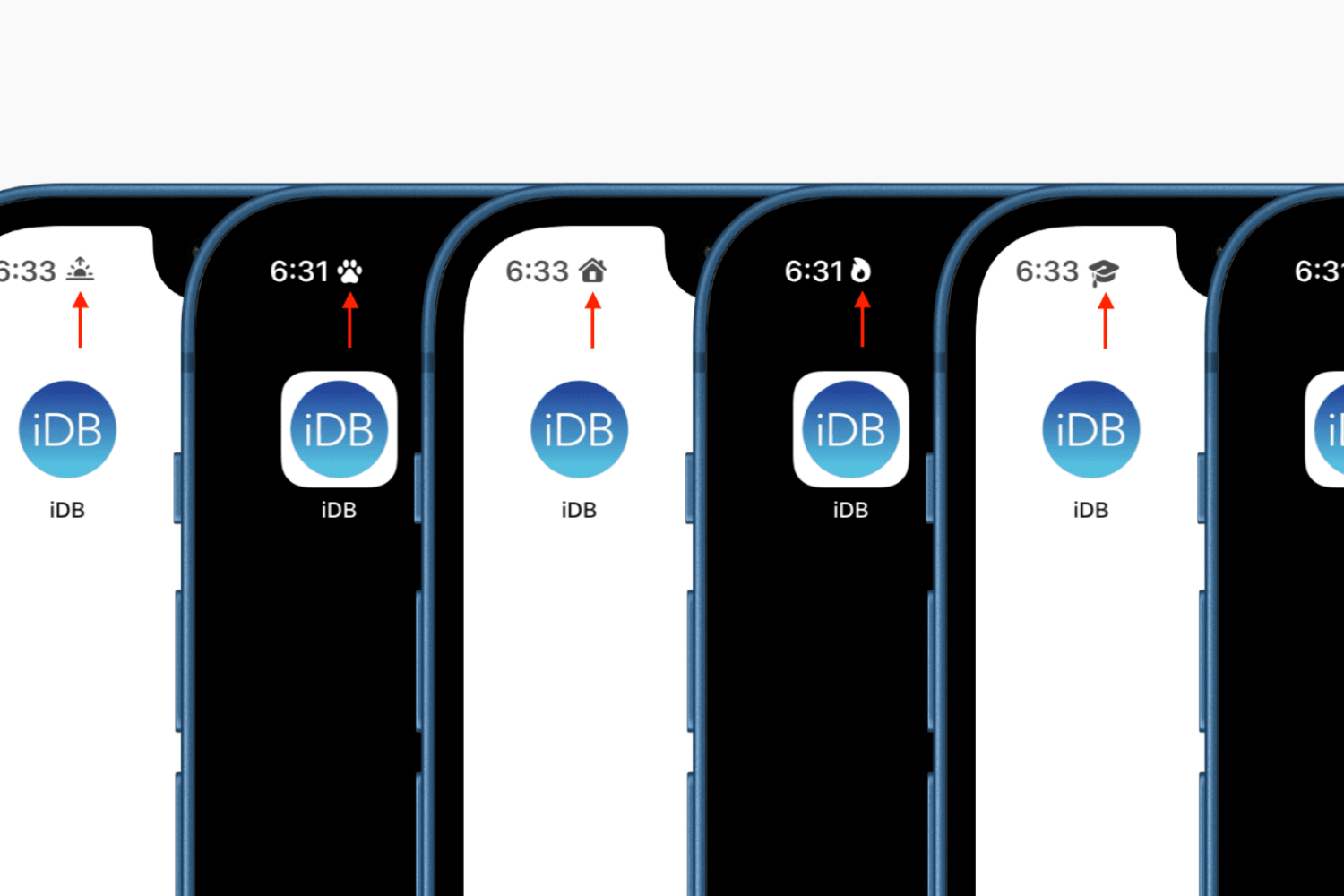
Find out how to display a symbol in your iPhone status bar and Lock Screen to personalize the look of your device.
How to show an emoji or symbol in your iPhone status bar
Learn how to master your Apple devices with our comprehensive tutorials. From iPhone and iPad to Mac, Apple Watch, AirPods, and more, our expert guides will help you unlock the full potential of your Apple products. Discover new features, tips, and tricks each day to enhance your user experience.
Find out how to display a symbol in your iPhone status bar and Lock Screen to personalize the look of your device.
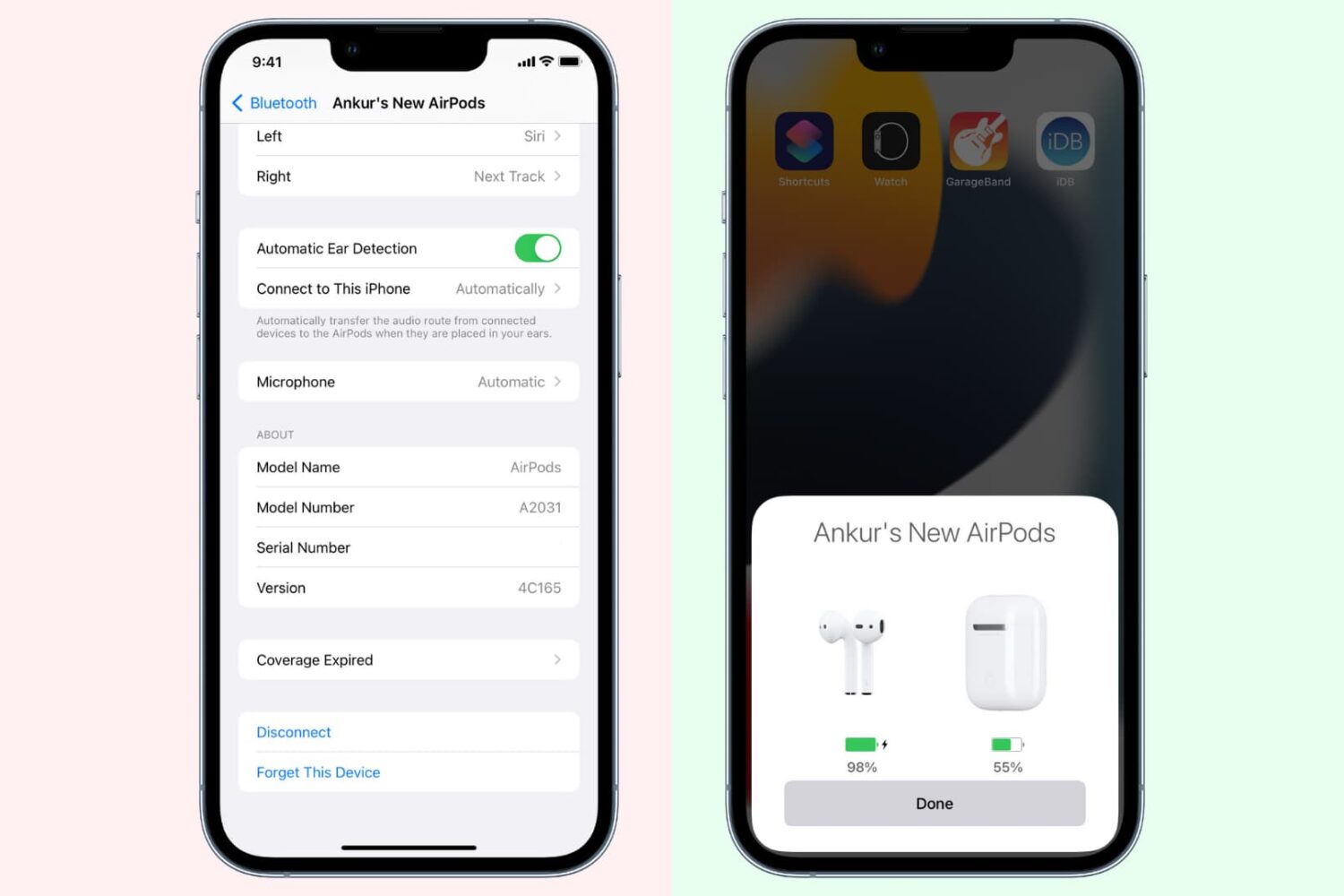
When your AirPods aren't working properly, one of the recommended solutions is to unpair and re-pair them from your iPhone, iPad, or Mac. Forgetting and re-connecting the AirPods usually fixes the issue, and we'll show you how to get it done.
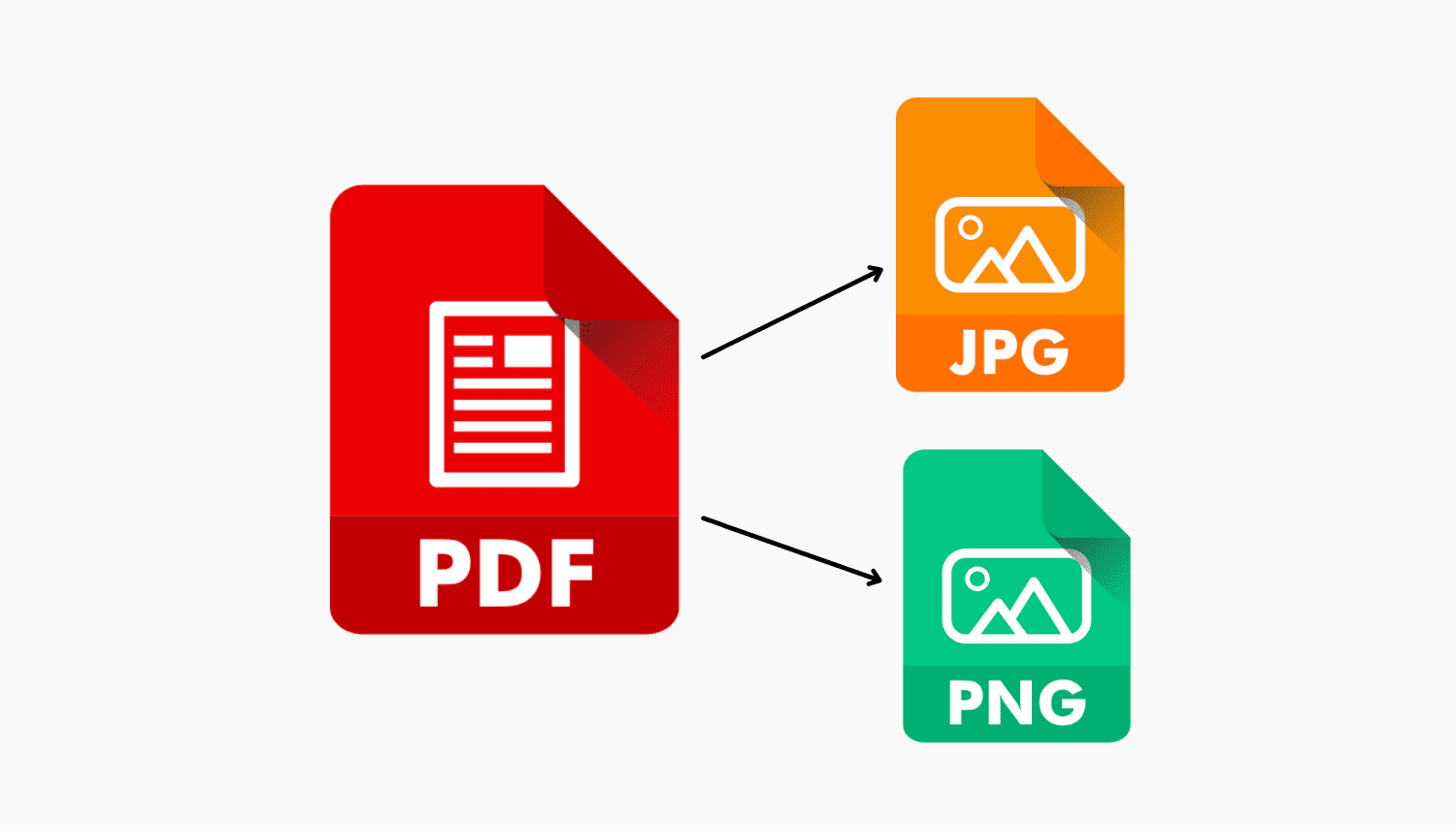
In this tutorial, we share 5 easy ways to export the pages of a PDF as individual JPEG or PNG images on Mac for free.
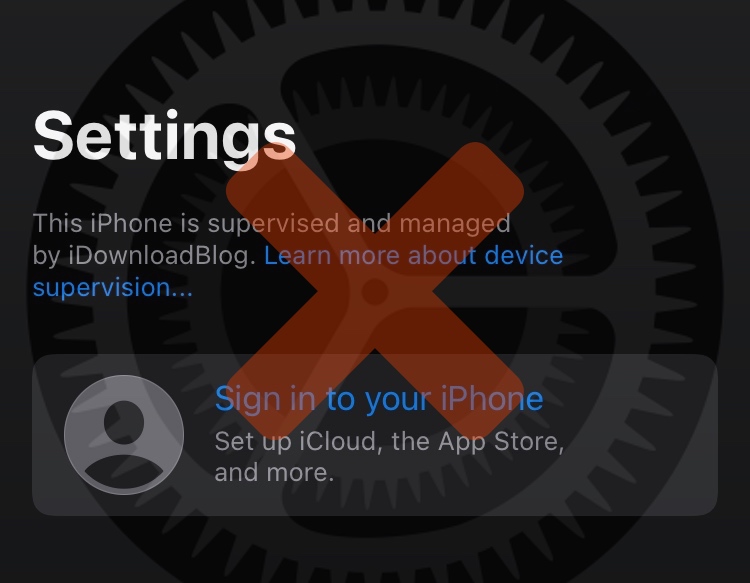
If you followed either of our tutorials for using DelayOTA on a jailbroken or non-jailbroken handset to upgrade to an unsigned firmware within the 90-day grace period, then you might be left wondering how you can remove the unsightly “This iPhone is supervised and managed by [insert name here]” spiel that appears at the top of your Settings app.

Learn how to manage and customize automatically generated captions for your Instagram videos to enhance accessibility and engagement.
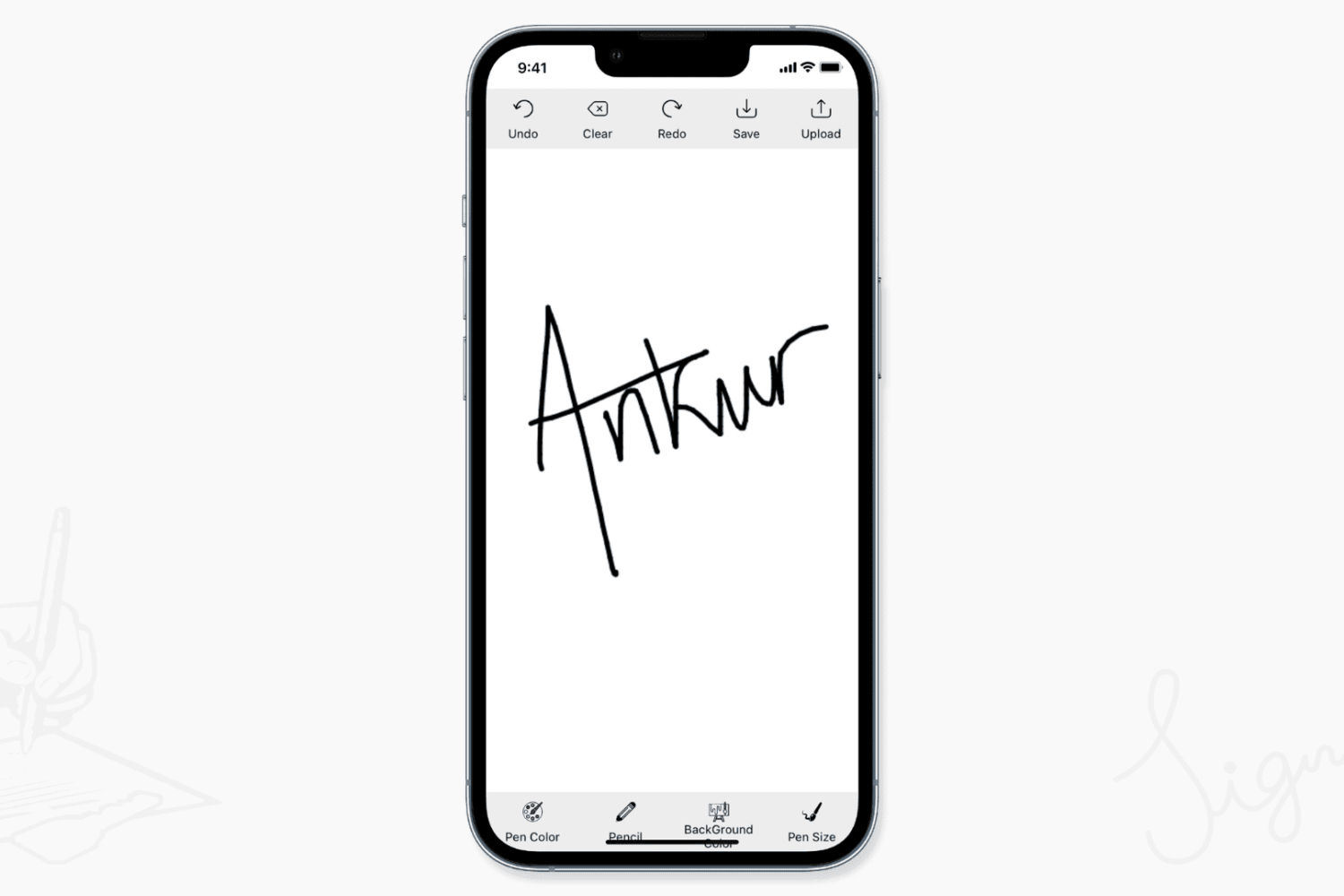
Learn how you can easily create a JPEG or PNG image of your signature using your finger or Apple Pencil on iPhone and iPad.
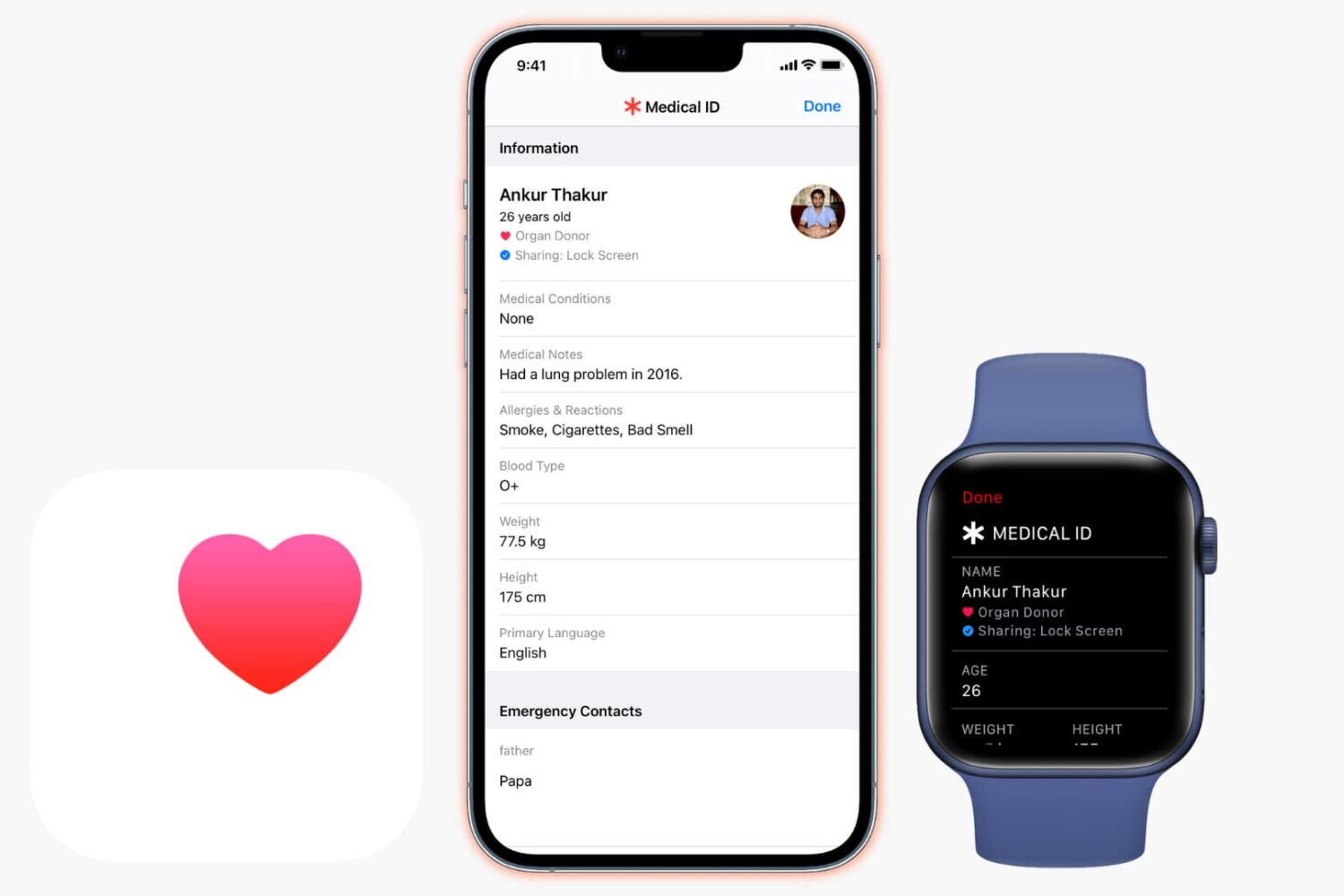
Learn what Medical ID for iPhone is, how to set it up, and how to access anyone's Medical ID on iPhone and Apple Watch in a life-saving situation.
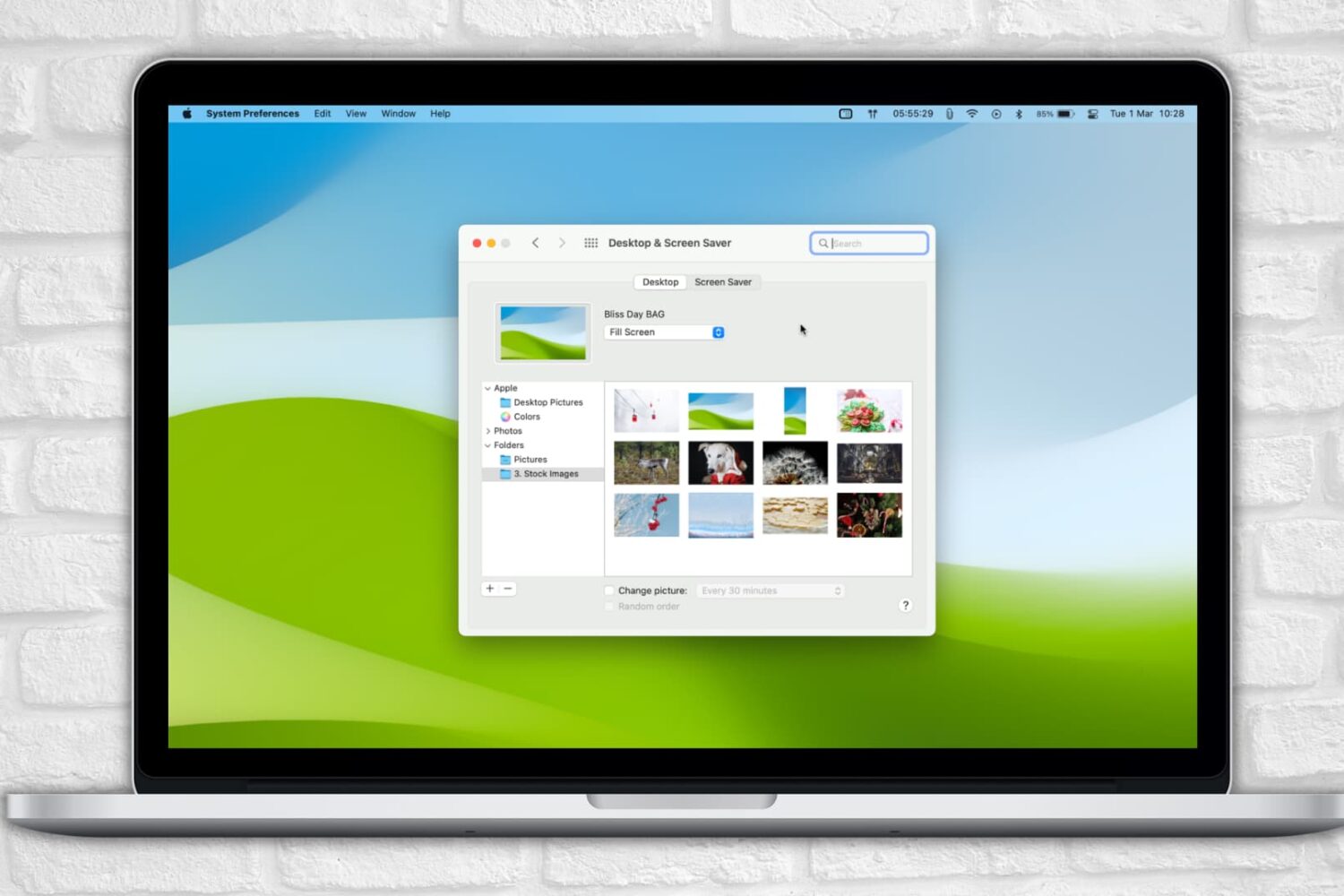
Is your Mac randomly changing your desktop wallpaper? In this troubleshooting guide, we have listed 7 ways to fix this and prevent it from happening again.

Learn how to delete the App Store cache on your iPhone, iPad, and Mac to both free up space and fix issues like incorrect balance showing in your Apple Account.

Learn how to share a YouTube video at a specific timestamp from your computer or mobile device.

In this tutorial, we show you how to add a sleep timer to Spotify on iPhone and iPad to automatically stop the music or podcast episode playback after a while.
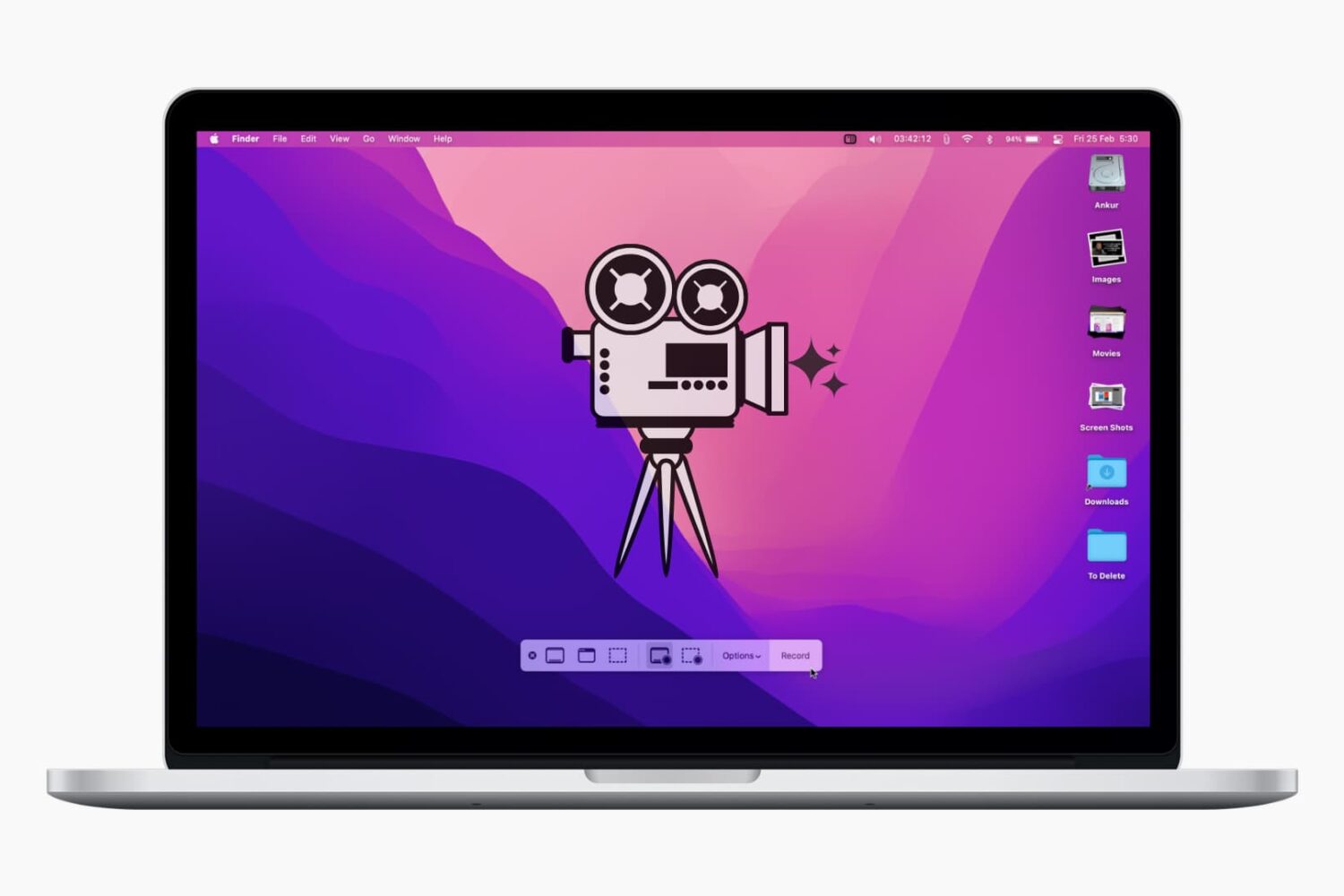
In this tutorial, we’ll show you two easy ways to video record your Mac’s entire screen or a selected section using built-in tools.