Learn how to deactivate or delete your X account and data on a phone, tablet, or computer to stop using this social platform.
How to deactivate or permanently delete your X (Twitter) account

Learn how to deactivate or delete your X account and data on a phone, tablet, or computer to stop using this social platform.

Some people prefer Viber for their instant messaging needs. Those pondering leaving Viber might be wondering if they can deactivate their account and delete their data. In a word, yes. In this tutorial, we'll tell you everything about deleting a Viber account, guide you through the account deactivation process, and inform you about what happens to your data after the account is killed.

Learn how to delete documents & data saved by iPhone, iPad, and Mac apps in your iCloud account to remove unnecessary files, clean things up, and free up storage space.

How do you know when your Apple Pencil is charged? Or even yet, how do you know what the battery level of your Apple Pencil is?
Even though the Apple Pencil 1st generation and 2nd generation lack a battery status indicator to tell you how much charge you have left, there are ways to learn how much battery life is still there in the device.
This quick tutorial shows you how to check your Apple Pencil's battery status. We will detail methods for both Apple Pencil 1 and Apple Pencil 2.

In this tutorial, you will learn how to turn on a high-contrast cursor on your Apple TV with just a few taps to better see select content and text.
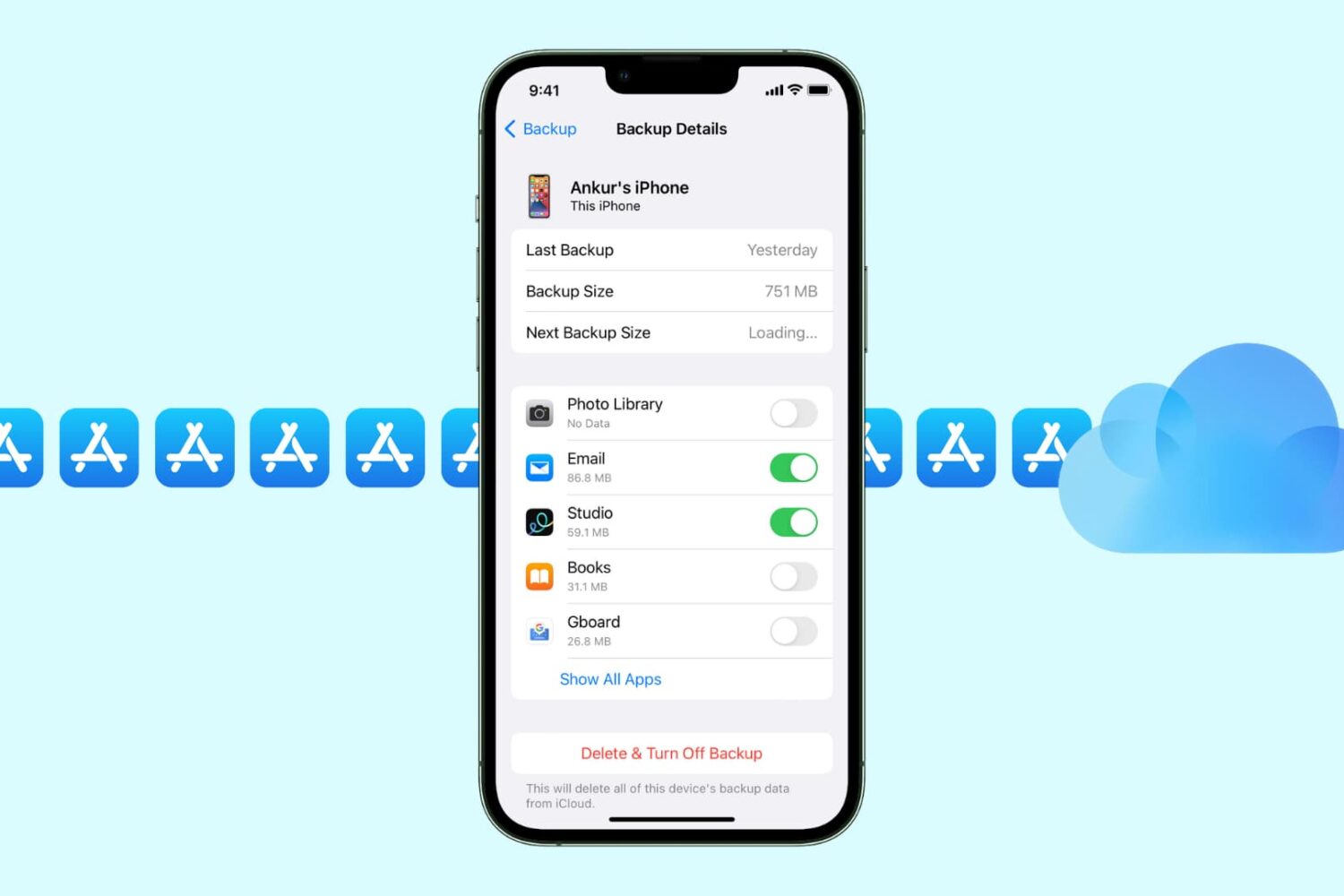
Learn how to keep your iCloud device backup smaller in size by manually selecting which iPhone or iPad apps can be included in the backup file.

Learn how to turn off Siri-suggested events in Apple Mail and Calendar apps on iPhone, iPad, and Mac to remove unwanted entries from your schedule.
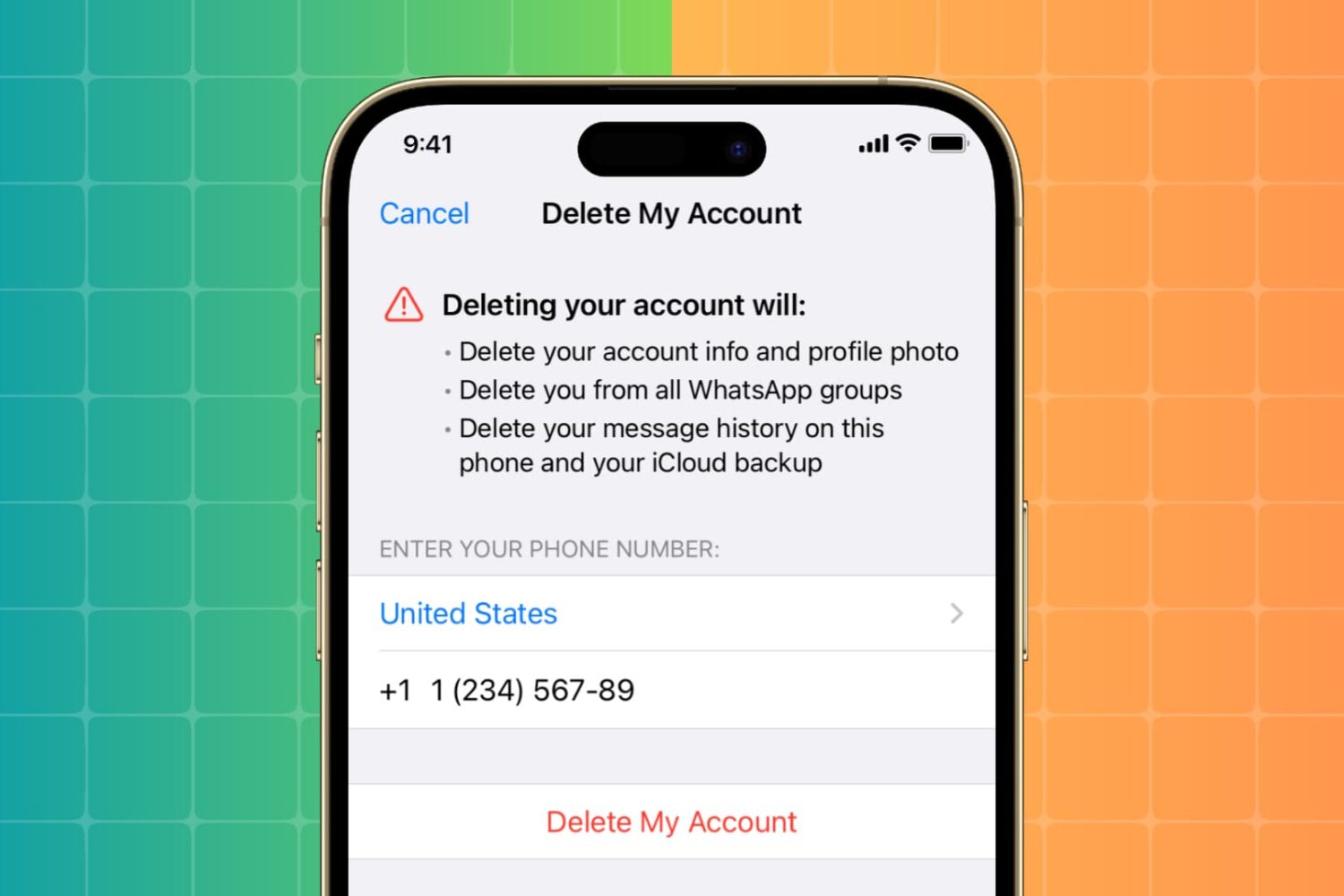
Learn how to permanently delete your WhatsApp account from your iPhone or Android phone if you no longer need to use this Facebook-owned messaging service.
You don’t need a dedicated app to turn web pages into PDF documents on your iPhone or iPad. That’s because Apple has built-in options that let you do just that right out of the box.

When you're in a meeting or at the movies and a phone call comes in or a loud alert starts dinging, nothing compares to the social awkwardness after realizing you've forgotten to silence your watch. While you can mute the alerts on your Apple Watch with a couple of taps, by the time you fumble through the menus, you'll have already embarrassed yourself.
Thankfully, there's a better way: the Apple Watch includes a nifty little feature for silencing incoming phone calls and other audible alerts with a super quick gesture.

Owners of an iPhone, iPod touch, iPad, or Mac can quickly look up flight status information found in Notes, Messages, and Mail using a rich interface with flight trajectory, flight status, arrival times and other information.
In this tutorial, you'll learn how to quickly preview the current status and other information pertaining to an airline and flight number, with or without leaving the context of what you're currently doing.

In this tutorial, we will help you figure out how much free space is available on your Apple TV, and discover which apps are taking up the most space.