Learn how to quickly delete all emails at once from the Apple Mail app on iPhone and iPad and reach inbox zero in no time.
How to delete all your emails at once on iPhone or iPad

Learn how to quickly delete all emails at once from the Apple Mail app on iPhone and iPad and reach inbox zero in no time.

In this tutorial, we will show you how to change the resolution, frame rate, and dynamic range settings for video playback on your Apple TV to achieve the perfect viewing experience.

In this tutorial, we’ll show you how to check the battery percentage of your Apple TV Siri Remote or other Bluetooth devices connected to your Apple TV, such as game controllers or gamepads.
Check out the quick steps to see the Wi-Fi signal strength on your Apple TV if you’re experiencing network issues while watching videos.

Want to watch TV without disturbing others, or instead connect it to a loud wireless speaker? This tutorial shows you the easy steps to connect a Bluetooth earphone, headphone, or speaker to your Apple TV.
Learn how to forcefully close apps on your Apple TV if they are stuck and not working properly, or to free up system resources.

In this tutorial, we'll show you how to customize the Apple TV Siri Remote to your liking by adjusting the sensitivity of its Touch Surface or turning it off altogether.
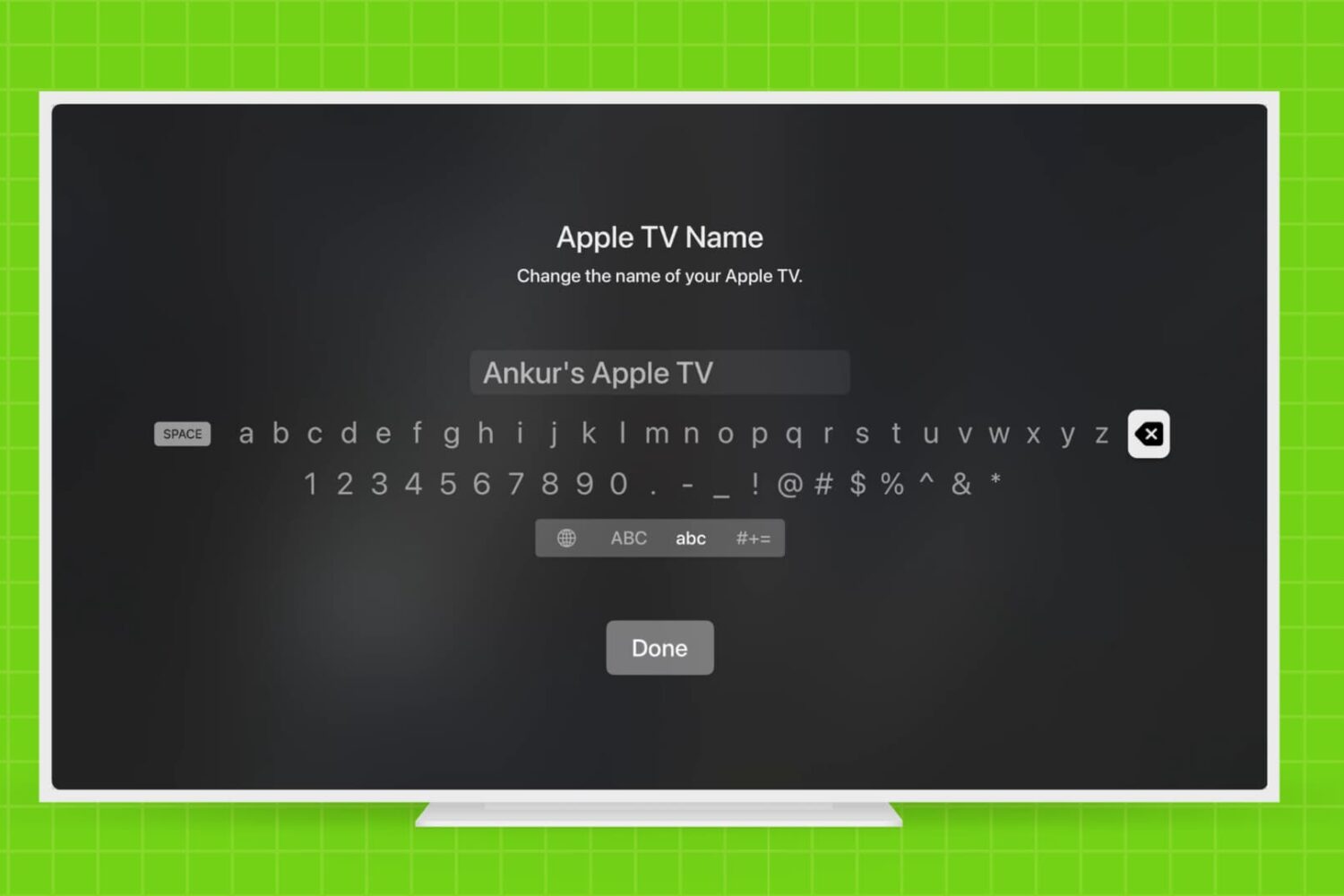
Learn how to rename your Apple TV and make it easier to identify, especially if you have multiple Apple TVs in your household.
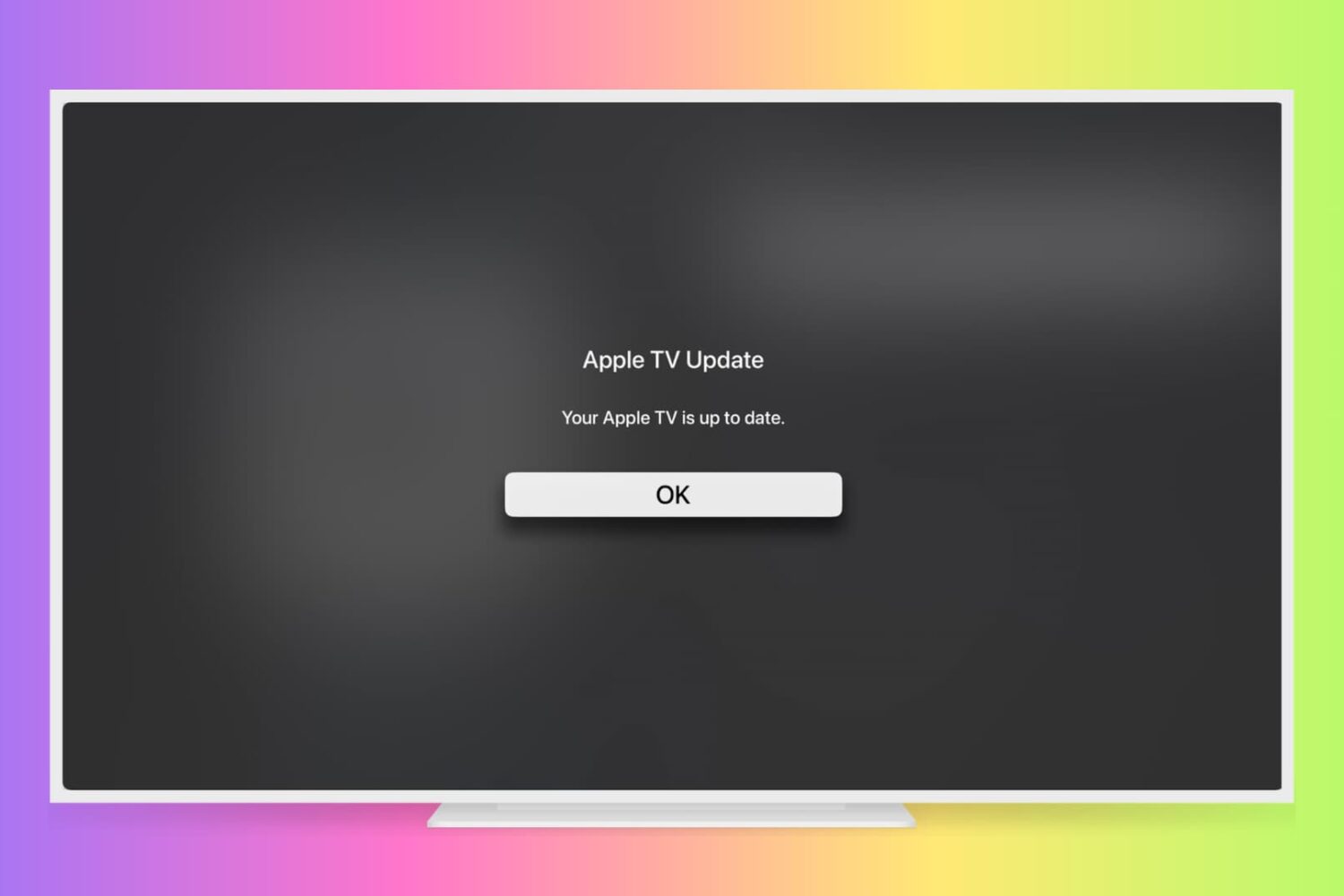
Learn how to manually check for Apple TV software updates and install the latest version of tvOS so it has all the latest available features and can run without hiccups.

You are probably aware that you can disable password prompts altogether for free downloads made on your iPhone, iPod touch, iPad and Mac. As an added layer of protection, iOS and macOS will either require your Apple ID password for each paid download or after fifteen minutes of making your last purchases in the iTunes Store, App Store, Books Store or Mac App Store, depending on your preference.
What you cannot do on iOS and macOS is disable password prompts for both free and paid downloads. On the Apple TV, however, it's possible to turn off password protection for both free and paid items and this tutorial will help you do just that.
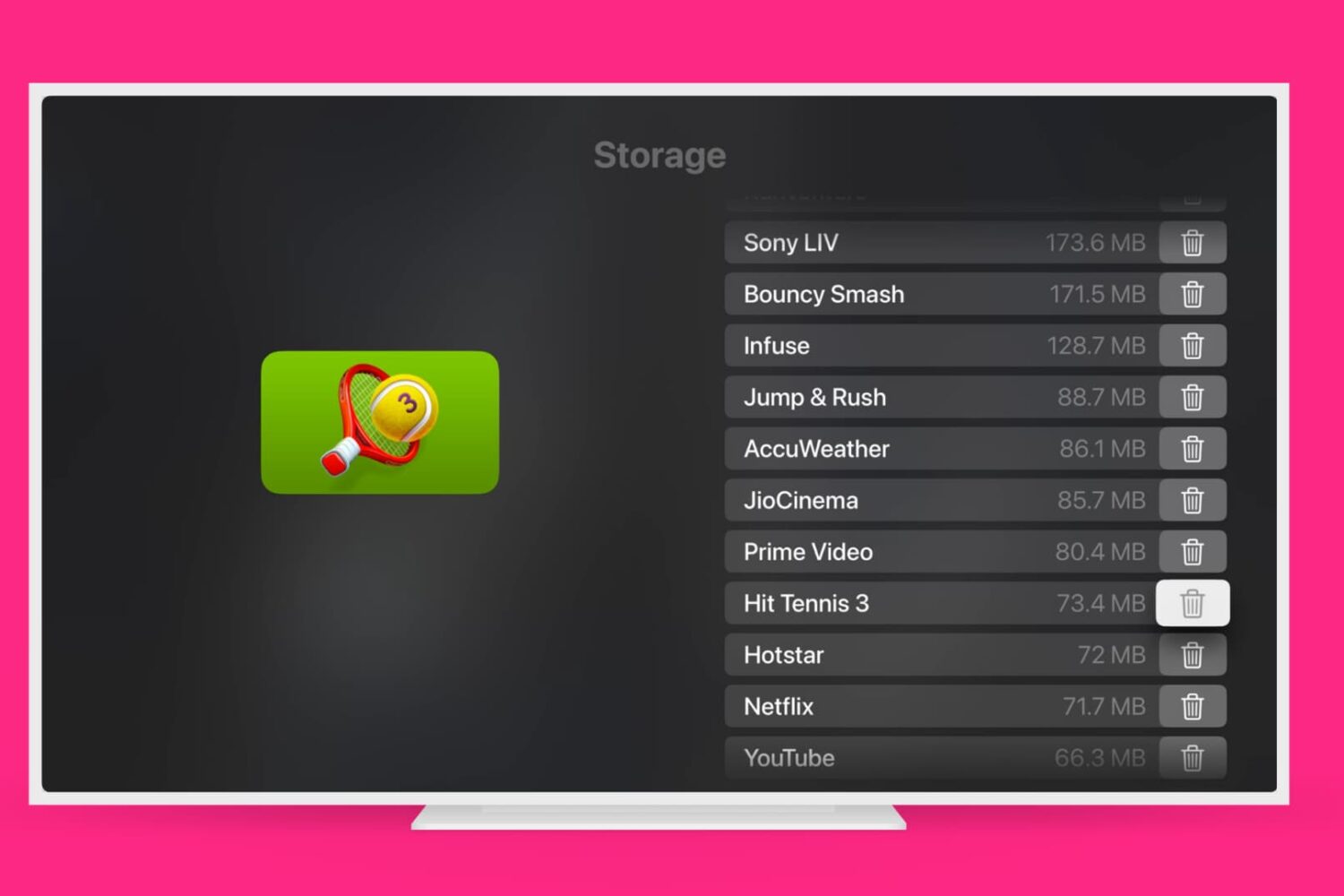
Learn how to remove those Apple TV apps you no longer need to have a tidier Home Screen and free up local storage space.
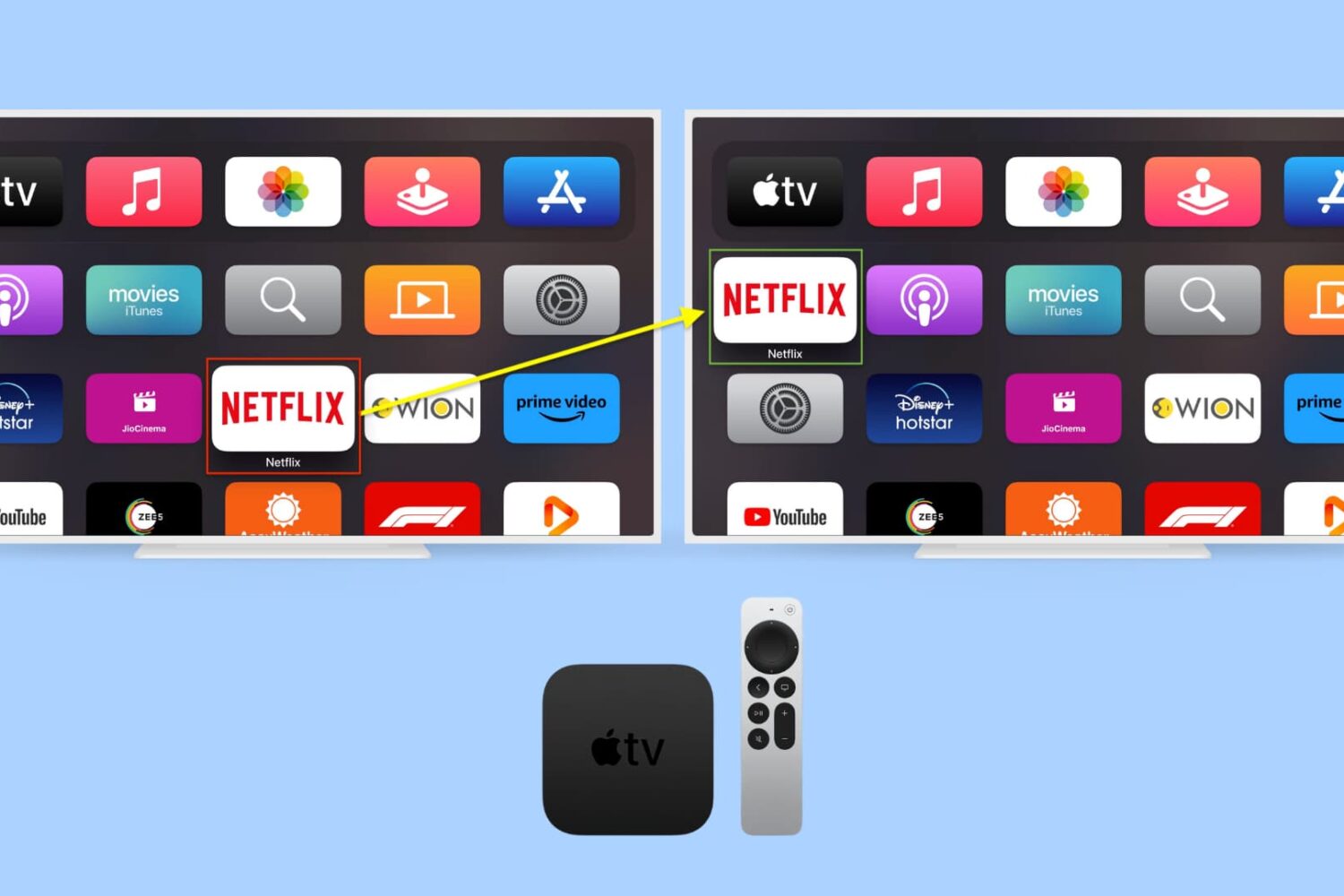
Rearranging apps on the Apple TV works much as it does on iPhone or iPad. First, you enter into "jiggle mode," and then you move the user-installed apps to your preferred location. This written tutorial, along with a video, shows you how to change the position of installed apps on your Apple TV Home Screen.