Learn how to delete a software update file that has already been downloaded to your iPhone or iPad if you don’t want to be prompted to install iOS 27, iOS 26, or some other update every day.
How to remove downloaded iOS 27 update file from iPhone

Learn how to delete a software update file that has already been downloaded to your iPhone or iPad if you don’t want to be prompted to install iOS 27, iOS 26, or some other update every day.
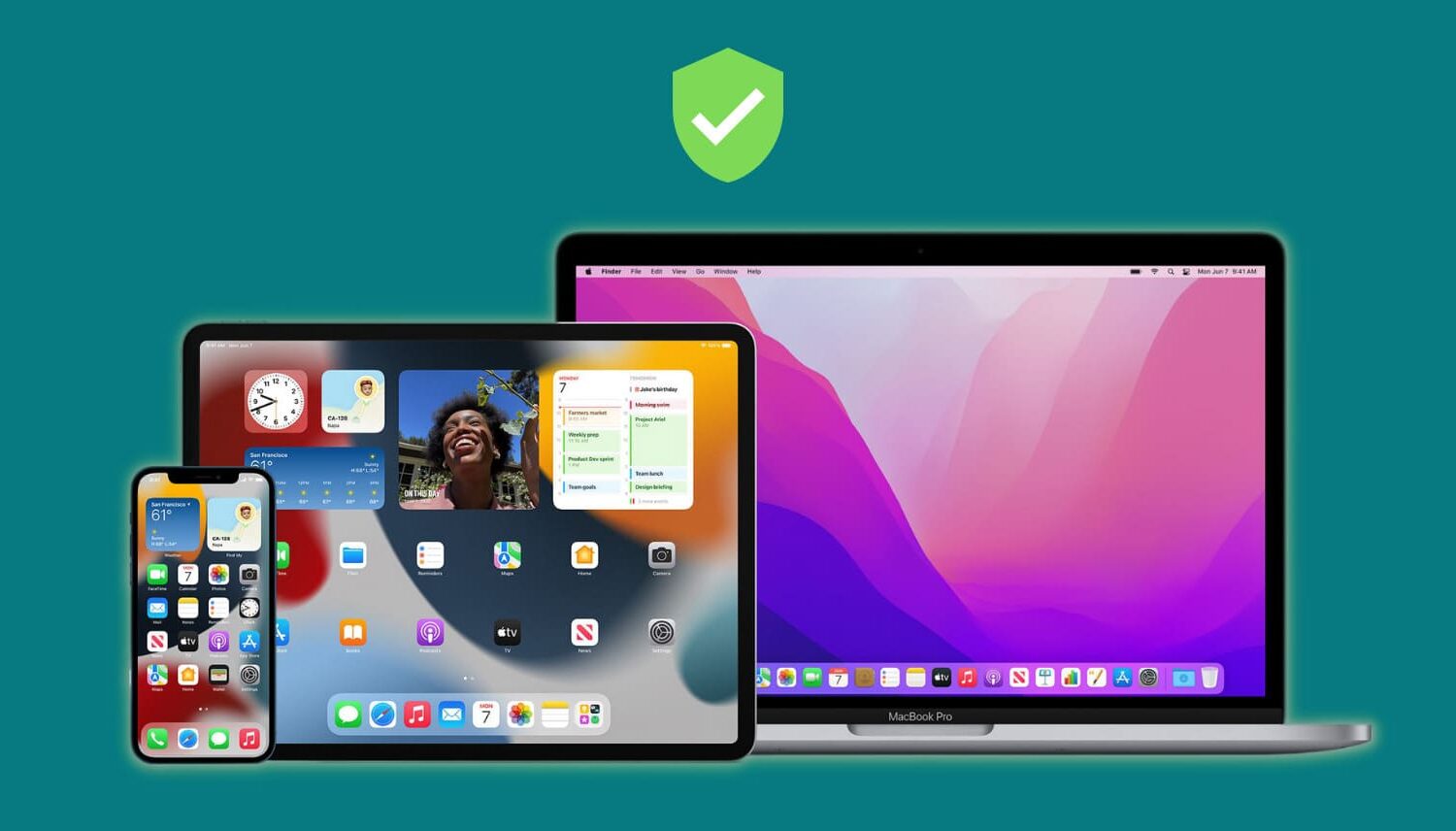
A trusted device is an iPhone, iPad, or Mac, where you have previously signed in using your Apple ID. Trusted devices are used to verify your identity when signing in and keep your Apple ID secure with two-factor authentication.
In this tutorial, we will go over trusted devices for Apple ID two-factor authentication, their requirements, and some other pieces of valuable information that you should know.

Learn how to turn off suggestions for unsaved contacts on your iPhone, iPad, or Mac that Siri has found in Mail and other apps on your device.
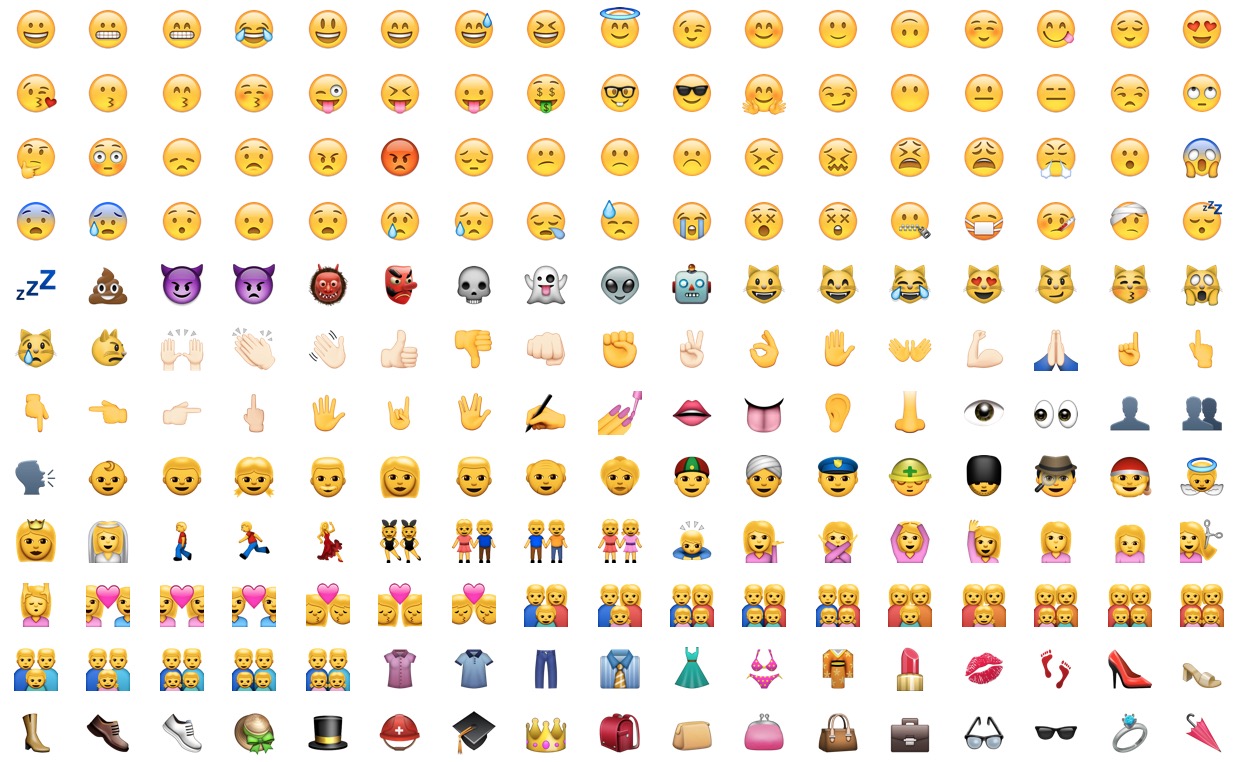
Learn how to discover the meaning of an emoji on your iPhone, iPad, and Mac instead of guessing what specific emoticons are meant to express.

Just like the familiar Settings application on an iPhone, iPod touch and iPad, the macOS System Preferences is probably the most frequently used application on your Mac.
If you're new to the Mac, System Preferences—much like the Control Panel on Windows—is a one-stop shop for adjusting various settings on your computer. Various settings are categorized into logical sections and laid out as a grid of preference pane icons.
In this post, we're going to outline five different time-saving ways to jump quickly into any specific setting nested within System Preferences.

It's possible to directly connect an iPhone to an iPad via a Lightning cable. To create a dual-sided Lightning cable, just take a regular Lightning cable and connect the USB end to a Lightning to USB Camera adapter. This, in essence, creates a Lightning to Lightning cable that can be used to directly connect an iPhone to an iPad.
This setup is a novelty to do just because you can. In practice, I find that it adds little value in terms of transmission speed. Still, it's cool that it can be done at all, which is why I thought I'd share it with you.
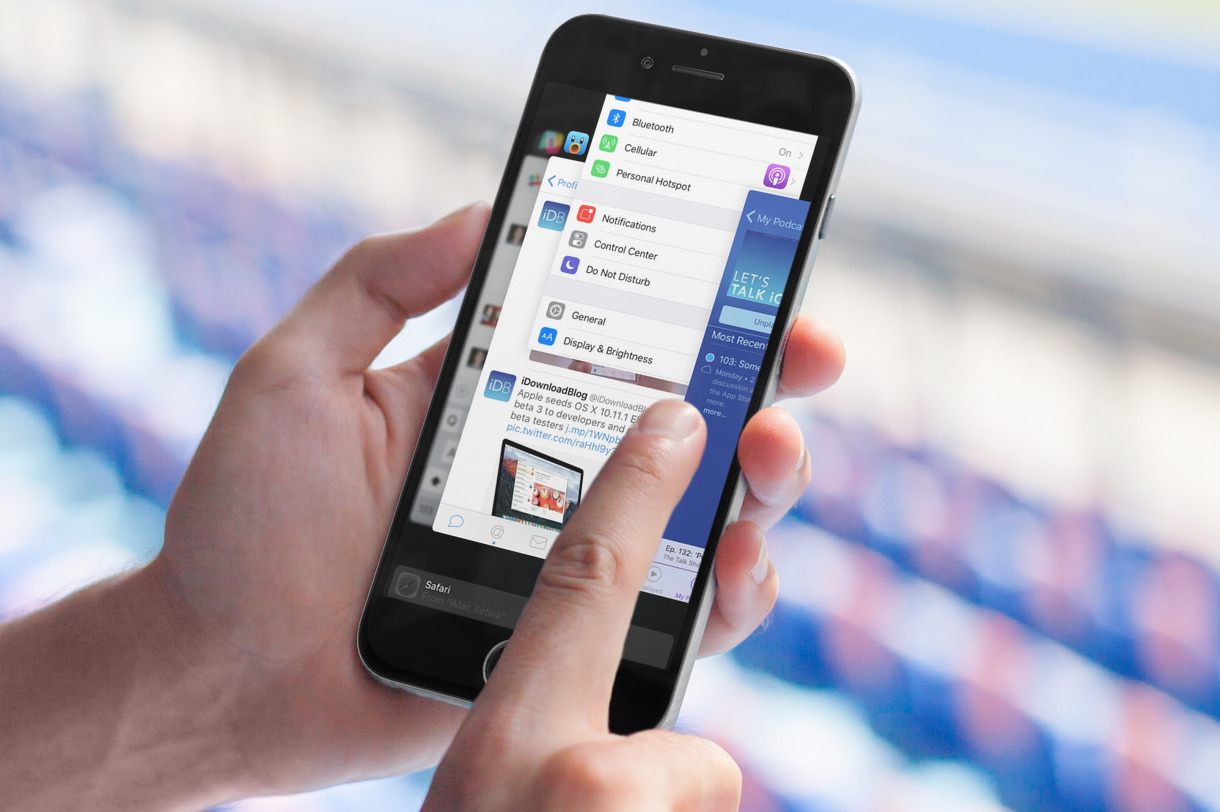
You think you're saving battery by force-quitting all your iPhone apps after using them? You're wrong! This is a terrible misconception that we will debunk in this article.

You can use a simple swiping gesture to quickly select multiple images in the Photos app on your iPhone or iPad, so you don’t have to spend time tapping each picture individually.

Battery usage is always a hot topic among smartphone owners, and although I try not to overthink it, there are times when I'm just curious to find out what apps have been draining my battery the most. iOS and iPadOS make it pretty easy to find out the battery percentage an app uses. Here's how to see details about how individual apps have been impacting your iPhone battery.

When you tap your Apple Watch screen, the display wakes up and remains lit for 15 seconds. For some users, those 15 seconds might not be enough, so in this tutorial, we will show you how to keep your Apple Watch display one for longer.
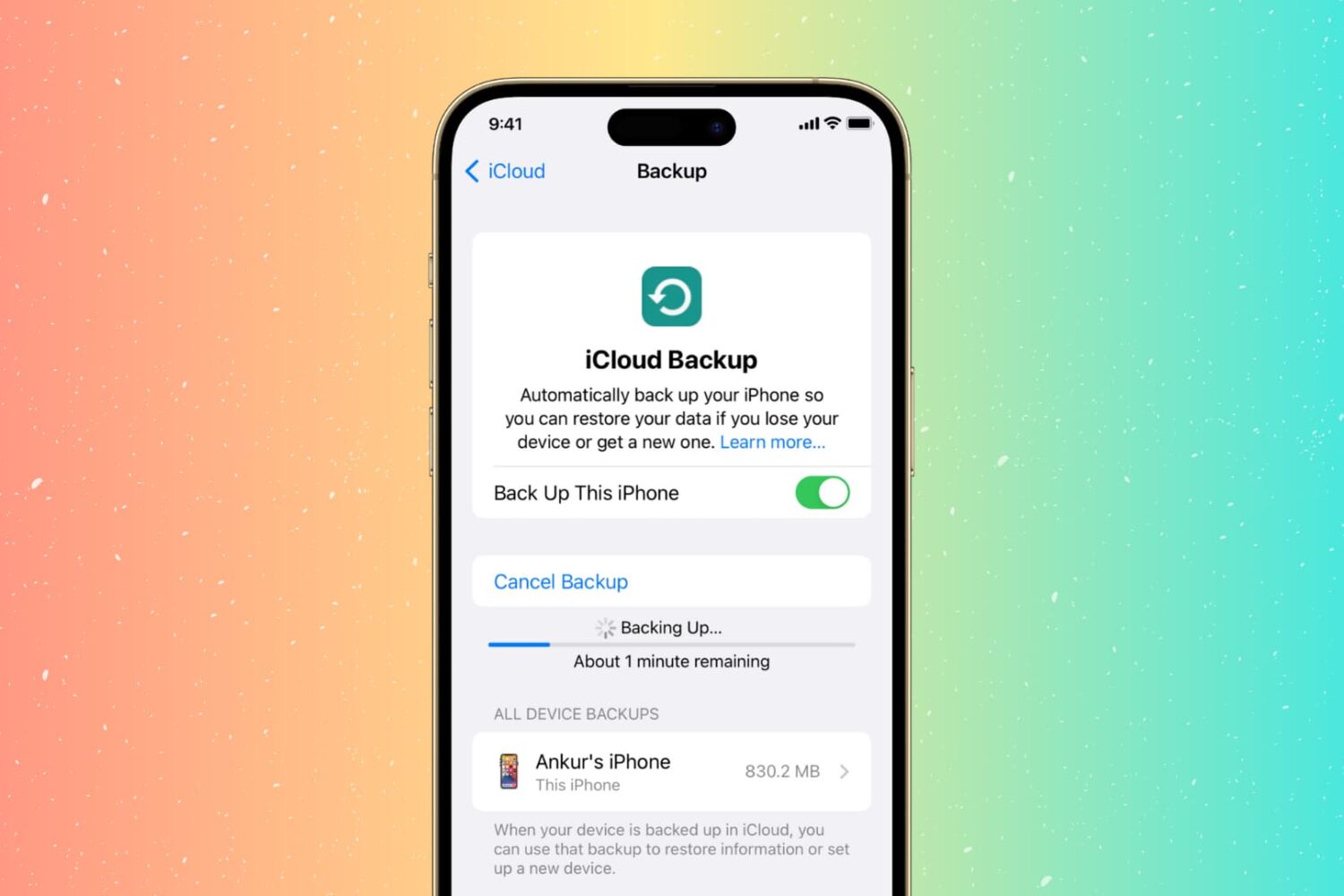
Check out these troubleshooting tips to fix iCloud backup failing on your iPhone or iPad and get your iOS device to finally back up successfully.
