Learn how to turn off suggestions for unsaved contacts on your iPhone, iPad, or Mac that Siri has found in Mail and other apps on your device.
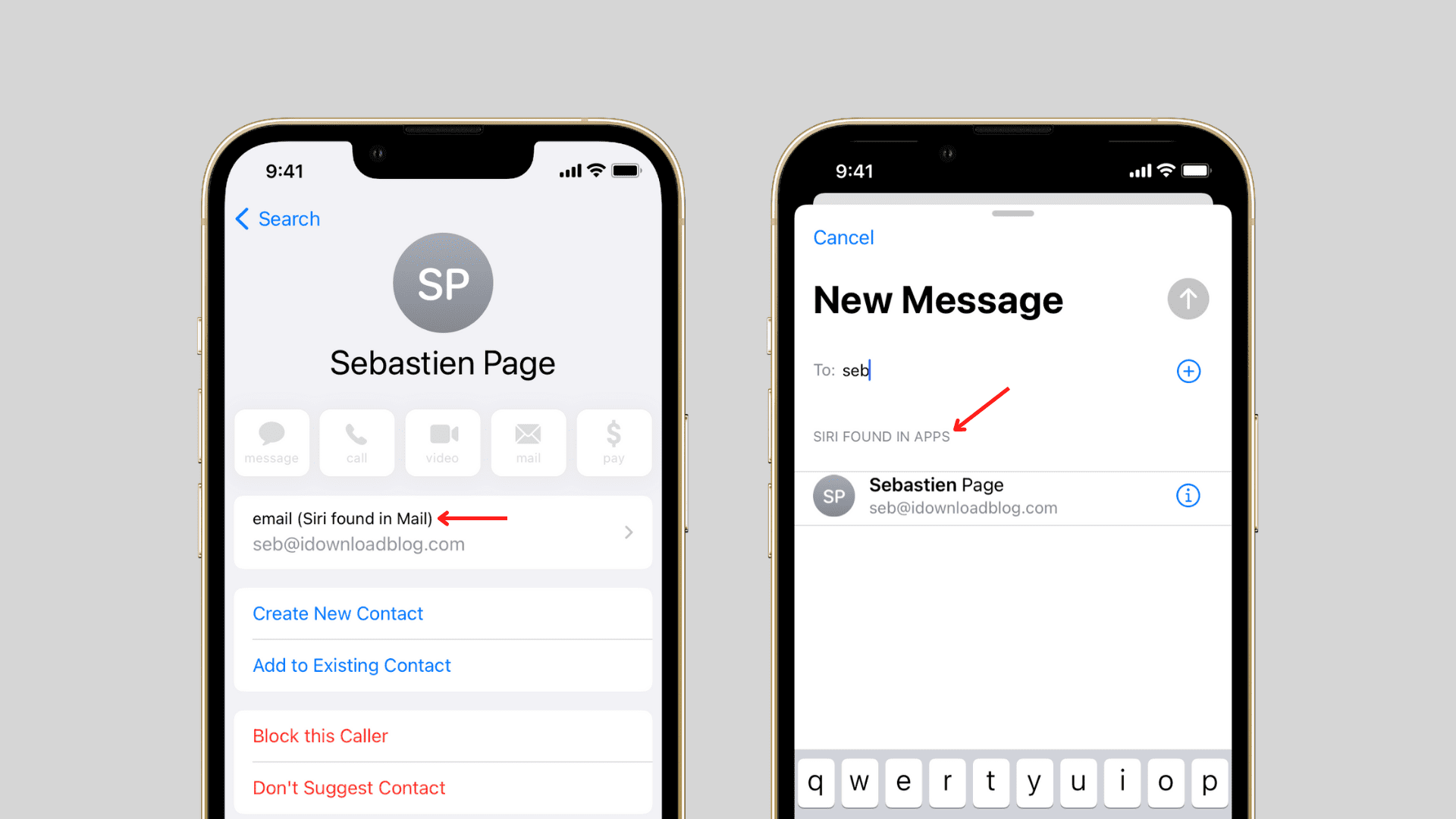
Proactive technologies built into Apple’s operating systems suggest new contacts you may want to save, based on data found in apps.
For example, your iPhone, iPad, or Mac may match an unknown number that recently buzzed you with information from an email message to guess who might be calling.
In that case, you’ll see a contact suggestion on the calling screen. If you don’t need this feature and want to remove suggested contacts, follow the steps below.
Turn off suggested contacts on iPhone and iPad
- Open the iOS Settings app.
- Tap Siri or Apple Intelligence & Siri.
- Tap App Access or Apps.
- Select Contacts from the list of apps.
- Turn off the switch labeled “Show Contact Suggestions.”

This deletes unconfirmed contacts and stops them from being suggested.
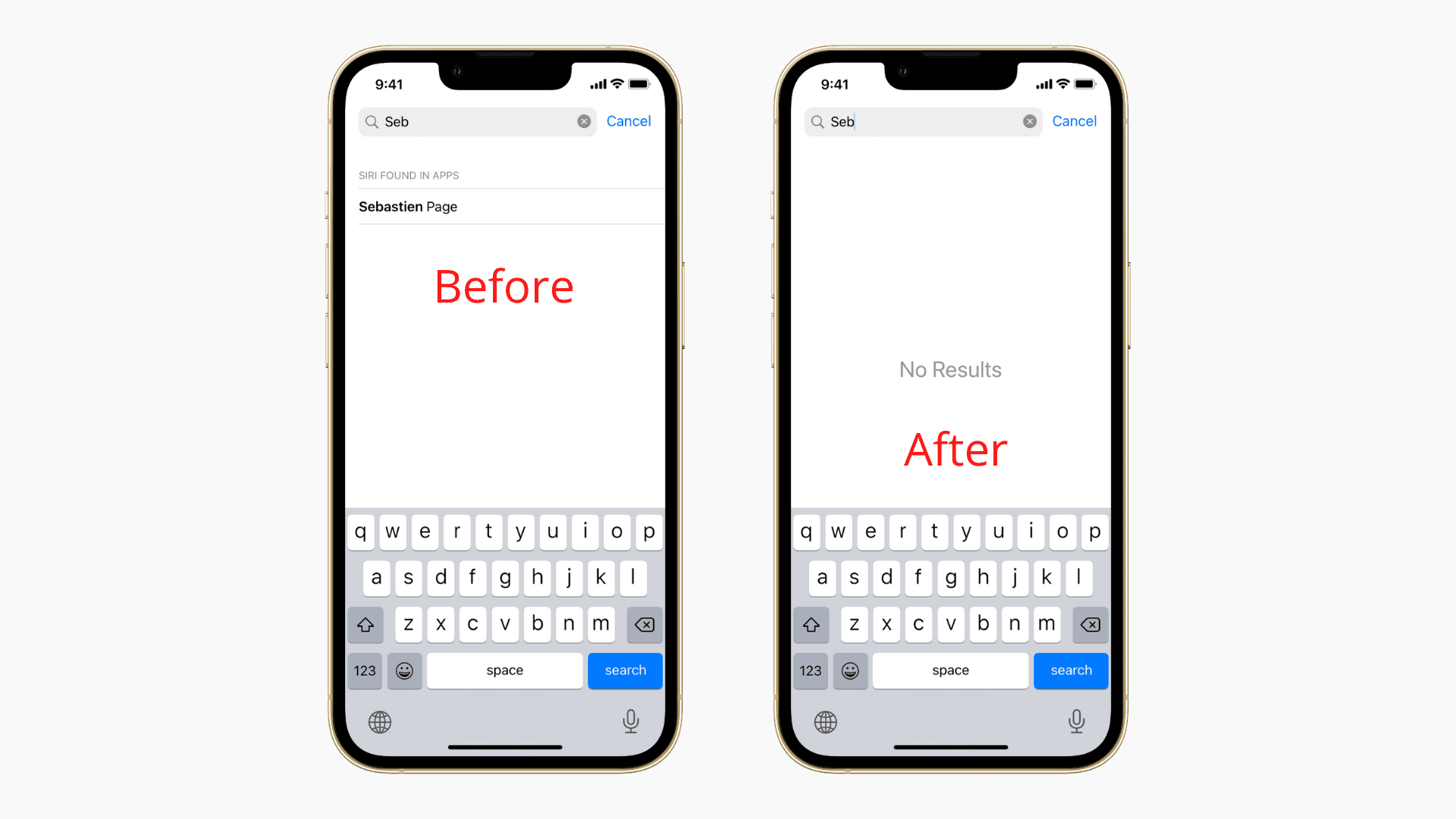
Turn off suggested contacts on Mac
On macOS, contact suggestions must be disabled in the Contacts app.
- Open the Contacts app on your Mac.
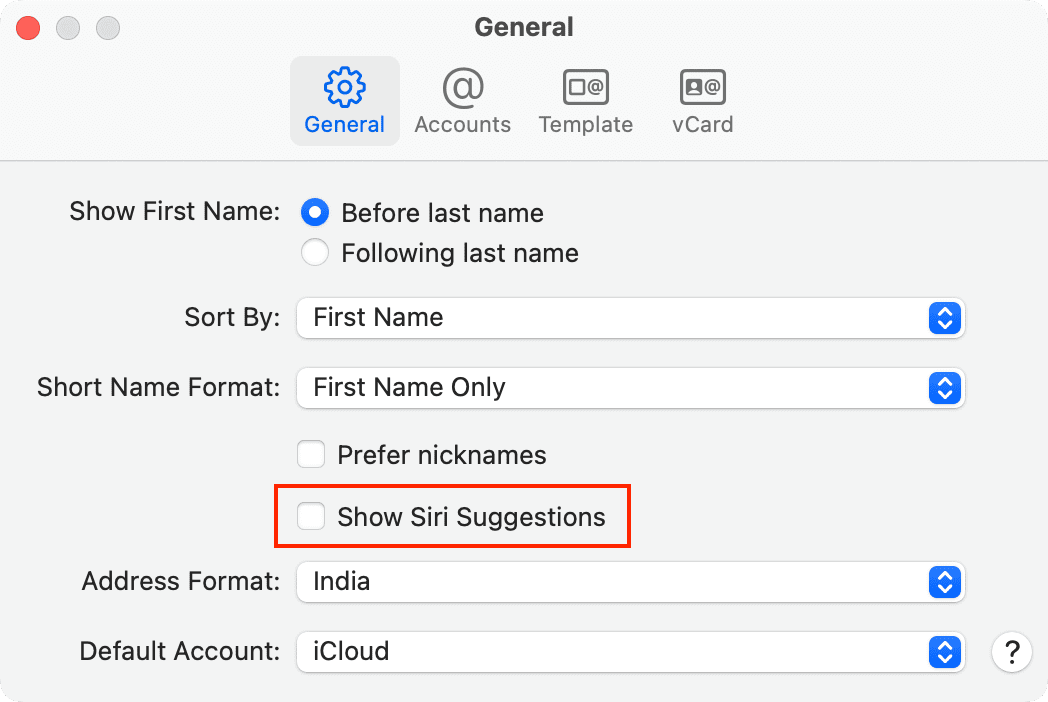
- Click Contacts > Settings from the top menu bar.
- Make sure you’re in the General tab and untick the box next to Show Siri Suggestions. You may see a warning that any unconfirmed contact suggestions will be deleted; click Turn Off to confirm the action.
Why turn off contact suggestions? Well, some people may be suspicious regarding the kind of dark magic behind this feature. Others may object to email scanning. If you hear complaints from friends and family members about contact suggestions showing up on their devices, send them this tutorial.
What happens after turning off suggested contacts
When you turn off Siri suggestions for unsaved contacts, the device stops rummaging through your emails in search of contacts with phone numbers. Incoming phone calls from unknown numbers will show as “Unknown” instead of as educated guesses, aptly suffixed by “Maybe.”
Unsaved contacts will also stop showing up in Mail autocomplete when adding people to a message. And in Calendar, contacts included in previous events (or emails) will stop popping up as suggestions when adding people to an event.
About suggested contacts
Contact suggestions are based on apps you use, like Mail. A suggested contact appears as a temporary item in the Contacts app, but doesn’t get saved there or surfaced in Spotlight search until manually confirmed. Suggested contacts also appear on the call screen, in Phone app Recents, in Mail autocomplete, and in the Calendar app.
And if you receive a call from an unsaved number and you previously interacted with its owner (i.e., you exchanged emails), you may see “Maybe: FirstName LastName” on the call screen. You may also see a suggested contact with a Siri found label when searching in the Contacts app or typing an email message.

In line with Apple’s uncompromising stance on privacy, contact suggestions are derived strictly from on-device data, not server logs. And since this data is based on your device usage, you may see different contact suggestions on each device.
Also, check out: How to use the Siri Suggestions widget to change Home Screen apps on iPhone