Learn how to quickly delete all emails at once from the Apple Mail app on iPhone and iPad and reach inbox zero in no time.
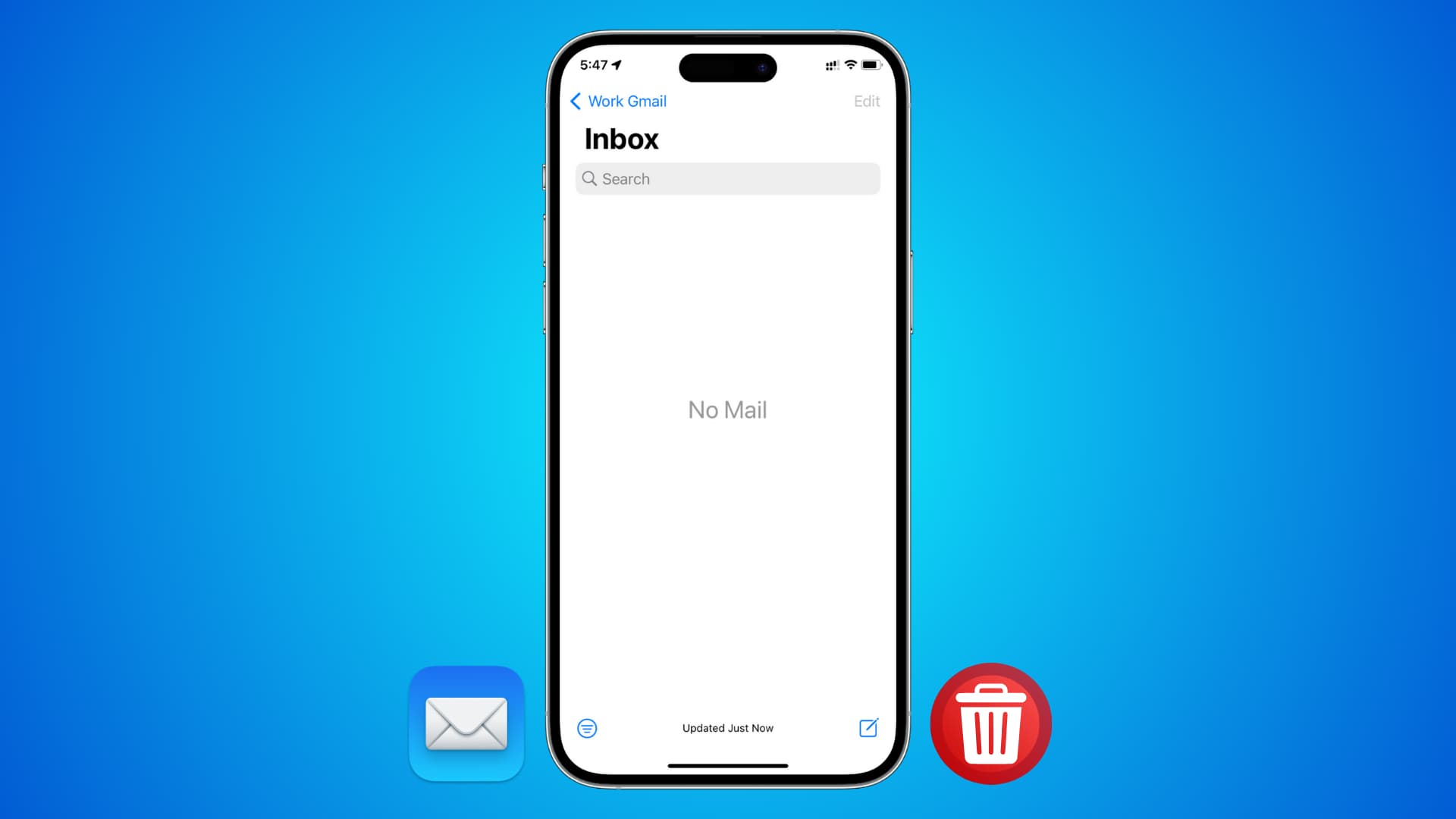
The built-in Mail app on iOS has a trio of features that make the app more useful. One of them is an easily overlooked feature that lets you quickly delete all your emails in an inbox with just a few taps. This can save you a lot of time and help tame your inbox.
Caution: Some emails may be important and have proof of purchase, warranty receipts, bills, etc. So, make sure you know what you’re doing. You can take screenshots or save those emails as PDFs before deleting them.
Delete all emails on your iPhone or iPad
1) Open the iOS Mail app.
2) If you’ve added multiple email accounts, tap the arrow button (<) at the top and select a mailbox, such as iCloud, Gmail, Outlook, etc., whose emails you want to trash.

3) Tap the three dots icon at the top and select List View instead of Categories view.

4) Tap the Select button, followed by Select All to mark all emails.

5) Tap the trash icon, then tap Trash All.

You should now have a clean inbox with no emails. In case old emails are still visible (this happens if you have a lot of emails), repeat the above steps a few more times.

Empty the trash
Trashed emails are not immediately deleted. Instead, they are moved to a Trash folder before they’re permanently wiped after a preset period (the default is usually 30 days). Follow these steps if you want to permanently delete all the trashed emails now:
1) Head to the Trash folder for the inbox you want to delete messages from.
2) Tap Select > Select All to mark all emails in the trash.
3) Finally, tap the trash icon.

More for Mail: