Check out the quick steps to see the Wi-Fi signal strength on your Apple TV if you’re experiencing network issues while watching videos.
If you’re planning to use your Apple TV over a wireless rather than a wired network, your experience may occasionally suffer from various Wi-Fi-related issues. For instance, your Apple TV might be unable to connect to a Wi-Fi network, refuse to stream movies and songs, or update apps in the background.
Usually, the first step in troubleshooting Wi-Fi issues plaguing your box is to determine whether the Apple TV has sufficient Wi-Fi signal strength. This is important because the lower the signal, the worse your experience will be, as your device will struggle with slower download speeds and poorer streaming quality.
In this tutorial, we’ll show you how to determine the Wi-Fi signal strength on your Apple TV. But if your Apple TV isn’t even connecting to Wi-Fi, we have a separate tutorial for that.
Check Wi-Fi signal strength on Apple TV
- Open the Settings app on your Apple TV.
- Scroll down and select Network.
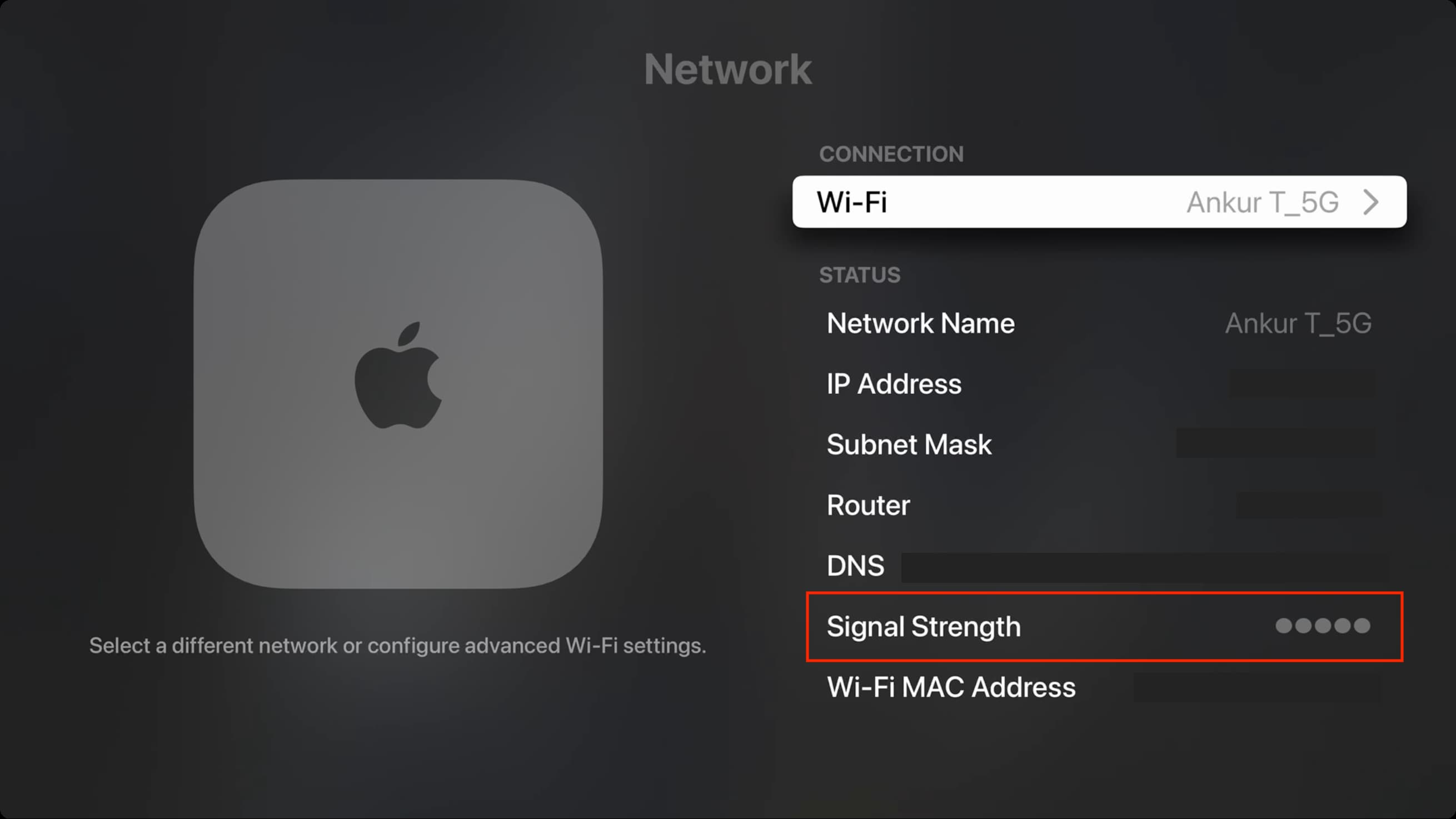
- You’ll see the details of the connected Wi-Fi network, including the Signal Strength, with five dots indicating the strongest signal.
In addition to the above steps, you can also go to the Settings app and select General > About to see the Signal Strength.
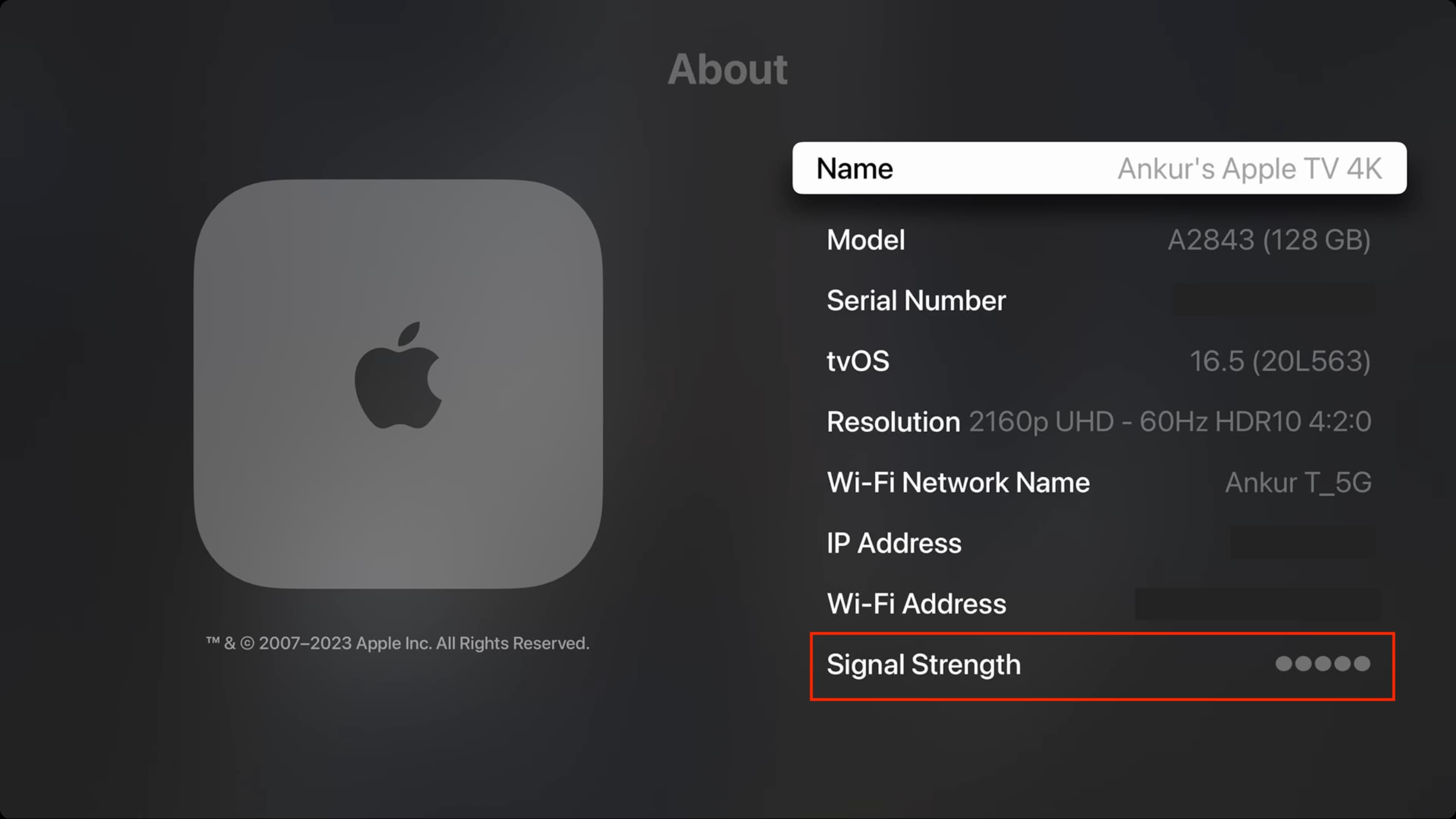
In addition to Wi-Fi signal strength, the About section contains other useful information regarding your device’s hardware, software, and settings, including:
- Name: You can choose a custom name for Apple TV so it’s easier to identify in a list of AirPlay devices.
- Model: Your Apple TV model is listed under the Model heading. For more, you can learn the differences between various Apple TV models.
- Serial Number: Your device’s serial number is also listed on the back of the box that your Apple TV came in and on the information label located on the bottom of the device.
- tvOS: The current version of the operating system running on your Apple TV. For more information on updating your Apple TV software, see our how-to.
- Resolution: The video output resolution of your Apple TV can be adjusted under Settings > Video and Audio > Format.
- Wi-Fi Network Name: The name of the Wi-Fi network your Apple TV is connected to.
- IP Address: The IP address that your Apple TV has been assigned.
- Wi-Fi Address: The hardware MAC address of your Apple TV’s Wi-Fi card.
On that note: How to fix slow Wi-Fi on iPhone and iPad