Learn how to easily see the Wi-Fi IP address of your Mac, iPhone, and iPad in this comprehensive tutorial.
Internal/local vs. external/public IP address
There are a few reasons you may need to find the internal and external IP addresses of your Mac, iPhone, or iPad for tasks, like establishing remote access, troubleshooting network issues, configuring firewalls, or setting up external devices like a printer.
An internal IP address, also known as a local IP address, is a unique identifier assigned to devices on a local network by a router. It facilitates communication between devices on the same network and is typically not visible to devices outside the network.
An external IP address, or public IP address, is a unique identifier assigned to a device by an Internet Service Provider (ISP). It enables communication between devices on different networks over the internet. This address is visible to other devices online and is essential for connecting to the internet.
Four ways to see the internal IP address of your Mac
You can use whichever of these methods is most convenient for you:
1. From Control Center or the menu bar
By now, you’ve likely noticed that the Alt / Option key (⌥) unlocks some handy features in your Mac’s menu bar. For instance, holding the Option key while clicking the Bluetooth button reveals additional details about your wireless devices.
The same trick works for the Wi-Fi button in the menu bar. Holding the Option key while clicking it provides access to a wealth of technical information about your Mac’s Wi-Fi connection.
- Hold the Option key on your Mac’s keyboard.
- Click the Wi-Fi icon in the menu bar or Control Center to see its IP Address.
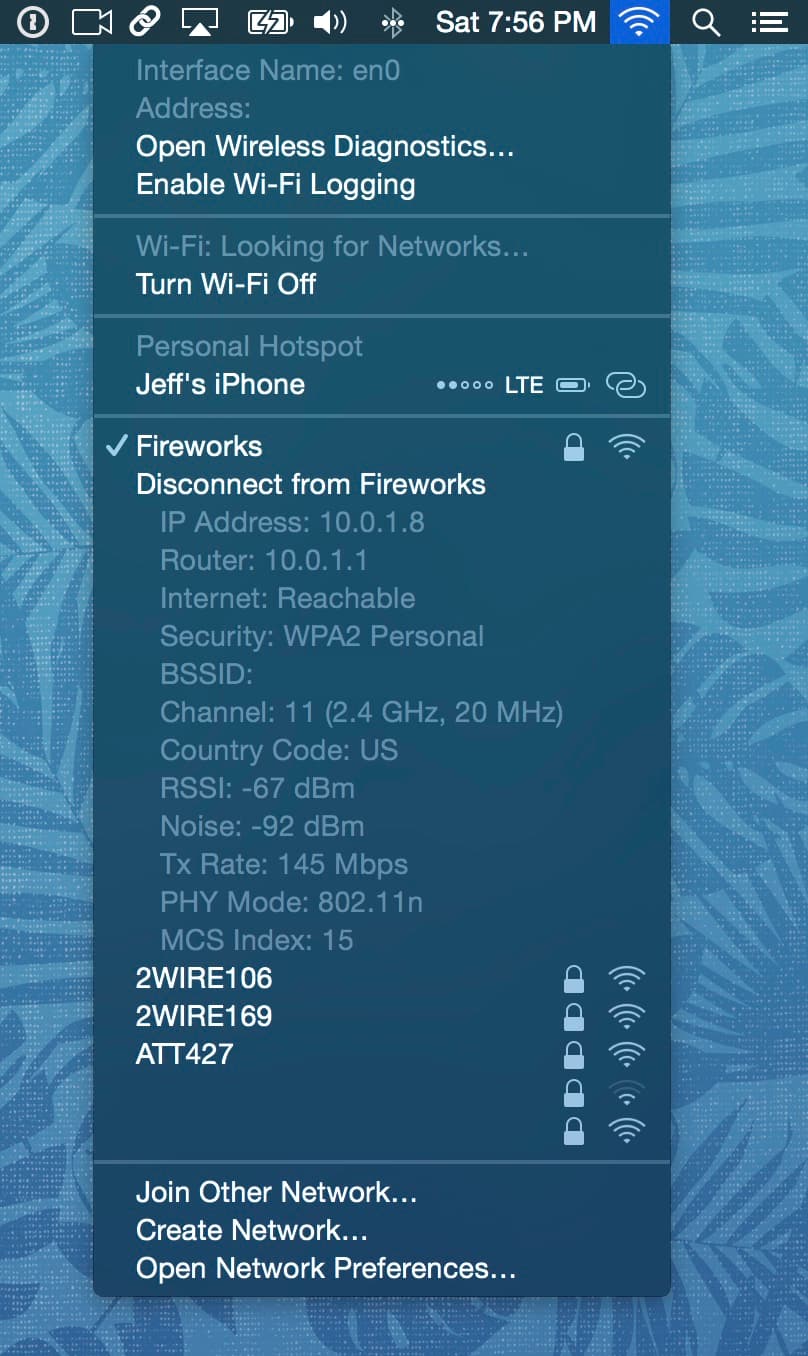
Along with the IP address, you’ll also gain quick access to your wireless router’s IP address, the transmit rate, SNR, and more. You’ll find that this is also a good way to grab your wireless MAC address, interface name, and wireless channel.
Although you can easily find your Wi-Fi IP address by venturing into System Settings, this method will save you at least a click or two. You can also quickly obtain much more detailed information from the menu bar than you can from System Settings.
2. From System Settings
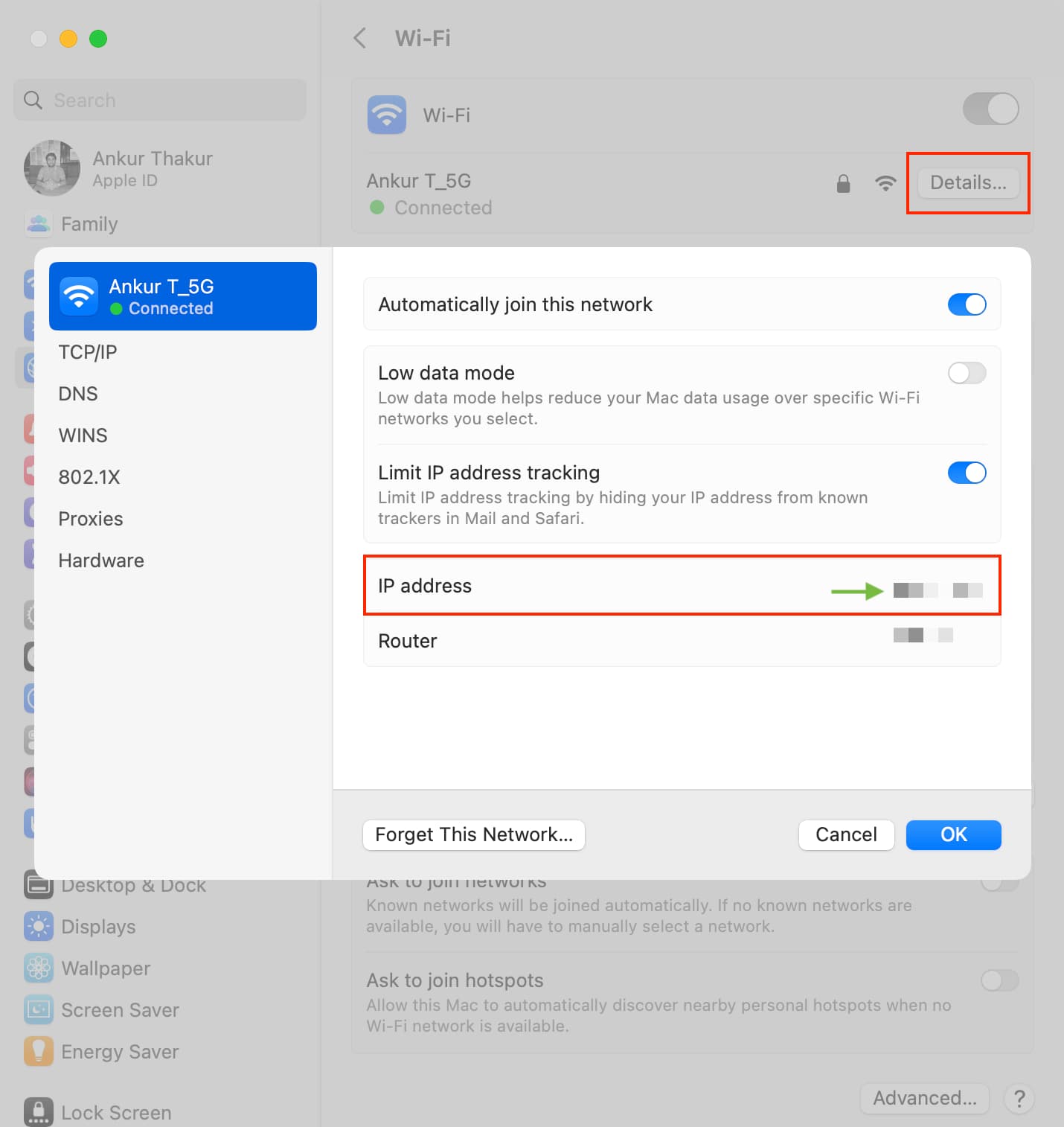
- Open System Settings on your Mac and go to Wi-Fi.
- Click the Details button next to the connected network.
- You’ll see the IP address here. You can also see the IP address in the TCP/IP section.
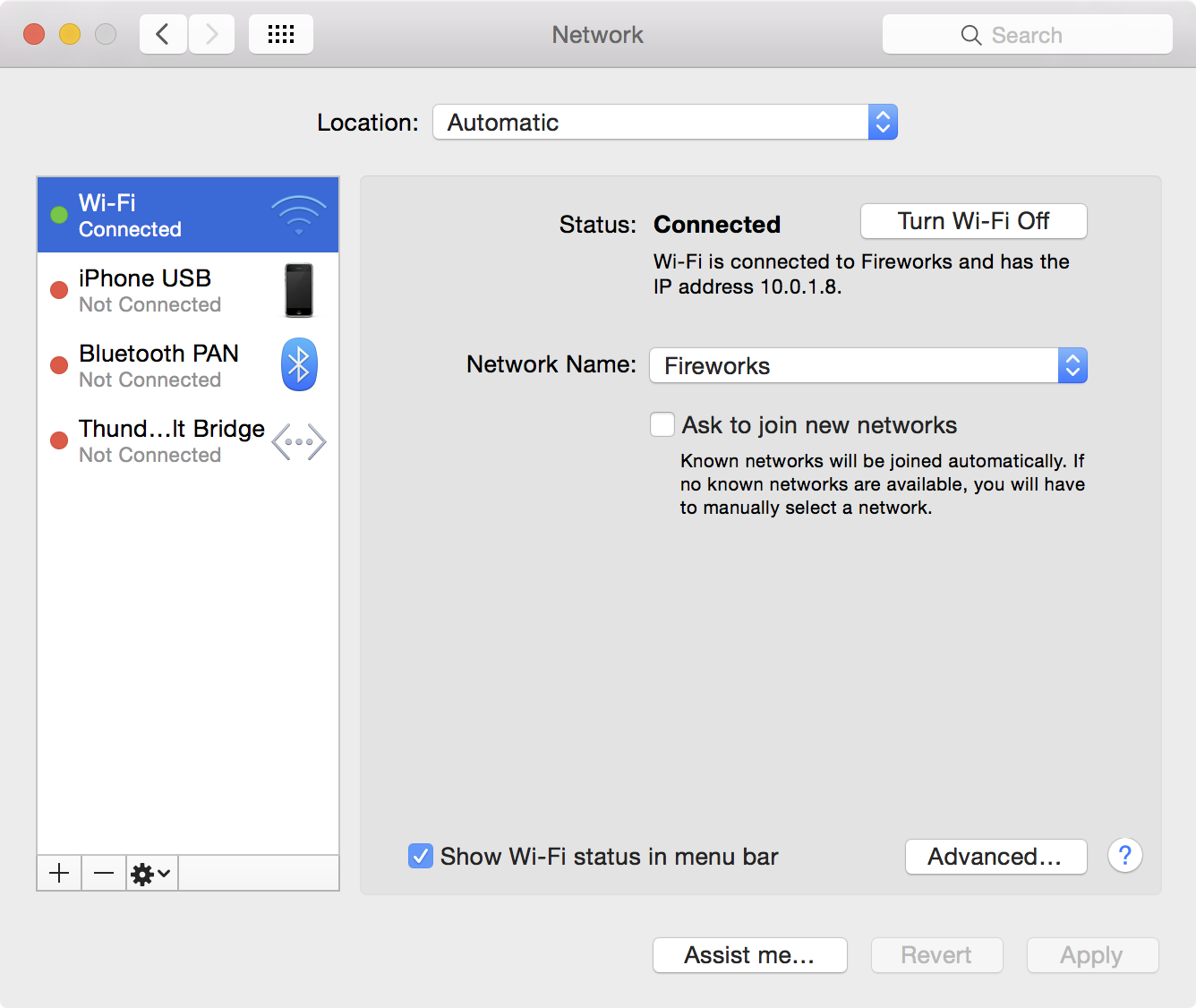
On macOS Monterey and earlier, go to System Preferences > Network and select Wi-Fi. Further, use the Advanced button to dig into more details.
3. Using Terminal
Open Terminal and copy and paste or type in the following command:
ipconfig getifaddr en0
Your IP address will be shown on the right below the command.

If the above command doesn’t work, use this one: ipconfig getifaddr en1
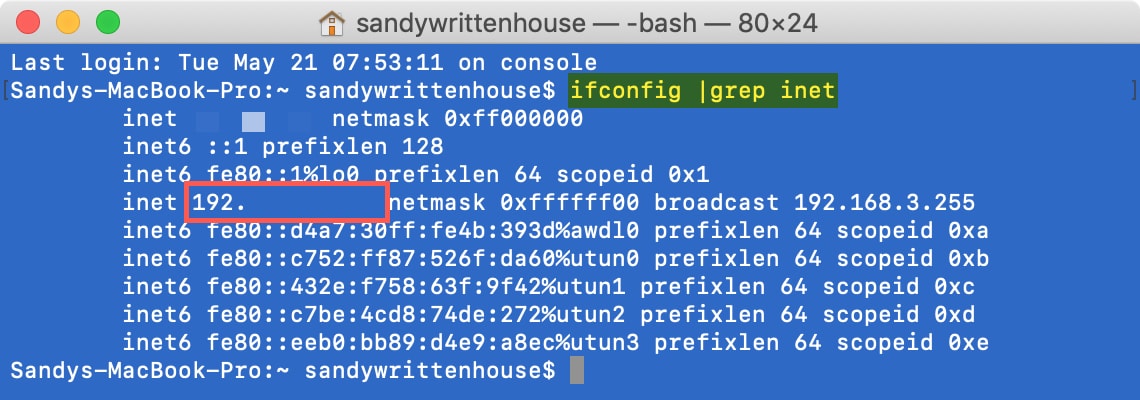
You might also see the following command used if you happen to Google to find your IP address in Terminal. It works as well, but gives you the extra information you don’t need.
ifconfig |grep inet
4. From your Wi-Fi router’s page
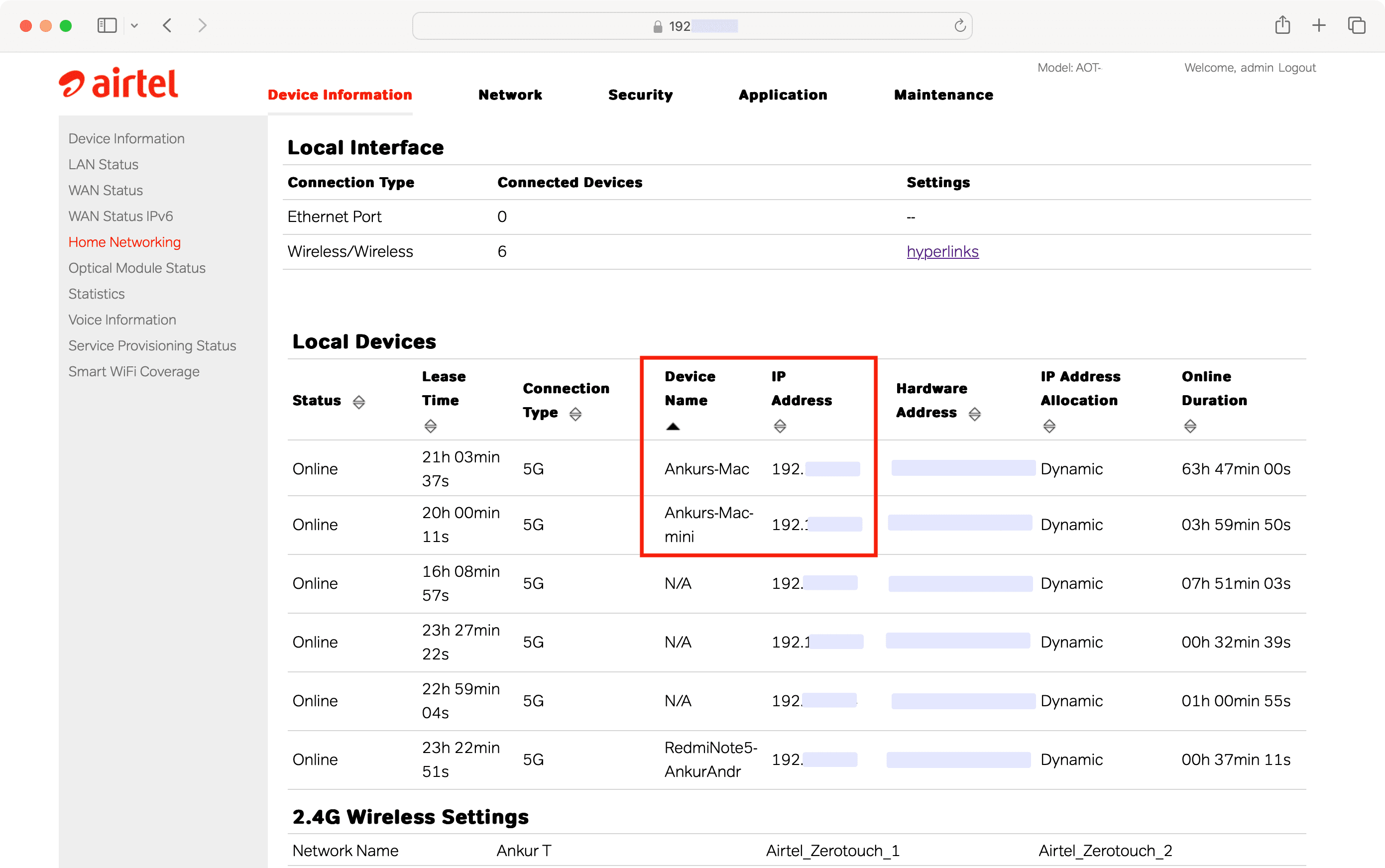
The above methods are the easiest ways to find your IP address. But if you’re curious to learn more, you can also find out the IP address of your Mac and other connected devices by accessing your router’s or internet provider’s (ISP) admin page.
Three ways to find your public IP address
Since your external IP address is considered “public,” there are a few ways to find it online. Just make sure you’re using the Mac you want the external IP address for.
1. Use Google for your IP address
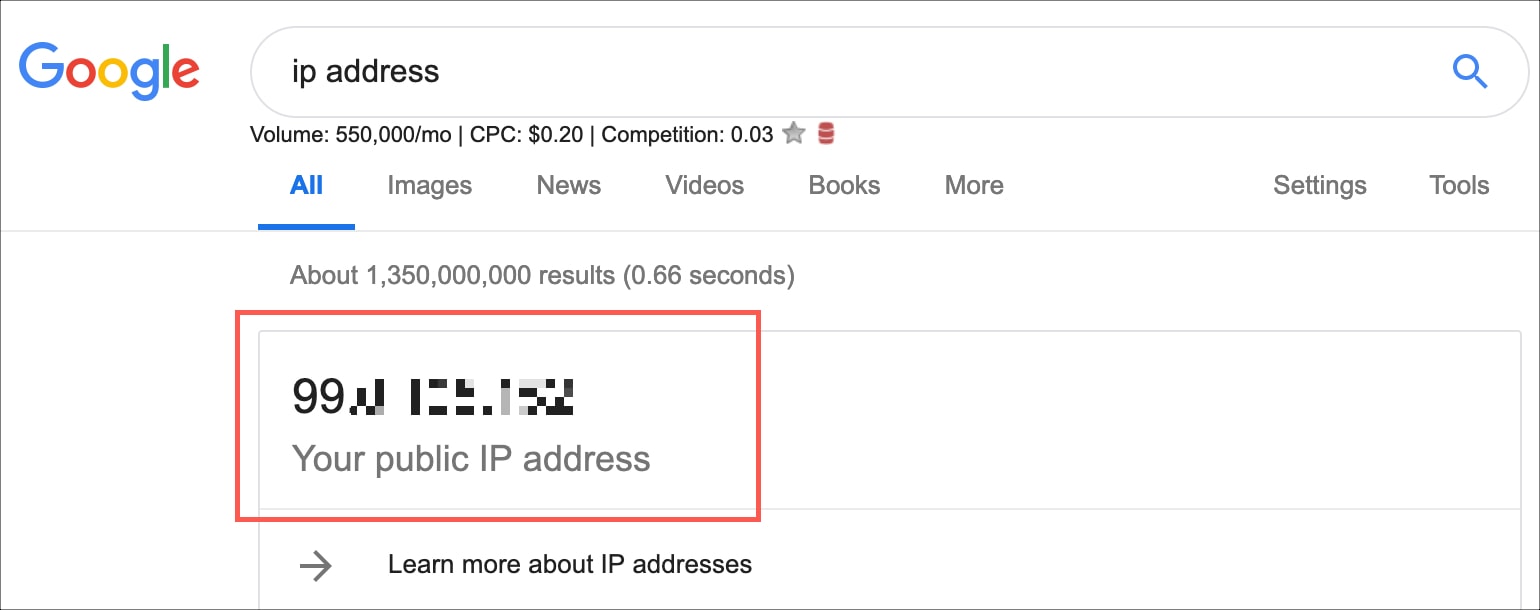
Head to Google and enter “IP address,” “What’s my IP address,” or something similar. You’ll see your external IP address displayed right at the top.
2. Use Terminal
Open Terminal, enter curl ifconfig.me and hit the enter / return key to see your public IP address.
3. Use What Is My IP Address?
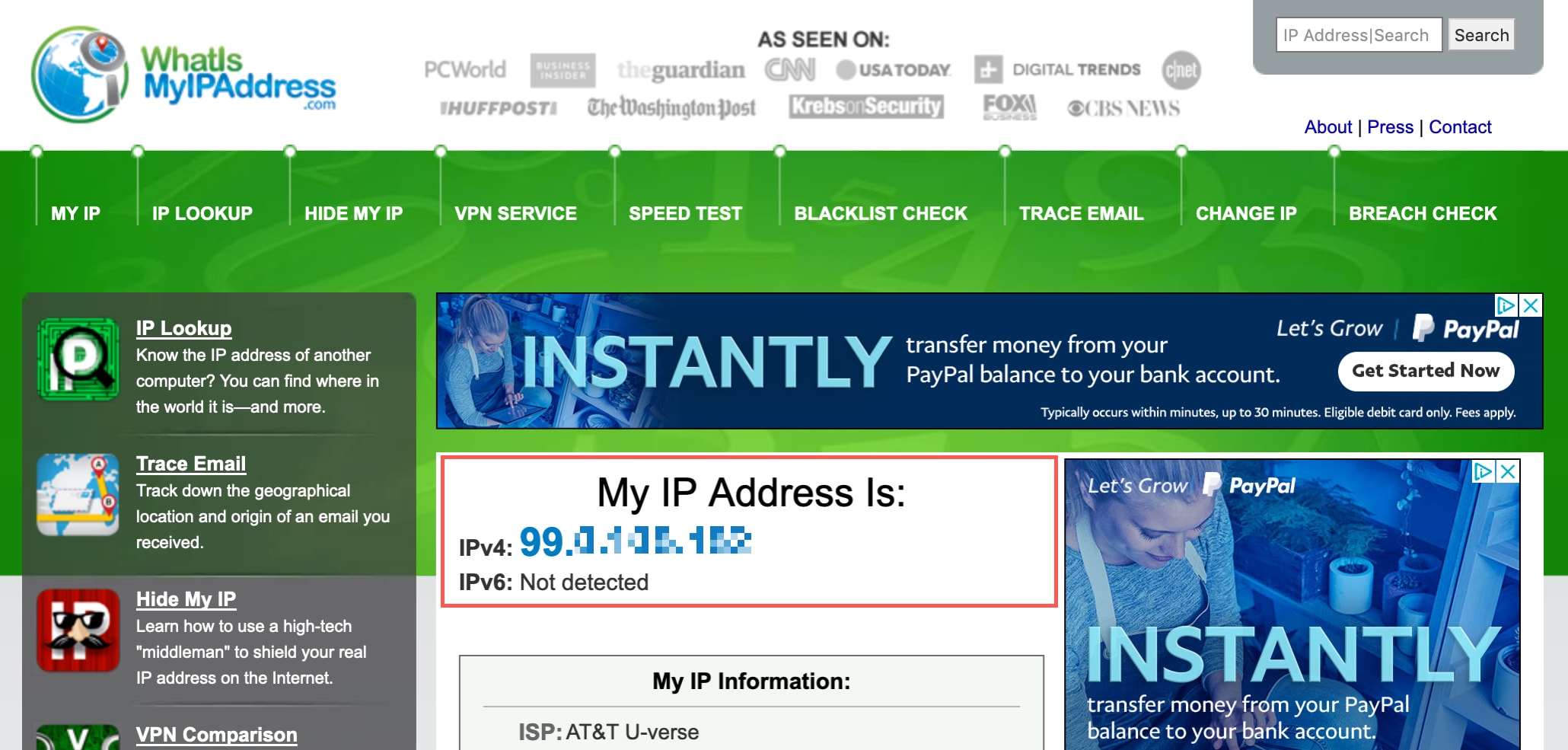
There is also a handy site that answers your question easily. Go to: https://whatismyipaddress.com, and your external IP address will be displayed there. A similar site you can visit is: https://www.whatsmyip.org.
See your IP address on your iPhone or iPad
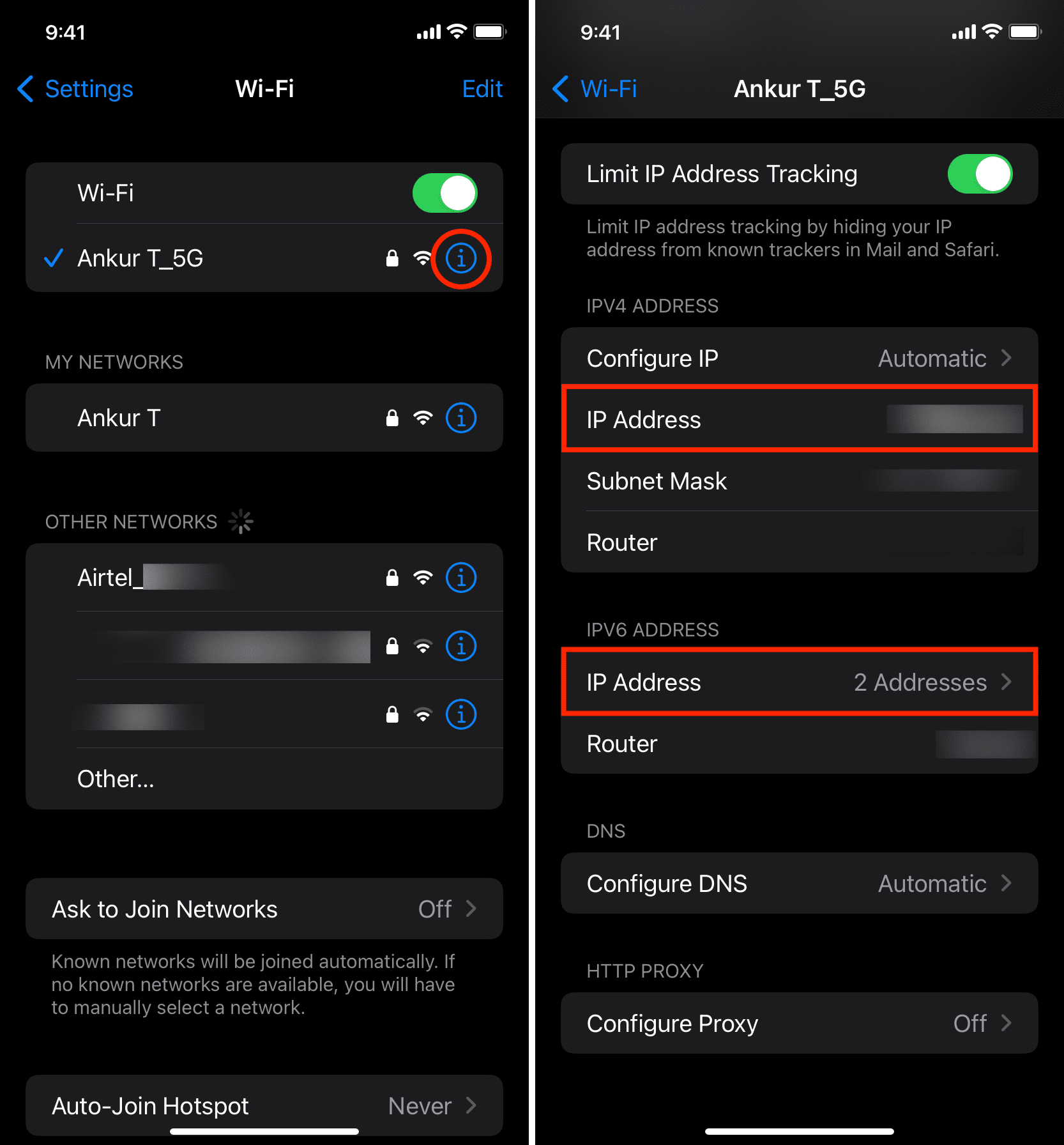
To see the external IP address, you can follow the Google or WhatIsMyIPAddress method explained above. To see your internal IP address, just use these steps.
- Open the Settings app on your iPhone or iPad and tap Wi-Fi.
- Tap the info button ⓘ next to the connected Wi-Fi network name.
- Scroll down, and you’ll see your IP Address under the IPV4 Address heading. If your device is using IPV6 Address, it will have multiple IP addresses that you can see by tapping the IP Address column.
As you can see, obtaining your internal and external IP addresses is easy. Be sure to share or bookmark this page for future reference.
Also, be sure to check out:
- Why and how to use a VPN on your iOS device or Mac (It can be used to hide your IP address)
- Why and how to use custom DNS settings on your iPhone, iPad, and Mac