Learn how to receive a notification on your Apple Watch when a specific Instagram account, such as a friend, publishes a story, reel, image, video, or other items.
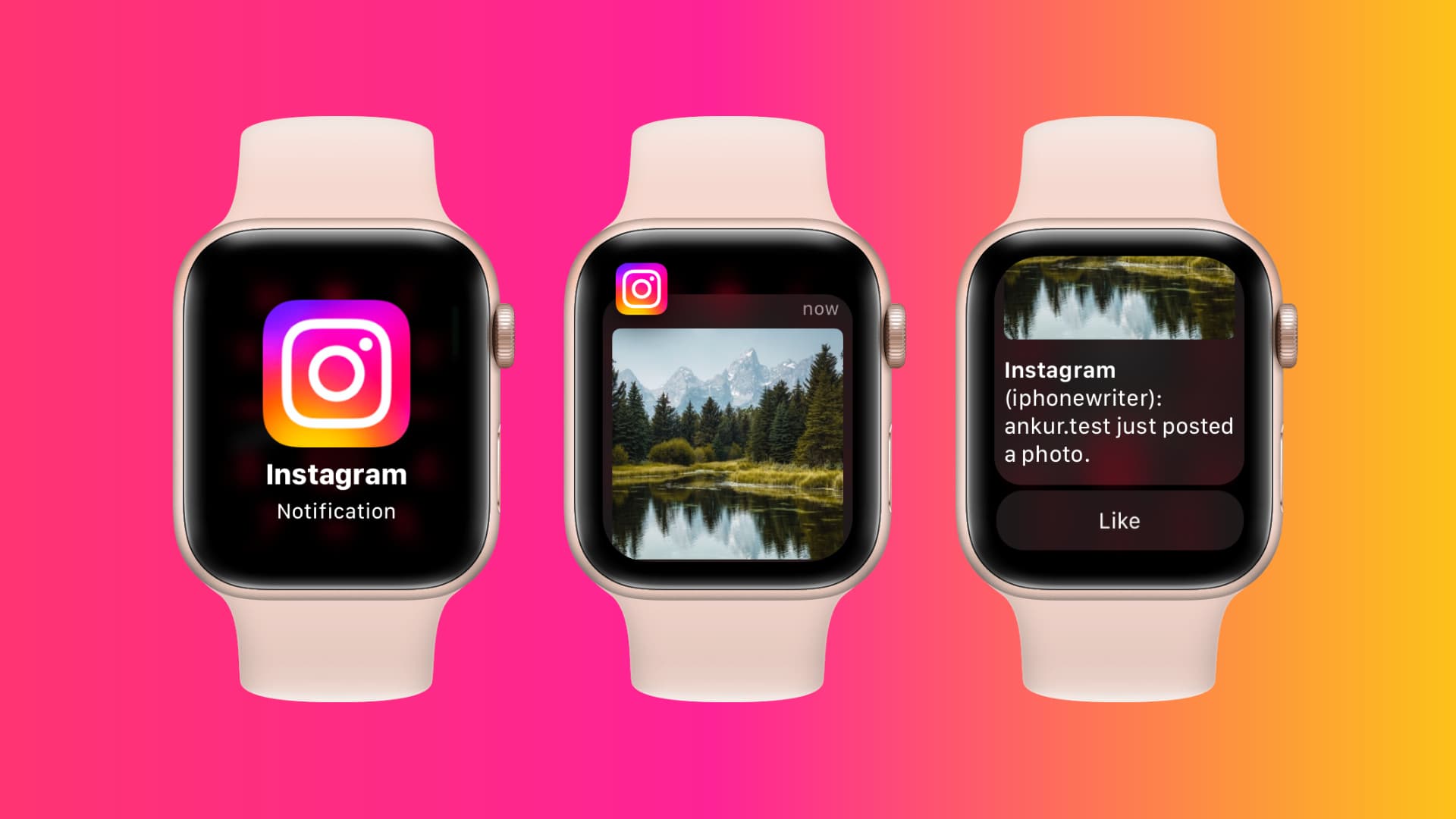
Countless photos and reels are shared on Instagram every day, so it’s natural that you’d want to tame notifications. But when that special friend (read: crush) posts something on Instagram, you’ll probably want to be notified immediately about it.
To receive an alert whenever a specific Instagram account posts something, set their notifications to appear on both your iPhone and Apple Watch in three steps:
- Step 1: Set Instagram to notify you about activity for a specific account.
- Step 2: Allow the Instagram app on your iPhone to send notifications.
- Step 3: Be sure your Apple Watch can receive Instagram notifications.
Step 1: Enable per-account Instagram notifications
- Open the Instagram app and go to a person’s profile page. Make sure you’re following them.
- Tap the bell icon in the top-right corner and turn on notifications for all or most relevant Posts, Stories, Reels, and Live Videos from this account as desired. If you select “All,” whenever this account posts content you choose here, you’ll be notified about it.

Step 2: Allow notifications in Instagram for iPhone
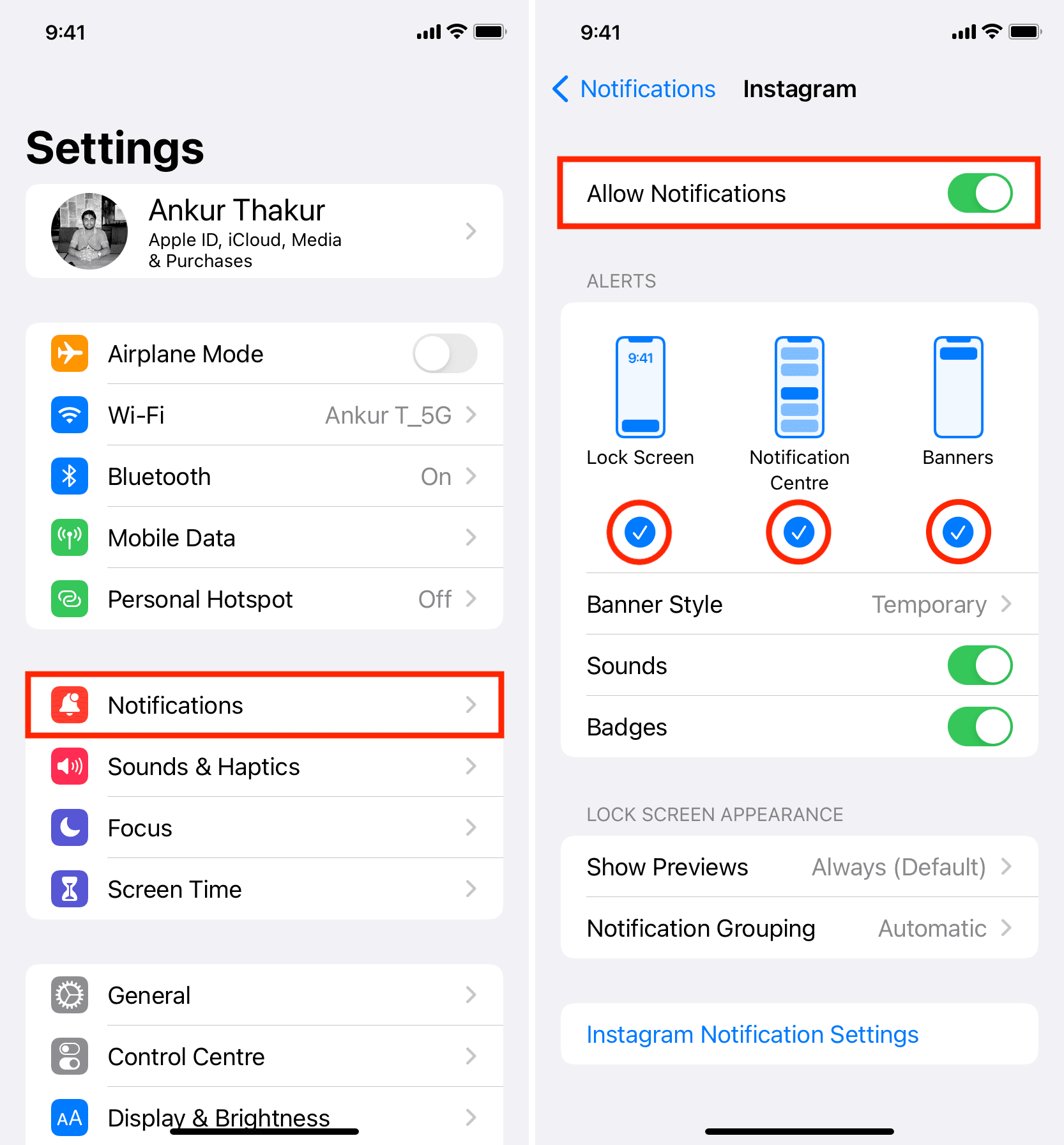
- Go to iPhone Settings > Notifications > Instagram and make sure the Allow Notifications switch is turned on.
- If so, also enable Lock Screen, Notification Center, and Banners options.
Step 3: Allow Instagram notifications on Apple Watch
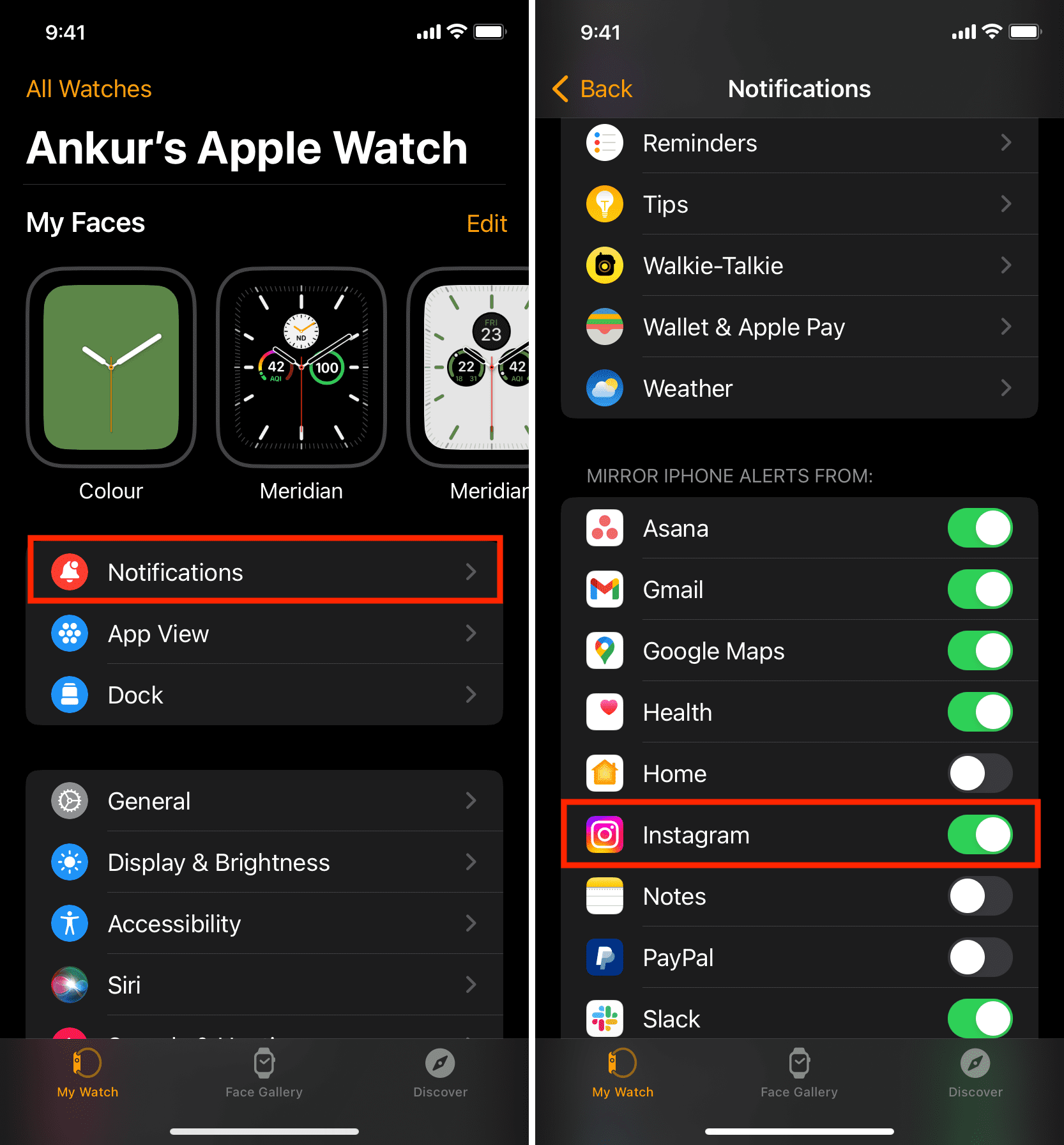
- Open the Watch app on your paired iPhone.
- Tap Notifications.
- Turn on the switch next to Instagram in the Mirror iPhone Alerts From section. You’ll now be notified on your iPhone and Apple Watch every time that particular account posts to Instagram.
If there’s no option to mirror Instagram notifications or they’re not delivered to your wrist on time, restart both your iPhone and Apple Watch and try again.
Like with other watch notifications mirrored from your iPhone, you’ll only receive Instagram notifications on your wrist when the phone is locked. And if your iPhone is using a Focus mode like Do Not Disturb that mutes notifications, you won’t be alerted on the wrist either.
Other Instagram tips: