In this tutorial, we’ll share all the basics you need to know to get started with app notifications on your Apple Watch. Among other things, these will ensure you can respond to alerts or dismiss them for later.
The basics
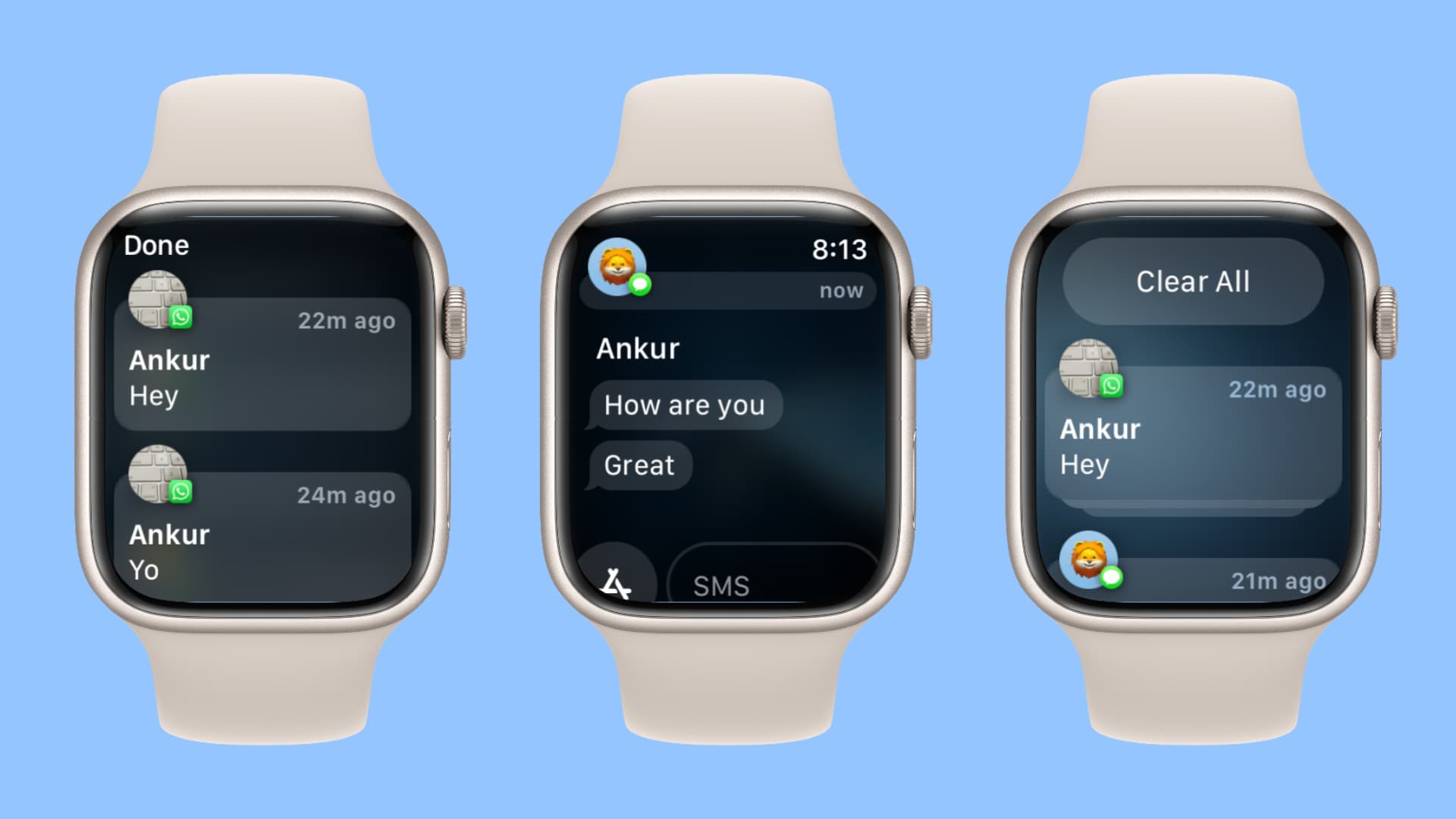
Notifications sent to the iPhone paired with your Apple Watch can be forwarded to your Apple Watch.
Your Apple Watch must be on your wrist, and your iPhone must be locked before any notifications are forwarded to the Apple Watch. Otherwise, the notifications will simply show up on the paired iPhone and not your watch.
An iPhone app does not need to have a watchOS counterpart in order to forward notifications to the Apple Watch. One of the best examples of this is the Gmail app. As of this post, it doesn’t have an Apple Watch app, but you can still receive Gmail app notifications on Apple Watch.
Go to Notification Center
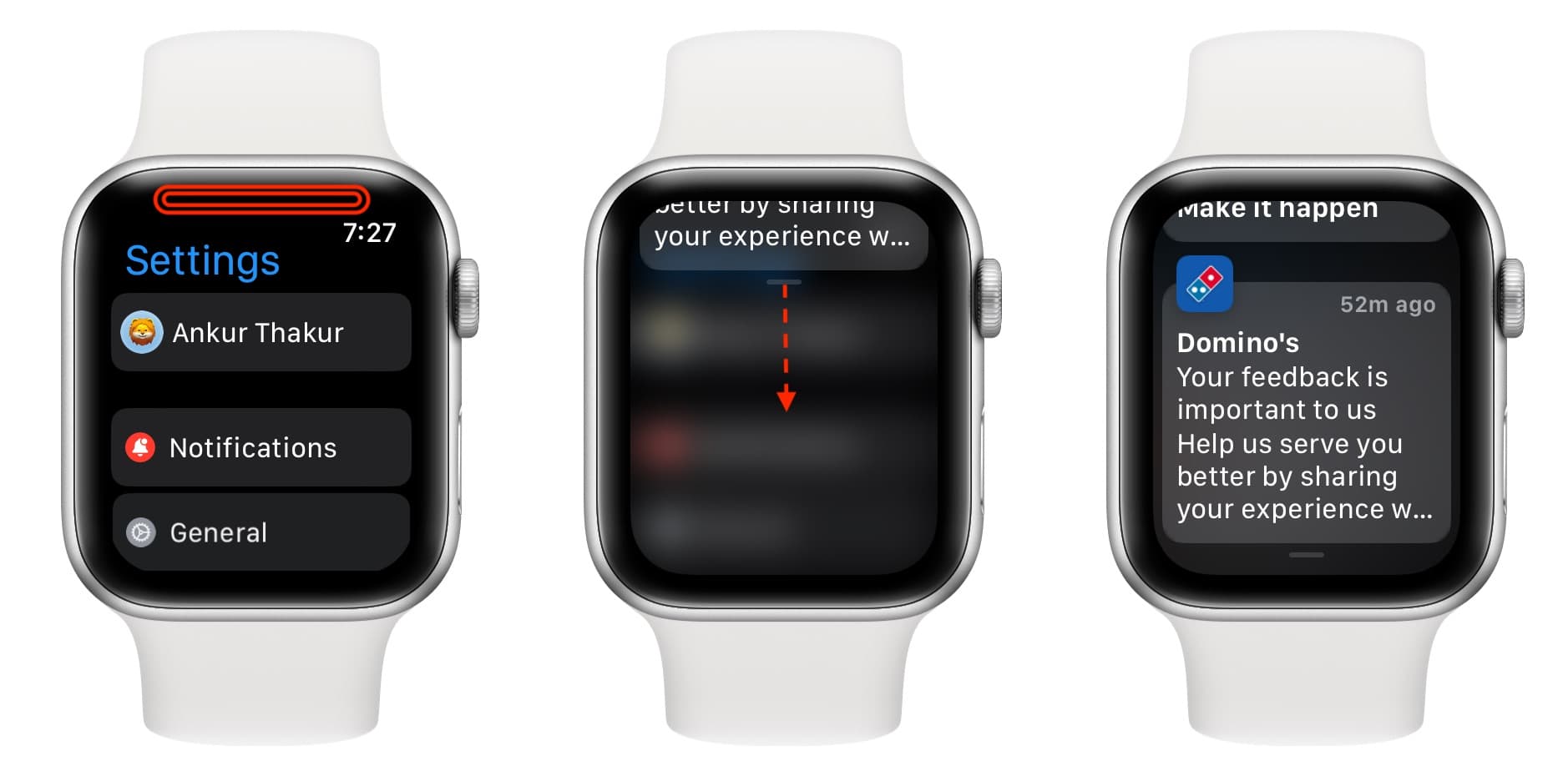
If you don’t respond to an incoming notification as it arrives, it will be stored in Notification Center. You can access watchOS Notification Center by swiping down from the top of the screen. If you’re inside an app, touch and hold at the top of the screen and then swipe down.
Respond to a notification
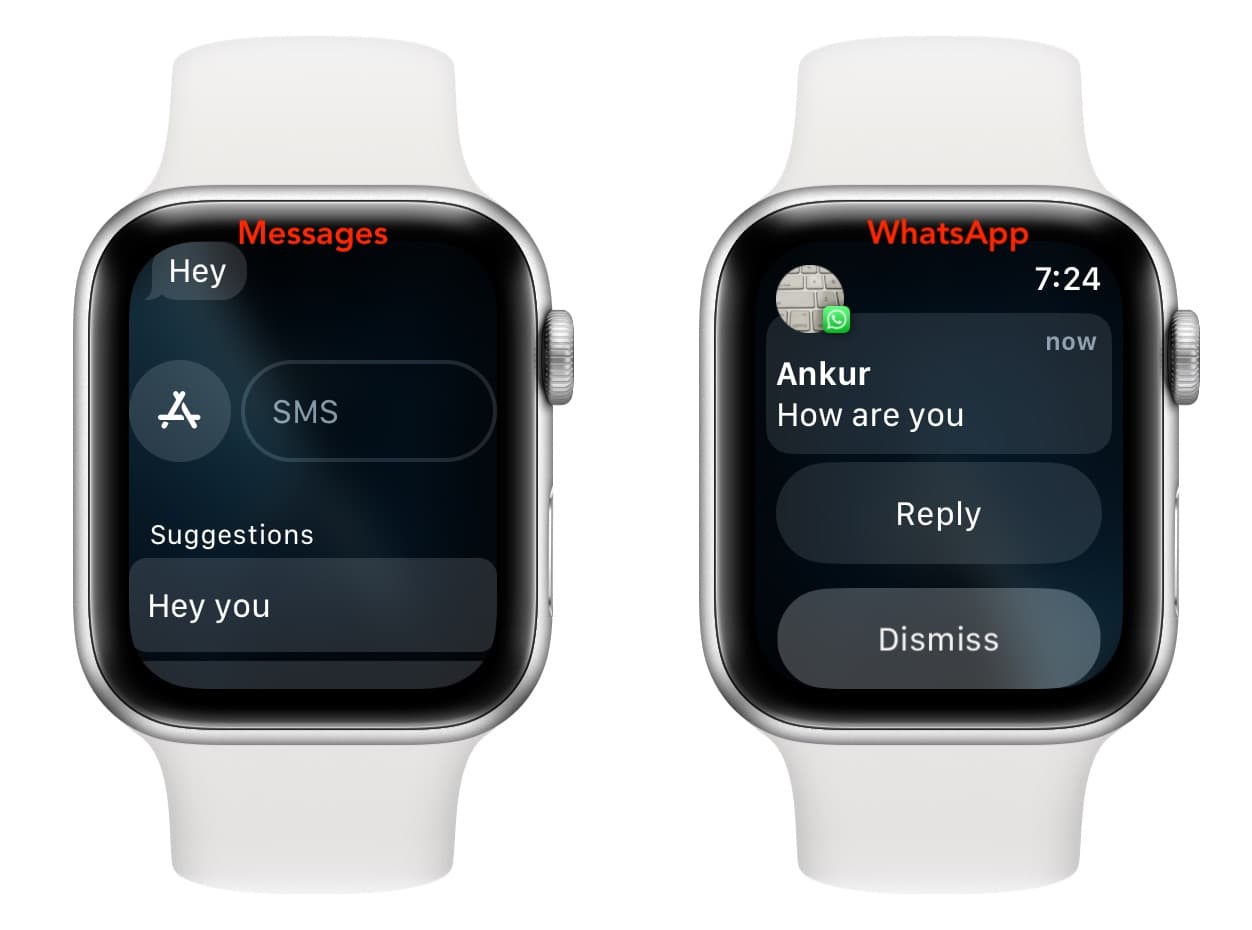
When you get a new notification from a texting app like Messages or WhatsApp, you can reply to it straight away.
If you don’t reply, the alert will stack up in the Apple Watch Notification Center. If you tap the notification, it will show options to reply or take appropriate action, depending on the app. Available actions may differ based on the app.
Dismiss a notification
New notifications should automatically go away from the screen if you don’t interact with them. These alerts will then appear in Notification Center. For chat-based alerts like WhatsApp that stay on the screen for longer, you can tap the Dismiss button or press the Digital Crown to remove it from the full screen.
If you tap Dismiss, the notification may not stay in Notification Center. However, if you press the Digital Crown, the notification should go to Notification Center.
Clear alerts from Notification Center
When you have pending notifications, you’ll see a red dot at the top of the watch face.
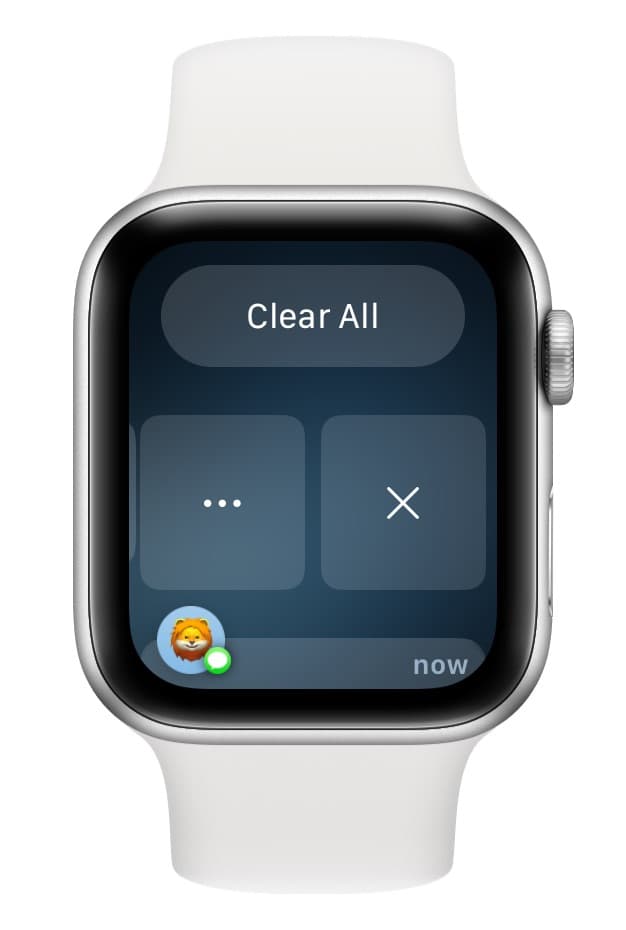
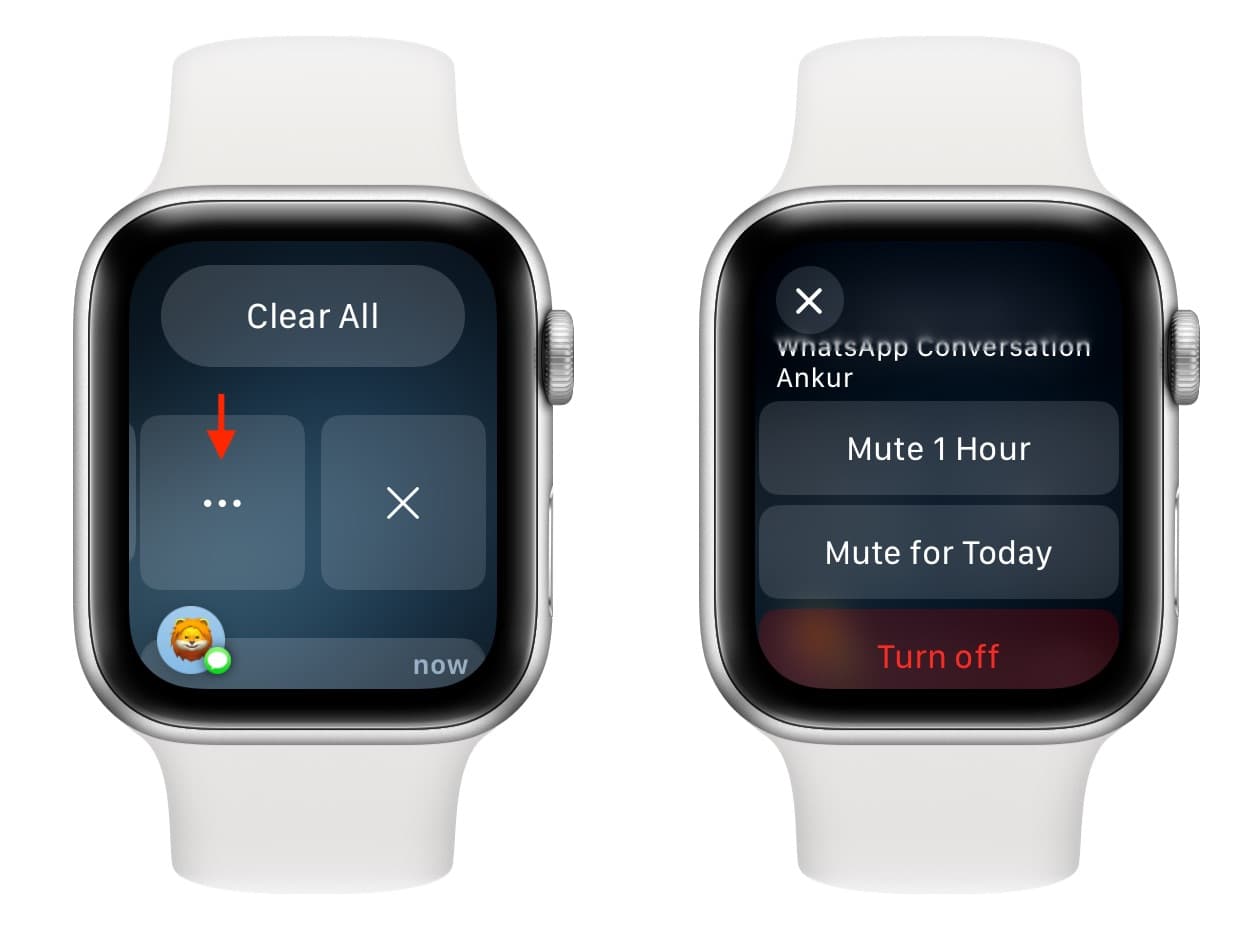
To dismiss a notification, swipe left on an alert and tap X. You can also tap Clear All or Clear to dismiss them all in one swoop.
Mute notifications from an app
If an app is sending you constant notifications, you can swipe left on one of its alerts in Notification Center and then tap the three dots icon, followed by mute or turn off.
Keep notifications private
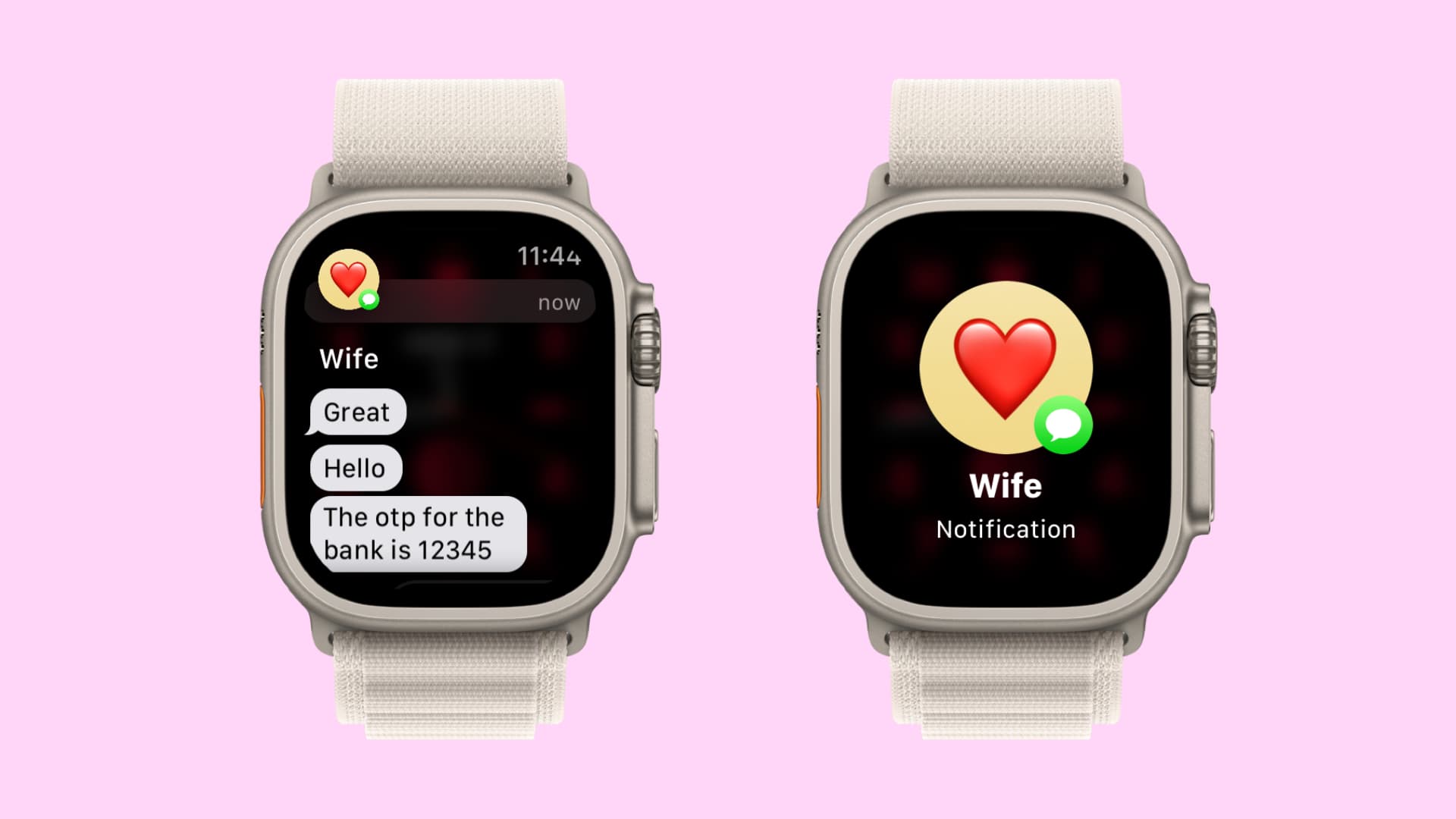
When you receive a notification and raise your wrist, you’re provided with a summary of the notification automatically. If you’d like to keep the contents of the notification private, go to the Watch app > Notifications and turn on Tap to Show Full Notifications. With Notification Privacy enabled, you won’t see a summary of the notification, with its potentially sensitive details hidden, until you tap the notification.
Decide which app notifications are sent to your Apple Watch
Getting too many alerts on the wrist can be disturbing. So, you can configure your preferences exactly and choose which iPhone and watch apps are allowed to send you notifications on your Apple Watch. You can manage this in the iPhone Watch app > Notifications.
Do you enjoy receiving notifications on your Apple Watch? To me, it’s one of the best features on the device if tuned correctly.
Check out next: How to set notifications to deliver quietly on iPhone