Learn how to track the real-time location of your spouse, kids, family members, and friends directly from your iPhone with the Share My Location feature.

Requirements
- The person whose location you want to track must use an iPhone and have an active internet connection. If they have an Android phone, see the Google Maps method mentioned in this guide instead.
- You must use an iPhone, iPad, or Mac with Apple’s Find My app.
Two ways to set this up
Option 1: Using iMessage: Use this method to track the locations of your friends, without having to add them to your Apple Family setup.
Option 2: Using Family Setup: While this method requires a bit longer setup than the iMessage method, it’s great for tracking your family members’ locations.
See a friend’s location by requesting their location in the Messages app
You can request a friend to share their location with you, or they can share it directly on their end, and we’ll guide you through both methods.
1) Launch the Messages app and open a conversation with a friend or start a new chat.
2) Tap the plus button (+) and select Location from the list of iMessage apps.

3) Tap the Request button and hit send.

4) Your friend must choose Share on the location card, select Indefinitely, and send their location.

5) Tap the Find My button in the location card received from your friend to see their live location.

Your friend can also share their location indefinitely by performing the following steps on their iPhone.
1) Launch the Messages app and compose a new message or open the existing iMessage conversation they’re having with you.
2) Tap the plus button and choose Location.
3) Touch the Share button, select Indefinitely, and send the location card.

Use Apple’s Family Setup to see the locations of family members at all times
Follow the steps below to monitor live locations of family members like your kid, spouse, and so forth.
Step 1: Add a person to your Family Sharing group
Follow the steps in this tutorial to add the person to your Apple digital family group. Move to step 2 if they are already added.
Step 2: Turn on permanent location sharing
With the Family Sharing group created, follow these steps on a family member’s iPhone or ask them to do so.
1) Open the Settings app and tap Family from the top.
2) Tap Location Sharing at the bottom.
3) Turn on the switch next to the name of the family member you’d like to share your location with.

Tip: When a family member shares their location with you, an alert will appear on your iPhone, iPad, or Mac asking if you’d also like to share yours. You can tap it and then choose Share Indefinitely.

See the location of your friend or family member
With everything set up, you can view the real-time location of friends and family members on a map by following these steps.
1) Open Apple’s Find My app on your iPhone, iPad, or Mac and go to the People tab.
2) Tap the name of the person whose location you want to view. You’ll see their whereabouts on a map, accompanied by the place name. You’ll also see Live, Now, 1 minute ago, or similar, so you know when this location was last updated.
3) If you hit Add in the Notifications tile, you’ll be notified when a person arrives at a particular location, leaves a location, or is not at a location.

Note: While the Find My web app at icloud.com/find lacks a People section, it will display family members’ devices that you can select to get their current location.
Unable to see a person’s location
You may not be able to see the most recent location if a person’s iPhone is:
- Out of the cellular network area and disconnected from a Wi-Fi network
- In Airplane mode
- Has Location Services turned off. To fix this, go to Settings > Privacy & Security > Location Services and make sure Location Services is on, then tap Share My Location and ensure the switch next to Share My Location is enabled.
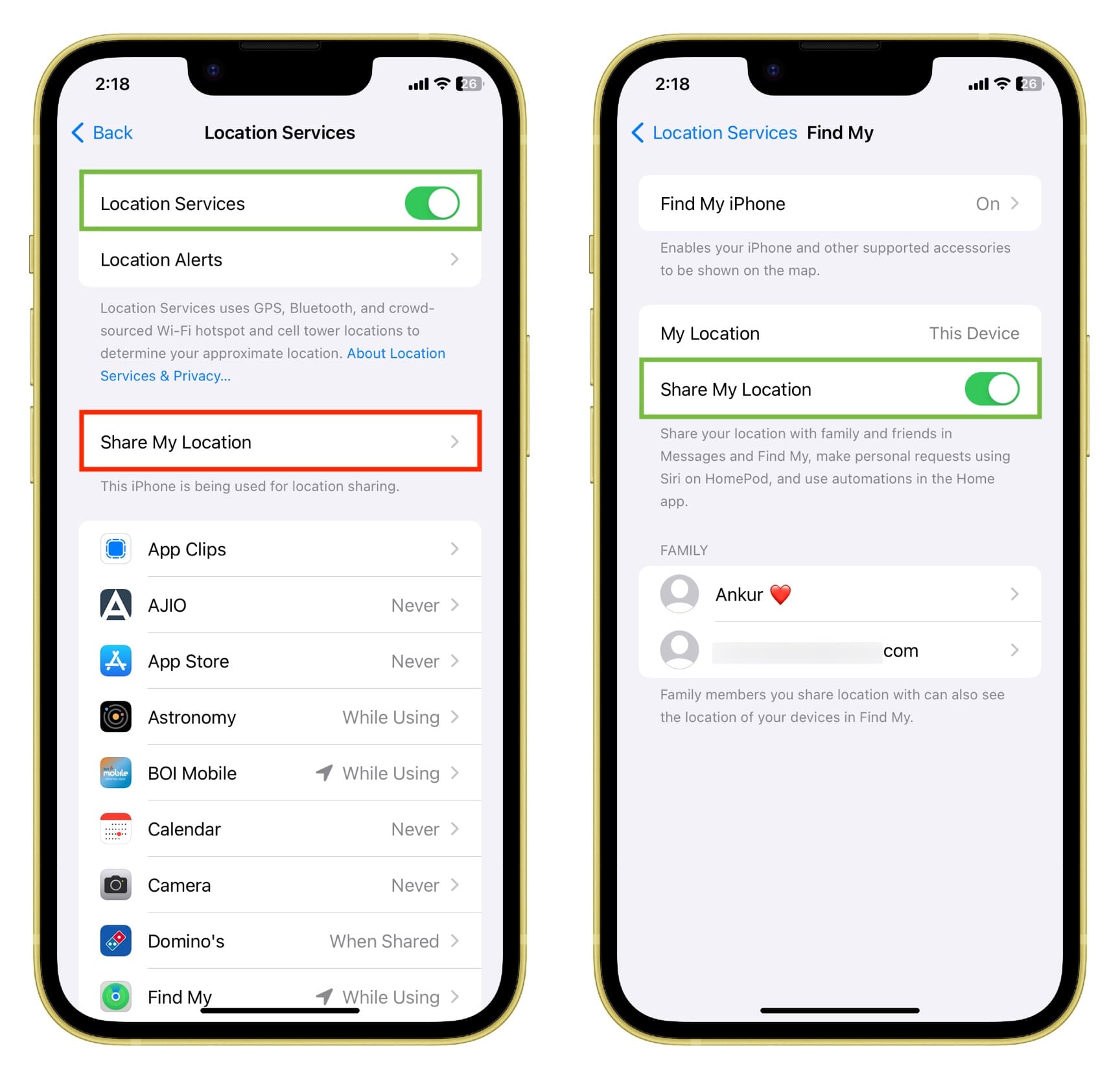
If Find My is experiencing a temporary outage, or the family member has stopped sharing their location, you won’t be able to track their whereabouts in Find My.
Stop sharing the location
Follow the steps below if you’d like to stop sharing your location and stop disclosing your whereabouts.
1) Open the Find My app, go to the People tab, and pick a person.
2) Scroll down and select Stop Sharing My Location.
Also, check out: