Learn how to delete duplicate events in the Apple Calendar app on your iPhone, iPad, and Mac for a clearer daily agenda without overlapping schedules.
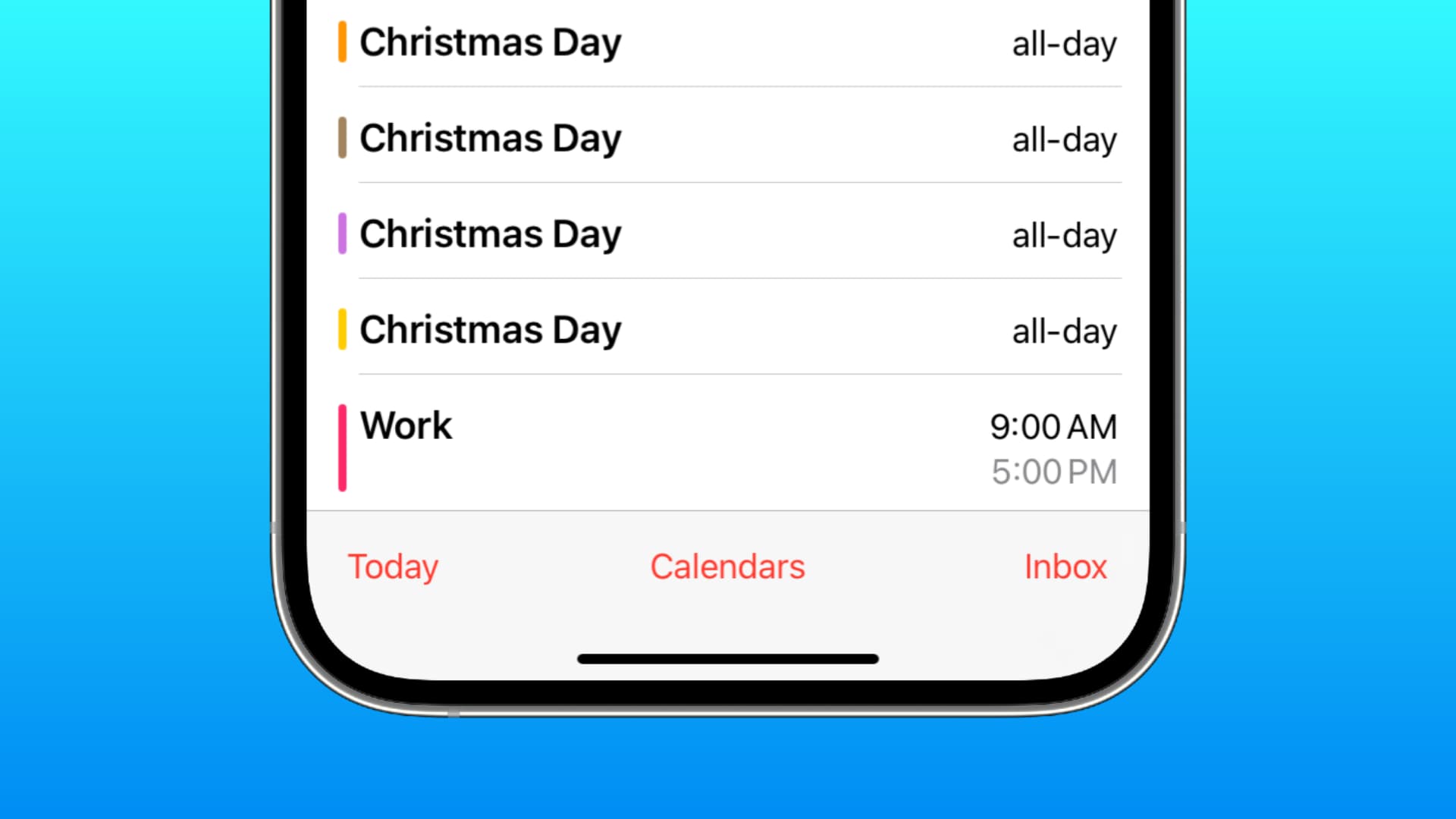
Calendar events sync across your Apple devices via iCloud. You can also subscribe to online calendars such as US Holidays or the FIFA World Cup to view them alongside your schedule. This can also result in duplicate entries for the same event. But don’t worry, we’ll show you nine different solutions to clean up duplicate calendar entries.
Manually remove duplicate calendar events
If you only have a few duplicate events in the Calendar app, you should probably spend a few minutes removing them manually. You cannot manually delete birthday events and those that came with subscribed calendars like US Holidays, but we’ll explain how to remove those later in this tutorial.
iPhone or iPad
- Go to the Calendar app and open a duplicate event.
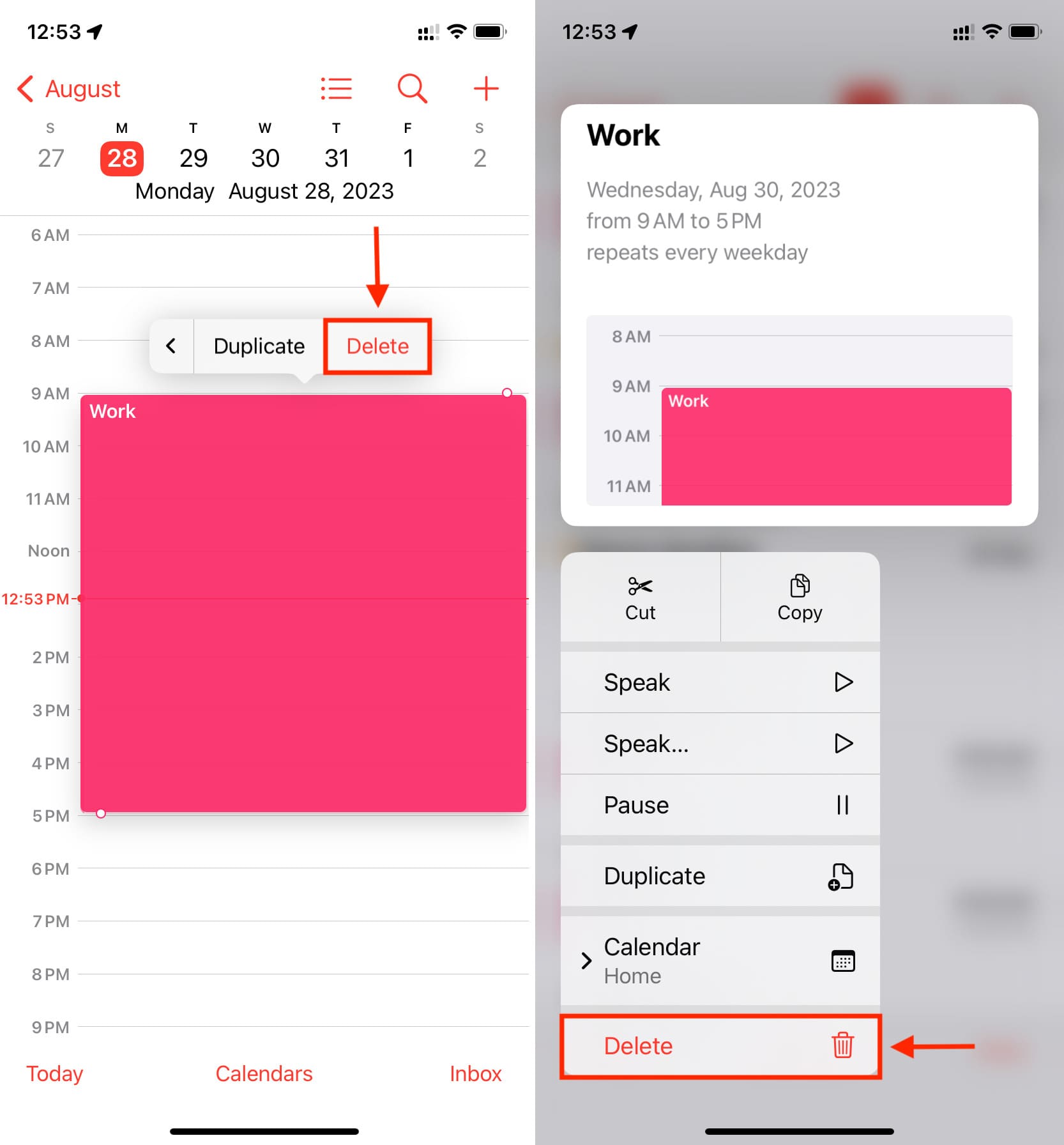
- Touch and hold the event and choose Delete from the menu. You can use the same gesture to delete events in list view.
- Repeat the above steps to remove other duplicates.
Mac
- Launch the built-in Calendar app and open a duplicate event.
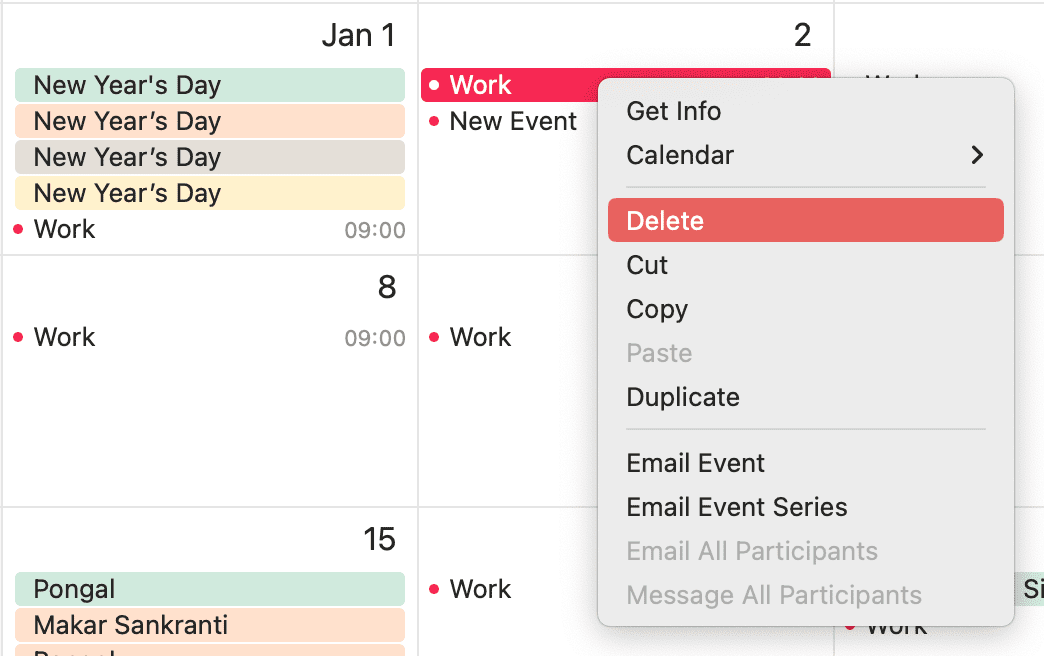
- Control-click the event and choose Delete from the menu.
- Repeat the above steps to remove other duplicates.
Unsubscribe from subscribed calendars
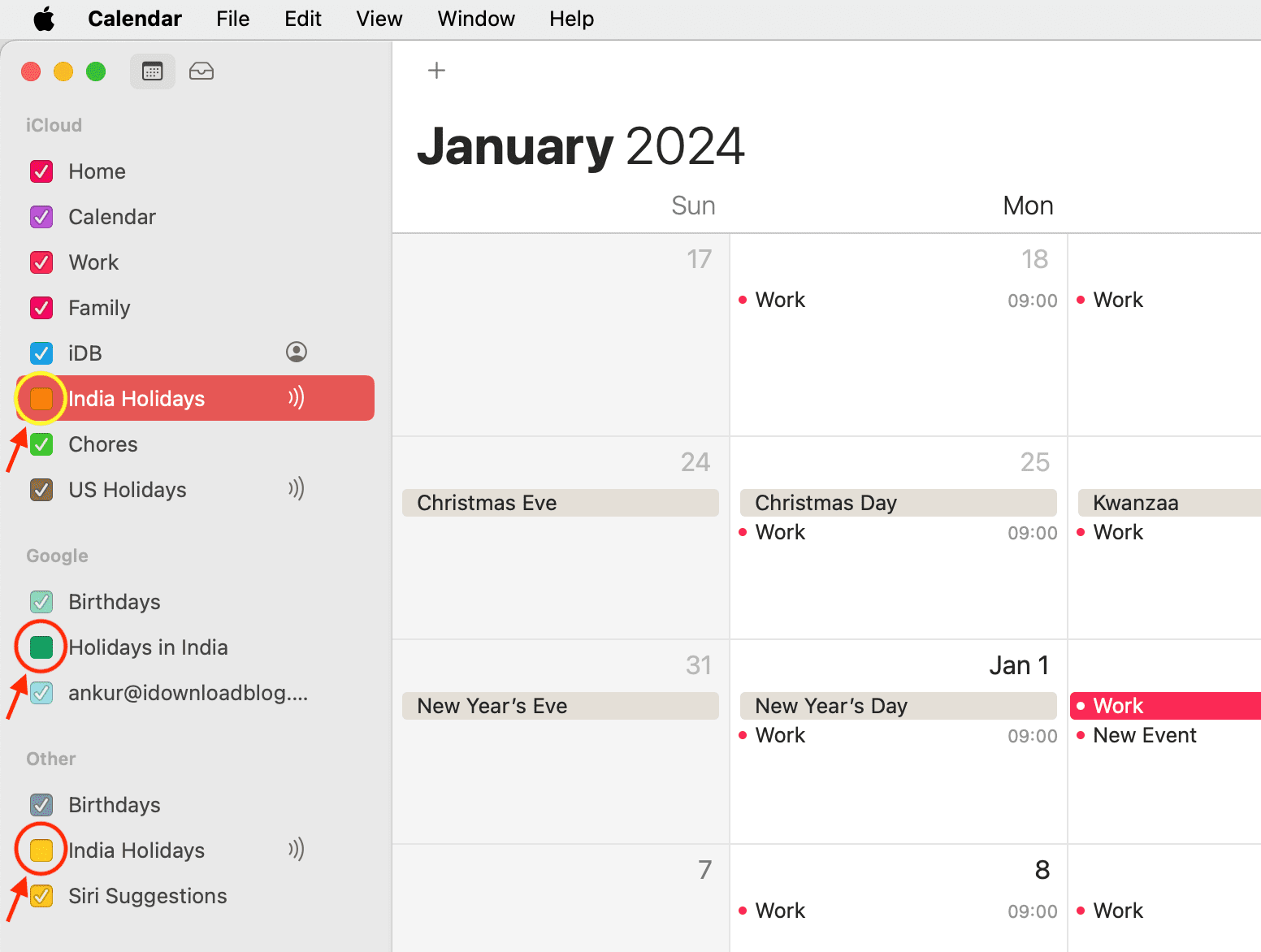
Subscribing to too many online calendars can populate the Calendar app with duplicate events. I’m subscribed to two Apple Calendars — US Holidays and India Holidays. But I’ve also accidentally subscribed to Holidays in India by Google and the India Holidays calendar, which resulted in four events for Independence Day and New Year each.
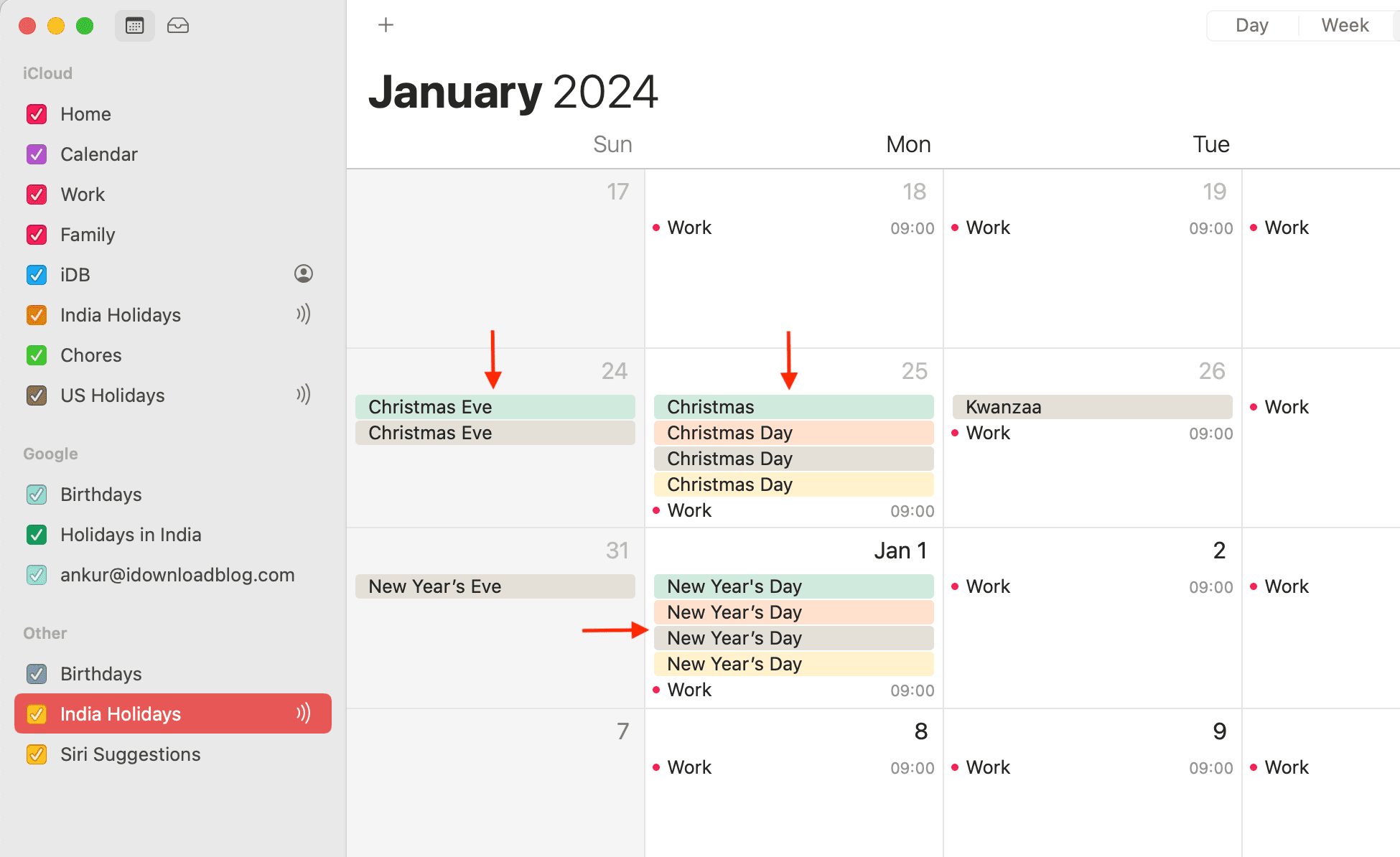
If you also have duplicate entries in your calendar for major holidays, festivals, and some such, hiding their calendars will remove duplicate entries from the Calendar app.
iPhone and iPad
- Open the Calendar app and tap the calendar icon or Calendars.
- Untick any extra calendars, then tap Done if you see it.
- Return to your calendar and any duplicate events should be gone.
- To unsubscribe from the online calendar, tap the info icon ⓘ next to the subscribed calendar and choose Unsubscribe. For personal calendars, choose Delete Calendar instead.

Mac
- Open the Calendar app and click the tiny calendar icon next to the green maximize button in the window’s top-left corner to reveal the sidebar. Alternatively, click View > Show Calendar List in the menu.
- Untick any calendars you don’t need to remove their events. To unsubscribe from an online calendar, Control-click a calendar and select Unsubscribe. To remove a local calendar, choose Delete instead. You can export a calendar for safekeeping by clicking File > Export in the menu.
Make sure you’re connected to the internet and wait
If a calendar event removed from one device won’t disappear from your other devices, be sure the device is connected to a stable network connection via Wi-Fi, Ethernet, or cellular data. Then, launch the Calendar app and wait for the changes to sync with iCloud.
Restart or update your device
Temporary glitches in the operating system may also lead to duplicate calendar events or prevent their removal. Turning off your iPhone, iPad, or Mac and turning it back on after 30 seconds or so may fix the problem. If your device is on an older iOS, iPadOS, or macOS version, check for updates.
Refresh your calendar
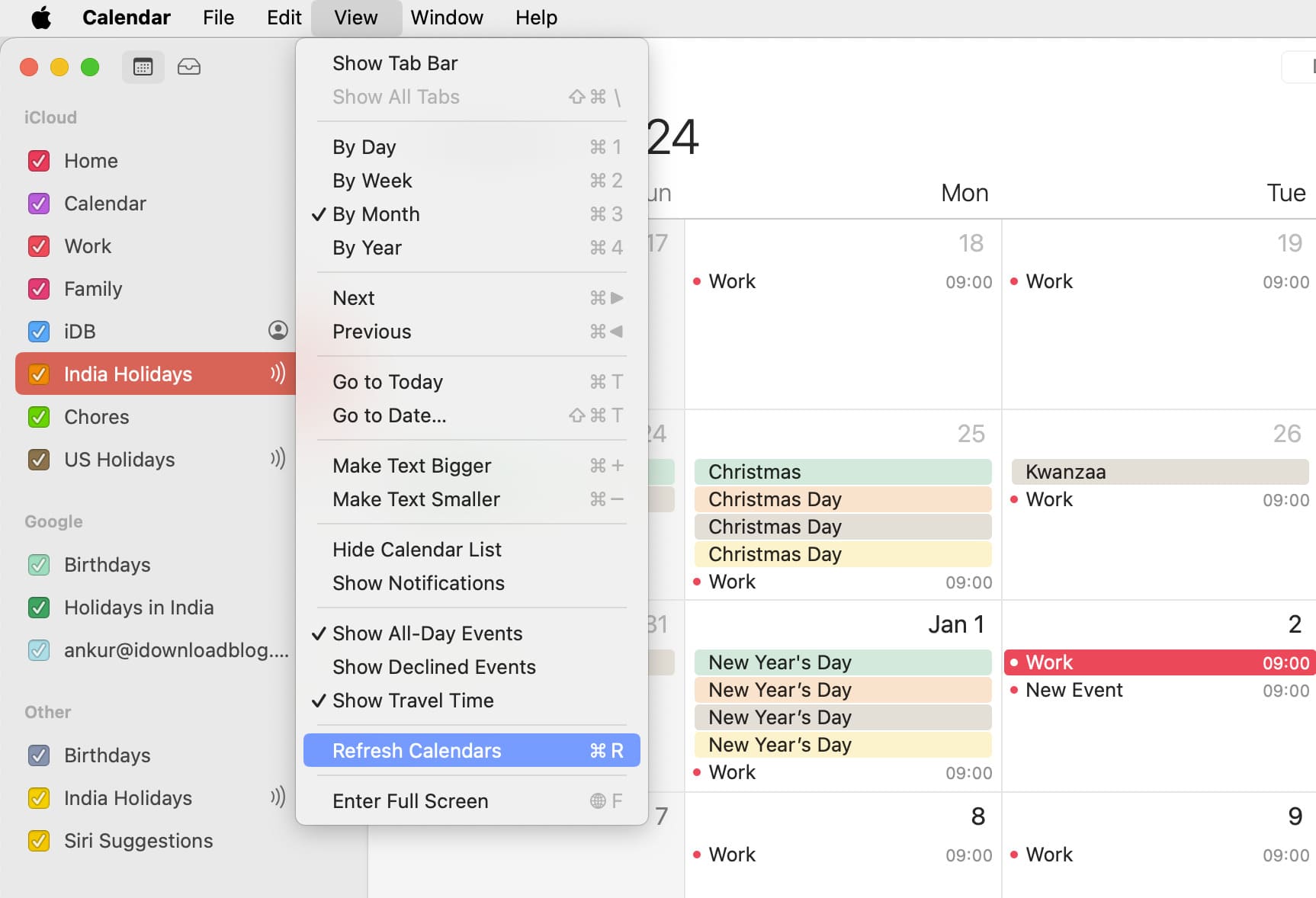
Follow these steps on your Mac if you continue to see duplicate calendar events:
- Open the Calendar app.
- Click View > Refresh Calendars in the top menu bar or press the Command + R keys.
Delete duplicate contacts to remove multiple birthday events
You may see duplicate birthday events for two reasons:
- You have duplicate entries for a person in the Contacts app, each with a birthday. You can fix this by clearing duplicate contacts from your iPhone and Mac.
- If you’ve added a calendar event for someone’s birthday, but you’ve also set their birthday in the Contacts app, you’ll end up with two birthday entries in the Calendar app. You can manually delete the birthday event from your calendar or follow the steps above to hide all birthdays from appearing as calendar events.
Related: How to keep track of birthdays on iPhone, iPad, and Mac
Unsync desktop calendar events from iPhone
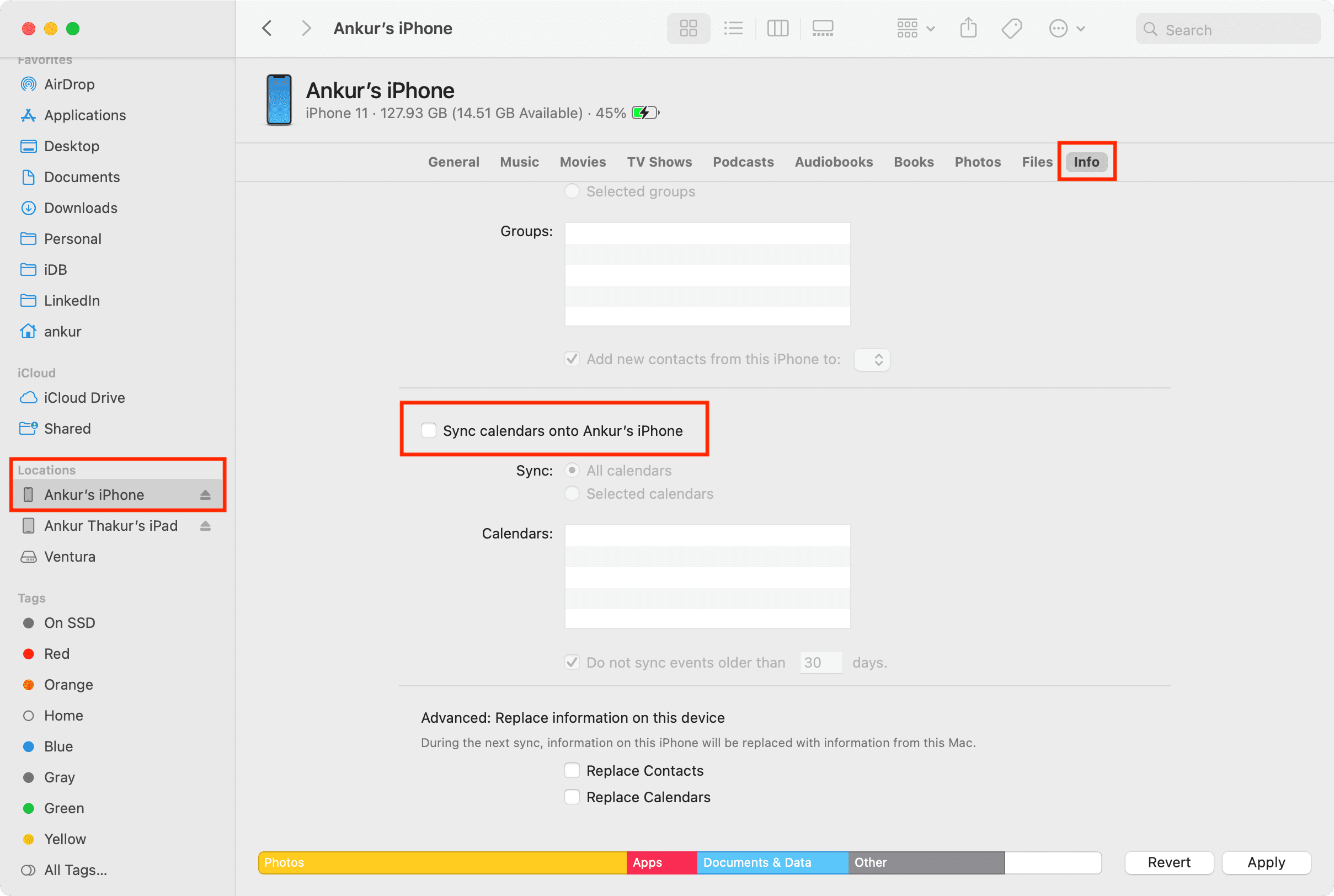
You’ll end up with duplicate events if you’ve synced them from multiple sources, like your phone and computer. Follow these steps to unsync iPhone calendar events from your Mac.
- Connect your iPhone or iPad to your Mac using a cable.
- Open a new Finder window and click your device under the Locations heading in the sidebar,
- Click the Info tab.
- Untick “Sync calendars onto iPhone,” then click Sync or Apply.
Toggle your iCloud calendar
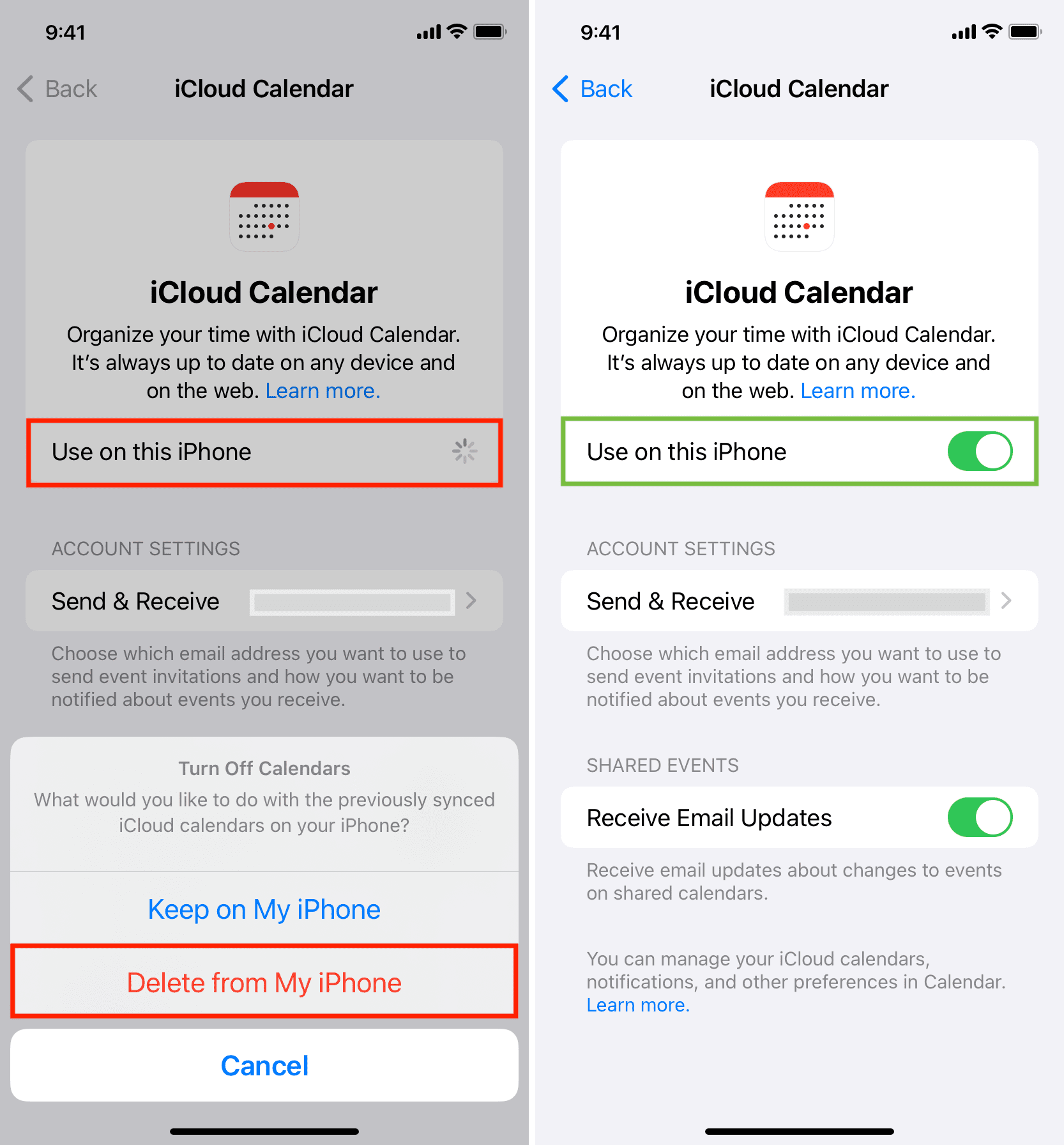
If you’ve deleted duplicate calendar events on one device but the changes won’t sync to your other devices, turning iCloud Calendar off and back on may help.
iPhone and iPad
- Open Settings and tap your Apple account at the top.
- Navigate to iCloud > See All > iCloud Calendar.
- Turn off ‘Use on this iPhone’ and select ‘Delete from My iPhone.’
- Restart your phone.
- Follow steps 1 and 2, but now turn on the ‘Use on this iPhone’ switch.
- Open the Calendar app and wait a few moments until all iCloud events have synced with the Calendar app, removing any already-deleted duplicates.
Mac
- Launch System Settings and click your Apple Account at the top.
- Go to iCloud and click See All.
- Turn off the switch for iCloud Calendars and click Done.
- Restart your Mac.
- Follow the above steps, but turn iCloud Calendars back on.
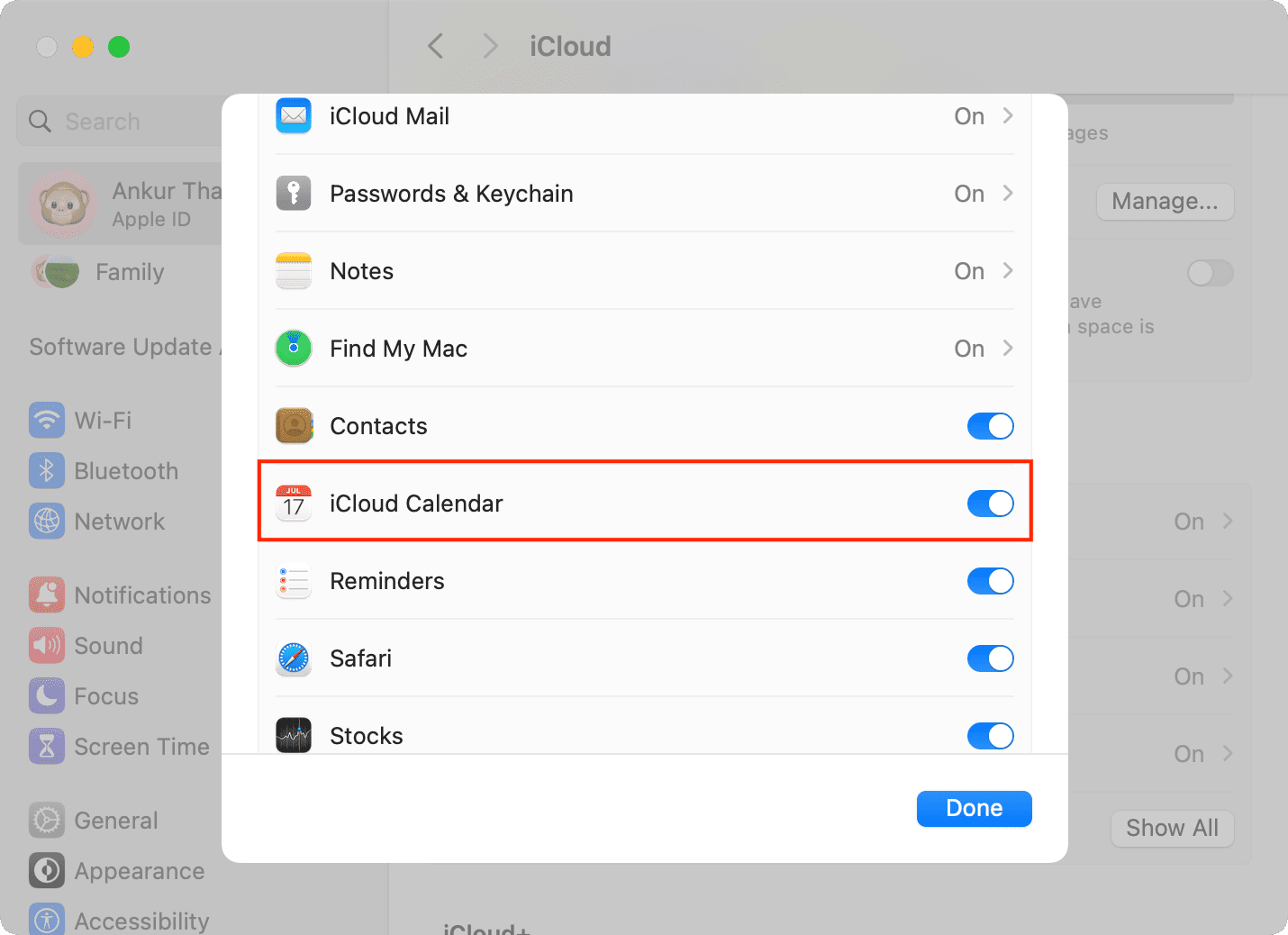
Those who use Google, Outlook, or another calendar provider must go to Settings > Apps > Calendar > Calendar Accounts, select an account, and turn off the switch next to Calendars and then back on. On your Mac, go to System Settings > Internet Accounts, then click an account and turn off the switch for Calendars, then turn it back on.
Sign out of iCloud and sign back in
Signing out of iCloud and signing back in sometimes helps remove any duplicates from the Calendar app.
Bonus: Turn off the second alert for a calendar event
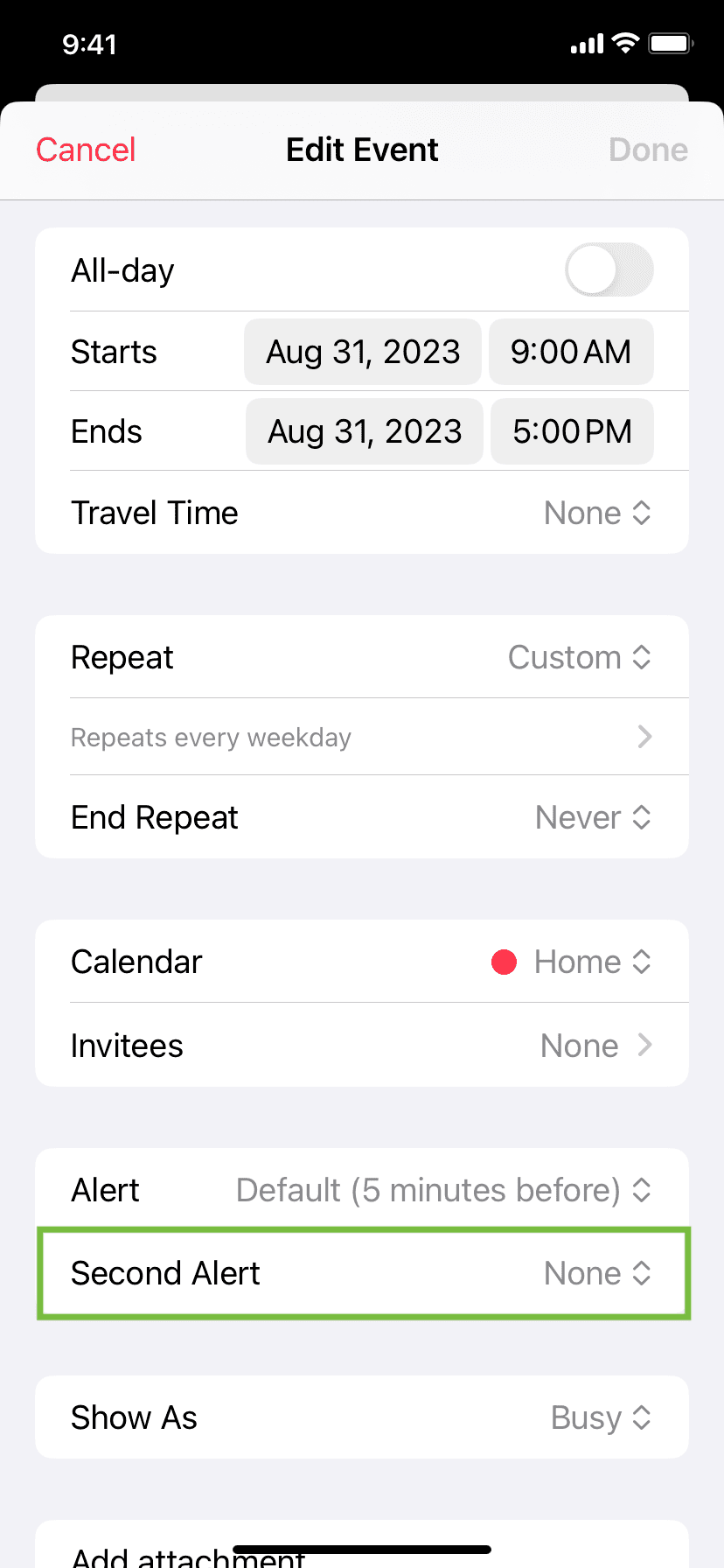
Two notifications for the same calendar event? Maybe you’ve created two alerts for that event. Going forward, be sure to leave the second alert field set to None when creating a new calendar event on your iPhone or iPad.
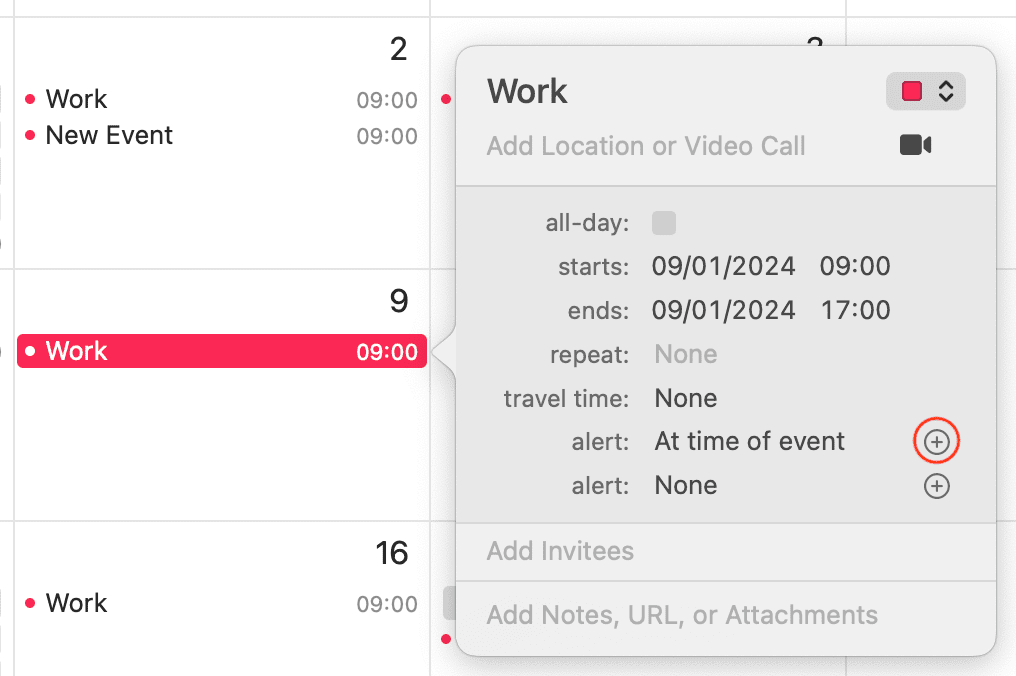
On a Mac, avoid clicking the plus button (+) next to the first alert, or you’ll create a second alert.
Also, check out: How to see your calendar events from the Lock Screen or Today View on your iPhone and iPad